See the following for what was new and what changed in previous versions of VisionPro:
- VisionPro 9.2
- VisionPro 9.1 SR1 CR2
- VisionPro 9.1 SR1 CR1
- VisionPro 9.1 SR1
- VisionPro 9.0
- VisionPro 8.4
- VisionPro 8.3
- VisionPro 8.2 SR1
- VisionPro 8.1
- VisionPro 8.0
- VisionPro 7.2
- VisionPro 7.1
- VisionPro 7.0 SR1
- VisionPro 7.0
- VisionPro 6.2
- VisionPro 6.1
- VisionPro 6.0
- VisionPro 5.2 CR1
- VisionPro 5.2 SR1
- VisionPro 5.2
- VisionPro 5.1
- VisionPro 5.0
- VisionPro 4.4
- VisionPro 4.3 SR1
- VisionPro 4.3
- VisionPro 4.2
- VisionPro 4.1 SR1
- VisionPro 4.1
- VisionPro 4.0.2
- VisionPro 4.0.1
- VisionPro 4.0
- SurfaceFX Tool
- Image-Processing Operator Enhancements
- Pixel Set Operator
- New Feature Extraction Modes for Checkerboard Calibration
- CAD Import Tool and CADToRange API
- CFG-8714e Frame Grabber
- Enhancements to the LineMax Tool
- New Cognex Communication Card Firmware
- Updates to VisionPro Security
This release adds the SurfaceFX tool, which accepts multiple images of the same scene using different illumination and generates an image that enhances features that might be difficult to detect in any one of the original images.
Be aware your vision application can allow a SurfaceFX tool to compensate for the movement of an object between successive input images, but the SurfaceFX tool cannot compensate for any change in rotation or scale. See the topic Using a SurfaceFX Tool for more information.
The SurfaceFX tool requires the new license VxSurfaceFX to function. See the topic Using VisionPro Security Keys for all the licenses required by the VisionPro tools.
This release adds the following support to the Gaussian Sampling image-processing operator:
- Adds the ability to process CogImage16Grey images.
- Adds the ability to impose an image mask over the input image while the operator executes.
In addition, this release adds intermediate image masking, additional step that provides more flexibility in controlling the output of computed pixel values versus input pixel values. The following image-processing operators support intermediate image masking:
See the topic Image Processing with Image Masks for details on how the IPOneImage tool support image masking.
This release adds support for the Pixel Set operator for processing a single image. Use a Pixel Set operator to selectively copy some input image pixels to an output image while setting other output image pixels to a uniform value. Applications that use a Pixel Set operator can use an input region or an image mask to define which pixels you want to copy and which you want to set between the input image and the output image.
See the topic Setting Pixels to Defined Values for more information on the Pixel Set operator.
This release adds support for new feature extraction modes when you use a Checkerboard Calibration tool to locate the grid points of a checkerboard calibration plate. Choose CheckerboardEfficient mode for calibration plates with or without a fiducial mark or CheckerboardEfficientMultiRegion mode for calibration plates with DataMatrix fiducial marks.
In general, these new efficient modes will execute faster than the existing exhaustive modes, with some exceptions and limitations. See the section Checkerboard Calibration Plates for details.
This release adds support for converting computer-aided design (CAD) files into 3D range images for use in your 3D vision application.
The CAD Import Tool, available from the Cognex->VisionPro->Utilities menu, provides a graphical user interface for selecting a CAD file and choosing an orientation to use as the basis of a 3D range image. The utility creates a Cognex database (*.cdb) file for use in any VisionPro application. The utility supports its own documentation from the Help menu.
Use the CogCADToRange class to programatically open a CAD file and render the shape into a 3D range image from a user-specified point of view. The API can be used within a .NET application as well as a scripting CogToolBlock in QuickBuild, and generates a CogCADToRangeResult object containing the 3D range image and other data about the rendering process. See the topic Converting CAD Files into 3D Range Images for more information.
Both the CAD Import Tool and the CogCADToRange class support the STEP and IGES CAD formats, and both require the Vx3DCad license. See the topic Using VisionPro Security Keys for all the licenses required by the VisionPro tools.
Note: The CAD Import tool requires the license VProCADImport. Be aware, however, that upgrading your license for the CAD Import tool requires a new security key and cannot be done in the field. Contact your Cognex sales representative for more information.
This release adds support for the CFG-8174e frame grabber, which allows you to connect up to four Gige Vision cameras to a single PC. In addition, multiple CFG-8714e frame grabbers can be used in a single PC. Cognex offers the CFG-8714e as a direct replacement for the CFG-8074e, which will not be available after December of 2017.
See the CFG-817e Hardware Manual, available from the Windows Start menu, for hardware specifications and installation instructions.
This release updates the edge point detection phase where the LineMax tool extracts edge point candidates for the features you want to detect. You might notice newly detected or suppressed edge points. While Cognex expects the found line results to remain the same for most vision applications, it might be the case where you need to adjust your values for contrast threshold or normalized contrast threshold to obtain the same edge point detection and line finding results as previous VisionPro releases.
See the topic Using a LineMax Tool for details on using a LineMax tool.
This release includes new firmware for the Cognex Communication Card, which allows communication between a VisionPro application and a variety of factory floor equipment. The firmware upgrade resolves a known issue that prevents a Cognex Communication Card from being used with a Kukka robot.
Installing this release does not automatically upgrade the firmware, but your installation does include a firmware update utility. See the topic Upgrading the Firmware for more information.
This release updates the Cognex Security Service that VisionPro uses to verify your software is properly licensed. See the topic Using VisionPro Security Keys for more information about the Cognex Security Service.
Be aware that some anti-virus software products are known to conflict with the Cognex Security Service, and might generate entries in your Windows Event Viewer concering license violations and application errors. Cognex recommends you add the Cognex Security Service executable (cogs_srv.exe) to your application whitelist. Consult your Windows OS documentation for details.
This release supports Cognex 3DExpress to configure one or more area scan cameras for use in 3D displacement applications.
Acquiring 3D images using 3DExpress requires you to use the 3DExpress interface to configure an Acquisition Integration Kit (AIK) server. Once configured, the server attaches to a VisionPro AIK client to accept the incoming 3D images. Your VisionPro application can acquire images from the server as if it were a supported camera. Both VisionPro and 3DExpress execute as part of your vision solution.
Be aware Cognex 3DExpress supports a limited set of area-scan cameras for use in a 3D vision application.
This release includes additional documentation describing the details on configuring a 3DExpress AIK server and attaching it a VisionPro application.
This release adds the CAD Import Tool for converting CAD files (STEP or IGES format) into a Cognex database (*.cdb) file for use in your VisionPro application.
Find the CAD Import Tool from the Cognex->Utilities list in the Windows Start menu.
This release supports the ES-A5000 series sensors for acquiring 3D range images.
Acquiring 3D images with an ES-A5000 sensor requires using the Cognex Inspect Viewer application to configure the sensor for VisionPro use. Once configured, your VisionPro application can acquire images from the sensor as it would any other supported camera. See the topic Configuring an Image Source for details on configuring an image source.
This release supports additional documentation for details on installing an ES-A5000 sensor, using the Inspect Viewer application, and acquiring 3D range images from VisionPro on software pre-installed on a host PC. Contact your Cognex sales representative for details.
- Support for Microsoft Visual Studio 2015
- ID Tool Process Control Metrics
- LineMax Tool
- 3D Align Tool
- 3D Fixture From Plane Script
- 3D Fixture Script
- Vision Data Rerender Tool
- New ExtractCorner Operator
- Field Calibration Utility Updates
- Support for the DS910B
This release adds support for developing and compiling applications using Microsoft Visual Studio 2015 SP 2, targeting the .NET 4.6 or 4.6.1 Frameworks. See the topic Using VisionPro with Microsoft Visual Studio for more information on developing VisionPro applications with Microsoft Visual Studio.
This release updates the ID tool to support process control metrics for Data Matrix symbols with standards developed by AIM Inc, the ISO, and by SEMI International Standards. These metrics can return such measurements as print growth, symbol contrast and more. See the topic ID Tool for more information. Be aware the ID tool does not support process control metrics for QR code symbols. If you require process control metrics for QR code symbols, contact your Cognex sales representative.
The ID tool combines the functionality of the following vision tools which are now removed from this release:
- 2D Symbol Tool
- 2D Symbol Verify Tool
- Barcode Tool
- PDF417 Tool
Any existing VisionPro application that uses these tools will not load in VisionPro 9.1. The tools must be deleted from any vision application before installing this release. Cognex recommends the following migration path for existing applications using 2D Symbol, 2D Symbol Verify, Barcode and PDF417 tools:
- Add the ID tool to your existing application and configure it to be identical in functionality to the tools that are removed in 9.1.
- Remove any and all of the old identification tools from your existing application.
- Uninstall your existing VisionPro software.
- Install this VisionPro release and verify the existing application will load and function as expected.
This release adds support for the LineMax tool, which locates all candidate edge points in an image and then fits the best possible line segment based on criteria that you specify.
The LineMax tool is more robust than the Find Line tool (part of the Shape Finding Tools), which requires precisely placed calipers in order to find individual edge points. Cognex recommends the LineMax tool for new applications, and continues to support the Find Line tool for existing applications.
See the topic Using a LineMax Tool for more information.
This release adds the 3D Align tool to locate the pose of trained 3D models in your 3D range images. Using a 3D Align tool requires you to train a 3D model and define a 3D volume where you expect the trained model to appear in your 3D range images. The tool also allows you to set additional run parameters such as the number of 3D models you want to locate and a set of Euler angles to describe the range of rotation and translation the 3D model can exhibit from one 3D range image to the next.
Be aware the 3D Align tool returns 3D rigid-body transforms to describe the pose of found 3D models and cannot handle scaling. If the runtime features of your object appear significantly larger or smaller than the trained 3D model, the 3D Align tool cannot return its pose.
In addition, the 3D Align edit control supports 3D graphics for displaying your 3D models as a set of connected surfaces or a set of individual vertices. Be aware that the surface mode works for all supported hardware configurations, but the edit control does not support the vertices mode on the Cognex vision controller. If you are using a 3D Align edit control on a vision controller, you will not have the option of displaying your 3D model in vertices mode.
The topic Creating a 3D Alignment Application describes how to create a 3D Alignment application based on a simple 3D model. In addition, your VisionPro installation includes a complete sample QuickBuild application based on the same 3D model.
This release adds a 3D Fixture From Plane CogToolBlock that uses script to create a new 3D coordinate space corresponding to a given base plane and then attaches it to an existing 3D range image. When followed with a 3D Align tool in your application, this new 3D coordinate space makes it easy to define 3D regions of interest aligned to the base plane where the objects you want to analyze can be found.
The 3D Fixture From Plane CogToolBlock requires no additional configuration after you add it to your application.
The topic Creating a 3D Alignment Application includes the use of a 3D Fixture From Plane CogToolBlock.
This release adds a 3D Fixture CogToolBlock that uses script to create a new 3D coordinate space based on a given 3D transform and then attaches it to an existing 3D range image. The new 3D coordinate space can be useful in applications where you want to base additional results on the pose of a found 3D model given by a 3D Align tool.
The 3D Fixture CogToolBlock requires no additional configuration after you add it to your application.
The topic Creating a 3D Alignment Application includes the use of a 3D Fixture CogToolBlock.
This release adds a Vision Data Rerender tool that rerenders an existing 3D range image in a different coordinate space of the 3D coordinate space tree. The 3D coordinate space you choose to rerender your range images depends largely on the needs of your application.
See the topic Rerendering 3D Range Images for more information. The topic Creating a 3D Alignment Application includes the use of a Vision Data Rerender tool.
This release offers a new version of the ExtractCorner operator of the 3D Range Image Cross Section tool. The new version allows the tool to locate corners in 3D profiles with complete or incomplete edge data, such as both sides of a hole in a 3D profile. See the section ExtractCorner Operator for more information. The new operator mirrors the functionality of the profiler corner finder in Cognex In-Sight Explorer.
VisionPro continues to support the older version of the ExtractCorner operator for existing applications, but Cognex recommends you migrate to the new version. Be aware the API for the older version, Cog3DRangeImageCrossSectionExtractCorner, is deprecated and will not be supported in future VisionPro releases. In addition, the 3D Range Image Cross Section tool edit control will not allow you to access the deprecated version of the operator for new applications.
This release updates the DS Field Calibrator, the field calibration application for one or more Cognex 3D Displacement sensors. Specifically, this release adds:
- New setup scans to allow the application to determine sensor and motion parameters before you perform the calibration
- Additional documentation for troubleshooting any issues you have based on the error messages the application can display
- Updates for robot usage and encoderless operation for use with a single sensor.
See the help file supplied with the application for details.
This release adds support for the DS910B 3D displacement sensor to the DS900 series of sensors. See the topic Acquiring Images from a DS900 Series Sensor for details on how to acquire range images using a DS900.
See the DS900 Series Displacement Sensor Quick Reference Guide for hardware specifications and installation instructions.
Be aware the Field Calibration Application does not support the DS910B.
This section contains the following subsections.
- Dropped Windows Operating System Support
- Field Calibration and Image Stitching
- New Multi-Model PatMax Tool
- New Cog3DRangeGreySplitterScript
- Polar Unwrap Tool Now Supports 16-bit and 3D Range Images
- Updated 3D Viewer Utility and Control
- Various Displacement Sensor Acquisition Enhancements
- New License Options
- Bilinear Interpolation Sampling Method Deprecated
- New OCRMax Segmentation Parameter
This release drops support for the following Windows operating systems:
- Microsoft Windows 8 (32-bit/64-bit)
- Microsoft Windows XP (32-bit)
This release adds support for field calibration, which allows you to generate a unified 3D coordinate space for multiple 3D sensors intended to catpure a single field of view.
Your VisionPro installation includes the DS Field Calibrator utility, which provides a step-by-step procedure for generating a calibration file that can be shared by all participating 3D sensors as they acquire runtime images. The calibration file allows the images from multiple sensors to be stitched into a single image, allowing 3D and 2D vision tools to analyze objects that could not be scanned by 3D sensors in previous VisionPro releases.
See the following topics for more information:
This release adds support for the Multi-Model PatMax tool, which allows you to locate instances of multiple patterns in a single run-time image. See the following topics for information:
This release adds the Cog3DRangeGreySplitterScript for splitting a RangeWithGrey image acquired from a 3D sensor into separate 3D range image and greyscale intensity images. The resulting 3D range image and greyscale intensity image can then be analyzed by 3D and 2D vision tools, respectively. See the following topics for more information:
This release adds support for supplying CogImage16Range and CogImage16Grey images to the Polar Unwrap tool. See the topic Polar Unwrap Tool for more information.
This release updates the 3D Viewer utility and the controls for viewing 3D images in your vision applications.
The VisionPro 3D Viewer utility allows you to open Cognex image-database files containing CogImage16Range images. The utility can display 3D range images with or without additional 16-bit greyscale data. See the following topics for more information:
Cog3DDisplayV2 is a WPF control you can use in your Visual Studio applications. VisionPro also supports a Cog3DDisplayV2WF Windows Forms version of the same control.
See the topic Adding a 3D Viewer to Your Application for details. Your VisionPro installation includes a sample solution at %VPRO_ROOT%\samples\Programming\3D\Cog3DDisplayV2WithGraphics\C#.
This release deprecates the Cog3DDisplay and Cog3DDisplayHost controls. Be aware that future VisionPro releases will completely drop support for these controls.
This release adds new displacement sensor acquisition features including:
- ZContinuityThreshold - defining the maximum height difference for adjacent range image pixels to be connected (and shown).
- Binary Line Finding Mode - allowing higher line rates than the Fast mode, but with less accuracy.
- PeakDetectionMode - defining if the peak to be used for range image generation is the strongest, closest to the camera, or farthest from the camera. Closest or farthest PeakDetectionMode is useful to reduce possible spurious peaks if you are sure that the closest or farthest peak in the intensity image column is the correct surface to use.
- Color coding for line detection graphics to help achieve proper Exposure settings. This includes red - proper exposure, purple - over exposure, green - detected using the HighDynamicRange option.
- Recommending HighDynamicRange mode for working with RangeWithGrey images increasing the dynamic range of the grey portion of the image (10 fold).
For information on these enhancements, see the various displacement sensor related topics under Users Guide -> Acquisition -> 3D Displacement Sensors (DS) and Users Guide -> ImageProcessing -> 3D Range Images.
This release adds the following licenses to ensure that new features are properly licensed:
- Vx3DDisplay: Enables the use of the 3D Viewer utility and 3D Control.
- Vx3DStitch: Enables the use of the Vision Data Stitch Tool.
- VxPatMultiModel: Enables the use of the PMAlign Multi-Model Tool
In addition, this release removes the VxSWOptions license. See the topic Using VisionPro Security Keys for more information on VisionPro license security.
This release deprecates the BilinearInterpolation option of the CogAffineTransformSamplingModeConstants enumeration for the Affine Transform tool in favor of the BilinearAccurate option. Cognex recommends you use the BilinearAccurate option for new and existing applications. Be aware that the BilinearInterpolation option will be removed in a future VisionPro release.
This release adds the Cell Rectangle Width Type (CellRectangleWidthType) segmentation parameter to the OCRMax tool, which allows you to switch the size of the character cell the tool places around each character. See the topic Choosing Segmentation Parameters for more information.
This section contains the following subsections.
- New Features in this Release
- No Software Security Support
- Cognex Displacement Sensors
- GigE Vision Enhancements
- CFG-8704e
- Cognex Communication Card
- Vision Tool Enhancements
- New Checkerboard Calibration Features (2D and 3D Calibration)
- Touchscreen Support for Interactive Graphic Handles
- Create Graphic Label Tool
- Bulk Point Mapping Functions
This section contains the following subsections.
- Field Calibration and Image Stitching
- New Multi-Model PatMax Tool
- New Cog3DRangeGreySplitterScript
- Polar Unwrap Tool Now Supports 16-bit and 3D Range Images
- Updated 3D Viewer Utility and Control
- Various Displacement Sensor Acquisition Enhancements
- New License Options
- Bilinear Interpolation Sampling Method Deprecated
- New OCRMax Segmentation Parameter
Field Calibration and Image Stitching
This release adds support for field calibration, which allows you to generate a unified 3D coordinate space for multiple 3D sensors intended to catpure a single field of view.
Your VisionPro installation includes the DS Field Calibrator utility, which provides a step-by-step procedure for generating a calibration file that can be shared by all participating 3D sensors as they acquire runtime images. The calibration file allows the images from multiple sensors to be stitched into a single image, allowing 3D and 2D vision tools to analyze objects that could not be scanned by 3D sensors in previous VisionPro releases.
See the following topics for more information:
New Multi-Model PatMax Tool
This release adds support for the Multi-Model PatMax tool, which allows you to locate instances of multiple patterns in a single run-time image. See the following topics for information:
New Cog3DRangeGreySplitterScript
This release adds the Cog3DRangeGreySplitterScript for splitting a RangeWithGrey image acquired from a 3D sensor into separate 3D range image and greyscale intensity images. The resulting 3D range image and greyscale intensity image can then be analyzed by 3D and 2D vision tools, respectively. See the following topics for more information:
Polar Unwrap Tool Now Supports 16-bit and 3D Range Images
This release adds support for supplying CogImage16Range and CogImage16Grey images to the Polar Unwrap tool. See the topic Polar Unwrap Tool for more information.
Updated 3D Viewer Utility and Control
This release updates the 3D Viewer utility and the controls for viewing 3D images in your vision applications.
The VisionPro 3D Viewer utility allows you to open Cognex image-database files containing CogImage16Range images. The utility can display 3D range images with or without additional 16-bit greyscale data. See the following topics for more information:
Cog3DDisplayV2 is a WPF control you can use in your Visual Studio applications. VisionPro also supports a Cog3DDisplayV2WF Windows Forms version of the same control.
See the topic Adding a 3D Viewer to Your Application for details. Your VisionPro installation includes a sample solution at %VPRO_ROOT%\samples\Programming\3D\Cog3DDisplayV2WithGraphics\C#.
This release deprecates the Cog3DDisplay and Cog3DDisplayHost controls. Be aware that future VisionPro releases will completely drop support for these controls.
Various Displacement Sensor Acquisition Enhancements
This release adds new displacement sensor acquisition features including:
- ZContinuityThreshold - defining the maximum height difference for adjacent range image pixels to be connected (and shown).
- Binary Line Finding Mode - allowing higher line rates than the Fast mode, but with less accuracy.
- PeakDetectionMode - defining if the peak to be used for range image generation is the strongest, closest to the camera, or farthest from the camera. Closest or farthest PeakDetectionMode is useful to reduce possible spurious peaks if you are sure that the closest or farthest peak in the intensity image column is the correct surface to use.
- Color coding for line detection graphics to help achieve proper Exposure settings. This includes red - proper exposure, purple - over exposure, green - detected using the HighDynamicRange option.
- Recommending HighDynamicRange mode for working with RangeWithGrey images increasing the dynamic range of the grey portion of the image (10 fold).
For information on these enhancements, see the various displacement sensor related topics under Users Guide -> Acquisition -> 3D Displacement Sensors (DS) and Users Guide -> ImageProcessing -> 3D Range Images.
New License Options
This release adds the following licenses to ensure that new features are properly enabled:
- Vx3DDisplay: Enables the use of the 3D Viewer utility and 3D Control.
- Vx3DStitch: Enables the use of the Vision Data Stitch Tool.
- VxPatMultiModel: Enables the use of the PMAlign Multi-Model Tool
In addition, this release removes the VxSWOptions license. See the topic Using VisionPro Security Keys for more information on VisionPro license security.
Bilinear Interpolation Sampling Method Deprecated
This release deprecates the BilinearInterpolation option of the CogAffineTransformSamplingModeConstants enumeration for the Affine Transform tool in favor of the BilinearAccurate option. Cognex recommends you use the BilinearAccurate option for new and existing applications. Be aware that the BilinearInterpolation option will be removed in a future VisionPro release.
New OCRMax Segmentation Parameter
This release adds the Cell Rectangle Width Type (CellRectangleWidthType) segmentation parameter to the OCRMax tool, which allows you to switch the size of the character cell the tool places around each character. See the topic Choosing Segmentation Parameters for more information.
This release removes all support for software licensing to enable and disable VisionPro licenses on an individual PC. To ensure the software is properly licensed, VisionPro continues to support licenses set within non-volatile memory on a Cognex frame grabber or Cognex Communication card.
Contact your Cognex sales representative for more information.
This section contains the following subsections.
- DS900 Series Sensor
- Support for 3D Coordinate Space Tree
- Cross Section Tool
- Pixel Value Definition Changed
- Modified API for 3D Range Images
This release offers several new features for Cognex Displacement Sensors.
DS900 Series Sensor
This release introduces support for the DS900 series sensor. The sensor allows you to capture detailed 3D range images in a smaller field of view than the existing DS1000 sensors. See the topic Acquiring Images from a DS900 Series Sensor for details on how to acquire range images using a DS900.
See the DS900 Series Displacement Sensor Quick Reference Guide for hardware specifications and installation instructions.
Be aware of the following when using a DS900 series sensor:
- The DS900 sensor does not support differential encoder applications
- Regardless of your measuring field, configuring a line rate above 1200 Hz can cause the DS900 sensor to report overruns, to drop lines from the acquisition, or to hang and stop responding completely. See the section on DS900 sensors in Open Bugs for details on known issues.
Support for 3D Coordinate Space Tree
This release adds support for the Cog3DCoordinateSpaceTree class to 3D range images. See the topic Range Image Coordinate Spaces and Associated Parameters for more information.
Cross Section Tool
This release adds several new features to the capabilities of the 3D Range Image Cross Section tool:
- The ability to measure the area under the curve of a profile.
- The ability to fit a circle to a user-selected region of the profile curve. The found circle can be used by analysis by downstream vision tools.
- The ability to extract the farthest point of the profile in any given direction from the baseline.
See the topic Generating a Cross Section of a 3D Image and 3D Range Image Cross Section Edit Control for details on using the Cross Section tool.
Pixel Value Definition Changed
Starting with this release the definition of a pixel value in a 3D range image has changed slightly from that in previous releases.
A range image pixel value represents a distance in physical units above the zOffset value that you specify when you acquire a range image. Each increase in the pixel value (from n to n+1) represents a distance in physical units equal to the zScale value that you specify. Because a pixel value is an integer quantity, while distance is a real quantity, a range of real distances is actually represented by a single pixel value.
In this release, the range of distances represented by the pixel value n is from zScale*n to zScale*n+1. For example, assuming that you had specified a zOffset of 0.0 and a zScale of 1.0, the range of distances represented by the pixel value 1 would be 1.0 to 2.0.
In earlier releases, a pixel value of n represented the the range of zScale*n-0.5 to zScale*n+0.5. Again assuming that you had specified a zOffset of 0.0 and a zScale of 1.0, the range of distances represented by the pixel value 1 would be 0.5 to 1.5.
This change is not likely to have any impact on either new or existing 3D range image application.
- In virtually all cases, the zScale value used to generate range image data is significantly smaller than the best achievable accuracy from the camera. This is by design, and it means that a difference between two adjacent pixel values should never represent a meaningful difference.
- Any application that uses relative measurement techniques such as reference planes will be completely unaffected, because the changed representation will affect both the reference and measurement values identically
- The Cognex Display control, which allows you to view both raw pixel values and real physical distances for individual pixels, was also changed in this release to reflect the updated definition. This means that the displayed height for a given region in an acquired image is the same in this release and the previous release.
There are two cases in which this change might to be visible to you:
- If you use the Cognex Display control to examine the physical height data in a range image, you may notice that for a given pixel value, the reported height will be slightly different between this release and the previous release. For example, given a zOffset of 0, and a zScale of 0.01, a pixel value of 10000 (dec) would indicate a z-value of 100.00mm in this release and a z-value of 100.005mm in the previous release.
- An application created in this release that computes absolute measurements from a range image may produce slightly different results using an existing range image acquired with the previous release, as compared to that same image running under the previous release.
Modified API for 3D Range Images
The GetMaskRoot and GetMaskData methods in this release have been modified with the ability to return a null value to indicate that there are no missing pixels in the 3D range image and all pixels values are considered visible.
Cognex recommends you verify this change in behavior does not break your existing Visual Studio application(s).
This section contains the following subsections.
This release makes several enhancements when using GigE Vision cameras.
Persistent Camera Enumeration
This release introduces persistent camera enumeration (PCE), which allows VisionPro to maintain the correct association between CogJobs and available cameras in multi-camera applications. With PCE enabled, VisionPro generates a virtual camera for any physical camera that is not available when the application is launched. PCE allows you to deploy an existing multi-camera application for use in a single-camera environment.
See the topic Using Persistent Camera Enumeration for more information.
GeniCam Upgrade
This release upgrades from GenICam Standard Version 2.3 to GenICam Standard Version 2.4.
This release adds support for the CFG-8704e frame grabber, which allows you to connect up to four GigE Vision cameras. The CFG-8704e also supports non-volatile memory for storing license information.
See the CFG-8700 Series Hardware Manual for hardware specifications and installation instructions.
This section contains the following subsections.
This release contains new features for the Cognex Communication Card.
New Firmware
You must update the firmware on your Cognex Communication Card to ensure the software is properly licensed and to take advantage of the latest features and upgrades.
Use the firmware update utility as described in the topic Upgrading the Firmware.
SLMP Protocol
This release adds programmatic support for SLMP, or Seamless Message Protocol, for communication between a Cognex Communication Card and a Mitsubishi PLC.
See the following topics for more information:
New GSD file for Profinet Protocol
This release includes a new GSD file for PROFINET communication, as the form supported in the previous version is no longer supported by PROFINET International. If you have an existing VisionPro PROFINET PLC program, you must modify the hardware configuration information to use the new GSD file.
See the topic PROFINET Setup for details on PROFINET setup.
This section contains the following subsections.
- Copy Region Tool
- ID Tool
- OCRMax Tool
- High-Pass Image Filtering
- PMAlign Tool
- Pixel Map Tool
- Tool Block
- Blob Tool
This release enhances the functionality of several existing vision tools.
Copy Region Tool
This release modifies the Copy Region tool to support CogImage16Range images.
See the topics Copy Region Tool and Copy Region Tool Edit Control for more information on the Copy Region tool.
ID Tool
This release adds the following functionality to the ID Tool:
- The MaxGridSize property for specifying the maximum size of the QR symbol the tool will decode.
- Support for the Brazilian CEPNet postal code.
OCRMax Tool
This release adds support for CogImage16Range and CogImage16Grey image types.
Note: Be aware that the OCRMax tool has been modified since Preview 2 of this VisionPro release. A VPP file created using Preview 2 will fail to load if the file uses an OCRMax tool and both of the following conditions apply:
- The OCRMax tool analyzes 16-bit images.
- The OCRMax tool uses saved auto-tuned segmentation parameters.
You must re-create any such VPP files using this released version of VisionPro.
See the topic OCRMax Tool for more information on the OCRMax tool.
High-Pass Image Filtering
This release adds more options for high-pass filtering used to remove small-magnitude height information in many surface inspection applications. While previous VisionPro releases offered only a Guassian smoothing operation, this release adds both mean and median processing modes.
Use the One Image Edit Control for high-pass filtering your acquired images. See the topic High-Pass Image Filtering a Range Image for the benefits of using high-pass filtering on 3D range images.
PMAlign Tool
This section contains the following subsections.
This release offers several new features for the PMAlign tool. See the topic PatMax Software for details on the PatMax software used by the PMAlign tool.
Support for 16-bit Images
In previous releases the PMAlign tool supported only the CogImage8Grey image type and any application that acquired 16-bit greyscale images was required to map pixel values to the type CogImage8Grey before analysis.
This release adds support for CogImage16Range and CogImage16Grey image types to the PMAlign tool.
Note: Your processor must support the SSE4.1 instruction set to analyze 16-bit images with the PMAlign tool. Cognex does not support 16-bit image support on older processors.
Be aware the InputImage property for the PMAlign tool has been modified from CogImage8Grey to ICogImage. This allows multiple object types to be used as input images. If your existing application relies on the CogImage8Grey image type when reading from the InputImage property of a PMAlign tool, you must modify your application. Cognex recommends you perform an explicit conversion with a cast operator. For example, if your existing application contains a statement similar to the following:
CogImage8Grey myImage = myPMAlignTool.InputImage;
You must add an explicit cast by modifying the statement as follows:
CogImage8Grey myImage = (CogImage8Grey)myPMAlignTool.InputImage;
Following the change you must recompile your application.
In the same manner, the TrainImage property and the argument returned from the GetTrainedPatternImage method were changed to ICogImage in this release. You must modify your existing application to cast the properties to CogImage8Grey as necessary.
Finally, the CogPMAlignPattern class adds the new property RuntimeScoringMethod, which instructs the pattern how to treat missing pixels as your application executes.
PatMax Autotune
This release adds PatMax Autotune to the PMAlign tool, which allows you to create a robust PatMax pattern by using composite training on the most reliable features from a collection of training images. You specify the training images and allow the tool to train only those features that occur at nearly the same place within a significant portion of those images.
Be aware that VisionPro supports PatMax Autotune only for 8-bit images. See the topic PatMax AutoTune (Composite Training) for more details and limitations on using PatMax Autotune.
Pixel Map Tool
This release adds two parameters to the PixelMap Tool. The MaxRangeMultiplier which is used to allow the range of the output pixels to be stretched based on a mulitplier, and the OnlyUseRegionToComputeRefPoints which allows the reference points to be computed using the image pixels within a region, with the mapping applied to the whole image.
See the topic PixelMap Edit Control for more information on the PixelMap Tool.
Tool Block
This release adds a ForceChangedEvent property to the CogToolBlock to force a changed event for any given output value. Use this property when linking to a CogDataAnalysis tool to prevent it from giving a false reject result due to a channel not being updated.
See the topic ToolBlock Edit Control for more information on the Tool Block edit control.
Blob Tool
This release removes the COM type library for the Blob tool.
This section contains the following subsections.
This release adds several new capabilities to the Checkerboard Calibration Tool.
DataMatrix Fiducial Support
This release adds support for using checkerboard calibration plates with multiple DataMatrix fiducials. Each fiducial on the new plates identifies the coordinates of a specific plate vertex. The use of these plates provides several important advantages:
- The plates enable the use of the CheckerboardExhaustiveMultiRegion mode in standard 2D camera calibration. This permits calibration in cases where reflections or other occlusions hide regions of plate vertices. Using this mode, the calibration tool can make use of multiple regions of vertices, as long as each region contains at least one fiducial mark.
- The plates enable the use of the ExhaustiveMultiRegion mode in 3D camera calibration. This greatly improves the accuracy and robustness of 3D calibration.
- When used in 3D camera calibration, these plates allow the use of an image where any fiducial mark is visible. This greatly increases the flexibility with which you can place plates during calibration.
- The plates make it possible to use the CogHandEyeCalibrator with multiple cameras with non-overlapping fields of view, as long as each camera can see at least one fiducial mark from the same plate at the same time.
Additional Distortion Models
This release adds several new distortion models for nonlinear calibration with the Checkerboard Calibration tool. These models provide improved accuracy when modeling both short- and long-focal length lenses. See the topic describing the Checkerboard Calibration tool edit control for more information.
This release allows you to change the size of all the interactive graphic handles in VisionPro, which can be particularly useful in Touchscreen applications.
See the topic Using a Touchscreen for details.
This release introduces the CogCreateGraphicLabelTool to QuickBuild, which allows you to create a CogGraphicLabel object inside the QuickBuild environment without using scripting. The label can be configured to display the results from other vision tools, such as the Area property from a Cog3DRangeImageCrossSectionTool or the DecodedString of a CogIDTool. The label becomes part of the CogToolGroup or CogToolBlock output record.
See the topic Creating a Graphic Label for more information on the tool, or the topic Create Graphic Label Edit Control for details on its edit control.
This section contains the following subsections.
- Two-Dimensional Transforms
- Feature Correspondences Class
- Hand-Eye Calibration Results
- 3D Range Image Class
This release adds several new methods to existing classes for 2D and 3D transforms as a convenience to programmatic users when mapping large arrays of coordinate data.
Two-Dimensional Transforms
This release adds the MapPoints method for implementation by the following classes:
Feature Correspondences Class
This release adds the following methods to the CogFeatureCrsps collection class to interact with the new bulk point-mapping capability:
Hand-Eye Calibration Results
The following methods have been enhanced to take advantage of the changes to two-dimensional transforms and the CogFeatureCrsps collection class:
3D Range Image Class
This release adds the following methods to the CogImage16Range class:
This section contains the following subsections.
- No Security Key Support
- Cognex Communication Card
- Added Features for the DS1000 Series Sensors
- AlignPlus 2D Hand-Eye Calibration
- Partial Results for the ID Tool
- Visual Studio 2013
- Asian Language Installer
- Updated QuickBuild Localization
This release removes all support for USB security keys (also referred to as dongles). To ensure the software is properly licensed, VisionPro continues to support licenses set within non-volatile memory on a Cognex frame grabber or Cognex Communication card, as well as software security set by the Cognex Software Licensing Center running on the PC.
All references to security keys in the user documentation should be ignored.
Contact your Cognex sales representative for more information.
This section contains the following subsections.
This release introduces the Cognex Communication Card, a PCI Express x1 card that can be installed in any PC that meets VisionPro hardware requirements. The Cognex Communication Card and its API adds the following functionality to VisionPro:
New option for software security
Licenses can be programmed into non-volatile memory of the Cognex Communication Card. See the topic Using VisionPro Security Keys for details on using software security to ensure your PC is properly licensed to use VisionPro.
Read and write operations over discrete I/O lines without involving the host application.
The card supports a precision I/O event system that allows it to receive inputs and automatically react to them without involving the host PC, avoiding typical host PC latency issues. See the topic Using a Cognex Communication Card for more information.
See the CogPrio class for more information on the API to configure and interact with the precision I/O event system supported by the Cognex Communication Card.
Communication with another device (usually a Programmable Logic Controller) using the Cognex Network Data Model (NDM) over an Ethernet-based Factory Floor Protocol (FFP). See the topic Factory Floor Protocols Overview for details on using the Cognex NDM.
VisionPro includes the Cognex Comm Card Configurator for setting the network parameters of your Cognex Communication Card. See the topic Configuring Ethernet Settings for more information.
See the CogNdm class for more information on the API to configure and interact with the factory floor protocols supported by the Cognex Communication Card.
See the Cognex Communication Card Installation Manual for more information about the hardware.
Be aware that this release limits support to a single Cognex Communication Card in the PC, and that the Cognex Communication Card is not supported on Windows XP.
Firmware
This release includes the latest firmware package for the Cognex Communications Card. See the topic Upgrading the Firmware for information on how to update the firmware of your Cognex Communication Card. If the current firmware operating on your Cognex Communication Card is incompatible with the latest firmware supplied in this VisionPro release, you cannot use the Cognex Communication Card for software security and your VisionPro application will throw an exception.
Sample Code
The directory %VPRO_ROOT%\samples\Programming\IO\CommCard includes a set of sample applications to demonstrate the use of the API.
This section contains the following subsections.
- New Models of DS1000 Series Sensors
- Displacement Sensor Acquisition Wizard
- 3D Display Class and Reusable Control
- Cross Section Tool
- New API for Encoder Settings
- New Firmware
This release offers several new models, tools and features for using the range images acquired using DS1000 series sensors.
New Models of DS1000 Series Sensors
This release supports new models of DS1000 series sensors, which offer different options for laser power and fields of view. See the DS1000 Series Displacement Sensors Quick Reference Guide for information on the new models, or contact your Cognex sales engineer for more information.
If you are using a DS1000 series sensor from a previous VisionPro release, hardware reference documentation can be found at %VPRO_Root%\Doc\en\Hardware Manuals\DS1000Guide_G1.pdf and DS1000Reference_G1.pdf.
Displacement Sensor Acquisition Wizard
This release adds the Displacement Sensor Acquisition Wizard to the QuickBuild Image Source dialog box. Use the wizard to set the best parameters for the profile detection zones, exposure times, settings for the encoder, and more. The wizard offers improved and faster feedback for setting sensor parametes compared to earlier releases.
See the topic Getting Started for details on using the wizard.
3D Display Class and Reusable Control
This release adds a Cog3DDisplay control for viewing CogImage16Range images in your vision applications. The control provides a three-dimensional viewing environment for range images acquired from a DS1000 series sensor.
The Cog3DDisplay is a WPF-based control, and VisionPro includes a Cog3DDisplayHost control for winForms applications. The Cog3DDisplayHost icon appears under VisionPro Display Controls in the Visual Studio toolbox
See Working with 3D Range Images for more information on using the control. VisionPro includes a Visual Studio sample solution at %VPRO_ROOT%\samples\Programming\3D\Cog3DDisplayIntegration\C#\Cog3DDisplayIntegration.sln.
Cross Section Tool
This release adds the 3D Range Image Cross Section tool, which you can use to perform measurements using the height data of a range image. See the topic Generating a Cross Section of a 3D Image for more information.
New API for Encoder Settings
This release adds the following new properties for encoder settings:
Use the Displacement Sensor Acquisition Wizard to set these parameters automatically. See the topic Getting Started for details on using the wizard.
New Firmware
This release contains new firmware for your existing DS1000 Series Sensor. If you are using a DS1000 series sensor from a previous VisionPro release, see the topic Upgrading the DS1000 Series Firmware for details on how to upgrade the firmware.
This release adds an AlignPlus 2D hand-eye calibration API, allowing you to generate calibration data to facilitate the alignment of one planar object with another planar object which is parallel to the first but may be shifted in some (x, y) coordinate system as well as rotated.
See the topic Using AlignPlus 2D Hand-Eye Calibration for more information. In addition, refer to the AlignPlus 2D Hand-Eye Calibration Concepts for conceptual information about hand-eye calibration.
This release allows you to configure an ID Tool for partial results. When enabled, the tool will return results only for symbols found within a set timeout value.
See the topic ID Tool for more information on partial results.
This release allows you to develop a vision application using Visual Studio 2013 and the .NET 4.5.1 Framework. See the topic Using VisionPro with Microsoft Visual Studio for more information.
This release includes an Asian Language Installer, which installs localized Japanese and Chinese documentation. Titles are available from Start->All Programs->Cognex->VisionPro->Documentation and selecting the desired language.
The Asian Language Installer is not enabled by default. The VisionPro installation utility gives you the option of launching the installer as part of the VisionPro installation.
For non-English operating systems, QuickBuild has been updated to use the latest localized strings as of the VisionPro 8.2 SR1 release. For new tools added in this release, some of the user interface might still appear in English.
This section contains the following subsections.
- Windows 8
- New ID Tool
- New DS1100 Sensor Firmware
- Changes to Microsoft Visual Studio Support
- Cognex Industrial Cameras
- Perspective PatMax
- Updated PixelMap Tool
- Multiple Camera Software Option for GigE Vision Cameras
- Shape Creation Control Enhancements
- Aggregation of Graphics for CogToolBlock
- Dynamic Discovery of GigE Cameras
- MVS-8600 Camera Link Frame Grabber Enhancements
This release adds support for Windows 8 (32-bit and 64-bit).
This release adds a new ID tool for locating and decoding one or more 1D and 2D symbols. See the following topics for information:
In addition, this release deprecates the following tools:
- Barcode Tool
- 2D Symbol Tool
- 2D Symbol Verify Tool
- PDF417 Tool
These tools are now located in the Deprecated folder within QuickBuild.
For new applications, Cognex recommends the ID Tool. Be aware that future VisionPro releases will completely drop support for these deprecated tools.
This release updates the firmware for the DS1100. If you are migrating from an earlier release, you must upgrade the firmware on your DS1000 series sensor to version 2.0.11 as described in the topic Upgrading the DS1000 Series Firmware.
The new firmware offers the following features:
- Overall acquisition rates have increased.
- Dual detection zones allow you to capture separate sections of an object under inspection and skip unimportant features, allowing faster line rates in your production environment.
- The optional Fast mode allows you greater acquisition rates at the cost of some accuracy.
See the topics Acquiring Images from a DS1000 Series Sensor and Range Image Coordinate Spaces and Associated Parameters for more information.
This release adds support for creating applications using Microsoft Visual Studio 2012 that target the .NET 4.0 and .NET 4.5 Framework. In addition, this release adds the ability to develop and debug 32-bit applications on a 64-bit operating system from within Microsoft Visual Studio 2010 and 2012.
See the following topics for information on creating applications with Visual Studio:
- Using VisionPro with Microsoft Visual Studio
- Adding Edit Controls to Visual Studio
- Using the VisionPro Application Wizard
Be aware there is no integrated help if you are using Visual Studio 2012. Access API documentation through the Programming Reference of this help file.
This release supports the Cognex Industrial Camera (CIC) series of GigE Vision cameras. The CIC series are compact, monochrome, area scan cameras designed to address popular combinations of resolution, speed and pricing.
Contact your VisionPro sales representative for more information.
This release adds Perspective PatMax to the PMAlign tool. Based on the PatFlex algorithm, Perspective PatMax locates 2D features that can exhibit perspective distortion in acquired images. Perspective PatMax is ideal for 3D applications where multiple cameras are attempting to locate a common set of 2D features in a shared field of view. See the topic PatMax Software for more information.
For existing applications migrating to this release, the PMAlign tool continues to support using PatFlex in cases of perspective distortion. Cognex recommends, however, that you modify your application to use Perspective PatMax.
The PixelMap tool allows you to generate a mapping function to map the pixel values in an input image to an output image of equal or lesser image depth. Your application can use a PixelMap tool to expand a narrow range of grey values in an input image and create an output image with a wider array of grey values, making it easier and more reliable to analyze with other vision tools. Using the PixelMap tool is convenient when your application acquires images of greater pixel depth, such as images from a DS1000 series sensor, and you need to convert them to 8-bit greyscale for analysis by 2D vision tools.
In past releases, the mapping function between the input and output images had to be defined manually. The PixelMap tool has been updated in this release to support a method generating the mapping function automatically based on the histogram generated by the input image. See the topic Pixel Map Tool for details.
By default, this release allows you to use a maximum number of eight GigE Vision cameras simultaneously. A new multi-camera software option is available for using nine or more GigE Vision cameras. Contact your Cognex Sales representative for more information.
The following shape creation tools have been modified to allow you more control over the output drawing style of the resulting shape:
- Create Circle
- Create Ellipse
- Create Line
- Create Line Bisect Points
- Create Line Parallel
- Create Line Perpendicular
- Create Segment
- Create Segment By Averaging
In previous releases the size of these edit controls was 748 x 280 pixels, while in this release they are 748 x 352 pixels. Be aware that if your existing .NET application uses any of these controls, you might have to adjust your user interface to accommodate for the new size.
This release allows the Graphics tab for a CogToolBlock to display all the graphics between images having the same space tree. See the topic Using a CogToolBlock for more information.
This release adds the ability to detect GigE Vision cameras connected during program execution (through the programmatic interface only). See the documentation for the Refresh method for more information.
This release allows VisionPro to be installed on a PC with an existing installation of CVL when using an MVS-8600 frame grabber. In addition, this release enhances the MVS-8600 frame grabber support to allow the Dalsa PC-30-02K80 and P4-CM-08k070 line scan cameras to acquire at their maximum specified line rates.
This section contains the following subsections.
- New Features for the DS1100 Sensor
- OCRMax Tool Updates
- Changes to Microsoft Visual Studio Support
- 64-Bit Support for Select MVS-8500 Frame Grabbers
- GigE Vision Updates
- 3D-Locate Application Programming Interface
- New 2D Vision Tools
- Enhancements to the Blob Tool
- VisionPro Version Utility
- Measurement Computing I/O Support on 64-bit Operating Systems
- QuickBuild Enhancements
- Image Quantization Support for 16-Bit Images
- Obsolete Methods
This section contains the following subsections.
- New CogImage16Range Class
- New 3D Vision Tools
- Sensor2D Space
- 3D Range Image Viewer
- Firmware Update Utility
This release adds several new features, vision tools, and utilities for the DS1100 version of the DS1000 series sensors.
New CogImage16Range Class
This release introduces the CogImage16Range class for describing three-dimensional surfaces. A CogImage16Range contains three-dimensional height data, a visible pixel mask to identify which pixels are valid, three dimensional transform information, and two dimensional transform information.
See the topic Working with 3D Range Images for information on how to use range images.
Be aware that the following utilities are not supported for the CogImage16Range class:
- The IDB Editor
- The Image Font Extractor
- The Image and Mask Editor
New 3D Vision Tools
This release includes a ToolBock script that can output the angle between two 3D planes. In addition, this release adds the following new vision tools for analyzing the range images acquired by a DS1100 sensor:
- Use the Range Image Plane Estimator tool to establish a plane based on three or more points in the Sensor3D space. The tool provides the tilt angle and rotation of the calculated plane as well as its normal vector and offset from the origin.
- Use the Range Image Height Calculator Tool to calculate the height of features in a range image or the height of features relative to a base plane.
- Use the Range Image Volume Calculator tool to return the volume of features in a range image above a specified base plane. The tool returns results in cubic millimeters.
Sensor2D Space
Whenever you acquire a range image from a DS1100 sensor, the acquisition system automatically constructs a calibrated 3D space that lets you map range image pixels (x,y,z) into physical coordinates.
The acquisition system also creates a corresponding calibrated 2D space that maps between x,y coordinates in the range image and a calibrated 2D space created by the camera. This Sensor2D space corresponds to the plane in Sensor3D space with a Z-value of 0.
If Sensor2D is the selected space, all 2D vision tool input parameters, regions, and vision tool results are interpreted in calibrated millimeter space, relative to the camera.
See the topic Using 2D Vision Tools with Range Images for information on how to use 2D vision tools with range images.
3D Range Image Viewer
Use the 3D Range Image Viewer, available from the Start menu, to view the range images acquired by the DS1100 sensor. The utility allows you to rotate your view of the image around three-dimensional space.
Firmware Update Utility
This release includes a firmware update utility that allows you to upgrade the firmware on your existing DS1000 series sensor.
The OCRMax tool has been updated in this release with the following features:
- An OCRMax tool requires a set of segmentation parameters that allow the tool to separate character pixels from background pixels and then divide character pixels into correct segmented character images. This release supports an auto-tune mechanism that attempts to determine the best segmentation parameters automatically based on the expected characters in the current image. See the topic OCRMax Tool for more information.
- This release adds a set of diagnostic graphic options that can display the results of the segmentation process. For example, you can highlight potential character pixels that were rejected from consideration because they did not meet one or more of the restrictions set in the segmentation parameters. See the API for CogOCRMaxSegmenterLineResultDiagnostics for a full list of diagnostic options.
- This release replaces the default Basic algorithm for classifying characters used in previous releases with the BasicFast algorithm, which Cognex suggests for most applications. Cognex continues to support the Basic algorithm for existing applications. See the API for CogOCRMaxClassifierAlgorithmConstants for more information.
This release supports Microsoft Visual Studio 2010 and the .NET 4.0 Framework.
This release drops support for VisionPro applications built using Microsoft Visual Studio 2005, Microsoft Visual Studio 2008, or Microsoft Visual Studio 2010 that target the following .NET Frameworks:
- .NET 4.0 Client Profile
- .NET 3.5 Client Profile
- .NET 3.5
- .NET 3.0
- .NET 2.0
In addition, this release does not support Visual Studio 2012.
See the topic Using VisionPro with Microsoft Visual Studio for more information.
This release adds Windows 64-bit support for the following MVS-8500 frame grabbers:
- MVS-8511 and MVS-8514 PCI bus
- MVS-8511e and MVS-8514e PCI Express bus
This section contains the following subsections.
- Programmatic Interface to GigE Vision Configuration
- Support for Unplugging and Reconnecting Camera
- Detection of Multiple Network Adapters
This release updates a variety of GigE Vision features.
Programmatic Interface to GigE Vision Configuration
This release extends the ICogGigEAccess interface by adding the following methods and properties that allow you to configure your GigE Vision network connection and camera for use programmatically:
- CurrentSubnetMask
- IsDHCPEnabled
- PersistentIPAddress
- PersistentSubnetMask
- HostSubnetMask
- MACAddress
- SetTemporaryIPConfiguration
- SetPersistentIPConfiguration
In previous releases you had to use the Cognex GigE Vision Configuration Tool, which is still available from the Start menu (Start->All Programs->Cognex->VisionPro->Utilities->GigE Vision Configuration Tool).
Support for Unplugging and Reconnecting Camera
This release allows a GigE Vision camera to be unplugged and then reconnected without restarting the application.
Detection of Multiple Network Adapters
The GigE Vision Configuration Tool has been updated to warn the user when two or more network interface adapters are configured to use the same subnet.
The new Cognex.VisionPro3D namespace contains the foundation classes necessary for the vision tools that can process and analyze the images acquired from a DS1000 series sensor.
The namespace also contains the API for Cognex 3D-Locate, a set of classes that allow you to create a 3D machine vision application capable of performing the following tasks:
- Create a 3D calibration object for a single camera, for multiple cameras, and for robot (hand-eye) systems.
- Perform 3D triangulation based on found 2D features.
- Generate a 3D model of a physical object in a 3D-calibrated coordinate space.
- Establish a part correspondence when there are multiple objects in the field of view.
- Estimate the 3D pose of one or more objects in the field of view.
The 3D-Locate API requires the Vx3DLocate license to be enabled either on a Cognex frame grabber installed in your PC, a Cognex security key (dongle), or by a Cognex software license. See the topic Understanding VisionPro Security for more information on VisionPro security.
Contact your Cognex sales representative for more information on using the 3D-Locate API, as well as obtaining a VisionPro 3D-Locate Starter Kit containing all the hardware necessary to establish a working 3D machine vision environment.
For more information on the 3D-Locate API, refer to the VisionPro 3D-Locate Getting Started and VisionPro 3D-Locate Developer's Guide, available from the Start menu.
If you are migrating from VisionPro 3D to this release of VisionPro and you have an existing VisionPro 3D application, you must make the following changes to your Visual Studio application:
- Add a reference to the Cognex.VisionPro3D.Core assembly, including scripts inside any ToolGroup or ToolBlock.
- Set the Copy Local and Specific Version properties to false in your VisionPro and VisionPro3D assembly references.
- If your existing application used the .NET 4.0 framework, remove any reference to the useLegacyV2RuntimeActivationPolicy switch in creating the %application%.exe configuration file.
- Replace any references to Cog3DSecurityViolationException with CogSecurityViolationException
In addition, you must delete the output directory and rebuild the application.
This release adds two new shape finding tools to this release:
- The Find Ellipse tool uses a set of calipers to locate an ellipse given an approximate location in an image.
- The Find Corner tool uses two sets of calipers to determine the intersection of two line segments.
This section contains the following subsections.
This release includes several enhancements and changes to the Blob tool.
16-Bit Image Support
The Blob tool now accepts 8-bit and 16-bit greyscale images.
Faster Algorithm
This release enhances the Blob tool algorithm and should improve the performance of the tool depending on the number and complexity of the results it generates.
New API
The tool supports the following new API that allows you to calculate only the results you need for your vision application:
These new values appear on the Blob Tool edit control Measurements tab.
In addition, the CogBlobResults class has been enhanced with the following new methods:
Limited Backwards Compatibility
Saved vision applications that use a Blob tool and were created with VisionPro 4.0.1 or earlier cannot be opened in this release. You must use a version of VisionPro released after 4.0.1 but before this release to save the application as a SOAP or binary archive, and then load the same application in this release.
In addition, the ordering and numbering of Blob tool results will be different using the new Blob tool algorithm. In applications that filter and sort the Blob tool results, this change in behavior will be less noticeable. You should test your existing vision application and modify it as necessary to compensate for the new behavior in this release.
This release adds the VPPVersion utility, which you can use to determine which version of VisionPro created any particular VPP file. See the topic Knowing Which VisionPro Release Created a VPP File for more information.
This release adds support for Measurement Computing I/O boards on 64-bit operating systems. See the topic Adding Discrete I/O to Your QuickBuild Application for details on adding discrete I/O to your QuickBuild application, or the CogIOMCB class for the programmatic interface to the hardware.
If you are migrating your VisionPro application from a previous release and you are using a Measurement Computing board on a 32-bit operating system, you must remove the old Measurement Computing device drivers and install the drivers included with this release.
Be aware that VisionPro supports only the Measurement Computing products installed by the VisionPro installation utility.
This release enhances QuickBuild with the following new capabilities:
- The ability to Auto-Fit or Maintain a Zoom factor when resizing the display window
- The ability to save and restore the windows position and size of the tool edit controls
This release adds 16-bit image support to the CogIPOneImageQuantize class, allowing you to reduce the number of grey levels contained in a 16-bit image while retaining valuable image information. See the CogIPOneImageTool class of the Programming Reference or the One Image edit control reference for more information about supported image processing operators.
The CogSerializer::SaveObjectToString and CogSerializer::LoadObjectFromString methods are obsolete and should no longer be used to save an object to a string.
This section contains the following subsections.
- Support for the DS1100 Sensor
- No Support for OCX Based Edit Controls
- Colormap Control
- User Interface Enhancements
- Support for 16-bit Greyscale and Color Images for some One Image Edit Control Operators
- Support for 16-bit Greyscale Images in Two Image Tools
- GigE Vision Configuration Tool
This section lists new features in this release.
This release adds support for the DS1000 Series Sensor. See the topic Acquiring Images from a DS1000 Series Sensor for more information on acquiring images with a DS1100 sensor. In addition, refer to the DS1000 Series Displacement Sensors Quick Reference Guide and the DS1000 Series Displacement Sensors Technical Reference, available from the Start menu.
VisionPro 5.2 replaced the tool edit controls supported in previous releases with new "V2" Winform-based tool edit controls, such as the CogPMAlignEditV2. The older "V1" versions of all the tool edit controls are no longer available in this release. If your Microsoft Visual Studio application includes the older OCX based versions of the tool edit controls, you must modify it to use the newer Winform based edit controls.
See the topics Using Edit Controls in Your Custom Vision Applications and Writing Your Own Vision Tools for more information on using tool edit controls in your Microsoft Visual Studio application.
The Colormap control lets you modify the color display of 8-bit and 16-bit greyscale images by applying a color map you specify to them. You can specify a Colormap Range of Interest to zoom into a range of pixel values and ignore pixel values beyond this range. The specified color map will be compressed into this range. See the topic Using the Colormap Control for more information.
This release includes the following user-interface improvements:
- Job run count limit Job property, which lets you limit the number of Job runs in continuous running mode.
- Improved Image Source dialog box including a thumbnail preview that lets you view the images to be acquired from files as thumbnails. You can also use this to specify on which images the Job should be run.
- Improved Configure Posted Items dialog box, which now lets you give names to each posted item and provides the paths of posted items as their real full paths.
This release adds support for the 16-bit CogImage16Grey and the color CogImage24PlanarColor image types to some of the One Image Edit Control operators.
Be aware that Cognex recommends PCs with iCore based processors for the best performance of 16-bit image processing tools.
This release adds support for 16-bit greyscale (CogImage16Grey) images for the following two-image tools:
This release enhances the GigE Vision Configuration Tool to allow a configuration to be saved and reloaded, which can be useful for diagnostic purposes.
This section contains the following subsections.
- Support for MVS-8510 Frame Grabbers
- OCRMax Tool
- GigE Vision Improvements
- Advanced Image Grading
- Scripting Improvements
- Application Wizard
- Model Maker
- Final Release Supporting OCV Edit Control
- Final Release Supporting OCX Based Edit Controls
This section lists new features in this release.
This release adds support for the following frame grabbers:
- MVS-8514 PCI
- MVS-8514 PCIe
- MVS-8511 PCI
- MVS-8511 PCIe
See the MVS-8500 Hardware Manual, available from the Start menu, for more information.
This release adds the OCRMax tool for reading character strings. An OCRMax tool reads a single line of text in an 8-bit greyscale image.
See the following topics for more information:
In addition, this release includes eight QuickBuild job samples and two sample Visual Studio applications to illustrate the OCRMax tool functionality.
This release includes several GigE Vision improvements:
- An upgrade from GenICan Standard Version 1.1 to GenICam Standard Version 2.2, which consists of GenApi 2.2.0, GenTL 1.2 and SFNC 1.5.
Support for pending ACKs
For an operation that will take longer to complete than the application timeout interval, the camera can reply with a “pending ACK” which indicates how long the operation will take, so that the application can adjust its timeout value for that particular operation. This may occur, for example, when writing a persistent IP address to camera non-volatile memory.
There is no API change associated with pending ACKs. However, note that when a camera supports pending ACKs, the initial values for the read and write timeouts are determined by the camera.
For cameras that do not support pending ACKs, the default read and write timeouts have been increased from 200 mSec to 1.0 seconds.
- The GigE Vision Configuration tool may include additional information in the camera feature snapshot for any given camera.
A change to how VisionPro manages the default region of interest for the camera. In past releases the default region of interest was the maximum allowed by the camera. In this release VisionPro uses the default region of interest from the camera instead of the maximum as the default value. The default region of interest for some GigE Vision cameras will change as you migrate to this VisionPro release. Cognex recommends you explicitly set the region of interest in your vision application.
The change to the default region of interest is exposed in QuickBuild (see the topics Configuring an Image Source and Acquiring Images with GigE Vision Cameras for more information) and the application programming interface (see the topic ICogAcqROI).
- The startup time in initializing a GigE Vision camera has improved.
In addition, this release changes the default ROI offsetX and offsetY values for some GigE Vision cameras, including:
| Model | New OffsetX | New OffsetY | Old OffsetX | Old OffsetY |
| piA640-210gm | 4 | 4 | 0 | 0 |
| piA2400-17gm | 4 | 4 | 0 | 0 |
| piA1600-35gc | 2 | 2 | 0 | 0 |
| piA1600-35gm | 4 | 4 | 0 | 0 |
| acA1300-30gm | 8 | 3 | 0 | 0 |
This change will produce a feature shift in the images of these cameras using the default ROI.
This feature shift may be compensated for by explicitly setting the OffsetX/Y values back to their original defaults 0,0.
This release enhances the Inspection Designer framework to allow you to specify a user-defined grade in addition to pre-determined Pass, Reject or Unknown result. See the topic Inspection Designer for more information.
This release includes a new script editor for adding scripts to your Job, CogToolGroup or CogToolBlock, and contains improvements such as new icons for CogToolGroups and CogToolBlocks that contain scripts. See the topic Scripting in QuickBuild for details.
In addition, this release allows you to debug the script code you add to your Job, a CogToolGroup, or a CogToolBlock using Visual Studio. See the topic Debugging Script with Visual Studio for details.
This release adds support for the Application Wizard on 64-bit operating systems. See the topic for Using the VisionPro Application Wizard for more information.
This release adds support for the Model Maker on 64-bit operating systems. See the topic Using the Model Maker for more information.
This is the final VisionPro release that supports the OCV edit control. Future VisionPro releases will not support the OCV edit control for use in .NET applications on 32-bit operating systems. VisionPro never supported the OCV edit control on 64-bit operating systems.
The CogOCVTool will continue to work programmatically on 32-bit and 64-bit operating systems in future VisionPro releases.
VisionPro 5.2 replaced the tool edit controls supported in previous releases with new "V2" Winform-based tool edit controls, such as the CogPMAlignEditV2. VisionPro continues to include the older OCX based versions of the tool edit controls for existing Microsoft Visual Studio applications, although Cognex recommends modifying these applications to use the newer Winform based edit controls. The older "V1" versions of all tool edit controls will not be available after this release.
See the topics Using Edit Controls in Your Custom Vision Applications and Writing Your Own Vision Tools for more information on using tool edit controls in your Microsoft Visual Studio application.
This release contains several updates.
This release adds support for the GigE Vision YUV format and contains a new GigE Vision performance driver that is installed by default on all available GigE Vision network adapters. In addition, this release includes a new version of the GigE Vision Configuration Tool.
Refer to the GigE Vision Guide for more information.
This release adds support for creating applications using Visual Studio 2010 that target the .NET 4.0 framework using the useLegacyV2RuntimeActivationPolicy switch. See the topic Using VisionPro with Microsoft Visual Studio for more information.
Programmatic samples have been updated to target Visual Studio 2010 and the .NET 4.0 framework.
This release includes the new VisionPro Controls Wizard utility to populate the tool palette in Visual Studio with the latest set of VisionPro edit controls. By default, the utility launches automatically after the VisionPro software has been installed.
See the topic Using VisionPro with Microsoft Visual Studio for more information.
This release drops support for the MVS-8100m, including documentation and sample code.
The NxM structuring element of the grey-scale morphology operator allows you to specify larger element than the standard 3x3 arrangement, as well as a custom kernel structuring element of non-zero values that can further modify how the operator will perform an erosion or dilation.
This release continues to support the custom kernel structuring element, but makes it an optional feature. This prevents the tool from processing every image automatically using an empty custom kernel and can improve the performance of image processing using Grey Morphology NxM.
Be aware that if your existing application uses this custom kernel with non-zero values, you must explicitly enable this feature using the One Image Edit Control or programmatically using the KernelEnabled property.
This release includes new string operators for the Results Analysis tool:
| StringToUpper | Takes a single argument and maps any lower case characters to upper case, and outputs the resulting string. |
| StringToLower | Takes a single argument and maps any upper case characters to lower case, and outputs the resulting string. |
| StringLength | Takes a single argument and returns the integer number of characters in that string. An empty string has length zero. |
| StringAdd | Takes two arguments and returns a concatenation of the two. |
| StringIf | Takes two arguments, a boolean and a string, and returns the string if the boolean argument is True, or returns an empty string if the boolean argument if False. |
See the topic Using Results Analysis for more information.
This release adds integrated documentation to the Visual Studio 2010 development environment, allowing you to press F1 to access the VisionPro Software Documentation. See the topic Using VisionPro with Microsoft Visual Studio for details on how to use the Help Library Manager to add VisionPro Software Documentation to Visual Studio 2010.
This release adds support for serializing and de-serializing objects that contain Generics.
This release contains several updates.
This release updates the localized strings used in the controls and programmatic interfaces in all supported languages (Japanese, German, Korean and Simplified Chinese). Specifically, the updates are limited to:
- QuickBuild and its Tool Edit Controls
- The Image Grading Utility
- The VisionPro installation utility
By default, the Barcode tool locates and decodes symbols using the 1DMax processing mode, an algorithm optimized for omnidirectional barcode reading. In previous releases this mode could not be used for images that were larger than 2048 x 2048. This release removes that limitation.
In previous releases the maximum grid size for QR Code symbols was 45x45. This release increases the maximum grid size to 49x49.
© 2010 Cognex Corporation. All rights reserved.
Comment on this page
A number of features are new or changed in this release.
This release adds a set of Inspection Designer features that allow you to compare a database of graded images to the results produced by a set of vision tools contained within a CogToolBlock. If the results generated by the CogToolBlock do not match the results of the graded database, you can adjust the parameters of the vision tools you are using or try an alternative approach to the vision solution. See the topic Inspection Designer for details.
This release adds acquisition support for the MVS-8602e under the 64-bit operating system, provided the firmware version is 3.56 or higher. The MVS-8602e can operate with 32-bit operating systems using earlier firmware versions.
In addition, this release adds support for acquiring > 8-bit monochrome images (10-bit, 12-bit, 14-bit, and 16-bit) with the MVS-8602e on both 32-bit and 64-bit operating systems.
Be aware of these acquisition limitations for other MVS-8600 series frame grabbers:
- Acquiring a > 8-bit image is not supported on the MVS-8601/MVS-8602 PCI frame grabbers.
- 64-bit operating system acquisition is not supported on the MVS-8601/MVS-8602 PCI frame grabbers. The 64-bit fg8600 driver will install but use of the frame grabber is blocked by the software.
This release allows you to use Microsoft's Visual Studio Designer with VisionPro edit controls on a 64-bit operating system. See the topic 64-bit Application Development for more information.
This release allows limited removal and reconnection of IEEE 1394 (FireWire) cameras as your vision application executes. Be aware, however, that changing camera topology, such as moving a camera to a different port on your IEEE 1394 adapter, can cause unexpected behavior.
In addition, this release allows your VisionPro application to detect an IEEE 1394 bus configuration changed event without needing to stop and restart. Depending on the nature of the bus event, your vision application may not be able to acquire images until you correct the problem. For example, if a FireWire camera was disconnected, then reconnecting the camera will generate another bus event and should resume image acquisition capabilities.
See the FireWire Cameras Users Guide for details.
This release adds support for RGB8 24-bit color video format for GigE Vision camera, with the video format name "Generic GigEVision (RGB8)".
This release no longer supports the MVS-8100M.
This release adds support for the 1DMax processing mode, an algorithm optimized for omnidirectional barcode reading. Cognex makes CogBarcodeProcessingModeConstants the default for a new Barcode tool and recommends it for all new applications. Be aware that that image size cannot be larger than 2K x 2K, so specify a region of interest as needed for larger images.
This release allows you to explicitly EndStatisticalTraining of a trained pattern, which allows your vision application to use less memory. The example in the topic Using a PatInspect Tool illustrates using the new feature.
This release supports a RunAlgorithm run algorithm for the SearchMax tool, which can provide results with greater accuracy at the potential cost of application speed.
The Caliper tool and CogFindLine tools have been improved as follows:
- Both tools can now handle images larger than 32K in any one direction.
- A new SamplingMode property has been added to the CogCaliper operator.
- The default sample mode has been changed from CogAffineTransformSamplingModeConstants to CogAffineTransformSamplingModeConstants.
- Some applications may observe a performance improvement when using the new default SamplingMode, but it is application specific.
This release adds support for PartialMatchEnabled and PartialMatchCoverageThreshold in the PMAlign Edit Control and programmatic interface.
This release adds support for input image masking for the Median NxM and Grey Morphology NxM image processing operations. See the following properties for more information:
- InputImageMask
- InputImageMask
- InputImageMaskOffsetX
- InputImageMaskOffsetY
- InputImageMaskOffsetX
- InputImageMaskOffsetY
This release adds new vector and non-vector operators as well as other usability features to a Results Analysis tool. See the topic Using Results Analysis for details.
This release includes the VisionPro 6.2 documentation set localized to Japanese. See the Quick Reference guide for information on how to install the Japanese version of VisionPro documentation.
This release added a number of new features.
This release includes a set of GigE Vision performance drivers for use with Microsoft Windows 7 (32-bit and 64-bit) that can improve the performance of GigE Vision cameras for most production environments.
By default, VisionPro does not enable any of these drivers, but you can use the Cognex GigE Vision Configuration Tool to enable the appropriate performance driver based on the specific Gigabit Ethernet adapter or switch that you have installed.
Refer to the GigE Vision Camera User's Guide for information on how to launch the Cognex GigE Vision Configuration Tool and enable the right performance driver for your PC.
This release adds support for Visual Studio 2010 while maintaining support for Visual Studio 2005 and Visual Studio 2008. VisionPro assemblies are built against the .NET 2.0 Framework and can be used by applications that target the .NET 2.0, 3.0 and 3.5 Frameworks.
Note: This release does not support the .NET 4.0, .NET 3.5 Client Profile, or .NET 4.0 Client Profile Frameworks.
See the topic Using VisionPro with Visual Studio for more information.
All sample programs, installed by default in C:\Program Files\Cognex\VisionPro\Samples\Programming, have read-only access and must be copied to another directory before use. Cognex recommends you copy any sample programs you wish to use to a directory outside of C:\Program Files.
In addition, this release adds new sample programs designed for Visual Studio 2010.
The Application Wizard has been modified to allow you to create a Visual Studio 2010 project file.
This release contains new features for existing vision tools.
This release adds the Gradient Energy mode to the Image Sharpness edit control.
This release adds NxM Convolve, NxM Median, and NxM Grey-Scale Morphology operations to the One Image Edit Control.
The Checkerboard Calibration tool adds a new linescan transformation option for use with images where the object under inspection can be tilted with respect to the direction of linear motion.
A saved application or saved Job file might contain an Image Source or CogAcqFifo tool configured to use hardware that is not present in the PC or not currently available. In cases where an image acquisition tool has been configured to use image acquisition hardware that it cannot locate, it displays an informational message while maintaining the stored acquisition parameters when you save the application.
See the topic Configuring an Image Source for more information.
This release added a number of new features.
VisionPro 6.1 adds the new Linescan Distortion Correction Tool to VisionPro. The new tool allows you remove nonlinear optical distortion from images acquired using line scan cameras.
VisionPro 6.1 adds support for the new CogToolBlock object. The CogToolBlock allows you to increase the application structure visibility in complex applications. While the CogToolBlock is similar to the CogToolGroup for arranging vision tools into a logical collection and defining the data flow between them, the CogToolBlock offers several advantages not provided by a CogToolGroup:
- An intuitive drag-and-drop interface for connecting Input and Output terminals and link results between vision tools and other CogToolBlocks.
- An edit control that allows you to configure, view and set the values for incoming data the CogToolBlock will use and the outgoing data it will generate.
- A simpler scripting method designed to minimize the coding effort in CogToolBlocks where you want to customize and extend the capabilities of the vision tools it contains.
See the topic Using a CogToolBlock for more information on using CogToolBlocks.
This release supports Microsoft Windows 7.
VisionPro 6.1 does not support the use of the GigE Performance Driver for GigE Vision cameras under Windows 7. This limitation means that using a GigE Vision camera under Windows 7 will generally consume a larger portion of the PC’s processor time than using the same camera under another supported operating system with the performance driver enabled.
For IEEE-1394 (FireWire) cameras, Cognex recommends the use of the Legacy driver supplied with Windows 7, not the default driver. Using the default driver may cause acquisition failures, particularly if your application uses manual triggers and frequently enables or disables triggering.
To enable the legacy driver, follow these steps:
- Open the System and click on Device Manager.
- Select your 1394 device from within the IEEE 1394 Bus Host Controllers node.
- Right-click on the selected device and pick Update Driver Software…
- Click Browse my computer for driver software.
- Click Let me pick from a list of device drivers on my computer.
- Select 1394 OHCI Compliant Host Controller (Legacy), then click Next
Note: The Legacy driver only supports 1394(a) speeds (400 mbps).
This release added a number of new features.
This release supports 16-bit grey-scale image acquisition from 16-bit-capable Imaging Devices and GigE Vision cameras, and limited support for processing, converting, and mapping 16-bit images. The CogImage16Grey class is new for this release, and the Image Source dialog box has been modified to make 16-bit images available to your vision application.
The following vision tools have been modified to support 16-bit grey-scale images:
In addition, the following vision tools support 16-bit grey-scale images with no modifications from the previous VisionPro release:
- CogCalibNPointToNPoint tool
- CogFixtureNPointToNPoint tool
- CogFixture tool
- All Create Circle, Ellipse, Line, Segment tools
- All Fit Circle, Ellipse, and Line tools
- All Intersect tools (Intersect Circle Circle, Intersect Line Circle, and so on)
- All Angle tools (Angle Line Line and Angle Point Point)
- All Distance tools (Distance Circle Circle, Distance Line Circle, and so on)
No other vision tools support 16-bit grey-scale images. In order to use one of these other vision tools on a 16-bit grey-scale image, you must convert it to either an 8-bit grey-scale image or a 24-planar color image using the new PixelMap tool or the Image Convert tool.
The new Pixel Map tool accepts 16-bit or 8-bit images and maps them to images with a bit depth less than or equal to the depth of the input image.
The Cognex Image and Mask Editor and Cognex IDB Editor have been modified to support 16-bit images.
This release removes support for the MVS-8120/CVM11 and MVS-8100D acquisition modules, camera configuration files, and device drivers.
The Image File tool and Image Source have been enhanced to support reading and writing the PNG and JPG file formats. In addition, this release adds support for 16-bit greyscale TIFF images. The following table lists the image types and formats supported in this release:
| Image Formats | 8-bit greyscale | 16-bit greyscale | 24-bit color | 32-bit color |
| BMP | Yes | No | Yes | No |
| TIFF | Yes | Yes | Yes | No |
| JPG | Yes | No | Yes | No |
| PNG | Yes | Yes | Yes | Convert to CogImage24PlanarColor |
| IDB/CDB | Yes | Yes | No | No |
Note: The following formats are not supported: JCS_CMYK, JCS_YCbCr, JCS_YCCK
In this release, the Cognex Software Licensing Center is now installed separately from other VisionPro software, and appears as a separate entry in the Add or Remove Programs option in the Control Panel.
This VisionPro release adds support for the Microsoft Vista 64-bit operating system while maintaining support for Microsoft 32-bit operating systems (XP and Vista) This release supports the deployment of applications for Vista 64-bit using Microsoft Visual Studio 2008.
For more information on creating a VisionPro application for deployment on a 64-bit operating system, see the topic 64-bit Application Development.
Note: Microsoft XP 64-bit is officially unsupported.
This release supports the FLIR A315 camera, a high-accuracy IR camera with 320x240 resolution and full 16-bit image depth. For sample use of the FLIR camera, see either of the following:
- QuickBuild: \Program Files\Cognex\VisionPro\Samples\QuickBuild\Flir_A315_Job.vpp
- Microsoft Visual Studio: \Program Files\Cognex\VisionPro\Samples\Programming\Acquisition\FlirCamera\FlirCamera.sln
In addition, this release supports the SICK Ranger 3D camera when used as an Imaging Device. Both cameras appear in the list of supported cameras for this release.
This release supports several new or modified features for QuickBuild.
This release includes a replacement to the CogAcqFifoEdit edit control, the CogAcqFifoEditV2. VisionPro supports this new edit control on both 32-bit and 64-bit operating systems. This release also makes it possible to add one or more CogAcqFifoEditV2 edit controls to a CogJob, as an alternative to using the Image Source for image acquisition. To disable acquisition using the Image Source, choose Configure->Job Properties from the Job Editor and clear the Acquire Images from Image Source checkbox.
With ToolTips enabled in any Job Editor, QuickBuild displays the current status of any vision tool, image or input/output terminal currently available. For example:
- Hovering over a vision tool will display its latest run status and processing time.
- Hovering over an InputImage terminal will display its current format and size.
- Hovering over an output terminal will display its current value.
This release makes it possible to select any camera by its serial number from the Image Source dialog box or CogAcqFifoTool edit control.
The CogDisplay class has been updated to support display of 16-bit greyscale images. The ability to set a lookup table (LUT) can be done using the [M:Cognex.VisionPro.ICogAcqLookupTable.SetupLookupTable(System.Int32@,System.Byte[]] method.
Starting in this release, the checkerboard calibration tool allows you to perform nonlinear calibration of line scan cameras using a checkerboard calibration plate.
This release adds support for a 144 x 144 Data Matrix grid size using the 2D Symbol tool in both 32-bit and 64-bit operating systems, and adds a programmatic interface to get the symbology identifier through the properties IdentifierCode and IdentifierModifier.
This release removes support for the Data Conversion Functions that allowed you to convert image and graphic types between CVL and VisionPro.
This release no longer supports Demo Mode, where QuickBuild would launch in a limited capacity when no licensing information was available.
The PatInspect tool supports two new image normalization modes, LocalCorrection and LocalCorrectionEnhanced, to compensate for small variations of ambient light that can cause the tool to treat brighter or darker pixels in the run-time image as defects. See the section on Image Normalization of the PatInspect Theory topic for more information.
Starting with this release, VisionPro provides more sophisticated handling of fixtured name space collisions. Fixtured name space collisions happen when two or more fixture tools attempt to add fixtured spaces with the same name to the same image. Since fixture tools all default to the same fixtured space name ("Fixtured"), these collisions can be unintended and may cause unexpected behavior. See the topic Multiple Fixture Tools for more information.
VisionPro 6.0 includes the bug fixes and updates listed in this section.
In VisionPro releases before 6.0, each time a script was loaded or reloaded, it was recompiled and a new .NET assembly created. Since .NET assemblies are never unloaded, an application that repeatedly reloaded a script could exhaust system memory. In VisionPro release 6.0, each time a script is loaded or reloaded, if the same script has been already loaded, the existing assembly is used to create the new script object.
To obtain the behavior from previous releases, where each time any script is loaded a new assembly is generated, set the VisionPro.ini [CogScript] property Reuse to False.
Memory leaks caused by reported de-persistence of VPP files when calling LoadObjectFromFile has been significantly reduced in VisionPro.
VisionPro 5.2 CR1 is a selected-availability VisionPro release that added support for the following features:
- The deployment of applications for Vista 64-bit using Microsoft Visual Studio 2008.
- support for a 144 x 144 Data Matrix grid size using the 2D Symbol tool in both 32-bit and 64-bit operating systems, and adds a programmatic interface to get the symbology identifier through the properties IdentifierCode and IdentifierModifier.
VisionPro 5.2 SR1 is identical to VisionPro 5.2 with a few corrections. All the documentation regarding VisionPro 5.2 applies equally to VisionPro 5.2 SR1. For a list of corrections made between VisionPro 5.2 and VisionPro 5.2 SR1, see the topic Closed Bugs.
You should be aware of features that are new or changed in VisionPro 5.2 since the previous release.
This VisionPro release replaces the tool edit controls supported in previous releases with new .NET Winform-based tool edit controls. The new tool edit controls support for any new functionality provided in this release.
QuickBuild supports the new tool edit controls by default. Any existing Visual Studio.NET applications using edit controls from a previous VisionPro release need to be modified to use the latest versions. See the topics Using Edit Controls in Your Custom Vision Applications and Writing Your Own Vision Tools for more information.
This VisionPro release still contains the older versions of the edit controls, and they will be removed in a future VisionPro release, but they are deprecated and no longer supported.
Be aware that some edit controls have not been updated with the new .NET Winform-based versions, including the Results Analysis tool, the OCV tool, the OCVMax tool, and the Model Maker.
The SearchMax tool is a specialized search tool that combines features of both PMAlign and CNLSearch. Like those tools, SearchMax lets you train a pattern of the image features that you are looking for, then find instances of the trained features in a run-time image.
- Like CNLSearch, SearchMax uses normalized correlation search to match features from a trained pattern in a run-time image.
- Like PMAlign, SearchMax lets you find feature instances at different rotations and scales.
Unlike other Cognex search tools, SearchMax also lets you train and locate features in RGB color images. See the SearchMax tool for more information on the tool or the SearchMax Tool Edit Control for more information on the tool edit control QuickBuild supports.
The Color Extractor tool allows you to extract pixels from a color image in order to create a grey-scale image of light and dark pixels based on the reference colors you specify. The tool also generates a color image that can be used as a diagnostic tool to verify that you are extracting the pixels of desired colors. The tool can add matching pixels to the output images or explicitly remove them.
See the Color Extractor tool for more information on the tool or the Color Extractor Edit Control for information on the tool edit control QuickBuild supports.
Previous VisionPro releases supported 3x3 structuring elements for performing image-processing operations such as convolution, morphology and filtering. This VisionPro release supports user-defined NxM structuring elements for you to provide a custom size. The NxM elements are available only through the VisionPro API and not through the QuickBuild interface. See the following topics for more information:
This VisionPro release adds the following functionality to support multithreading and take advantage of multicore PCs:
Vision tool enhancements
Some image-processing filters and some vision tools have been enhanced to run parallel threads.
User control over the number of allocated threads
You can determine the maximum number of threads your vision application will use and test this setting based on your production environment.
Be aware that the optimum number of threads you allocate may not always equal the number of available cores, due to the other processing needs of the application and your PC.
See the section Multithreading Support for details on how to enable this feature in QuickBuild.
Dynamically allocated threads
Your vision application can be set to dynamically allocate the number of vision threads based on the number of available cores. This can be useful in situations where you want to develop your vision application on one model of PC and then deploy it later to another PC with a different multicore design.
This VisionPro release supports new PMAlign tool parameters that allow you to modify the parameters the tool will use to detect edges in the patterns you want to train and locate, and to improve the tool performance for images with repeating patterns. In addition, a new parameter for setting a coarse accept threshold has been added to allow you to set a more precise granularity for potential candidates based on the overall accept threshold.
See the topic PatMax Software for details.
This VisionPro release supports a new PatInspect tool training parameter for interpolation mode. See the topic PatInspect Theory for details.
The Image Convert Tool now allows you to generate grey-scale output images based on weighted or scaled values for Red, Green and Blue in the original input image.
This VisionPro release supports the following Cognex frame grabbers and other image-acquisition sources:
- Cognex MVS-8100L and MVS-8100M
- Cognex MVS-8501, MVS-8504, MVS-8504e, and MVS-8500Le
- Cognex MVS-8601, MVS-8602, MVS-8602e, and MVS-8602e Power Over Camera Link (PoCL)
- IEEE 1394a/1394b DCAM (FireWire) cameras
- GigE Vision cameras
- Third-party Imaging Devices
VisionPro supports a variety of mixed configurations in the same PC for a single application, limited primarily by the bandwidth of the PC. Contact your Cognex sales support for specific information multi-board support.
The following multi-board combinations are not supported:
- The MVS-8601 and MVS-8100L
- The MVS-8602 and MVS-8100L
- Multiple MVS-8100L frame grabbers
If you are using an MVS-8602e or MVS-8602e Power Over Camera Link (PoCL), this release allows your application to detect missed triggers and avoid the processing time required to handle an acquisition failure. Likewise, this release allows your application to detect an acquisition failure due to a line overrun condition when using a line scan camera. See the topic Configuring an Image Source for details.
This release adds the ability to control device-specific features of a GigE Vision camera or third-party imaging device. See the section on the Custom Properties Tab for details.
These features can easily be configured in QuickBuild and persisted along with the application without the need for programming.
In previous VisionPro releases, saving a vision tool using its edit control would result in additional unused data being, resulting in a large .vpp file saved to disk. In this VisionPro release, the issue has been corrected for the new tool edit controls, and now saved vision tool .vpp files will be much smaller when saved to disk.
The speed for reading and writing FireWire registers has been improved in this release.
This release provides a public interface to programmatically control Discrete I/O for the Measurement Computing I/O Board. See the topic CogIOMCB in the Programming Reference for details.
Note: Do not install the Measurement Computing software that ships with the Measurement Computing I/O board. The VisionPro software provides all the necessary support to use the Measurement Computing I/O board with your vision application.
This VisionPro release adds support for a diagnostic activity meter in the Communications Explorer, which provides an optional visual indication of discret output signals sent from your QuickBuild application. See the topic Adding Discrete I/O to Your QuickBuild Application for details.
This VisionPro release allows you to install Japanese translations of the documentation.
The QuickBuild tool edit controls now support multiple links into the online VisionPro documentation set. Click the Help button (?) in any tool edit control to view a list of topics you can open.
Some of the methods documented in the Programmers Reference have been updated with small code snippets in C# and VB.NET.
This release allows the ability to save images directly from a display control, as well as the ability to zoom in and out on the display control using the mouse wheel.
VisionPro 5.1 adds a variety of new features for image acquisition.
This release adds support for more GigE Vision cameras including GigE Vision linescan cameras, and QuickBuild contains more sample Jobs that use VisionPro script to demonstrate GigE Vision camera acquisition. Use the Navigator pane in QuickBuild to access sample jobs, and then open GigE Vision Camera Properties to view a list of Jobs that feature cameras from Basler, JAI, and Prosilica.
The GigE Vision Configuration Utility has been updated with the following features:
- Firewall status detection
- A Camera Configuration File (XML) Viewer
- Enhanced topology discovery
Also, the GigE Vision performance drivers have been updated to support Windows Vista.
This release includes the new support utility XPDCAMFix.exe (formerly known as fixsp2.exe) to modify the files needed for proper IEEE 1394b functionality on Windows XP SP3.
This release adds support for the MVS-8500Le, MVS-8504e and MVS-8602e which plug into the PCI Express bus. The MVS-8602e also supports Power over Camera Link (PoCL) which allows the frame grabber to provide +12V power to a PoCL camera through the camera cable. See the hardware manuals for more information, available on the VisionPro installation CD or by choosing Programs->Cognex->VisionPro->Documentation->Hardware Manuals.
This release drops support for the MVS-8120/CVM11 and MVS-8100D, including documentation and sample code. This release does not remove the acquisition modules or the kernel drivers, which will continue to be installed. In addition, this release drops support for the MVS-8100M+, whose acquisition module and driver are not removed from the release since there is a common module used by other frame grabbers.
This release drops support for the MVS-8601e (PCI Express and PoCL versions).
This release introduces the CogFrameGrabberImagingDevices that provides a way for manufacturers of cameras, frame grabbers, and other devices that generate digital images to implement an imaging device adapter that allows VisionPro programs direct access to the images generated by those devices. Image acquisition using an Imaging Device is similar to image acquisition using a Cognex frame grabber, FireWire camera, or GigE Vision camera. To learn more, see Acquiring Images with an Imaging Device.
This release supports the following development environments:
- Microsoft Visual Studio 2005
- Microsoft Visual Studio 2008 (see Using VisionPro with Visual Studio 2008)
- Vista SP1
- XP SP3
This release adds support for a grid-of-dots calibration plate to the CogCalibCheckerboardTool . To learn more about using a grid-of-dots calibration plate, see Grid of Dots Plate Requirements.
This release introduces a new implementation for language support in VisionPro.
VisionPro supports the following user interface languages for use in QuickBuild, The Cognex Software Licensing Center, the tool edit controls, and the programmatic interface API:
- English
- German
- Korean
- Japanese
- Simplified Chinese
VisionPro does not support a variety of languages for user documentation.
By default, your VisionPro application adheres to the current settings for Regional and Language Options on the PC, which can be accessed using the Windows Control Panel. Be aware that VisionPro defaults to English if you select a language other than one supported in this release. For example, VisionPro uses English if the current language is set to French. In addition, if you change the current language while a VisionPro application is running, you must exit the application and restart it before the new language setting will take effect.
To learn more about changing VisionPro's language see Setting the VisionPro Language which includes an example of changing the language programmatically as well.
The VproLocale.exe utility used in previous versions of VisionPro is no longer supported.
The Cognex Software Licensing Center localizes its content to any of the languages VisionPro supports in this release.
Several vision tools have been modified or enhanced.
The Barcode tool adds support for the USPS version of the 4-state symbology.
The Checkerboard calibration tool and tool edit control will default to exhaustive mode for extracting vertex locations. See the topic Calibration and Fixturing for details. Standard mode will still be supported for compatibility, and existing applications will be able to switch to exhaustive mode as necessary.
The PMAlign tool adds a Refine Start Pose mode option that allows you to limit the search for a trained pattern to within a few pixels of a defined starting position, typically supplied by another vision tool. Using Refine Start Pose mode (also known as Point PatMax), PatMax does not use its coarse granularity settings to search the image for larger features, and instead moves to a refined search for the smaller features assuming they are located within an extremely narrow range of the given starting position.
The PMAlign tool makes this new mode available through its tool edit control or the PMAlign API element RunMode.
The Image Sharpness tool adds a fourth method for measuring the sharpness of an image. The new Gradient Energy mode computes the sharpness score based on the sum of the squares of the edge gradients within the input image. The Gradient Energy mode supports an optional Gaussian smoothing operation that can be useful in removing high-frequency image noise before calculating a sharpness score.
The Image Sharpness tool makes the new Gradient Energy mode available only through the CogImageSharpness API.
The source code to the OCVMax Edit control is no longer included, and the OCVMax assembly is now strongly named.
VisionPro 5.0 supports a new camera format and a new method of acquiring a security license.
This VisionPro release provides support for acquiring, processing, and displaying images from GigE Vision cameras. GigE Vision cameras connect to a Gigabit Ethernet adapter installed in your PC. Use the Cognex GigE Vision Configuration tool, available by choosing Start->Programs->Cognex->VisionPro->Cognex Utilities->Cognex GigEVision Configuration Tool, to configure the network adapters installed on your PC.
This VisionPro release supports software licensing, where you use special software to enable and disable VisionPro licenses on an individual PC. In the past, VisionPro had to read the license information from a hardware device attached to, or installed within, the PC running the vision application. In this release, you can purchase one or more software licenses and track them through a centralized licensing internet site.
This VisionPro release modifies the way IEEE 1394 (FireWire) cameras are ordered internally. The camera order is now fixed by the port into which each camera is plugged. You can replace a camera, even with a camera of a different type or manufacturer, and the camera will have the same index. For details, see the FireWire Cameras User's Guide, available by choosing Start->Programs->Cognex->VisionPro->VisionPro Documentation->FireWire Cameras User's Guide.
This release supports new features for QuickBuild.
VisionPro has been modified so that if no licensing information is available from the PC, the software defaults to a demonstration mode. In demonstration mode, some QuickBuild features are disabled.
This VisionPro release supports a new command line option for starting QuickBuild and loading an existing vision application automatically. This makes it possible to double-click on a saved .vpp QuickBuild application and have QuickBuild start and load the application automatically.
QuickBuild now includes a Navigator pane that provides access to new and existing sample applications, tutorials, and recent QuickBuild applications.
QuickBuild now automatically saves and restores the value of the Include LastRunRecord image and graphics checkbox in the Posted Items dialog during the loading and saving of QuickBuild application files.
QuickBuild allows you to read an entire directory of images as the image database.
This section highlights changes to existing vision tools.
The functionality of the Barcode tool has been expanded to include support for Pharmacode, PDF417 and RSS/CC-B sub-symbology, as described in the topic Barcode Tool. PDF417 support includes PDF417 and microPDF417.
The functionality of the OCVMax tool edit control has been expanded to verify character strings where one or more character keys at a specific position can vary between run-time images through the use of wildcards, as described in the topic OCVMax Tool. This functionality has previously been supported only through the OCVMax tool API.
The greyscale search algorithm for the CNLSearch tool has been modified in order to increase its accuracy. The change should not affect most existing applications that use a CNLSearch tool. Under certain conditions, however, be aware that the result location might change up to 1/10th of a pixel along the x-axis or y-axis, although typically this change is much less.
This release supports new and changed features in the VisionPro API.
In prior VisionPro releases the CogVertexChangedEventHandler event would only be fired if the position of a vertex was changed programmatically. This meant the event was not fired if a vertex was dragged to a new position in a CogDisplay using the mouse. This behavior has been changed so that the CogVertexChangedEventHandler event will now fire when a vertex is manipulated interactively in the display.
A CogCNLSearchResult object has several properties that describe a match found between a CogCNLSearchPattern and an input image. The majority of these CogCNLSearchResult properties may safely be read at any time. Two of these properties, however, require more caution.
The Contrast property is only available when the result is computed with a CogCNLSearchRunParams object whose Algorithms property is set to CogCNLSearchAlgorithmConstants. If this is not the case and an attempt is made to read the Contrast property, a CogCNLSearchContrastNotComputedException is thrown.
A new boolean read-only property, ContrastComputed, has been added to the CogCNLSearchResult object. The programmatic user may now safely read the ContrastComputed property first and then, only if this value is true, safely read the Contrast property.
In a similar way, the EdgeScore property is only available when the result is computed with a CogCNLSearchRunParams object whose Algorithms property is set to CogCNLSearchAlgorithmConstants. If this is not the case and an attempt is made to read the EdgeScore property, a CogCNLSearchEdgeScoreNotComputedException is thrown.
A new boolean read-only property, EdgeScoreComputed, has been added to the CogCNLSearchResult object. The programmatic user may now safely read the EdgeScoreComputed property first and then, only if this value is true, safely read the EdgeScore property.
This release contains new Cognex certified signed drivers.
This release contains new sample projects for data conversion functions, available from the \Samples\DCF directory of your VisionPro installation.
This release adds support for new, smaller USB security keys, or dongles. Contact your Cognex sales representative for details.
This release drops support for the Win2K operating system.
VisionPro 4.4 supports one new frame grabber and several new cameras.
This version of VisionPro introduces support for the Cognex MVS-8600e PCI Express frame grabber. This frame grabber features:
- Selectable encoder resolution
- The ability to start acquisition at a specific encoder count
- The ability to ignore “backward” encoder counts between acquisitions
- Strobe pulse duration support (generally for area scan cameras)
- Support for Medium CL cameras (MVS-8602e)
- Independent lookup tables for each channel (MVS-8602e)
The Image Source Edit Control's Line Scan Tab includes support for the new features.
This version of VisionPro introduces support for the following cameras:
- Sony XCL-5000 (MVS-8600 family)
- Dalsa P2-4x-08k40 Medium Config (MVS-8602e only)
- Point Grey Research FL2-03S2C 640x480 color camera
- Point Grey Research FL2-03S2M 640x480 monochrome camera
- Point Grey Research FL2-082C 1024x768 color camera
- Point Grey Research FL2-082M 1024x768 monochrome camera
- Basler scA640-70fm 659x490 monochrome camera
- Basler scA1000-30fm 1034x779 monochrome camera
- Basler scA1000-30fc 1034x779 color camera
In previous VisionPro releases, some Camera Configuration Files were in a separate directory. In this release, all CCFs are installed so that they are available for you to use immediately.
As you choose a video format, be sure to look at the contents of the CCF file as it contains useful information about camera setup and other information.
This section describes changes and improvements.
Image Memory Allocation for MVS-8600
VisionPro now provides an acquisition property ICogAcqHardwareImagePool that lets you specify the amount of memory to set aside in the image pool.
Previous versions of VisionPro used a registry key to set the size of the image pool. This registry key is now ignored.
Support for Microsoft Vista
This version of VisionPro introduces support for the 32-bit version of Microsoft Vista. VisionPro continues to use the .NET 2.0 Framework even under Vista.
Both FireWire 1394a and 1394b is supported on Microsoft Vista but 1394b operates at 1394a speeds.
TCP/IP Support for Communications Explorer
This version of VisionPro introduces TCP/IP outputs for Communications Explorer in QuickBuild. The MVS-8600e frame grabber shows up as a discrete I/O decide in the Communications Explorer.
QuickBuild supports only TCP/IP output. There is a StreamInput you can use to receive input.
Enhanced Support for FireWire Cameras in QuickBuild
The new FireWire tab of the Image Source Edit Control lets you inspect and change several FireWire camera properties, including:
- Set camera bandwidth
- Read the node number, bus number, controller ID, and vendor ID of the camera
- Read and write camera registers
PatMax Result Generation Improved
In this release, PatMax/PMAlign may return more search results for a given trained pattern, input image, and run parameters than it did in earlier versions. These additional results were being discarded due to a bug in earlier versions of the tool. In many cases, existing applications may have been written to specify a reduced accept threshold and an increased number of results to find in order to compensate for these missing search results.
In these cases, you can improve the speed performance of existing applications by increasing the PatMax/PMAlign accept threshold and reducing the number of results to find.
2D Symbol Tool Support for Perspective Distortion and Non-Conformant Modules
A 2D Symbol tool can compensate for images where the symbol suffers from perspective distortion or non-conformant modules, as shown in the following figure:
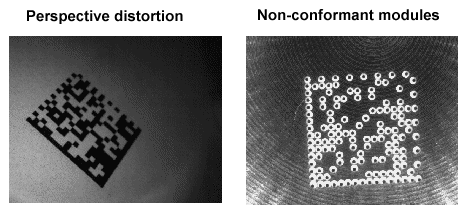
FireWire Bus Reset Notification
The new BusConfigurationChanged event lets you detect when the FireWire bus has changed so that your application can respond to events such as a camera becoming disconnected.
OCVMax Font Extractor
This version of VisionPro includes a Font Extractor utility that uses an image to create a font. You can find this utility by following Cognex->VisionPro->Utilities->Image Font Extractor from the Start menu.
Dongle drivers are installed by default by the installation program. These dongles are used in applications that do not use a Cognex frame grabber for image acquisition.
This version of VisionPro includes the following additional documentation:
- PC Configuration Guide
Describes minimum and recommended configurations for PCs running VisionPro applications.
- Wiring Guide
Provides illustrated examples of how to solve common wiring problems when using Cognex PC Vision products.
- Point Grey Research FL2-03S2C 640x480 color camera
- Point Grey Research FL2-03S2M 640x480 monochrome camera
- Point Grey Research FL2-082C 1024x768 color camera
- Point Grey Research FL2-082M 1024x768 monochrome camera
- Basler scA640-70fm 659x490 monochrome camera
- Basler scA1000-30fm 1034x779 monochrome camera
- Basler scA1000-30fc 1034x779 color camera
| Color Tool | Description |
| Color Segmentation Tool and Edit Control | Maps regions of color space into grey scale images that can be processed using existing vision tools. |
| Color Match Tool and Edit Control | Compares the color in an image ROI to one or more colors you define, providing a score in the range 0 through 1. |
| Color Composite Match Tool and Edit Control | Compares the color in an image ROI to the distribution of colors from a trained model, providing a score in the range 0 though 1. |
- CogCopyRegion tool is updated to support color images
- CogImageConvert tool is updated to support conversion from HSI to RGB images
- CogCalibCheckerboard tool is updated to support color run-time images
- MicroQR code support is added to the 2D Symbol tool and 2D Symbol Verifer tool
- Support added for the Basler Scout A640-70fc color FireWire Camera (IEEE 1394b)
- Added support for digital white balance adjustments for color FireWire cameras that support this feature
- Added the ability to automatically convert an image acquired in Bayer Color format and have it display as a proper RGB color image. This removes the requirement to use the ImageConvert tool to convert the Bayer image to RGB format.
- AcquiredPixelFormat returns the CogImagePixelFormatConstants of the image that the camera is acquiring.
- OutputPixelFormat specifies the CogImagePixelFormatConstants of the images you want VisionPro to acquire.
- If the two formats are not the same, VisionPro converts the camera image to the desired format.
- VisionPro 4.3 now supports Microsoft Visual Studio 2005 Express; C#, Visual Basic, and C++
- The MVS-8600 now suppports strobed pulse duration for area scan cameras
- Overlapped integration and readout is now supported on those cameras that support this feature.
- A new documentation folder is added to this release that contains PDF files covering all cameras supported by VisionPro 4.3
- The Application Wizard now outputs a .NET control as well as an executable
- Using templates is now covered in the documentation
- The Communications Explorer now supports an output level signal indicating the application is running
- You can now use the right mouse button to add an exposed terminal to the Posted Items
- The Property Browser now automatically expands Item(0) and GetPose(0), and automatically expands everything when in Typical filter mode
- The default when opening image source files is now changed to "all types supported" (*.idb,*.cdb,*.bmp,*.tif)
- Added CogCircularAnnulusSection and CogEllipticalAnnulusSection as valid region types for the CogCopyRegion tool
- QuickBuild error messages are improved for errors caught when linking image terminals or running tools where the wrong image type is used. For example, using a grey-scale image when the tool only accepts a color input image, or linking a color input image to a tool that can only accept a grey-scale image.
- The DCF were ported from Visual Studio 2003 C++ to Visual Studio 2005 C++ using the new managed C++ extensions. Also a new set of functions for converting color images is provided, as well as new samples. The original DCF files written in the old C++ syntax are still part of the release and have not been removed. There is a new directory on the installation CD that contains the DCF files for Visual Studio 2005 C++.
- Added support for !BAUDRATE directive when loading CLC files
- Added additional information using port identifier for port dropdown
- Utility now scrolls received text window automatically
You can now customize and localize most of the strings that the generated application uses in its buttons, dialog boxes, titles, and other parts of its user interface.
Improvements have been to the Barcode Tool to make the grading algorithm more robust. The result is an improved grading metric in print quality for bar codes.
Some features that were available in earlier versions of VisionPro have been changed or discontinued in VisionPro 4.3. This section describes the changes.
Bayer Video Format Behavior Change
IIn VisionPro 4.2 and earlier, when you create an AcqFifo programmatically using a Bayer video format, you acquire Bayer images of type CogImage8Grey. In VisionPro 4.3, for these same conditions you will acquire color images of type CogImage24PlanarColor.
A new AcqFifo property OutputPixelFormat in VisionPro 4.3 allows you to select the pixel format of the acquired image. To maintain the same behavior as VisionPro 4.2 use the following line of code for Bayer acquisition.
_acqFifo.OutputPixelFormat = CogImagePixelFormatConstants.Bayer8
This behavior change does not apply to AcqFifos loaded from .VPP files. When loading a .VPP from a previous release, VisionPro 4.3 detects that the persisted AcqFifo is from a previous release and automatically provides backwards compatible behavior.
Note that if you are using the CogImageConvert tool to convert the Bayer image into a color image, you can now remove this tool and have the acquisition fifo return a converted image automatically by using the OutputPixelFormat property.
New Frame Grabber Device Driver and Installer
A new MVS-8600 device driver requires an update to the device driver installer for this release. To use the MVS-8600 frame grabber with VisionPro 4.3 you must uninstall any older VisionPro device drivers, and install the VisionPro 4.3 device drivers using the Cognex Drivers 2.1 installer.
FailOnInvalidDataBinding Flag Behavior Change
In QuickBuild, you can link any output terminal to any input terminal (data binding). If the input terminal tool receives unexpected data, it will produce an error. For example, if a color image is bound to a tool that only accepts greyscale images, the tool will produce an error.
VisionPro provides the FailOnInvalidDataBinding flag to control these cases:
- If FailOnInvalidDataBinding = True, the receiving tool will not run.
- If FailOnInvalidDataBinding = False, the tool will run and will likely produce an error when it finds the invalid input data.
The value of the FailOnInvalidDataBinding flag can be changed either through programming (CogToolBase._FailOnInvalidDataBinding), or through QuickBuild using CogToolGroup Object Editor dialog.
VisionPro 4.3 has the following behavior change relative to the FailOnInvalidDataBinding flag.
- In VisionPro 4.2 the FailOnInvalidDataBinding flag worked for managed tools only and did not work for unmanaged tools (COM Tools). This was a bug that is fixed in VisionPro 4.3.
- In VisionPro 4.2 the FailOnInvalidDataBinding default value was False. In VisionPro 4.3 the FailOnInvalidDataBinding default value is True. This will not affect VPP files that have been created with VisionPro 4.2 because the flag is persisted with the tool.
Sample Code Changes
The following sample code changes have been made in VisionPro 4.3.
Added samples:
- C:\Program Files\Cognex\VisionPro\Samples\Programmatic\Color\ColorImageSegmeneter
- C:\Program Files\Cognex\VisionPro\Samples\Programmatic\Color\CompositeColorMatch
- C:\Program Files\Cognex\VisionPro\Samples\Programmatic\Color\SimpleColorMatch
Deleted samples:
- C:\Program Files\Cognex\VisionPro\Samples\Programming\Acquisition\StrobedAcq
Barcode Tool's Code 39 Full ASCII Mode Now Disabled by Default
In previous releases, full ASCII mode was enabled by default for the Code 39 symbology in the Barcode tool. Starting with VisionPro 4.2, full ASCII mode is disabled by default. This change does not affect the behavior of persisted tools.
I/O Now Disabled by Default
In previous releases, I/O was enabled by default in QuickBuild and the Communications Explorer. Starting in VisionPro 4.2, I/O is disabled by default. To enable and disable I/O see the Configure QuickBuild pull down menu, or toggle I/O on and off with the Online: I/O enabled QuickBuild control button.
State Flags are no longer CONST
Due to a Microsoft bug, some VisionPro state flag values are no longer defined as const. This difference may require you to modify your code before it will compile properly.
For example, the following line of Visual Basic code:
Private Const MyFlags As Long = CogImageFile.SfFileName Or CogImageFile.SfCount
Private MyFlags As Long = CogImageFile.SfFileName Or CogImageFile.SfCount
This section lists other information about this release of VisionPro.
Programming the Measurement Computing I/O Devices
VisionPro's Communications Explore lets you interactively configure the I/O lines on the external discrete I/O device manufactured by Measurement Computing. To obtain low-level programmatic access to the Measurement Computing I/O board, you must purchase a development license from Measurement Computing.
Measurement Computing USB 1024LS Device Performance Limitations
Because a USB connection provides lower bandwidth and higher latency than the PCI bus, the Measurement Computing USB 1024LS discrete I/O device cannot offer the same level of performance as the PCI-based device. If your application uses the USB device, you should observe the following guidelines:
- Design for a maximum part rate of 120 parts per minute.
- Specify a Poll Rate greater than 100 msec for the device.
- Do not configure the 1024LS to transmit a heartbeat signal.
This section describes what is new in this release of VisionPro.
VisionPro 4.2 supports Visual Studio 2005 and the .NET Framework version 2.0 only. If you have an existing VisionPro application built using Visual Studio 2003 and .NET 1.1, you must convert your application to Visual Studio 2005. The transition from .NET 1.1 to .NET 2.0 is a significant one. Consult the MSDN topic on migration for basic information. The following table provides an overview of some of the VisionPro-specific issues that you may need to address during this conversion.
| Issue | Description |
| Script Code References Needed | Any script code that you are converting from VisionPro 4.1 to 4.2 may need to include additional references. In general, this problem will display an error message at run time that identifies the reference to add. A common case is the need to add a reference to System.Drawing if the script code works at all with images. |
| MouseCursor Property Changed | The data type for the MouseCursor property implemented by VisionPro shapes has changed in VisionPro 4.2. In earlier releases, this property was of type System.Windows.Forms.Cursor. Starting with VisionPro 4.2, the property is an enumeration, CogStandardCursorConstants, that identifies the cursor type. If you are currently using the MouseCursor property, you must modify your code to use the enumeration instead of an actual cursor. Also, the functions CogMisc.LoadCursorFile() and CogMisc.GetStandardCursor() have been removed. |
VisionPro 4.2 lets you control a deployed QuickBuild application using discrete input lines. This means that you can start and stop your vision application, as well as individual jobs, using external devices such as PLCs.
VisionPro scripting, which was a beta feature in VisionPro 4.1, is now fully qualified for use in deployed systems.
You can now use QuickBuild Communications Explorer to create and configure I/O lines for physical devices that are not currently installed in your system. This means that you no longer need to replicate your deployed systems' I/O hardware on your development stations.
The QuickBuild Property Browser, which lets you select
- new properties to expose as tool terminals in the Job Editor and tool group editor windows
- properties to associate with discrete output lines in the Communications Explorer
- properties to add to the posted items queue
- properties to expose through the Application Wizard
has been improved so that only the most frequently used properties are listed by default. You can easily switch the browser to display all properties.
VisionPro now includes support for IEEE 1394b cameras. Refer to the printed FireWire Cameras User Guide supplied with this release for more information.
The Barcode tool now supports the Japanese form of the 4-state postal code.
The Barcode tool now lets you limit the decoding of postal codes to those that are approximately horizontal, which can speed decoding. The new property is PostalOmniDirectional.
The Barcode tool now supports the Codabar symbology.
The OCVMax tool now supports Clean Print mode, which provides faster operation in cases where print quality is high.
The MVS-8600 now supports acquisition from selected color area and line scan cameras.
VisionPro 4.2 supports the use of the Measurement Computing USB 1024LS discrete I/O device.
This section lists other information about this release of VisionPro.
Programming the Measurement Computing I/O Devices
VisionPro's Communications Explore lets you interactively configure the I/O lines on the external discrete I/O device manufactured by Measurement Computing. VisionPro does not provide a programmatic interface for this device. If you need low-level programmatic access to the Measurement Computing I/O board, you must purchase a development license from Measurement Computing.
Measurement Computing USB 1024LS Device Performance Limitations
Because a USB connection provides lower bandwidth and higher latency than the PCI bus, the Measurement Computing USB 1024LS discrete I/O device cannot offer the same level of performance as the PCI-based device. If your application uses the USB device, you should observe the following guidelines:
- Do not attempt to use the 1024LS for applications with a part rate in excess of 120 parts per minute.
- Do not specify a Poll Rate of less than 100 msec for the device.
- Do not configure the 1024LS to transmit a heartbeat signal.
MVS-8600 Encoder Compatibility
The MVS-8600 has specific electrical requirements for encoders used with line scan acquisition. Using an encoder with incompatible electrical characteristics on the MVS-8600 Camera Link PCI frame grabbers may result in damage to the encoder, the frame grabber, or both. The encoder may overheat and cause intermittent image acquisition problems such as image jitter and encoder overruns that can be very difficult to diagnose.
The MVS-8600 I/O interface is multi-purpose and encompasses LVDS, RS-422, and TTL standards, but it provides overvoltage protection through the use of a +5V clamp on the signal interface. This means that the effective operating voltage input range is limited from 0V to 5V. Cognex recommends using an encoder whose electrical voltage output range is 5 volts maximum.
Most differential RS-422 “compatible” encoders will be compatible as long as all the differential outputs are limited to 0 to +5V absolute range (referenced to ground), which is often the case when using a +5V power supply. For encoders with outputs greater than +5V, the recommended solution is to use series resistors.
Recommended resistance values and wiring diagrams are described in Technical Bulletin TB-06-002.
Troubleshooting I/O Device Installation
The device drivers for the Measurement Computing external discrete I/O device are not installed by default. To install the drivers, make sure you expand the Optional Features entry and select the Measurement Computing option. You can re-run the VisionPro installer and select Modify to add the drivers to an existing installation.
If the device drivers are installed, you may need to run the instcal.exe program (double-click the shortcut on the Windows desktop) to manually install the board. You should also make sure that the board is configured as board zero.
Some features that were available in earlier versions of VisionPro have been changed or discontinued in VisionPro 4.1. This section describes the changes.
NET 1.0 and 1.1, Visual Studio 2003 No Longer Supported
VisionPro 4.2 only supports the .NET framework version 2.0 and Visual Studio 2005 (C#, C++, and Visual Basic only).
Barcode Tool's Code 39 Full ASCII Mode Now Disabled by Default
In previous releases, full ASCII mode was enabled by default for the Code 39 symbology in the Barcode tool. Starting with VisionPro 4.2, full ASCII mode is disabled by default. This change does not affect the behavior of persisted tools.
I/O Now Disabled by Default
In previous releases, I/O was enabled by default in QuickBuild and the Communications Explorer. Starting in VisionPro 4.2, I/O is disabled by default.
State Flags are no longer CONST
Due to a Microsoft bug, some VisionPro state flag values are no longer defined as const. This difference may require you to modify your code before it will compile properly.
For example, the following line of Visual Basic code:
Private Const MyFlags As Long = CogImageFile.SfFileName Or CogImageFile.SfCount
Private MyFlags As Long = CogImageFile.SfFileName Or CogImageFile.SfCount
Several issues in VisionPro 4.1 were corrected in VisionPro 4.1 SR1:
- The tabs in the OCVMax Edit Control were not in the correct order in VisionPro 4.1.
- When generating code for controls inside a tabbed form, an Unexpected Error warning would appear.
- A bug in the Script Editor would sometimes cause a stack overflow error when using #region directive.
This section describes what is new in this release of VisionPro.
You can now use QuickBuild to develop a full vision application without using VB.NET or C#, although that option is still available. Three new additions to QuickBuild make this possible:
- VisionPro Application Wizard The VisionPro Application Wizard generates a full .NET application from your saved QuickBuild application. The Application Wizard lets you design a custom interface for your application, and generates Visual Studio code if you want to do more extensive modifications.
- Scripting in QuickBuild Scripting lets you customize and extend the capabilities of QuickBuild without writing an entire VisionPro vision application in Visual Studio. You can script in VB.NET or in C#.
- QuickBuild Communications Explorer The Communications Explorer lets you send discrete output signals to I/O equipment attached to your Cognex frame grabber or Measurement Computing board.
- Image Source Flexibility To make development easier, the QuickBuild image source can now be an image database or a camera.
VisionPro 4.1 includes the following enhancements to the vision tools, installation infrastructure, camera support, and API.
The ModelMaker component of the PMAlign tool now lets you open and import CVL shape tree archives. You can also save VisionPro models as CVL shape tree archives. The CVL shape archive must meet the following requirements:
- it must have been created with CVL 6.2 or later
- the shapes in the archive must be derived from ccShape
- the archive must have been written using pointer, or complex, persistence
If VisionPro encounters a shape in the archive that it cannot convert, the shape is ignored.
A new installation architecture makes deploying VisionPro-based applications easier.
VisionPro now includes Supplemental Camera Formats that were developed for specific customer applications. Although not tested as extensively as the standard camera format files, they are known to work with this version of VisionPro.
The tool group property FailOnInvalidDataBinding lets you specify whether a tool group should fail when one of its links becomes invalid.
Some features that were available in earlier versions of VisionPro have been changed or discontinued in VisionPro 4.1. This section describes the changes.
COM No Longer Supported
VisionPro 4.1 supports only the .NET framework. Support for the COM version of VisionPro is no longer available. You may see some of VisionPro's COM underpinnings in some circumstances, but the use of these components is not supported.
QuickStart Discontinued
The QuickStart application is no longer included in VisionPro. QuickBuild provides all of the functionality that QuickStart provided and more, including access to I/O lines, scripting, and an interface with Application Wizard. You can import tool groups that you created with QuickStart into QuickBuild.
Changes in QuickBuild
The User Queue is now called the Posted Items list. The Realtime Queue has been replaced with the Communications Explorer. However, the terms User Queue and Realtime Queue are still used in the Cognex.VisionPro.QuickBuild.
QuickBuild no longer persists the contents of the results queue or the failure queue. When you restore QuickBuild applications saved with earlier versions of VisionPro, these queues are not reloaded.
If a tool group that you saved with an earlier version of VisionPro contained VB script, the script is discarded when you load it in QuickBuild.
The default number of pre-queued acquisition requests was 2 in previous versions of VisionPro. Now, QuickBuild pre-queues only 1 acquisition request.
If the image queue overflows, you now have the option to ignore the error or to stop QuickBuild altogether in addition to stopping the job that generated the error. If you load a job that was saved with an earlier version of VisionPro, the default will be set to stop the job.
Change in I/O Default for MVS-8504
The default I/O configuration for the MVS-8504 has changed from Standard to External. If your application relied on the previous default (Standard) you will need to edit the VisionPro.ini file to set the configuration to Standard.
This section describes what is new in this release of VisionPro.
This section describes new vision tools introduced in this version of VisionPro.
This version of VisionPro introduces the OCVMax Tool and its corresponding edit control.
The OCVMax tool performs optical character verification (OCV), a process for verifying that one or more character strings in an image contain the expected characters at each position. Vision applications typically use OCV to verify lot codes, date codes, expiration dates, and other information printed on products or packaging.
The OCVMax tool uses font-based training and can identify degraded images with greater accuracy than the OCV tool.
Note: The OCVMax tool is available only for the .NET version of VisionPro.
A configured OCVMax tool can tolerate the following types of image variations:
- Lighting
- Image quality
- Contrast
- Font stroke width
- Position, rotation, and scale for the overall string(s) of characters
- Character-to-character position, rotation, and scale
This version of VisionPro provides the Image Convert Tool and its corresponding edit control.
The Image Convert tool lets you convert images from one format to another including:
- 24-bit RGB or HSI images to 8-bit greyscale images
- 24-bit RGB images to HSI images
- Bayer-formatted images to RGB, HSI, or 8-bit intensity images
Note: The Image Convert tool is available only for the .NET version of VisionPro.
This version of VisionPro includes new assembles, Cognex.VisionPro.OCVMax.dll and Cognex.VisionPro.OCVMax.Controls.dll, which provide the Cognex.VisionPro.OCVMax namespace that includes all of the classes and types for the OCVMax tool and its corresponding edit control.
Note: The OCVMax classes are available only for the .NET version of VisionPro.
This version of VisionPro includes a new interface to access information about connected FireWire (IEEE 1394DCAM) cameras.
| Interface | Description |
ICog1394DCAMAccess | Provides properties to access:
And methods that let you:
|
Note: The ICog1394DCAMAccess is available only for the .NET version of VisionPro.
You can access these methods and properties through the Owned1394DCAMAccess property of the ICogFrameGrabber interface on any 1394DCAM frame grabber.
This section describes what is new in this release of VisionPro.
This section describes new features involving new system requirements, new frame grabbers, and new cameras.
VisionPro 4.0.1 introduces support for FireWire digital cameras. The table of supported cameras lists which FireWire cameras this release supports.
Note that to use a FireWire camera, you must have either a Cognex FireWire deployment dongle or a Cognex frame grabber with the appropriate licenses enabled.
VisionPro 4.0.1 includes a new type library and assembly to support FireWire cameras.
VisionPro 4.0.1 introduces support for the Cognex MVS-8600 family of frame grabbers. These frame grabbers use CameraLink cameras.
See the Cognex MVS-8600 Manual for more information about this frame grabber and Camera Link support.
VisionPro 4.0.1 includes a new type library and assembly to support this frame grabber.
This release of VisionPro is compatible with software emulation and hardware Data Execution Prevention (DEP).
VisionPro 4.0.1 supports .NET Framework 1.1 SP1. The installer will update your framework if necessary.
VisionPro 4.01. introduces support for the following new cameras:
- Atmel M2CL2014
- Basler A202k
- Basler L402k
- Dalsa DS-21-02M30
- Dalsa P2-2x-8K40
- Teli CSB4000CL
- Basler A311f
- PGR FLEA-BW
- PGR FLEA-COL
- PGR FLEA-HIBW
- PGR SCOR-14SOM
- PGR SCOR-20SOC
- PGR SCOR-20SOM
- Jai CV-M1
- Sony XC-HR57
- Sony XC-HR58
This section lists new methods and properties to interfaces that were available in previous releases of VisionPro.
The ICogAcqTriggerModel interface now supports a new Free Run trigger mode. This model allows you to acquire images at the highest frame rate that the camera and frame grabber support.
This trigger model is useful in line scan applications to ensure continuous acquisitions between images.
The CogMisc class has the following new method:
| Method | Description |
| LicenseFeatureEnabled | Determines whether a particular VisionPro feature is available. |
The CogBarcode class has the following new properties:
| Method | Description |
| Timeout | Specifies the maximum execution time to decode a barcode. |
| TimeoutEnabled | Specifies whether to use the Timeout value. |
The CogImageSharpness class has the following new property:
| Method | Description |
| AutoCorrelationNoiseLevel | Lets you specify the grey-level variation inherent in the sensor when using autocorrelation mode. |
The CogHistogramResult class has the following new method:
| Method | Description |
| GetMinimumWGVThreshold | Computes a threshold appropriate for segmenting an image into object and background pixels. |
VisionPro 4.0.1 contains some changes from previous releases. Some of these changes may require you to rewrite parts of your application.
Changed Libraries
The GUID for the Barcode library has changed. You will need to recompile existing applications to make use of the library.
Changed Behavior
This section describes changes in the way from existing components behave.
Composite Shape
The behavior of CogCompositeShape.GraphicDOFEnable property has been changed. In the past the CogCompositeShape object would silently ignore the Size and Skew bits. Now it honors these (as well as Position, Rotation, and Scale). This means that if your application sets GraphicDOFEnable to All, you will see new handles.
VisionPro.ini and MVS-8100M
In previous versions of VisionPro, the MVS-8100M frame grabber used its own
AcquisitionNumBuffers
VisionPro.ini
AcquisitionPoolSize
This section describes what is new in this release of VisionPro.
This section describes new features involving new system requirements, new frame grabbers, and new cameras.
VIsionPro 4.0 introduces support for the .NET Framework.
You can develop under COM using Microsoft Visual Basic 6.0 or Visual C++ SP5, or you can develop in .NET using Microsoft Visual Studio .NET 2003 in any of the languages supported by .NET. See the VisionPro 4.0 Quick Reference for an overview of the COM and .NET versions of VisionPro.
For a description of the differences between the COM and .NET versions of VisionPro, see Migrating from COM to .NET in the Getting Started section of the VisionPro .NET documentation
VisionPro 4.0 introduces support for the following cameras:
- Sony XC-56 rapid reset camera
- Basler L401k digital line scan camera
The .NET version of VisionPro includes QuickBuild, an application that adds functionality to QuickStart. A QuickBuild job encapsulates a tool group, and it adds the capability to specify a flexible image source for the job. QuickBuild lets you create and run multiple jobs concurrently, both under software control and in response to hardware triggers.
See Using QuickBuild in the Getting Started section of the VisionPro .NET documentation.
Documentation for the .NET version of VisionPro is available from within Microsoft Visual Studio .NET. Choose Contents from the Help menu. VisionPro .NET Documentation appears in the Contents pane.
VisionPro 4.0 adds the following new vision tools.:
| Vision Tool | Description |
Results Analysis Tool | The CogResultsAnalysis tool encapsulates all of the objects required to perform tolerancing, statistical analysis, and buffering of data over a set of data analysis channels. This tool is available only for the .NET version of VisionPro. The results analysis feature is available within QuickStart in the COM version of VisionPro. |
| User-written Tools | The .NET version of VisionPro provides base classes that you can use to write your own vision tools that you can then integrate with QuickStart or QuickBuild. |
VisionPro 4.0 includes new COM interfaces to support Code 93 and RSS barcode symbologies. In Visual Basic 6.0 you can access these new interfaces through the Object Browser where they will appear without the initial "I".
The new interfaces are:.
| Interface | Description |
| ICogBarcodeParamsCode93 | Interface for decoding Code 93 symbology barcodes. |
| ICogBarcodeParamsRSS | Interface for decoding RSS symbology barcodes |
This section lists new methods and properties to interfaces that were available in previous releases of VisionPro.
The ICogPMAlignResult interface has the following new properties to support the outside region patterns.
| Method | Description |
| OutsideRegionAreaProportion | Reports the proportion of pattern area that is outside the search region. |
| OutsideRegionFeatureProportion | The proportion of pattern features that is outside the search region. |
The ICogPMAlignRunParams interface has the following new property:
| Method | Description |
| OutsideRegionThreshold | Specifies the proportion of features that can be outside the search region without affecting score. |