This topic contains the following sections.
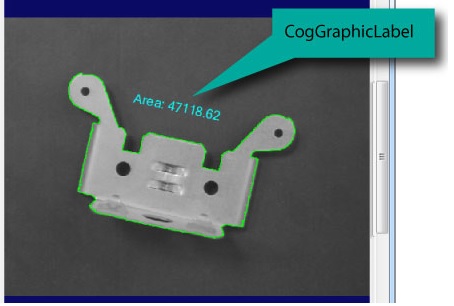
As your QuickBuild CogToolGroup or CogToolBlock executes you might want to use a CogGraphicLabel to display the results from vision tools that have already run. For example, the following figure shows a Job where the Area result from a CogBlobTool has been added to the display:
QuickBuild supports the CogCreateGraphicLabelTool for adding a CogGraphicLabel object to the output record of your CogToolGroup or CogToolBlock without using scripting. Any Visual Studio application can use the CogGraphicLabel class directly.
This section contains the following subsections.
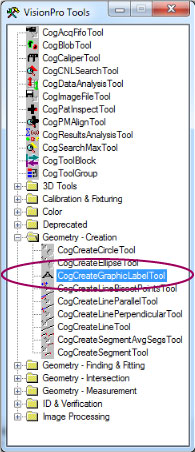
Find the CogCreateGraphicLabelTool under the Geometry - Creation folder of the VisionPro Tools palette:
See the topic Using QuickBuild for details on using QuickBuild. A new CogCreateGraphicLabelTool is added to a Job with a set of input parameters ready to accept values from other vision tools in the tool group or tool block, as shown:
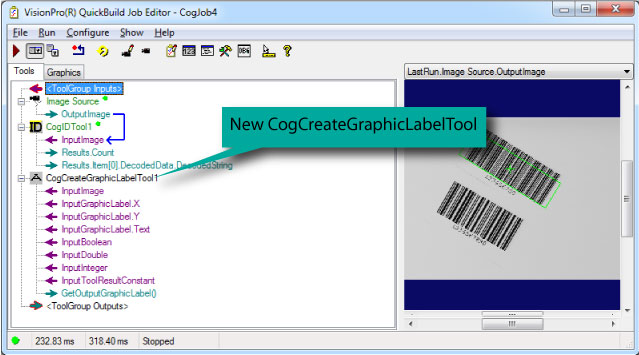
The tool accepts parameters such as:
- Boolean and numeric values.
- A string value, such as the DecodedString from a CogIDTool.
- The CogToolResultConstants property of a vision tool in the tool group or tool block to indicate its overall result.
- The (x, y) coordinate for an anchor point to position the text you want to display.
You can use multiple instances of a CogCreateGraphicLabelTool as your QuickBuild application requires.
The CogCreateGraphicLabelTool supports an edit control as shown:
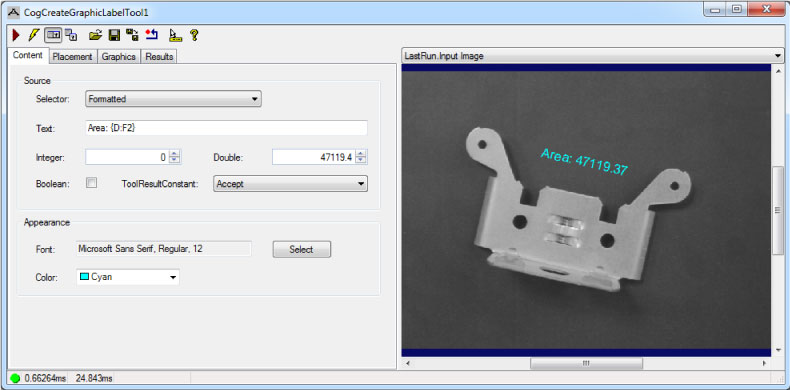
See the topic Create Graphic Label Edit Control for details on how to use the edit control.
The text field appears at an anchor point relative to an (x, y) coordinate location that you can set once or allow another vision tool to modify so that the textual graphics are relocated relative to the result of any vision tool.
As you add a CogCreateGraphicLabelTool to your QuickBuild application you specify the alignment of the text field in relation to its (x, y) anchor point. The tool supports a set of alignment options as defined by CogGraphicLabelAlignmentConstants. For example, the following figure shows two alignment options in relation to the same anchor point:
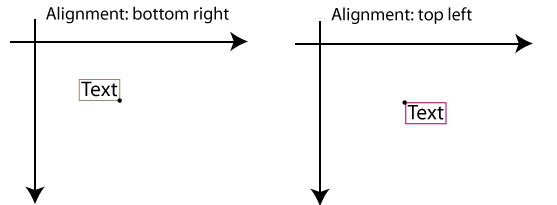
Use the Create Graphic Label Edit Control to define the alignment of the graphic label with respect to its anchor point.
A CogCreateGraphicLabelTool can be configured to display static text, the string value of an input value such as a Boolean or integer, or it can be configured to display formatted text.
By using "{ }" characters in your text string, you can combine static characters and the value of one or more input parameters. The following four characters can be used within "{ }" and be replaced with the value of an input parameter:
- B: Replaced by the string value of a supplied Boolean.
- T: Replaced by the string value of a supplied CogToolResultConstants.
- D: Replaced by the string value of a supplied double-precision floating point value.
- I: Replaced by the string value of a supplied Integer.
For example, if your application passes a double-precision floating point value to the CogCreateGraphicLabelTool and your text string is set to {D}, the tool will display the numeric value over the image. If your application passes an integer value and your text string is set to Count: {I}, the tool will display the text Count: followed by the value of the integer.
In addition, the tool allows for more elaborate numeric formatting when you are providing values of type Double or Integer, based on the style of .NET standard numeric format strings.
Specifically, the following formatting is supported:
- {D[,alignment][:formatString]}
- {I[,alignment][:formatString]}
The optional alignment component, introduced by a leading comma, is a signed integer that specifies a preferred minimum field width. The output is right–aligned if this field is positive, and left–aligned if this field is negative.
The optional formatString component is introduced by a leading colon and has the form Axx:
A: a single alphabetic character that specifies a particular format. Defined values include:
- C: currency
- D: decimal; precision is minimum number of digits
- E: exponential; precision is number of decimal digits
- F: fixed-point; precision is number of decimal digits
- G: general; precision is number of significant digits
- N: number; precision is desired number of decimal places
- P: percent; precision is desired number of decimal places
- R: round-trip; precision specifier is ignored
- X: hexadecimal; only supported for integer. Precision is number of output digits
- xx: an optional integer that specifies the precision, affecting the number of digits in the string representation of the number.
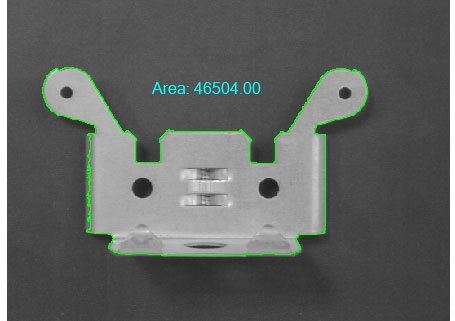
For example, the following image shows a display where the text has been set to "Area: {D:F2}":
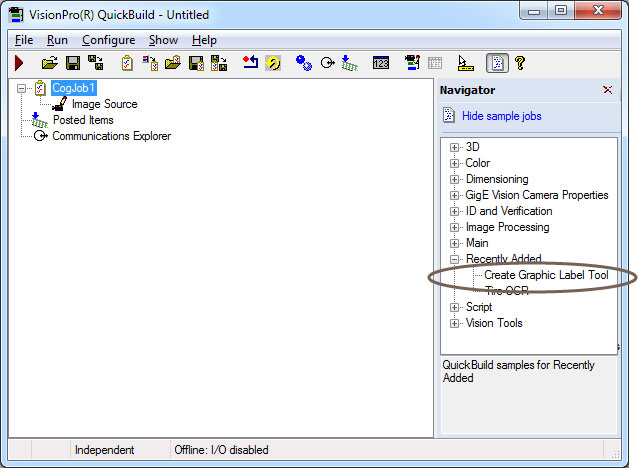
QuickBuild includes a sample Job that uses a CogCreateGraphicLabelTool. Find the sample Job under Recently Added of the Navigator pane, as shown: