This topic contains the following sections.
The DS1000 series sensors incorporate firmware to program features of the camera. As bugs are found and/or new features are added, the firmware can be updated (either in the factory or in the field) to take advantage of these features. Typically, accessing these new features also requires the installation of a newer VisionPro release.
The firmware update batch file, ds1000_fw_update_x.x.x.bat, and all related files are installed in the Cognex\VisionPro\bin directory. The exact name of the batch file varies depending on the latest upgrades and updates supported by this VisionPro release.
Open the GigE Vision Configuration Tool (installed with VisionPro).
Note down the IP address of the device you need to update.
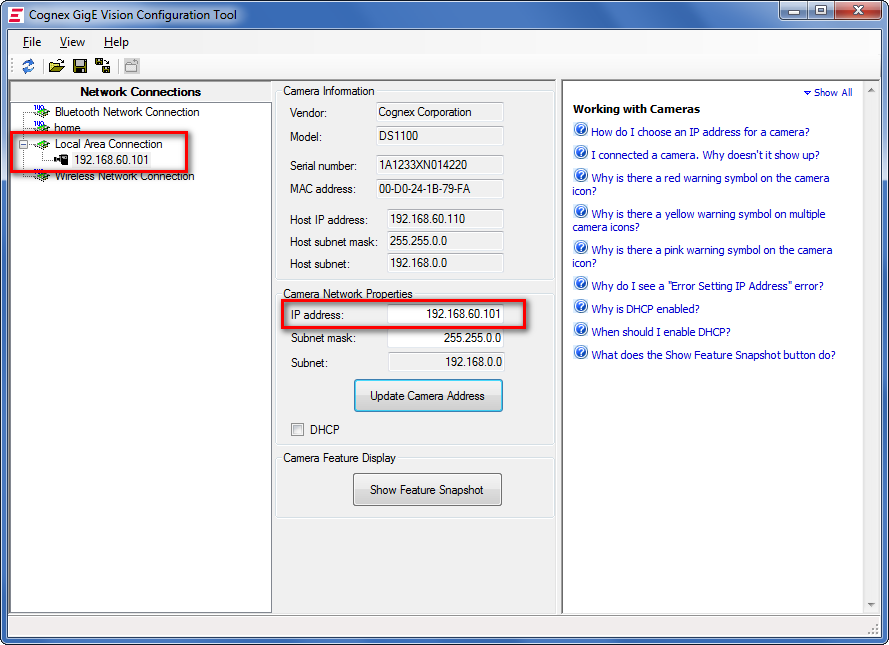 Figure 1: The IP Address of the device
Close the GigE Vision Configuration Tool.
Open a command line window and navigate to the %VPRO_ROOT%\bin directory.
 Note
NoteThe command line tool must have Administrator privileges. Enter the following command: ds1100_fw_update_<i>.<j>.<k>.bat <IP ADDRESS>
The tool updates the firmware on the device and displays the process.
In the following example, the firmware has been updated to version 2.0.4 with the following command: ds1100_fw_update_2.0.4.bat 192.168.60.101
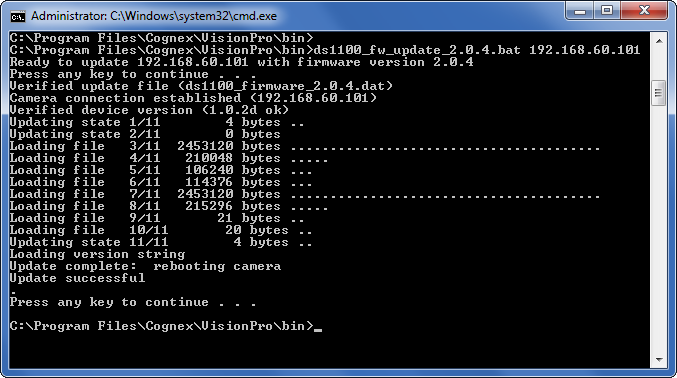 Figure 2: Update process successful Note
The command to be issued and the output of the tool may differ from the one on the screenshot, depending on which firmware updater is used among others. The command example used above is appropriate specifically for the DS1100 Sensor. To check if the update was successful, open the GigE Vision Configuration Tool and click the Show Feature Snapshot button.
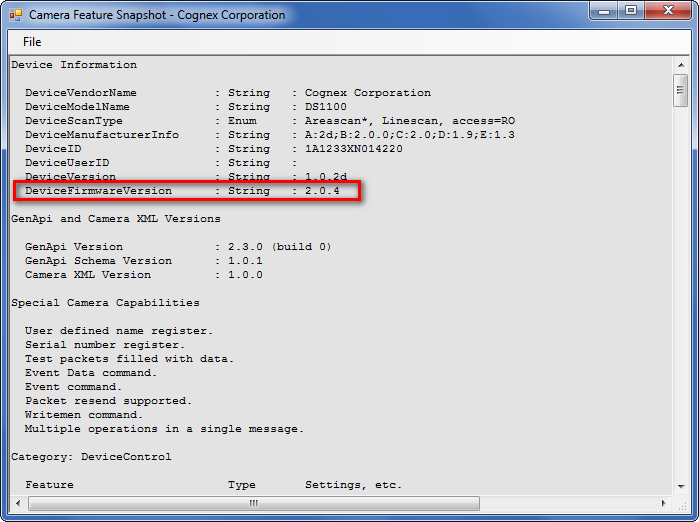 Figure 3: Feature Snapshot in GigE Vision Configuration Tool
- If you have written an application that checks the Model Name feature from the camera, you will need to modify your application.