This topic contains the following sections.
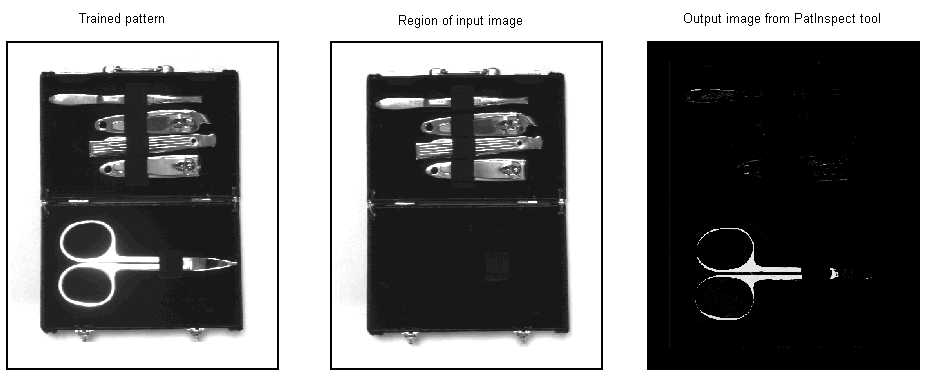
The PatInspect tool compares the features contained within a region of an input image against the features stored in a trained pattern and generates an output image highlighting the differences between them. The output image highlights potential defects in the input image, such as missing or mislocated features, erroneous or unwanted marks on an object, or surfaces of the wrong color.
For example, the following figure shows a trained pattern, a region of a input image, and the output image generated by a PatInspect tool:
In many vision applications, the position of the object under inspection can change in position, rotation, or scale from one inspection to the next. If the Pose (a description of how the object is mapped when the trained pattern is compared to the run-time image) changes with each inspection, the tool can easily inspect the wrong area of the image and return many false results. For this reason, any application that uses a PatInspect tool should use a PMAlign tool beforehand, to locate the object under inspection and report its Pose to the PatInspect tool.
The following procedure creates an application that uses a PMAlign tool to report the Pose of the object before the PatInspect tool analysis:
- Start QuickBuild.
Configure the Job's Image Source to acquire images from a camera or from an image database.
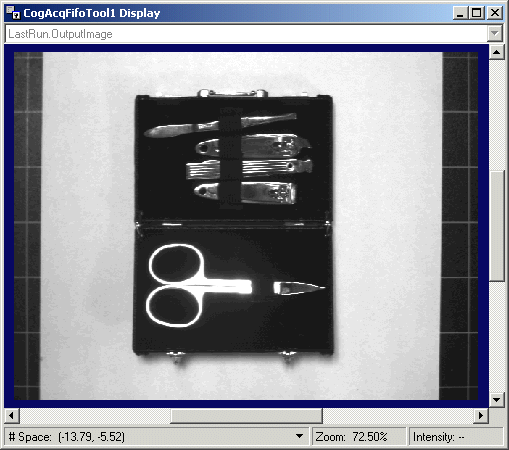
This example application uses a camera to capture images of a nail grooming kit. The images captured to create a trained pattern will vary in lighting to represent the lighting changes that can occur in the production environment.
Capture the first good image of the object to be inspected, shown in the following figure:
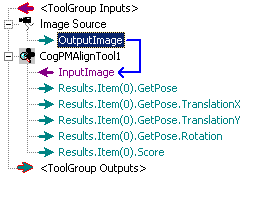
Create a CogPMAlign tool and give it the OutputImage from the CogAcqFifo tool, as shown in the following figure:
Configure the PMAlign tool to locate the handle on the top of the object, as shown in the following figure:
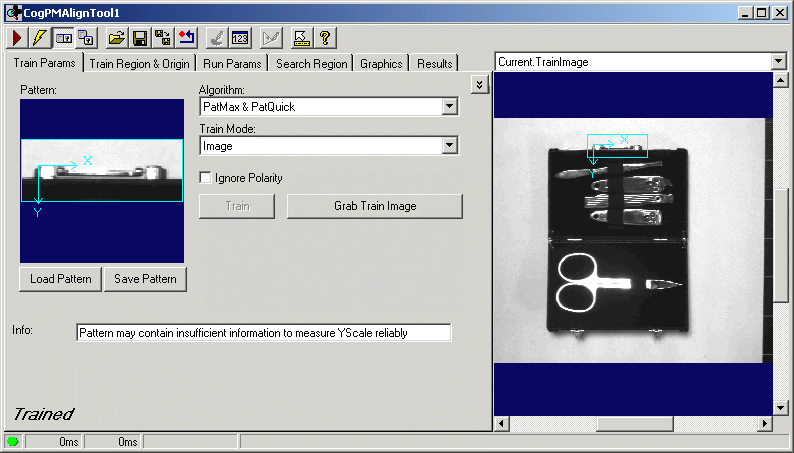
- On the Run Params tab of the PM Align edit control, enable the Angle parameter and use the default -45 to 45 degrees of rotation.
- Add a PatInspect tool to the application and give it the OutputImage from the AcqFifo tool.
Link the GetPose output terminal from the PM Align tool to the Pose input terminal of the PatInspect tool, as shown in the following figure:
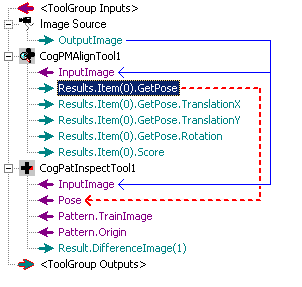
- Run the PMAlign tool once to pass the Pose information in the trained pattern to the PatInspect tool.
Open the PatInspect tool edit control. It should appear with the image from the CogAcqFifo tool and the origin from the PMAlign tool, as shown in the following figure:
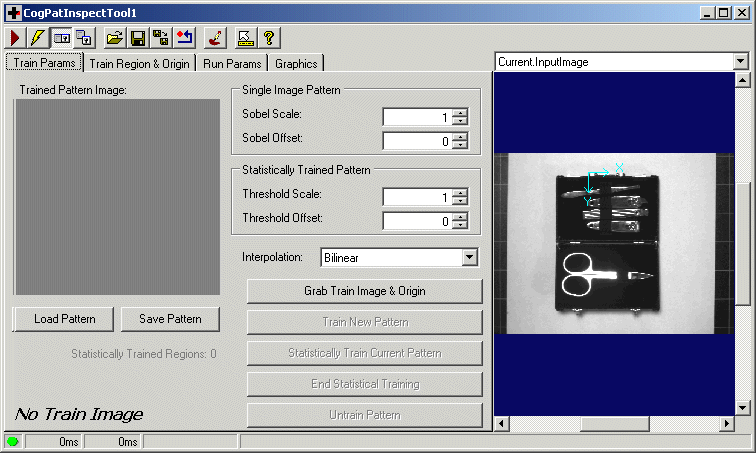
- Click the Grab Train Image and Origin button to copy the Current.InputImage to the Current.TrainImage buffer.
Switch to the Current.TrainImage buffer. The local image window will show the same input image but now a default region of interest will appear as shown in the following figure:
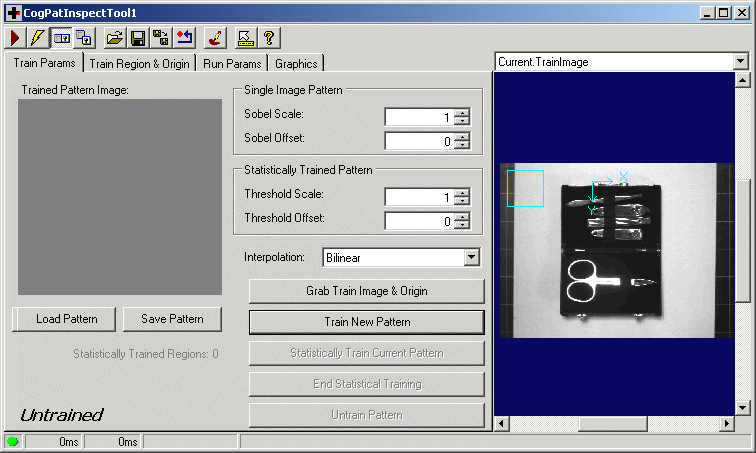
Select the region and adjust its location and size so that it encloses the tools within the kit, as shown in the following figure:
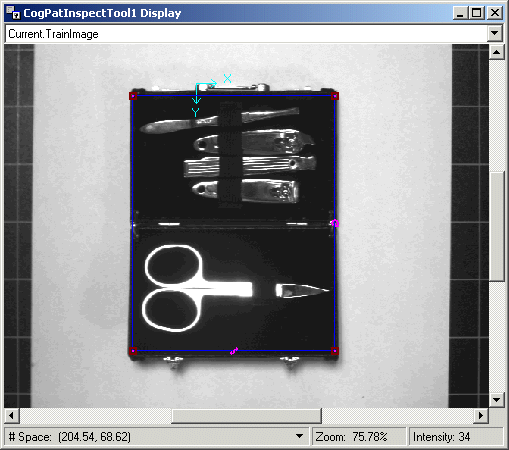
Use a floating image window to configure the region, if necessary. Close or minimize the floating image window when you are done setting the region.
Click Train New Pattern on the PatInspect edit control to create a trained pattern. The edit control will show the trained pattern on the Train Params tab, as shown in the following figure:
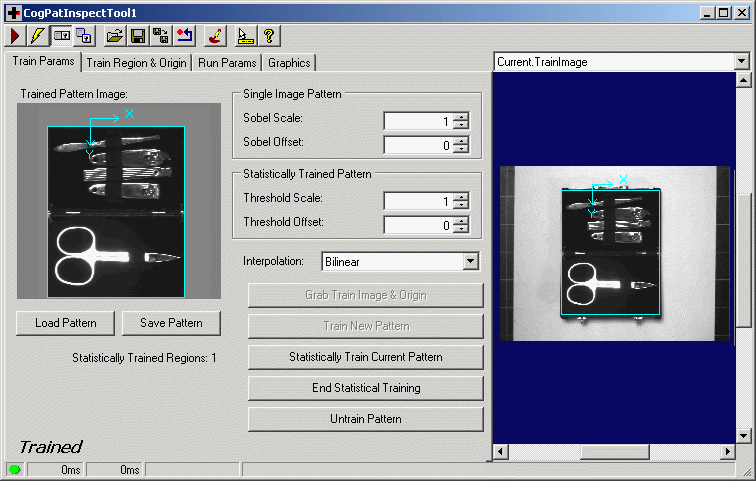
The PatInspect tool now has a trained pattern which can be used to inspect successive run-time images of these kits. If you click the Run button on the PatInspect edit control, the tool will compare the region of the Current.InputImage to the trained pattern. The LastRun.DifferenceImageAbsolute buffer should show no results, however, since you are comparing the trained pattern to the image used to create it.
In this example application the lighting over the nail kit is subject to some variability, and the position of the individual objects within the kit itself can be placed within some small range of tolerance. The PatInspect tool needs a trained pattern that accounts for these allowable differences in run-time images.
Open the CogAcqFifo tool again and acquire an image of object where the lighting has changed or a different kit is under the camera. In the following image the lighting has increased:
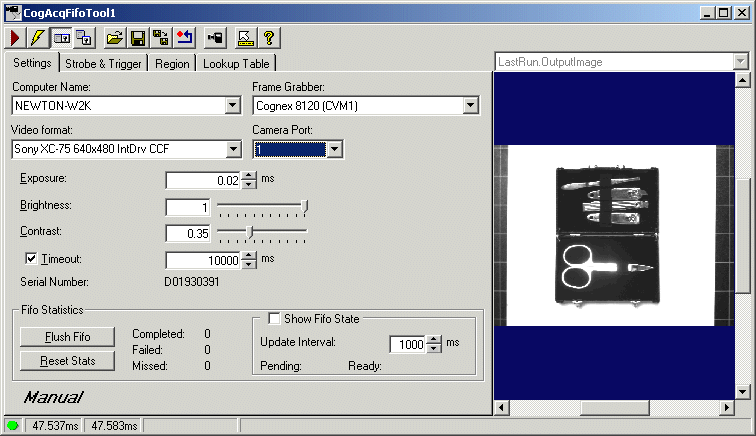
- Run the application so that the new image is passed to both the PMAlign tool and the PatInspect tool
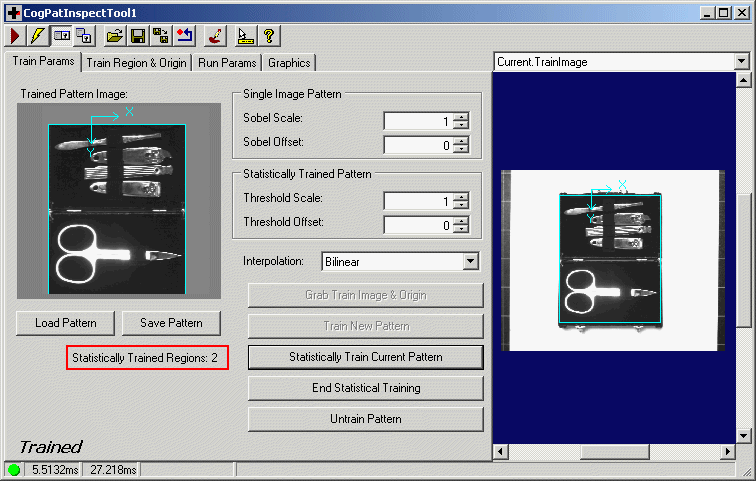
Return to the PatInspect edit control and notice the new Current.InputImage. Click Statistically Train Current Pattern to incorporate the new image into the existing trained pattern. The trained pattern in the Trained Pattern Image window of the Run Params tab will alter slightly, and the edit control will update the number of images used to create this trained pattern, as shown in the following figure:
Repeat this procedure as necessary for possible lighting conditions and allowable changes to the objects under inspection. Capture new images, pass them to the PMAlign tool and PatInspect tool, and incorporate the new images into the statistically trained pattern.
The trained pattern will change less and less for each new image you add, but ultimately you should end up with a trained pattern that will generate a thresholded difference image containing genuine defects.
The following figure shows a statistically trained pattern that accounts for slight changes in object location within the kit:
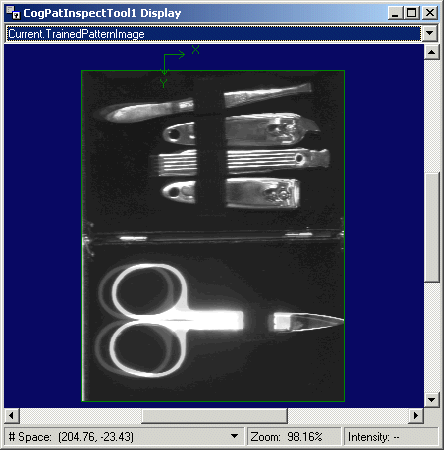
- Click End Statistical Training when you have acquired sufficient images to train the pattern. Ending statistical training allows the PatInspect tool to use less PC memory than allowing statistical training to be enabled.
To test the PatInspect tool, run the application again with a kit where definite defects are present. The following figure shows a thresholded difference image where an object within the kit is missing:
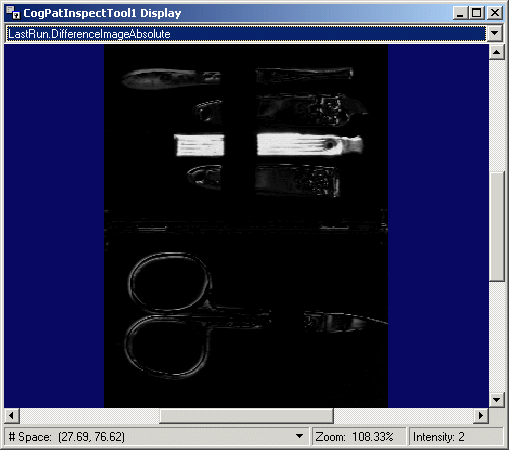
This image can now be passed to a Blob tool to collect more information about potential defects.
In the previous procedure, the GetPose result from the PMAlign tool is passed to the Pose input parameter of the PatInspect tool. This step is necessary to ensure the PatInspect tool analyzes the correct portion of the image, based on the location of the object under inspection. A problem occurs, however, if you reconfigure the PMAlign tool later and move its origin, in which case you must also retrain the PatInspect tool for the new origin. In order to guarantee that the PatInspect tool always has the correct origin, you can make further links between the PMAlign tool and the PatInspect tool. Specifically, you can link the Pattern.TrainImage and Pattern.Origin properties of both tools, as shown in the following figure:
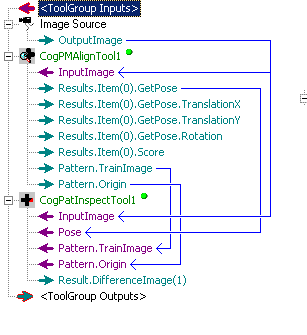
Using these extra links passes the training image and the origin from the PMAlign tool to the PatInspect tool with each execution of the vision application.
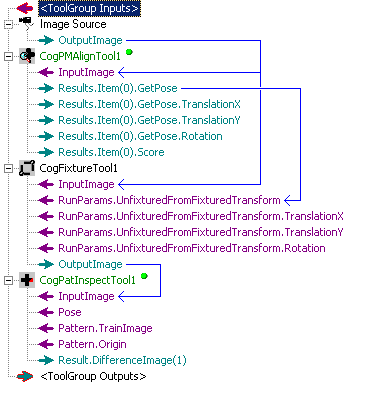
As another alternative, you can pass the results of a PMAlign tool to a Fixture tool and then pass the output image generated by the Fixture tool to the PatInspect tool. The following figure shows this type of QuickBuild job: