This topic contains the following sections.
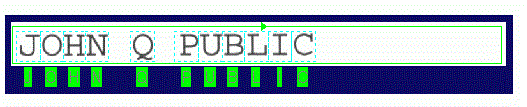
Use a CogOCRMaxTool to identify and return a string of characters in an 8-bit greyscale image, a 16-bit greyscale image, or a range image based on a font trained from a series of sample images. The following figure shows a string of characters identified by an OCRMax tool:
The tool requires you to specify a rectangular region where the entire character string must appear in each image, and supports a variety of parameters that allow the tool to correctly determine the boundaries of each individual character within that region, such as the minimum character width, the minimum number of pixels per character, and so on. In addition, you can enable an optional feature that forces the tool to match the character against a subset of all possible characters for any given position.
For every string it analyzes, an OCRMax tool produces a variety of results, including:
- The result string identified in the image
- The overall status of the result string, a range of values which could indicate that all the characters were identified or that one or more characters could not be matched with any character from the trained font
- The number of characters in the string
- An image of the string after image normalization has been used to distinguish the charaters from the background
See the topic Using the OCRMax Tool for an example of configuring an OCRMax tool.
Be aware of the distinction between an OCRMax tool, which identifies unknown characters in a string, and the CogOCVMaxTool tool, which verifies that a character strings contains the expected characters at each position. See the topic OCVMax Tool for information on using an OCVMax tool.
Segmentation is the process of differentiating character pixels from background pixels and then separating character pixels into discrete symbols. An OCRMax tool performs segmentation as the first step in identifying characters in a string.
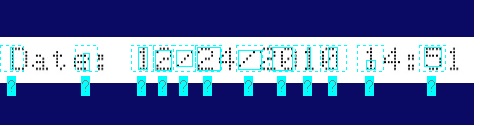
The OCRMax tool supports a host of parameters that dictate how the characters are separated first from the background and then from each other, and these parameters must be set considering a set of factors such as how closely the characters appear next to each other, the type of font used, the quality of the images, and so on. The default settings for segmentation parameters are often insufficient to accurately distinguish every individual character, as shown in the following example:
The tool supports an autotuning mechanism that attempts to determine the correct segmentation parameters automatically based on the expected characters in the current image, or you can assume full control of the segmentation parameters as needed to make segmentation successful. Regardless of how the tool acquires the best settings for segmentation parameters, the tool must be able to perform segmentation accurately, as shown:
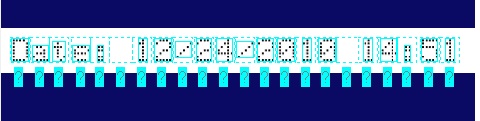
Segmentation produces a set of segmented character images, individual regions where each region contains a single character.
See the topic Choosing Segmentation Parameters for a description of all the OCRMax tool segmentation parameters and examples of when to change their default values. In addition, the topic Using the OCRMax Tool contains an example where the best segmentation parameters are determined by the OCRMax tool itself.
This section contains the following subsections.
Classification is the process of matching each segmented character image to the best matching character of a trained font.
A new OCRMax tool has no trained font. You can either load an existing font file or create a new one, adding an instance of each character that you eventually need your finished vision application to recognize. Creating a new font is an iterative process as you create your application, as you need to acquire sample images that, collectively, show all the characters the OCRMax tool must be able to recognize.
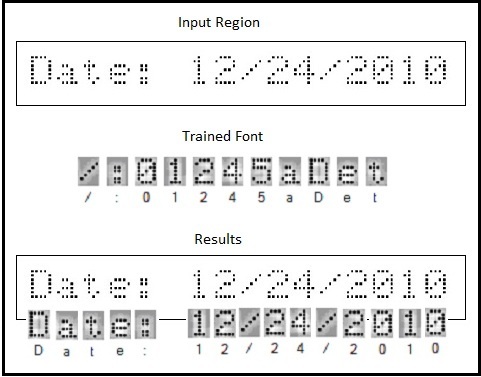
With good segmentation parameters and a trained font, an OCRMax tool can classify all the characters in any given string, as shown:
If the OCRMax tool cannot classify a character from the trained font, it produces a failed result which can be represented graphically, as shown:
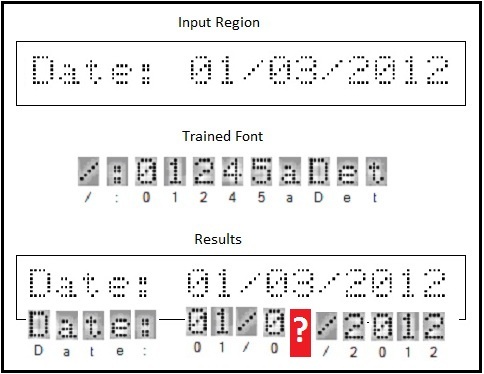
In this example, you must add the character "3" to the trained font before you deploy your application to a production environment. See the topic Choosing Segmentation Parameters for an example use of an OCRMax tool to classify all the characters in a set of sample images.
The classification process can optionally accept a swap character set (CogOCRMaxSwapCharSet) to specify characters in the trained font which can be ignored when calculating a matching score.
Use swap characters to prevent the OCRMax tool from generating confused results by an otherwise understandable string due to the similarity between two or more characters which are known to have a similar appearance, such as a "0" (zero) and a capital letter "O".
If a swap character set is specified, then the confidence score is defined as the difference between the score of the highest scoring classification and the score of the next-highest classification which is not swappable with the highest scoring classification.
Fielding is an optional process where the OCRMax tool attempts to classify a particular character against a known subset of all the characters in the trained font. Fielding can improve the overall performance of the tool by allowing it to disregard some or much of the trained font from consideration when classifying any character.
To use fielding you must specify a field string to indicate which characters from the trained font can occur for any given position in the character string. You can specify a literal character such as "C" or "$" in the field string, or use any of the following field definitions supported by the OCRMax tool:
- * represents any character (including spaces)
- N represent any numeric character
- A represents any alphabetic character (upper and lower case)
For example, the following figure shows a variety of character strings that can be classified by the defined field string:
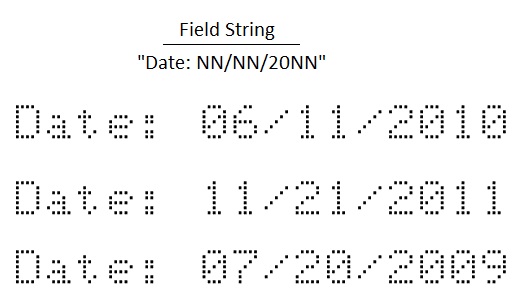
In addition to the field definitions supplied by default, an OCRMax tool allows you to specify your own field definitions. You could, for example, define the field definition U to represent the subset of numeric characters "0123", and then refine the field string in the previous figure to be Date: UN/UN/20UN.
Be aware that fielding can generate more reliable results at the cost of increased execution time. See the topic Using the OCRMax Tool for an example use of fielding.
An OCRMax tool can analyze variable length strings containing any combination of numbers, letters or special characters, provided the character string meets the following minimum requirements:
- A stroke width greater than or equal to two pixels for each character
- A minimum character size of 8x8 pixels for alphanumeric characters and 2x2 pixels for small characters such as periods
- Consistent polarity throughout the string, either all dark characters on a light background or all light characters on a dark background
- A consistent value for rotation and skew exhibited throughout the string
The segmentation parameters the OCRMax tool uses to identify separate character symbols include parameters that define these qualities of the string, such as the MinPitch property, which defines the minimum distance, in pixels, that must occur between characters.
An OCRMax tool can be configured to determine the best setttings for the segmentation parameters automatically, or you can set these parameters manually. See the topic Choosing Segmentation Parameters for a description of all the segmentation parameters and how to set them based on your character strings.
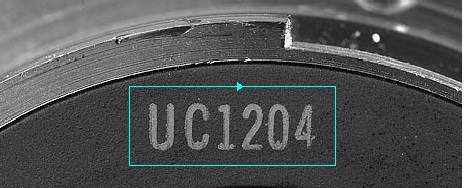
The OCRMax tool uses a region of interest to define the general location of the character string to be classified. Although you can change this default and specify the tool use the entire image, this can severely impact the performance of the tool. Ideally, the region you specify should have the following qualities:
It must surround only one line of characters.
Multiple lines of characters require multiple OCRMax tools.
It should surround only the characters in the desired string and no other features:
It must compensate for any skew apparent in the string.
Characters that overlap horizontally cannot be properly segmented, so your region of interest should reflect that skew as shown in the following example:

- It must occupy as large an area of the image as possible considering the optics in your production environment.
- It should support half the width of a character between the border and any character in the string.
In addition, you should consider using a fixturing strategy to correctly position the region of interest in each image regardless of how the character string might translate and rotate between successive acquisitions. See the topic Choosing Segmentation Parameters for more information.
A CogOCRMaxFont font file is a collection of character data used during classification to identify each element of a segmented character string. For each OCRMax tool in your application, you must either load a font file from memory or create one from scratch. A font file contains the following information about each character it defines:
- An image of the character
- A normalized image of the character that increases the contrast between the character and the background
- A binarized image of the character with only black and white pixels representing the character against the background
- The UTF-32 character code and name for this character
The cell rectangle and mark rectangle for each character.
The mark rectangle specifies the physical extents of a character while the cell rectangle provides information about the position of the mark rectangle with respect to the line along the base of the character string. The following figure shows an example of both rectangles:
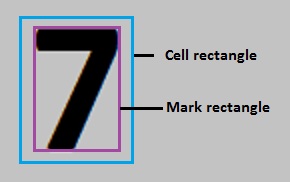
See the topic Choosing Segmentation Parameters for information on how the mark rectangle and cell rectangle are used during classification.
A font file supports the following types of fonts:
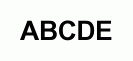
Stroke fonts
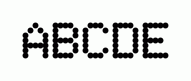
Dot-matrix fonts
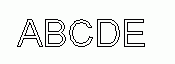
Outline fonts
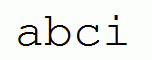
Fixed-width fonts
Proportional fonts
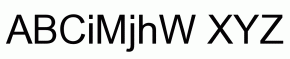
A font file does not support the following types of fonts:
Where two or more characters are stacked on top of each other:

- Where separate characters come in contact with each other and the character width varies:

- Chinese, Korean, and Japanese characters
- Windows font files, or any font file created outside of an OCRMax tool
See the topic Using the OCRMax Tool for an example of creating a font file through a collection of sample images. A font file can be saved for use with any number of OCRMax tools that will analyze images containing character strings with a similar appearance.
The OCRMax tool supports several run parameters that affect the results the tool returns.
For every character it attempts to classify, an OCRMax tool generates a matching score for all the characters in the trained font. Matching scores range from 0.0 to 1.0, with 1.0 for a perfect match. The tool compares the highest matching score to an accept threshold, and gives the character a preliminary Read result when the matching score exceeds the accept threshold. By default, an OCRMax tool uses an accept threshold of 0.8, but you can raise or lower the value as necessary for your vision application.
The accept threshold allows you to vary the sensitivity of the OCRMax tool to character and image variation. As you increase the accept threshold, the OCRMax tool will require a better match between the character in the string and the trained character in the font file.
Raise the accept threshold when your vision application acquires good images of the character strings you want to classify, with characters of consistently good print-quality, and that exhibit little change in rotation and skew. A high accept threshold can improve the execution speed of the tool. If you set the threshold too high, however, the tool will fail to classify one or more characters in the string.
Lower the accept threshold when your production environment cannot ensure a consistent appearance for each character. If, as you are developing your application, the OCRMax tool fails to classify characters correctly, try lowering the accept threshold.
The matching score between any character in the string and any character from the trained font must exceed the accept threshold before the character can be given a Read result. In addition, the highest matching score must exceed the matching score for all other characters in the trained font by a confidence threshold that you specify. If the difference between the highest matching score and any other matching score does not exceed this threshold, the OCRMax returns a Confused result for this character in the string. A Confused result indicates that this character is too close in resemblence to another character in the font to be classified accurately for your vision application.
By default, the confidence threshold is set to 0, so the OCRMax cannot generate confusion results. Increase the confidence threshold if you become concerned that the OCRMax tool classifies character incorrectly, for example verifying that a character key is a “3” when it appears as an “8” in your acquired image.
The OCRMax tool provides the result for a line of text as a CogOCRMaxLineResult record, a collection of CogOCRMaxPositionResult records for the results at each position in the string.
Each time it executes, an OCRMax tool returns the following information about every character in the classified string:
- Char: The character classified at this position.
- Score: A score between 0 and 1 to indicate how closely the character in the image matches the closest character in the trained font.
- Confusion Character: Which character from the trained font generates the second closest matching score.
- Confidence: The difference between the Score result and the score for the Confusion Character. If this difference exceeds the setting for Confidence Threshold, the result for this character is Confused..
In addition, the tool returns a Status result, a CogOCRMaxLineResultStatusConstants indicating one of six outcomes:
NoText: The segmentation process did not find any character candidates in the latest image.
The region of interest is likely not surrounding a character string.
NotRead: The segmentation process detected a character at this position, but the character could not be classified because there is no trained font for this OCRMax tool.
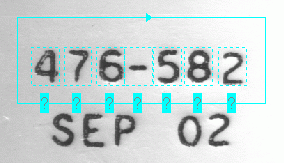
NotRead is an important state as NotRead position results can be manually labeled with the correct character code and used to build up the font.
- Read: The character at this position has been successfully classified.
Confused: The tool has identified a character whose Score exceeds the Accept Threshold, but another character also scores close enough that the score between the closest match and next closest match exceeds the setting for Confusion Threshold.
The tool displays Confused results in orange, as shown in the following figure where the characters "6" and "8" generate similar scores:
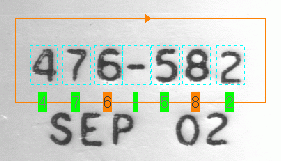
Mismatch: The tool identified a character that does not match the character specified in the field string at this position.
The tool displays Mismatch results in yellow, as shown in the following figure where the tool has a defined field string of "NNN-562" and the tool identifies the character "8" where it expects a "6":
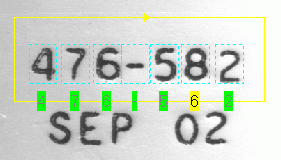
When no characters generate a score that exceeds the Accept Threshold for any given position, the tool uses an unknown character marker:
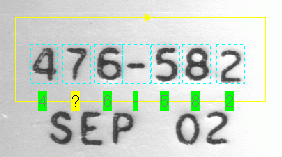
Failed: No characters in the trained font returned a Score above the Accept Threshold.
The tool displays Failed results in red, as shown in the following figure:
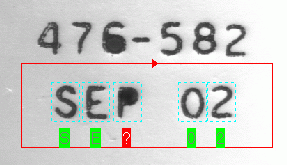
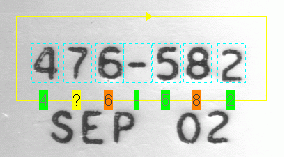
The Status of the entire string is set to the highest value among CogOCRMaxLineResultStatusConstants for all positions, which have the following values:
- NoText
- NotRead
- Read
- Confused
- Failed
- Mismatch
For example, the following figure contains a string where one character is mismatched and two are confused, so the Status result for this string is Mismatch:
The CogOCRMaxTool accepts CogImage16Range and CogImage16Grey as input (in addition to CogImage8Grey). This allows you to run the tool directly on these images without first having to map them to 8-bit format.
The tool automatically removes missing pixels from the input CogImage16Range before processing. This means removing the visible pixel mask from the image and replacing the missing pixels with a value. By default, missing pixels are replaced with the mean height value within the search region. You can also use the CogIPOneImageTool's Missing Pixel operator to remove missing pixels and then pass the resulting image to the CogOCRMaxTool. This prevents the CogOCRMaxTool from needlessly trying to remove missing pixels when the Missing Pixel operator has already removed them.
Even when the input is CogImage16Range or CogImage16Grey, the OCRMax segmentation process still outputs only 8-bit character data which is then passed to the classification process. The first step of segmentation is using an "intelligent" pixel map to make the characters visible by mapping to 8-bit. Note that you may still need to use the Colormap control on the input image in order for the characters to be visible.