VisionPro requires that you attach a USB security key to your computer to ensure the software is properly authorized for use. The USB security key contains programmed licenses that enable your vision application to acquire images and run vision tools. Your vision application throws the exception CogSecurityViolationException if the key is not attached or the appropriate license required by a specific vision tool is not enabled.
Your Cognex sales representative can provide a USB security key programmed with the desired licenses for your vision application. Attach the key to your computer before you launch any VisionPro application.
Every vision tool requires at least one enabled license, and some vision tools require multiple licenses. For example, the ID tool requires a combination of the licenses VisionPro.Barcode, VisionPro.Symbol, or VisionPro.SymbolVerifyBasic to locate 1D or 2D symbologies, depending on the needs of your vision application.
The following table lists the VisionPro tools and the licenses they require:
| VisionPro Tool | Licenses | Notes |
GigE Vision Acquisition (AcqFifo Tool and QuickBuild Image Source) | VisionPro.Cam2: Up to 2 cameras |
|
| DS1000 and DS900 Series Sensor types | VisionPro.CamDSGigE | Must also include one of the following licenses: VisionPro.Cam2, VisionPro.Cam4, VisionPro.Cam8, VisionPro.CamMulti, or VisionPro.SWAcquisition |
| Cognex Industrial Cameras (GigE Vision) | VisionPro.CamCICGigE | Must also include one of the following licenses: VisionPro.Cam2, VisionPro.Cam4, VisionPro.Cam8, VisionPro.CamMulti, or VisionPro.SWAcquisition |
Any GigE Vision camera | VisionPro.CamAnyGigE | Includes Cognex Industrial Cameras except DS1000 or DS900 Series Sensor types Must also include one of the following licenses: VisionPro.Cam2, VisionPro.Cam4, VisionPro.Cam8, VisionPro.CamMulti, or VisionPro.SWAcquisition |
| 3D Align Tool | VisionPro.3DAlign | |
| 3D CAD Import Operator | VisionPro.3DCad | |
| 3D Cross Section Tool | VisionPro.3DRangeTools | VisionPro.CrossSection | |
| 3D Fixture From Plane Script | VisionPro.3DStitch | |
| 3D Fixture Script | VisionPro.3DStitch | |
| 3D Height Calculation Tool | VisionPro.3DRangeTools | |
| 3D-Locate API | VisionPro.3DLocate | |
| 3D Plane Estimation Tool | VisionPro.3DStitch | |
| 3D Vision Data Rerender Tool | VisionPro.3DRangeTools | |
| 3D Volume Calculation Tool | VisionPro.3DRangeTools | |
| AlignPlus 2D Hand-Eye Calibration | VisionPro.HandEyeCalib2D | |
| Blob Tool | VisionPro.Blob | |
| Caliper Tool | VisionPro.Caliper | |
| Checkerboard Calibration Tool | VisionPro.Calib | Other Cognex Calibration and Fixturing tools do not check the VisionPro.Caliblicense. |
| CNLSearch Tool | VisionPro.CnlSearch | |
| Color Extractor Tool | VisionPro.Color | |
| Color Match Tool | VisionPro.Color | |
| Color Segmenter Tool | VisionPro.Color | |
| Composite ColorMatch Tool | VisionPro.Color | |
| Data Analysis Tool | VisionPro.DataAnalysis | |
| Dimensioning Tools | VisionPro.Dimensioning | Find Line/Circle Fit Line/Circle/Ellipse/Corner |
| Edge Blob | VisionPro.EdgeBlob & VisionPro.Blob | |
| DS Field Calibrator Utility | VisionPro.CamDSGigE: Single-sensor calibration VisionPro.CamDSGigE | VisionPro.3DStitch: Multiple-sensor calibration | |
| ID Tool | VisionPro.Barcode: 1D symbologies VisionPro.Symbol: 2D symbologies VisionPro.SymbolVerifyBasic: Data Matrix symbols with any process control metric enabled | |
| Image Processing Tools | VisionPro.GMorph (ICogIPOneImageGreyMorphology only) | Other Image Processing tools do not check this license. |
| LineMax Tool | VisionPro.LineMax VisionPro.LineMaxMulti | VisionPro.LineMaxMulti for multi-line finding and edgelet-only return |
| Model Maker | VisionPro.ModelMaker | Used to create and edit synthetic models for PMAlign. |
| Multithreading Support | VisionPro.Multithread | Enables optimized code path for multithreading. |
| OCRMax Tool | VisionPro.OCR: 8-bit images VisionPro.OCR & VisionPro.16BitTools: 16-bit images VisionPro.OCR & VisionPro.3DRangeTools: 3D range images | |
| OCV Tool | VisionPro.OCV | |
| OCVMax Tool | VisionPro.OCVMax | |
| PatInspect Tool | VisionPro.PatInspect | |
| PMAlign Tool | VisionPro.PatMax VisionPro.PatQuick (PMAlign tool using only the PatQuick algorithm) VisionPro.SynthPatMax VisionPro.PatFlex | VisionPro.PatMax includes the PatQuick and Perspective PatMax algorithms |
| PMAlign Tool 16-bit (PatMax algorithm) | VisionPro.PatMax & (VisionPro.16BitTools | VisionPro.3DRangeTools) | |
| PMAlign Tool 16-bit (PatQuick algorithm) | VisionPro.PatQuick & (VisionPro.16BitTools | VisionPro.3DRangeTools) | |
| PMAlignMultiTool | VisionPro.PatMax VisionPro.PatQuick (PMAlign tool using only the PatQuick algorithm) | |
| Point PatMax | VisionPro.PatMax | |
| SearchMax Tool | VisionPro.SearchMax | |
| SearchMax (High Accuracy) | VisionPro.HighAccuracyCorrelation | |
| SurfaceFX Tool | VisionPro.SurfaceFX | |
| Vision Data Stitch Tool | VisionPro.3DStitch |
As your application runs, the Cognex Security Service verifies the presence of the key and the licenses for the vision tools that you want to use:

You can plug the key into a USB hub that is connected to multiple computers, but only one computer can use the key at any time. You cannot share the license information on a security key with multiple computers.
Cognex sets a software update maintenance period on each USB security key, which enables the key to validate VisionPro based on the release year for that version. For example, your USB security key can be programmed to validate any version of VisionPro released in 2018 or 2019 exclusively.
The software update maintenance period appears in a description of the security key you can view using the Cogtool utility or from within your vision application, as described in the section Determining Which Licenses are Enabled. The following is an example of a software update maintenance period between January 2018 and December 2019:
SWUP: {2018.1-2019.12}With this maintenance period, the security key will work with any version of VisionPro released between January 1st, 2018 through December 31st, 2019, indefinitely.
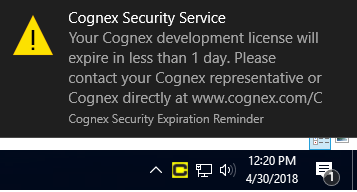
The Cognex Security Service includes a Windows scheduled task that runs on your computer every day and notifies you if any licenses on your security key will expire within the next 30 days. The task displays a balloon alert and notification in the system tray:
You have several options for determining which licenses are enabled on the USB security key.
Use Cogtool, a utility included with your VisionPro installation, to determine which VisionPro licenses are enabled on your security key.
Enter the following command in a command prompt window:
cogtool --print | more
The output will look similar to the following. Your output depends on the vision tool options you licensed through your Cognex sales representative.
There is 1 Cognex Security device installed.

  Cognex Security Key v8
    Serial Number: 3-4346701
    Device: Wibu CmStick/C, FW 4.05, FAC: 1
            Certified Time: 2018-04-03.00:22:

      License Details:
        SWUP: {2018.1-2025.12}
      Tools Programmed:
          Cognex.Generic
          Designer.Deployment
          Designer.Development
          Designer.Generic
          VisionPro.16BitTools
          VisionPro.3DAlign
          VisionPro.3DCad
          VisionPro.3DLocate
          VisionPro.3DRangeTools
          VisionPro.3DStitch
          VisionPro.BarCode
...
...

          VisionPro.SymbolVerifyBasic
          VisionPro.SynthPatMax

    Runtime Configuration
      version: 6.60 (meets requirement)
      minimum required version: 6.50

There are 0 Cognex Vision boards installed.

Security Service Configuration
No compatible services detected.Be aware the Cogtool utility does not have information regarding the release date for your installed version of VisionPro, so it might list licenses that are no longer valid because the security key is not within its valid software update maintenance period. See the section Software Update Maintenance Period for details.
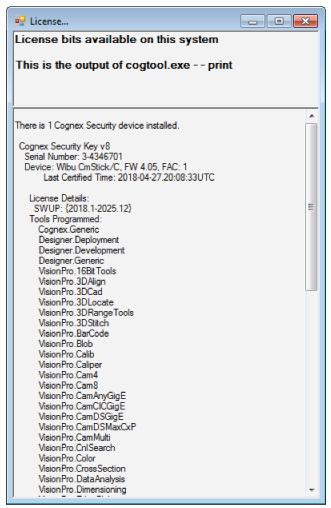
Choose Help->License... from QuickBuild to determine which VisionPro licenses are enabled on your computer. QuickBuild displays a listing similar to the following:
Use the VisionPro security API and determine which licenses are enabled with the [M:Cognex.VisionPro.CogLicense.GetLicensedFeatures(System.Boolean, System.Boolean)] method within your vision application. The following code example lists each enabled license:
CogStringCollection licensedFeatures;
licensedFeatures = CogLicense.GetLicensedFeatures(false, false);

foreach (string feature in licensedFeatures)
  System.Console.WriteLine(feature);
Be aware that your security key might have enabled licenses but they do not appear in this list because your security key is not within its valid software update maintenance period. See the section Software Update Maintenance Period for details
Cognex supports time-limited security keys for application developers. Development keys have the following features:
- An expiration date up to 10 years in the future
An application session limit of 5 hours
You can stop and restart VisionPro for another 5-hour session at any time.
Use Cogtool, a utility included with your VisionPro installation, to discover how much time remains on your development key.
Enter the following command in a command prompt window:
cogtool --print | more
The output shows when the development key expires, accurate to within a five minute range:
There is 1 Cognex Security device installed.

  Cognex Security Key v8
    Serial Number: 3-4346701
    Device: Wibu CmStick/C, FW 4.05, FAC: 1
            Certified Time: 2018-04-03.00:22:
      License Details:
        Expires in: 365d 0h 33m
...Even after an application session timeout or the time limit on the development key has expired, VisionPro still allows you to save changes to your VisionPro project. Time-limited development keys are typically discarded at the end of their time limit. To obtain addiitional time with a new security key, contact your Cognex sales representative or Cognex Customer Support.
A VisionPro tool can throw a security exception (CogSecurityViolationException) for a variety of reasons.
See the following sections for possible solutions:
- Verify the Security Key Is Installed
- Ensure That You Have the Needed Vision Tool Licenses
- Check VisionPro Security Services Are Running
- Check the Software Update Maintenance Period
- Power Option and Management Settings
You must have a Cognex USB security key installed to run VisionPro and VisionPro-based applications. Use the Cogtool utilityto verify the hardware detects the Cognex security key. Enter the following at a command prompt:
cogtool --print | more
If you have a Cognex security key installed, the output begins with something like the following.
There is 1 Cognex Security device installed.

  Cognex Security Key v8
    Serial Number: 3-4346701
    Device: Wibu CmStick/C, FW 4.05, FAC: 1
Certified Time: 2018-04-03.00:22:If you receive a security error when you try to use a particular vision tool, your USB security key might not have the appropriate licenses enabled. Use the Cogtool utility to check which licenses are enabled on your Cognex hardware. See the section Determining Which Licenses are Enabled for details.
To use a VisionPro tool that is not enabled on your security key, contact your Cognex Sales Representative.
Open Windows Task Manager and verify that the following security services are running:
- CodeMeter.exe
- cogss2_srv
Some antivirus software products can conflict with Cognex security; they might generate entries in your Windows Event Viewer concerning license violations and application errors. Add the services cogss2_srv.exe and CodeMeter.exe to your application whitelist. Refer to your Windows OS documentation for details.
See the section Software Update Maintenance Period for details on verifying your security key is still within the valid maintenance period for use.
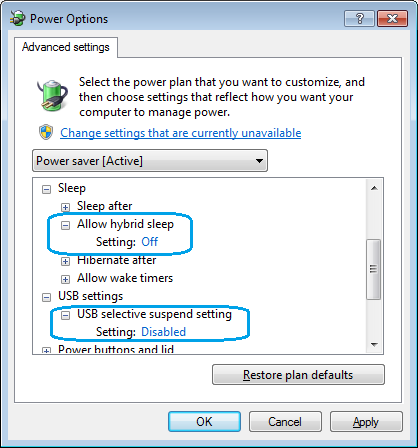
Be aware that if your computer enters power-saving sleep mode for five minutes or longer, your vision application has a high probability of throwing a CogSecurityViolationException when it resumes. To prevent security violations related to the power management options for your computer and your USB hub in particular, Cognex recommends you access the Power Options settings in your Windows Control Panel and ensure the following:
Turn off the Allow hybrid sleep setting and disable the USB selective suspend setting option:
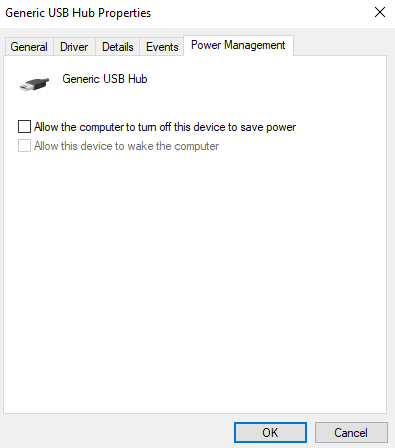
Under Generic USB Hub properties, disable the Allow the computer to turn off this device to save power option: