This topic contains the following sections.
This topic describes how to set up and run the Multi-Model PatMax tool. The CogPMAlignMultiTool is set up by adding multiple patterns to it. During run time, the tool performs feature extraction on the run-time image once, and determines for each feature which pattern in the Multi-Model the feature matches, if the feature matches any pattern. In other words, the Multi-Model tool performs pattern alignment and classification on your run-time image based on the added trained patterns and the run-time parameters you specify.
Hereinafter, setup and running the Multi-Model tool is demonstrated using a use case where various mechanical components are to be found in the run-time images.
- Select a set of images of your parts that covers the range of part appearances that you need to align. This set may contain images of different parts. Depending on your alignment needs, the set may also contain multiple images for a part, each such image acquired at a different orientation of the part. (This avoids opening the angle degree of freedom during run-time pattern alignment, saving processing time.)
-
Add patterns for each part/appearance.
-
On the Train Params tab of the CogPMAlignMultiTool, add a new pattern for each part (or part appearance).
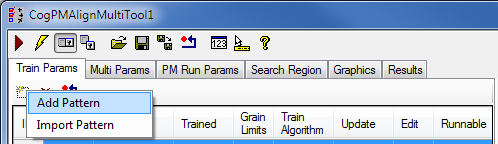
-
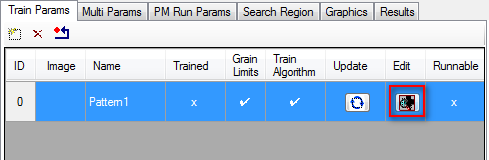
Click the Edit button for each pattern added to the Multi-Model to configure the pattern.
- Configure and train the pattern.
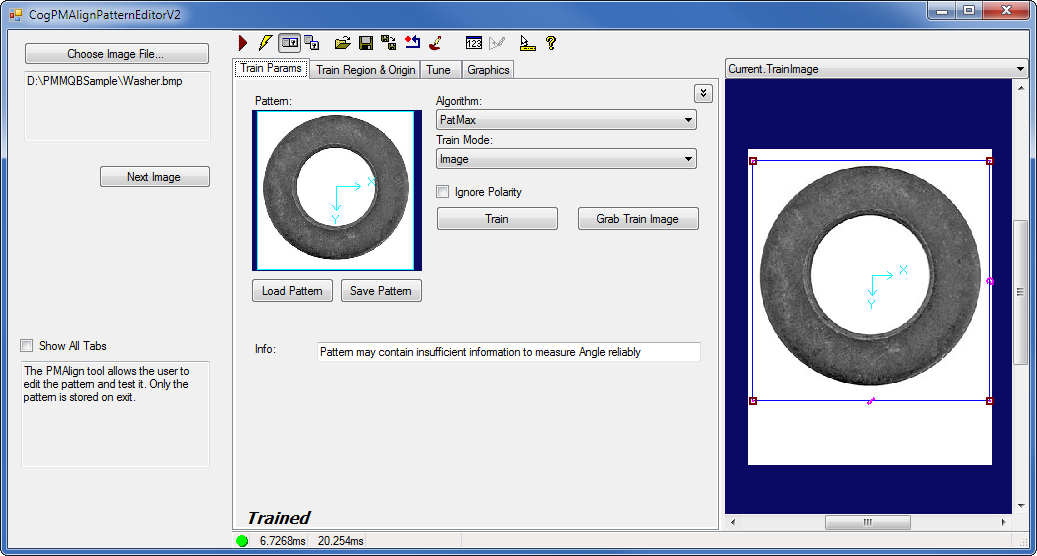 Optionally, you can provide a name for the added pattern.
 Note
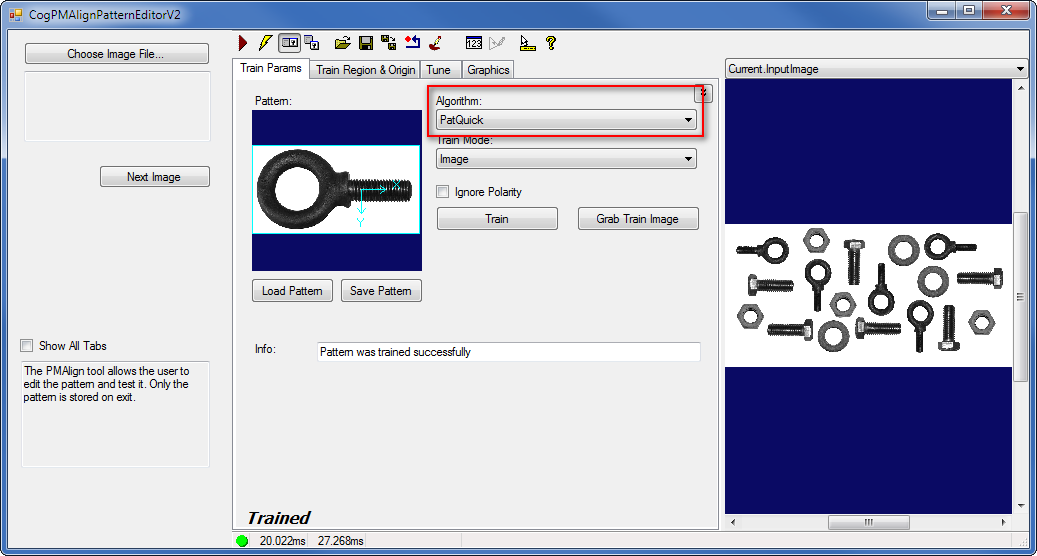
NoteMake sure you train all patterns using identical coarse and fine granularities and using the same algorithm, such as PatMax (other options include PatQuick). This allows the tool to use the same extracted features with all the patterns. 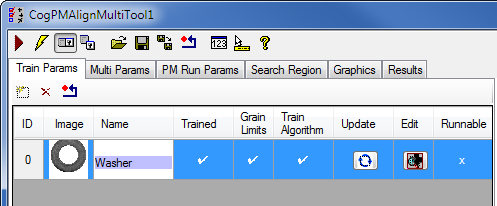
-
On the Train Params tab of the CogPMAlignMultiTool, add a new pattern for each part (or part appearance).
On the Train Params tab of the CogPMAlignMultiTool, you can choose to import a pattern that was created using a PMAlign tool. The pattern from another tool cannot be linked, the pattern must be saved to a file and imported into the Multi-Model tool using the Import Pattern button.
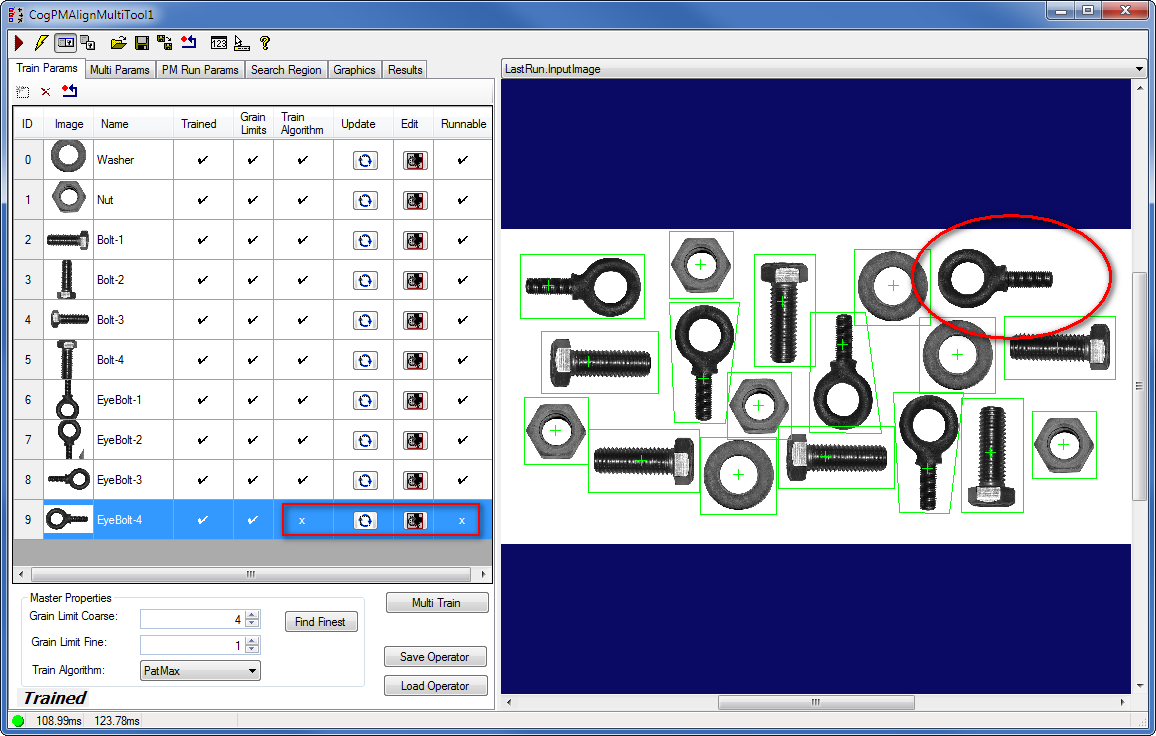
The Multi-Model tool requires all patterns be trained using the same grain limits and the same train algorithm so that the same extracted features can be used with all the patterns. The Multi-Model tool has a master set of properties: coarse/fine granularities and train algorithm. These properties in all patterns must match the master set properties. For each pattern that contains a non-matching property, you will see an X in the column for the property that does not match the master property. You will see check marks for those properties that match. You can push the master properties to the patterns using the Update button for each pattern or update the master properties. If the grain limits do not match, it is recommended that you find the smallest grain limits and then push these settings to all patterns.
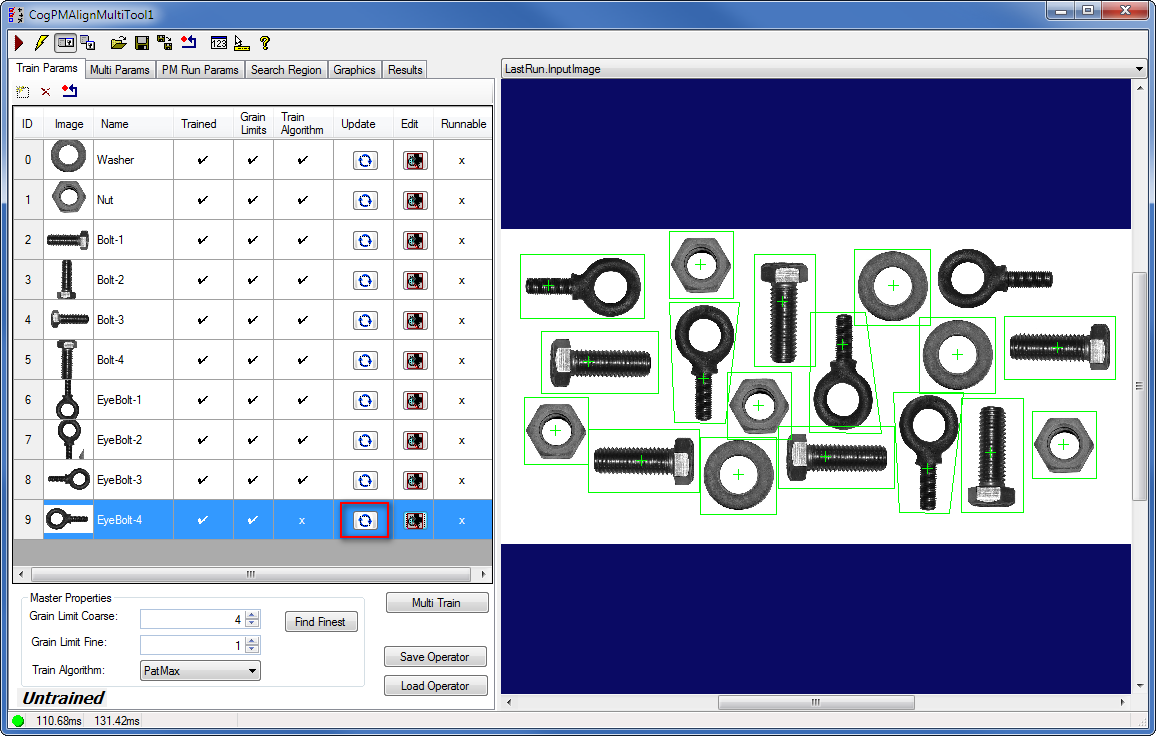
See the Fixing Granularity or Algorithm Inconsistencies Using the Update Buttons section on the detailed usage of the Update button.- The Update button pushes the master properties to the pattern, changes the auto grain to false, and trains the pattern. You do not have to open the pattern editor to perform these.
- The Edit button launches the pattern editor to allow you to configure a pattern from scratch or modify the pattern properties.
After the patterns have been trained, have the same grain limits and train algorithm, click Multi Train to train the Multi-Model. This will make the patterns runnable.
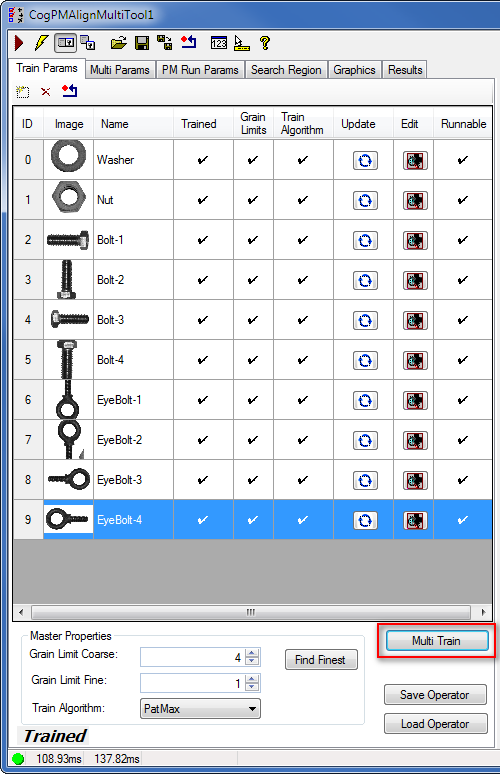
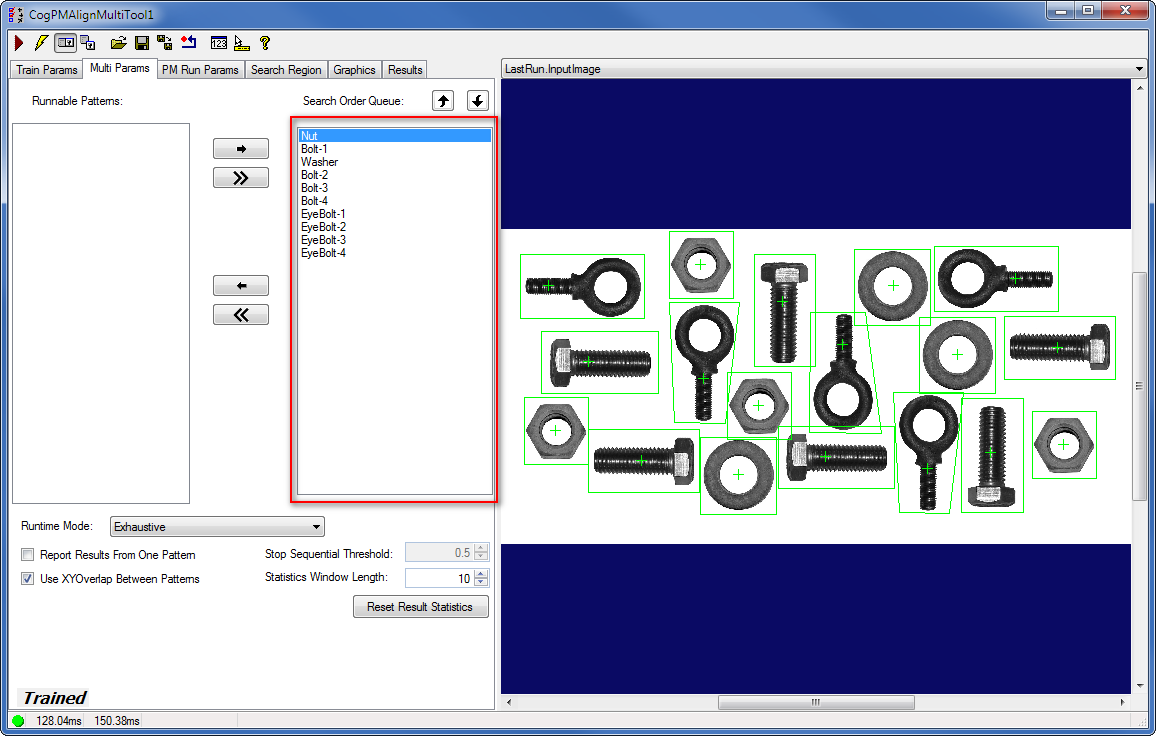
Multi-Model runs the patterns that have been added to the Search Order Queue. You can have many runnable patterns but the queue may only hold a subset of the patterns. The order of the patterns is important in sequential searches because once a pattern has met the stopping condition, the search stops.
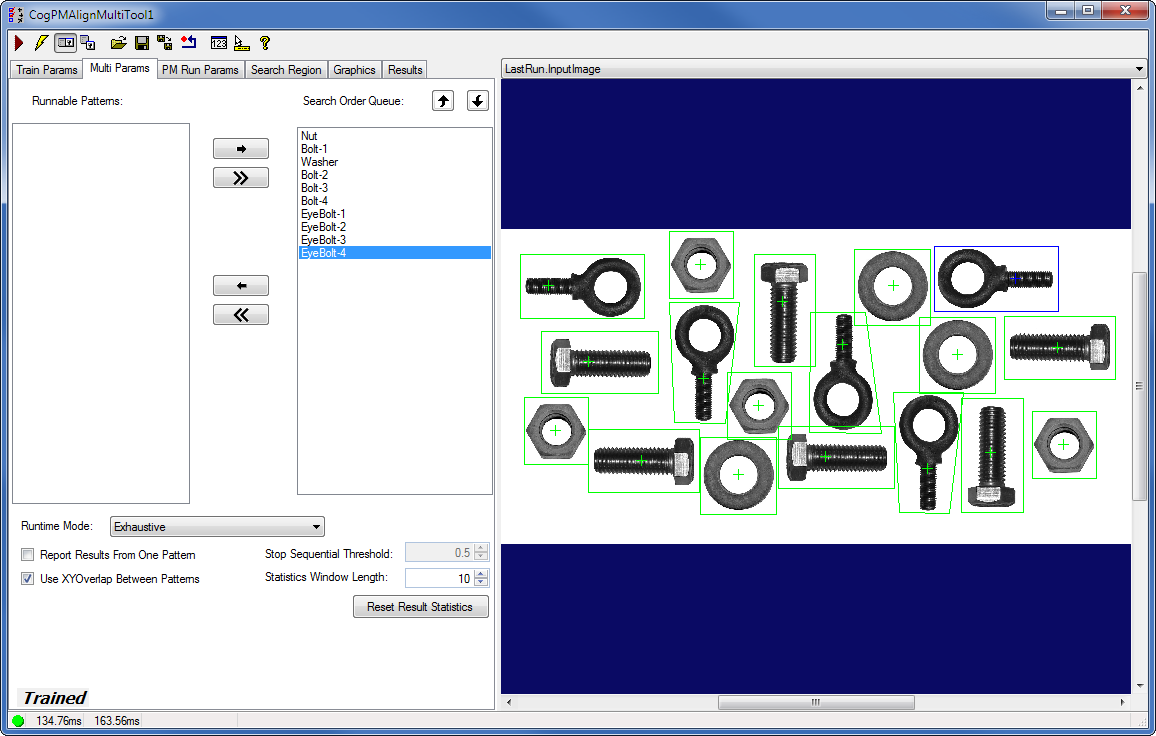
On the Multi Params tab, add the patterns you want to locate during run time to the Search Order Queue from the list of Runnable Patterns.
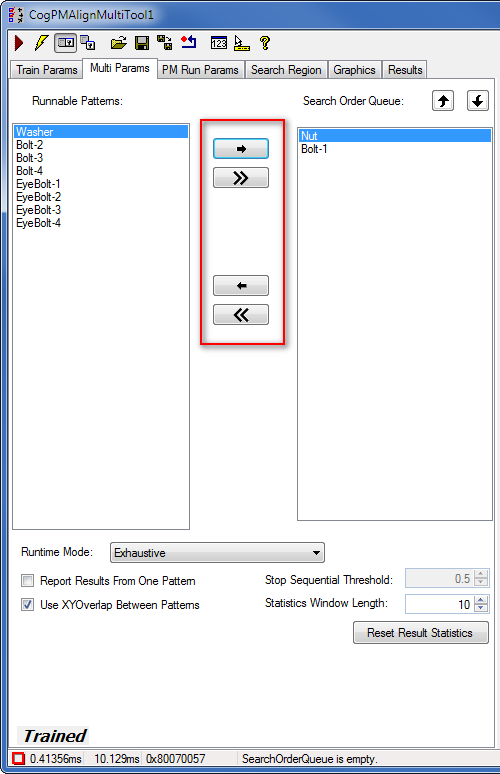
In addition to the usual PMAlign runtime parameters, Multi-Model tool has its extra parameters:
- Runtime Mode, specifies how to search for the patterns. In this case, select Exhaustive as the Runtime Mode to locate all trained patterns added to the Search Order Queue during run time. See the RuntimeMode section for details on the runtime modes.
- Report Results From One Pattern, specifies whether results from a single pattern should be reported.
Once you have trained the CogPMAlignMultiTool, you can run it on the run-time image to find the trained patterns.
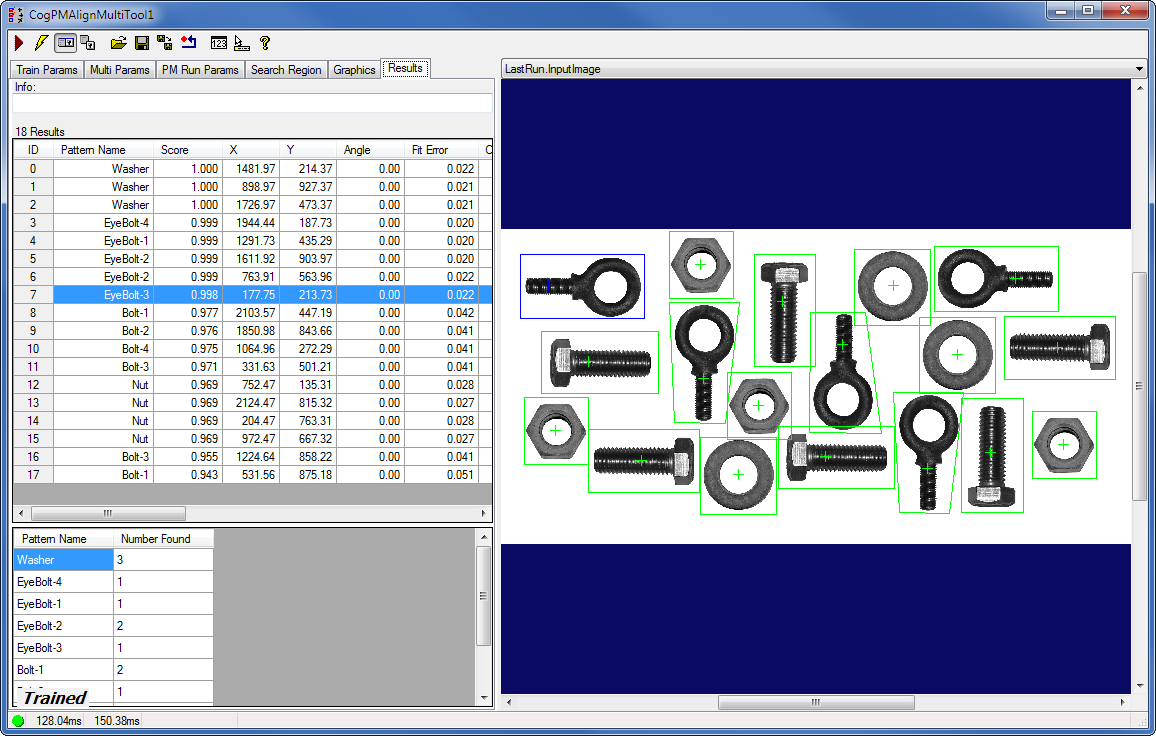
If you trained a pattern using different coarse or fine granularities or using a different algorithm than what is defined for the Multi-Model training in the Master Properties section, the inconsistency will be indicated and only those patterns will be run during run time that have the same granularity and algorithm settings as those defined for the Multi-Model.
-
Click the Update button next to each pattern that is in an inconsistent state.
- Click Multi Train again to retrain the Multi-Model.
-
Add the newly fixed patterns to the Search Order Queue on the Multi Params tab.
You can then re-run the tool to locate all added patterns.