This topic contains the following sections.
The Two Image Add edit control provides a graphical user interface (GUI) for the CogIPTwoImageAddTool vision tool.
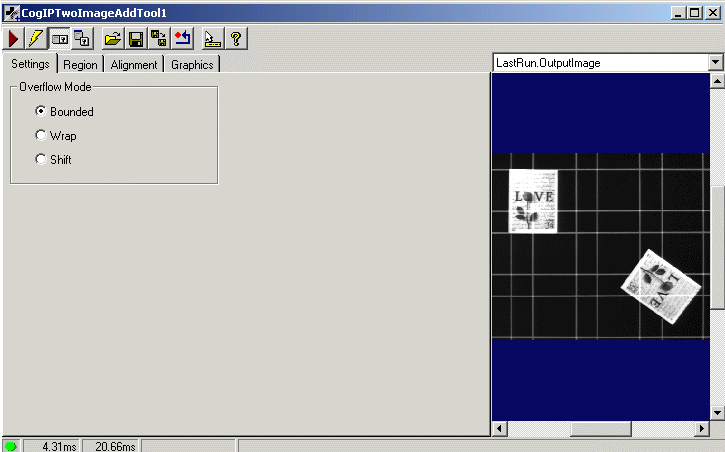
This tool adds the pixels in two input images to produce a single output image. To run the tool, you supply:
- Two input images.
- A pixel overflow mode.
- Optional region and alignments for each image.
Note: The output image's coordinate space tree is adjusted to preserve the relationship between root space and image features.
The Two Image Add edit control includes the following components:
- A row of control buttons at the top left.
- A tool display window that can display the tool's image buffers: Current.InputImageA, Current.InputImageB, LastRun.InputImageA, LastRun.InputImageB, and LastRun.OutputImage. These buffers contain the two images on which the tool will operate (including any input regions), the last two images on which the tool operated, and the image result from adding the input images.
- A set of tabs organized by function. These functions include parameter settings to run the tool, parameter settings for the region and alignment of each input image, and graphic settings for the tool displays. Pressing the Control + Tab keys scrolls through the set of tabs.
- A status bar at the bottom left of the control. A green circle indicates that the tool ran successfully; red means the tool ran unsuccessfully. The status bar also displays the time to run the tool and any error codes or messages. The first time that the status bar displays is the raw tool execution time. The second includes the time needed to update the edit control. Controls only update when they are visible.
The Two Image Add edit control includes buttons common to most VisionPro controls.

The following table describes the buttons at the top left of the edit control.
| Button | Description |
 | Runs the Two Image Add tool. You must have an image available in the Current.InputImageA and Current.InputImageB buffers (equivalent to InputImageA and InputImageB, respectively). This button invokes the Run method. |
 | Toggles electric mode. When selected, the tool runs automatically if certain parameters have changed. When the edit control is in electric mode, these parameters are indicated by electric bolt icons. |
 | Opens or closes the local tool display window. This window has a selection box that you use to specify the image buffer you want to view. |
 | Opens one or more floating tool display windows, providing an additional tool display window. As with the local tool display window, you can specify the tool image buffer to view. |
 | Loads a VisionPro persistence (.vpp) file, which contains a set of saved properties for this vision tool object type. Loading a persistence file for another object type throws an error and the load is unsuccessful. For more information about VisionPro persistence features, see the topic Persistence in VisionPro. |
 | Saves the current properties of the underlying tool to a VisionPro persistence file. You have the option to save either the entire tool or the tool without its images or results. |
 | Saves the current properties of the underlying tool to a new VisionPro persistence file. |
 | Resets the underlying tool to a default state. |
 | Enables or disables the display of tooltips for individual items in this edit control. |
 | Opens this help topic. |
The Two Image Add edit control has five image buffers:
- The Current.InputImageA and Current.InputImageB buffers show the tool's InputImageA and InputImageB, respectively. If you specify a RegionA or RegionB, these buffers also show region selection graphics.
- The LastRun.OutputImage buffer shows the OutputImage that results from adding the pixels of the input images.
- The LastRun.InputImageA and LastRun.InputImageB buffers show the images on which the tool most recently ran. Use the Graphics tab to show input regions, alignment points, and overlap mask graphics.
You can display these image buffers using either the local or floating tool display window.
You use the Settings tab to select a OverflowMode. The overflow mode determines how the tool handles cases in which adding the two images results in values greater than the maximum pixel value.
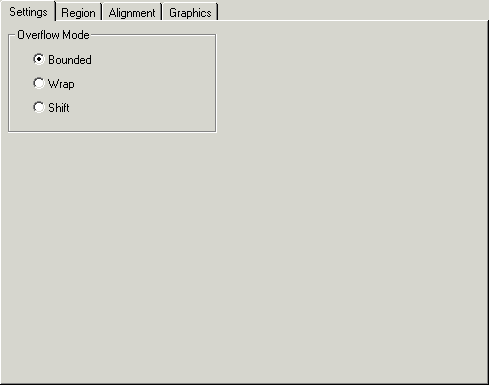
You can choose from the following modes.
| Overflow Mode | Description |
| Bounded | Limits the pixel values to low and high values. For 8-bit unsigned images, this is 0 and 255, respectively. This option is equivalent to setting the tool's overflow mode to CogIPTwoImageAddOverflowModeConstants. |
| Wrap | Wraps any pixel values that overflow from the add operation. This option is equivalent to setting the tool's overflow mode to CogIPTwoImageAddOverflowModeConstants. |
| Shift | Divides result pixel values by two. This option is equivalent to setting the tool's overflow mode to CogIPTwoImageAddOverflowModeConstants. |
You use the Region tab to specify separate regions of interest for each input image.
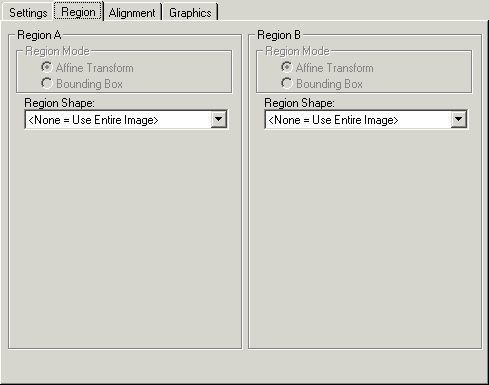
The following table summarizes the Region tab features.
| Feature | Description |
Region Mode | Defines how the tool interprets the input region you specify. Equivalent to setting RegionModeA or RegionModeB properties with the appropriate CogRegionModeConstants enumeration value.
|
Region Shape | The shape of the input region. This is equivalent to setting either RegionA or RegionB. Selecting "None=Use entire image" means that the tool uses the entire input image. A Two Image Add tool supports the following input region shapes: The set of region-defining parameters that appear depend on the region shape you use. For more information on using a polygon as an input region, see the topic Using Polygon Input Regions. |
| SelectedSpaceName | The coordinate space in which the region is interpreted. For information, see Coordinate Space Names. |
| Select Mode | Available when Region Shape is CogRectangle or CogRectangleAffine. Selects the set of parameters that define the rectangle. If CogRectangleAffine is chosen, note that the angles of rotation and skew can be specified in degrees or radians, although the underlying tool keeps the measurements in radians. |
The Alignment tab lets you set the x- and y-coordinates in each input image used to align the images when they are added. Coordinates are always specified in the selected space of the corresponding input image.
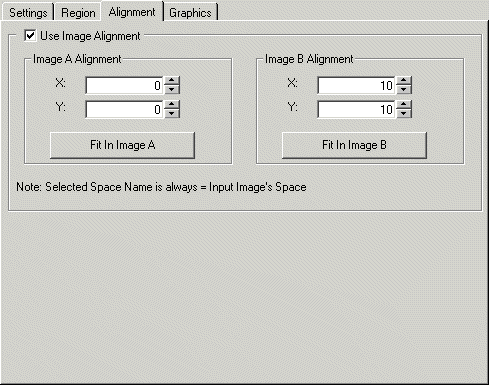
| Feature | Description |
| Use Image Alignment | Specifies whether the x- and y-coordinates of the alignment points are used to align the first input image with the second image. If unchecked, the tool uses the upper-left corner of each input image or of the transformed regions for alignment. Equivalent to setting the ImageAlignmentEnabled property. |
X, Y | Specifies the x- and y-coordinates in each input image with which to align the images to be added. The coordinates are specified in selected coordinated space of each input image. Equivalent to setting the following properties: |
| Fit in Image A, Fit in Image B | Places the alignment point in the center of an input image. |
You use the Graphics tab to choose which diagnostic graphics the tool generates and displays in the LastRun.OutputImage, LastRun.InputImageA, LastRun.InputImageB buffers. The graphic options on this tab are equivalent to setting the LastRunRecordDiagEnable with the appropriate CogIPTwoImageAddLastRunRecordDiagConstants enumeration values.
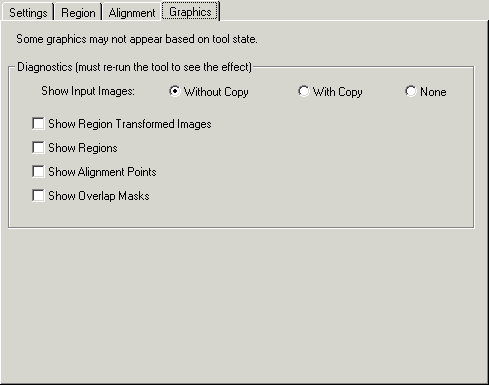
The Graphics tab offers the following diagnostic graphic options.
| Diagnostic Graphic | Description |
| Show Input Images | The Without Copy, With Copy, and None options determine whether or not the input image is recorded as part of the diagnostic record; and whether the image is copied to the record or saved in the record as a reference. |
| Show Region Transformed Images | Shows the pixels that correspond to the selected regions of the input images. This applies only to the Affine Transform (CogRegionModeConstants) region mode. |
| Show Regions | Outlines the selected regions of the input images. |
| Show Alignment Points | Draws the alignment points of the input images used to obtain the output image. |
| Show Overlap Masks | Shows the overlap mask on either the last-run input images or last-run region transformed images. If you did not specify any regions, then the overlap is displayed on the corresponding input image. |