This topic contains the following sections.
The SearchMax tool edit control provides a graphic user interface to the CogSearchMaxTool, which lets you train a pattern of the image features you are looking for and then find instances of the trained features in a run-time image.
The following figure shows the SearchMax tool edit control:
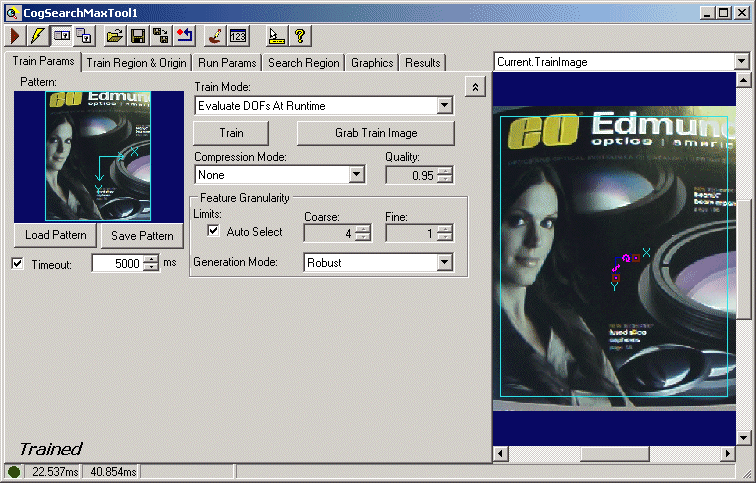
The edit control offers the following features:
- A row of control buttons at the top left provide access to the most common operations.
- A set of tabs organized by function.
- An image display window displays acquired images and graphical results of the SearchMax tool.

The following table describes the functions of the buttons at the top left of the control.
| Button | Description |
 | Run the SearchMax tool. You must have a trained pattern, an input image, and specified run parameters. The tool searches for the trained pattern in the input image. You may constrain the pattern search to a search region within the input image. |
 | Toggles electric mode. When selected, the SearchMax tool runs automatically if certain parameters have changed. These parameters are indicated by electric bolt icons that appear when the tool is in electric mode. |
 | Opens the local tool display window, which can display the Current.InputImage, Current.TrainImage, or LastRun.InputImage buffer. |
 | Opens one or more floating tool display windows. You can display the Current.InputImage, Current.TrainImage, or LastRun.InputImage buffer. Unlike the local tool display, you can resize or move the position of the floating tool display window. |
 | Loads a VisionPro persistence (.vpp) file, which contains a set of saved properties for this vision tool object type. Loading a persistence file for another object type throws an error and the load is unsuccessful. |
 | Saves the current properties of the underlying tool to a VisionPro persistence file. You have the option to save either the entire tool or the tool without its images or results. |
 | Saves the current properties of the underlying tool to a new VisionPro persistence file. |
 | Resets the underlying tool to a default state. |
 | Opens the Image Mask Editor for creating a mask to add to the training image. |
 | Opens a new, separate results window, allowing you to view run results without turning to the Results tab. |
 | Enables or disables the display of tooltips for individual items in this edit control. |
 | Access the VisionPro Software Documentation. |
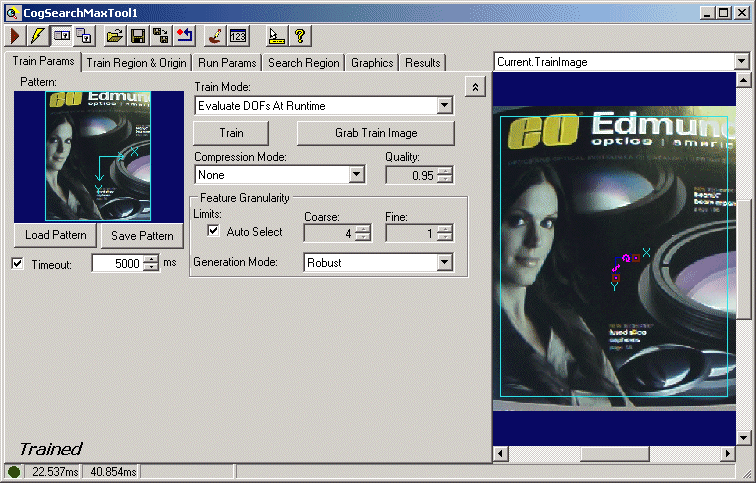
| Parameter | Description |
| LoadObjectFromFile | Opens a VisionPro persistence file, which has a VPP extension, that contains a trained pattern. |
| SaveObjectToFile | Saves the current trained pattern into a VisionPro persistence file, which has a VPP extension. |
| TrainMode | Set the train mode for this tool. |
| Train | Trains the pattern. If the pattern is already trained then it will be untrained and retrained. |
Grab Train Image | Copies the image in the InputImage buffer into the TrainImage buffer. This button is not enabled unless there is an image in Current.InputImage. |
| CompressionMode | Sets the compression mode which specifies how the pattern is trained and run. |
| CompressionQuality | Available when Compression Mode is Lossy, sets how much the the lossy compression algorithm will compress the trained image model. |
| Feature Granularity | If GrainLimitAutoSelect is not selected, then the GrainLimitCoarse and GrainLimitFine grain limits that you supply are used. |
| CogSearchMaxGranularityModeConstants | Method used to generate the coarse model at a given granularity or resolution. |
| TrainTimeoutEnabled | If enabled, execution time of the SearchMax train operation is limited by the timeout value. |
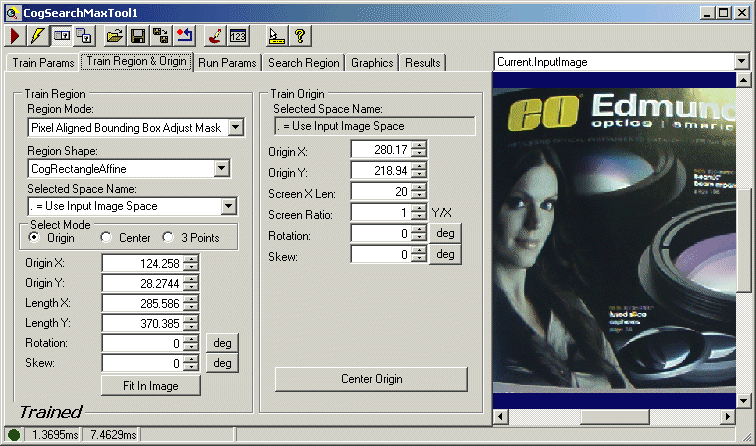
| Feature | Description |
Defines the bounding box for the region.
If you are training a pattern from a collection of shape models, you must use a Pixel Aligned Bounding Box, as a Pixel Aligned Bounding Box Adjust Mask region is not supported for shape training. | |
Select the shape of the input region. Selecting None=Use entire image means that the tool uses the entire input image. A SearchMax tool supports the following input region shapes:
The set of region-defining parameters that appear depend on the region shape you use. For more information on using a polygon as an input region, see the topic Using Polygon Input Regions. | |
The coordinate space in which the training region is interpreted. For information, see Coordinate Space Names. The selected space name of the training region is ignored when training from shape models and a transform. | |
| Select Mode | Available when Region Shape is cogRectangle or cogRectangleAffine. Selects the set of parameters that define the rectangle. If cogRectangleAffine is chosen, note that the angles of rotation and skew can be specified in degrees or radians, although the underlying tool keeps the measurements in radians. |
| FitToImage | Centers the train region within Current.TrainImage. |
| Feature | Description |
Origin X Origin Y Screen X Len Screen Aspect Rotation Skew | Values that define the location and orientation of the train region's origin. These values will change if you modify the origin graphically. Note that the angles of rotation and skew can be specified in degrees or radians. Equivalent to the Origin property. |
| Center Origin | Sets the train region's origin at the center of the train region. |
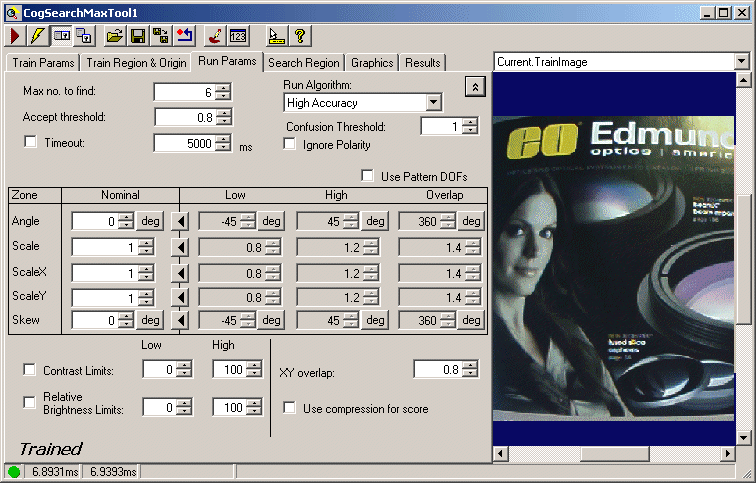
| Parameter | Description |
| MaximumNumberToFind | Sets the maximum number of results to look for. In some cases, SearchMax may return fewer results than requested. |
| IgnorePolarity | Sets whether to ignore poalrity. If true, pattern polarity is ignored. If false, only patterns with polarity matching the trained pattern will be found. |
| AcceptThreshold | Sets the acceptance threshold on the score of a result. Only instances of the pattern that receive scores greater than or equal to this threshold are accepted. Valid range is from 0 to 1. |
| ConfusionThreshold | Sets the confusion threshold on the score of a result which is a hint regarding how confusing the search image is likely to be. A high value slows the search but ensures that wrong features are not found. A low value speeds up the search for non-confusing scenes. Must be greater than or equal to Accept threshold. Valid range is from 0 to 1. |
| TimeoutEnabled | If true then the Timeout property limits the execution time of the SearchMax. If false then timeout is disabled and the Timeout property is ignored. |
| RunAlgorithm | Choose High Accuracy to produce the best possible results at the potential cost of application speed. |
| ZoneUsePattern | Determines whether to use zone information of DOFs from CogSearchMaxPattern. If true, zone information of DOFs specifed in CogSearchMaxPattern will be used; otherwise, zone information specified in this CogSearchMaxRunParams will be used. |
| ContrastEnabled | Sets whether to enable contrast. If true then ContrastRangeLow and ContrastRangeHigh properties will be used to search only the patterns within the defined contrast range. If false then the properties are ignored during a search. |
| RelativeBrightnessEnabled | Sets whether to enable relative brightness. If true then RelativeBrightnessRangeLow and RelativeBrightnessRangeHigh properties will be used to search only the patterns within the defined relative brightness range. If false then the properties are ignored during a search. |
| XYOverlap | Sets the area overlap threshold. Result candidates overlap in an area if the percentage of area overlap is greater than this value. SearchMax discards the weaker pattern instance when two pattern instances overlap for all DOFs as well as area. Valid range is from 0 to 1.0. |
| CompressionEnabledForScore | If disabled, SearchMax will use the uncompressed models to calculate final scores of found results even if it was trained and run using the Compression. |
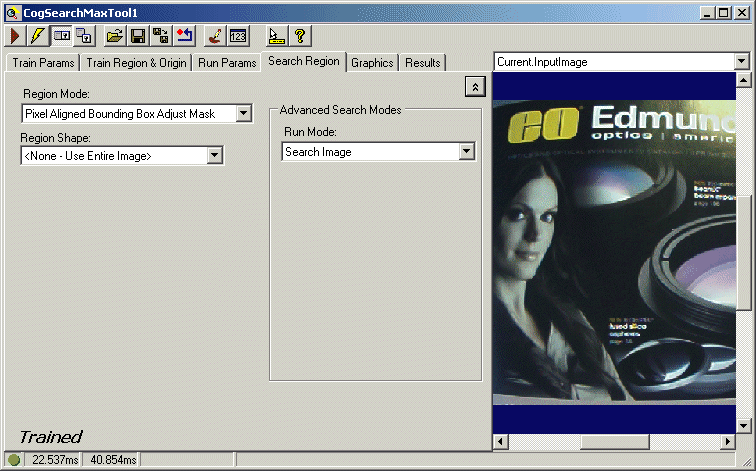
| Feature | Description |
Defines the bounding box for the region.
| |
| SearchRegion | The shape of the search region. Selecting "None=Use entire image" means that the entire Current.InputImage becomes the search region. The set of region-defining parameters depends on the selected Region Shape. |
| SelectedSpaceName | The coordinate space in which the search region is interpreted. For more information, see Coordinate Space Names. |
| Select Mode | Available when Region Shape is cogRectangle or cogRectangleAffine. Selects the set of parameters that define the rectangle. If cogRectangleAffine is chosen, note that the angles of rotation and skew can be specified in degrees or radians, although the underlying tool keeps the measurements in radians. |
| FitToImage | Centers the search region within Current.InputImage. |
| RunMode | The run mode dicates how SearchMax decides which parts of the image will be searched for the pattern. |
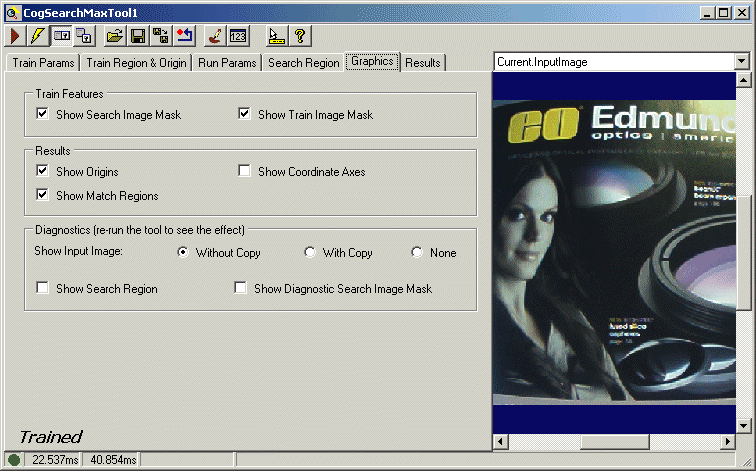
| Parameter | Description |
| Train Features |
|
Results | You can show these features in the LastRun.InputImage buffer, which contains the image that the SearchMax tool last searched, and the results of that search.
|
Diagnostics | The Show Input Image option buttons let you specify whether a reference to the input image or a deep copy of the input image is displayed for the LastRun.InputImage. You can also specify that no image be displayed.
|
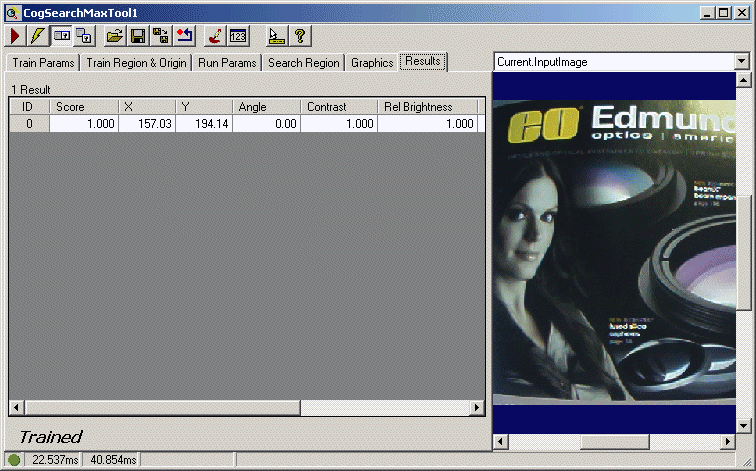
| Parameter | Description |
| Score | The score for this result. The score is between 0.0 and 1.0 with higher values indicating a closer match between the trained pattern and the pattern in the search image. |
| Contrast | Contrast is the ratio of the standard deviation of the pixels in the located pattern to the standard deviation of the care pixels in the trained pattern. |
| RelativeBrightness | Gets the relative brightness for this result. Relative brightness is the ratio of the mean of the pixels in the located pattern to the mean of the care pixels in the trained pattern. |