This topic contains the following sections.
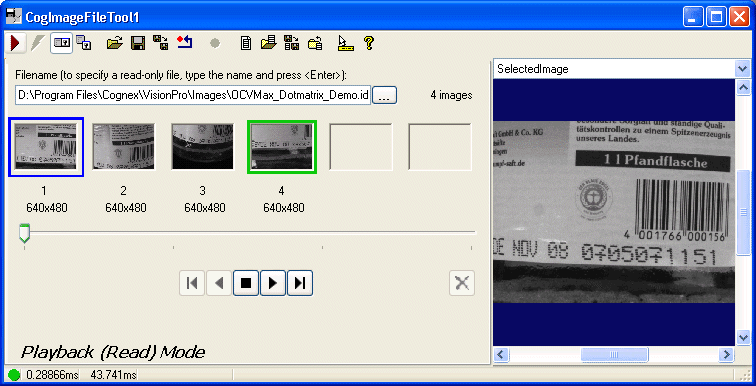
The Image File edit control provides a graphical user interface to the CogImageFileTool and its components. You use the Image File tool to save an acquired image to a file or retrieve a saved image from a file. The Image File edit control allows you to easily manage image files, scroll through their contents, copy saved images into the Image File tool or save images from the Image File tool to an image file.
The Image File edit control has two operating modes: Playback (read) and Record (write). In Playback mode, the ImageFile edit control allows you to bring an image from a file into your application. When you click the Run button, the Image File edit control copies the selected image from an image file into the Image File tool's OutputImage buffer. You can pass this image on to other components, vision tools, or edit controls in your application. For example you can pass the image to the PMAlign tool by copying the ImageFile's OutputImage to the PMAlign tool's InputImage. You can toggle the control between Playback and Record mode; the control operates in Playback mode if you open an image file in read-only mode.
Record mode allows you to save an image generated by your application. When you click the Run button, the ImageFile edit control appends the tool's InputImage to an open image file and also copies the image to the tool's OutputImage buffer. Note that your application must place an image into the Image File's InputImage buffer. For example, you can save live images acquired by the AcqFifo tool by copying the AcqFifo tool's OutputImage into the ImageFile edit control's InputImage, then saving the image to a file.
Once an image is appended to a file, you cannot remove it from the file.
The Image File edit control includes the following components:
- A row of control buttons at the top left.
- A tool display window that can display the image buffers that the edit control uses to save acquired images or retrieve stored images. Right click the tool display to bring up menu options that include zooming in or out of the image or showing a pixel or subpixel grid.
- A set of thumbnail images that displays the images in the file. A slider control scrolls through the thumbnail images.
- A set of buttons, active only in Playback mode, that you use to quickly select images from the file.
- A status bar at the bottom left of the control. A green circle indicates that the tool ran successfully; red means the tool ran unsuccessfully. The status bar also displays the time to run the tool and any error codes or messages. The first time that the status bar displays is the raw tool execution time. The second includes the time needed to update the edit control. Controls only update when they are visible.

The text box along the top allows you to type in the name of the file directly and accepts environment variables, valid UNC syntax, and relative path names based on the current working directory. The text box changes color as you enter a filename, turning pink if its contents do not point to a valid path and blue while the path is valid, as shown:


The following table describes the functions of the buttons at the top left of the control. Note that the Electric mode button is disabled on this edit control.
| Button | Description |
 | Invokes the tool's Run method. In Playback (read) mode, the Image File edit control copies the selected image from the open image file into the Image File tool's OutputImage buffer. In Record (write) mode, the ImageFile edit control appends the tool's InputImage to an open image file and also copies the image to the tool's OutputImage buffer. |
 | Opens or closes the local tool display window, which can display the Current.InputImage, LastRun.OutputImage, or SelectedImage buffer. |
 | Opens one or more floating tool display windows. You can display the Current.InputImage, LastRun.OutputImage, or SelectedImage buffer. Unlike the local tool display, you can resize or move the position of the floating tool display window. |
 | Loads a VisionPro persistence (.vpp) file, which contains a set of saved properties for this vision tool object type. Loading a persistence file for another object type throws an error and the load is unsuccessful. For more information about VisionPro persistence features, see the topic Persistence in VisionPro. |
 | Saves the current properties of the underlying tool to a VisionPro persistence file. You have the option to save either the entire tool or the tool without its images or results. |
 | Saves the current properties of the underlying tool to a new VisionPro persistence file. |
 | Resets the underlying tool to a default state. |
 | Toggles the edit control's mode setting between record and playback mode. The control will also automatically switch into playback mode if you open an image file in read-only mode. This button is not available if the open file has only read-only permission. This is different from opening a file in read-only mode. |
 | Creates a new image file for saving images obtained by the ImageFile edit control. When you create a new file, the control automatically switches to Record (write) mode. |
 | Opens an existing image file. If you open a file in read-only mode, the control automatically switches to Playback (read) mode. |
 | Saves the current image file to another name. The file must not be in read-only mode. |
 | Closes the current image file. |
 | Enables or disables the display of tooltips for individual items in this edit control. |
 | Opens the VisionPro online help. |
The Image File edit control has three image buffers. Two of the buffers use the underlying Image File tool's InputImage and OutputImage buffers; the third buffer displays the selected image in the currently open image file. All three buffers can be shown in both the local and floating tool display windows.
- The SelectedImage displays the currently selected image in an open image file. Its thumbnail image has a blue outline. The edit control manages this buffer using the NextImageIndex property.
- The Current.InputImage displays the ImageFile tool's InputImage buffer, which is used to enable image recording.
- The LastRun.OutputImage buffer displays the ImageFile tool's OutputImage buffer, which is used to retrieve stored images.
When you press the Run button in Playback mode, the control reads an image from an image file by copying the SelectedImage to the OutputImage. You can then pass this image to another control, such as the PMAlign edit control, by copying the ImageFile's OutputImage buffer to the other control's InputImage buffer.
When you press Run in Record mode, the edit control appends the InputImage to the current image file and also copies the InputImage to the OutputImage buffer. Copying the image to the OutputImage buffer allows you to pass the image to another control.
Note that the Image File edit control does not copy an image into the Image File tool's InputImage buffer; your application must do this.
The set of thumbnails displays the images available in the currently open image file. The slider control scrolls through the set of file images. When the control is in Playback mode, the buttons below the slider become active. These buttons copy a selected image to the control's OutputImage buffer.
A blue border around a thumbnail image indicates that it is the currently selected image. The Image File edit control uses the tool's CurrentImageIndex property for this. You can change the selected image border color by modifying the edit control's SelectedHighLight property, available in Visual Basic in the Object Properties window.
A green border indicates that the thumbnail was the last image copied to the tool's OutputImage buffer. You can change the last output image border color by modifying the edit control's OutputHighLight property, available in Visual Basic in the Object Properties window.
In Playback mode, when you double-click on a thumbnail, the tool runs and places the image in the OutputImage buffer. The thumbnail border changes to green. The next image in the file becomes the currently selected image and gets a blue border. The edit control indexes through the image file based on the value of the underlying tool's ImageIndexIncrement property.
If you run the control by using the Playback buttons, the selected image is copied to the OutputImage buffer and receives both a blue and a green border, because it becomes both the selected image and the last OutputImage.
When the ImageFile edit control is in Playback mode, you can select stored images with the following buttons.
| Button | Description |
 | Copies the first image in file to the OutputImage buffer. |
 | Copies the previous image in file to the OutputImage buffer. |
 | Copies the currently selected image to the OutputImage buffer. |
 | Copies the next image in file to the OutputImage buffer. |
 | Copies the last image in file to the OutputImage buffer. |
When the ImageFile edit control is in Record mode, you can delete the currently selected image from the current image file by clicking the delete button.

If the image file format supports multiple images (IDB, CDB, and TIFF), the space occupied by the deleted image is recovered. If the image file format supports only a single image (BMP), then deleting the current image also deletes the file.