This topic contains the following sections.
The OCV tool edit control provides a graphical user interface to the CogOCVTool tool, which you use to verify the presence of a string of alphanumeric characters, logos, or other symbols in an acquired image. The edit control allows you to create individual font models, build a font of the font models that can appear on the objects you are inspecting, define a character string to verify, and then define the expected location of each font model in the string with respect to each other. The following figure shows the OCV tool edit control:
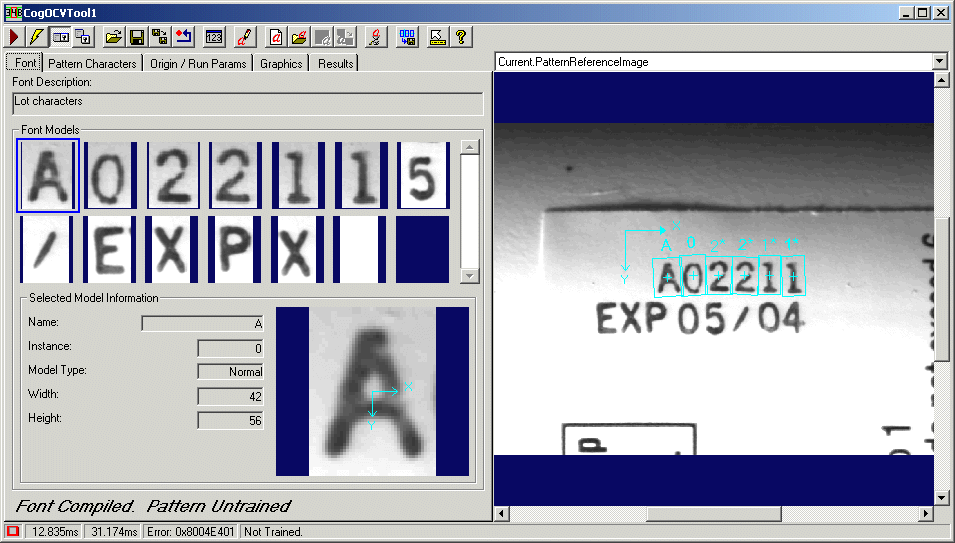
The edit control offers the following features:
- A row of control buttons at the top left provide access to the most common operations.
- A set of function tabs allow you to define a font, train the character pattern, select display graphics, and view results.
- An image display window displays acquired images and graphical results of the OCV tool.
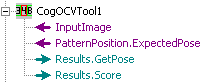
You can experiment with the edit control by using QuickBuild to create a CogOCV tool. A new CogOCV tool appears with the input terminals shown in the following figure:
To include the edit control in your custom vision application, you must first add it to your Visual Studio.NET development environment. See the topic Adding Edit Controls to Visual Studio for more information.

The following table describes the function of each button:
| Button | Description | Function |
 | Run | Search the image stored in the Current.InputImage buffer for the trained character pattern. |
 | Electric mode | Toggle electric mode, where the OCV tool analyzes an image automatically when particular configuration parameters change. In electric mode, a lightning bolt appears next to every electric property. |
 | Local image display | Open or close the local image display window. An OCV tool supports the following image buffers:
|
 | Floating image display | Open one or more floating image windows, which support the same image buffers as the local image display. |
 | Open | Open a VisionPro persistence (.vpp) file containing a set of saved properties for an OCV tool. VisionPro reports an error if you try to open a .vpp file for another object type. |
 | Save | Save the current properties of the vision tool to a VisionPro persistence (.vpp) file. The Save dialog box allows you to choose between saving the vision tool with or without its image buffers and tool results. |
 | Save As | Save the current properties of the vision tool to a new VisionPro persistence (.vpp) file. |
 | Reset | Reset the OCV tool to its default state, which causes the OCV tool to remove the following:
Resetting the OCV tool does not remove any font models that currently exist but have not yet been added to the current font. Likewise, any information about a blank font model that has not been added to the font will also remain after a reset. |
 | Floating Results | Opens a separate results window with the same contents as seen in the Results tab. |
 | Font Editor | Open the Font Editor, which you use to create font models and build a font of characters that can appear in the objects you want to inspect. See the topic How To Use the Font Editor for details on working with font models. |
 | New Font | Discard the current font and start with a blank font. A dialog box warns you that you are discarding all changes. See the topic How To Use the Font Editor for details on creating font models. |
 | Load Existing Font | Load an existing font from a .vpp or .ocf file. Once loaded, the new font appears in the Font tab. |
 | Save Font | Save the current font to the last specified font file. If the font has not yet been saved then the Save As dialog box appears. |
 | Save Font As | Save the current font to a new file, in either VisionPro (.vpp) or CVL (.ocf) format. |
 | Compile Font | Compile the current font, merging the font models, character instances, and confusion scores into a logical collection that you can now use to specify a character pattern you want the tool to search for in successive run-time images. See the topic How To Use the Font Editor for details on creating font models. |
 | Export the pattern to a CVL archive | Save the current character pattern as a Cognex Vision Library (CVL) arrangement so it can be used in CVL applications. |
 | Show ToolTips | Enable or disable the display of tooltips for individual items in the edit control. |
 | Help | Open this VisionPro online help file. |
Use the Font tab to view the font models of the current font. To build a font you use the Font Editor. The following figure shows a Font tab with a font of 9 separate characters (3 of which have a second character instance):
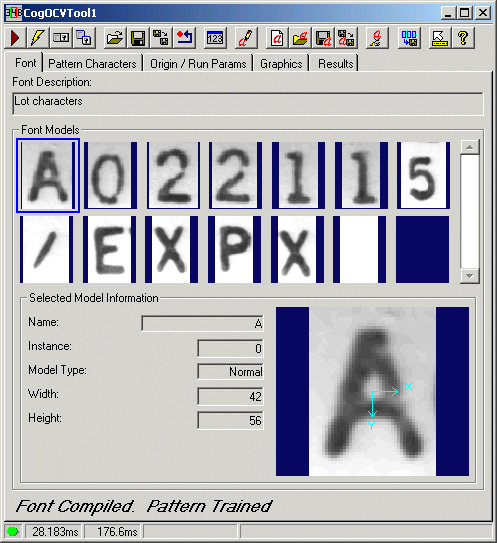
The Font tab provides the following information about each font model in the font:
| Field | Description |
| Description | View the description of the font you supplied in the Font Description field of the Font Editor. If you do not provide a description of the font, this field appears empty. |
| FontModels | This frame contains 14 thumbnail spaces for the first 14 characters models defined in the current font. If the font contains more than 14 font models, the scroll bar on the side of the frame allows you to scroll through them. The currently selected font model appears in the larger image at the bottom half of the tab, which also displays the model origin and any defined mask. |
| Name | You define the name for this font model when you create it. Typically, you give a font model the name of the character, or a name such as "logo" when the model defines a graphic. |
| Instance | Multiple font models with the same name are given instance numbers. The OCV tool numbers each character instance automatically, starting at index 0, but allows you to choose a different starting index if necessary for your application. |
| Type | Every font model you create must be a normal font model or a blank font model. |
| Width | The tool stores the width of the font model, in pixels. |
| Height | The tool stores the height of the font model, in pixels. |
Use the Pattern Characters tab to define the pattern of characters the OCV tool will search for. The following figure shows an example Pattern Characters tab:
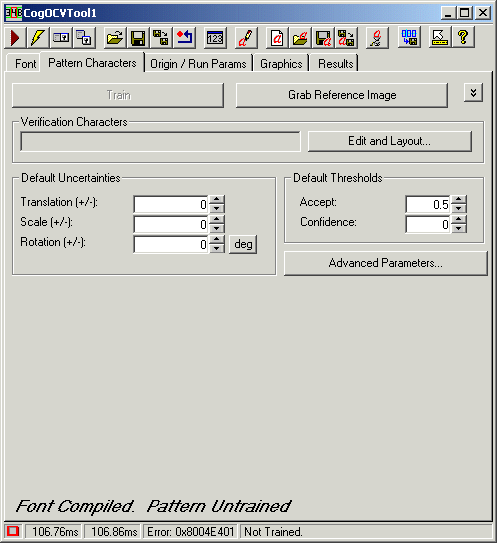
Use the Train button once the Reference Image shows the expected location of each font model and you place the pattern origin in the desired location, preferably near the first character or even on top of the font model origin of the first character. Training a pattern groups together the current font and the character pattern along with the expected locations for each font model and the pattern origin. Training a pattern might take several seconds depending on the size of the character pattern and any uncertainty values you provide. Once a pattern has been trained, the message "Pattern Trained" appears along the bottom of the OCV edit control. See the topic How To Train a Character String Pattern for more information. Changing any feature of the trained pattern will cause the pattern to become untrained.
Use the Grab Reference Image button to copy the image currently stored in the Current.InputImage buffer to the Current.PatternReferenceImage buffer. Once a font has been loaded and you have entered a character pattern, you use the Reference Image to precisely locate the expected location of each font model in relation to each other, as well as position the pattern origin that the tool will use to report the pose of the entire pattern in each acquired image.
The Current.PatternReferenceImage buffer exists solely to provide you with a visual method for positioning the expected location of each font model in the string pattern with respect to each other, and not to specify the expected location of the string on each acquired image. You use the Current.InputImage buffer to set the expected location of the string pattern for each acquired image. See the topic How To Train a Character String Pattern for more information.

Use the Show/Hide Advanced Items button to enable the controls that allow you to specify multiple font models for one or more character positions. You need to use these controls when you want the OCV tool to verify strings where one or more characters within the string are allowed to vary, such as the string "A123" or "B123", where the first character of the string can be either "A" or "B".
With advanced items enabled the Pattern Characters tab looks as shown in the following figure:
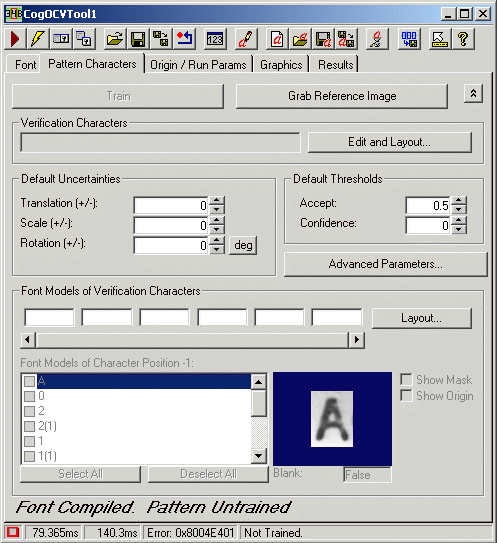
See the topic How To Train a Character String Pattern for details on how to define both a simple and an advanced character string.

The text box on the left shows the current character string pattern the tool is configured to verify. If it is a simple character string, such as "A0221", the text box looks as shown in the following figure:

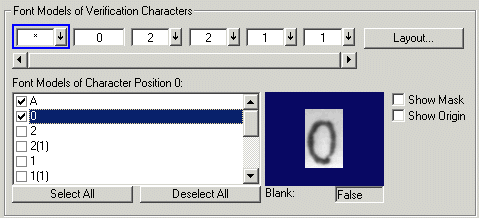
If you have configured an advanced character string, the edit control uses a "*" to indicate which character in the string is allowed to vary. For example, the following figure shows a character string where the first character is allowed to vary:


Click the Edit and Layout button to create a simple character string pattern, where no characters in the string can vary between font models. See the topic How To Train a Character String Pattern for details on how to define a simple character string.
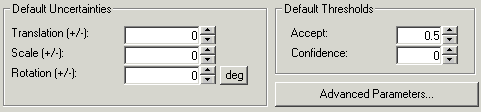
Use the Default Uncertainties fields to set the following uncertainty parameters:
| Parameter | Description |
| TranslationUncertainty | Enter the expected range of image-to-image variation in the translation of any character, expressed in the units of the Selected Space Name. |
| ScalingUncertainty | Enter the expected range of image-to-image variation in the overall scaling factor for any character. |
| RotationUncertainty | Enter the expected range, in radians or degrees, of the image-to-image variation of the overall rotation for any character with respect to the pattern origin. |
Use the Default Thresholds fields to set the following thresholds:
| Threshold | Description |
| RunTimeAcceptThreshold | Enter an accept threshold to apply to each character position. |
| RunTimeConfidenceThreshold | Enter a confidence threshold to apply to each character position. |
Use the Advanced Parameters button to specify various threshold, uncertainty, and position values for individual characters. For example, the following figure shows the Advanced Character Position Settings dialog box with the accept threshold for the font model "A" set to a higher value than the default accept thresholds for the other font models:
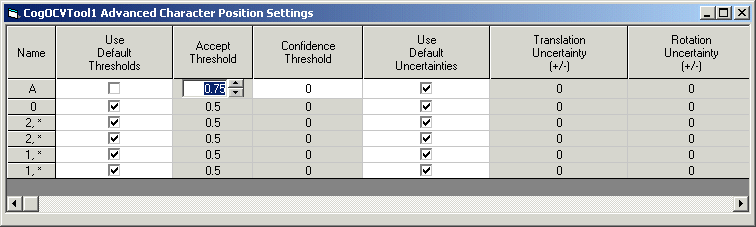
Fields that appear in grey use default values. You may change the values of fields that appear in grey, but their values cannot take effect until you enable the appropriate checkbox.
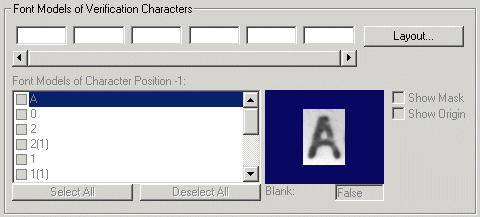
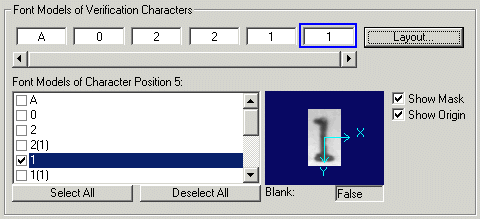
The font model text boxes across the top show the current font models, if any, currently configured in the character string pattern. For example, the following figure shows how the tab appears when the character string pattern is "A02211" (which is actually a simple character string pattern):
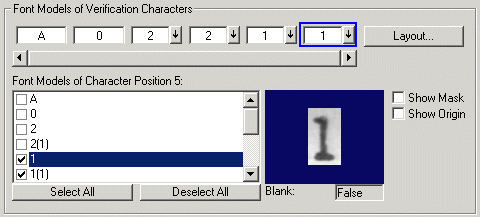
The boxes use an arrow to indicate that a particular character is defined by multiple character instances, as shown in the following figure:
Finally, when a particular character in the string is allowed to vary between different characters, the box for that character uses a "*", as shown in the following figure:
For details on creating an advanced character string, see the topic How To Train a Character String Pattern.
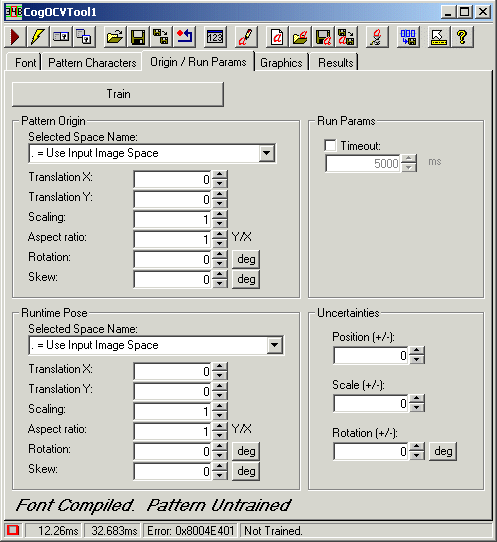
Use the Origin / Run Params tab to set a precise location for the pattern origin and the expected location for the pattern in each run-time image. The following figure shows an example Origin / Run Params tab:

Use the Train button once the Reference Image shows the correct location of each font model along with the desired position of the pattern origin. Training a pattern groups together the current font and the character pattern along with the expected locations for each font model and the pattern origin. Training a pattern might take several seconds depending on the size of the character pattern and any uncertainty values you provide. Once a pattern has been trained, the message "Pattern Trained" appears along the bottom of the OCV edit control. See the topic How To Train a Character String Pattern for more information. Changing any feature of the trained pattern will cause the pattern to become untrained.
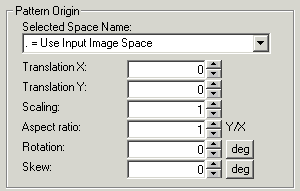
The easiest way to set the location for the pattern origin with respect to the characters you want to search for is to use the graphics on the Reference Image. Use the Pattern Origin area of the tab to explicitly set various parameters for the pattern origin in addition to its default (x, y) coordinate. For best results, Cognex recommends you define the pattern origin to be at the origin or at the center of the first character in the pattern. Placing the pattern origin farther away from the character string pattern can lead to errors when the pattern rotates and you rely on a combination of a PMAlign tool and Fixture tool to accurately locate the area of the image where the string can occur.
The following table lists the parameters you can modify:
| Parameter | Description |
| SelectedSpaceName | Specify which space of the input image coordinate space tree the tool uses to define the expected pattern origin. |
| Translation X and Translation Y | Specify the expected (x, y) coordinate for the pattern origin. |
| Scaling | Specify a different scaling factor if you know the scale of the Reference Image does not match the images you will acquire for your application. |
| Aspect ratio | Specify a different aspect ratio if the pixels your camera captures are not square. |
| Rotation | Specify an exact measurement for the rotation of the pattern origin. |
| Skew | Use a nonzero value if your acquired images can distort a rectangle into a parallelogram. |
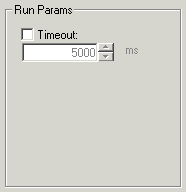
Enable the RunTimeTimeout parameter to enter the maximum execution time, in milliseconds, allowed to run an OCV inspection. If the tool has not finished by the end of the timeout period, the tool returns an error.
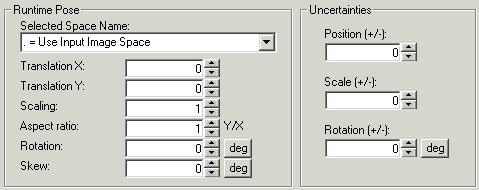
Use the ExpectedPose to specify how the pattern you train relates to the input image and the range in which to search for that pattern. The following table lists the parameters you can modify:
| Parameter | Description |
| SelectedSpaceName | Specify which space of the input image coordinate space tree the tool uses to define the expected position of the pattern. |
| Translation X and Translation Y | Specify the expected (x, y) coordinate for the overall pattern. |
| Scaling | Specify a different scaling factor if you know the scale of the Reference Image does not match the images you will acquire for your application. |
| Aspect ratio | Specify a different aspect ratio if the pixels your camera captures are not square. |
| Rotation | Specify an exact measurement for the rotation of the pattern origin. |
| Skew | Use a nonzero value if your acquired images can distort a rectangle into a parallelogram. |
Use the Uncertainties fields to set the following uncertainty parameters for the entire pattern:
| Parameter | Description |
| TranslationUncertainty | Enter the expected range of image-to-image variation in the translation of the pattern, expressed in the units of the Selected Space Name. |
| ScalingUncertainty | Enter the expected range of image-to-image variation in the overall scaling factor for the pattern. |
| RotationUncertainty | Enter the expected range, in radians or degrees, of the image-to-image variation of the overall rotation for the pattern with respect to the Selected Space Name of the input image. |
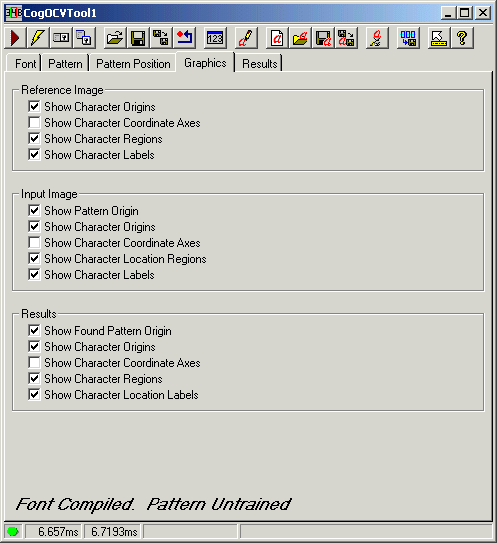
Use the Graphics tab to choose which graphics appear over any of the image buffers. The following figure shows the Graphics tab:
Use the Results tab to view the results of the OCV tool after it searches the Current.InputImage for the verification string. The following figure shows an example Results tab after a successful execution:
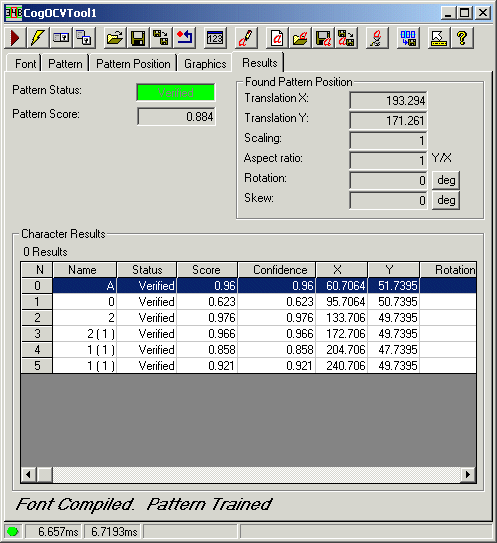
The Results tab provides the following information:
| Result | Description |
| Status | View the overall status of this OCV inspection, either "Verified" or "Failed" |
| Score | View the overall score for this OCV result, an average of scores of all the characters in the pattern. The score has a range of 0.0 (no match) through 1.0 (perfect match). |
| GetPose | View information about where the OCV tool located the pattern and any changes in scale, aspect ratio, rotation, and skew with respect to the Selected Space Name. |
| Character Results | View a grid of result information for each individual character in the verification string. The position values are the results for each character with respect to the found pattern, which can make it easier for you to compare the actual found position to the values you specified as you trained the pattern. |