The VisionPro Application Wizard creates a full-featured application from a QuickBuild project file (.vpp file) that includes a customized operator interface. The Application Wizard does not require a Visual Studio or other development environment license. Its output is a .NET application, and you may optionally generate the source code for that application.
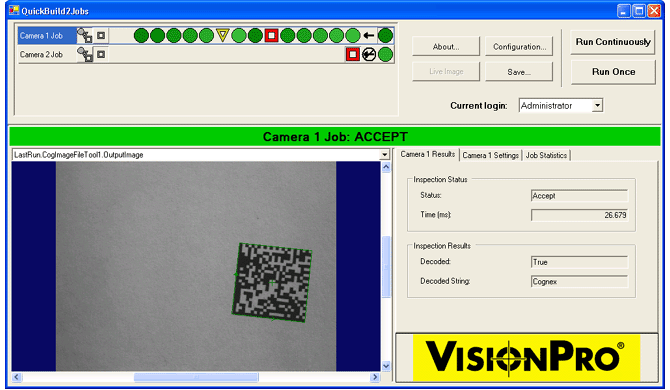
The following figure shows you what an application generated by the Application Wizard looks like:
This topic contains the following sections.
This section contains the following subsections.
- Configuration Files
- Configuring Tabs
- Choosing Between Inputs and Results From Posted Items
- Application Wizard Output
- Generating Source Code
To use the Application Wizard:
- Create a QuickBuild project file (.vpp file) that contains the job (or jobs) for your application.
- Add job results to the Posted Items list that you want to display in the generated application.
Ensure sure that the Include LastRunRecord image and graphics is selected.
For details see Posted Items and Failure Queues.
- Close QuickBuild.
- Launch the Application Wizard (Start->All Programs->Cognex->VisionPro->VisionPro Application Wizard).
- Follow each of the steps within the wizard.
The outline on the left side of the Application Wizard tracks your progress, as shown:
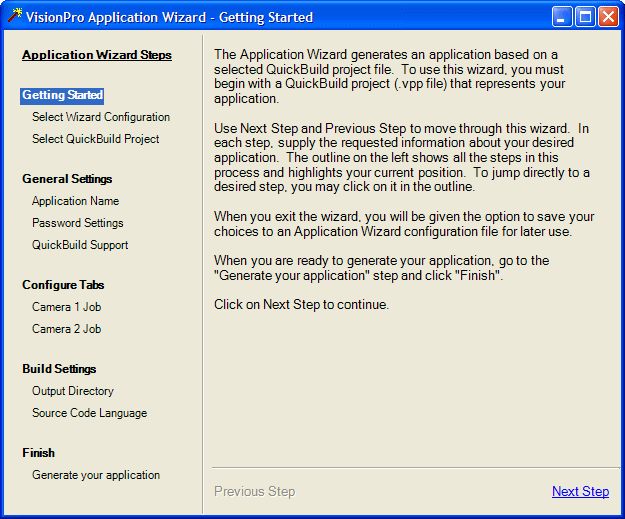
When you click Finish to generate your application, you will be prompted to save your configuration:

You should save your configuration file so that if you run the Application Wizard again on this same project file, you can use the saved configuration and not have to repeat the steps already completed.
The user interface of the generated application uses tabs that allow you to control any number of run-time parameters as well as display results. As you design the application you can specify what gets displayed in each tab, and, if you have enabled password access, which users can access those tabs.
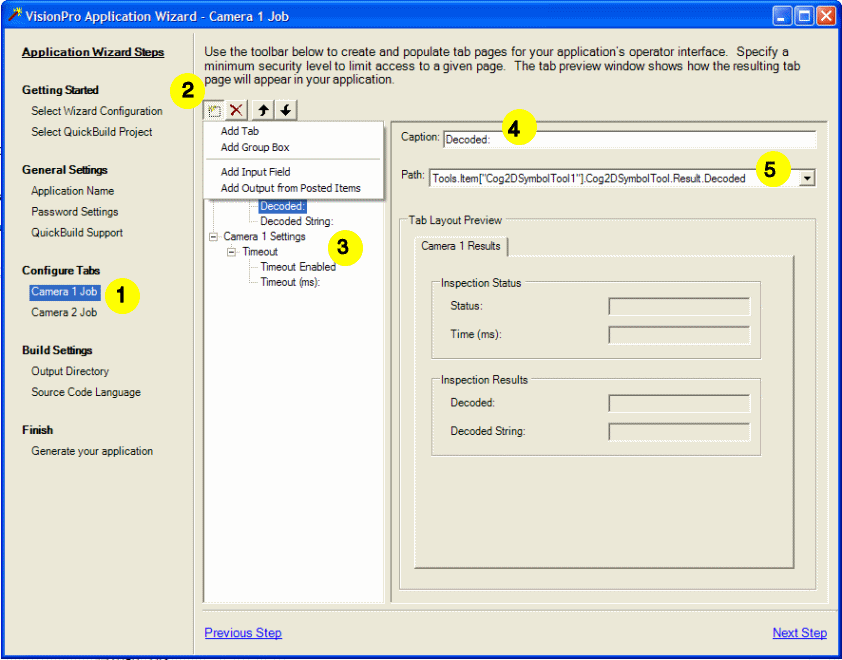
To configure the tabs for your application, follow these steps.
- Choose the job that you want to configure tabs for. There is a different set of tabs for each job.
- Use the Add Item button to add an item
You can add a new tab, a group box within a tab, a tool property input field or an item from the Posted Items list.
- The new item appears in the tree panel. Tabs appear at the top level, group boxes next, and individual items last.
- Give the new item a caption.
This caption is the label for the tab, group box, or item.
If the new item is a tab, and you have enabled password access, you can specify the access level for the tab.
- For Inputs and Posted Items, choose the path to the data.
For Inputs, you can specify a path using the property browser. For Posted Items, you can choose the data from a drop-down menu.
The Application Wizard uses text boxes for most items. For Booleans, enumerations and other restricted types, it generates check boxes, radio buttons, or combo boxes.
In many cases, you can display the same data by using either a tool property Input field or an item from the Posted Items list. However, there is a major difference in the way that the Application Wizard handles these two types of data. Items from the Posted Items list are stored in the results each time a job runs, allowing you to view the result for a particular inspection. Inputs always reflect the current state of the tool.
For example, if your application uses a 2D Symbol tool, you can get the Decoded string through a property of the tool or through an item that you configured in the Posted Items list. If you want to see how a symbol was decoded a particular time that the job ran, you would use the Posted Items. If you only care about the most recent result, you could use the tool property.
The Application Wizard produces an executable plus a .NET control. You can use the executable to run your application or use the control as part of a larger application.
The Application Wizard can produce an executable and a control without generating any source code. Or if you prefer, you can have it generate C# or VB.NET source code for the various versions of Microsoft Visual Studio supported in this release.
| Source Code Option | Files generated |
| No source code | The application executable and control, in the output directory |
VB.NET | The executable and control in the VisionApplication\bin\Release subdirectory of the output directory Source files and project files in the output directory |
C# | The executable and control in the VisionApplication\bin\Release subdirectory of the output directory Source files and project files in the output directory |
Typically, you generate source code so that code changes can be made to the final application. Be aware however, that if you make changes to the generated source code and then regenerate the application with the Application Wizard, your changes will be lost. When you are generating source code, Cognex recommends that none of the files in the output directory are open when you run the Application Wizard.
The Application Wizard provides a mechanism called templates that allows you to customize your application and to have these custom code changes retained each time you rerun the Wizard. Templates is considered an advanced topic that should be used only by experienced developers. See Using Application Wizard Templates for more information on templates.
This section contains the following subsections.
The generated application provides controls that let your operator run and control the application.
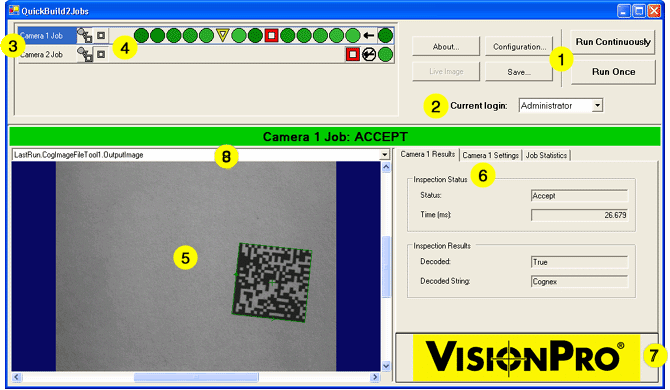
- The Control Buttons let you start, stop, and configure your application.
- The Login Selector lets you choose the level of access the operator has to your application.
- The Job Selector
- The Job History let you specify and review individual results.
- The Image Area shows the selected job's images.
- The Tab Pane contains your application's customized controls.
- See the embedded bitmap created by the file logo.bmp. See Deploying the Generated Application for more information about this file.
- Pull down menu for images. The image source is the default, however, you can display the image you wish.
The Control Buttons let you start, stop, and configure aspects of your application. If your application uses password controlled access, some of the buttons are available only for certain access levels.
| Button | Description |
| Run Continuously | Runs each job continuously. To stop running the jobs, click this button again. |
| Run Once | Runs each job once. |
| About | Displays information about the application. You can add your own information. |
| Configuration | Opens a dialog box that lets you change application options, change passwords, or open a QuickBuild interface for deeper access to your application. If you're using passwords, this button is available only to Administrators. |
| Live Image | If the selected job uses a camera, this button lets you see a live image so that you can adjust the camera. |
| Save | If you've made changes to the application settings, this button lets you save them to the underlying QuickBuild file. If you're using passwords, this button is available only to Supervisors and Administrators. |
You can make certain parts of your applications available only to three different types of users: Administrators, Supervisors, and Operators.
Your application includes a Login Selector only if you chose to use password-controlled access. If you do not use password-controlled access, your application behaves as if all features are available.
| Security Level | Description |
| Administrator | Can use any tabs restricted to Administrator access and the Configuration and Save buttons to change application settings, access QuickBuild interface (if enabled), and change passwords. Administrators can access Supervisor and Operator security levels. |
| Supervisor | Can use any tabs restricted to Supervisor access and the Save button to save any settings changed in Supervisor-restricted tabs. Supervisors can access Operator security levels. |
| Operator | Can use any tab not restricted to Supervisor or Administrator access. |
The Job Selector buttons determine which images and which tabs appear. If there are more jobs than will fit in this space, you can drag the separator between this pane and the image below it to make it bigger.
The Job History section lets you examine the results of each job. As a job runs, each result is added to the list from right to left. The oldest result is at the left end of the list; the newest result is at the right of the list. The job history list holds up to 16 results.
The result at the far right of the list is always the current result.
The color and shape of the icon tells you the status of the result, described in the following table.
Note: The color of the icons change subtly from, for example, deep green to light green, so you can tell similar results apart, especially if the job is running continuously.
| Icon | Description |
 | The job ran successfully. |
 | The job ran with Warning results. |
 | The job ran with Reject results. |
When you click on one of the historical results, the job continues running, if it was running already, but the application stops collecting historical results. You can also stop the application from collecting historical results with the Collect / Don't Collect buttons.
| Button | Description |
 | Collect historical results. |
 | Do not collect historical results. |
If you click on the current result, the result to the right of the History Collection buttons, the application starts collecting historical results again if they were suspended.
You can choose to display all of the results, or only the failures.
| Button | Description |
 | Show all results |
 | Show only failure results |
The Image Area shows the image and graphics for the current job.
The Tab Pane shows the controls that are available for the current job at the selected login level. If your application uses passwords, the application starts with Operator as the selected level. Otherwise, your application runs as if the selected level was Administrator.
You must install VisionPro on the PC that will run the deployed application. See Deploying Your VisionPro Application to learn about using the VisionPro installer with your own installer. In addition to a VisionPro environment, make sure that you place the following files together in the same directory of your deployment PC.
| File | Description |
| Executable | Generated by the Application Wizard. This is the .EXE file you run to execute your application. |
| .NET Control | Generated by the Application Wizard. This is the control you use to incorporate your application into a larger application. |
QuickBuild Project File | This is the .VPP file that the Application Wizard used as the basis for your application. If this file is missing, the application generates an error and exits. |
about.txt | If present, your generated application displays the contents of this file in its about box. If this file is missing, the about box displays only its default information. |
logo.bmp | If present, your generated application displays this bitmap in the lower right portion of the generated application. This file must be a bitmap file. |
passwords.txt | If passwords are enabled, this file contains the current passwords. This file only exists if you have changed the passwords in the generated application. If the file exists you should include it with your deployed application. If you remove this file, or if it's missing, the passwords revert to the defaults you specified in the Application Wizard. |
options.txt | This file contains application options for the generated application. The values of the "Enable image display" and "Go online at application startup" options are stored in this file. This file only exists if you have changed the application options in the generated application, using the Configuration button. If the file exists you should include it with your deployed application. If you remove this file, or if it's missing, default application options are used. |
| Custom Tools | If your application uses custom tools that you wrote, you must include the .DLL file for the tools as well. |
Although all of these files should be in the same directory for deployment, to make development more convenient, the generated application also looks for these files in the same directory that contains the QuickBuild (.VPP) project file.
| Symptom | Solution |
| Images and graphics don't appear in the image area | Make sure that Include LastRunRecord image and graphics is selected is selected in the Configure Posted Items dialog in QuickBuild. |
| Passwords forgotten | Delete the passwords.txt file. Passwords will revert to the defaults you specified in the Application Wizard. |
The error message "Invalid QuickBuild file" appears when you attempt to load a .VPP file in the application wizard. | Verify that your machine has the VisionPro security licenses required by your QuickBuild project file. Verify that your .vpp file is not in use by more than one application at a time. |
VisionPro includes the console application Cognex.VisionPro.ApplicationWizardConsole.exe to provide the functionality of the Application Wizard from a command line. By default the application is installed at Program Files\Cognex\VisionPro\bin. Launch the application using the following command and format:
Cognex.VisionPro.ApplicationWizardConsole.exe config_file /generate [/source <none | csharp | vbnet >] [/output <output_dir>]
Where:
- config_file: The saved configuration file containing information on the QuickBuild application you want to convert and what options you want to enable in the generated application
- output_dir: The output directory
Using Cognex.VisionPro.ApplicationWizardConsole.exe does not change any settings in the configuration file.
VisionPro supports the Application Wizard on both 32-bit and 64-bit operating systems with no difference in functionality. VisionPro also supports the development of 64-bit applications with the 32-bit version of VisionPro. See the topic 64-bit Application Development for more information on cross-compiling from a 32-bit operating system.