This topic contains the following sections.
The Find Ellipse edit control provides a graphical user interface to the CogFindEllipse vision tool, which runs a series of Caliper tools over a specified, elliptical region of an image to locate multiple edge points, supplies these edge points to an underlying Fit Ellipse tool, and ultimately returns the ellipse that best fits those input points while generating the smallest root mean square (RMSError) error.
The Find Ellipse edit control allows you to specify the region of the image analyzed, control the number of Calipers used, and view vision tool results. The following figure shows the Find Ellipse edit control:
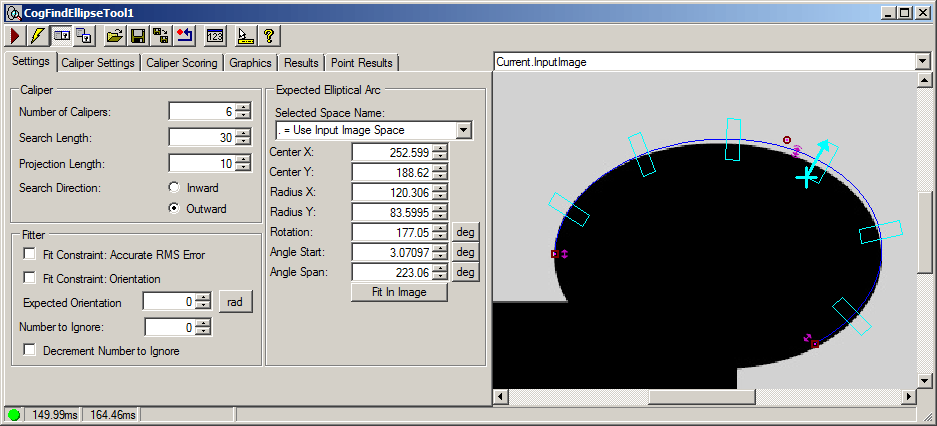
The edit control offers the following features:
- A row of control buttons at the top left
- A set of function tabs for specifying a number of Calipers, the shape of the search area, and viewing the fitting results
- An image display window for displaying Find Ellipse tool images and graphics
You can experiment with the edit control by using QuickBuild to create a CogFindEllipse tool. A new CogFindEllipse tool appears as shown in the following figure:
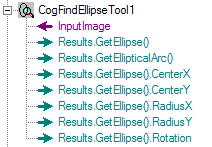

The following table describes the function of each button:
| Button | Description | Function |
 | Run | Uses the current set of configured Calipers to analyze the image stored in the Current.InputImage buffer to produce a set of input points that are then passed to a Fit Ellipse tool. |
 | Electric mode | Toggles electric mode, where the Find Ellipse tool executes automatically when particular configuration parameters change. In electric mode, a lightning bolt appears next to every electric property. |
 | Local image display | Opens or closes the local image display window. A Find Ellipse tool supports the following image buffers:
|
 | Floating image display | Opens one or more floating image windows, which support the same image buffers as the local image display window |
 | Open | Opens a VisionPro persistence (.vpp) file that contains a set of saved properties for this vision tool object type. VisionPro reports an error if you try to open a .vpp file for another object type. |
 | Save | Saves the current properties of the vision tool to a VisionPro persistence (.vpp) file. The edit control allows you to choose between saving the vision tool with or without its image buffers and tool results. |
 | Save As | Saves the current properties of the vision tool to a new VisionPro persistence (.vpp) file |
 | Reset | Resets the vision tool to its default state. |
 | Show Floating Results | Opens a separate results window with the same contents as seen in the Point Results tab |
 | Show ToolTips | Enables or disables the display of tooltips for individual items in the edit control |
 | Help | Opens this VisionPro online help file |
Use the Settings tab to configure the Calipers and the expected elliptical arc segment this Find Ellipse tool will use. The following figure shows the default Settings tab:
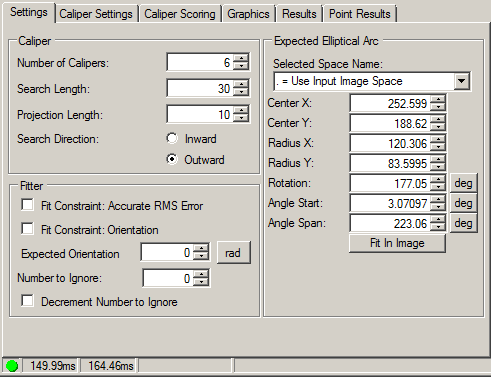
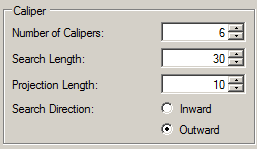
Use the Caliper section of the Settings tab to shape all the Calipers the Find Ellipse tool uses to locate edges or edge points.
| Feature | Description |
| NumCalipers | Controls the number of Calipers to use along the expected elliptical arc segment. The tool requires a minimum of five Calipers, although using more allows the tool to generate a better fit. In addition, you should use more than five Calipers if you allow the underlying Fit Ellipse tool to ignore one or more points while calculating the best fitting ellipse. To determine which point to ignore, the Fit Ellipse tool considers all possible subsets and keeps the set that produces the best possible score. |
Controls the amount of image perpendicular to the expected elliptical arc segment that each Caliper takes into consideration. You can use the Find Ellipse graphics to specify a general search length or use this field to enter a precise value. Note: In general, to improve accuracy specify additional calipers rather than increasing the search length. Too long a search length can cause the found point to be shifted toward the center of the ellipse, as shown below: 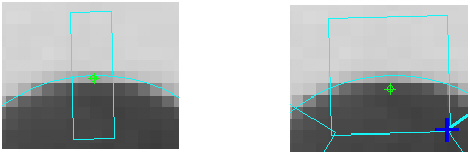 | |
Controls the amount of image parallel to the expected elliptical arc segment that each Caliper takes into consideration. You can use the Find Ellipse graphics to specify a general projection length or use this field to enter a precise value. Note: If you specify a very small value for the projection length, you may need to reduce the filter half size. | |
| CaliperSearchDirection | Controls the direction in which each Caliper searches for edges or edge pairs. By default, each Caliper starts inside the expected arc length and searches outward. |
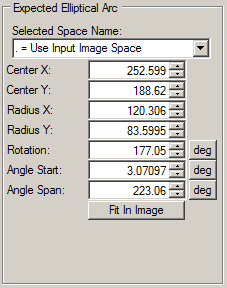
Use the Expected Elliptical Arc area of the Settings tab to shape the elliptical arc on which the Calipers operate.
| Feature | Description |
| SelectedSpaceName | Names the coordinate space for the input image. |
| CenterX and CenterY | Names the (x, y) coordinate at the center of the elliptical arc. |
| RadiusX | Displays the distance from the center of the ellipse to its boundary along the ellipse's x-axis. |
| RadiusY | Displays the distance from the center of the ellipse to its boundary along the ellipse's y-axis. |
| Rotation | Displays the rotation angle from the x-axis of the selected coordinate space to the x-axis of the ellipse. |
| AngleStart | Displays the angle that specifies the start of the elliptical arc. |
| AngleSpan | Displays the angular extent and direction of the elliptical arc. |
| FitToImage | Adjusts the Find Ellipse graphics such that its default size is based on the image and the coordinate space for the input image. |
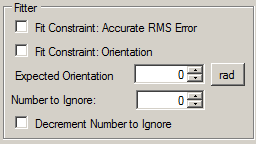
Use the Fitter section of the Settings tab to configure the number of points to ignore.
| Feature | Description |
| FitConstraint and ExpectedOrientation |
Specify which ellipse fitting criteria should be used.
|
| NumToIgnore | Controls the number of edge points the underlying Fit Ellipse tool can ignore while calculating the best fitting ellipse. To determine which point to ignore, the Fit Ellipse tool considers all possible subsets and keeps the set that produces the best score. |
| DecrementNumToIgnore | Allows the Find Ellipse tool to decrement the number of points to ignore for each Caliper that fails to produce a valid edge point. This feature protects an application where Caliper failures can leave the Fit Ellipse tool with fewer than three input points. Cognex recommends you enable this option if you allow the tool to ignore any input points. |
Use the Caliper Settings tab to configure how the Calipers perform their image analysis. The following figure shows the default Caliper Settings tab:
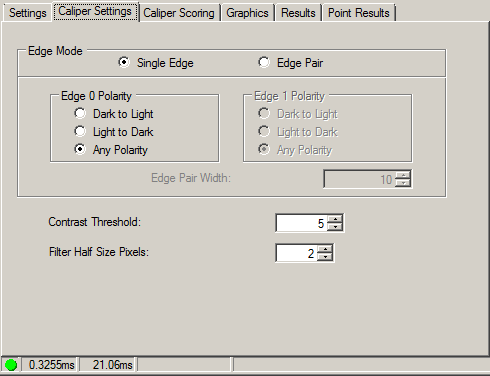
| Feature | Description |
| EdgeMode | Controls whether the Calipers search for a single edge or an edge pair. |
| Edge0Polarity | Determines the polarity of the edge, or the first edge in an edge pair, that each Caliper searches for. |
| Edge1Polarity | Available only in Edge Pair mode, this determines the polarity of the second edge. |
| Width | Dictates the minimum distance between edges when using Edge Pair mode. The edit control bases this measurement of the value of Edge0Position and Edge1Position |
| ContrastThreshold | Specifies the minimum contrast required for an edge to be considered during the scoring phase of the Caliper operation. |
| FilterHalfSizeInPixels | Specifies the half-width of the filter. |
Use the Caliper Scoring tab to create a collection of scoring functions for the Calipers to use. The following figure shows the default Caliper Scoring tab:
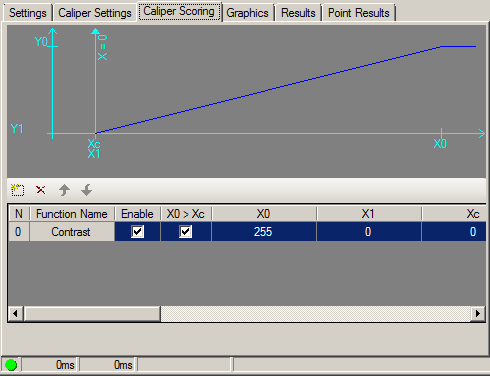
If the Edge Mode is Single Edge, the following scoring functions are available:
If the Edge Mode is Edge Pair, then these scoring functions are available:
- CogCaliperScorerContrast
- CogCaliperScorerPosition
- CogCaliperScorerPositionNeg
- CogCaliperScorerPositionNorm
- CogCaliperScorerPositionNormNeg
- CogCaliperScorerSizeDiffNorm
- CogCaliperScorerSizeDiffNormAsym
- CogCaliperScorerSizeNorm
- CogCaliperScorerStraddle
Use the following function buttons to manage the scoring functions:

| Button | Description |
 | Add a new scoring function. A menu appears with a list of scoring functions appropriate to the current edge mode. Highlight the function that you want and a new line appears in the list of functions at the bottom of the tab. You can add more than one function of the same type. |
 | RemoveAt the currently highlighted function in the list of functions at the bottom of the tab. A verification message appears asking you to confirm deletion. |
 | Move the currently highlighted function up in the list, and updates the index of the function within the collection. |
 | Move the currently highlighted function down in the list, and updates the index of the function within the collection. |
The following table describes the columns of the scoring function list:
| Column | Description |
| N | The index of the scoring function within the function collection, which is either SingleEdgeScorers or TwoEdgeScorers. |
| Function Name | The name of the function. You can add more than one of the same type of scoring function; the Results tab tracks the functions with both the function name and the index within the function collection. |
| Enabled | Enables or disables this scoring function the next time the Find Ellipse tool executes. |
| X0 > Xc | Represents the orientation of the graph. For the function to be valid, X1 must be between or equal to X0 and Xc. This column allows you to swap X0 and Xc, if necessary. |
| X0, X1, Xc, Y0, Y1 | The parameter values for a one-sided function, or the first set of values for a two-sided function. See each scoring function class for information about these values. |
| X0h > Xch | Represents the orientation of the graph. Applies only to two-sided functions (the SizeDiffNormAsym function). To be valid, X1h must be between or equal to X0h and Xch. This column allows you to swap X0h and Xch, if necessary. |
| SetXYParameters | The second set of parameter values for a two-sided function. See each scoring function class for information about these values. |
Use the Graphics tab to control which graphics the Find Ellipse tool generates and displays. The following figure shows the default Graphics tab:
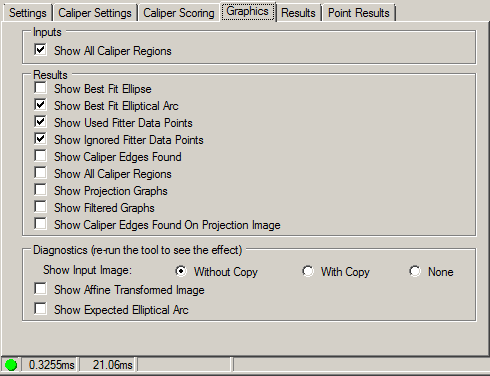

Check the Show Caliper Regions checkbox to show all Caliper regions in the Current.InputImage buffer.
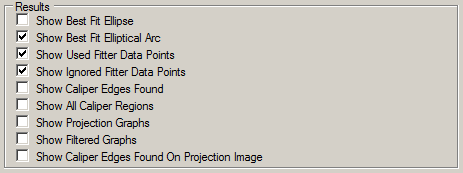
Display any of the following results in the LastRun.InputImage buffer:
- Show the entire best fit ellipse.
- Show the best fit ellipse segment.
- Show the edge points the Fit Ellipse tool used to calculate the ellipse.
- Show the edge points the Fit Ellipse tool ignored to calculate the ellipse.
- Show the edges found by the Calipers.
- Show the regions used by the Calipers.
Enable any of the following results to generate a LastRun.RegionData_Caliper<X> buffer for each Caliper the tool uses:
- Create projection graphs from all the Calipers.
- Create filtered graphs from all the Calipers.
- Show the location of each edge on each projection graph.

Choose any of the following diagnostic graphics:
- Control whether or not the input image is recorded as part of the diagnostic record, and whether the image is copied to the record or saved in the record as a reference.
- Show the projection region of the image in the LastRun.RegionData_Caliper<X> buffer for each Caliper the tool uses.
- Show the expected elliptical arc segment as configured in the Current.InputImage in the LastRun.InputImage buffer.
Use the Results tab to view the results of each execution of the Find Ellipse tool. The following figure shows the default Results tab:
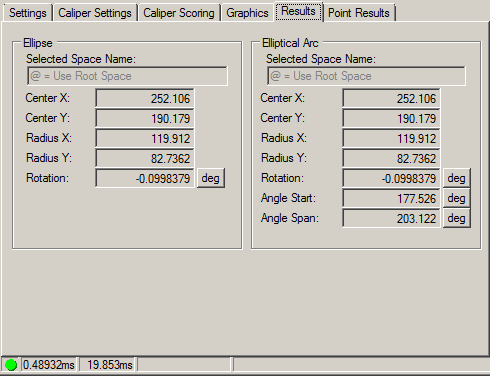
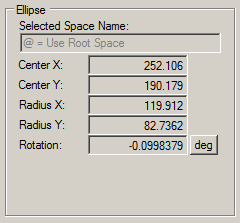
Use the GetEllipse area of the Results tab to view the following results about the ellipse the tool found:
| Feature | Description |
| SelectedSpaceName | Displays the coordinate space for the input image. |
| CenterX and CenterY | Displays the (x, y) coordinates at the center of the ellipse. |
| RadiusX | Displays the distance from the center of the ellipse to its boundary measured along the rotated x-axis. |
| RadiusY | Displays the distance from the center of the ellipse to its boundary measured along the rotated y-axis. |
| Rotation | Displays the rotation angle from the x-axis of the selected coordinate space to the rotated x-axis of the ellipse. |
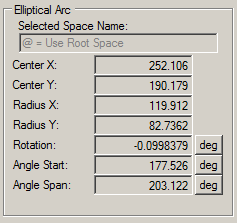
Use the GetEllipticalArc area of the Results tab to view the following results about the elliptical arc found by the tool:
| Feature | Description |
| CenterX and CenterY | Displays the (x, y) coordinates at the center of the elliptical arc. |
| RadiusX | Displays the distance from the center of the ellipse to its boundary along the ellipse's x-axis. |
| RadiusY | Displays the distance from the center of the ellipse to its boundary along the ellipse's y-axis. |
| Rotation | Displays the rotation angle from the x-axis of the selected coordinate space to the x-axis of the ellipse. |
| AngleStart and AngleSpan | Displays the start angle and the total span of the elliptical arc. |
Use the Point Results tab to view information about each edge point the Calipers found. The following figure shows an example Point Results tab:
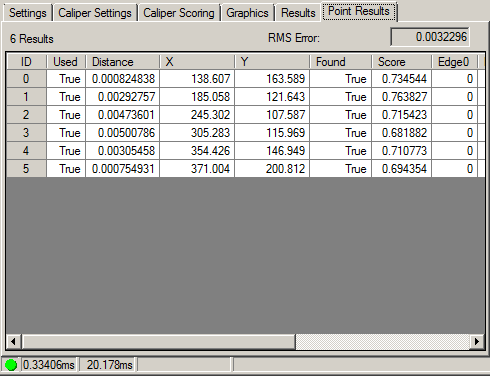
The tab shows the RMSError error of the fitting operation, while the points grid gives the following information about each point result:
| Column | Description |
| ID | Unique ID for this result in the collection |
| Used | Indicates whether the point was used to perform the ellipse fit |
| DistanceToEllipse | The distance from the point to the ellipse |
| X | The x-coordinate of the edge point |
| Y | The y-coordinate of the edge point |
| Found | Indicates whether the Caliper found an edge point or not |
| Score | The overall score of this result in the range 0.0 - 1.0 |
| Edge0 | The first edge that contributed to this result. In Edge Pair mode, there is a similar column for Edge1. |
| Width | The width of the result when using Edge Pair mode. |
| Position | A signed measurement along the search direction relative to the center of the input region. |
| GetContributingScores | The remaining columns list the individual results of the enabled scoring functions within the list created on the Scoring tab. Functions are identified by both the function name and their index within the collection of scoring functions. |