This topic contains the following sections.
QuickBuild lets you prototype and build a vision application very quickly. See the topic Creating a Vision Application: QuickBuild for an introduction to using QuickBuild and its many features, and the topic Using QuickBuild for all the features QuickBuild supports.
Once you add, configure and test the vision tools your application needs, you can configure QuickBuild for I/O operations and allow it to respond to incoming signals sent by external equipment or give it the ability to transmit the data your application generates to other equipment in your production environment. An incoming signal might be used to start all the Jobs in your vision application or be used to disable the application quickly in an emergency, while an outgoing signal might contain the number of objects found by a Blob tool or simply indicate whether QuickBuild is running.
QuickBuild supports two types of I/O signals:
Discrete I/O signals control your application from remote sources as well as carry the output signals necessary to transmit results and other data to discrete devices
See the topic Controlling Your QuickBuild Application With Discrete I/O for a description of the type of discrete I/O signals QuickBuild supports.
TCP/IP packets exchange application data and results with other Windows applications.
See the topic Using TCP/IP to Exchange Application Data for more information on the TCP/IP capabilities of QuickBuild.
Use the Communications Explorer component of QuickBuild to handle I/O functionality with any of the following:
- Cognex 8500 series frame grabbers
- Cognex 8600 series frame grabbers
- The general-purpose digital I/O kits
The Communications Explorer provides a comprehensive user interface for listing all available input and output lines while displaying the type of I/O signals you configure each line to carry. For example, the following figure shows the Communications Explorer after it has been configured to generate and receive multiple discrete I/O signals:
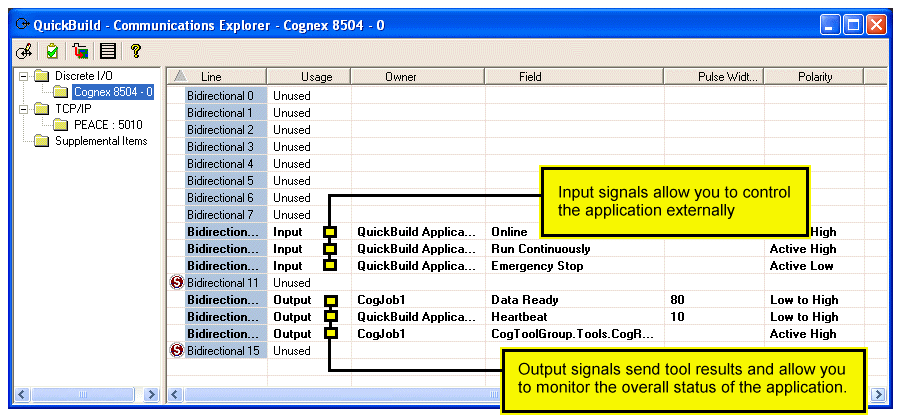
Note: All discrete I/O line states described in this topic assume you are using TTL circuits, and any Cognex hardware using the opto-isolated module will experience the opposite line states to those you configure.
See the following sections on using the Communications Explorer:
- Starting the Communications Explorer
- Configuring Communication Properties
- Viewing Errors
- Adding Supplemental Items
- The Application Wizard
There are several ways to access the Communications Explorer:
Click the Communications Explorer button on the QuickBuild tool button bar:

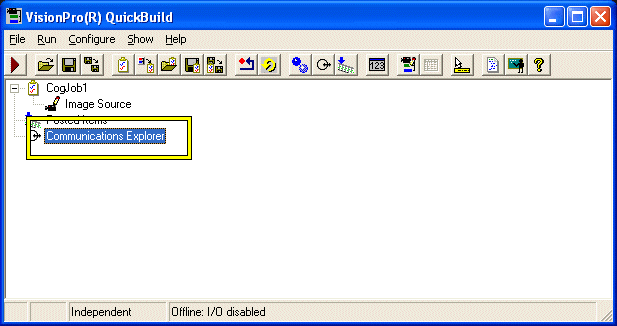
Double-click Communications Explorer in the QuickBuild application window, which appears at the bottom:
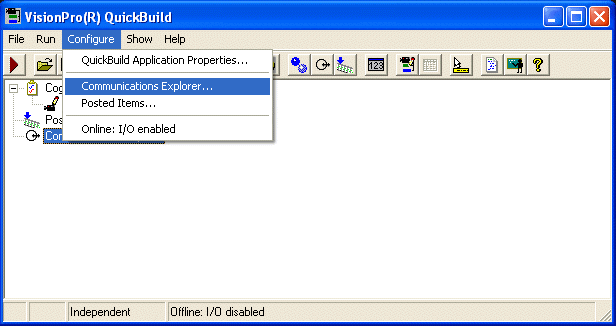
Choose Configure->Communications Explorer from the QuickBuild menu bar:
The Communications Explorer opens to the Discrete I/O folder with a listing for each frame grabber and general-purpose digital I/O board currently installed in your PC, as shown in the following example:
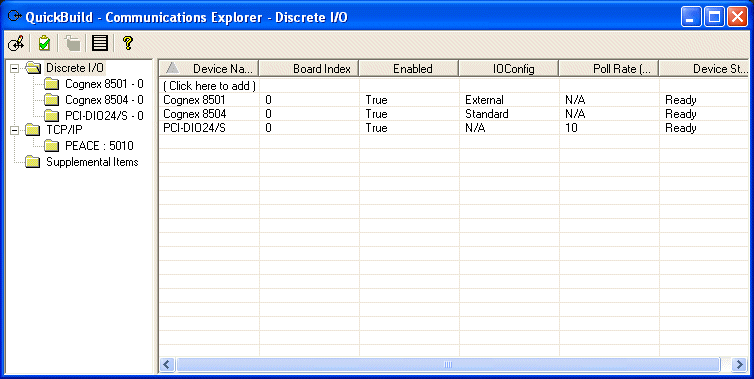
The IOConfig column must match the current I/O hardware attached to the frame grabbers. For example, If you plan to use the pass-through TTL connection module 800-5818-1 with a Cognex 8504, the IOConfig column must read Standard. QuickBuild retrieves this information from the VisionPro.ini file, which by default is located under the Windows folder. See the topic Configuring the VisionPro.ini file for more information.
The Communications Explorer retrieves the list of hardware automatically. If you save the application, the Communications Explorer saves the current list. Even if you open a saved application on another PC containing a different set of hardware, the Communications Explorer keeps its original list. If the current set of hardware does not match the list the Communications Explorer expects to find, those entries appear in red as described in the section Checking the Current Configuration.
Selecting a specific device under the Discrete I/O folder shows a list of input and output lines that vary depending on the I/O hardware you are currently using. For example, the following figure shows the unconfigured I/O lines for an MVS-8504 connected to the pass-through TTL connection module 800-5818-1:
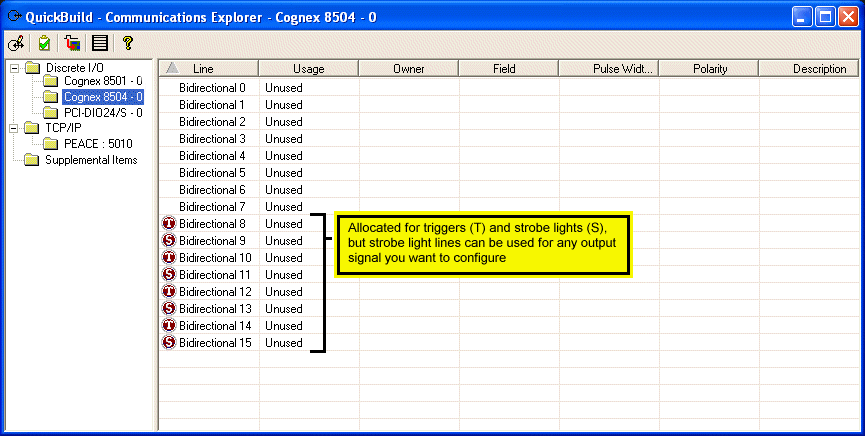
For details on configuring Discrete I/O devices, see the topic Adding Discrete I/O to Your QuickBuild Application.
Selecting the TCP/IP folder shows a list of all TCP/IP devices configured as either a client or a server. The following image shows an application containing one TCP/IP device configured as a client and another TCP/IP device configured as a server:
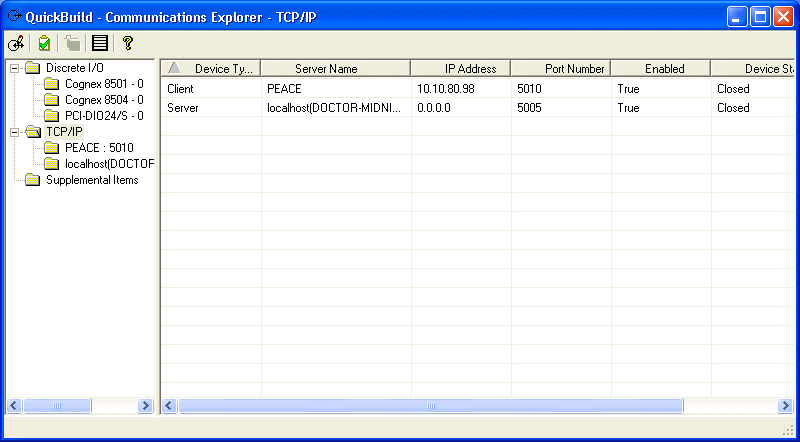
For details on configuring TCP/IP devices, see the topic Adding TCP/IP Output to Your QuickBuild Application.
Click the communications properties button, highlighted in the following figure, to configure how the QuickBuild application responds to I/O errors and control the size of the I/O queue:

Use the following dialog box to configure communication properties:
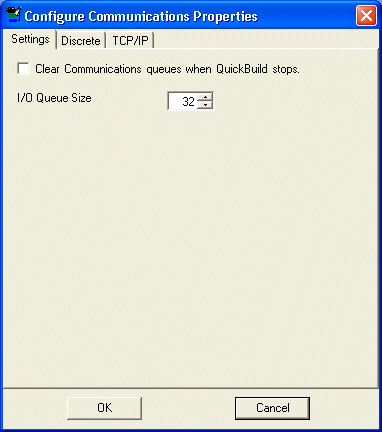
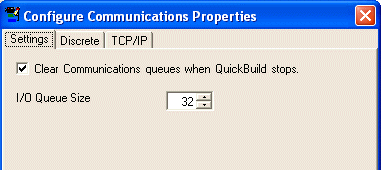
Clear Communications queues when QuickBuild stops.
This option clears any pending discrete I/O signals or TCP/IP packets when QuickBuild stops.
I/O Queue Size
An I/O queue overflow can occur when the discrete I/O or TCP/IP devices cannot transport data as quickly as a job produces results.
If an I/O queue overflow error occurs, you can determine how QuickBuild handles the error for both discrete I/O and TCP/IP signals using their respective tabs. QuickBuild displays an error message in its status bar to notify you that an I/O overflow condition has occurred.
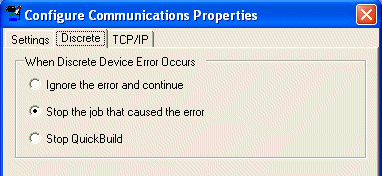
You can configure QuickBuild to ignore all discrete I/O errors, stop the Job that caused the error while letting other Jobs continue, or stop all Jobs in the QuickBuild application.
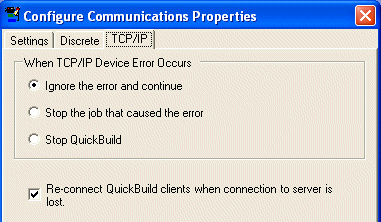
You can configure QuickBuild to ignore all TCP/IP errors, stop the Job that caused the error while letting other Jobs continue, or stop all Jobs in the QuickBuild application.
To view any I/O errors that occur, click the I/O Error button:

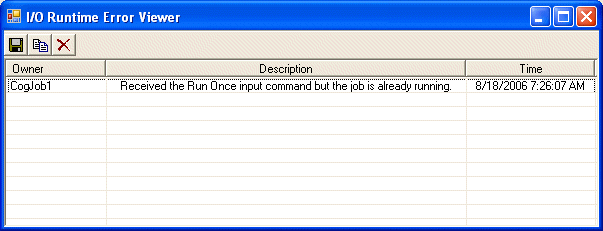
Communications Explorer displays any I/O errors in the error log:
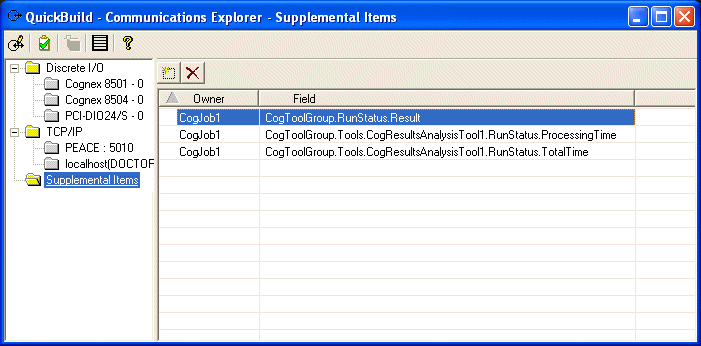
The Communications Explorer allows you to specify tool results that you do not want to transmit over a discrete output signal or TCP/IP device. Items stored in this supplemental queue will be posted to the I/O results queue of the Job each time the Job executes. You can view the results queue of a particular Job by choose Show->Job I/O Results Queue from the menu bar of any Job editor.
You might choose to store tool results in the supplemental queue if you wish to import the QuickBuild application into a custom .NET application and use the Serial protocol (or any protocol not supported by the Communications Explorer) to transmit these tool results to a device or another computer on your network.
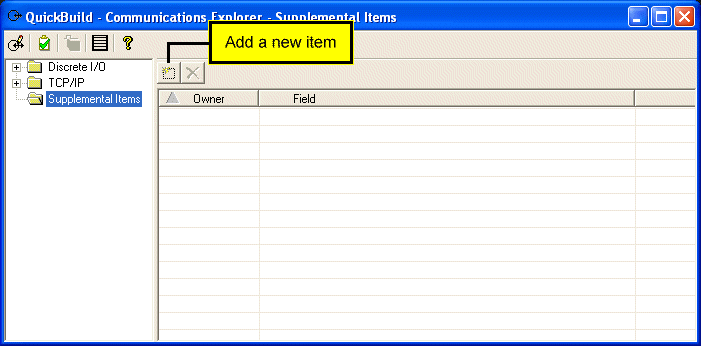
To collect supplemental items, click Supplemental Items in the Communications Explorer. The following figure shows the Communications Explorer before any supplemental items have been added:
The Communications Explorer displays any tool result data you specify. For example, the following figure shows various result information from a QuickBuild Job is available as supplemental data:
The Application Wizard preserves any discrete I/O settings and TCP/IP devices you configure and transfers them to the generated application it generates. See the topic Using the VisionPro Application Wizard for more information.