This topic contains the following sections.
The Image Convert tool edit control provides a graphical user interface to the CogImageConvertTool tool, that lets you convert images from one format to another.
The following figure shows the Image Convert Tool edit control:
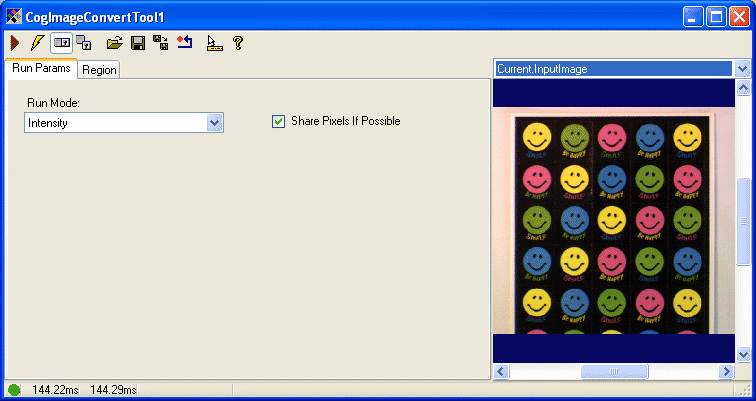
To include the control in your application, you must first add it to the project toolbox. The Image Convert tool edit control object type is named Cognex Image Convert Edit Control. See Adding Edit Controls to Visual Studio for more information.
The following table describes the buttons at the top left of the edit control.
| Button | Description | |
 | Run | Perform the selected image conversion on the image stored in the Current.InputImage buffer and generate a new LastRun.Output image. |
 | Local image display | Open or close the local image display window. An Image Processing One Image tool supports the following image buffers:
|
 | Floating image display | Open a floating image window, which supports the same image buffers as the local image display window. |
 | Open | Open a VisionPro persistence (.vpp) file that contains a set of saved properties for this vision tool object type. VisionPro reports an error if you try to open a .vpp file for another object type. For more information about VisionPro persistence features, see the topic Persistence in VisionPro. |
 | Save | Saves the current properties of the underlying tool to a VisionPro persistence file. You have the option to save either the entire tool or the tool without its images or results. |
 | Save As | Saves the current properties of the underlying tool to a new VisionPro persistence file. |
 | Reset | Resets the underlying tool to its default state. |
 | Show ToolTips | Enables or disables the display of tooltips for individual items in this edit control. |
 | Help | Opens this help topic. |
The Image Convert tool edit control lets you choose the following conversion operations:
| Run Mode | Description |
HSI | If the input image is an ICogImage24PlanarColor of type RGB then output a computed ICogImage24PlanarColor of type HSI. If the input image is already an ICogImage24PlanarColor of type HSI then output an ICogImage24PlanarColor that is equivalent to the input image. Throw an exception at run time if the input image is any other type. |
| MaskFromRange | If the input image is a CogImage16Range then output a CogImage8Grey corresponding to the mask data. |
| PixelFromRange | If the input image is a CogImage16Range then output a CogImage16Grey corresponding to the height data. |
| IntensityFromWeightedRGB | If the input image is an ICogImage24PlanarColor of type RGB then output a computed ICogImage8Grey that represents the greyscale intensity of this color image using customer provided RGB weighting factors. |
RGB | If the input image is an ICogImage24PlanarColor of type HSI then output a computed ICogImage24PlanarColor of type RGB. If the input image is already an ICogImage24PlanarColor of type RGB then output an ICogImage24PlanarColor that is equivalent to the input image. Throw an exception at run time if the input image is any other type. |
| Plane2 | The input image must be an ICogImage24PlanarColor. Output an ICogImage8Grey that represents plane 2 of the input image. |
| Plane1 | The input image must be an ICogImage24PlanarColor. Output an ICogImage8Grey that represents plane 1 of the input image. |
| Plane0 | The input image must be an ICogImage24PlanarColor. Output an ICogImage8Grey |
| HSIFromBayer | The input image must be an ICogImage8Grey and is assumed to be organized in the Bayer manner. Output a computed ICogImage24PlanarColor of type HSI. |
| RGBFromBayer | The input image must be an ICogImage8Grey and is assumed to be organized in the Bayer manner. Output a computed ICogImage24PlanarColor of type RGB. |
| IntensityFromBayer | The input image must be an ICogImage8Grey and is assumed to be organized in the Bayer manner. Output a computed ICogImage8Grey that represents the computed greyscale intensity of this input image. |
Intensity | If the input image is an ICogImage24PlanarColor of type RGB then output a computed ICogImage8Grey that represents the greyscale intensity of this color image. If the input image is an ICogImag24PlanarColor of type HSI then output an ICogImage8Grey that represents its intensity plane. If the input image is an ICogImage16Grey then right shift each pixel according to the Encoding property to place the 8 most significant active bits in the output image. And if the input image is already an ICogImage8Grey then output an ICogImage8Grey that is equivalent to the input image. |