This topic contains the following sections.
This topic describes the Caliper tool, a vision tool that offers rapid and precise pattern detection and location within a well-defined area of an image. This topic contains the following sections.
| Term | Definition |
| affine rectangle | A quadrilateral where the opposite sides are parallel to each other |
| edge mode | Feature detection based on locating edges or edge peaks within the run-time image. |
| edge model | Template for the edge pattern that you are searching for with the Caliper tool. |
| edge pattern candidate | Edge pattern within the run-time image that is being evaluated for its similarity to the edge pattern described by the edge model. |
| interpolation | Method of estimating the grey-level value of a sub-pixel location in an image based on the pixel values surrounding the location |
| peak | Maximum or minimum in the value of a function or a plot of values; a maximum is a positive peak; a minimum is a negative peak. |
| projection | Reduction of a two-dimensional array of pixels to a one-dimensional array of pixels. A projection is formed by summing the pixel values along a ray within the projection region. |
| ray | Line drawn in the direction of a projection along which pixel values are summed. |
| rotation | The turning of a rectangle about an axis point |
| score | Measure of the similarity between an edge pattern candidate found by the Caliper tool and an edge model. |
| scoring function | Function that maps input values to output values within a fixed range. |
| scoring method | Procedure for evaluating the degree of similarity between an edge pattern candidate and an edge model. |
| skew | The distortion of a rectangle into a parallelogram |
This section contains the following subsections.
The Caliper tool is a vision tool for measuring the width of objects, the location of edges or features, and the location and spacing of pairs of edges in images. The Caliper tool differs from other vision tools in that it requires that you know the approximate location and characteristics of the feature or edges you want to measure or locate.
The Caliper tool is typically used to develop detailed information about the precise locations of features within an object. It is not appropriate for developing information about the shape of objects or features.
The Caliper tool locates edges or edge pairs in an image using the edge mode method, in which edge peaks are detected using a simple 1-D kernel
Once you have determined the location and orientation of the edge or edge pair of interest within the image, you perform the following steps to apply the Caliper tool:
- Specify a projection region that encloses the edges or edge pairs of interest.
- Select a filter size and contrast threshold that isolate the edges of interest.
- Define an edge model that describes the edge or edge pair of interest.
- Define the scoring methods that are used to score edge pattern candidates within the image.
- Apply the Caliper tool and interpret the results.
The first step in using the Caliper tool is to specify a projection region within the image to which you want to apply the tool. The Caliper tool depends on a carefully defined projection region to isolate just the edge information from a small section of the image.
You specify a projection region for the Caliper tool in either of the following ways:
- Supply an affine rectangle and affine sampling parameters
- Define the location, size, and angles of skew and rotation for the projection region
Typically, the projection region contains the portion of the image with the features of interest. The projection operation sums all the information in the projection region, accentuating the strength of edges that lie parallel to the projection rays and reducing the effects of noise.
Figure 1 shows how a projection can accentuate the edge information in a two-dimensional image. Notice how the strength of the edge is stronger in the projected image than in the initial image.
Figure 1. Accentuating edge information with projection

Once the Caliper tool has produced a projected image, it locates edges using edge mode.
This section contains the following subsections.
This section describes how the Caliper tool detects edges in edge mode.
Filtering
The Caliper tool uses the projection region to produce a one-dimensional representation of the portion of the image that contains the edges of interest. This one-dimensional projection image will contain not only the edges of interest, but also other edges caused by noise and unwanted information in the original image. Applying a filter to the one-dimensional projection image increases the strength of the edges of interest while at the same time decreasing image noise.
The Caliper tool performs filtering by convolving the one-dimensional projection image with a filter operator. A filter operator is a block of arithmetic operators that is applied sequentially to blocks of pixels within the one-dimensional projection image to produce the pixel values in the filtered image.
Figure 2 illustrates an example of a simple 3-element filter operator. In this case, the filter operator subtracts the value of each pixel’s left neighbor and adds the value of each pixel’s right neighbor to produce the pixel value in the filtered image.
Figure 2. Filtering the projection image
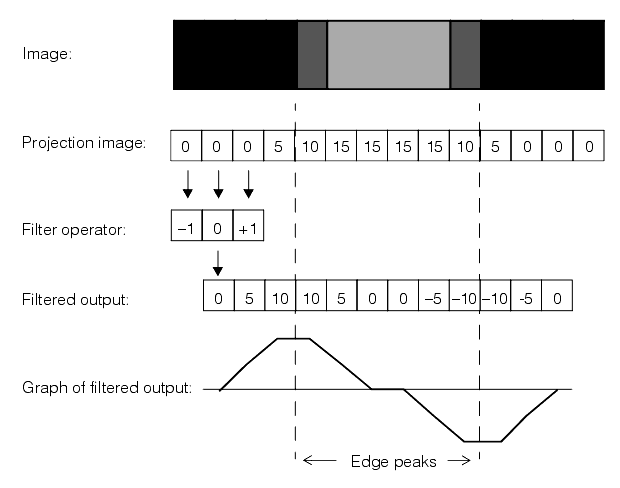
The filtered image no longer visually resembles the input image. However it does have an important new characteristic: a graph of the filtered pixel values reveals that the peaks in the values, both positive and negative, correspond to the location of the edges within the initial image. The Caliper tool uses these peaks in the filtered image to determine the location of edges in the original image.
In addition to producing an image with peaks that correspond to edges in the input image, image filtering also removes noise and spurious edges from the input image. Figure 3 illustrates an example where the image contains two true edges along with spurious edges caused by variations in pixel values around the edge.
When a filter with a size of 1 is applied to the image, both the edges of interest and spurious edges appear as peaks in the filtered projection image.
Figure 3. Filtering with filter size of 1

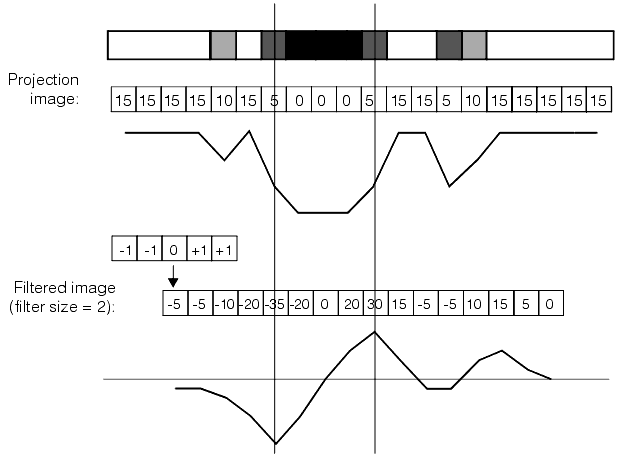
Figure 4 shows the effect of applying a filter with a width of 2. The peaks that correspond to the edges of interest are broader, and most of the spurious peaks from Figure 3 are no longer present in the filtered projection image.
Figure 4. Filtering with filter size of 2
Edge Mode Scoring
Once it has located the edges in the original image, the Caliper tool computes a score for each potential edge pattern in the image. The score for each edge pattern in the image is computed based on the similarity between the edge pattern in the image and an ideal edge pattern that you define. The edge patterns in the image are called edge pattern candidates while the ideal edge pattern is called the edge model. You can define edge models that contain a single edge or a pair of edges.
You control the method that the Caliper tool uses to score edge pattern candidates by performing the following steps:
- Define the edge model that describes the edge or edge pair for which you are searching.
- Define one or more scoring methods that define how edge pattern candidates are to be evaluated for similarity to the edge model.
An edge model is a description of the edge pattern that you expect to see in the image. An edge model includes edge spacing, position, and polarity (dark to light or light to dark).
For each edge pattern candidate in the image, the Caliper tool computes a score. You can specify exactly how to evaluate each edge attribute, such as position, strength, or polarity, when computing the overall score for that edge. The tool computes a separate value for each attribute for each edge pattern candidate based on the scoring method that you supply, then computes an overall score for each edge pattern candidate by combining the individual scores.
The Caliper tool returns the overall score and position of all edge pattern candidates within the image that receive scores above a minimum acceptance score that you supply.
You can also request intermediate results from the Caliper tool such as the projection image, the filtered image, and a list of all individual edge peaks in the image.
This section contains the following subsections.
- Specifying the Projection Region
- Sampling the Affine Rectangle
- Clipped Projections
- Edge Mode Edge Detection
- Edge Mode Scoring
- Evaluating Results
This section describes how the Caliper tool works.
This section contains the following subsections.
- Specifying an Affine Rectangle and Sampling Parameters
- Specifying an Affine Rectangle
- Handedness and Orientation
- Changing Handedness
- Choosing Orientation and Handedness
When specifying your projection, you define a rectangular or parallelogram-shaped region within the input image. You should define this rectangular region so that
You define a projection region by supplying an affine rectangle.
Specifying an Affine Rectangle and Sampling Parameters
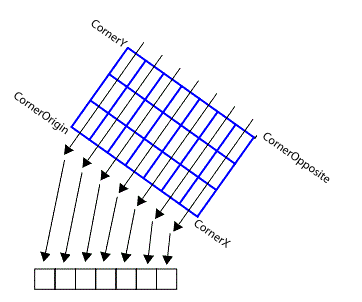
You can specify the projection region as an affine rectangle and affine rectangle sampling parameters. The projection direction is defined as being parallel to the Po-Py side of the affine rectangle, and the number of Po-Px divisions specified by the affine sampling parameters defines the number of samples in the projection region.
Figure 5 shows how an affine rectangle and affine rectangle sampling parameters determine the projection region.
Figure 5. Project region defined by affine rectangle and sampling parameters
Specifying an Affine Rectangle
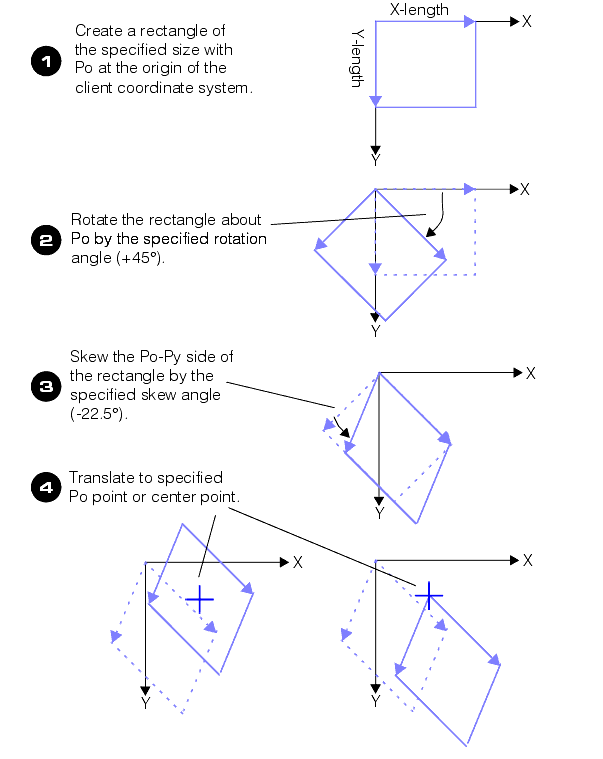
You specify an affine rectangle by supplying all of the parameters required to define the rectangle to a function call or object constructor. Figure 6 shows how the constructor or function call uses the parameters you specify to construct an affine rectangle.
Figure 6. Creating an affine rectangle.
Handedness and Orientation
Figure 7 shows how different skew, rotation, and Po values determine the orientation and handedness of an affine rectangle.
Figure 7. Handedness and orientation in an affine rectangle.

Note that each of the rectangles shown in Figure 7 occupies the same position within the coordinate system.
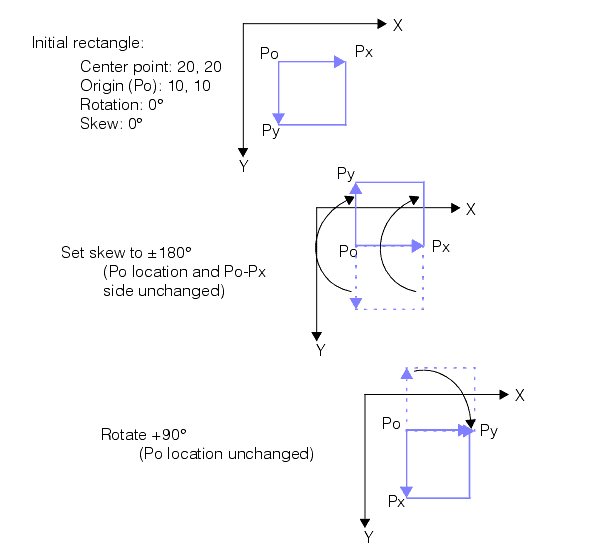
Changing Handedness
Figure 8 shows the specific steps required to change the handedness of an affine rectangle without moving the rectangle or changing the location of its origin (Po point).
Figure 8. Changing handedness requires changing skew and rotation
Choosing Orientation and Handedness
You specify the location of an affine rectangle to determine what portion of the input image is included within the rectangle. Affine rectangles that occupy the same part of an image can have their vertex points in different locations.
The orientation and handedness of an affine rectangle determine how the affine rectangle is used. The Caliper tool will use the Po-Py axis of the affine rectangle as the projection direction and the Po-Px axis as the search direction.
This section contains the following subsections.
The definition for sampling an affine rectangle within an image includes both the definition of an affine rectangle and the number of affine pixels into which it is divided. The affine pixels are set to be the same size as the pixels in the image being sampled.
Affine rectangles which represent aligned orthogonal transformations of the input image client coordinate system can be used to create affine samples without the need to perform complicated processing. If the affine rectangle does not, some kind of sampling must be applied to produce a sampled image. Figure 9 illustrates this problem.
Figure 9. Orthogonal and non-orthogonal affine sampling rectangles
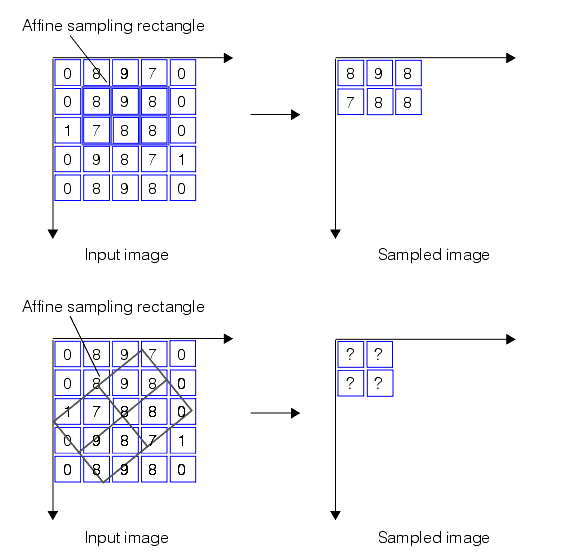
The problem of determining the pixel values when sampling an affine rectangle that is not aligned to the pixel grid of the input image is solved by sampling the pixel grid to produce the sampled image. The Caliper tool supports bilinear interpolation sampling.
Bilinear Interpolation
Bilinear interpolation considers the values of the four pixels closest to the center of each affine pixel in the affine sampling rectangle. The distance-weighted average of the values of the four pixels is computed and used for the value of the affine pixel.
Figure 10 shows how bilinear interpolation is computed.
Figure 10. Bilinear interpolation
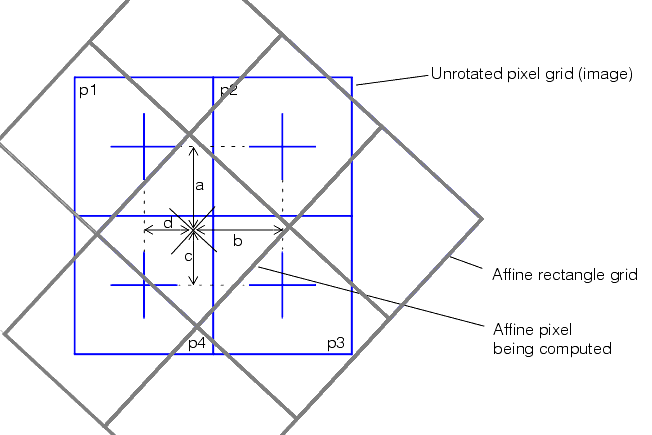
The value of the interpolated affine pixel is computed using the following formula:
Figure 11. Value of interpolated affine pixel

where
a, b, c, and d are the four distances shown in Figure 10, normalized so that the distance between pixel centers is 1. p1, p2, p3, and p4 are the values of the four pixels shown in Figure 10.Figure 12 shows how bilinear interpolation would produce the affine sampled image shown in Figure 9. The centers of the affine pixels are shown as grey crosses, and the four pixels used to compute each affine pixel are surrounded by a heavy border.
Figure 12. Computing a interpolated sample image
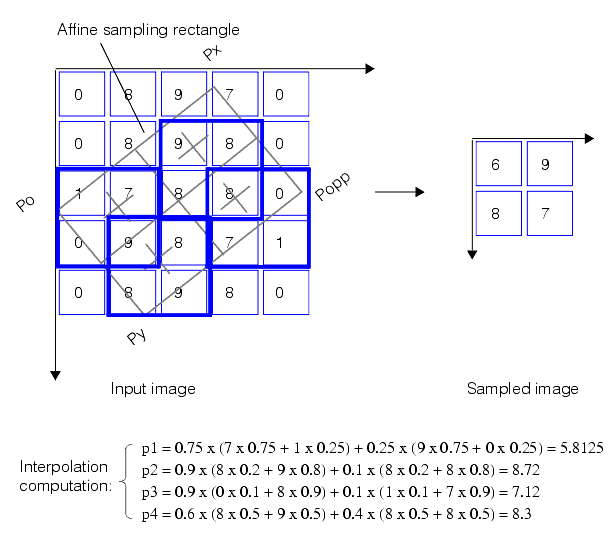
The computed interpolated pixel values are rounded to the nearest whole integer value.
When projections are rotated or skewed, the projection region can extend outside the boundary of the image, particularly if the projection region is close in size to the image. Figure 13 shows a projection region that extends outside the image; the clipped area is shown in grey.
Figure 13. Clipped projection
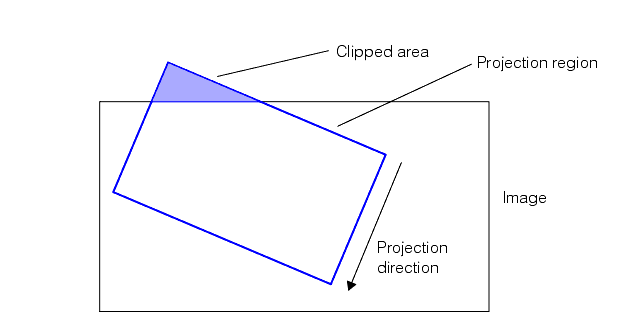
The Caliper tool automatically adjusts the projection region if it detects clipping. The Caliper tool detects clipping by computing a weights image when it computes the projection image. The weights image is a one-dimensional image in which each pixel is set to be the number of pixels from the input image which contributed to the corresponding pixel in the projection image. Figure 14 shows how the weights image is computed.
Figure 14. Automatic clipping based on a weights image

The Caliper tool resizes the projection image so that no pixels with weights of zero are included.
When the Caliper tool produces the filtered image and performs peak detection, it automatically normalizes the projection image based on the number of source image pixels that contributed to each projection image pixel.
This section contains the following subsections.
The filter size and type that you specify for the Caliper tool controls how the tool removes noise from the input image and how it accentuates the peaks of interest in the image.
Specifying the Filter
The filter size and type that you specify for the Caliper tool controls how the tool removes noise from the input image and how it accentuates the peaks of interest in the image.
Filter Size
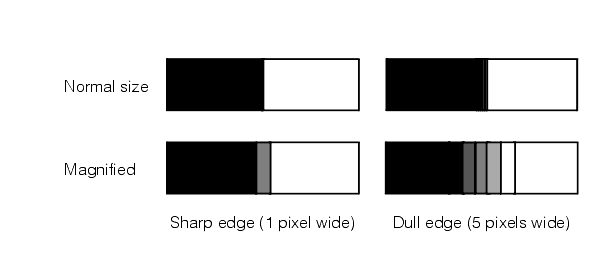
You should specify a filter size that closely matches the size of the edges in your input images. The size of an edge is the number of pixels wide that the edge is. Edges can be sharp, in which case the edge only spans one or two pixels, or edges can be dull, in which case they might span many pixels. Figure 15 illustrates examples of sharp and dull edges; the figure illustrates both types of edges at different magnifications.
Figure 15. Sharp and dull edges
When you specify a filter size that is close to the edge size, the Caliper tool produces stronger edge peaks in the filter image. If you specify a filter size that is too large or too small, the filter image will contain broad, low peaks. Figure 16 illustrates the effect of applying filters of different sizes to sharp and dull edges.
Figure 16. The effect of filter size and edge size on peak size
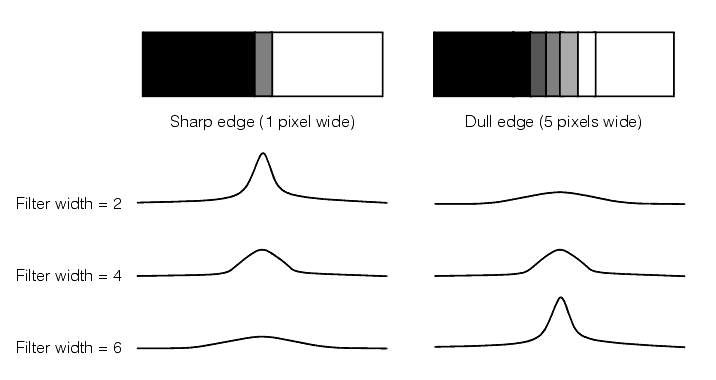
Figure 16 illustrates that the more closely you match the filter size to the size of the edges of interest within the image, the sharper the desired peaks in the filtered image and the fewer spurious peaks there will be.
Filter Type
The Caliper tool supports a filter kernel that approximates the negative of the first derivative of a Gaussian distribution. This kernel provides better smoothing than traditional boxcar filters.
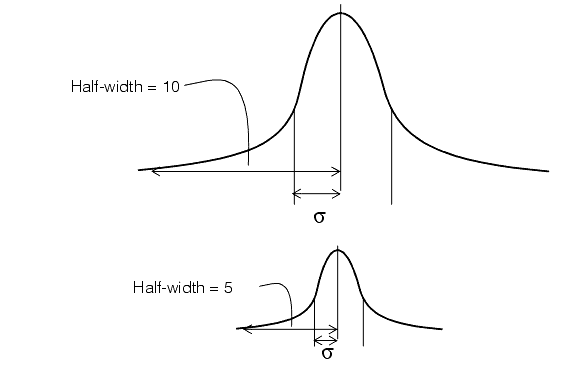
You specify the half-width of the filter, where the half-width is equal to four times the sigma of the Gaussian distribution. Figure 17 illustrates how you specify the width of the filter.
Figure 17. Filter size for a Gaussian filter
The filter itself is constructed by taking the negative of the first derivative of the Gaussian curve, as shown in Figure 18.
Figure 18. Constructing the filter

Peak Detection or Contrast Threshold
The Caliper tool lets you define a minimum peak height or contrast threshold. Any peaks that are lower than your minimum peak height are excluded from the results. This allows you to limit your analysis of edges in the image to just those edges of a certain magnitude.
You specify the contrast threshold as the difference in normalized pixel values between the two sides of the edge.
This section contains the following subsections.
- Edge Model
- Scoring Method Types
- Positional Scoring Methods
- Size Scoring Methods
- Contrast Scoring Methods
- Straddle Scoring Methods
- Scoring Functions
- Defining a Two-Sided Scoring Function
- Computing the Overall Score for an Edge Pattern Candidate
Once the Caliper tool has filtered the projection image and produced a list of the edge peaks that exceed the contrast threshold that you specify, the tool computes a score for each edge pattern candidate within the image. This score lets your application determine which of the edge pattern candidates in the image represent instances of the actual edge pattern of interest, as defined by your edge model.
The Caliper tool computes the score for each edge pattern candidate by comparing the edge pattern candidate with the edge model, based upon a set of scoring criteria that you supply. These criteria are called scoring methods.
A scoring method has two parts:
- A scoring method type that defines what measurement of the edge you want to evaluate
- A scoring function that defines the relationship between the raw measure and the mapped score that will be generated for the scoring method
You can define several scoring methods. The Caliper tool applies all the scoring methods to each edge pattern candidate within the image and returns an overall score for each edge pattern candidate. By defining appropriate scoring methods, you can ensure that the edge pattern candidate with the highest score will be the edge pattern of interest.
Edge Model
To evaluate whether an edge pattern candidate in the image is a good match for the edge pattern that you are seeking, you must define a model that describes the edge pattern of interest. You define an edge model by specifying the polarity (light-to-dark or dark-to-light) and position of each edge in the model. You specify the positions of edges relative to a model origin. The Caliper tool lets you define edge models with a single edge or a pair of edges.
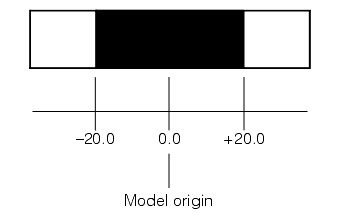
Table 1 describes an edge model with a symmetric pair of edges. The origin of the model is centered between the two edges.
| Edge | Position | Polarity |
| 1 | -20 | Light to dark |
| 2 | +20 | Dark to light |
Figure 19 shows an idealized graphical representation of the edge model described in Table 1. Note that the position of the model origin is implied by the values of the edge positions.
Figure 19. Idealized representation of an edge model
Scoring Method Types
The Caliper tool bases the score of an edge pattern candidate on how different the edge pattern candidate is from the edge model. You can specify the particular measure that the tool uses to assess this difference. The types of measures that you can specify are called scoring method types. The available scoring method types are
- Position
- Size
- Contrast
- Straddle
When the tool applies a scoring method type to an edge pattern candidate the result is a raw score. The raw score is different for different scoring method types. The scoring method types and their raw scores are described in the following sections.
Positional Scoring Methods
You can score an edge pattern candidate based on the position of the edge pattern candidate relative to the center of the projection region you specified for this Caliper tool. The position is defined as the distance between the center and the model origin point within the edge pattern candidate.
If you expect the edge of interest to be a specific distance from the center of the projection region, then you can define an absolute positional scoring method and the raw score will be expressed as an absolute distance in pixels.
If you are using an edge pair model and you would like to consider the variation in position between the edge pattern candidate and the center of the projection region relative to the size of the model, you can define a relative positional scoring method. In this case the raw score will be normalized so that a value of 1.0 means that the distance was equal to the size of the model.
Size Scoring Methods
If you are using an edge pair model, you can score edge pattern candidates based on how much the width between the edges of the edge pattern candidate varies from the width between the edges of the edge model. You can define a size scoring method to be absolute, in which case the raw score will be returned as an absolute size difference in pixels.
If you would like to consider the size difference relative to the size of the model, you can define a relative size scoring method. In this case the raw score will be normalized so that a value of 1.0 means that the size difference was equal to the size of the model.
Contrast Scoring Methods
You can score edge pattern candidates based on the contrast of the edge pattern candidates. The contrast of an edge is expressed in terms of the change in pixel values divided by the size of the edge in pixels. The raw score for a contrast scoring method is normalized so that a value of 1.0 is equal to a contrast of 256 (the maximum possible value for contrast). If you specify an edge pair model, the raw score is the average of the contrast for the two edges.
Straddle Scoring Methods
If you are using an edge pair model, you can score edge pair candidates based on whether or not the two edges lie on either side of the center of the projection region. This type of scoring method can be used to find objects defined by a pair of edges that are expected to lie under the center of the projection region. The raw score is returned as 1.0 if the center of the projection region is straddled by the edges, 0.0 if the center of the projection region is not straddled by the edges.
Scoring Functions
For each scoring method, the selected scoring method type produces a raw score. You control the effect that this raw score has on the overall score for an edge pattern candidate by defining a scoring function. A scoring function maps a raw score to a mapped score. The mapped scores for each scoring method for an edge pattern candidate are combined to form the overall score for that edge pattern candidate.
You define a scoring function by specifying low and high input and output values. Figure 20 shows a scoring function.
Figure 20. Scoring function

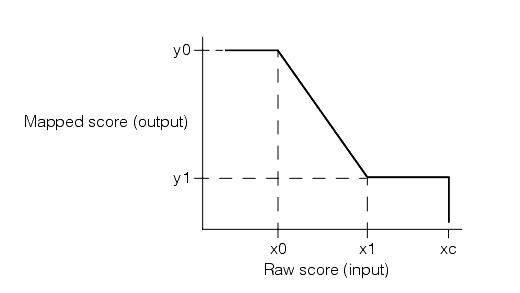
You define the scoring function by defining values for xc, x1, x0, y1, and y0. The Caliper tool uses the scoring function you define to map raw scores to mapped scores as follows. Raw scores above x0 are mapped to a score of y0. Raw scores below xc are mapped to a score of 0. Raw scores between xc and x1 are mapped to a score of y1. Raw scores between x1 and x0 are mapped linearly to the range of scores between y1 and y0.
The values you define for y0 and y1 must be between 0.0 and 1.0. You can specify any values for xc, x1, and x0, including negative values. You would specify negative values for one or more of the xc, x1, and x0 points if you expected raw scores less than zero.
The scoring function illustrated in Figure 20 would be appropriate for a case where higher raw scores should produce higher mapped scores, such as a contrast scoring method where greater the edge contrast should produce a higher score.
In other cases, such as a positional scoring method where the edge pattern candidate is expected to be at or near the center of the projection region, a higher raw score should result in a lower mapped score. In a case such as this, you specify a value for x1 that is greater than x0, and a value for xc that is greater than x0. Figure 21 shows a scoring function that is appropriate for a case where higher raw scores should result in lower mapped scores.
Figure 21. Scoring function with x1 greater than x0
You must specify one and only one scoring function per scoring method, although you can specify any number of geometric scoring methods per Caliper tool.
Defining a Two-Sided Scoring Function
If you are using an edge pair model and you specify a two-sided size scoring method type, you can define a scoring function that scores edge pattern candidates that are smaller than the edge model differently from edge pattern candidates that are larger than the edge model. This type of scoring function is called a two-sided scoring function.
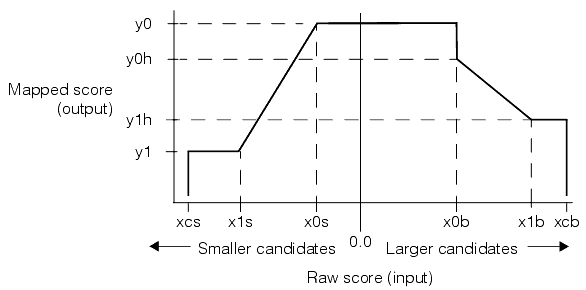
Figure 22 shows an example of a two-sided scoring function that is more tolerant of edge pattern candidates that are larger than the edge model than of edge pattern candidates that are smaller. If the edge pattern candidate is exactly the same size as the edge model, the raw score will be 0.0; if the edge pattern candidate is smaller than the edge model, the raw score will be less than 0; if the edge pattern candidate is larger than the edge model, the raw score will be greater than 0.
If you specify a two-sided scoring function, the raw score is normalized so that an edge pattern candidate that is smaller than the edge model by an amount equal to the size of the edge model receives a raw score of -1.0 and an edge pattern candidate that is larger than the edge model by an amount equal to the size of the edge model receives a raw score of 1.0.
Figure 22. Two-sided scoring function

Figure 22 shows a two-sided scoring function with distinct values for y1 and y1h but the same values for y0 and y0h. While it is possible to specify different values for y0 and y0h, the resulting scoring function contains a discontinuity at x0b. Figure 23 shows a scoring function where y0h is different than y0.
Figure 23. Another two-sided scoring function
You can also specify a two-sided scoring function for cases where raw score values outside of a range of values receive higher scores. Figure 24 shows an example of this type of two-sided scoring function.
Figure 24. Two-sided scoring function with low output values in the center

Computing the Overall Score for an Edge Pattern Candidate
For each edge pattern candidate, once the Caliper tool has computed the raw score for each scoring method and applied the scoring function for that scoring method it computes an overall score for the edge pattern candidate.
The Caliper tool computes the overall score for an edge pattern candidate by taking the Nth root of the product of the mapped scores. For example, if you defined four scoring methods, the Caliper tool would multiply the four scores and take the 4th root of the result.
Note that if any single scoring function produces a value of 0, then the overall score for the edge pattern candidate will also be 0.
Figure 25 shows the overall process of computing the score for an edge pattern candidate.
Figure 25. Scoring an edge pattern candidate

For each edge pattern candidate in the filtered projection image that exceeds the contrast threshold you supply, up to the number of results that you specify, the Caliper tool returns the following information:
- The position of the edge pattern candidate relative to the projection region center of the projection region
- The overall score for this edge pattern candidate, computed using the scoring methods you supplied
- The polarity and contrast of all edges in the edge pattern candidate
- The individual scores for each of the scoring methods you supplied
In addition, you can request the following additional information from the Caliper tool:
- The polarity and contrast of each individual edge in the filtered projection image
- The unfiltered projection image itself
- The filtered projection image itself
- The number of edge pattern candidates that exceeded the contrast threshold
You can use this optional information to perform your own processing and analysis of the intermediate data generated by the Caliper tool.
This section describes the overall procedure for using the Caliper tool.
In general, you will follow these steps to use the Caliper tool in edge mode:
- Define a projection region that encloses the edges of interest.
- Define a filter width that accentuates the edges of interest.
- (Optional) Define a contrast threshold that excludes spurious edges.
- Define one or more scoring methods.
- Apply the tool to an input image.
- Analyze the results.