This topic contains the following sections.
Use the Color Extractor tool to extract pixels from a color image in order to create a grey-scale image of light and dark pixels based on the reference colors you specify. The tool also generates a color image that can be used as a diagnostic tool to verify that you are extracting the pixels of desired colors. The tool can add matching pixels to the output images or explicitly remove them. For example, the following figure shows an input image and the resulting grey-scale image it can generate when configured to locate the various red pixels of the roses:

The Color Extractor tool is similar to the Color Segmenter tool, but generally analyzes an image in less time while also offering a simple method to generate complex reference colors.
The Color Extractor tool works in the Red, Green, and Blue (RGB) color space, defined by all the variations of the hues red, green, and blue, and which can be represented as shown in the following figure:

Each axis of the space ranges from 0 through 255, where the combined RGB values (0,0,0) represent black and (255,255,255) represent white. Any distinct color can be represented as combined values for R, G, and B, as shown in the following figure:
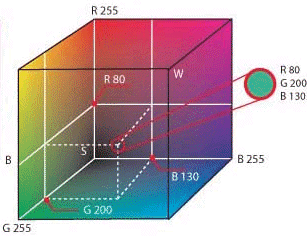
To use a Color Extractor tool you must create one or more color definitions, which can be represented as a small or large volume of values within the RGB color space. Using a reference image, you can create a color definition with a limited range of color or create a definition with a wide range of values. For example, the following figure shows an image where a very narrow range of RGB values has been selected to define a single color definition:
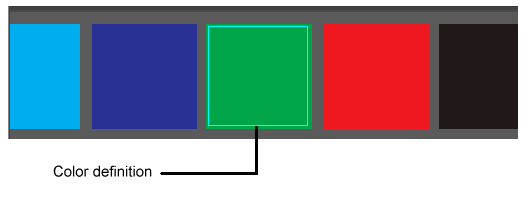
In a typical application, you would create a color definition using a wider range of RGB values, as shown in the following figure:
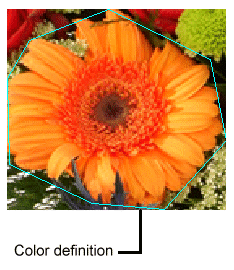
Using a wide range of RGB values allows you to define a complex color definition easily, but risks extracting pixels from your run-time images that share some of those RGB values representing objects you do not want to include in your grey-scale and color output images.
A Color Extractor tool can contain a set of color definitions as necessary to generate the grey-scale output images you need for your application.
In addition to storing multiple color definitions, a single Color Extractor tool can contain multiple color groups, or sets of color definitions.
One of the results a Color Extractor tool can return is the number of pixels from all the color definitions in a color group that are represented in the output images. In some applications you may want to have a count from different sets of color definitions, which can only be done if each set is organized into its own color group.
The tool can also generate a grey-scale and color image for each color group.
Based on a variety of factors such as lighting and the position of objects in your run-time images, the objects you want to be represented in your grey-scale output images may not always appear in the same range as the existing color definitions. To compensate, the Color Extractor tool allows you to specify some amount of dilation, or expansion, around a color definition.
Using a dilation value can be very useful in capturing more image data than the color definition alone can accomplish. For example, the following figure shows an input image, a color definition, and the grey-scale image it generates when no dilation is used:

By using a dilation value and expanding the range of valid pixels based on the existing color definition, the Color Extractor tool can extract more pixels that actually represent the object, as shown in the following figure:

Be aware that increasing dilation increases the range of valid pixel values. The following figure shows an example of where the dilation value has been expanded to a value where pixels well outside the color definition are extracted for the grey-scale image:

Such a large dilation value may or may not be suitable for your application. Experiment with the dilation value for each defined color to see what works best.
The Color Extractor tool allows you to set a softness value for each color definition, a value which affects the grey-scale output image.
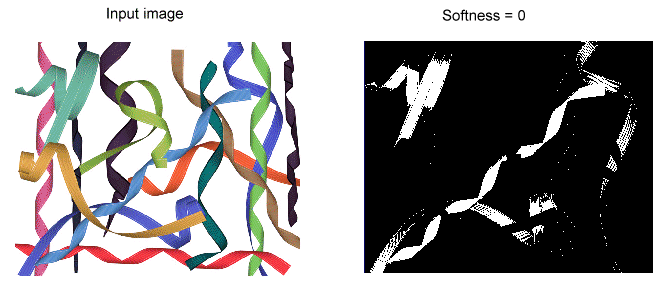
Use a softness value when you want to generate a grey-scale output image with grey values that indicate how closely a pixel in the input image matches the defined color. Increasing this value does not cause the tool to consider more pixels to be included in the definition, but allows the tool to indicate how removed any particular pixel is from the definition itself.
A low value generates a grey-scale output image where pixels that are close to the color definition receive a medium grey value, while a high value generates a grey-scale output image where pixels that are close to the color definition receive bright grey values and pixels that are further from the definition receive dark grey values. The higher the value of softness, the more individual grey levels will be present in the output image, as shown in the following figures:
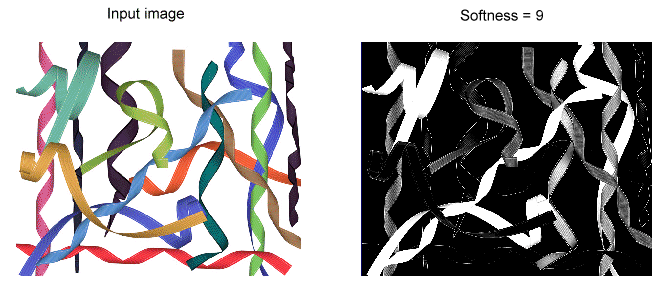
Use a softness value when you want to generate a grey-scale output image with grey values that indicate how closely a pixel in the input image matches the defined color. Increasing this value does not cause the tool to consider more pixels to be included in the definition, but allows the tool to indicate how removed any particular pixel is from the definition itself.
By default, the tool only counts output pixels with a grey value of 255 as pixels that fell within a defined color, but you can lower this default value with a softness threshold and have the tool count pixels with a color similar to a defined color as object pixels. For example, lowering this value to 200 would result in the tool counting any grey-scale pixel in the output image with a value above 200 as an object pixel.
A Color Extractor tool supports parameters for matte line low and matte line high values to allow the tool to extract pixels values that are darker (low) or brighter (high) than the hues defined by the color definition.
In addition, the tool supports a highlight line value to allow you to include pixels that range from the defined color into pure white. This can be useful when the objects in your input images display specular highlights from one or more light sources.
The matte line and highlight parameters are not enabled by default. Enable them and experiment as necessary for the types of images your application will acquire.