This topic contains the following sections.
When your VisionPro application launches, the VisionPro software automatically generates a list of all connected GigE Vision cameras. The list orders cameras by their IP addresses that you set with the GigE Vision Configurator utility.
This camera list remains unchanged until the application exits, regardless of any GigE Vision cameras you connect to your production environment.
For each CogJob you add to a multi-camera application, you must associate it with one GigE Vision camera from the list. As your application executes, each CogJob acquires images only from its assigned camera. So long as all cameras are connected and powered on when the application launches, each CogJob has a reliable image source.
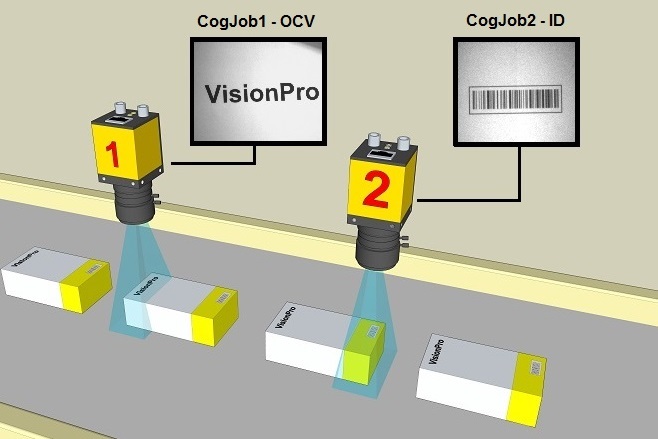
For example, the following figure illustrates an application where CogJob1 uses an OCV Tool to verify a character string and CogJob2 uses an ID Tool to read the lot and date code:
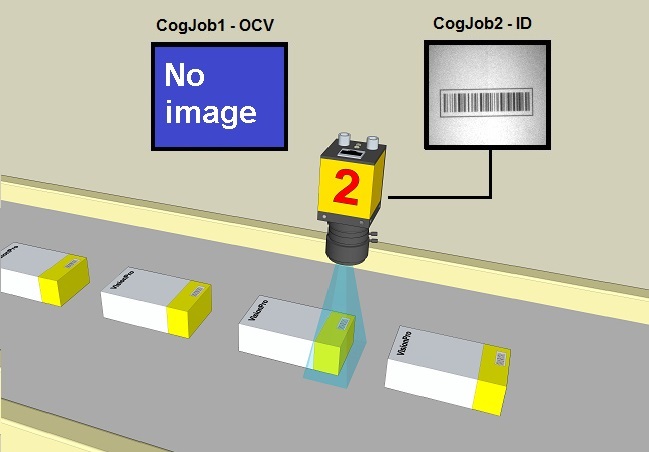
In some production environments, you might want to use an existing multi-camera application in a single-camera environment. For example, the following figure shows the previous application being used only to read barcode symbols with CogJob2, while there is no camera necessary to supply images to CogJob1:
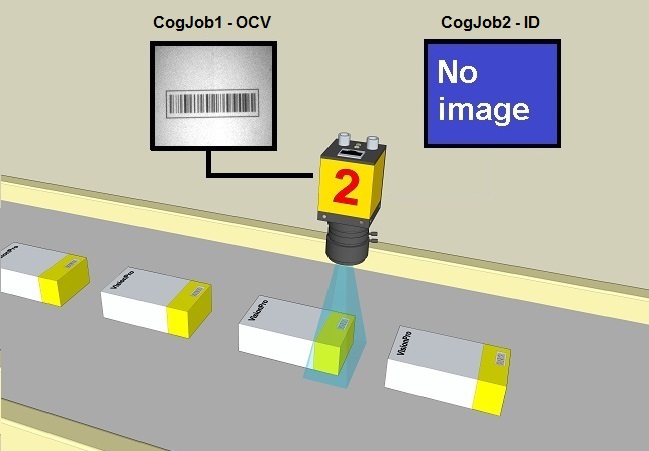
As VisionPro enumerates all connected cameras at startup, the association of cameras to CogJobs can become corrupted should any expected cameras be missing. For example, if a camera assigned to CogJob1 is not present when the application is launched, CogJob1 is assigned the next available camera in the list. In a two-camera application, this can mean that the camera previously assigned to CogJob2 is assigned to CogJob1 and neither CogJob receives the expected image:
To prevent this problem, VisionPro supports a mechanism that maintains the intended association of cameras to CogJobs when one or more cameras are not available when the application launches.
This section contains the following subsections.
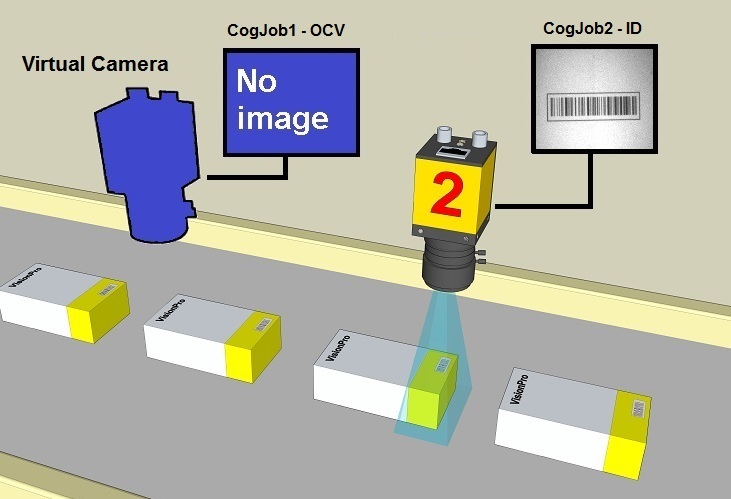
Persistent camera enumeration (PCE) allows VisionPro to maintain the correct association between CogJobs and available cameras when your application starts. When PCE is enabled, VisionPro generates a virtual camera for any physical camera that is missing when the application is launched.
PCE ensures that available cameras are assigned to the correct CogJob.
For example, the following figure shows the previous application where the camera assigned to CogJob1 is missing and is assigned a virtual camera, ensuring the application supplies CogJob2 with the image from the correct camera:
To enable persistent camera enumeration, you must manually edit the PCE initialization file VPCameraOrder.ini, located in %PUBLIC%/Cognex/Common. Upon installation the file contains two lines, as shown:
[enable PCE]
enable bit=false
By changing the value of enable bit from false to true, VisionPro will write to the file the next time the application launches and add information about the cameras currently available. For example, for a two-camera application the VPCameraOrder.ini file will resemble the following:
[enable PCE]
enable bit=true


; Cognex Corporation. INI file for Persistent Camera Enumeration (PCE)
;The legal values for enable bit are “true” and “false”
;PCE doesn't work if the file name is changed
;Modifying the enable PCE bit requires a restart of your application


[GigE Camera 1]
IP_Addr=192.168.22.1
subnet_mask=255.255.255.0
IPCurrentConfig=83886080
MacAddr=00-30-53-15-14-C7
Host_IPAddr=192.168.22.203
Host_subnet_mask=255.255.255.0
Host_macAddr=00-1B-11-79-52-73
Host_mtu=9000
name=GigE Vision: Basler: acA1300-30gc
serialNo=21381575
bigEndian=0


[GigE Camera 2]
IP_Addr=192.168.22.10
subnet_mask=255.255.255.0
IPCurrentConfig=83886080
MacAddr=00-30-53-0C-5F-BF
Host_IPAddr=192.168.22.203
Host_subnet_mask=255.255.255.0
Host_macAddr=00-1B-11-79-52-73
Host_mtu=9000
name=GigE Vision: Basler: piA2400-12gm
serialNo=20810943
bigEndian=0
VisionPro reads the contents of this initialization file each time your application launches and creates a virtual camera for any camera listed by the file that is not immediately available.
To enable your VisionPro application to use persistent camera enumeration, perform the following steps:
- Close any open VisionPro application.
- Edit the file %PUBLIC%/Cognex/Common/VPCameraOrder.ini and change the value of enable=false to enable=true.
- Re-launch your VisionPro application with all GigE Vision cameras connected.
With persistent camera enumeration enabled, Cognex recommends you be aware of the following
- If you add more GigE Vision cameras to your application, VisionPro will modify the VPCameraOrder.ini initialization file the next time you launch VisionPro.
- The VPCameraOrder.ini initialization file contains the IP address of each original camera. If you later change the IP address using the GigE Vision Configurator, VisionPro will update the IP address in the initialize file the next time you launch VisionPro.
- The Image Source dialog box of QuickBuild contains an entry for all cameras in the initialization file, but does not distinguish which cameras are virtual and which are actually available for acquiring images.
Be aware of the following behavior of the VisionPro installer regarding the VPCameraOrder.ini file:
- If a VPCameraOrder.ini file is already present during an installation, the VisionPro installer renames the existing file VPCameraOrder.ini<current_date_time> and then installs the new VPCameraOrder.ini file in %PUBLIC%/Cognex/Common.
- During an uninstall, the VisionPro installer renames the existing VPCameraOrder.ini file to VPCameraOrder.ini<current_date_time>.
VisionPro supports the Refresh method to check for newly added hardware and append it to the list of available devices, but the method cannot preserve the order of cameras associated with particular CogJobs based on which cameras are available or unavailable.