VisionPro supports a set of morphology operators that allow you to enhance the features of interest or reduce the features of non-interest in your acquired images. QuickBuild supports the morphology operators through the One Image Edit Control while the VisionPro API supports the class CogIPOneImageGreyMorphology.
This topic contains the following sections.
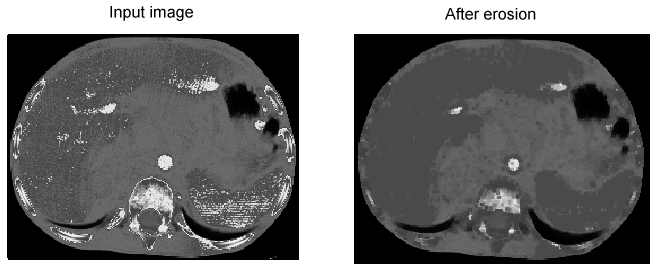
Erosion reduces the bright features of the image, which can totally remove noise pixels or small defects:
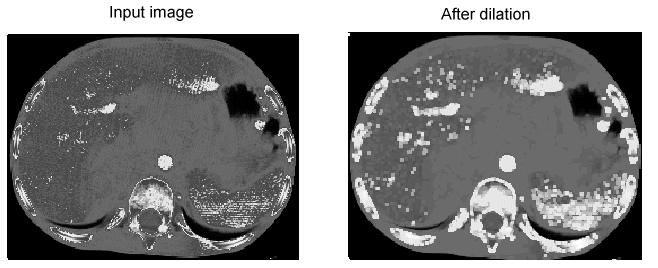
Dilation enhances the bright features of the image while suppressing the darker features:
Morphology operators use a structuring element to process the input image. In a typical case, a morphology operator examines the grey value at each pixel and its eight neighboring pixels using the boundary defined by a structuring element 3 pixels high and 3 pixels wide, as shown in the following figure:
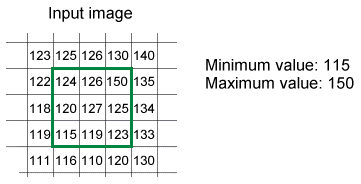
During an erosion operation, the minimum value of all the pixels becomes the grey value in the output image at the pixel corresponding to the center of the structuring element. A dilation operation takes the opposite approach, using the maximum value for the output image.
By default, a morphology operator uses a flat structuring element, which does not add or subtract from the original values in the input image. VisionPro supports a set of six different flat 3x3 structuring elements for use in either QuickBuild or your Dev Studio application:
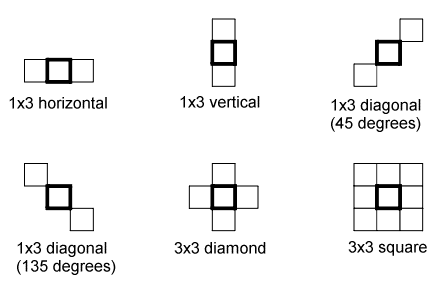
By default, the morphology operator uses a 3x3 square structuring element, but you can specify a different shape. In general, you should choose a structuring element based on the shape of the features you are interested in enhancing or reducing.
In addition to the six supported structuring elements, you can choose to design your own custom structuring element and define a different shape. Your custom structuring element can also be populated with positive or negative values in the range -128 to 127. Using a non-flat structuring element will modify how the morphology operator will perform an erosion or dilation. In an erosion, the values in the structuring element are subtracted from the pixels in the input image, while the values are added to the input image during a dilation as illustrated in the following figure:
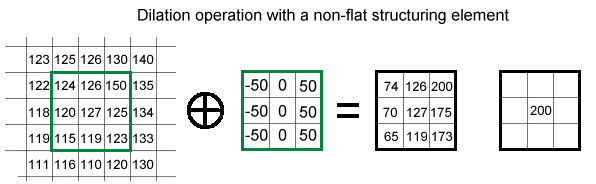
QuickBuild supports the custom structuring element through the One Image Edit Control while the VisionPro API supports the MemberMask property to define the members of the 3x3 structuring element you do not want the operator to consider. You will have to experiment with custom structuring elements to discover the best values for your application.
This section contains the following subsections.
VisionPro supports morphology operators that combine erosion and dilation into a single step.
An opening operator first performs an erosion on the input image and then performs a dilation on the result in order to generate the output image. Opening an image removes small amounts of bright pixels and then enhances the remaining bright features:
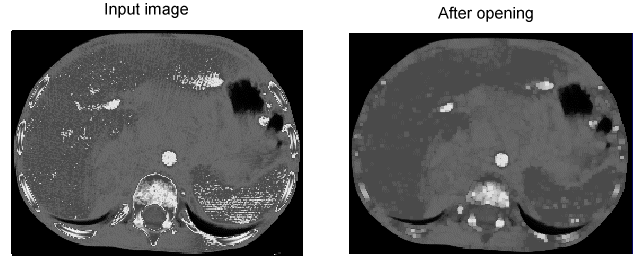
A closing operation first performs a dilation on the input image and then performs an erosion on the result in order to generate the output image. Closing an image reduces or completely removes dark areas of the image:
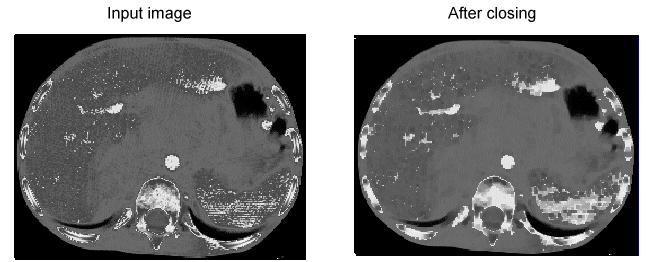
Both opening and closing operators tend to preserve the size and shape of large features while affecting the size and shape of small features.
The default structuring element has a dimension of 3x3, but you can also use the tool with a larger element using the CogIPOneImageGreyMorphologyNxM of the One Image Edit Control.
Using NxM grey morphology still allows you to specify a kernel of custom values, similar to using a custom structuring element in a standard 3x3 element. By default this option is disabled and is not used by most vision applications that require grey-scale morphology, so you must explicitly enable this option through the One Image Edit Control or programmatically through the KernelEnabled property.
The output image generated by a morphology operator will be smaller than the input image. In general, the number of rows and columns lost on each side of the input image will equal the number of rows and columns on each side of the origin within the structuring element, not including the origin itself. For example, a 3x3 structuring element with the origin at the center will generate an output image smaller by one row and one column on all sides, as shown:
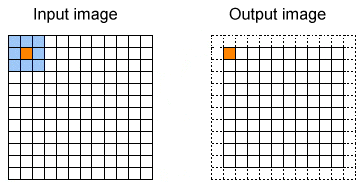
For opening and closing morphology operations, the rows and columns lost in the output image are doubled, since each of these morphology operations includes both an erosion and a dilation. For example, an opening or closing operator using the structuring element shown in the previous figure would generate an output image smaller by two rows along the top, two columns on the left, four rows along the bottom and four columns along the right side.