This topic contains the following sections.
The Affine Transform tool transforms the area of an image contained within a CogRectangleAffine object and generates a new rectangular output image. The tool removes the effect of any rotation and skew present in the dimensions of the affine rectangle, and allows you to specify an additional scaling factor if you want to reduce or enlarge those features the rectangle contains.
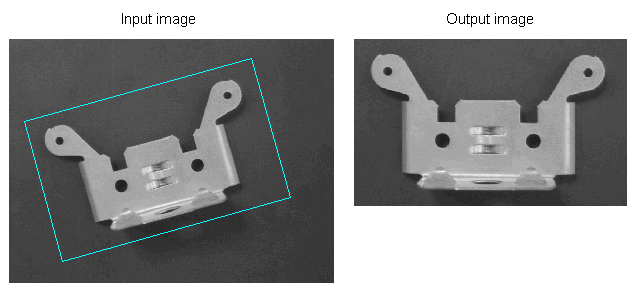
You might use an Affine Transform tool to adjust a region of an input image when the object of interest can appear rotated from one image to the next, and you want to analyze the image with a vision tool that does not tolerate much rotation, such as the CNLSearch tool. For example, the following figure shows an affine rectangle around an object under inspection and the output image the Affine Transform tool generates:
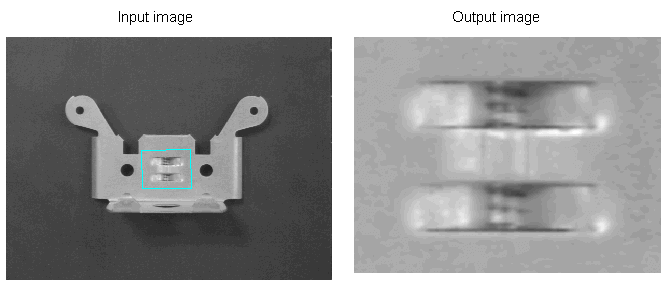
As another example, the following figure shows how an Affine Transform tool can be used to increase the scale of a desired portion of an input image:
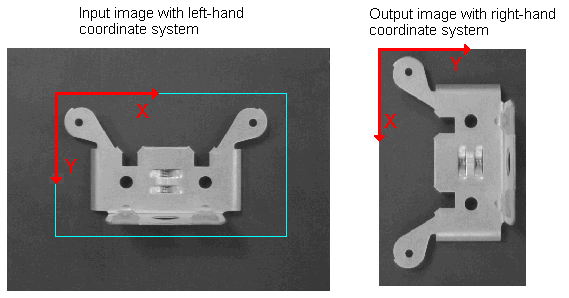
The tool can also convert an image so that it switches coordinate systems, as shown in the following figure:
An affine rectangle is any quadrilateral where the opposite sides are parallel to each other. Squares, rectangles, and parallelograms are all affine rectangles, as shown in the following figure:
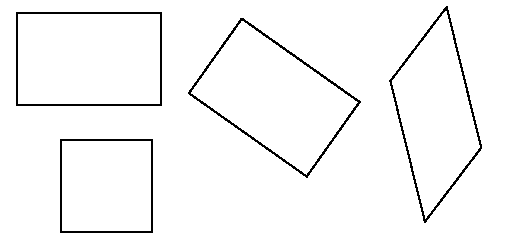
An affine rectangle uses the following labeled vertices:
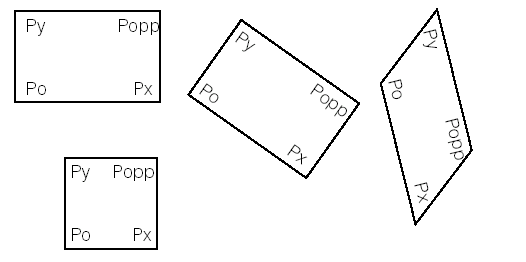
- Po: the origin point
- Px: the vertex point along the x-axis
- Py: the vertex point along the y-axis
- Popp: the vertex point opposite the origin point
The following figure shows the same affine rectangle from the previous figure with their vertices labeled:
The Affine Transform tool converts the image within the rectangle to a rectangular output image, as illustrated in the following figure:
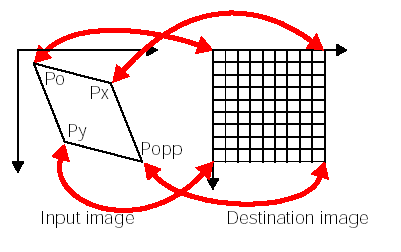
For more information on image transformation, see the topic Transformation Method.
By default, the Affine Transform tool uses an affine rectangle to define the area of the input image you are interested in. You can, however, choose to use the whole input image. Since the input image is rectangular, the output image will contain exactly the same image information. Applications that use the Affine Transform tool on the whole input image typically use it to reduce or enlarge the scale of the image. For example, reducing the scale of an image can allow other vision tools to operate faster on the reduced image, although reducing the size can result in less accuracy.
To generate the output image the Affine Rectangle tool uses one of two sampling methods. The first method, bilinear interpolation, considers the values of the four pixels closest to the center of each sampling point in the input image. For more information on bilinear interpolation, see the topic Bilinear Interpolation.
The tool also supports a high-precision method, which is similar to the bilinear interpolation method except that it considers additional pixels in determining the value of a sampled pixel.
The bilinear interpolation method executes faster than the high-precision method, but the high-precision method offers greater accuracy. You can experiment with the two methods to determine which works best for your application.
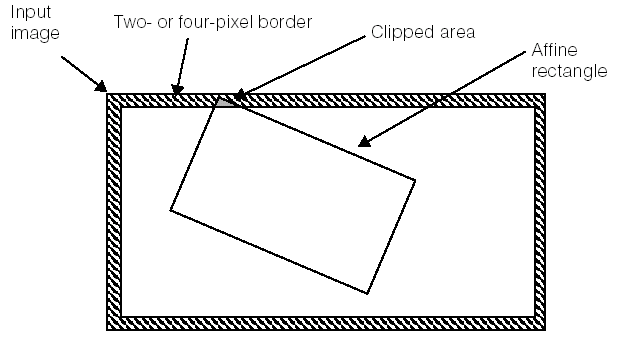
The affine rectangle can, in some instances, be clipped when it extends near or over the border of the input image. For example, the following figure shows an affine rectangle that extends past the border of the input image:
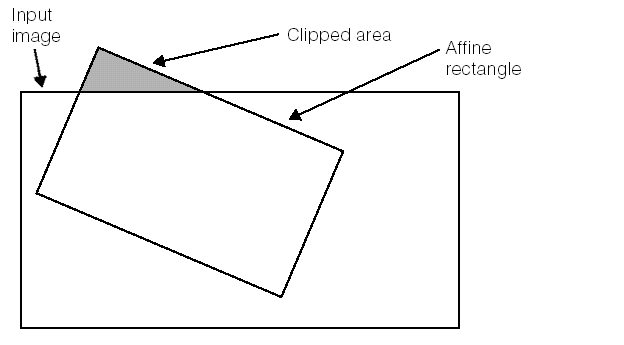
This can occur, for example, when the affine rectangle relies on a Fixture tool to determine its placement on the input image.
Because of the way the Affine Transform tool implements the sampling methods, clipping will also occur if you are using the bilinear interpolation method and the center of any pixel in the affine rectangle is within two pixels of the edge of the input image. If you are using the high-precision sampling method, then clipping will occur if the center of any pixel in the affine rectangle is within four pixels of the edge of the input image.
The following figure illustrates how clipping occurs on the affine rectangle even though it falls completely within the borders of the input image:
As you add an Affine Transform tool to your application you configure how the tool will handle clipped pixels in the output image. You can choose to fill clipped pixels with a grey value of 0 or a specific grey value that you specify, or you can choose to have the vision application generate an error.
If you are using the result of an Affine Transform tool as the input image to another vision tool, and there is a chance that pixels in the affine rectangle can be clipped because they are near or outside the border of the input image, you can have the Affine Transform tool generate an optional output image mask. The tool fills the output image mask with pixel values of 255 for pixels inside the affine rectangle and values of 0 for pixels that were clipped. For example the following figure shows an input image with an affine rectangle, and the output mask image it generates:
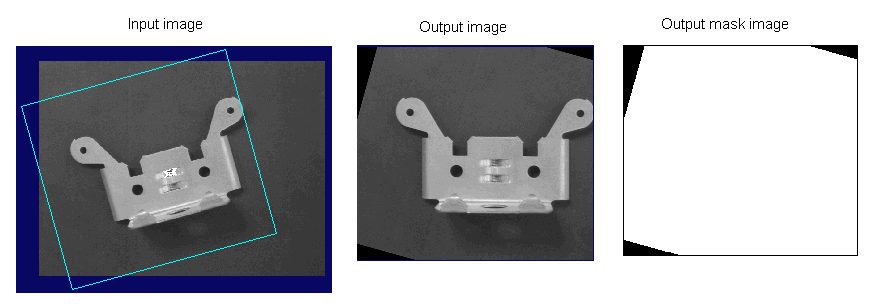
The output mask image can be used to prevent any vision tool that analyzes the output image produced by the Affine Transform tool from analyzing pixel values that were clipped.
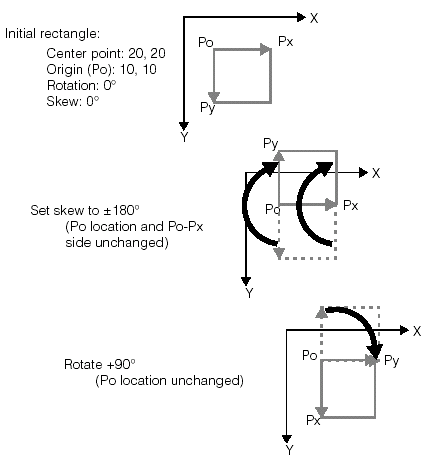
By default, the affine rectangle generates an output image that uses a left-handed coordinate system, where positive rotation occurs as you move in a clockwise direction. By specifying exact values for the rotation and skew of the affine rectangle, the tool can be configured to generate an output image using a right-handed coordinate system, where positive rotation occurs as you move in a counter-clockwise direction. Specifically, you must rotate the rectangle 90 degrees and set the skew to be 180 degrees (or -90 degrees rotation and -180 degrees skew) to change the coordinate system in the output image.
The following figure illustrates how to change the handedness of an affine rectangle without moving the rectangle or changing the location of its origin: