This topic contains the following sections.
The CogFixtureNPointToNPoint edit control provides a graphical user interface (GUI) for the CogFixtureNPointToNPointTool vision tool and its components. You use the CogFixtureNPointToNPoint tool to fixture an application-specific coordinate space to the content of an input image. You often create a fixture so that you can perform subsequent measurements on object features. The following figure shows the N-point fixture edit control.
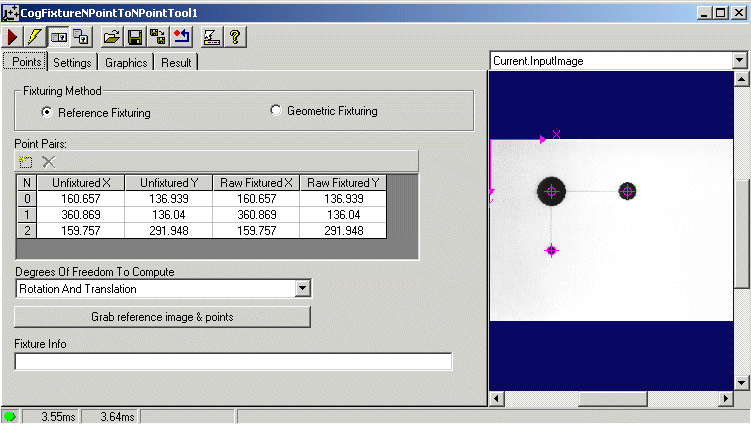
Each time you run the underlying N-point fixture tool, it computes a new transform that represents fixtured space, attaches this to the coordinate tree of an CogImage, and creates an updated output image for use by other tools. As a result, the fixtured coordinate space remains in a fixed relation to the run-time content of the input image.
The CogFixtureNPointToNPoint edit control includes the following components:
- A row of control buttons at the top left.
- A tool display window that displays the three CogFixtureNPointToNPoint tool image buffers: Current.InputImage, Current.ReferenceImage, and LastRun.OutputImage. The Current.ReferenceImage buffer is available only if you use the Reference Fixturing method. Right click the tool display to bring up menu options that include zooming in or out of the image or showing a pixel or subpixel grid.
- A set of tabs organized by function. These functions include parameter settings to run the tool and settings to display tool graphics, such as axes and points in the unfixtured, raw, and fixtured spaces. Pressing the Control + Tab keys scrolls through the set of tabs.
- A status bar at the bottom left of the control. A green circle indicates that the tool ran successfully; red means the tool ran unsuccessfully. The status bar also displays the time to run the tool and any error codes or messages. The first time that the status bar displays is the raw tool execution time. The second includes the time needed to update the edit control. Controls only update when they are visible.
When used in conjunction with the CogToolGroup edit control or from within the QuickBuild application, the CogFixtureNPointToNPoint edit control exposes the following default tool input and outputs for creating data links:
| Type | Name |
|---|---|
| Input | InputImage |
| RunParams.UnfixturedPointX(0) | |
| RunParams.UnfixturedPointY(0) | |
| RunParams.UnfixturedPointX(1) | |
| RunParams.UnfixturedPointY(1) | |
| Output | Result.OutputImage |
You supply the following information with the edit control, so that the N-point fixturing tool can calculate a fixtured space:
- An input image.
- A set of N points in unfixtured space and a corresponding set of N points in raw fixtured space.
- A nonqualified coordinate space name for the fixtured space.
- Parameters, such as degrees of freedom, for computing the mapping between these points and optional origin adjustment transformation for specifying the location of the final fixtured space.
You can use either the reference fixturing method or the geometric fixturing method to provide this information to the tool. You select one of these fixturing methods on the control's Points tab.
The CogFixtureNPointToNPoint edit control has several buttons common to most VisionPro controls.

The following table describes the buttons at the top left of the edit control.
| Button | Description |
 | Runs the tool. You must have an image available in the Current.InputImage buffer (equivalent to the InputImage). This button invokes the Run method. |
 | Toggles electric mode. When selected, the CogFixtureNPointToNPoint tool runs automatically if certain parameters have changed. When the edit control is in electric mode, these parameters are indicated by electric bolt icons. |
 | Opens or closes the local tool display window. This window has a selection box that you use to specify the image buffer you want to view. |
 | Opens one or more floating tool display windows, providing an additional tool display window. As with the local tool display window, you can specify the image buffer to view. |
 | Loads a VisionPro persistence (.vpp) file, which contains a set of saved properties for this vision tool object type. Loading a persistence file for another object type throws an error and the load is unsuccessful. For more information about VisionPro persistence features, see the topic Persistence in VisionPro. |
 | Saves the current properties of the underlying tool to a VisionPro persistence file. You have the option to save either the entire tool or the tool without its images or results. |
 | Saves the current properties of the underlying tool to a new VisionPro persistence file. |
 | Resets the underlying tool to a default state. This tool gives you a choice between resetting to the default-constructed state, which is appropriate when you are using it in a Visual Studio.NET application, and its template-initialized state, which is appropriate for QuickBuild applications. |
 | Enables or disables the display of tooltips for individual items in this edit control. |
 | Opens this help topic. |
The CogFixtureNPointToNPoint edit control has three image buffers: Current.InputImage, Current.ReferenceImage, and LastRun.OutputImage. Both the local and floating tool display windows show these three image buffers.
- The Current.InputImage buffer uses the image supplied by the underlying CogFixtureNPointToNPoint tool's InputImage property.
- The Current.ReferenceImage buffer, available if you use the Reference Fixturing method to perform fixturing, contains the reference image given by the tool's ReferenceImage property. The reference image allows you to interactively position a final fixtured space. To get a reference image, you click the Grab reference image & points button, which sets the reference image from the current input image and also sets the raw fixtured points from the current unfixtured points.
- The LastRun.OutputImage buffer holds the OutputImage that results from the fixturing operation. The output image is a new COM object that references the same pixels and space tree, as the input image. Because of this, the newly attached fixture space is accessible from either image. The space was attached to the shared tree, not just to the tree associated with the output image. The selected space names, however, are not shared. Each image has its own selected space name. Result graphics incorporated in the LastRun.OutputImage reflect the tool's historical state and are not manipulable.
Your application must provide an image for the edit control's Current.InputImage buffer. You can load an image from an image database using the Image File Edit Control, or you can obtain an input image from the AcqFIFO Edit Control and then copy it from the OutputImage buffer into the tool's InputImage property.
Use the Points tab to select a fixturing method, configure sets of points to fixture, and specify the degrees of freedom to permit in the fixturing computations.
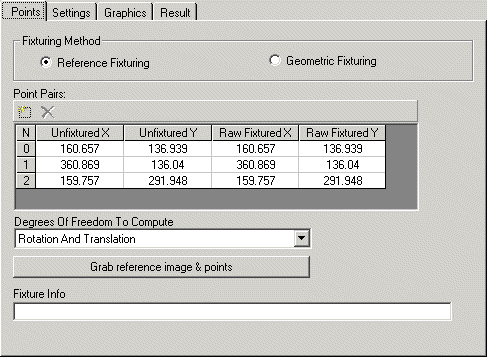
The following table describes the key features of this tab.
| Feature | Description |
Fixturing Method | Specifies the method used to perform the fixturing operation.
|
| Point Pairs Grid | Allows you to add, delete, or modify the x- and y-coordinates for the set of N points in unfixtured space and corresponding set of N points in raw fixtured space. In both reference fixturing and geometric fixturing, you typically obtain the coordinates for the set of unfixtured points by running a pattern-matching or feature-locating vision tool, such as CogPMAlignTool or CogBlobTool. In reference fixturing, you obtain the unfixtured points by clicking the Grab reference image & points button. The N-point fixturing tool sets its reference image from the current input image, and also sets the raw fixtured points from the current unfixtured points defined by the reference image. You should not have to modify these values. In geometric fixturing, you get the coordinates of the raw fixtured points from a schematic (CAD) drawing or from measurements taken of the object being imaged. That is, these real-world values are already known; you simply enter them. Note that the Point Pairs grid reflects the points available for the tool's next run. Using the Point Pairs grid is equivalent to the following tool methods: |
| Degrees of Freedom to Compute | Sets the degrees of freedom to allow when computing the best-fit transformation between the unfixtured points and the raw fixtured points. Equivalent to the DOFsToCompute property using the CogNPointToNPointDOFConstants enumeration values. |
Grab reference image & points | If you have chosen the Reference Fixturing option, this button sets the reference image from the current input image and sets the raw fixtured points from the current unfixtured points defined by the reference image. The Current.ReferenceImage can display the graphics that represent the raw fixtured points, in addition to the unfixtured and raw fixtured coordinate space axes. At run-time, the fixturing tool extracts the physical object features (unfixtured points) from an input image that correspond to those specified by the raw fixtured points in the reference image, and then determines how these points have moved between images. It computes a final fixtured space that takes into account this movement. Equivalent to setting the tool's ReferenceImage from the InputImage data; and the SetRawFixturedPoint from the current GetUnfixturedPoint. |
| Fixture Info | Displays diagnostic messages about the fixture computation. For example, if the calculations result in a large RMS error value, Fixture Info reports this and possible remedies to reduce the error. These diagnostic messages are obtained from the GetInfoStrings method. |
Use the Settings tab to control the run-time parameters for the CogFixtureNPointToNPoint tool.
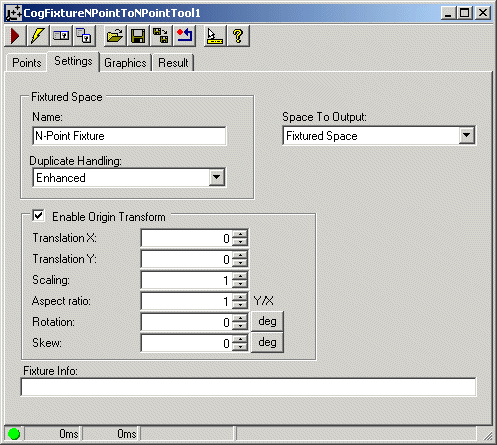
Run-time parameters include the name of the fixtured space, the selected space name of the output image, and an origin adjustment transformation. When the edit control is in electric mode, electric bolt icons indicate parameters whose changes cause the tool to run automatically.
| Feature | Description |
| Fixtured Space Name | Name of the fixtured coordinate space to attach to the CogCoordinateSpaceTree of the input image. This must be a valid nonqualified space name. Equivalent to the FixturedSpaceName property. |
| Duplicate Handling | Specifies how fixtured space name collisions are handled. Select FixturedSpaceNameDuplicateHandling to generate a warning when one tool overwrites the space created by another tool, FixturedSpaceNameDuplicateHandling to silently ignore collisions. |
| Space to Output | Specifies whether the selected space name of the output image will be a copy of the fixtured space name or a copy of the unfixtured space name. The output space determines in which selected space the tool reports the fixturing results. The output selected space name is always a fully-qualified space name. Equivalent to the SpaceToOutput property. |
Enable Origin Transform | Allows you to provide an optional 2D transformation that adjusts the final fixtured coordinate space relative to the raw fixtured space. Typically, you use the adjustment to set an origin for the fixture that is more convenient in your application. For example, suppose you have an image of a circuit board and want to place the final fixtured space in the center of the board, rather than at its corner. You can change the values of the translation, scaling, aspect, rotation, and skew components of the adjustment transform before run-time to achieve this centering. Equivalent to setting the RawFixturedFromFixturedTransformEnabled property to true and altering the components of the transform given by the RawFixturedFromFixturedTransform property. Note that you can specify the rotation and skew components in either degrees or radians, although the underlying tool maintains these values in radians. |
| Fixture Info | Displays diagnostic messages about the fixture computation. For example, if the calculations result in a large RMS error value, Fixture Info reports this and possible remedies to reduce the error. These diagnostic messages are obtained from the GetInfoStrings method. |
Use the Graphics tab to control what is displayed in the local and floating tool displays. When the control is in electric mode, electric bolt icons display parameters that cause the tool to run automatically if parameter values change.
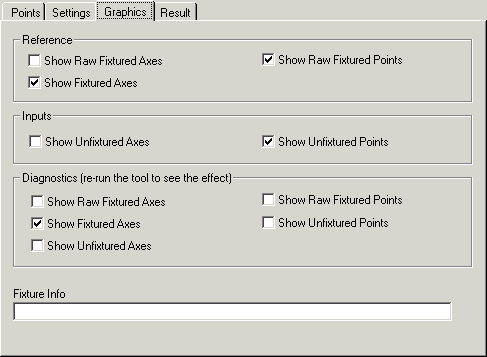
The following table describes the key features of the Graphics tab.
| Feature | Description |
Reference | You can display the following graphics on the reference image contained in the Current.ReferenceImage buffer:
|
Inputs | You can display the following graphics on the input image contained in the Current.InputImage buffer:
|
Diagnostics | You can display the following noninteractive, diagnostic result graphics on the output image contained in the LastRun.OutputImage buffer:
|
| Fixture Info | Displays diagnostic messages about the fixture computation. For example, if the calculations result in a large RMS error value, Fixture Info reports this and possible remedies to reduce the error. These diagnostic messages are obtained from the GetInfoStrings method. |
The Result tab shows the display-only results of the fixturing operation.
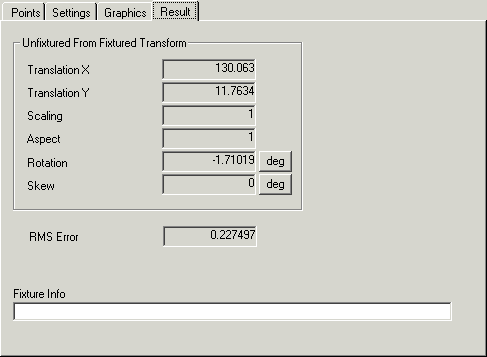
You cannot alter any of these result values. Results include the components of the GetUnfixturedFromFixturedTransform transform that defines the fixtured space, the RMSError for the calculation, and any GetInfoStrings returned about the fixturing. The information on the Result tab comes from the tool's CogFixtureNPointToNPointResult subobject.