The ID tool finds and decodes 1D or 2D symbols in CogImage8Grey images. The tool can be configured for a variety of symbologies, a variable number of results, and can handle a high degree of rotation and perspective distortion, as shown in the following example:
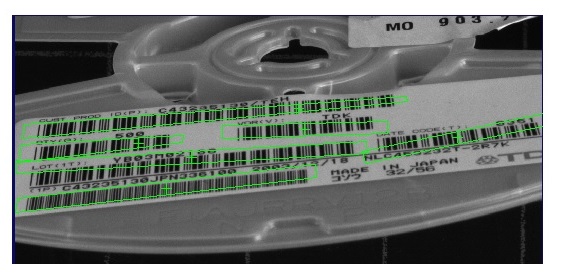
The ID tool offers the following support for code-reading vision applications:
- Both 1D and 2D symbology decoding
- Multiple 1D symbologies in a single image
- High-resolution images with many symbols
See the following sections for more information:
The ID tool supports the following 1D symbologies:
- 4-State Postal
- Codabar
- Code 128
- Code 39
- Code 93
- EAN.UCC Composite
- GS1 Databar
- Interleaved 2 of 5
- PDF417
- Pharmacode
- PLANET
- POSTNET
- UPC/EAN
The ID tool supports decoding multiple 1D symbologies in the same image:
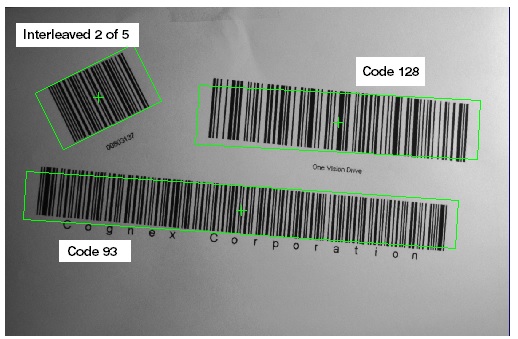
Decoding 1D symbologies typically requires no training, but the ID tool can be trained depending on your vision application and the processing mode you choose. See the section Processing Modes for more information.
The ID tool can locate and decode 2D Data Matrix and QR Code symbols. The tool can locate multiple 2D symbol results, but unlike 1D symbols, all the results must be either one symbology or the other. In the following figure, an ID tool has located and decoded all the QR Code symbols:
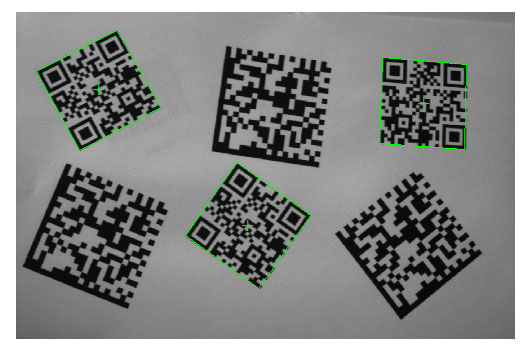
See the following sections for more information:
An ID tool supports an optional training phase to establish the values for parameters the tool will use to repeatedly decode 2D symbols, such as the size of the symbol grid, the 2D symbology, and the error checking and correction (ECC) method the symbol uses to verify the accuracy of the data it contains.
Training an ID tool can improve its performance when all the symbols you need to decode share the same qualities, while not training an ID tool allows it to decode a wider variety of 2D symbols.
Cognex recommends you train the tool when the 2D symbols your application needs to decode all share the same characteristics. Do not train an ID tool, however, if the 2D symbols can vary in parameters such as grid size or polarity. Not training the tool allows it to consider all possible settings as it executes.
The ID tool supports several sets of process control metrics that you can use to measure the quality of Data Matrix symbols:
- AIM-DPM
- ISO 15415
- SEMI T10
Be aware that process control metrics are not a compliant means of symbol verification.
When you configure an ID tool to decode Data Matrix symbols you can enable any one of these metrics. Each metric supports its own set of measurements, but all have the following measurements in common:
| Measurement | Description |
| Axial Nonuniformity | Axial nonuniformity is a measure of how much the sampling point spacing differs between the X and Y axes. A value of 0 indicates there is no difference. |
| Print Growth | The tool measures print growth in the horizontal and vertical directions, and calculates the result by summing the dark pixels and the light pixels along a sample line. |
| Unused Error Correction | The higher the unused error correction capacity, the better the symbol quality. |
| Symbol Contrast | Symbol contrast indicates the difference in reflectance between the light and dark elements of the symbol, including the quiet zone. The higher the contrast difference, the higher the measurement. |
The ID tool requires minimal configuration before scanning 1D symbols, but the input images must meet certain minimum requirements:
- All symbols must be greater than 50 pixels in length, while the maximum width of any module, where a module is the narrowest element of the symbol (either a space or a bar), cannot exceed 10 pixels.
- For linear symbologies (where modules have different widths but uniform heights), a module must be at least 1.6 pixels in width and 50 pixels high. For postal codes (where the modules are of uniform width but varying height), a module must be at least 2.5 pixels in width.
- A quiet zone (an area on either end of a symbol with no marks) of at least the minimum size specified in the print specification for the symbology must be present.
- The contrast between modules and background must be at least 32 grey levels.
- The pixel aspect ratio can be no greater than 1.35 to 1.
2D symbols have fewer image requirements. In general, there must be a quiet zone (margin) surrounding the symbol on all four sides equal to the width of one module inside the symbol itself.
The ID tool offers two processing modes depending on the type and quality of your ID images:
- Keep the default IDMax mode for advanced image processing and image-analysis techniques designed for challenging images.
Choose IDQuick mode for high-speed decoding of symbols that are well formed and appear in high contrast.
You might choose to experiment with IDQuick mode to see how it affects the performance of your vision application.
The ID tool supports the ID Tool Edit Control for use in QuickBuild or your custom vision application:
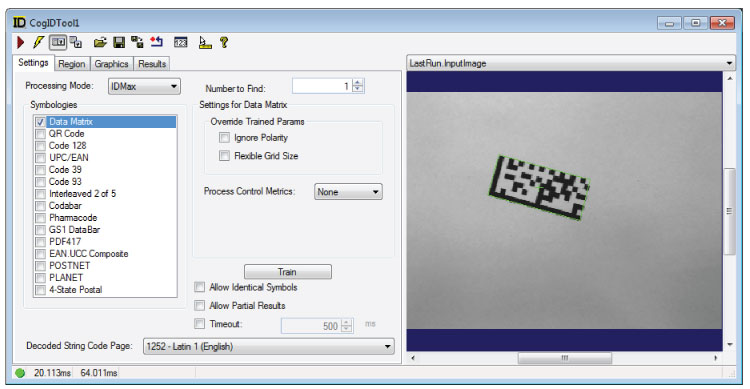
The ID tool also supports the Cognex.VisionPro.ID programming interface for use in your Visual Studio applications.
Only symbols that are found and decoded generate results.
For each symbol located in an image, the ID tool generates the following results in the selected space of the input image:
- The angular orientation of the found symbol, in radians
- An (x,y) location for the center of the symbol
- Four (x,y) locations to represent the four points of the boundary surrounding the symbol
- The decoded string
- The particular symbology of symbol
- Codes and modifiers from the ISO/IEC to uniquely identify the symbology according to industry standards.
See the topic ID Tool Edit Control for more information on the results the tool will return.
The ID tool can be configured to return partial results if the execution time exceeds a set timeout. When this occurs, the tool returns results for those symbols that are found and decoded, while the status of the tool is set to Timeout.
See the topic ID Tool Edit Control for details on how to configure the tool for partial results using its QuickBuild user interface.
Be aware of the following limitations with the ID tool:
- The tool can be configured to locate and decode 1D symbols or 2D symbols, but not both.
- The tool is able to train from a single code. If the image contains multiple codes, the tool will train on the first one found.
- For 2D symbology, the tool can be configured to locate and decode Data Matrix or QR Codes, but not both.
- The tool does not support other symbologies than those listed.
- The tool does not support multiple simultaneous sets of parameters for the same symbology. For example, you cannot use the tool to decode Interleaved 2 of 5 symbols both with and without checksum characters in the same image at the same time.
- The tool does not support auto-discrimination of all combinations of symbologies. For example, Interleaved 2 of 5 symbols may be difficult to distinguish from Code 39, Code 128, or UPC/EAN symbols without additional constraints such as a difference in expected symbol length.
- The smallest value the Pharmacode symbology can decode is 31.
Cognex recommends the following guidelines when using the ID tool:
- Enable only those symbologies that can be present in the acquired image.
- Be aware that the Pharmacode symbology is not omnidirectional, so the orientation of the symbol will affect the decoded result.
- GS1 DataBar symbols should be aligned along the x-axis of the image for best performance.
- The ID Tool is more robust (higher yield or decode rate) when decoding Postal Codes in non-omnidirectional mode, which is appropriate for images where the postal code is nominally oriented horizontally to the region of interest. Cognex suggests using non-omnidirectional mode for production systems decoding postal symbols when the application contraints allow.