The ID tool edit control provides a graphical user interface to the CogIDTool tool, which you use to locate and decode 1D and 2D symbols. The ID tool recognizes 15 different symbologies, including Code 39, Code 128, UPC/EAN, and Data Matrix. The following figure shows an example ID tool edit control:
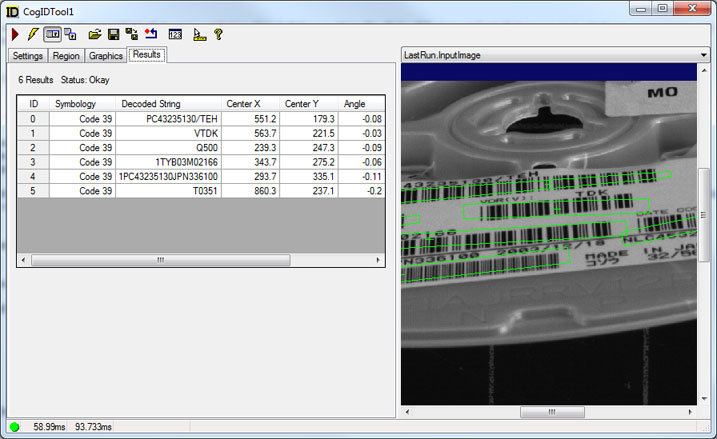
The edit control offers the following features:
- A row of control buttons at the top provide access to the most common operations.
- A set of function tabs allow you to select which symbology the tool will use, specify an input region to limit the search area, and view tool results.
- An image display window displays acquired images and graphical results of the ID tool.
To include the edit control in your custom vision application, you must first add it to your Visual Studio .NET development environment. See the topic Adding Edit Controls to Visual Studio for more information.
See the following sections for more information:

The following table describes the function of each button:
| Button | Description | Function |
 | Run | Search the Current.InputImage for one or more symbols and decode them based on current run-time parameters. |
 | Electric mode | Toggle electric mode, where the ID tool executes automatically when particular configuration parameters change. In electric mode, a lightning bolt appears next to every electric property. |
 | Local image display | Open or close the local image display window. An ID tool supports the following image buffers:
|
 | Floating image display | Open one or more floating image windows, which support the same image buffers as the local image display window. |
 | Open | Open a VisionPro persistence (.vpp) file that contains a set of saved properties for this vision tool object type. VisionPro reports an error if you try to open a .vpp file for another object type. |
 | Save | Save the current properties of the vision tool to a VisionPro persistence (.vpp) file. The edit control allows you to choose between saving the vision tool with or without its image buffers and tool results. |
 | Save As | Save the current properties of the vision tool to a new VisionPro persistence (.vpp) file. |
 | Reset | Reset the vision tool to its default state. The tool gives you a choice between resetting to the default-constructed state, which is appropriate when you are using it in a Visual Studio.NET application, or its template-initialized state, which is appropriate for QuickBuild applications. |
 | Show Floating Results | Open a separate results window with the same contents as seen in the Results tab. |
 | Show ToolTips | Enable or disable the display of tooltips for individual items in the edit control. |
 | Help | Open this VisionPro online help file. |
This section contains the following subsections.
Use the Settings tab to select which symbology the tool will use to decode symbols and set other run-time parameters. The following figure shows an example Settings tab:
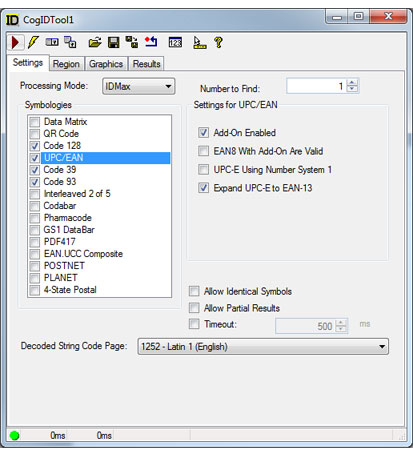
Configure the following parameters as necessary for the symbols your application will decode:
| API | Description |
| Processing Mode | Choose which processing mode is used to locate and decode symbols. |
| Number to Find | Set the maximum number of symbols to locate and decode. |
| Allow Identical Symbols | Set whether identical symbols within the same image should be decoded. |
| Allow Partial Results | Sets the tool to return partial results if execution time reaches the set Timeout value. The tool returns no results if this option is disabled and the execution time reaches the set Timeout value. In addition, this option has no effect if no Timeout value is set. |
| Timeout | The maximum execution time (msec) allowed to decode a symbol. |
| Decoded String Code Page | The Code Page designates which character set should be used to construct decoded symbol strings. Code Pages are established by the International Organization for Standardization (ISO). |
This section contains the following subsections.
- Data Matrix
- QR Code
- Code 128
- UPC/EAN
- Code 39
- Code 93
- Interleaved 2 of 5
- Codabar
- Pharmacode
- GS1 DataBar
- PDF417
- EAN.UCC Composite
- POSTNET
- PLANET
- 4-State Postal
Use the Settings tab to specify which symbologies the tool will use to decode symbols. For best performance, only enable the symbologies your application needs to decode.
Data Matrix
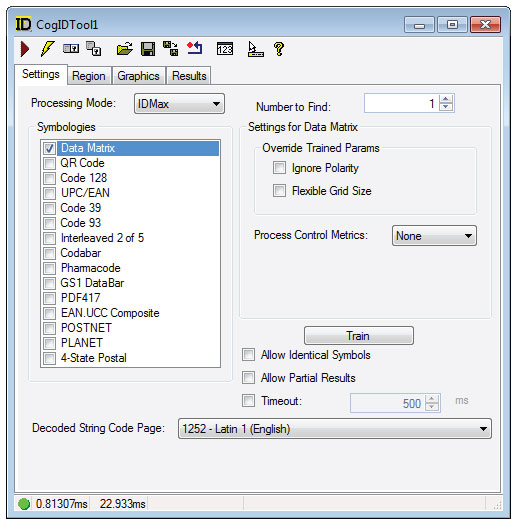
Choose an optional Process Control Metrics to measure the quality of data matrix symbols.
See the section on Processing Modes for more information.
Set the following parameters for decoding CogIDDataMatrix symbols:
- Ignore Polarity: Overrides any trained polarity setting
- Flexible Grid Size: Overrides any trained grid size
- Train: Train the ID tool with 2D symbol parameters based on the current image and the region specified. Training the tool can improve its performance when all the symbols the application will decode share the same characteristics.
QR Code
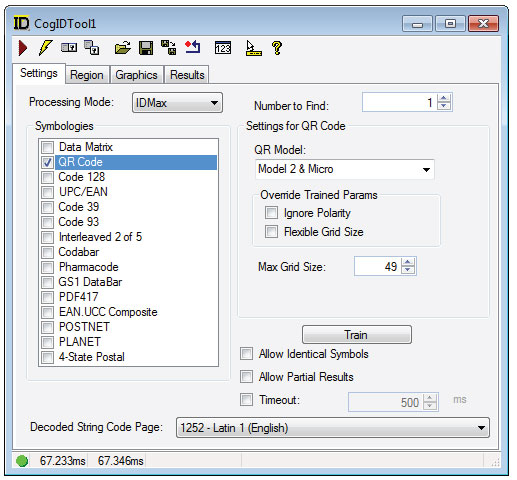
Set the following parameters for decoding CogIDQRCode symbols:
- QR Model: Sets the model type for your QR codes
- Ignore Polarity: Overrides any trained polarity setting
- Flexible Grid Size: Overrides any trained grid size
- Max Grid Size: Gets or sets the maximum grid size to look for. The value is used at train time. If the tool is not trained, the value is used at run time. The IgnorePolarity property allows a trained QR code to decode, at run time, a QR code that is either larger or smaller by a step size as long as the MaxGridSize is set to allow the larger code to be found. For example, if a QR code is trained as size 49x49, and the FlexibleGridSize is set to true, but the QR code in the image is size 53, the code will not be decoded. If the MaxGridSize is increased to 53, the QR code will be decoded.
- Train: Train the ID tool with 2D symbol parameters based on the current image. Training the tool can improve its performance when all the symbols the application will decode share the same characteristics.
Code 128
Code 128 is a very high-density alphanumeric symbology which can be scanned bidirectionally. The symbology can encode the entire 128 ASCII character set plus four non-data characters. A symbol using Code 128 symbology encodes each character using 11 black or white modules, and each symbol includes a checksum character.
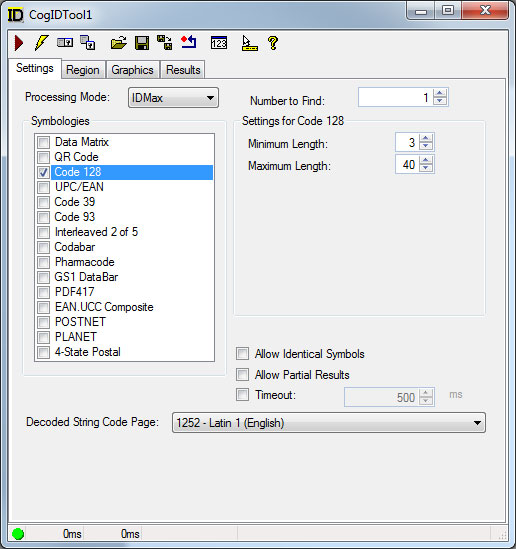
Set the following parameters for decoding CogIDCode128 symbols:
- Minimum Length: Minimum number of characters in the decoded string
- Maximum Length: Maximum number of characters in the decoded string
UPC/EAN
UPC is a fixed-length, numeric-only symbology which can be scanned bidirectionally. The size for a UPC symbol can vary to accommodate various printing processes, but the code works best when the height of the symbol exceeds its width. European companies use the generally equivalent European Article Numbering (EAN) system.
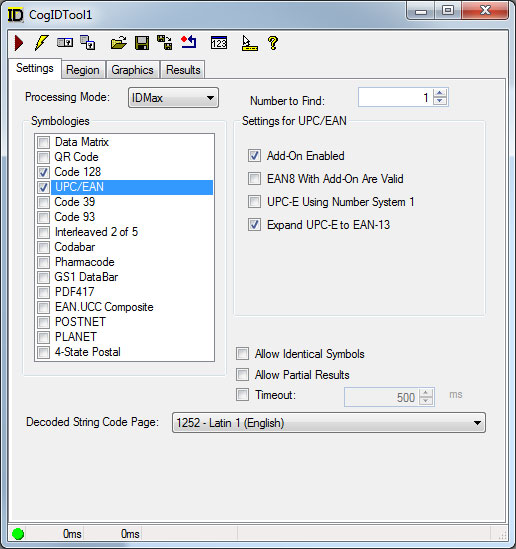
Set the following parameters for decoding CogIDUpcEan symbols:
- Add-On Enabled: Allow processing of UPC/EAN symbols with a 2 or 5-digit 'add-on' component.
- EAN8 With Add-On Are Valid: Allow EAN-8 symbols with add-on symbols (2 or 5 digit). Add-On Enabled must also be enabled.
- UPC-E Using Number System 1: Allow processing of a non-standard UPC-E variation using number system 1.
- Expand UPC-E to EAN-13: Transmit decoded string in 13 digit EAN-13 format. If not enabled, transmit as number system + 6 digits + implicit check.
Code 39
Code 39 (also called USS Code 39 or Code three of nine) is a widely-used symbology developed for use in non-retail environments, and can encode both letters, digits, and special characters such as " % " and " / ". A symbol using Code 39 symbology encodes each character using 5 bars and 4 spaces for a total of 9 elements, and 3 out of the 9 elements are always wide. The symbol can include a checksum character for error detection.
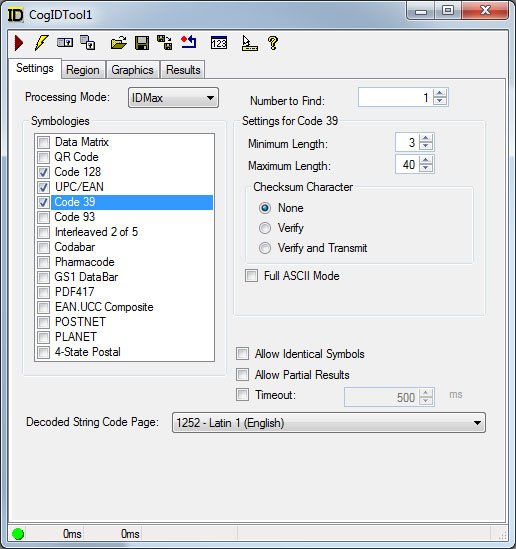
Set the following parameters for decoding CogIDCode39 symbols:
- Minimum Length: Minimum number of characters in the decoded string
- Maximum Length: Maximum number of characters in the decoded string
- Checksum Character: Indicate that the decoded string contains a checksum character. You can additionally choose to TransmitCheckChar the checksum character.
- Full ASCII Mode: Interpret the decoded string as full ASCII. This allows all ASCII characters, such as lower case letters, to be used.
Code 93
Code 93 encodes the same characters as Code 39, but uses nine bar code elements per character instead of 15.
Set the following parameters for decoding CogIDCode93 symbols:
- Minimum Length: Minimum number of characters in the decoded string
- Maximum Length: Maximum number of characters in the decoded string
Interleaved 2 of 5
Popular in warehouse applications, Interleaved 2 of 5 (also called I-2/5 or ITF) is a variable-length, numeric-only code. A symbol using Interleaved 2 of 5 symbology encodes 2 characters in a unit of 5 bars and spaces, where the even position character is encoded into bars while the odd position character is encoded into spaces. The Interleaved 2 of 5 symbology can only encode data with an even number length. The symbol can include a checksum character for error detection.
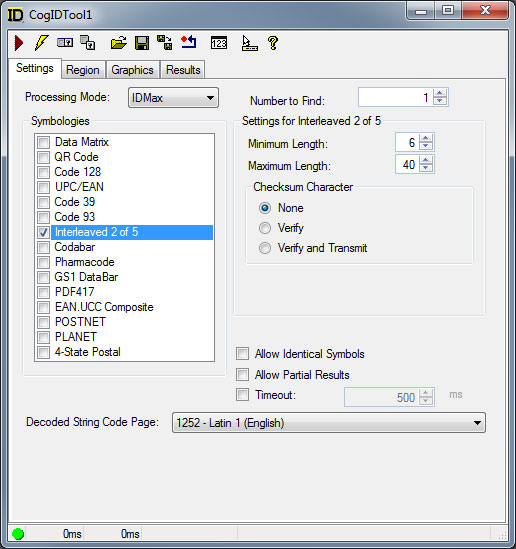
Set the following parameters for decoding CogIDI2Of5 symbols:
- Minimum Length: Minimum number of characters in the decoded string
- Maximum Length: Maximum number of characters in the decoded string
- Checksum Character: Indicate that the decoded string contains a checksum character. You can additionally choose to TransmitCheckChar the checksum character.
Codabar
Codabar is an older symbology that encodes digits.
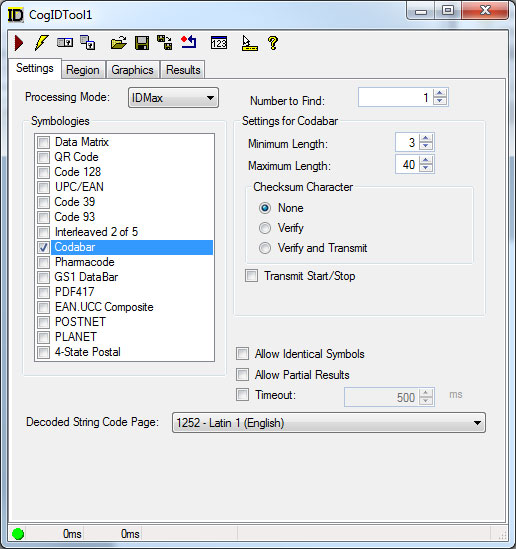
Set the following parameters for decoding CodIDCodabar symbols:
- Minimum Length: Minimum number of characters in the decoded string
- Maximum Length: Maximum number of characters in the decoded string
- Checksum Character: Indicate that the decoded string contains a checksum character. You can additionally choose to TransmitCheckChar the checksum character
- Transmit Start/Stop: Set whether the tool should include the start/stop character in the output.
Pharmacode
Pharmacode is used in the pharmaceutical industry as a packing control system.
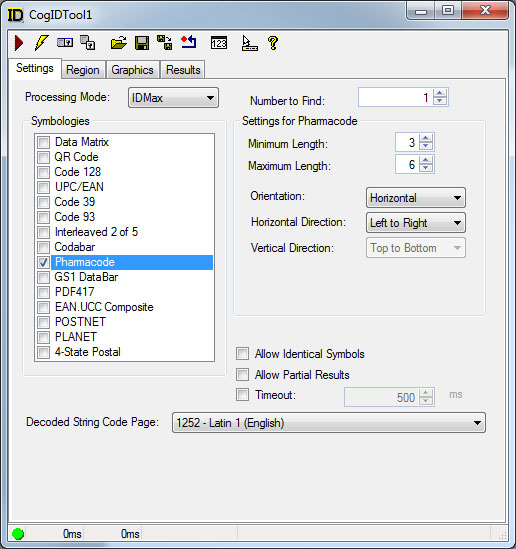
Set the following parameters for decoding CogIDPharmacode symbols:
- Minimum Length: Minimum number of characters in the decoded string
- Maximum Length: Maximum number of characters in the decoded string
- Orientation: Specify the orientation of the symbol.
- Horizontal Direction: Specify the horizontal direction of the symbol.
- Vertical Direction: Specify the vertical direction of the symbol.
GS1 DataBar
GS1 DataBar symbols can identify small items and carry more information than the current EAN/UPC bar code.
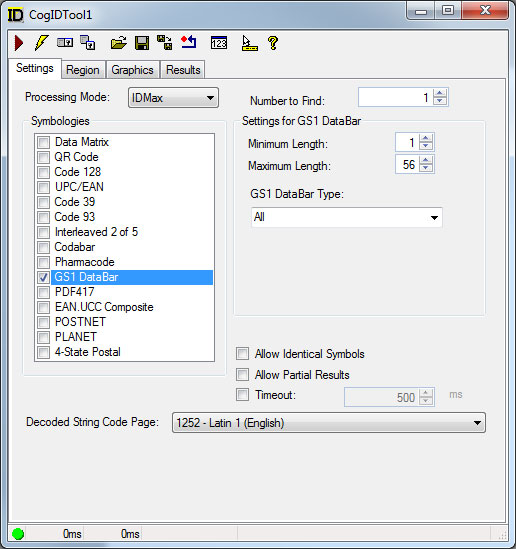
Set the following parameters for decoding CogIDDataBar symbols:
- Minimum Length: Minimum number of characters in the decoded string
- Maximum Length: Maximum number of characters in the decoded string
- GS1 DataBar Type: Choose the DataBar symbology type: GS1 DataBar, GS1 DataBar Limited, or GS1 DataBar Expanded
PDF417
PDF417 is a stacked linear barcode symbol format used in a variety of applications, primarily transport, identification cards, and inventory management.
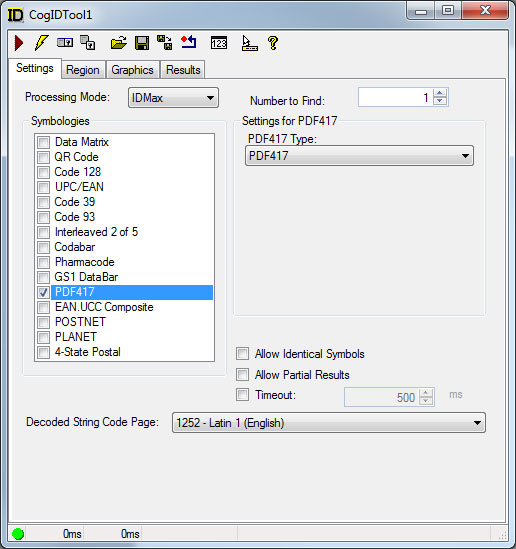
Set the following parameters for decoding CogIDPDF417 symbols:
- PDF417 Type: Choose the PDF417 symbology type: PDF417, microPDF417 or All
EAN.UCC Composite
When enabled a composite code (a 1D code with a 2D component) can be decoded. The 1D codes that the EAN.UCC can be used with are GS1 DataBar and Code 128.
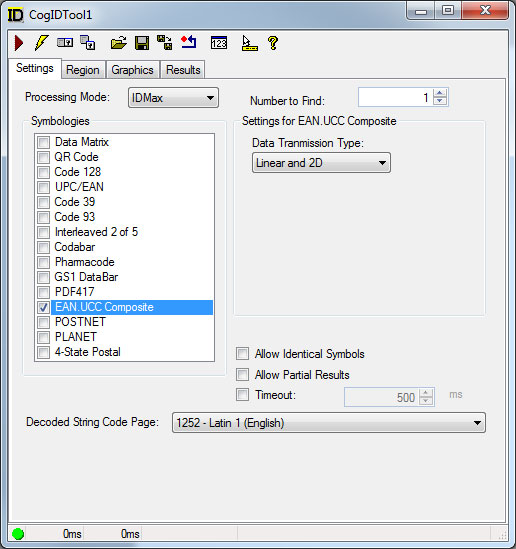
Set the following parameters for decoding CogIDEANUCCComposite symbols:
- Data Transmission Type: Specify the data transmission type: Linear and 2D or Linear only.
POSTNET
The Postal Numeric Encoding Technique (POSTNET) barcode was invented by the US Postal Office to encode ZIP Code information. A barcode using the POSTNET symbology encodes each numeric character using a combination of 5 bars, either short or long. The ID Tool supports the following POSTNET codes:
- US postal codes: A US POSTNET barcode can contain a 5-digit ZIP Code, a 5-digit ZIP + 4 Code, or an 11-digit delivery point code. The symbol always includes a checksum character.
- Brazilian postal codes (CEPNET): A Brazilian POSTNET barcode can contain an 8-digit or 13-digit ZIP Code. Both can contain a checksum character optionally. For 13 digit Cepnet, set the the maxinum number of characters (LengthMax) to 13. With a checksum character present as well, set the maximun number of characters to 14.
NOTE: The ID Postnet can decode Cepnet codes. In some cases, it may not be the desired behavior and the code will not prevent it.
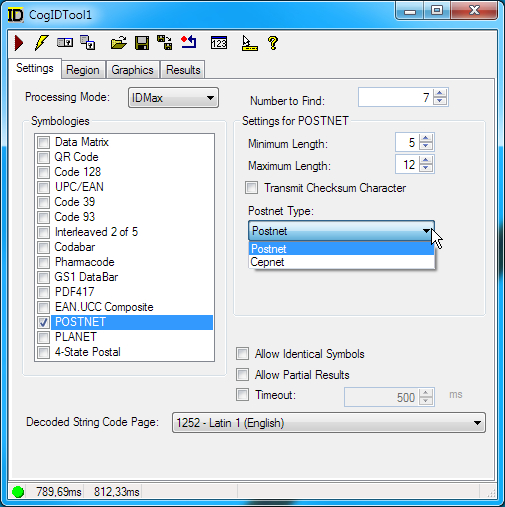
Set the following parameters for decoding CogIDPostnet symbols:
- Minimum Length: Minimum number of characters in the decoded string
- Maximum Length: Maximum number of characters in the decoded string
- Transmit Checksum Character: Includes the embedded checksum character in the output.
- Postnet Type: Includes type of Postnet codes the tool supports.
PLANET
The PLANET barcode is the inverse of the POSTNET barcode, using short bars where the POSTNET symbology uses long bars and long bars where the POSTNET symbology uses short bars. The US Postal Office uses PLANET barcodes to track pieces of mail. A PLANET barcode can have up to 12 digits.
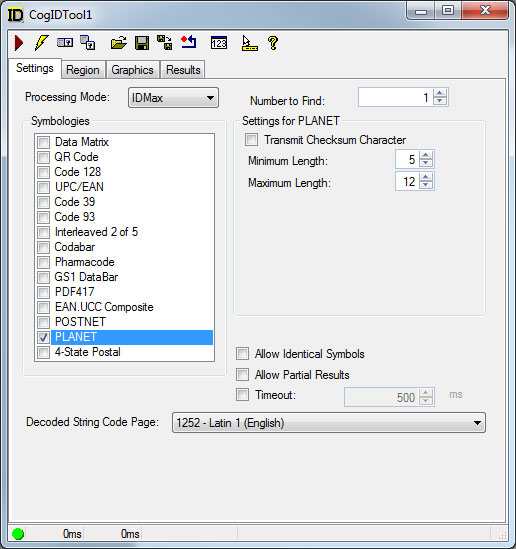
Set the following parameters for decoding CogIDPlanet symbols:
- Minimum Length: Minimum number of characters in the decoded string
- Maximum Length: Maximum number of characters in the decoded string
- Transmit Checksum Character: Includes the embedded checksum character in the output.
4-State Postal
4-State is an alphanumeric symbology adopted by the Australian Post. A barcode using the 4-State symbology encodes each character using 4 different types of bars, each of which has a distinct name and value. A 4-State barcode can be generated in one of three different structures of 37 bars (standard), 52 bars, or 67 bars. The Barcode tool supports the Australian, JapanPost, UPU and USPS versions of the 4-state symbology.
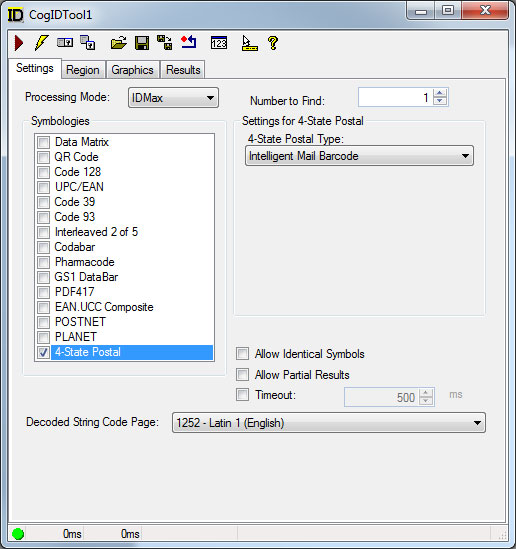
Set the parameter 4-State Postal Type for decoding 4-State Postal symbols.
Use the Region tab to specify the type of input region for the tool. The following figure shows an example Region tab:
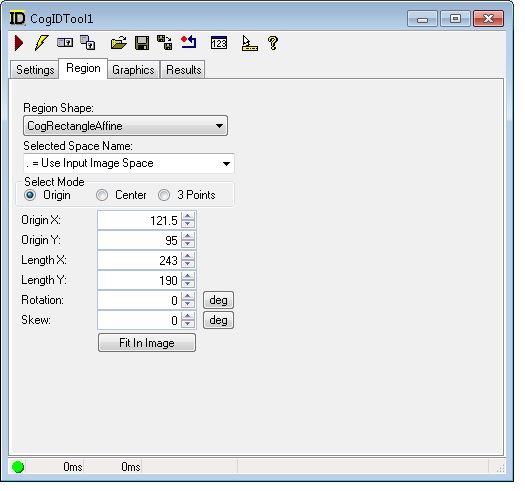
Configure the following parameters:
| Parameter | Description |
Select the shape of the input region. Selecting "None=Use entire image" means that the tool uses the entire input image. An ID tool supports the following input region shapes:
The set of region-defining parameters that appear depend on the region shape you use. For more information on using a polygon as an input region, see the topic How To Use Polygon Input Regions. Be aware an ID tool will look to decode symbols in the entire bounding box surrounding the region shape you use, as shown in the following example: 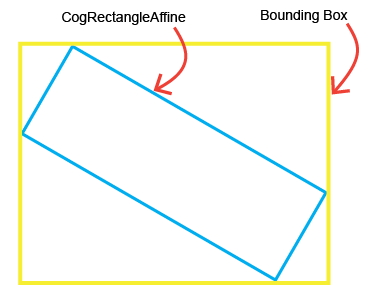 This can lead to situations where a symbol is decoded even if it appears completely outside the boundary of the input region. | |
| SelectedSpaceName | The coordinate space in which the training region is interpreted. For information, see Coordinate Space Names. |
This section contains the following subsections.
Use the Graphics tab to select which tool graphics the tool will display in the LastRun.InputImage buffer. The following figure shows the default Graphics tab:
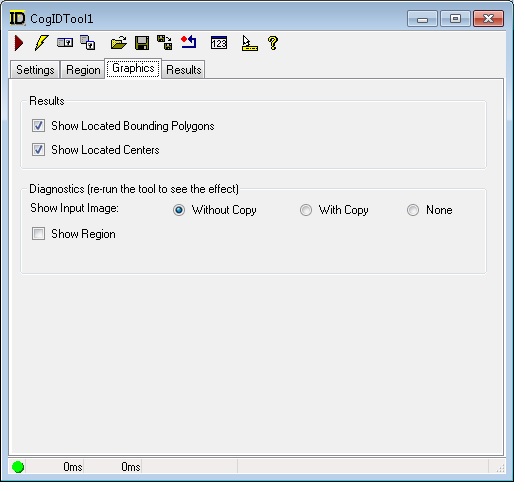

You can enable either or both of the following graphics:
| Graphic | Description |
| Show Located Bounding Polygons | Create a CogPolygon with four vertices describing the bounds of each barcode symbols. |
| Show Located Centers | Mark the center location of each barcode symbol. |

You can enable any of the following graphics:
| Graphic | Description |
| Show Input Image | Determine whether or not the input image is recorded as part of the diagnostic record, and whether the image is copied to the record or saved in the record as a reference. |
| Show Region | Display the input region if you do not use the entire input image. |
| Show Transformed Region Image | Generate a LastRun.TransformedRegionPixels image buffer to hold the affine transformed image, but only if you have specified Affine Transform for the Region Mode and you have supplied a CogRectangleAffine for the input region. |
Use the Results tab to view the CogIDResults about each symbol the tool found and decoded. The following figure shows an example Results tab:
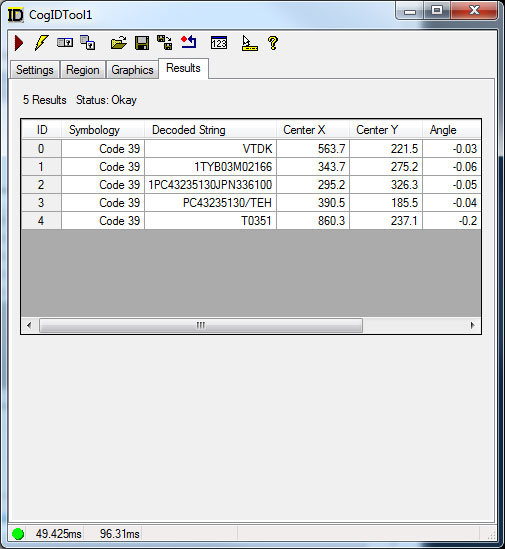
Depending on the symbology, an ID tool can generate the following results about each decoded symbol:
| Result | Description |
| Status | The CogIDTimeoutConstants of the tool result, which is either Okay when all results are returned without the Timeout value, or Timeout when partial results are enabled and a timeout occurs before the tool can locate all the symbols it is configured to find. |
| Symbology | The symbology type. |
| Decoded String | The decoded data as a Unicode string. |
| Center X and Center Y | The (x,y) coordinate of the geometric center of the found symbol in the selected space of the input image. |
| Angle | The angular orientation of the found symbol in the selected space of the input image. Units are radians. |
| PPM | The size of the module in the symbol |
| Subtype | The actual type of this symbol. Valid for UPC/EAN, DataBar, 4-State and Postnet. Always use with Symbology together to determine the actual type of the decoded symbol. A Value 0 indicates that the symbology doesn't have different types. |
| Mirrored | The CogIDMirroredConstants to indicate the mirrored state of the symbol. |