This topic contains the following sections.
The OCRMax tool performs optical character recognition (OCR), a process for analyzing an image and identifying a string of characters within a region of interest. The characters in the string can vary between images, the string can appear in different positions and at different rotations, and the strings can be variable in length.
An OCRMax tool requires a trained font containing an image of each character as it is likely to appear in run-time images. Any OCRMax tool you add to an application must either load a font file from memory or create one from scratch. See the topic OCRMax Tool for more information on what data is stored in a trained font.
An OCRMax tool requires a set of segmentation parameters that separates character pixels from background pixels and divides character pixels into correct segmented character images. For example, the CharacterFragmentMinNumPels parameter sets the minimum number of character pixels a fragment must have in order to be considered part of a character.
The tool supports approximately 30 different segmentation parameters which can be a challenge to set to the best values for the characters your application must identify. For help in setting the segmentation parameters to optimal values, Cognex recommends you use the QuickBuild interface to the OCRMax tool with the Tune tab of the OCRMax Edit Control, which supports an auto-tune mechanism that you can use interactively with sample images of character strings your application is likely to acquire.
The topic Using the OCRMax Tool describes how to configure an OCRMax tool using the auto-tune feature and how to manage and modify the records an OCRMax tool uses to determine the best settings for segmentation parameters. Cognex recommends using the auto-tune feature with anywhere between 5-15 images before testing the read rate for a typical deployment.
The auto-tune mechanism of OCRMax is an optional feature. You may decide to set segmentation parameters manually depending on the results of using the auto-tune feature. For example, if using the auto-tune feature with representative images for your application produces insufficient read rates for a typical deployment, Cognex recommends setting these parameters manually using the Segment tab of the OCRMax Edit Control.
This section contains the following subsections.
- Establishing the Region of Interest
- Separating Characters from the Background
- Separating Characters from Each Other
Cognex recommends using the auto-tune feature of the OCRMax Edit Control for setting segmentation parameters for most applications. If the auto-tune feature produces segmentation parameters that generate an insufficient read rate as you test the tool on sample images in a production environment, you can try to set the parameters manually on the Segment tab of the edit control.
This section contains the following subsections.
- Allow for Rotation and Translation
- Compensate for Skew
- Guard Against Border Fragments
- Allow for Variable Length Strings
After acquiring an image with examples of characters that you want to identify in your complete vision application, you must define a region of interest to surround the string:
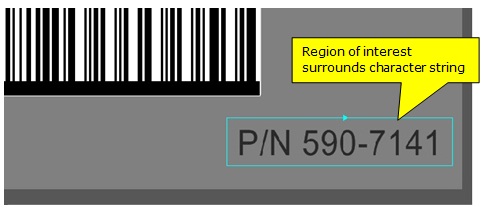
Ideally, the region you specify should have the following qualities:
It should surround only the characters in the string and no other features.
See the section Guard Against Border Fragments if it is possible that miscellaneous features can occasionally penetrate the region of interest.
It must surround only one line of characters.
Multiple lines of characters require multiple OCRMax tools.
- It must occupy as large an area of the image as possible considering the optics in your production environment.
- Ideally there should be the width of half a character between any character in the string and the border of the region.
By default, the OCRMax tool uses an affine rectangle for the region of interest. Although you can change this default and specify the OCRMax tool use the entire image, this can severely impact the performance of the tool. Cognex strongly recommends you use an affine rectangle whenever possible.
Allow for Rotation and Translation
If the character strings in your acquired images can shift position or rotate from one image to the next, there are two options for configuring the region of interest:
Enable a range for rotation and use a region of interest large enough to accommodate any change in the angle and position of the character string in successive images.
Use the AngleHalfRange parameter to accommodate for rotation.
Be aware that using a large region of interest and enabling a range for rotation can have a severe impact on the performance of the OCRMax tool.
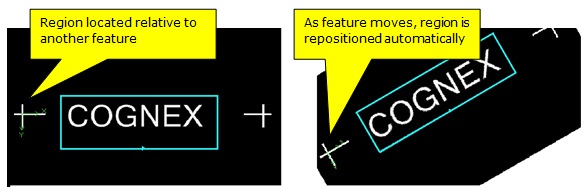
Specify a region of interest just large enough to surround the string and use a fixturing strategy to generate a new coordinate space for each image to adjust the region of the OCRMax tool accordingly.
See the topic Calibration and Fixturing for more information. VisionPro offers several Fixture tools.
Between the two options, Cognex recommends using a fixturing strategy to correctly position the region of interest in each image. The following figure shows two images where the region of interest depends on the reported pose of a secondary feature that can be easily detected by a PMAlign tool:
Compensate for Skew
Setting a non-zero value for skew in your region of interest can be necessary when the characters in your string can overlap horizontally, as illustrated in the following figure:
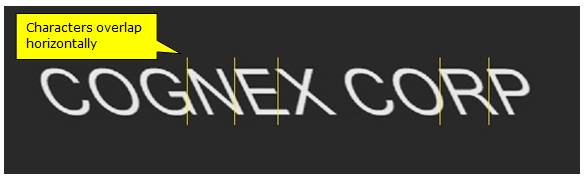
For these types of images the skew parameter for the affine rectangle of the region should be adjusted as shown:
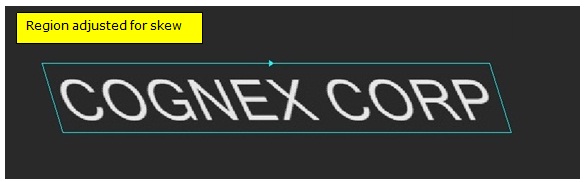
With the region of interest adjusted for skew, the OCRMax tool can successfully separate the characters from each other as it processes successive characters in the string.
If the character strings in your acquired images can undergo a variable change in skew, enable the SkewHalfRange property.
Be aware, however, that enabling the OCRMax tool to overcome a change in skew has a negative effect on the performance of the tool.
Guard Against Border Fragments
In some applications, features apart from characters can occasionally intrude on the established region of interest, as shown in the following figure where a barcode symbol has been printed in close proximity to the character string being analyzed:
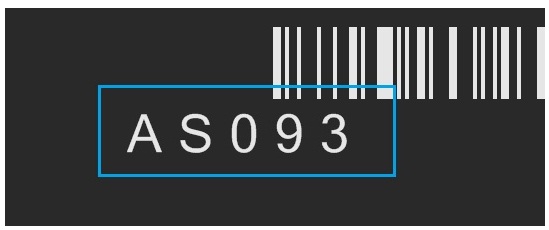
To prevent the OCRMax tool from considering these features as candidate characters, enable the IgnoreBorderFragments parameter.
Allow for Variable Length Strings
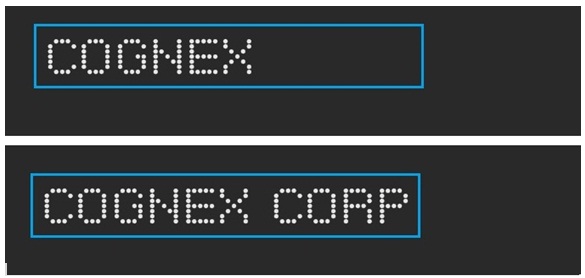
If the character strings you want to read can vary in length, you must establish a region of interest long enough to encompass the longest possible string:
This section contains the following subsections.
- Choose an Image Normalization Mode
- Determine a Foreground Threshold
- Eliminate Foreground Fragments
- Enable a Stroke Width Filter
One of the first tasks of the OCRMax tool is to process the image with a set of parameters that distinguish characters from the background. The tool uses default parameter values that perform well for some images, although many vision applications require a change to the default settings.
Choose an Image Normalization Mode
An OCRMax tool performs image normalization on the region of interest and generates an internal range of intensity values in order to improve the process of distinguishing character pixels from background pixels.
By default the OCRMax tool is configured to allow significant variation in both background pixels and character pixels, as shown in the following example image:
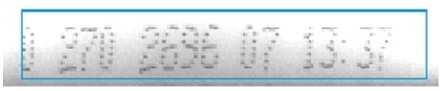
Use the NormalizationMode property to specify the type of image normalization the OCRMax tool will perform as it differentiates character pixels from background pixels. Choosing the right value can reduce the execution time of the tool. Choose from the following options:
| Value | When to Use |
LocalAdvanced | Use the default when the pixels in both the background and the character string can show significant variation within the region of interest. Of all the options, this one has the greatest impact on the execution speed of the OCRMax tool. |
| Local | Use when the background can show significant variation but the print quality of the character string remains constant. |
| Global | Appropriate for high-quality images where there is little background noise and no lighting variation across the region of interest |
None | Performs no image normalization and relies on a specific grey value as the threshold between character pixels and background pixels. See the section Determine a Foreground Threshold for more information about how the OCRMax tool calculates this grey value. This option has the least effect on execution speed. |
Determine a Foreground Threshold
An OCRMax tool allows you to specify a fractional percentage for the threshold grey value used to differentiate potential character pixels from background pixels after the image has undergone image normalization.
The default value of 0.5 produces a threshold grey value of 128, the halfway point of grey values between 0 and 255. Increasing or decreasing this parameter has the corresponding effect on the threshold grey value.
Use the ForegroundThresholdFrac property to specify a different fractional percentage.
You may need to experiment to determine the best value for your vision application, but be aware that the 0.5 default value works well for a majority of test cases.
Eliminate Foreground Fragments
For many images, valid characters consist of grey values that are well above or well below the foreground threshold (see the previous section) used to distinguish potential character pixels from background pixels. Pixels that barely pass the threshold for character pixels can often be interpreted as image noise and be removed from further consideration.
After using a foreground threshold to distinguish potential character pixels from background pixels, the OCRMax tool further processes the image by using a fragment contrast threshold to remove non-character fragments from consideration.
The default value for the fragment contrast threshold works well for most test cases. If the contrast in the characters in strings can vary between images, especially where some valid characters can appear to be faint, lowering the fragment contrast threshold can prevent the tool from eliminating valid characters from consideration.
Use the CharacterFragmentContrastThreshold to specify a different fractional percentage.
If, during the process of separating individual characters from each other, the tool attempts to include non-character pixels in its analysis, try modifying the character fragment contrast threshold. You may need to experiment with your test images to determine the best value.
Enable a Stroke Width Filter
All characters in a typical string have the same stroke width, and the OCRMax tool can be configured to disregard potential character features that do not match the typical stroke width of features in the rest of the image.
By default, the stroke width filter is enabled, which allows the OCRMax tool to correctly identify characters in images where there can be a defect such as an errant line or a scratch within a character or between two or more adjacent characters.
The UseStrokeWidthFilter property will enable or disable the filter.
Be aware that the tool will incorrectly remove whole characters or portions of characters if the stroke widths are inconsistent. Experiment with test images to discern whether this option should be enabled or disabled.
This section contains the following subsections.
- Mark Rectangles and Cell Rectangles
- Character Parameters
- Minimum and Maximum Height
- Minimum and Maximum Width
- Minimum Number of Pixels
- Polarity
- Gaps
- Spaces
- Pitch
- X Overlap
- Distance to Mainline
- Cell Rectangle Width Type
After successfully differentiating between character pixels and background pixels, the next task for an OCRMax tool is to separate valid characters from each other. This segmentation process produces individual zones where each zone contains foreground pixels that represent a valid character. Once individual characters can be identified, you can build an OCR font for all the possible characters your images might contain.
The OCRMax tool supports a variety of segmentation parameters to allow the tool to distinguish characters from each other in your acquired images, and supports graphics that can visually confirm the segmentation results for the current image.
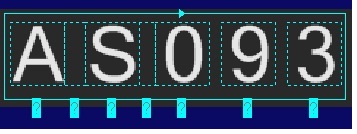
Without the proper settings, an OCRMax tool can fail to properly perform the segmentation process, as shown in the following figure where gaps in the string are interpreted as valid characters:
Mark Rectangles and Cell Rectangles
Some segmentation parameters reflect qualities with respect to different rectangles that surround each character. The OCRMax tool can take into consideration the dimensions of these rectangles during its segmentation process. Knowing the definition of these rectangles can help you determine the appropriate settings for these segmentation parameters.
For example, the following figure shows a set of dot-matrix characters:

The mark rectangle specifies the physical extents of a character in an (x, y) coordinate system. The following figure shows the mark rectangles for this string:

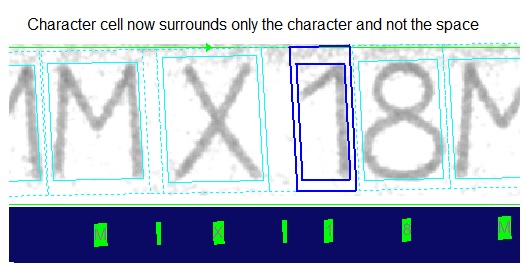
The cell rectangle provides information about the position of the mark rectangle with respect to the baseline, which is the line along the base of the character string. The following figure shows the cell rectangles for this string:

The cell rectangle can be used to discriminate characters that appear similar but have different sizes (such as the capital “O” versus a lower-case “o”) based on character sizes with respect to other character sizes in the string. In addition, a space character is defined only by its cell rectangle.
Character Parameters
Many segmentation parameters involve measuring precise details about the images of your characters, as shown in the following figure:
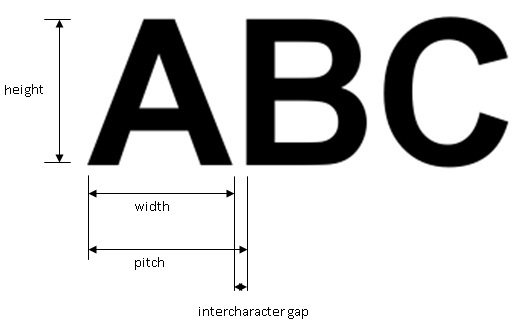
To determine precise values for many parameters you might have to zoom on in an image display and count the number of pixels used to represent various qualities such as character height or the minimum gap between characters.
Minimum and Maximum Height
Specify the MinHeight and the maximum allowable MaxHeight for the mark rectangle of any character, in pixels. The OCRMax tool uses these values to ignore:
- Features on the baseline that are too small to be characters
- Adjacent image noise
- Other lines of vertically adjacent characters
Minimum and Maximum Width
Specify the MinWidth and the maximum allowable MaxWidth for the mark rectangle of any character, in pixels. The OCRMax tool uses these values to:
- Prevent a feature on the baseline that does not exceed the minimum width from being reported as a character.
- Split potential characters that exceed the maximum width into separate pieces for segmentation purposes.
Related to the static values for minimum and maximum width, the OCRMax tool can optionally consider the aspect ratio by dividing the height of the entire string by the width of the mark rectangle for the character under consideration. Characters whose aspect value is smaller than the value for CharacterMinAspect parameter are split into pieces that are not too wide. The default value of 0.8 configures the OCRMax tool to accept characters that are taller than they are wide, but you can change this value depending on the font in your character strings.
Minimum Number of Pixels
Specify the CharacterMinNumPels, or the minimum number of pixels, that a potential character must have in order to be reported. This value might be lowered from the default 30 in cases where your strings contain very small but valid characters.
Associated with the minimum number of pixels a character must have is the CharacterFragmentMinNumPels property, or the minimum number of pixels any foreground feature must have in order to be considered part of a character. Raising the default value allows the OCRMax tool to disregard pixels which are close in grey value to character pixels but actually represent image noise, while lowering the default value can be necessary in good quality images where some characters are very small.
Polarity
Specify the Polarity of dark characters on a light background or light characters on a dark background. The OCRMax tool does support character strings where the polarity changes from character to character.
Gaps
The MinIntercharacterGap is the minimum space, measured in pixels, which can occur between two characters. The gap is measured from the right edge of the mark rectangle of one character to the left edge of the mark rectangle of the next character.
If the gap between potential characters is less than this value, then the two potential characters must be considered parts of the same character, unless the combined character exceeds the value for CharacterMaxWidth.
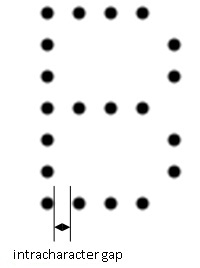
Another gap that you can specify to ensure proper segmentation is the MaxIntracharacterGap, which is the maximum gap size, measured in pixels, which can occur within a single character, including damaged ones. An intracharacter gap is common for any dot-matrix font, as shown in the following figure:
Intracharacter gaps also occur in damaged characters, as shown in the following example:
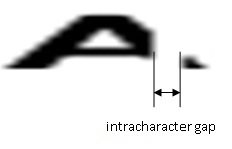
Any gap larger than the maximum value you specify will be interpreted as a break between two separate characters, whereas gaps less than this value can be interpreted as a gap within a single character.
By default an OCRMax tool does not allow you to configure either an intercharacter or an intracharacter gap. You must change the setting for the CharacterFragmentMergeMode to a value that allows the tool to consider there are gaps between and within characters.
Spaces
By default an OCRMax tool does not expect your character strings to contain any spaces, so it does not factor spaces into the segmentation process. By definition a space contains no character features, but the tool offers several parameters that allow the segmentation process to analyze the region of interest and insert one or more spaces in what it ultimately recognizes as the character string:
| Parameter | Description |
Space Insert Mode | Specifies how to handle how the segmentation process inserts space characters into the gaps between other recognized characters. The default is None but you can choose from two other options:
|
| Space Min Width | Specify the minimum width for a single space character, in pixels. |
| Space Max Width | Specify the maximum width for a single space character, in pixels. |
Space Score Mode | Specify how the OCRMax tool generates a result score for each space character. The tool can either give a space character a score of 1.0 to always validate a space character, or it can give a space character a result score based on the amount of foreground pixels are present. If your character strings can contain both space characters next to thin characters (such as a "1" or an "i"), you might also choose to change the default value for the width of each cell rectangle. See the section Cell Rectangle Width Type for more information. |
Be aware that the parameters you choose allow the OCRMax tool to perform segmentation on a character string with one or more spaces at various locations, but you cannot train a space character in your OCR font. The tool will display a cell rectangle around a space character to visually confirm that the space is recognized.
Pitch
Character pitch is a measurement of the distance from one character to the next based a specific starting point. For example, you could determine pitch by measuring the distance from the left edge of the mark rectangle for one character to the left edge of the mark rectangle for the next character in the string. The measurement can change from character to character, depending on the type of font. For fixed-width fonts the pitch does not vary, while for proportional fonts the pitch varies depending on adjacent characters.
By default the OCRMax tool does not consider pitch when performing the segmentation process, but being able to provide specific values for different pitch parameters can greatly increase the ability of an OCRMax tool to correctly differentiate the characters in your images.
To enable the tool to consider character pitch, change the AnalysisMode parameter from minimal mode to standard mode. With standard mode selected, the tool will factor in the following parameters to the segmentation process:
| Parameter | Description |
| Pitch Metric | If you know the Pitch Metric for the characters in your string, you can specify that the pitch can be measured from the left corner, the center, or the right corner of each character. |
| Min Pitch | The segmentation process can be improved by having the Min Pitch that can occur between characters. If the pitch between two character fragments is less than this value, the OCRMax tool considers the fragments to be part of the same character, unless the combined character exceeds the Char Max Width value. |
| Pitch Type | Specify the Pitch Type depending on the font in your images, which is fixed, proportional, or variable if your character strings used a mix of different fonts. |
| Width Type | Specify how the widths of the mark rectangles for the characters in the string are expected to vary, either fixed or variable. |
X Overlap
In some character strings, adjacent characters might overlap each other along the x-axis of the baseline. You can specify a non-zero CharacterFragmentMinXOverlap to refine how the segmentation process handles disconnected but overlapping features.
A small value allows the OCRMax Tool to consider two character fragments with a minimal overlap to be parts of the same character, while a large value forces the tool consider the same two character fragments as parts of adjacent characters.
Distance to Mainline
If the mark rectangle for one or more characters in your strings might not rest on the baseline, specify a nonzero value for CharacterFragmentMaxDistanceToMainLine. This can occur if you are using characters such as the lower-case “j” which would rest below the baseline, or characters like a colon “:”, which rest above the baseline.
The parameter is expressed as a percentage of estimated line height and has a range between 0.0 and 1.
Cell Rectangle Width Type
By default an OCRMax tool will generate cell rectangles with approximately the same width across the string, regardless of the width of the character's mark rectangle. For many character strings this works well, but for some strings it can cause a thin character preceded by a space to be segmented as a single character, as shown in the following figure:
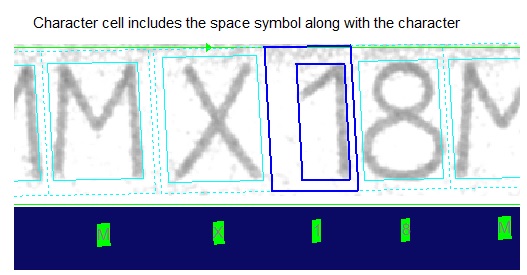
To have the tool properly separate the space character from the number "1" in this string, specify a Cell Rectangle Width Type (CellRectangleWidthType) of Proportional. The following figure shows how the string should be segmented: