This topic contains the following sections.
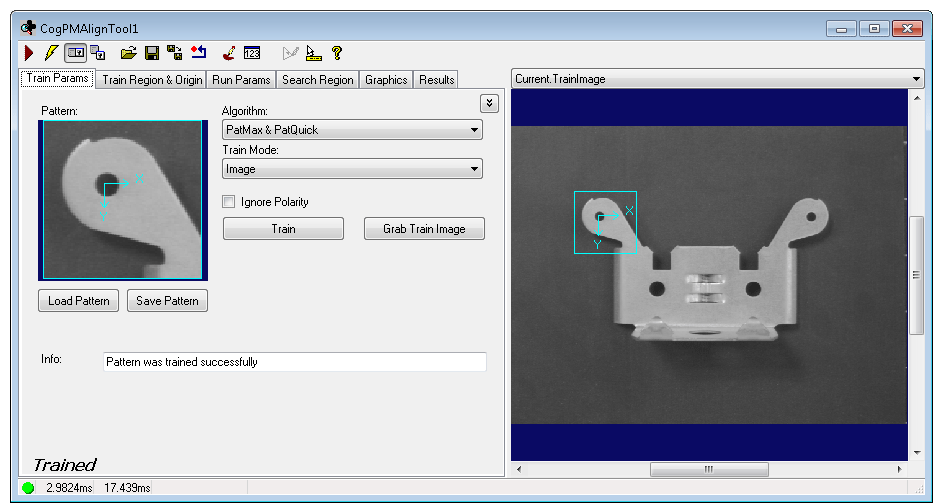
The PMAlign edit control provides a graphical user interface to the CogPMAlignTool and its component, which allows you to train a pattern and then have the tool search for it in successive input images. You can specify the type of algorithm to use when performing the pattern training or the pattern search, and choose between creating a trained pattern from an image or from a collection of shape models. The pattern search can be constrained by an optional search region within the input image. The following figure shows an example PMAlign edit control:
To include the control in your Dev Studio.NET application, you must first add it to the Visual Basic project toolbox. The PMAlign edit control object type is named CogPMAlignEdit. See the topic Adding Edit Controls to Visual Studio for instructions.
The PMAlign edit control includes the following components:
- A row of control buttons at the top left.
- A tool display window that can display the PMAlign tool image buffers: Current.TrainImage, Current.InputImage, and LastRun.InputImage. These buffers contain the trained pattern, the search image in which the PMAlign tool searches for the pattern, and the same image with the results of the search. Right click the tool display to bring up menu options that include zooming in or out of the image or showing a pixel or subpixel grid.
- A set of tabs organized by function. These functions include parameter settings to run the tool, parameter settings for the search region of interest, display settings for the tool displays, and training results. Pressing the Control + Tab keys scrolls through the set of tabs.
- A status bar at the bottom left of the control. A green circle indicates that the tool ran successfully; red means the tool ran unsuccessfully. The status bar also displays the time to run the tool and any error codes or messages. The first time that the status bar displays is the raw tool execution time. The second includes the time needed to update the edit control.

The following table describes the functions of the buttons at the top left of the control.
| Button | Description |
 | Run the PMAlign tool. You must have a trained pattern, an input image, and specified run parameters. PMAlign searches for the trained pattern in the input image. You may constrain the pattern search to a search region within the input image. |
 | Toggles electric mode. When selected, the PMAlign tool runs automatically if certain parameters have changed. These parameters are indicated by electric bolt icons that appear when the tool is in electric mode. |
 | Opens the local tool display window, which can display the Current.InputImage, Current.TrainImage, or LastRun.InputImage buffer. |
 | Opens one or more floating tool display windows. You can display the Current.InputImage, Current.TrainImage, or LastRun.InputImage buffer. Unlike the local tool display, you can resize or move the position of the floating tool display window. |
 | Loads a VisionPro persistence (.vpp) file, which contains a set of saved properties for this vision tool object type. Loading a persistence file for another object type throws an error and the load is unsuccessful. For more information about VisionPro persistence features, see the topic Persistence in VisionPro. |
 | Saves the current properties of the underlying tool to a VisionPro persistence file. You have the option to save either the entire tool or the tool without its images or results. |
 | Saves the current properties of the underlying tool to a new VisionPro persistence file. |
 | Resets the underlying tool to a default state. |
 | Opens the Image Mask Editor for creating a mask to add to the training image. |
 | Opens a new, separate results window, allowing you to view run results without turning to the Results tab. |
 | Launches the Model Maker for editing shape models when you are using Synthetic PatMax. |
 | Enables or disables the display of tooltips for individual items in this edit control. |
 | Access the VisionPro Software Documentation. |
The PMAlign edit control has three image buffers. Two of the buffers use the underlying PMAlign tool's InputImage and TrainImage; the third buffer displays the last input image that the PMAlign tool ran on and the results of that search. All three buffers can be shown in both the local and floating tool display windows.
- The Current.InputImage provides the input images to the PMAlign tool.
- The Current.TrainImage contains the training image.
- The LastRun.InputImage buffer displays the last image on which the tool most recently ran. Use the Graphics tab to highlights the search area and the results of the search.
When you run the PMAlign tool, the tool searches the Current.InputImage for the pattern in the Current.TrainImage buffer, and stores the results of this search on the Results tab.
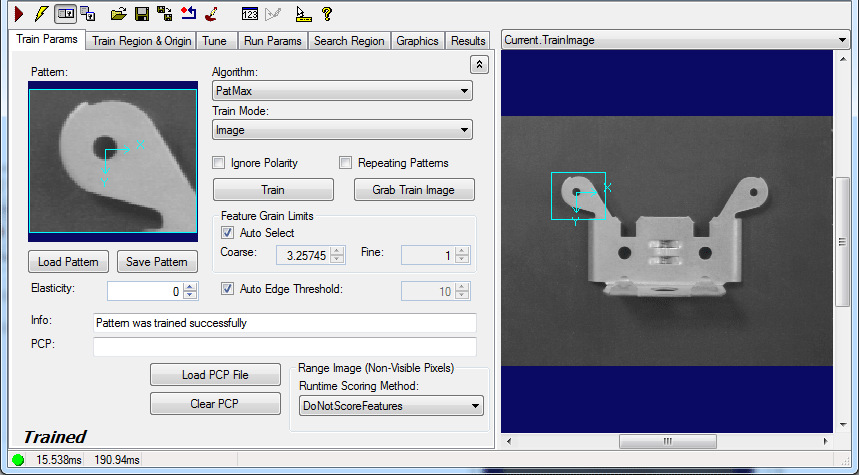
Use the Train Params tab to set training parameters and to train the search pattern. Clicking the Advanced Feature button

| Feature | Description |
| Pattern | Displays the trained pattern, created either from an image or from a collection of shape models. This is specified by the TrainRegion, which is highlighted by a blue border, within TrainImage. You can set the train region using the Train Region and Origin tab or by resizing its display in Current.TrainImage. The message text at the bottom of the tab indicates whether the PMAlign tool is trained. |
| LoadObjectFromFile | Opens a VisionPro persistence file, which has a VPP extension, that contains a trained pattern. |
| SaveObjectToFile | Saves the current trained pattern into a VisionPro persistence file, which has a VPP extension. |
Select the search algorithm to use for training:
| |
| TrainMode | Choose whether the PMAlign pattern should be trained based on the pixel content of the training image or trained based on the shape models you create and modify with the Model Maker. |
| IgnorePolarity | If enabled, pattern polarity is ignored. If disabled, only patterns with polarity matching the trained pattern will be found. You must allow the tool to ignore polarity if you are using a trained pattern made of shape models and any of the models have an undefined polarity. |
Use this parameter when the pattern you want to train contains elements that repeat, such as a grid or a set of bars or a pattern of parallel lines. This parameter is valid only when you choose PatMax from the Algorithm pulldown list. | |
| Train | Trains the desired pattern as specified by the TrainRegion in the TrainImage or by the current collection of shape models. If the tool already has a trained pattern then the tool will untrain and then retrain. When the pattern is successfully trained, the text at the bottom of the control says, "Trained." |
Grab Train Image button | Copies the image in the InputImage buffer into the TrainImage buffer. This button is not enabled unless there is an image in Current.InputImage. It is also not enabled if you are creating a trained pattern from shape models and a transform. |
| Feature Grain Limits | If GrainLimitAutoSelect is not selected, then the GrainLimitCoarse and GrainLimitFine grain limits that you supply are used. |
| Elasticity | Specifies the Elasticity property, which is the amount of variance, in pixels, allowed by the PMAlign tool. In general, you should specify a nonzero elasticity value if you expect inconsistent variation in patterns in run-time images. |
| AutoEdgeThresholdEnabled | Disable the automatic value if you want to set a different threshold for the absolute minimum value of edge magnitude, below which the edge direction will be randomized. |
| GetInfoStrings | Train-time diagnostic message containing information about this pattern. |
| PCPString | The PCP (PatMax Customizable Pack) string associated with this pattern. Appears only if a PCP file, which configures PMAlign parameters for specific applications, has been loaded. |
| PCPLoadFromFile | Loads a PCP file. |
| Clear PCP | Clears the underlying tool of the configurations derived from the currently loaded PCP file. |
| RuntimeScoringMethod | Instructs the pattern how to treat non-visible pixels at run-time when the input image is of type CogImage16Range. |
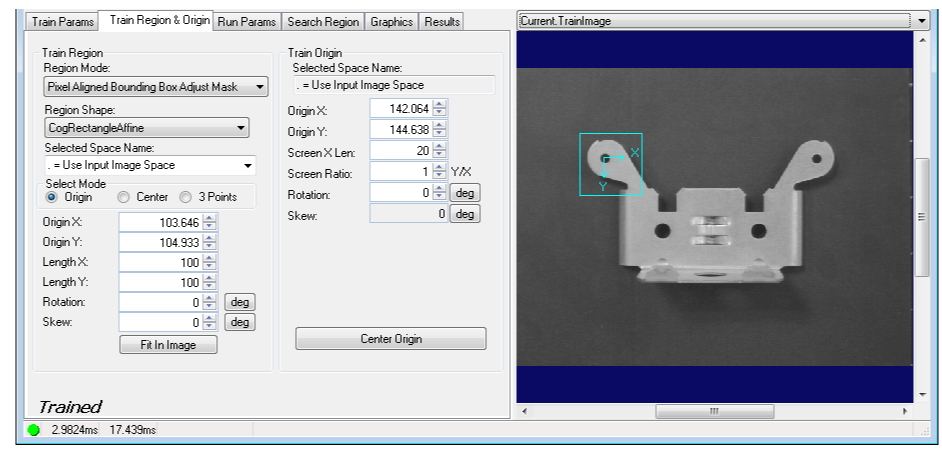
Use the Train Region and Origin tab to define the TrainRegion, which defines the area of the TrainImage buffer that becomes the trained pattern. You can also define the train region graphically in the Current.TrainImage buffer. It may be easier to first specify the training region graphically, then use this tab to fine tune the train region parameters. The PMAlign edit control updates the train region values so that the values on this tab always match the shape of the train region in the Current.TrainImage buffer.
Some of the parameters on this tab, such as Rotation and Skew, can be specified in degrees (default) or radians. The underlying tool keeps the values in radians but the edit control converts them to degrees when appropriate.
| Feature | Description |
Defines the bounding box for the region.
If you are training a pattern from a collection of shape models, you must use a Pixel Aligned Bounding Box, as a Pixel Aligned Bounding Box Adjust Mask region is not supported for shape training. | |
Select the shape of the input region. Selecting None=Use entire image means that the tool uses the entire input image. A PMAlign tool supports the following input region shapes:
The set of region-defining parameters that appear depend on the region shape you use. For more information on using a polygon as an input region, see the topic Using Polygon Input Regions. | |
The coordinate space in which the training region is interpreted. For information, see Coordinate Space Names. The selected space name of the training region is ignored when training from shape models and a transform. | |
| Select Mode | Available when Region Shape is cogRectangle or cogRectangleAffine. Selects the set of parameters that define the rectangle. If cogRectangleAffine is chosen, note that the angles of rotation and skew can be specified in degrees or radians, although the underlying tool keeps the measurements in radians. |
| FitToImage | Centers the train region within Current.TrainImage. |
| Feature | Description |
Origin X Origin Y Screen X Len Screen Aspect Rotation Skew | Values that define the location and orientation of the train region's origin. These values will change if you modify the origin graphically. Note that the angles of rotation and skew can be specified in degrees or radians. Equivalent to the Origin property. |
| Center Origin | Sets the train region's origin at the center of the train region. |
The Tune tab lets you create and configure the CogPMAlignComposite object, which manages composite training for this pattern. The controls in this tab are used for both the Alignment and Tuning phases of composite training. You switch between the two phases by clicking the Alignment Setup and Tune & Train Setup option buttons at the top of the tab. The controls are different depending on which phase is selected.
 Note Note |
|---|
| For information on AutoTune and composite model training, please see the topic PatMax AutoTune. |
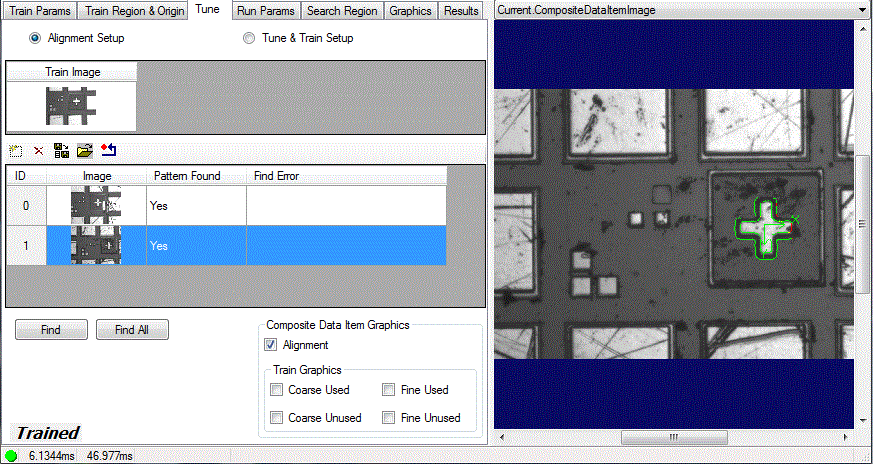
During the alignment setup phase of tuning, you use the controls on the Tune tab to manage the collection of Images and alignment Poses stored within this pattern's CogPMAlignComposite object's CompositeData collection.
| Feature | Description | ||
Image List Buttons | Use the image list buttons to manage the collection of images and alignment poses used for tuning. In addition to adding and removing images (the first two buttons), the third and fourth buttons allow you to save and load tuning data collections to and from files. | ||
| Find and Find All buttons. | Clicking Find attempts to locate the trained pattern in the selected image; Find All attempts to locate the trained pattern in all the images. | ||
Composite Data Item Graphics selectors. | During the initial alignment phase, check the Alignment check box to view the alignment graphics for the selected image. If you have tuned the pattern, then the tuning graphics are available as well.
|
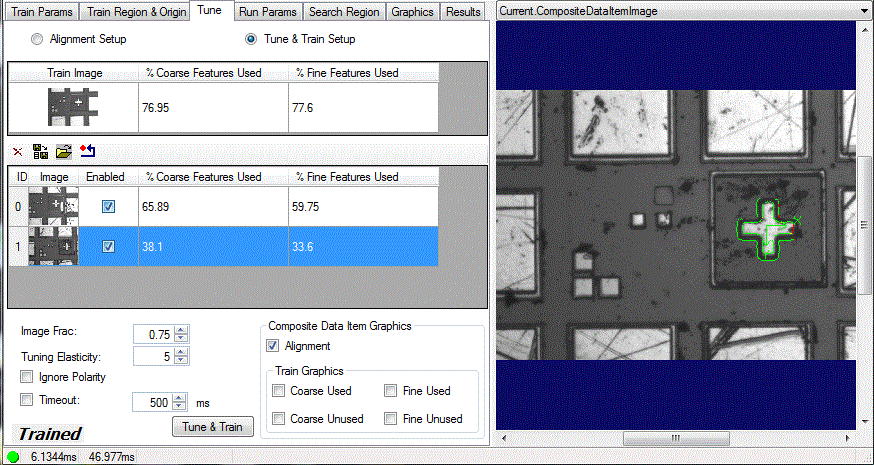
During the tuning phase, you use the controls on the Tune tab to configure the tuning parameters, to select which of the images to use for tuning, and to review the tuning results.
| Feature | Description | ||
| Image List Buttons | The add button is not available during the tuning phase, but you can still save and load the collection of tuning data. | ||
Enabled check box. | Check the Enabled check box for an image to use features from that image when tuning the pattern. Changing the Enabled state of an image untrains the pattern.
| ||
These columns display the percentage of coarse and fine features used in the final pattern from each enabled image. You can display both the used and discarded coarse and fine features by checking the appropriate check boxes in the Composite Data Item Graphics section. | |||
| ImageFraction | Use the Image Frac control to determine what fraction of the tuning images need to contain a given feature for it to be included in the tuned pattern. | ||
| TuningElasticity | Use the Tuning Elasticity to set the alignment tolerance (in pixels) for image features. Features must be within the specified distance to be counted as the same feature. | ||
IgnorePolarity check box. | Check this option to ignore feature polarity in all tuning images. The same setting for ignore polarity is used for all tuning images, including the TrainImage for the pattern
| ||
| Timeout | Sets the timeout for the overall tuning and training operation. | ||
| Tune & Train | Initiates the tuning and training operation. | ||
Composite Data Item Graphics selectors. | During the tuning phase, use the check boxes in the Train Graphics frame to view the features used and discarded during tuning. You can also view the alignment graphics.
|
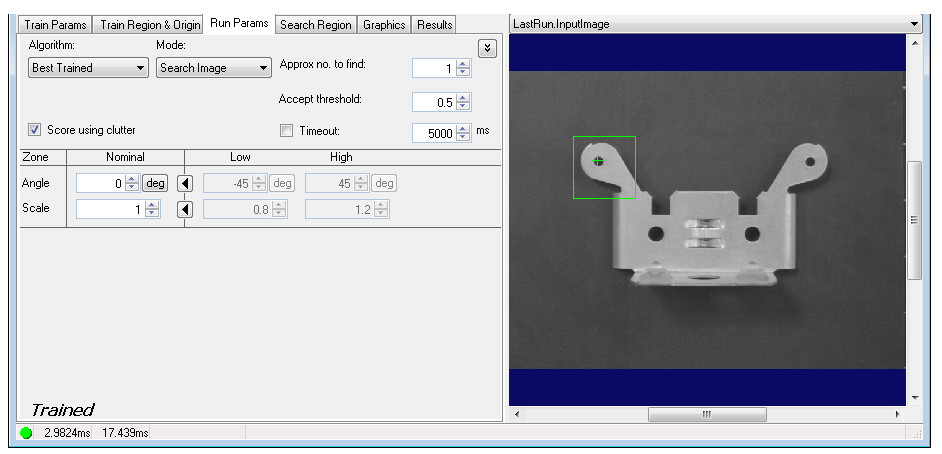
Use the Run Params tab to specify how to perform the pattern search. These parameters include the run algorithm to use, thresholds and limits, and the amount of rotating and scaling allowable during the pattern search.
Click the Advanced Feature button
| Feature | Description |
Selects the search algorithm. The Patmax algorithm is more accurate than Patquick and can return additional score information, but requires more processing time. You can also specify BestTrained, in which case the tool will run using the highest-accuracy algorithm for which it has been trained. If you specified PatMax - High Sensitivity for the trained algorithm, specify either PatMax or Best Trained. In either case, PatMax high sensitivity mode is used. If you specified Perspective PatMax for the trained algorithm, specify either Perspective PatMax or Best Trained. | |
By default, the PMAlign tool uses Search Image mode to search the entire image for the coarse features that indicate the presence of the pattern it is trained to locate. Switch to Refine Start Pose mode to give this PMAlign tool a specific StartPose, which is a two-dimensional linear transformation that defines the starting location of the search. The StartPose typically comes from another vision tool that has already executed and generated results about known features in the image. Note: To use Refine Start Pose mode you must add an input terminal to expose the StartPose property for this PMAlign tool. | |
The PMAlign tool uses a default Coarse Accept threshold to refine early search results based on the coarse features of the pattern. You can enable the Coarse Accept threshold and specify a different value, forcing the tool to consider more (lower value) or fewer (higher value) potential matches in each run-time image. The threshold value cannot exceed the current value for Accept threshold. The edit control will correct the value for Accept threshold automatically if you set a value for Coarse Accept threshold higher than Accept threshold. | |
If checked, then the PatMax algorithm considers extraneous or clutter features when computing the score of a pattern instance. Considering clutter features usually results in lower scores. Available for the PatMax algorithm only. You may need to disable this feature if the trained pattern consists of shape models. | |
| ApproximateNumberToFind | Specifies the number of results to look for. |
| AcceptThreshold | Specifies the acceptance threshold for the result score. Only results with scores greater than or equal to this value are accepted. |
| TimeoutEnabled | If checked, then the timeout value limits the execution time of the PMAlign inspection. |
| ZoneAngle | Specifies the angle of rotation that is allowable when PMAlign performs a pattern search. You can specify a nominal value that the PMAlign results must
match exactly or you can click the  |
| ZoneScale | Specifies the scale value to be used when PMAlign performs a pattern search. You can specify a nominal value that a searched pattern must match
exactly or you can click the |
| ZoneScaleX | Specifies the scale value in the X direction to be used when PMAlign performs a pattern search. You can specify a nominal value that a searched pattern
must match exactly or you can click the |
| ZoneScaleY | Specifies the scale value in the Y direction to be used when PMAlign performs a pattern search. You can specify a nominal value that a searched pattern must match exactly or you can click the |
| PartialMatchEnabled | Only available for the PatFlex algorithm, PatFlex will find results that match only a fraction of the full pattern with a score better than the AcceptThreshold. |
| PartialMatchCoverageThreshold | Only available for the PatFlex algorithm, this specifies the minimum fraction of the pattern that must be matched in a valid PatFlex result. |
| GrainLimitsUsePattern | If checked, then the granularity limits determined by the training pattern are used. If not checked, then the GrainLimitCoarse and GrainLimitFine values specified are in effect. |
| ContrastThreshold | Defines the minimum acceptable contrast for a pattern instance. Only pattern instances where the average difference in pixel values across all feature boundaries exceeds the contrast threshold are considered by PMAlign. |
| XYOverlap | Result candidates overlap in area if the percentage of area overlap is greater than XYOverlap. PMAlign discards the weaker pattern instance when two pattern instances overlap for all degrees of freedom as well as area by the specified overlap percentage. |
| AutoEdgeThresholdEnabled | Disable the automatic value if you want to set a different threshold for the absolute minimum value of edge magnitude, below which the edge direction will be randomized. |
If you use the PatFlex search algorithm, the Run Params tab presents several different parameters, as shown:
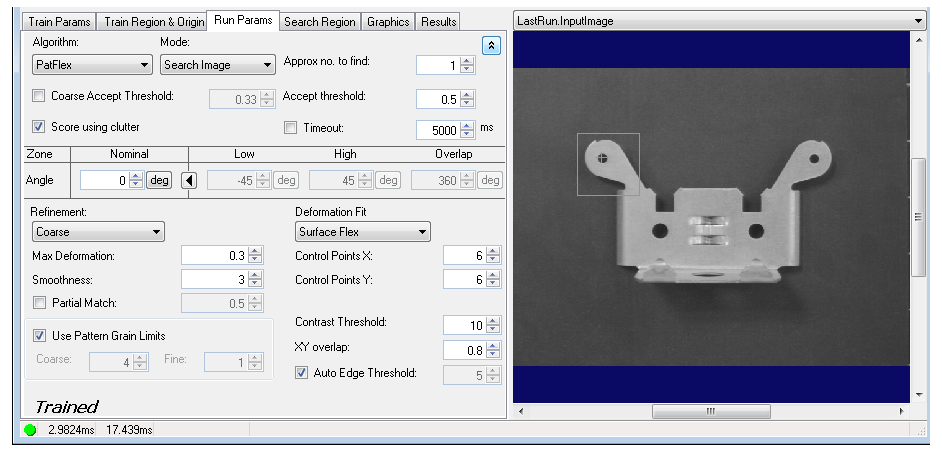
The following table describes the PatFlex algorithm parameters:
| Feature | Description |
| Refinement | The amount of refinement done on the deformation transform. A value of 'None' may contain some error. Higher levels of refinement will be more accurate at the expense of time. |
| MaxDeformationRate | The maximum amount of deformation expected in run-time image. |
| Smoothness | The smoothness value used in fitting the deformation transform to the runtime input image. |
| DeformationFit | Controls the type of fit PatFlex will use to model deformation in the runtime input image. |
| ControlPointsX | The number of control points in the X direction. Increasing the number of control points allows the transform to better match patterns with areas of heavily local deformation (i.e., sharper features). |
| ControlPointsY | The number of control points in the Y direction. Increasing the number of control points allows the transform to better match patterns with areas of heavy local deformation (i.e., sharper features). |
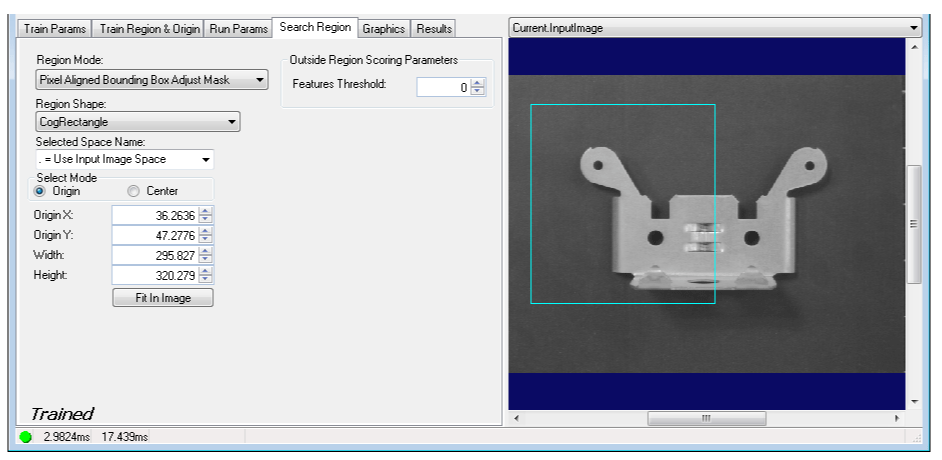
Use the Search Region tab to define the SearchRegionMode, the area of the InputImage buffer to which the pattern search is constrained. The search region appears with a blue border in the Current.InputImage, and you can graphically define the search region in this buffer. It may be easier to specify the search region graphically, then use this tab to fine tune the search region parameters. When you resize the search region in the InputImage, the values on this tab change; likewise, changing the parameter values causes the search region to alter its size and shape.
| Feature | Description |
Defines the bounding box for the region.
| |
Outside Region Scoring Parameters | Choose a Features Threshold value that specifies the percentage of features in the trained pattern that can be outside the search region without penalizing the score. The default value of 0 means that the PMAlign tool expects all the features of the trained pattern to be located within the search region, while a value of 0.3 means that up to 30% of the trained pattern can be outside the search region without affecting the final score. Use this feature when you want to allow some portion of the features in the trained pattern to exist outside the search region without affecting the overall score given to the features the search region still contains. |
| SearchRegion | The shape of the search region. Selecting "None=Use entire image" means that the entire Current.InputImage becomes the search region. The set of region-defining parameters depends on the selected Region Shape. |
| SelectedSpaceName | The coordinate space in which the search region is interpreted. For more information, see Coordinate Space Names. |
| Select Mode | Available when Region Shape is cogRectangle or cogRectangleAffine. Selects the set of parameters that define the rectangle. If cogRectangleAffine is chosen, note that the angles of rotation and skew can be specified in degrees or radians, although the underlying tool keeps the measurements in radians. |
| FitToImage | Centers the search region within Current.InputImage. |
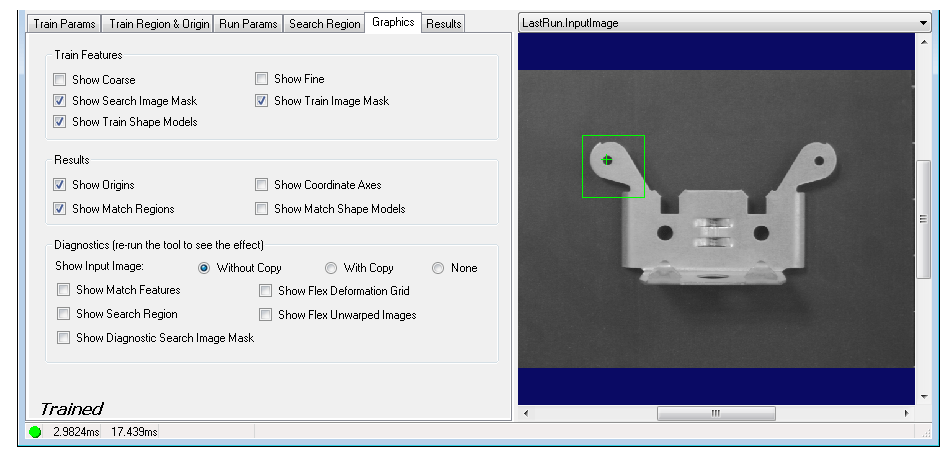
Use the Graphics tab to choose the results graphics that are displayed in the LastRun.InputImage display.
| Feature | Description |
Train feature display | You can show these features in the Current.TrainImage buffer, which contains the trained pattern:
The preceding features appear only if the pattern is trained successfully.
|
Result graphics display | You can show these features in the LastRun.InputImage buffer, which contains the image that the PMAlign tool last searched, and the results of that search. Uses the CreateResultGraphics method to generate these results.
|
Diagnostics display | Displays the following features in the LastRun.InputImage buffer. Uses the CreateResultGraphics method to generate these results.
The Show Input Image option buttons let you specify whether a reference to the input image or a deep copy of the input image is displayed for the LastRun.InputImage. You can also specify that no image be displayed. The Show Flex Deformation Grid check box will display a grid that represents the computed deformation transformation. You must specify PatFlex for the run-time algorithm, and you must re-run the tool after checking this box to see the result. The Show Flex Unwarped Images check box will display an unwarped version of the input image. The unwarping is most accurate within the region that corresponds to the trained pattern. You must specify PatFlex for the run-time algorithm, and you must re-run the tool after checking this box to see the result. |
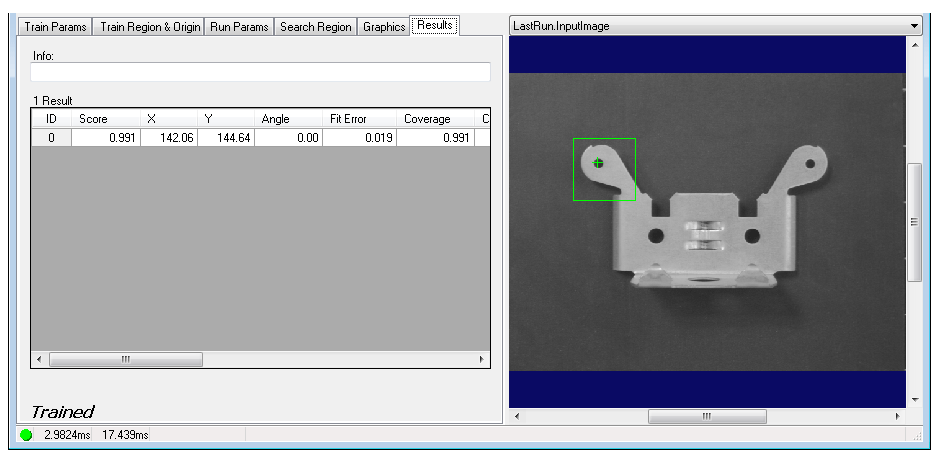
The Results tab displays the results of the most recent pattern searches. This corresponds to the CogPMAlignResult interface. Use the slider control below the results grid to display the complete set of results.
| Feature | Description |
| GetInfoStrings | Displays the run-time diagnostic message text string(s) for the last PMAlign result. If there are no messages then the text box will be empty. |
Results Grid | Displays the following information for each result.
The coordinates, angle and scaling factors are retrieved with the GetPose method.
|