This topic contains the following sections.
This topic describes volume calculation using range images acquired from a Cognex 3D displacement sensor. The 3D Range Image Volume Calculator tool calculates the volume of features in a range image in an area above a base plane which you define. The volume is returned in the units of the Sensor3D Space (cubic mm).
For example, you can use the 3D Range Image Volume Calculator tool to determine whether the volume of a part is in a specific volume range.
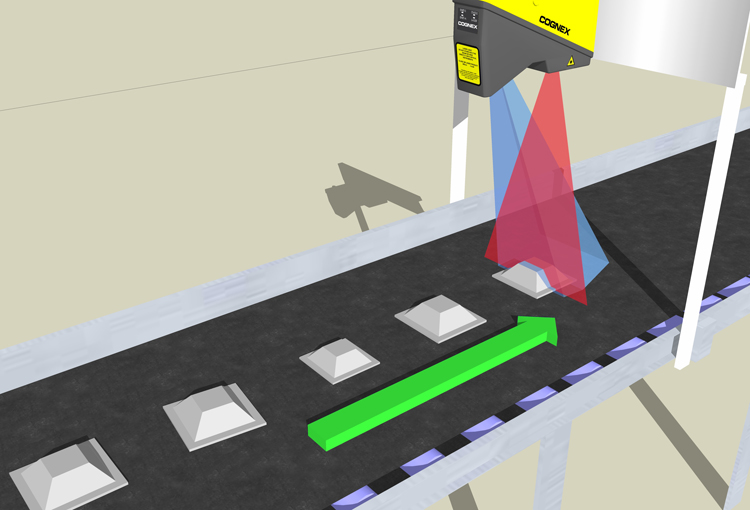
For the theory of range images, acquired from displacement sensors, see the Working with 3D Range Images topic. For information on setting up acquisition with your displacement sensor, see the Getting Started topic. For detailed information on range image acquisition, see the Acquiring Images from a DS900 Series Sensor and Acquiring Images from a DS1000 Series Sensor topics. For advanced range image acquisition details, including coordinate spaces related to range images, see the Range Image Coordinate Spaces and Associated Parameters topic. For hardware-related information (such as mounting and physical product features) and further product details, see the DS900 Quick Reference Guide, DS1000 Quick Reference Guide, and the DS1000 Technical Reference Manual.
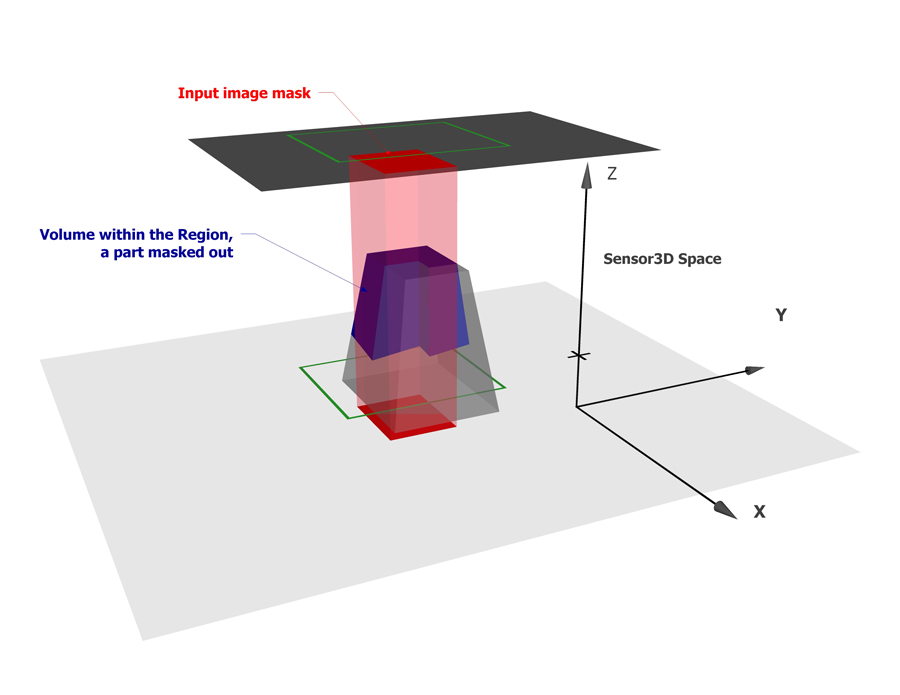
The 3D Range Image Volume Calculator tool takes the following inputs: the range image acquired about the object, a base plane above which volume calculation should be performed, and the 2D area in which volume calculation should be performed. You specify the 2D area using a Region and optionally an input image mask. In addition to these, the Visible Pixel Mask coming with the range image defines additional masking. You can also specify a Minimum Height Threshold relative to the base plane; pixels with heights below this are not included in the volume calculation.
The following figure shows a truncated pyramid (also known as frustum); the volume of a part of it will be measured:
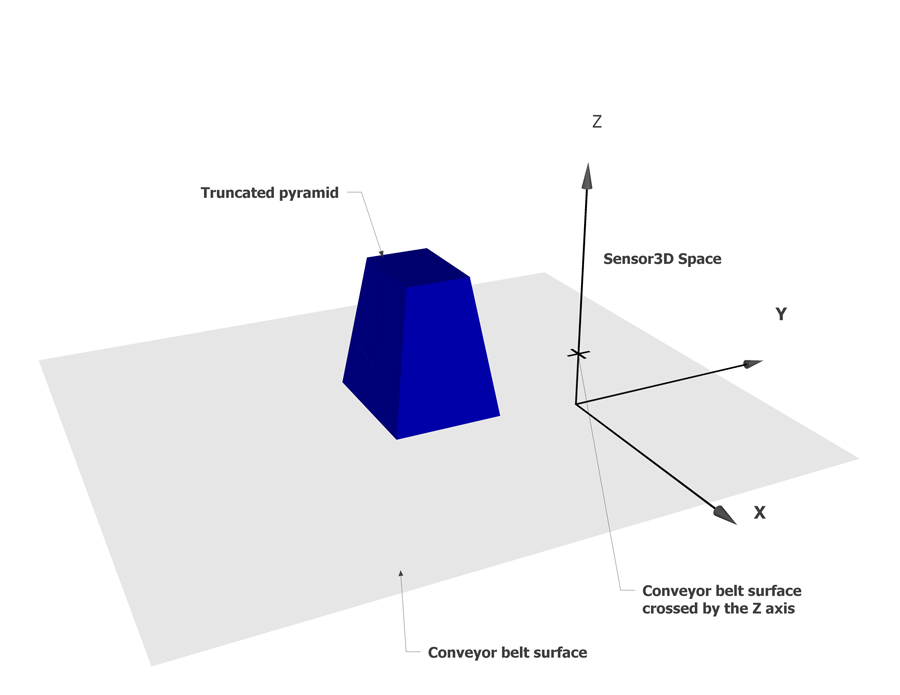

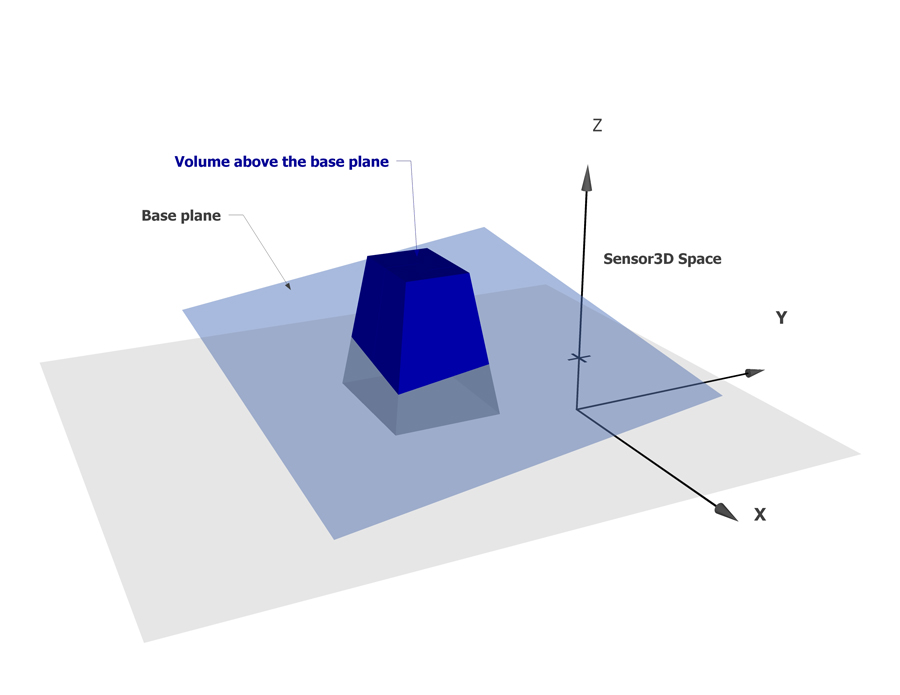
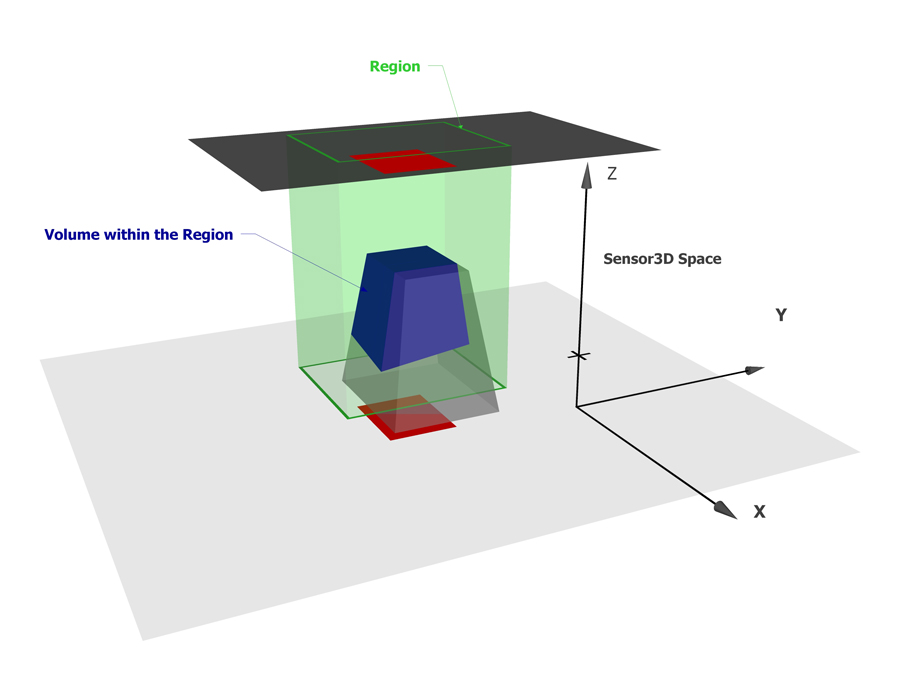

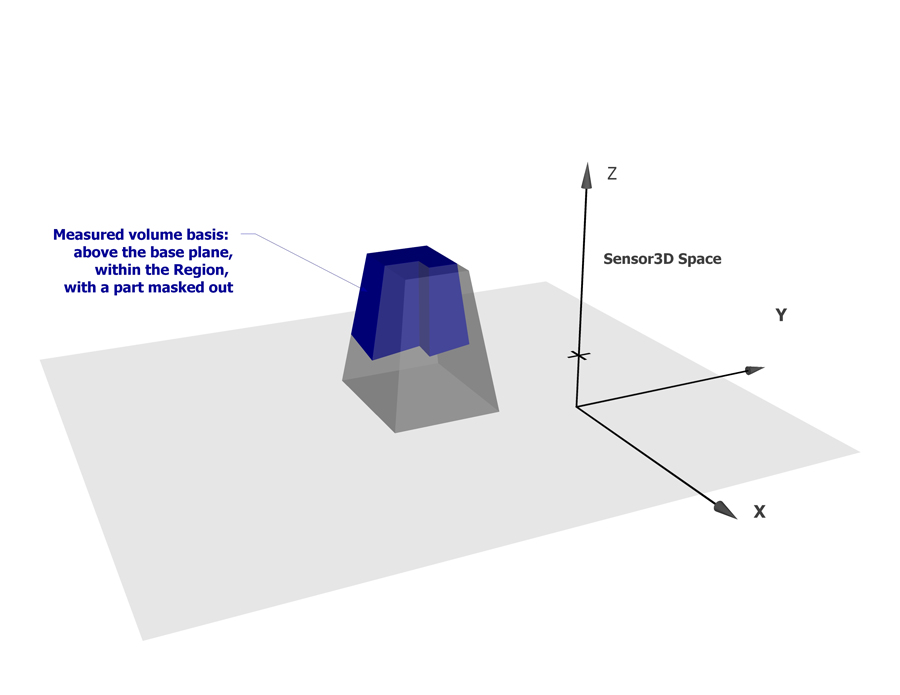


The volume calculator tool measures the volume enclosed between the surface of the range image data and one side of the base plane.
For a range image pixel to contribute to the computed volume, the range image pixel must meet the following requirements:- It must be within the 2D Region.
- It must be marked as "Care" if an input image mask is provided.
- It must be marked as visible in the range image's Visible Pixel Mask.
- It must have a height relative to the base plane that is greater than or equal to the Minimum Height Threshold.
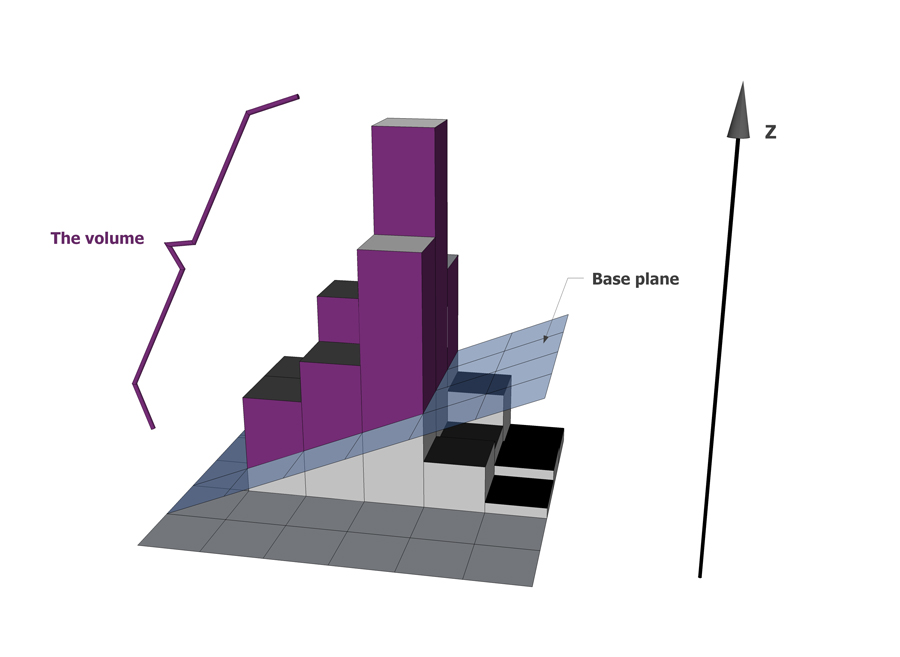
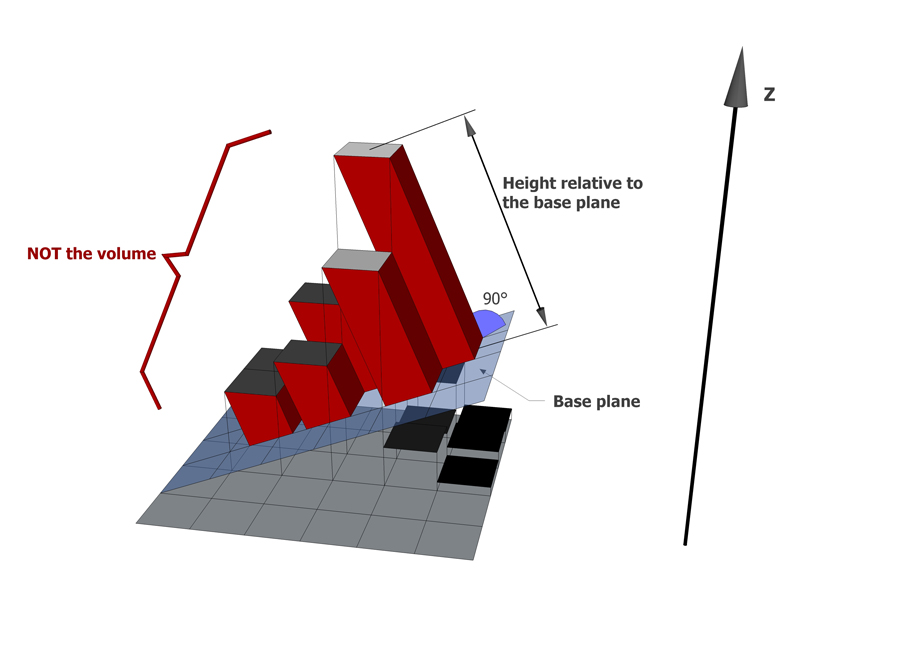
The tool marks those range image pixels that contribute to the computed volume with a purple color on the display.
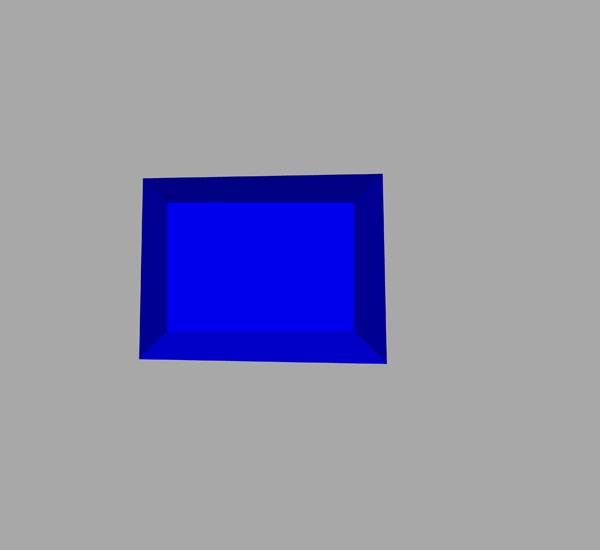
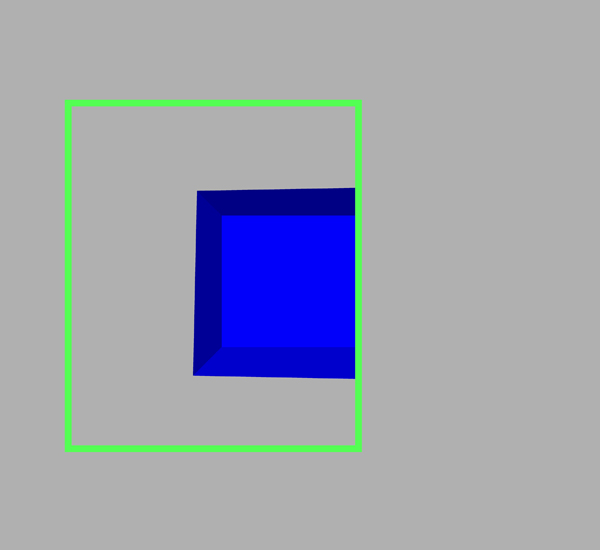
The following figure shows a frustum, with a rim, while its volume is being measured using a rectangular Region (whose border is marked with green) and a base plane that is the measured plane of the conveyor belt on which the frustum rests. (No input image mask is used.)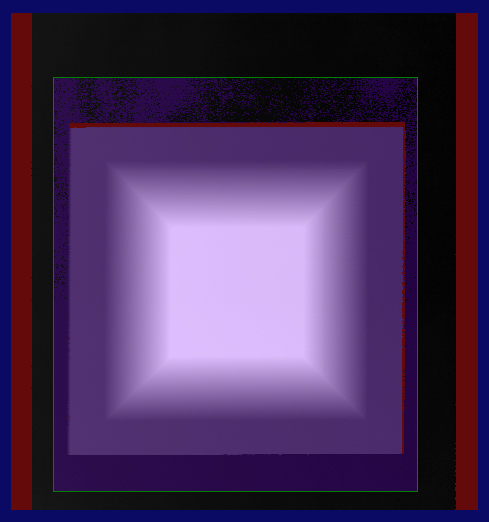

You can specify on which side of the base plane the volume calculation should be performed (i.e whether the Normal with a positive Z coordinate value, or the Normal with a negative Z coordinate value, should be used). For more information on plane sides, see the section about specifying which side of the plane is above the plane.
In addition to the calculated volume, the tool also returns diagnostics data about how the range image pixels were used to calculate the volume: the number of pixels in the Region; the number of Care (unmasked) pixels; the number of visible Care pixels; and the final number of pixels that were used during volume calculation based on the Region, the masks, and the Minimum Height Threshold.
You can choose volume calculation to be performed within the following Region types:
- Circle
- Ellipse
- Circular or elliptical annulus section
- Rectangle or affine rectangle
- Custom polygon
- The entire image