This topic contains the following sections.
The AcqFIFO edit control provides a graphical user interface to the CogAcqFifoTool vision tool, which acquires images using an acquisition FIFO on a frame grabber, an IEEE 1394 DCAM (FireWire) camera, or a GigE camera. The edit control allows you to configure various image-acquisition parameters and acquire an image. The following figure shows the AcqFIFO edit control:
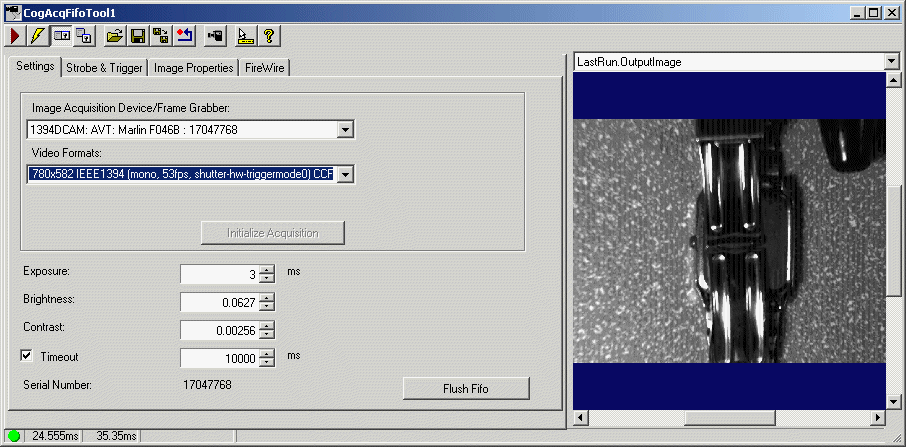
The edit control includes the following components:
- A row of control buttons along the top perform common operations.
- A set of function tabs allow you to specify the trigger type, indicate the method of lighting, select a region of interest, and set other configuration parameters. The exact number, contents, and appearance of the tabs vary slightly depending on the image source you use.
- An image display window shows the most recently acquired image currently stored in the OutputImage buffer. Right click on the image window to choose from a menu of options that include zooming in or out or enabling a pixel or subpixel grid.
- A status bar along the bottom reports whether the tool executed successfully, the time the tool required to execute, and any error codes or messages.

The following table describes the function of each button:
| Button | Description | Function |
 | Run | Acquire a new image and make it available to other vision tools. |
 | Electric mode | Toggle electric mode, where the AcqFIFO tool acquires an image automatically when particular configuration parameters change. In electric mode, a lightning bolt appears next to every electric property. Electric mode only works for manual triggers, and the edit control ignores electric mode when the trigger type is set to anything other than manual. |
 | Local image display | Open or close the local image display window. An AcqFIFO tool supports an OutputImage buffer, which contains the last acquired image. |
 | Floating image display | Open one or more floating image windows, which also support the OutputImage buffer . |
 | Open | Open a VisionPro persistence (.vpp) file containing a set of saved properties for an Acquisition FIFO tool. VisionPro reports an error if you try to open a .vpp file for another object type or for an entire vision application. |
 | Save | Save the current properties of the vision tool to a VisionPro persistence (.vpp) file. The edit control allows you to choose between saving the vision tool with or without its image buffers and tool results. |
 | Save As | Save the current properties of the vision tool to a new VisionPro persistence (.vpp) file. |
 | Reset | Reset the vision tool to its default state. |
 | Live Video | Open a live video image window that displays a live image from the camera. Live video allows you to adjust the production environment characteristics that can affect each acquired image, such as camera position and focus, object placement, or lighting. Use Run to acquire a single image and store it in the OutputImage buffer. |
 | Show ToolTips | Enable or disable the display of tooltips for individual items in the edit control. |
 | Help | Open this VisionPro online help file. |
Use the Settings tab to configure the video source you use to acquire images. The following figure shows the default Settings tab for a IEEE 1394 DCAM (FireWire) camera:
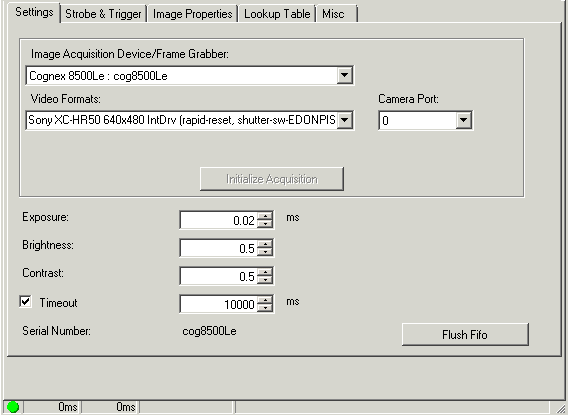
Use the following features to configure the tab:
| Feature | Description |
| FrameGrabber | The edit control displays the name of the frame grabber associated with this acquisition FIFO. |
Select the video format for this acquisition FIFO. If you switch the video format later, the edit control creates a new acquisition FIFO and attaches it to the current tool. | |
| CameraPort | Select the camera port on the frame grabber where you connected the camera. |
Choose an exposure time. You might need to experiment with objects moving past your camera at production speed in order to determine the best value. Use the value 0 to have the camera use the shortest exposure time that it supports. | |
| Brightness | Set the brightness level for each image acquisition. You might need to experiment with different values in order to determine the best level for your vision application. |
| Contrast | Set the contrast level for each image acquisition. You might need to experiment with different values in order to determine the best level for your vision application. |
| TimeoutEnabled | A timeout period determines how long the acquisition FIFO waits for an image to become available before the application generates a timeout error (CogErrConstants). Enter a Timeout to specify how much time the application will wait. |
| SerialNumber | The edit control displays the serial number of this frame grabber. |
| Flush | Clear all outstanding acquisition requests from the queue. |
Use the Strobe and Trigger tab to control an optional strobe light as well as to configure the type of trigger this acquisition channel uses to signal that an image acquisition should begin. The fields in this tab vary depending on the specific frame grabber you use. The following figure shows an example Strobe and Trigger tab:
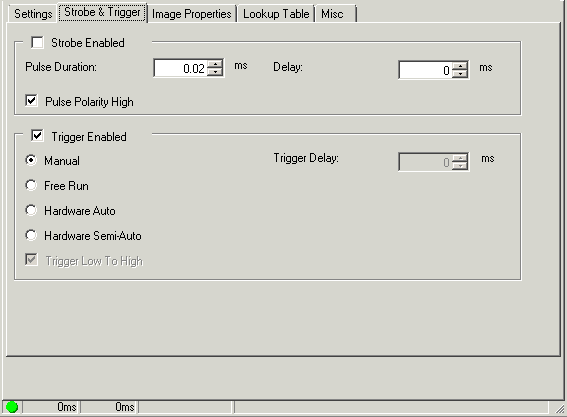
Configure the following settings on the Strobe and Trigger tab:
| Property | Description |
Enables the strobe light for each image acquisition. With a strobe light enabled, configure the following settings:
| |
Choose one of the following incoming trigger type for this Job:
| |
| Sets or gets the minimum trigger width in milliseconds. The trigger input signal must be asserted for at least this amount of time before it is recognized as a valid input trigger. QuickBuild ignores any trigger signal that does not meet this width constraint. | |
Sets the minimum time between triggers in milliseconds. Only the first valid trigger within a period will initiate a camera integration cycle. Other valid triggers in that same period are missed. You can use this value to help limit the camera acquisition rate. Legal values range from 0 to 65.5. Zero specifies that there is no period requirement. | |
| Sets the period of time, in milliseconds, between the receipt of the acquisition trigger and the start of camera integration. | |
| Available only on the MVS-8602e and MVS-8602e PoCL, allows your application to ignore any missed triggers and avoid the processing time required to handle an acquisition failure. |
Use the Strobe and Trigger tab to control an optional strobe light as well as to configure the type of trigger this acquisition channel uses to signal that an image acquisition should begin. The fields in this tab vary depending on the specific frame grabber you use. The following figure shows an example Strobe and Trigger tab:
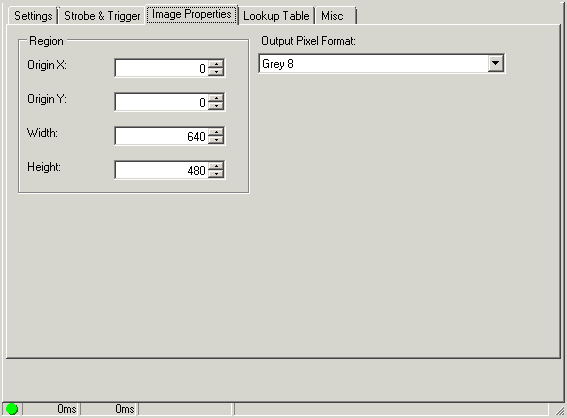
Use the fields in the tab to specify the origin, width, and height of the region of interest.
Use the Output Pixel Format list to choose one of the following pixel formats for the images the Image Source makes available to the vision tools you add to QuickBuild:
| Property | Description |
| CogImage8Grey | Grey scale images that offer 256 possible shades of grey from black to white. |
| CogImage16Grey | Grey scale images that offer 16-bit encoding. See the topic Working with 16-Bit Images for more information. A 16-bit greyscale image supports 65,536 grey values, but you must be using a 16-bit capable camera in order to produce images that exhibit this larger range. Choosing Grey 16 when you are using an 8-bit greyscale or 24-bit RGB camera produces images that are stored using the CogImage16Grey class but support only 256 possible grey values. |
| CogImage24PlanarColor | An image that uses 3 coincident arrays of 8-bit pixel values to represent shades of red, green and blue. Use this option with a supported color camera to generate color images for your vision application. If you select this option with a grey scale camera, the output images use the CogImage24PlanarColor class with the values for red, green, and blue in each array set to identical values to generate a corresponding grey pixel value. |
| Automatic | Allows QuickBuild to generate images with the appropriate output pixel format based on the type of camera you are using and the video format you chose on the Settings tab. |
If you are using an MVS-8600 series frame grabber, you can use the settings on the Image Properties tab to specify the size of the image pool the frame grabber will generate:
| Setting | Description |
| RecommendedHardwareImagePool | When selected, the image pool will automatically be sized to the recommended value. Be aware that the recommended value might change as the region of interest changes. |
| UseCustomHardwareImagePool | When selected, you can set the image pool to a specific value. Normally, you would only use a custom value if the recommended value causes a problem, which can occur if you are acquiring very large images and the recommended setting requires too much memory. |
| HardwareImagePool | Set the number of images in the pool. A larger value provides more reliable acquisition, but uses more memory. You will only be able to set the value if Use Custom Value is checked. |
An individual pixel in a grey-scale image can have a grey value ranging from 0 through 255. As QuickBuild captures an image, it can remap the grey value of any pixel to a different grey value through the use of a lookup table.
A lookup table is a 256-element array corresponding to the pixel values 0 through 255, where array element [0] corresponds to grey value 0, element [1] corresponds to grey value 1, and so on until element [255] which corresponds to grey value 255.
An acquisition channel using a lookup table evaluates each pixel in the image buffer and changes the grey value based upon the value for the corresponding element in the array. For example, if table element [50] has the value 75, any pixel with a grey value of 50 is given the new grey value of 75 before the image is made available for analysis by any other vision tool.
QuickBuild actually uses a lookup table regardless of whether you have set explicit values for the elements in the array. By default, however, it uses an identity lookup table, which does not change the grey values in the image. In an identity lookup table, element [0] is set to 0, element [1] is set to 1, and so on.
If your acquisition device supports a Lookup Table tab, you can redefine the values in the lookup table. For example, you might generate a new lookup table and choose a specific grey value as the midpoint between light and dark features in an image, and then map all darker pixels to some low value and all lighter values to some high value. This essentially binarizes each acquired image so that all features appear as either black or white.
The following figure shows the default Lookup Table tab:
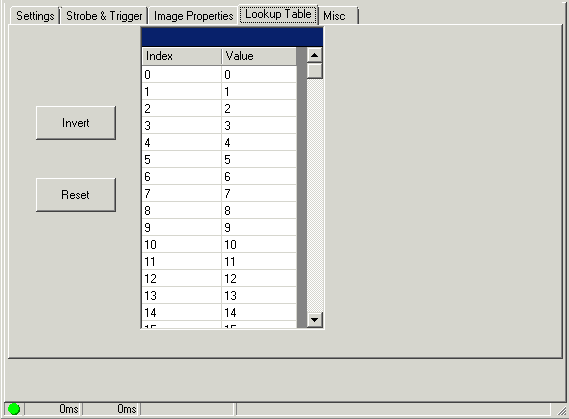
Click inside the Value cell to change the value of any incoming grey value. Click Invert to swap dark values for light value and light values for dark values. Click Reset to set all values to their identity defaults.
Use the FireWire tab to view basic information about the connected FireWire camera, and allow the user to change camera bandwidth properties as well as give the user the ability to read and write to 1394 DCAM registers. The following figure shows an example FireWire tab:
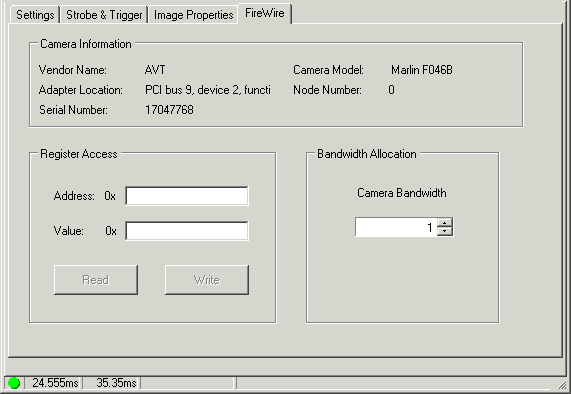
The tab displays the following information regarding the camera:
| Information | Description |
| VendorID | The vendor for this camera |
| Camera Model | The camera model |
| AdapterLocation | The adapter location string of the host controller. |
| NodeNumber | The 6-bit node number that identifies this camera |
| Serial Number | The 10-bit bus number that identifies the 1394 bus to which this camera is connected. |
Use the following to control register access and bandwidth allocation:
| Control | Description |
| SetRegisterAccess | Write to the 1394DCAM register with the given address. |
| Value | The 32-bit value to write to the register at the given address. |
Lets you limit the amount of bandwidth used by an individual IEEE 1394 DCAM camera. You can connect more than one IEEE 1394 DCAM to a single IEEE 1394 adapter. By using this class, you can limit the amount of bandwidth used by individual cameras. Values range from 0.0, which directs the camera to consume as little bandwidth as possible, to 1.0, which directs the camera not to restrict its use of bandwidth. |
Use the GigE tab to view basic information about the connected GigE Vision camera and modify various GigE Vision properties. Refer to the GigE Vision Cameras User's Guide for more information. The following figure shows an example GigE tab:
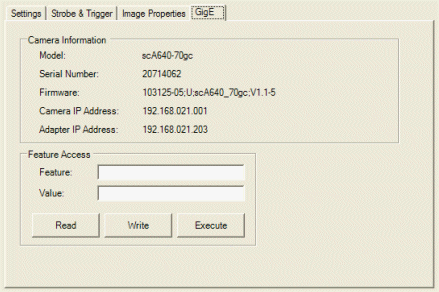
The Camera Information section of the tab presents basic information regarding the camera and adapter you are using. Use the Feature Access area to examine and modify the XML-defined properties for the GigE Vision camera you are using.
- Enter the XML node name in the Feature field.
- Clicking GetFeature will read the value of the node and update the Value field.
- Clicking [M:Cognex.VisionPro.ICogGigEAccess.SetFeature(System.String, System.String)] will attempt to write whatever value is in the Value field to the node.
- Clicking ExecuteCommand will attempt to execute the command feature specified in the Feature field.
QuickBuild will display a dialog box for any errors that occur, such an invalid entry for the Feature or Value fields. Refer to the documentation for the GigE Vision camera you are using for a list of supported XML nodes.
Use the Misc tab to select a subsampling rate and reduce the image size, which can result in faster acquisitions.
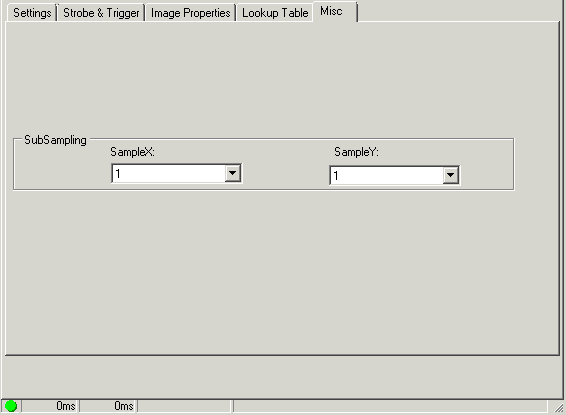
Specify a subsampling ratio for SampleX and SampleY. For example, setting SampleX to 8 specifies an 8:1 reduction in the number of pixels along the x-axis.