This topic contains the following sections.
The CogToolBlock edit control provides a graphic user interface to the CogToolBlock, which you can use to increase the application structure visibility in complex applications. See the topic Using a CogToolBlock for the advantages and features a CogToolBlock offers.
The following figure shows the CogToolBlock edit control:
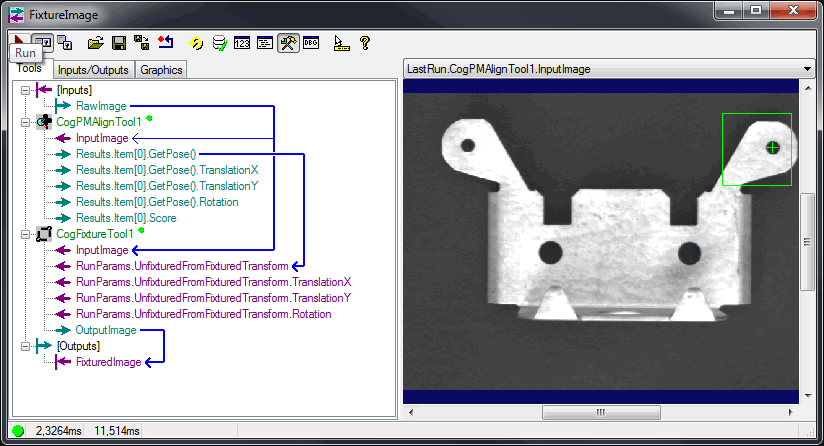
The edit control offers the following features:
- A row of control buttons at the top left provide access to the most common operations.
- A set of tabs to display the vision tools contained within the CogToolBlock, the Inputs and Outputs terminals this CogToolBlock will use and the Graphics tab to toggle displaying shared graphics on the pictures.
- An image display window displays all the images generated by the vision tools contained within the CogToolBlock.

The following table describes the functions of the buttons at the top left of the control.
| Button | Description |
 | Run the vision tools and scripts contained within the CogToolBlock. |
 | Opens the local tool display window, which can display the LastRun images generated by the vision tools contained by the CogToolBlock. |
 | Opens one or more floating tool display windows. You can display the LastRun images generated by the vision tools contained by the CogToolBlock. Unlike the local tool display, you can resize or move the position of the floating tool display window. |
 | Loads a VisionPro persistence (.vpp) file, which contains a set of saved properties for this vision tool object type. Loading a persistence file for another object type throws an error and the load is unsuccessful. |
 | Saves the current properties of the underlying tool to a VisionPro persistence file. You have the option to save either the entire tool or the tool without its images or results. |
 | Saves the current properties of the underlying tool to a new VisionPro persistence file. |
 | Resets the underlying tool to a default state. |
 | Run the vision tools and scripts contained by the CogToolBlock in a continuous loop. Click this button again to stop the looping. |
 | Open the Verification control for performing image verification. |
 | Open a results window that displays the status of each tool within the tool group. |
 | Open a scripting window for creating a simple or advanced script. |
 | Open a vision tool palette for selecting a vision tool you want to add to the CogToolBlock. |
 | Open the object editor window. This window exposes all of the CogToolBlock properties and the properties of each tool it contains. |
 | Enables or disables the display of tooltips for individual items in this edit control. |
 | Access the VisionPro Software Documentation. |
Use the Tools tab to define the collection of Tools contained within this CogToolBlock:
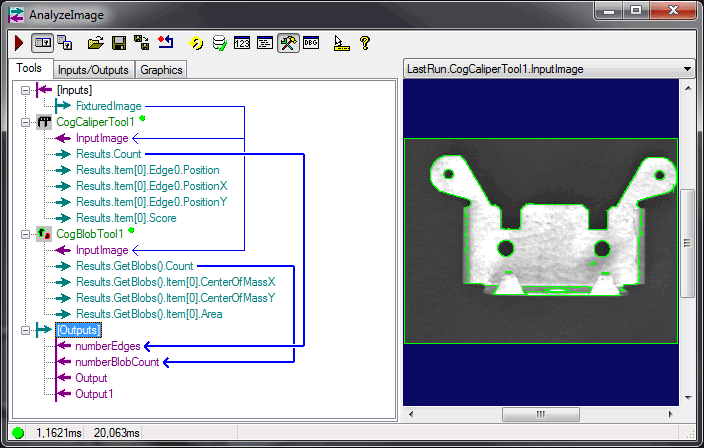
Use the drag-and-drop interface of the edit control to define the relationship between the vision tools and which results and parameters connect to the CogToolBlock Output terminals.
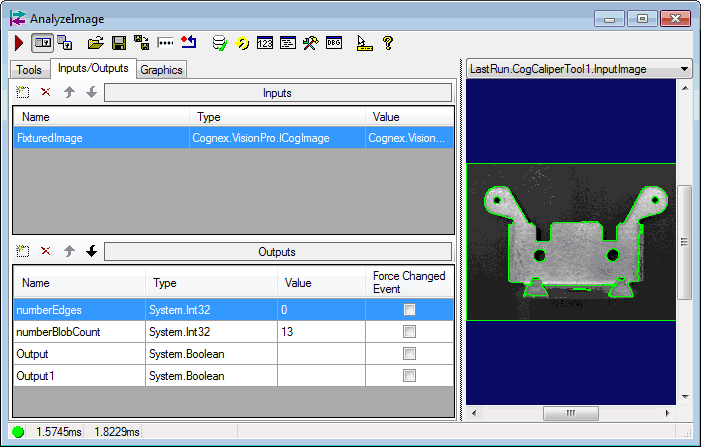
Use the Inputs/Outputs tab to define the collection of Inputs and Outputs terminals defined for this CogToolBlock:
To add a new Input or Output terminal to the CogToolBlock, use these buttons:
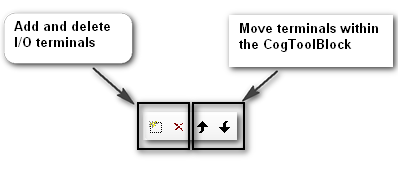
To add a new terminal, click the Add button and choose from the following options:
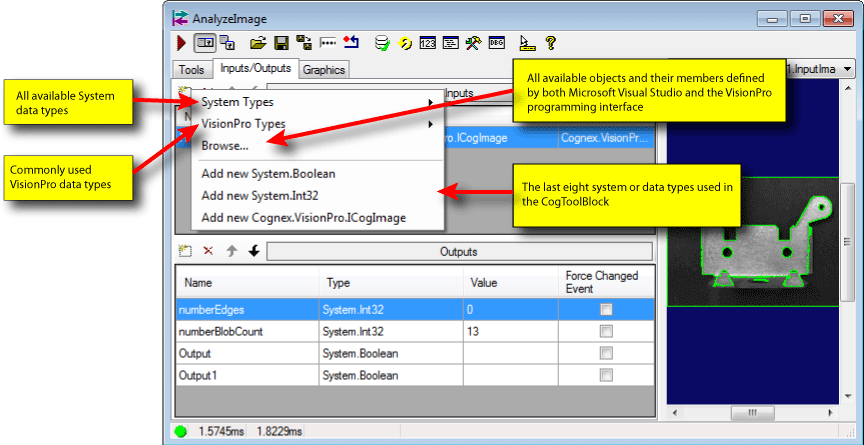
The Inputs/Outputs tab shows the name, type, and current value for each terminal.
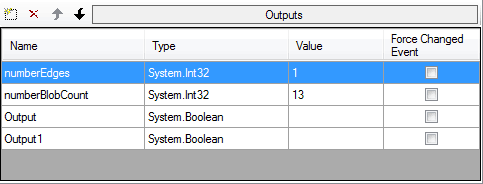
For discrete data types, you can click the Value field and change the current setting. This can be useful in testing the results of your application when specific Input or Output terminals have different values.
The Force Changed Event checkbox, when enabled, allows you to force a changed event for that output terminal after each execution of the tool block. This will cause any tool block outputs linked to the data channel of a CogDataAnalysis tool to update the channel every time the vision tools in the tool block execute, and prevent the CogDataAnalysis tool from generating a reject result if the data channel receives the same value as the previous execution while the Reject if Channels Not Updated checkbox is enabled. See the topic Data Analysis Tool for more details on the Data Analysis tool.
Click the Verification icon to open the Verification control, which you can use to perform image verification. The following figure shows an empty Verification control:
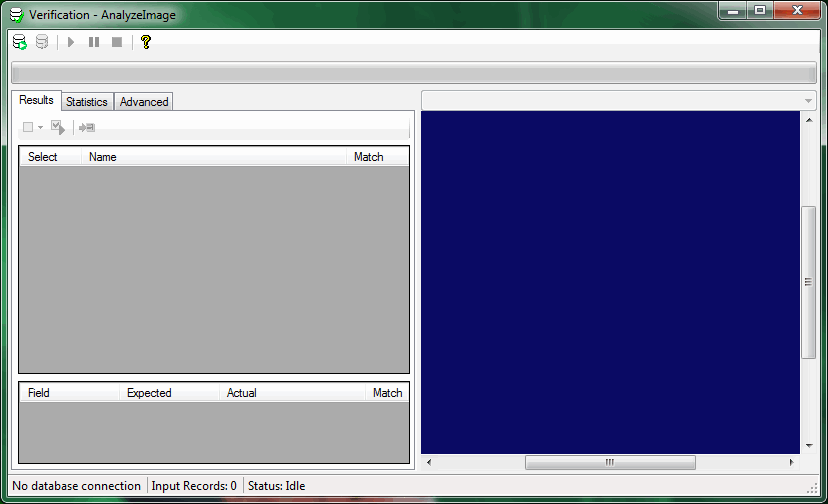
For details on how to use the Verification control, see the topic Using a CogToolBlock. See the topic Verifying an Image Database.
The Graphics tab is used to display shared graphics made by the tools on the pictures inspected
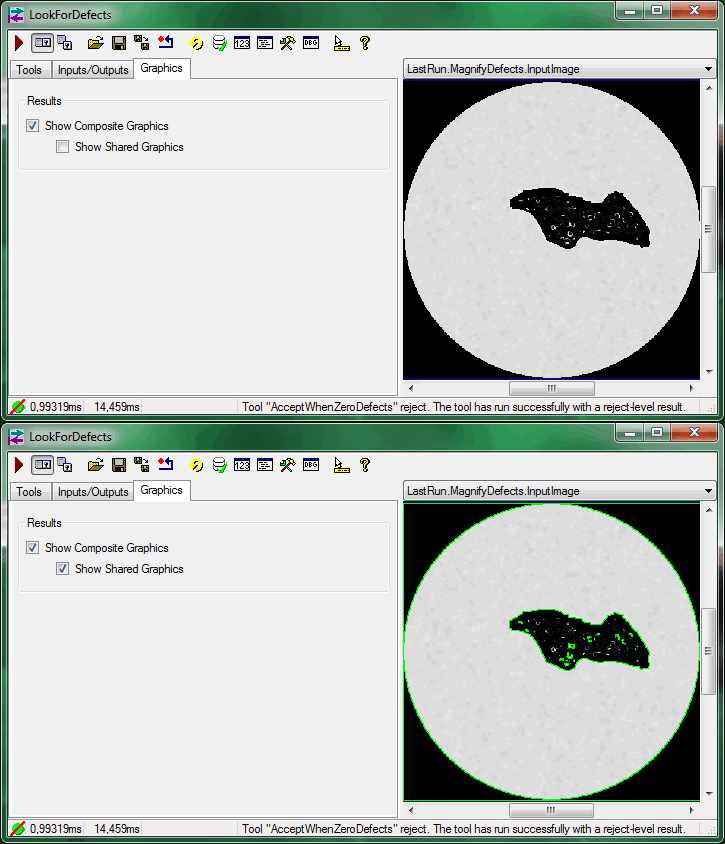
For details on how to use the Graphics Tab, see the topic Using a CogToolBlock.