This topic contains the following sections.
The PixelMap tool edit control provides a graphic user interface to the CogPixelMapTool, which lets you map define pixel value mappings between an input image and an output image.
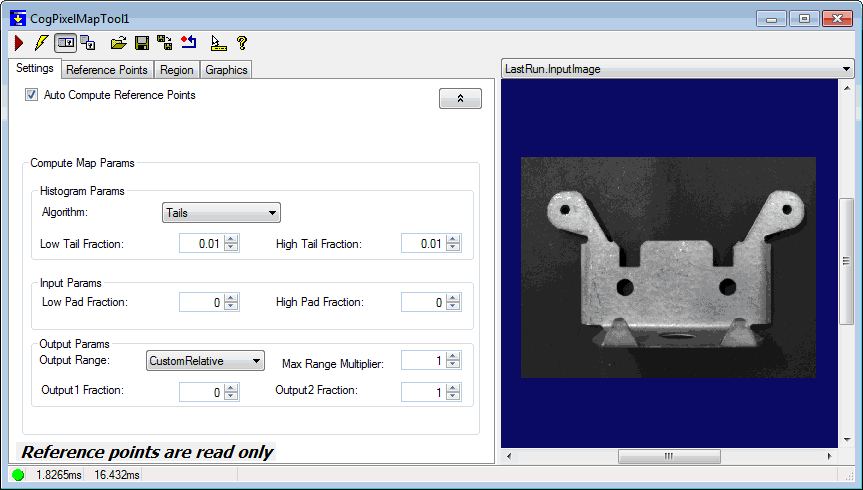
The following figure shows the PixelMap tool edit control:
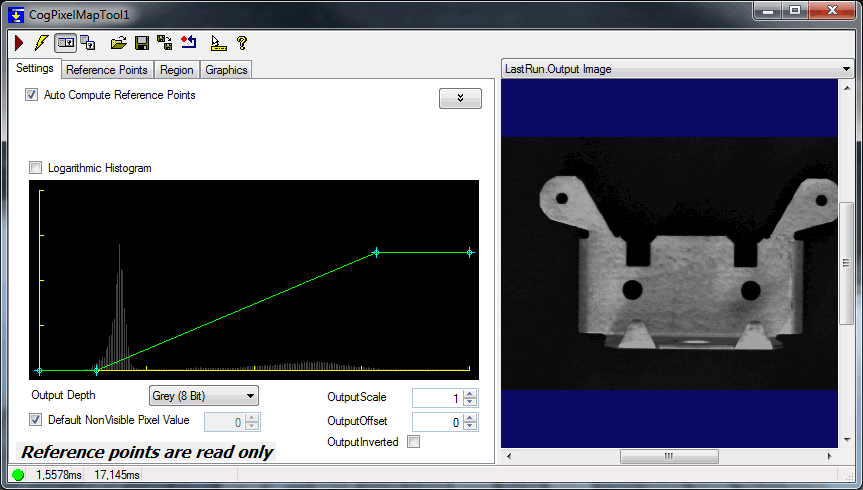
The edit control offers the following features:
- A row of control buttons at the top left provide access to the most common operations.
- A set of tabs organized by function.
- An image display window that you can use to view input images, output images, histograms, and a graphical representation of the mapping. .

The following table describes the functions of the buttons at the top left of the control.
| Button | Description |
 | Run the PixelMap tool. You must have a trained pattern, an input image, and specified run parameters. The tool searches for the trained pattern in the input image. You may constrain the pattern search to a search region within the input image. |
 | Toggles electric mode. When selected, the PixelMap tool runs automatically if certain parameters have changed. These parameters are indicated by electric bolt icons that appear when the tool is in electric mode. |
 | Opens the local tool display window, which can display the Current.InputImage, Current.TrainImage, or LastRun.InputImage buffer. |
 | Opens one or more floating tool display windows. You can display the Current.InputImage, Current.TrainImage, or LastRun.InputImage buffer. Unlike the local tool display, you can resize or move the position of the floating tool display window. |
 | Loads a VisionPro persistence (.vpp) file, which contains a set of saved properties for this vision tool object type. Loading a persistence file for another object type throws an error and the load is unsuccessful. |
 | Saves the current properties of the underlying tool to a VisionPro persistence file. You have the option to save either the entire tool or the tool without its images or results. |
 | Saves the current properties of the underlying tool to a new VisionPro persistence file. |
 | Resets the underlying tool to a default state. |
 | Enables or disables the display of tooltips for individual items in this edit control. |
 | Access the VisionPro Software Documentation. |
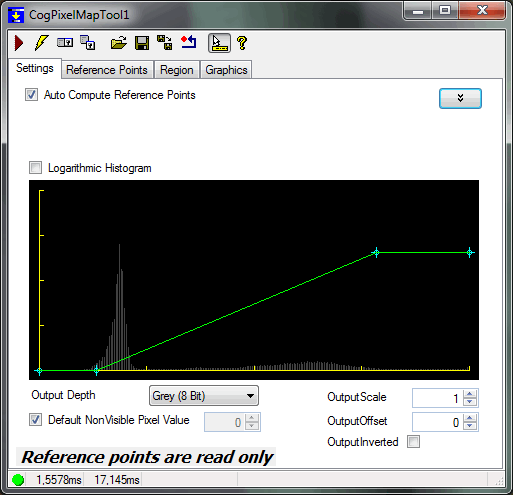
You use the controls in the Settings tab to create, move, delete, and view the reference points that define this tool's pixel mapping function. By default, Auto Compute Reference Points is checked and the tool generates a mapping by itself. If you want to change the mapping, uncheck the checkbox.
If Auto Compute Reference Points is unchecked, you can click and drag any reference point graphic (a small cross) to move a reference point. The mapping function defined by the reference points is shown in blue while the mapping function, as modified by the output scale, offset, and inversion is shown in green. The control enforces the requirement that the mapping function be monotonically increasing (each successive reference point must have an X-value greater than or equal to the preceding point).
| Parameter | Description |
| AutoComputeEnabled | Default is true. When the "Auto Compute Reference Points" is checked, ComputeMapping() is called as the user modifies any parameter that affect the reference points. This is not done when "Auto Compute Reference Points" is not checked. |
Advanced button  | Opens the advanced features (Compute Map Parameters). You can choose how the mapping is created and define the Output Range of the Output Parameters. Some of the advanced properties can be modified only if the Auto Compute Reference Points checkbox is unchecked. |
Logarithmic Histogram | If checked, the histogram of input image pixel values is displayed using a logarithmic scale for the Y-axis. Using the logarithmic display prevents the presence of a small number of bins with large numbers of samples from obscuring bins with small numbers of samples, as shown below: 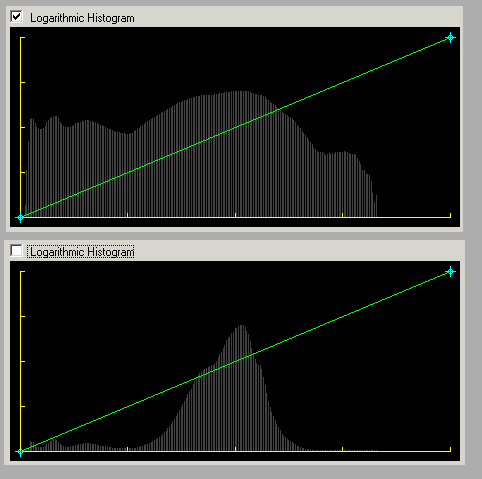 |
| OutputDepth | Sets the pixel depth of the output image. You can specify an 8-bit greyscale image (Grey (8 Bit)) as well as a 16-bit greyscale image with 8, 10, 12, 14, or 16 bits of actual image data. The Output image depth must be less or equal to the input image depth. |
| UseDefaultNonVisiblePixelValue | You can set the default value for pixels that are missing (in case of using a DS1100, for example). The default non-visible pixel value (output1) is the first point. Otherwise it is user specified. |
Sets the linear scale factor to apply to the output of the mapping function. Note: This property should be used at runtime for scaling, instead of Max Range Multiplier, because it multiplies all reference points. | |
| OutputOffset | Sets the offset value to apply to the output of the mapping function. |
| OutputInverted | If checked, the output of the mapping function is inverted. |
If the Auto Compute Reference Points is uncheked, you can use these controls to define multiple reference points with a single click.

| Parameter | Description |
| ComputeMapping | The Compute button directly calls the ComputeMapping() function once whenever it is clicked. |
Creates a linear mapping function with the specified number of intermediate reference points. The created mapping is not useful as-is; this button allows you to create multiple reference points with a single click, then manually position the points as desired. | |
ResetQuantized | Creates a quantized (stairstepped) mapping function with the specified number of steps. The created mapping is not useful as-is; this button allows you to create multiple reference points with a single click, then manually position the points as desired. |
|
Advanced button | Opens the advanced features (Compute Map Parameters). Some of these properties can be modified only if the Auto Compute Reference Points checkbox is unchecked. |
Display the Compute Map Parameters section with the button in the top right corner, left from the image display.
With the CogPixelMapComputeParams, you can fine-tune the reference points that are generated when ComputeMapping() is called (when the user clicks on the compute button or when the Auto Compute Reference Points is checked).
| Parameter | Description |
Specifies the algorithm used to compute the input range that will be mapped to the output range.
| |
| LowTailFraction | The Low tail fraction is in the range [0, 1]. Used only if the Algorithm is Tails. The LowTailFraction and the HighTailFraction when added must be less or equal to 1. As one property increases the other will decrease. |
| HighTailFraction | The High tail fraction is in the range [0, 1]. Used only if the Algorithm is Tails. The LowTailFraction and the HighTailFraction when added must be less or equal to 1. As one property increases the other will decrease. |
The fraction of the initially-computed input range added to the initially-computed value of first map value. This value is typically negative. 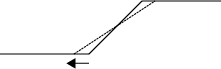 | |
The fraction of the initially-computed input range added to the initially-computed value of second map value. This value is typically positive. 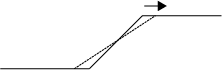 | |
| OutputRange | Specifies the output range used in the mapping. |
| MaxRangeMultiplier |
Used to convert input pixels to output pixels, where the maximum pixel value is clipped to the maximum value allowed by the image type. For example, if the output image is a 16-bit grey scale image, with an encoding of 10, the upper limit of the range cannot be greater than 1024. This setting is particularly useful when mapping from a CogImage16Range image to a CogImage16Grey image, which allows the full 16-bit range image to be used, instead of just a portion of the image.
Note: Only used when Auto Compute Reference Points is checked. |
| Output1Fraction | Specifies the first output pixel value used in the mapping. Used only if OutputRange is SpecifiedRelative. Range value is [0-1]. |
| Output2Fraction | Specifies the second output pixel value used in the mapping. Used only if OutputRange is SpecifiedRelative. Range value is [0-1]. |
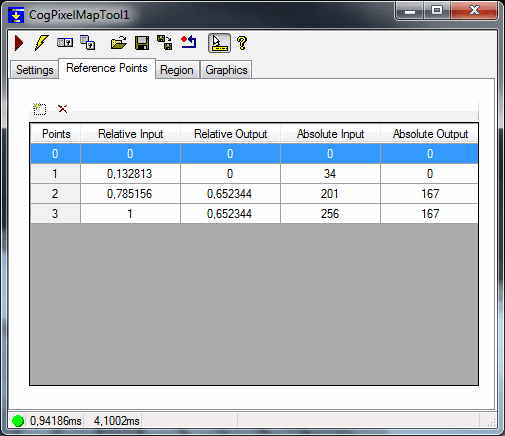
The Reference Points tab provides a table control that lets you view and set the exact value of all reference points.
To add or delete a reference point, use the two buttons at the top of the table. To modify a reference point, click on the value to modify and enter the new value.
Note: The Relative input and output values allow you to specify the reference points as a fraction of the range of pixel values in the image (input and output). If the input or output image type changes, the absolute (pixel value) values are adjusted automatically to conform to the relative values that you supply.
Note: The control enforces the requirement that the mapping function be monotonically increasing (each successive reference point must have an X-value greater than or equal to the preceding point).
| Feature | Description |
| SetReferencePointInput | Specifes the input value for a reference point as the fraction (0.0 through 1.0) of the range of pixel values supported by the input image type. |
| SetReferencePointOutput | Specifes the output value for a reference point as the fraction (0.0 through 1.0) of the range of pixel values supported by the output image type. |
| SetReferencePointInputAbsolute | Specifes the input value for a reference point as a pixel value. |
| SetReferencePointOutputAbsolute | Specifes the output value for a reference point as a pixel value. |
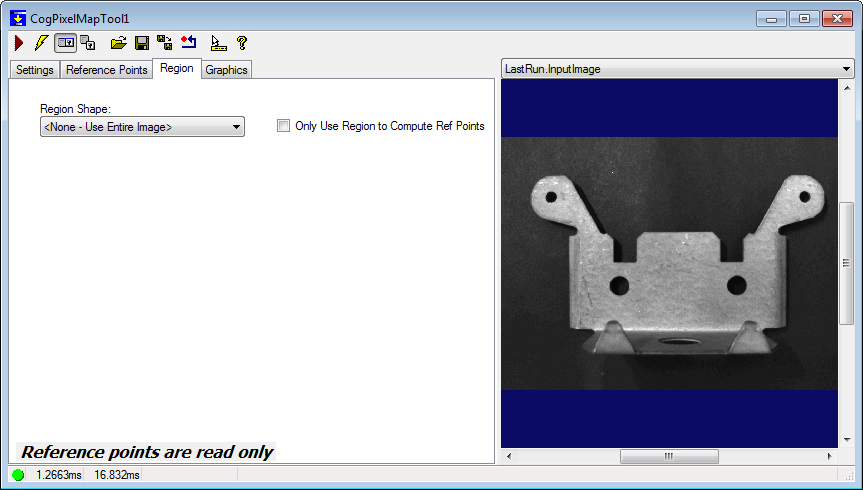
Use this tab to limit the operation of the pixel map tool to a region of the input image. If you specify a value other than None - Use Entire Image, the output image will be sized to the pixel-aligned bounding rectangle of the region that you specify.
| Feature | Description |
| Region | The the search region. Selecting "None=Use entire image" means that the entire Current.InputImage becomes the search region. The set of region-defining parameters depends on the selected Region Shape. |
OnlyUseRegionToComputeRefPoints | When checked (it is unchecked by default), reference points are computed using the contents of the region, and the mapping is applied to the whole image. The size of the output image is the same as the size of the input image. When unchecked, the reference points are computed using the content of the region, and the size of the output image is the same as the size of the region. If the Region is set to "None=Use entire image" this property is ignored. Note: If Auto Compute Reference Points is unchecked on the Settings tab, this parameter is disabled. |
| SelectedSpaceName | The coordinate space in which the search region is interpreted. For more information, see Coordinate Space Names. |
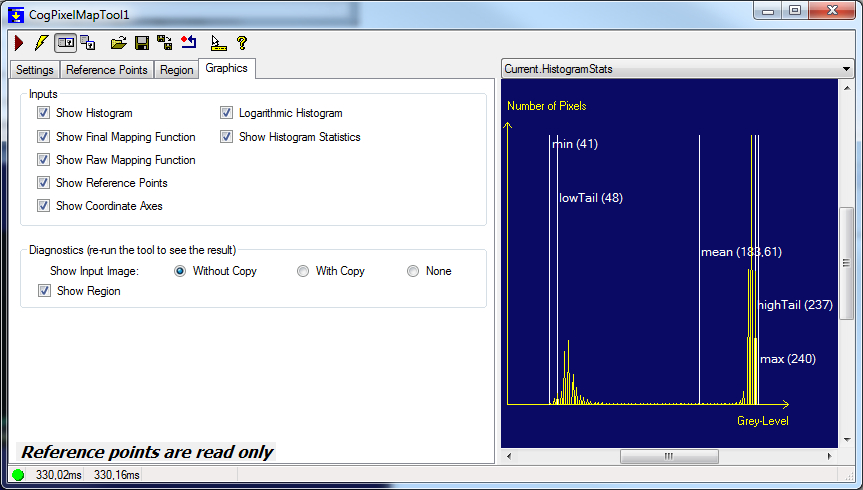
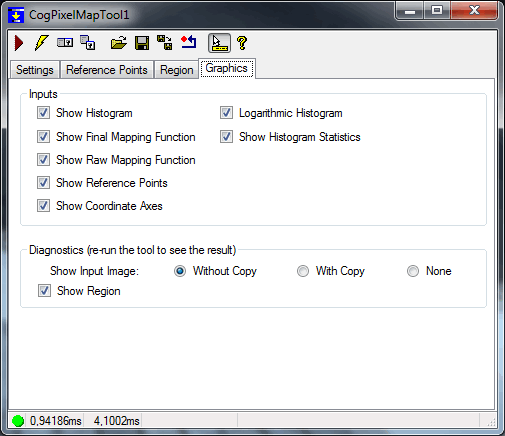
The Graphics tab lets you configure the graphics and diagnostics displayed by the tool.
| Parameter | Description |
Inputs | Use these controls to specify what graphics are added to the Current.Graphic Image display: 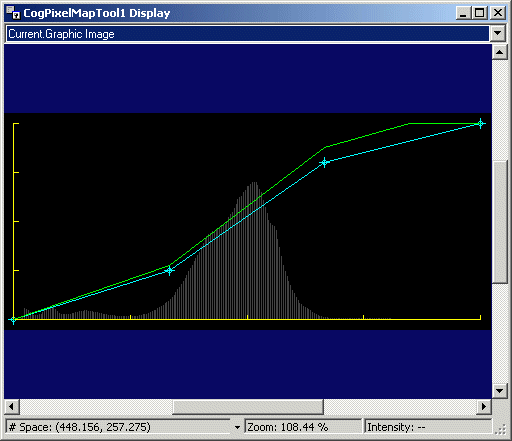
|
Diagnostics | The Show Input Image option buttons let you specify whether a reference to the input image or a deep copy of the input image is displayed for the LastRun.InputImage. You can also specify that no image be displayed.
|