This topic contains the following sections.
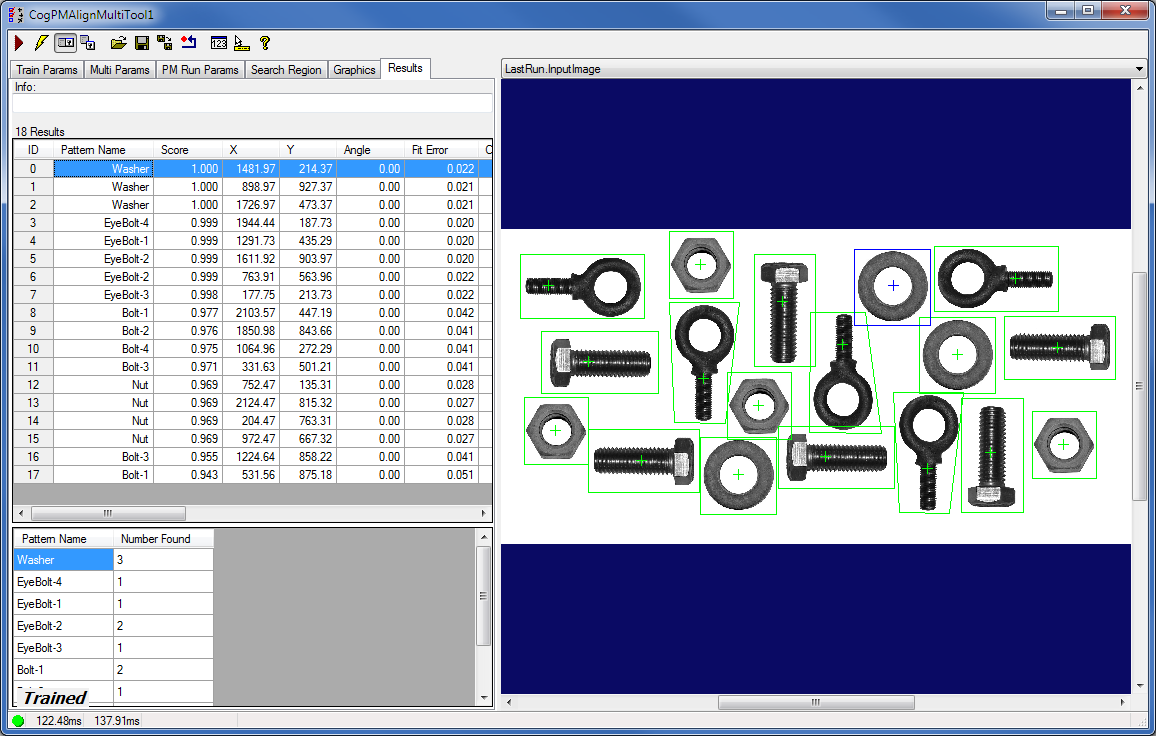
The PMAlignMulti edit control provides a graphical user interface to the CogPMAlignMultiTool and its components, which allows you to locate instances of multiple patterns in a single runtime image. You can configure the CogPMAlignMultiTool by adding patterns, specifying a region of interest, and selecting runtime parameters. For more information, see the Multi-Model PatMax Theory and Using a Multi-Model PatMax Tool topics. The following figure shows an example PMAlignMulti edit control:
The PMAlignMulti edit control includes the following components:
- A row of control buttons at the top left.
- A tool display window that can display the PMAlignMulti tool image buffers: Current.PatternTrainImage, Current.InputImage, and LastRun.InputImage. These buffers contain the trained patterns, the search image in which the PMAlignMulti tool searches for the pattern, and the same image with the results of the search. Right click the tool display to bring up menu options that include zooming in or out of the image or showing a pixel or subpixel grid.
- A set of tabs organized by function. These include the patterns you added to the tool and (PMAlign) training parameters for the patterns, Multi-Model specific parameters, parameter settings for the search region of interest, display settings for the tool displays, and search results. Pressing the Control + Tab keys scrolls through the set of tabs.
- A status bar at the bottom left of the control. A green circle indicates that the tool ran successfully; red means the tool ran unsuccessfully. The status bar also displays the time to run the tool and any error codes or messages. The first time that the status bar displays is the raw tool execution time. The second includes the time needed to update the edit control.

The following table describes the functions of the buttons at the top left of the control.
| Button | Description |
 | Runs the PMAlignMulti tool. You must have at least one runnable pattern in the queue, an input image, and specified run parameters. PMAlignMulti searches for the patterns in the queue in the input image. You may constrain the pattern search to a search region within the input image. |
 | Toggles electric mode. When selected, the PMAlignMulti tool runs automatically if certain parameters have changed. These parameters are indicated by electric bolt icons that appear when the tool is in electric mode. |
 | Opens the local tool display window, which can display the Current.InputImage, Current.PatternTrainImage, or LastRun.InputImage buffer. |
 | Opens one or more floating tool display windows. You can display the Current.InputImage, Current.PatternTrainImage, or LastRun.InputImage buffer. Unlike the local tool display, you can resize or move the position of the floating tool display window. |
 | Loads a VisionPro persistence (.vpp) file, which contains a set of saved properties for this vision tool object type. Loading a persistence file for another object type throws an error and the load is unsuccessful. For more information about VisionPro persistence features, see the topic Persistence in VisionPro. |
 | Saves the current properties of the underlying tool to a VisionPro persistence file. You have the option to save either the entire tool or the tool without its images or results. |
 | Saves the current properties of the underlying tool to a new VisionPro persistence file. |
 | Resets the underlying tool to a default state. |
 | Opens a new, separate results window, allowing you to view run results without turning to the Results tab. |
 | Enables or disables the display of tooltips for individual items in this edit control. |
 | Access the VisionPro Software Documentation. |
The PMAlignMulti edit control has three image buffers. One of the buffers uses the underlying PMAlignMulti tool's InputImage; the second buffer displays the training image for the selected pattern; the third buffer displays the last input image that the PMAlignMulti tool ran on and the results of that search. All three buffers can be shown in both the local and floating tool display windows.
- The Current.InputImage provides the input images to the PMAlignMulti tool.
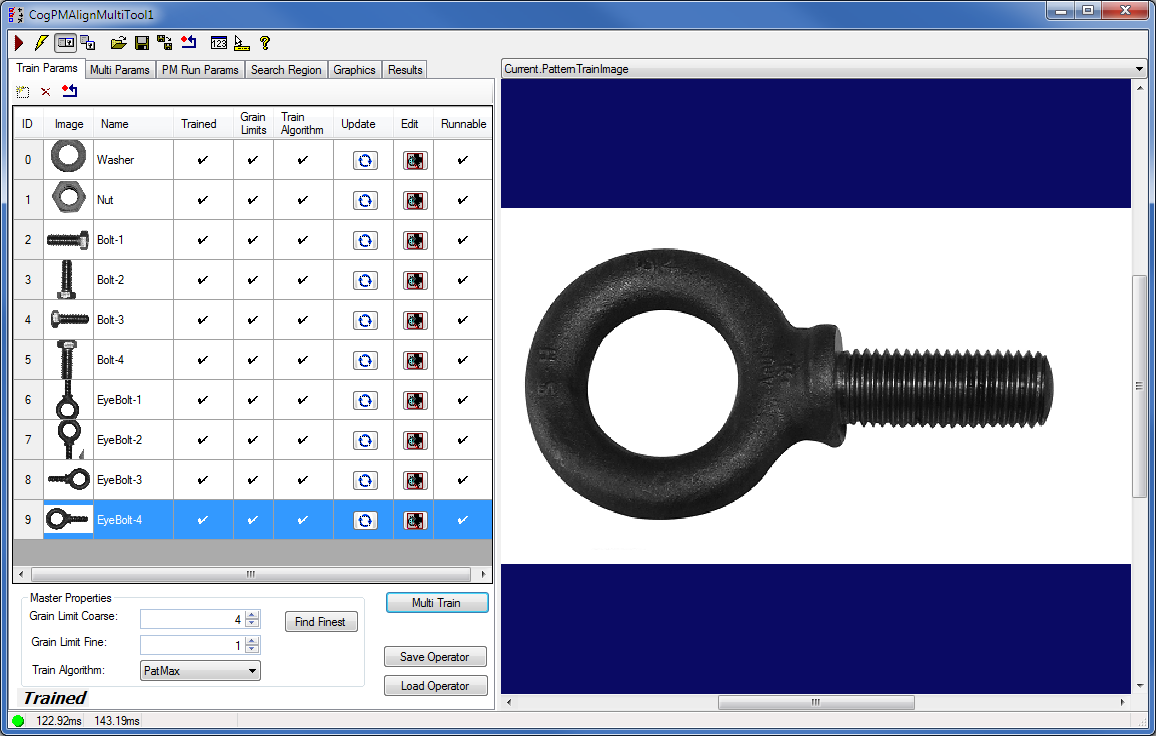
- The Current.PatternTrainImage contains the training image for the pattern you select on the Train Params tab.
- The LastRun.InputImage buffer displays the last image on which the tool most recently ran. Use the Graphics tab to highlight the search area and the results of the search.
When you run the PMAlignMulti tool, the tool searches the Current.InputImage for the runnable patterns, and shows the results of this search on the Results tab.
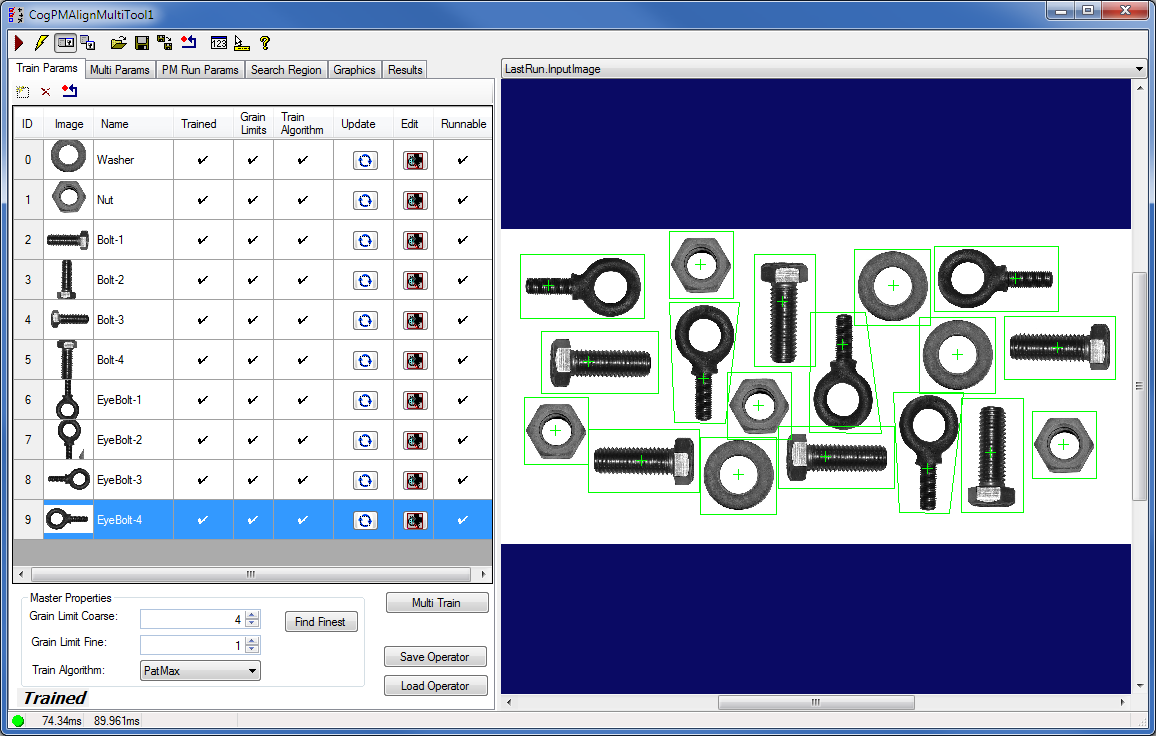
Use the Train Params tab to add and configure patterns for the Multi-Model, set training parameters for the Multi-Model, and to train the Multi-Model.
| Feature | Description |
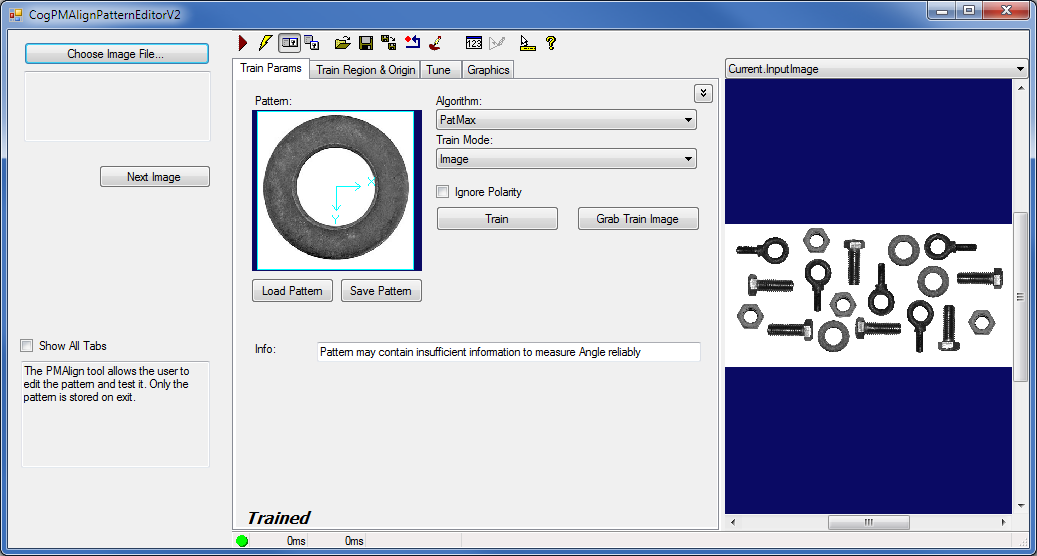
| Patterns Grid | Allows you to add, delete, or modify patterns (Pattern) in the PMAlignMulti tool. An ID number specifies the index of the pattern in the collection, the training image of the pattern is displayed as a thumbnail, and you can specify a custom name for the pattern (which does not have to be unique but it is recommended to be unique). Check marks mark whether an added pattern is trained, its granularity limits match those of the Multi-Model, its training algorithm matches that of the Multi-Model, and it is runnable. If the pattern is runnable, it can be used in the queue, that is, the pattern has been trained in the Multi-Model tool and can be located at run time. Use the Update button to quickly apply to a pattern the granularity and algorithm settings specified in the Master Properties for the Multi-Model. After copying the Multi-Model operator properties to the pattern, it retrains the pattern. Note that the update operation will also set the GrainLimitAutoSelect to false and will cause the PMAlignMulti tool to become untrained. Click the Edit button to configure and train the associated pattern in the pattern editor. |
| GrainLimitCoarse | For the Multi-Model, it specifies the coarse grain limit that must be used by all the patterns in the operator collection. |
| GrainLimitFine | For the Multi-Model, it specifies the fine grain limit that must be used by all the patterns in the operator collection. |
| TrainAlgorithm | For the Multi-Model, it specifies the train algorithm that must be used by all the patterns in the operator collection. |
| Find Finest | If the grain limits of some patterns do not match, it is recommended that the Multi-Model tool use the finest grain limits. The Find Finest button is provided to look through all of the patterns and update the Multi-Model operator properties with the finest values. |
| Multi Train button | Allows you to train the Multi-Model tool. The trained state is shown in bold on all tabs of the control. The patterns that have been trained will have a check mark in the Runnable column. If you modify the grain limits or the train algorithm, the tool will become untrained and the patterns will have an x in the Runnable column. |
| Save/Load Operator buttons | Allow you to save the Multi-Model operator and restore it. Note that in addition to the properties on the Train Params tab, the Search Order Queue and the ResultStatisticWindowLength are also saved and restored because they are properties of the CogPMAlignMulti class. If the Multi-Model was saved trained, it is restored trained. |
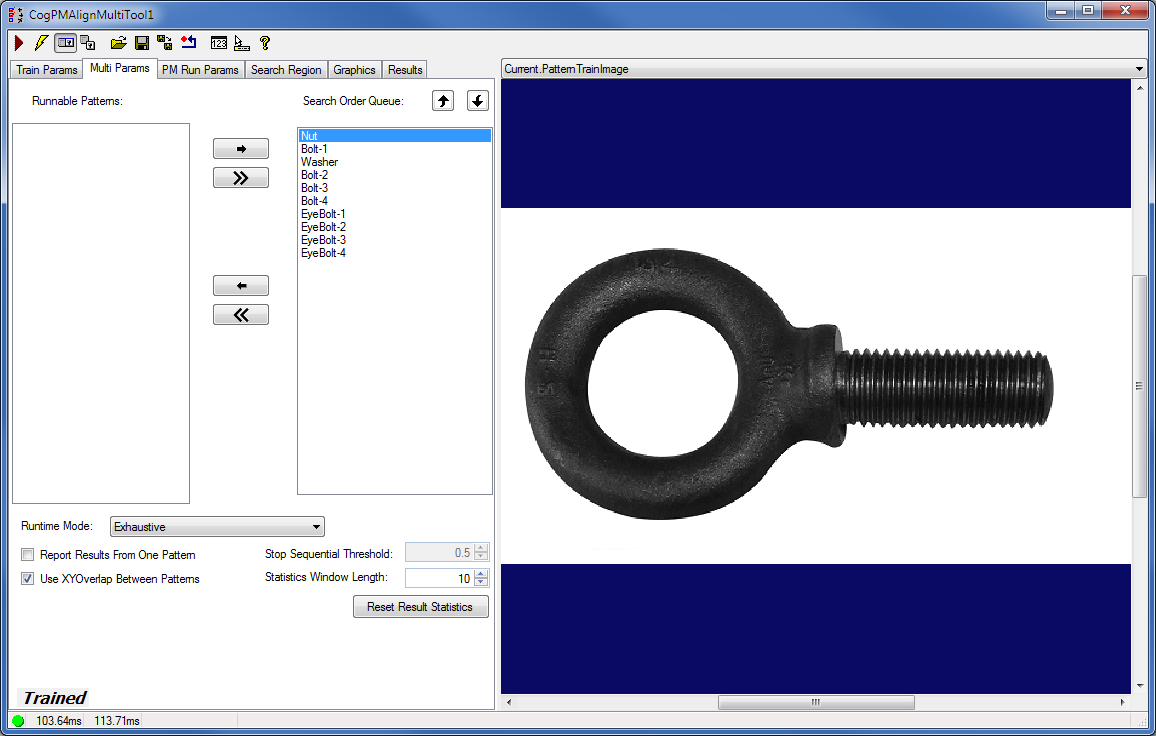
Use the Multi Params tab to add and remove the patterns from the Search Order Queue, to re-order the patterns in the Search Order Queue, and to adjust the Multi-Model parameters. For more information on the Multi-Model run-time parameters, see the Run-Time Parameters Detailed section.
| Feature | Description |
| Runnable Patterns | The list of patterns that are runnable and Multi-Model trained. |
| Search Order Queue |
The list of patterns that are in the Search Order Queue. The patterns can be ordered using the up and down arrow buttons. The patterns can be added to the queue or removed from the queue using the following buttons:
|
| RuntimeMode | The run-time mode. For more information, see the Run-Time Parameters Detailed section. |
| ReportResultsFromOnePatternOnly | A Boolean to choose whether the results returned are from a single pattern. For more information, see the Run-Time Parameters Detailed section. |
| UseXYOverlapBetweenPatterns | A Boolean whether to use the XYOverlap of CogPMAlignRunParams between patterns. If true, the overlap value from the CogPMAlignRunParams is used to discard overlapping instances of different patterns. Otherwise, the overlap value is only used to discard overlapping instances of a single pattern. |
| StopSequentialThreshold | This property is only used in Sequential search as one of the stopping condition criteria. Sequential searches will stop when the total number of found instances (with a score at or above this threshold) from a single pattern meets or exceeds the ApproximateNumberToFind. It does not alter the PatMax search algorithm. The value must be greater than or equal to the AcceptThreshold, otherwise a run-time error will be reported. For more information, see the Run-Time Parameters Detailed section. |
| Statistics Window Length | ResultStatisticWindowLength is the window over which statistic data is collected. The data is used in SequentialMostSuccessful run-time mode to re-order the patterns in the queue. |
| ResetResultStatistics | Resets the result statistics window. It only affects the SequentialMostSuccessful mode. |
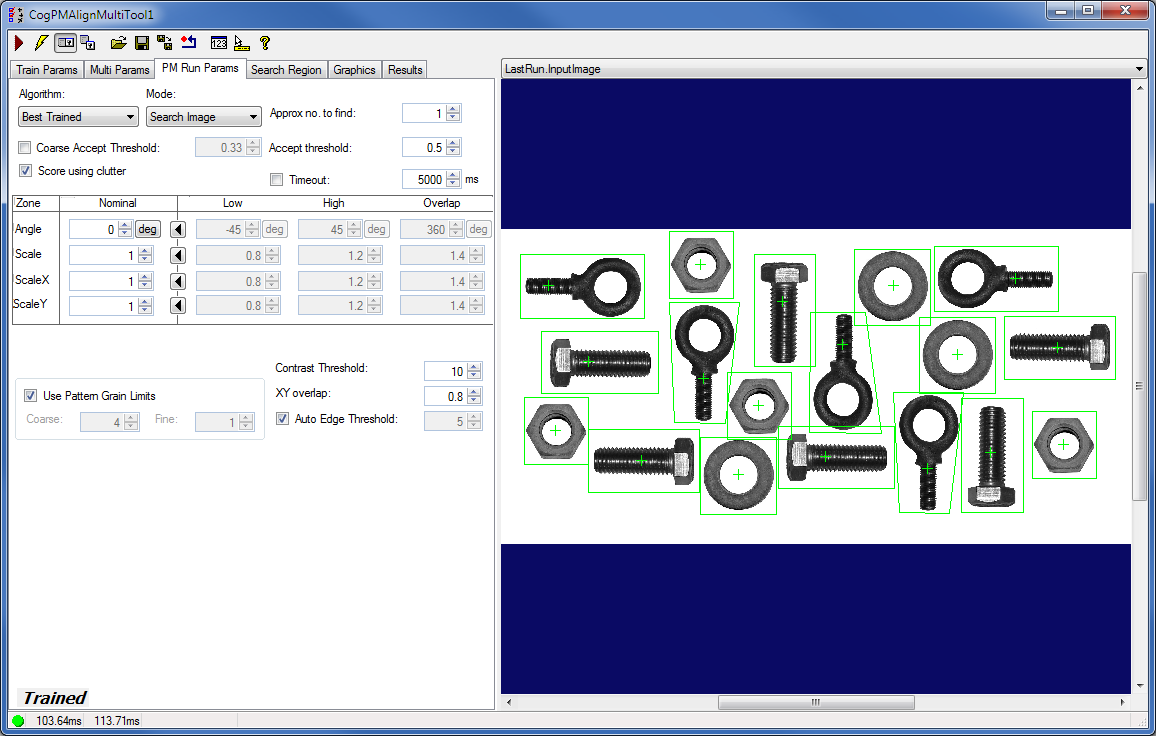
The PM Run Params tab is based on the Run Params tab found in the CogPMAlignEditV2 control. Some of the items are not present because the Multi-Model tool supports only the PatMax and PatQuick algorithms.
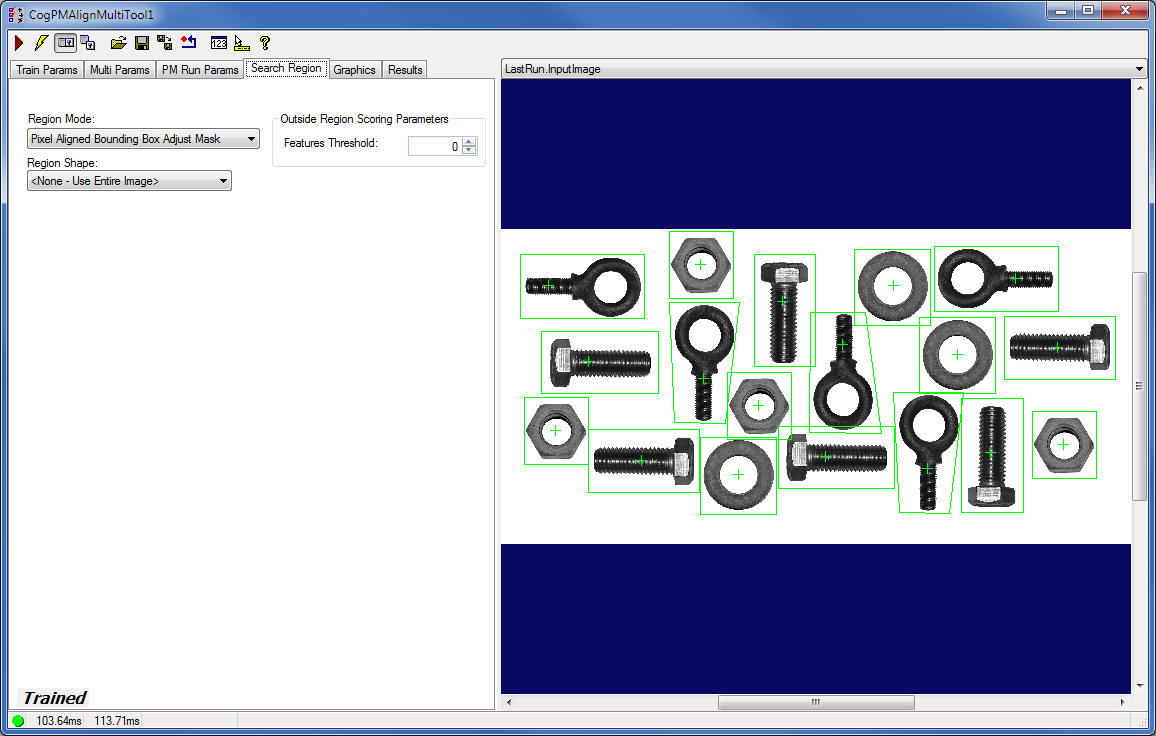
The Search Region tab is a copy of the Search Region tab found in the CogPMAlignEditV2 control.
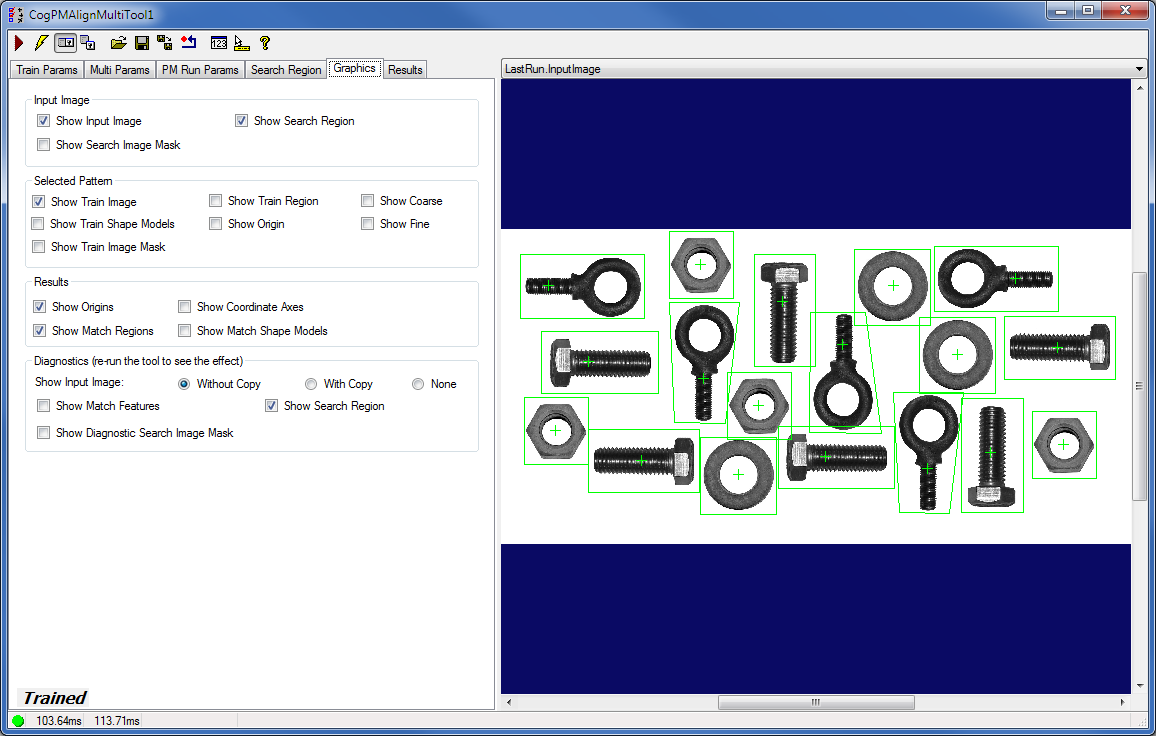
The Graphics tab is similar to but slightly different from the Graphics tab found in the CogPMAlignEditV2 control. It contains similar options but the Train Features graphics are applied to the selected pattern. The new Current.PatternTrainImage record is added to show the train graphics of the selected pattern.
| Feature | Description |
Input image display | You can show these features in the Current.InputImage buffer:
|
| Selected pattern display |
You can show these features in the Current.PatternTrainImage buffer:
|
Results graphics display | You can show these features in the LastRun.InputImage buffer, which contains the image that the PMAlignMulti tool last searched, and the results of that search. Uses the CreateResultGraphics method to generate these results.
|
Diagnostics display | Displays the following features in the LastRun.InputImage buffer. Uses the CreateResultGraphics method to generate these results.
The Show Input Image option buttons let you specify whether a reference to the input image or a deep copy of the input image is displayed for the LastRun.InputImage. You can also specify that no image be displayed. |