This topic contains the following sections.
You use a Blob tool to examine a region of an image and locate features that are composed of pixels within a limited range of grey values and whose shape is often unpredictable. The process of detecting and analyzing these features, or blobs, is called blob analysis. You use blob analysis to provide information about the presence, number, location, shape, and orientation of certain features within an image. You can also use blob analysis to discover how features in an image relate to one another topologically.
This section defines some terms and concepts used in this topic.
| Term | Definition |
| morphology | Process of altering the shapes of regions by applying arithmetic operators to neighborhoods of pixels within an image. |
| relative thresholding | Defining a threshold value relative to the distribution of pixel values within an image. |
| run-length encoding (RLE) | Data-compression technique that compresses runs of bytes with the same value by storing them as a run length and a value. |
| second moment of inertia | Tendency of a stationary body to resist rotation about an axis. The moment of inertia of an object about a particular axis is computed by multiplying the mass of each part of the object times the square of the distance of that part from the given axis. |
| segmentation | Division of image pixels into object pixels and background pixels. Segmentation is an essential part of blob analysis. |
| thresholding | Segmentation performed by picking a simple threshold value; pixels on one side of the threshold are object pixels, those on the other side are background pixels. Also called absolute thresholding. |
| topology | Method of describing the spatial relationships between regions. |
This section contains the following subsections.
- When to Choose Blob Analysis
- Image Segmentation
- Connectivity Analysis
- Properties of Blobs
- Geometric Properties
- Area
- Perimeter
- Center of Mass
- Second Moments of Inertia About the Principal Axes
- Geometric Extents
- Nongeometric Properties
- Blob Median
- Second Moments of Inertia about the Coordinate Axes
- Coordinate Extents
- Topological Properties
- Label
- Hierarchical Position
The simplest kinds of images that can be used for machine vision are simple two-dimensional shapes or blobs. Blob analysis is the detection and analysis of two-dimensional shapes within images.
Blob analysis can provide your application with information about the number, location, shape, and orientation of blobs within an image, and can also provide information about how blobs are topologically related to each other.
Blob analysis is not appropriate for every vision application. The following characteristics suggest that an application is suitable for blob analysis:
- Images of two-dimensional objects
- High-contrast images
- Presence/absence detection
- Requirements for scale and rotational invariance
On the other hand, applications with the characteristics listed below are probably not suitable for blob analysis:
- Low-contrast images
- Essential features within the scene cannot be represented using just two grey levels
- Requirement for pattern detection
This section contains the following subsections.
- Hard Thresholding
- Spatial Quantization Error
- Soft Thresholding and Pixel Weighting
- Relative Hard Thresholding
- Hard Dynamic Threshold
- Relative Soft Thresholding
- Pixel Mapping
- Threshold Image
Since blob analysis is fundamentally a process of analyzing the properties of a closed shape, before blob analysis can be performed on an image, the image must be segmented into those pixels that make up the blob being analyzed, and those pixels that are part of the background.
In general, all images that are used for blob analysis start out as grey-scale images of scenes. While it might be easy for a human observer to identify blobs or objects within the scene, before blob analysis can analyze the image, each pixel in the image must be assigned as an object pixel or a background pixel. Typically object pixels are assigned a value of 1 while background pixels are assigned a value of 0.
A number of techniques can be used to segment images into object pixels and background pixels. The following sections describe these techniques.
Hard Thresholding
The simplest technique for segmenting an image is to pick a threshold pixel value. All pixels with grey-scale values below the threshold are assigned as object pixels, while all pixels with values above the threshold are assigned as background pixels. This technique is called binary thresholding or hard thresholding.
Figure 1 shows an idealized scene, the application of a hard threshold, and the resulting segmentation of the image into object and background pixels. In the example below, a threshold value of 150 was used. All pixels with values greater than or equal to 150 are treated as background; all pixels with values less than 150 are treated as object.
Figure 1. Segmenting an image with a hard threshold

Spatial Quantization Error
Hard thresholding works well at segmenting images. But when blob analysis of the resulting segmented image is performed, the results of the analysis are often degraded by spatial quantization error.
Spatial quantization error results from the fact that the exact edge of an object in a scene almost never falls precisely at the boundary between two pixels in an image of that scene. The pixels in which the edge of the blob falls have some intermediate pixel value. Depending on how much of the object lies on the pixel, the pixel is counted as an object pixel or a background pixel. A very small change in the position of a blob can result in a large change in the reported position of the blob edge.
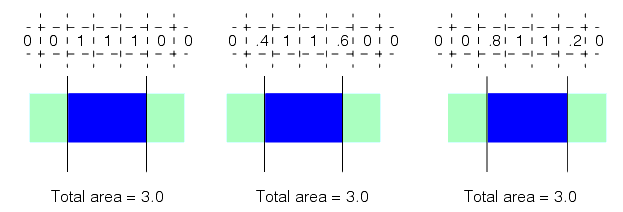
Figure 2 illustrates spatial quantization error. While the edge of the blob has only moved a tiny fraction of a pixel, the edge of the blob as reported by the hard thresholded image has moved an entire pixel width.
Figure 2. Spatial quantization error

Spatial quantization error can affect the size, perimeter, and location that are reported for a blob. The effect of spatial quantization error on a blob's area differs depending on the shape of the blob.
The examples shown in Figure 3 and Figure 4 assume that pixels covered less than 50 percent by the blob are assigned as background pixels while pixels covered 50 percent or more by the blob are assigned as object pixels.
Figure 3. Object position on a pixel grid affects reported area
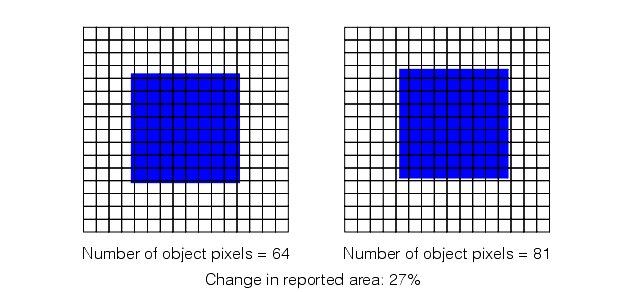
In both sets of figures, note how the number of pixels assigned as object pixels changes as a result of a slight shift in the blob's position on the pixel grid. In Figure 3, the blob is a square measuring 8.5x8.5 pixels. On the left side of the figure, the blob is centered on the grid so that the blob fully covers 64 pixels (the 8x8 square of pixels at the center of the grid) plus one quarter of each of the pixels that border the blob. Since the border pixels are less than 50% covered by the blob, they are not counted as object pixels and the total number of object pixels is 64. On the right side of the figure the blob is centered on the grid so that the blob fully covers 49 pixels (the 7x7 square of pixels at the center of the grid) plus three quarters of each of the pixels that border the blob. Since the border pixels are more than 50% covered by the blob, they are counted as object pixels, and the total number of object pixels is 81.
The severity of spatial quantization errors depends on the ratio of perimeter to area in the image. Note how much greater the effect of spatial quantization error becomes in Figure 4, where there is a greater ratio of perimeter to area.
Figure 4. Spatial quantization error increases with ratio of blob perimeter to blob area

Edges that are aligned with the pixel grid, such as those of rectangles, tend to produce systematic reinforcing errors, while other edges, such as those of round objects, tend to produce random canceling errors.
Soft Thresholding and Pixel Weighting
Spatial quantization error arises in images that have been segmented using a hard threshold because each pixel in the segmented image can assume one of only two values, object (1) or background (0). When the number of possible pixel values in a segmented image increases, pixels in the segmented image can represent the object, the background, or the edge between the object and background.
Increasing the number of possible values for pixels in a segmented image is done by assigning pixel weights. A pixel weight is a number between 0 and 1.0 that indicates what the pixel represents. A pixel weight of 1.0 means the pixel is part of an object. A pixel weight of 0 means that the pixel is part of the background. A pixel weight between 0 and 1.0 means that the pixel is on the edge of an object.
When blob measures are computed using an image composed of weighted pixel values, measures such as area are computed by summing the pixel weights. When measures are computed based on pixel weights, the effects of spatial quantization error are greatly reduced. Figure 5 shows a simple 3x1 pixel blob. As the blob moves relative to the pixel grid, the total of the weights of the pixels that contain nonzero pixel values remains constant. This is the case even with the more complex shapes shown in Figure 3 and Figure 4.
Figure 5. Pixel weighting
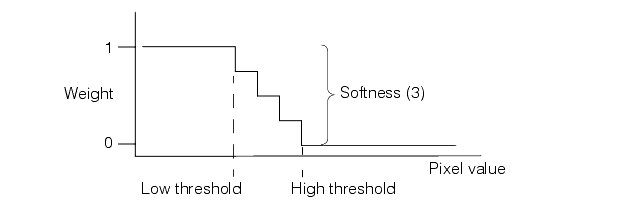
You convert a grey-scale image into an image segmented into weighted pixel values by supplying a soft binary threshold. Unlike a hard binary threshold, which consists of a single threshold value, a soft binary threshold consists of a range of threshold values. Pixels with values above the threshold range are assigned weights of 0 (background), pixels with values below the threshold range are assigned weights of 1 (object), and pixels with values within the threshold range are assigned weights between 0 and 1, typically in a linear manner. Figure 6 provides a graphical representation of a hard and soft binary threshold.
Figure 6. Hard and soft binary thresholds

Note: The thresholds shown in Figure 6 are appropriate for dark objects on a light background.
Relative Hard Thresholding
The segmentation techniques described in the preceding sections require that you determine the appropriate value for the segmentation threshold. The most common method is trial and error. However, if the images used by your application contain image-to-image variations in brightness, then a static threshold value does not segment the variety of different images correctly. Figure 7 illustrates this problem.
Figure 7. Failure of static threshold value with changing image brightness

The Blob tool allows you to define a threshold value relative to the pixel values within an image.
A relative threshold is specified using two sets of parameters. First, you specify the percentage of the pixels within the image that you want the tool to treat as tail pixels. Tail pixels are those pixels within the image that have the lowest and the highest values. In a histogram plot of pixel values, the tail pixels appear at the left and right sides of the histogram. The Blob tool determines the pixel values above and below which the percentages of pixels that you specify lie. These pixel values are called the right tail pixel value and the left tail pixel value.
The second parameter you specify for a relative threshold is the threshold percentage. The Blob tool determines the pixel value that lies at the specified percentage of the distance between the two tail pixel values, and the tool uses this pixel value as the threshold pixel value. Figure 8 shows how the Blob tool computes a relative threshold.
Figure 8. Computing a relative threshold value
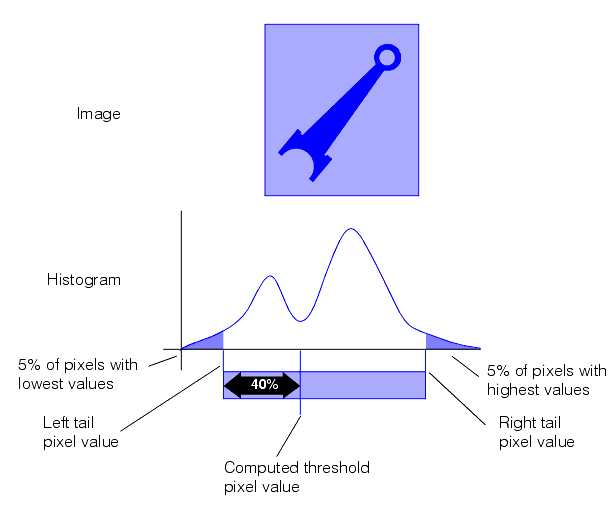
In the example shown in Figure 8, the left and right tail percentages were specified as 5 percent, and the threshold percentage value was specified as 40 percent. The tool computed the values for the left tail, right tail, and threshold pixel values.
Figure 9 shows how using a relative threshold can produce an appropriate threshold value for each of the different brightness images.
Figure 9. Relative threshold
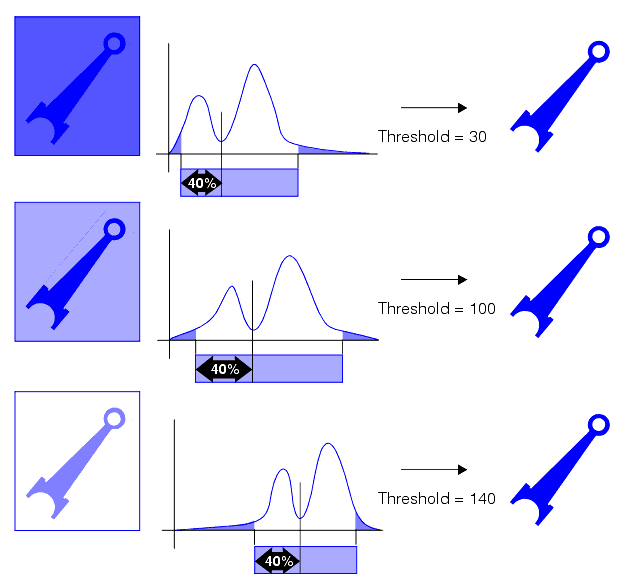
While you could perform these steps yourself using histogram analysis and pixel mapping functions, the Blob tool provides the integrated capability to compute a relative threshold value.
Hard Dynamic Threshold
Whether you specify a hard threshold directly or you compute a threshold using relative thresholding, the intent is to come up with a threshold that effectively segments background pixels from object pixels, as shown in Figure 10.
Figure 10. Ideal hard threshold value
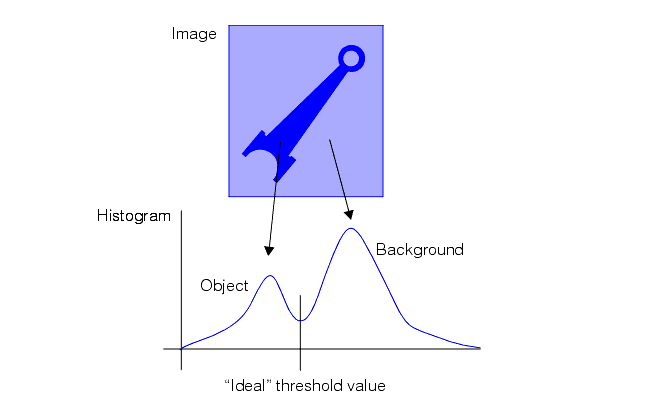
Hard dynamic thresholding is a process that automatically computes an appropriate threshold value based on the input image histogram. Hard dynamic thresholding computes this threshold by computing the threshold value that minimizes the weighted variance among the pixels on each side of the threshold. This tends to produce a good threshold for images with bimodal distributions of pixel values. Figure 11 shows how an effective threshold value is associated with low variance of the pixel values on either side of the threshold.
Figure 11. Thresholds and within-group variance
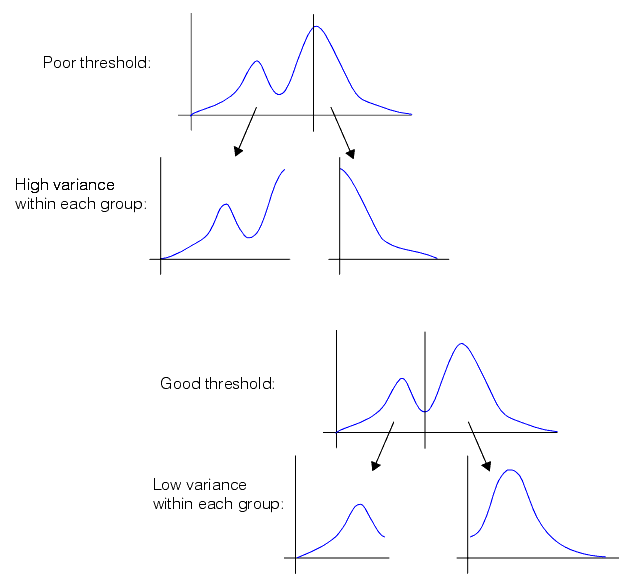
Hard dynamic thresholding may not work well on input images that do not contain a bimodal distribution of pixel values.
Relative Soft Thresholding
In addition to specifying a hard binary threshold in terms of a percentage of the pixels in the image (after excluding tail pixels), you can also specify a soft threshold using relative values.
To specify a relative soft binary threshold, you need to supply the following values:
- The percentage of low tail and high tail pixels to exclude
- The percentage value to use for the low threshold
- The percentage value to use for the high threshold
- The number of softness steps.
The tool computes a low and high threshold value using the same procedure described in the section Relative Hard Thresholding. The percentage of low and high tail values specified by the tail percentages are discarded and the pixel values the specified percentages of the distance between the remaining low and high values are used as the low and high threshold values, as shown in Figure 12.
Figure 12. Computing relative soft threshold values of 40% and 45%

Once the tool has computed the low and high threshold values, it applies a soft binary threshold as described in the section Soft Thresholding and Pixel Weighting.
Pixel Mapping
Certain kinds of scenes cannot be segmented using any kind of binary threshold technique. Binary thresholding only works when all parts of the blob are brighter (or darker) than all parts of the background area. In cases where the blob contains holes and the holes are not the same shade as the rest of the background, binary thresholding always fails.
Figure 13 shows an example of an image where thresholding does not produce the desired result. The image shows a dark part on a light background. Because of poor lighting conditions, the two holes within the part have a pixel value that is less than the pixel values for the part. Any threshold that assigns the pixels that make up the part as object pixels will also assign the pixels that make up the holes within the part as object pixels. Alternatively, a threshold that assigns the pixels that make up the object to a different segment from the pixels that make up the holes within the part will assign the pixels that make up the part as background pixels. Figure 13 shows the results of both types of threshold segmentation on the image.
Figure 13. Image that cannot be segmented by thresholding

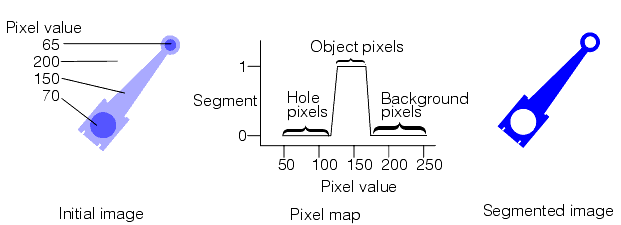
You can segment images such as that shown in Figure 13 using a pixel map. A pixel map lets you specify exactly which ranges of pixel values will be assigned as object pixels (pixel weight of 1), which ranges of pixel values will be assigned as background pixels (pixel weight of 0), and which ranges of pixel values will be assigned as edge pixels (pixel weight between 0 and 1). The pixel map is a simple look-up table that defines the pixel weight to assign for each pixel value.
Figure 14 shows an example of a pixel map that might be used to segment the image shown in Figure 13.
Figure 14. Segmenting an image with a pixel map
Threshold Image
Certain types of images resist both thresholding and pixel mapping approaches to segmentation. These images are frequently of scenes that contain a variety of gradient or other lighting problems that result in the presence of the same pixel values in both the object and the background. Figure 15 shows an example of a scene that cannot be segmented using thresholding or pixel mapping.
Figure 15. Image that cannot be segmented using thresholding or pixel map

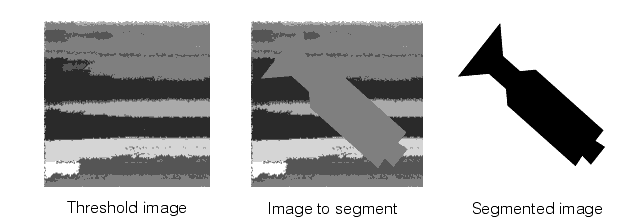
Because certain background pixel values are the same as object pixel values, the image cannot be segmented using thresholding or pixel mapping. If you obtain a reference image of the scene where the object is absent, you can segment the image by comparing each pixel in the image to segment with the corresponding pixel in the reference, or threshold, image. Each pixel that differs between the two images by more than a certain amount is assigned as an object pixel. Pixels that are the same between the two images are assigned as background pixels. This technique is known as using a threshold image.
Using a threshold image to segment an image involves supplying a threshold image of the scene where the object is absent and a threshold value. When an actual image is segmented, every pixel in the image to be segmented that differs from the corresponding pixel in the threshold image by a supplied threshold value is treated as an object pixel. All pixels that do not differ from the corresponding pixel in the threshold image are treated as background pixels. Figure 16 illustrates the use of a threshold image.
Figure 16. Segmenting an image using a threshold image
This section contains the following subsections.
Once an image has been segmented into object pixels and background pixels, connectivity analysis must be performed to assemble object pixels into connected groups of object pixels or blobs. There are three types of connectivity analysis.
Whole Image Connectivity Analysis
In whole image blob analysis, all the object pixels in the segmented image are treated as making up a single blob. Even if the blob pixels fall into multiple disconnected collections, for the purposes of blob analysis they are considered as a single blob. All the blob statistics and measures are computed using every object pixel in the image.
Connected Blob Analysis
Connected blob analysis uses connectivity criteria to assemble the object pixels within the image into discrete, connected blobs. In general, connectivity analysis is performed by joining all contiguous object pixels together to form blobs. Object pixels that are not contiguous are not considered to be part of the same blob.
Labeled Connectivity Analysis
Depending on the kind of image processing your application performs, you might want to perform blob analysis on images that are segmented into groups of pixels other than object and background pixels. For example, you might segment an image into four different groups of pixels, each group representing a different range of pixel values. This kind of segmentation is called labeled segmentation. When you perform connectivity analysis on an image that has undergone labeled segmentation, the connectivity analysis connects all pixels with the same label. With labeled connectivity there is no concept of object and background.
Once an image has been segmented, and the blob or blobs have been located and identified, an application can begin to consider information about the blob or blobs.
A blob is an arbitrary two-dimensional shape. The shape of a blob can be described using a number of different measures. The measures that the Blob tool returns fall into the following categories:
- Geometric properties
- Nongeometric properties
- Topological properties
Each of these groups of properties is described in detail in the following sections.
The geometric properties of a blob are blob measurements that are intrinsic to the blob itself. Geometric properties can be expressed in relation to a coordinate system defined by the blob itself; as the blob is moved or rotated the properties do not change.
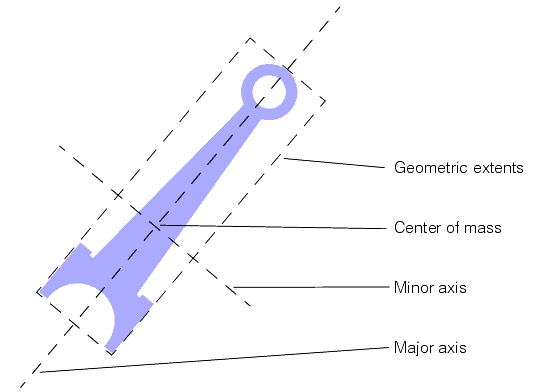
Each of the geometric properties of a blob is described in the following sections. Figure 17 illustrates the geometric properties of a blob.
Figure 17. Blob geometric properties
The area of a blob is defined as the sum of the weighted pixel values for every nonzero pixel in the blob. If a hard binary threshold was applied to the image to segment it, then the area is simply the number of nonzero pixels in the blob. If grey-scale analysis is being performed, then the area is the sum of the pixel weights.
If the blob is in an image that was segmented using a hard binary threshold, the formula for the area of a blob is
Figure 18. Area, hard binary threshold

If the blob is in an image that was segmented using a soft binary threshold or a pixel map, the formula for the area of a blob is
Figure 19. Area, soft binary threshold

where W is the weight of the pixel at coordinate (x,y).
The perimeter of a blob is the length of the outside edge of the blob. A blob's perimeter is computed by counting the number of pixel edges between pixels with nonzero values and pixels with values of 0.
Because computing the perimeter in this way tends to produce a perimeter that is larger than the actual blob perimeter, a correction factor is applied to the perimeter.
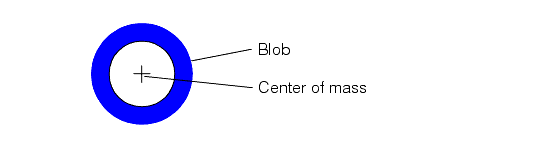
The center of mass of a blob represents the blob's balance point. If a sheet of a uniform material were cut out in the shape of the blob, the point upon which the blob would balance is the center of mass. Note that the center of mass of a blob might not actually lie within the blob itself. Figure 20 shows a blob where the center of mass does not lie within the blob.
Figure 20. Center of mass
The center of mass is computed by determining the average weighted pixel location for each pixel in the blob in the x-axis and y-axis. The formulas that give the x and y components of the center of mass of a blob are
Figure 21. XY coordinates for center of mass
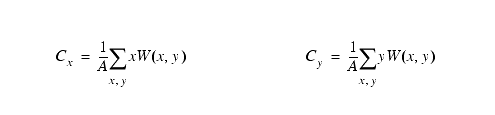
where A is the weighted area and W(x,y) is the weight of the pixel at coordinate (x,y).
Note: Although the center of mass, as reported in either client or image coordinates, changes as the blob moves, the center of mass with respect to the blob's geometric extents is invariant. For this reason it is described as a geometric property.
The second moment of inertia of an object about an axis is the tendency of that object to resist being rotated about that axis. If a sheet of a uniform material were cut out in the shape of the blob, the second moment of inertia would indicate how much inertial resistance the object would have to being rotated on the given axis.
The second moment of inertia of a blob is a measure of how widely spread the blob is from a given axis. The higher the value of the second moment, the more widely spread the blob.
The second moment of inertia of a blob about an axis is computed by taking the weight of each pixel, multiplying it by the square of the distance of that pixel from the given axis, then computing the sum of this value for all the pixels in a blob.
The major axis of a blob is defined as the axis about which the second moment of inertia is the smallest. The major axis of a blob is the axis about which it would be the easiest to spin the blob. The major axis of a blob always passes through the blob's center of mass.
The minor axis of a blob is defined as the axis through the center of mass about which the second moment of inertia is the largest. The minor axis of a blob is the axis about which it would be the hardest to spin the blob. The minor axis of a blob is always a line that is at 90° to the major axis passing through the center of mass.
Together, the major and minor axes are referred to as the principal axes.
The geometric extents of a blob are the distances between the blob's center of mass and the four sides of a rectangle that is oriented to the blob's principal axes and that completely encloses all the blob's pixels.
Nongeometric properties of blobs are blob measurements that are meaningful only in relation to the external coordinate system, usually defined by the grid of pixels produced by the frame grabber. As a blob is rotated or changes position, these properties will change as well. Each of the nongeometric properties of a blob is described in the following sections. Figure 22 illustrates the nongeometric properties of a blob.
Figure 22. Blob nongeometric properties
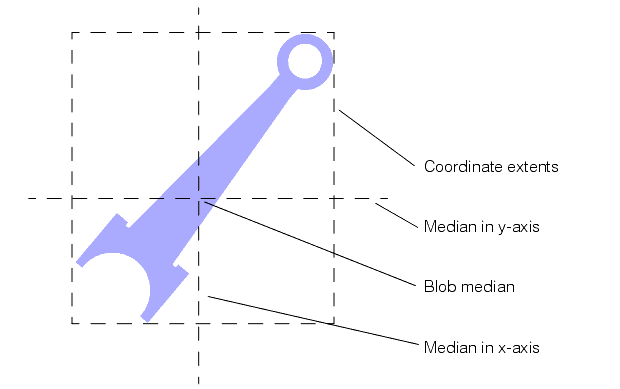
The median of a blob is the intersection of two lines, one parallel to the x- and the other parallel to the y-axis, such that half of the total pixel weight of the blob lies on either side of the line. Because blob median is a nongeometric property, it is a less reliable indication of a blob's true location than center of mass. However, a blob's center of mass is much more susceptible to spatial quantization errors than is blob median; blob median might be more useful than center of mass in cases where the blob is circular and where a hard binary threshold is being used to segment the image.
The second moments of inertia of a blob about the coordinate axes are measures of how widely spread the blob is relative to the two coordinate axes.
The coordinate extents of a blob are the distances between the blob's center of mass and the four sides of a rectangle oriented to the coordinate axes that completely encloses all the blob's pixels.
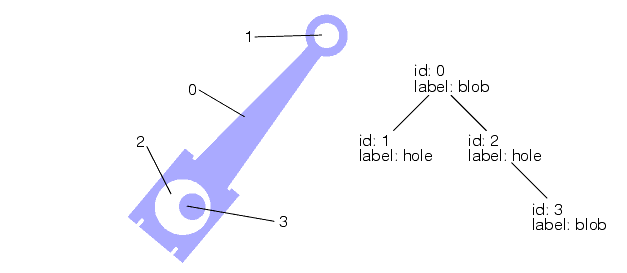
Any scene subjected to blob analysis is ultimately analyzed as a collection of one or more features. A feature can be a blob, or it can be a hole within a blob, or it can be a blob within a hole within a blob. The relationship between blobs and holes in the image is described as the topology of the scene. The principal items of topological information about a feature are
- The feature's label (blob or hole)
- Which features are enclosed by the feature
- Which feature encloses the feature
The label of a feature indicates whether the feature is a blob or a hole.
If a labeled connectivity analysis is being performed, a feature's label is the pixel label of each of the pixels that make up that feature.
Figure 23 shows how the topological relationship among a collection of blobs can be represented using a tree structure. The root blob is that blob that contains all other blobs and holes. Each node on the tree contains a key or ID that identifies the blob; each node on the tree also contains a label indicating whether the feature is a blob or a hole.
Figure 23. Blob topology described using a tree structure
This section contains the following subsections.
- Image Segmentation
- Image Encoding
- Masking
- Morphology
- Connectivity
- Blob Analysis
- Working with a Blob Scene Description
- Topological Information
- Chain Code
- Geometric Information
- Nongeometric Information
- Computed Information
- Working with Nonsquare Pixels
- Filtering and Sorting Features
- Navigating a Filtered Topology
- Working with Individual Features
This section describes how the Cognex Blob tool works, what kinds of operations it supports, and what capabilities it offers.
This section contains the following subsections.
- Hard Binary Thresholding
- Hard Dynamic Thresholding
- Soft Binary Thresholding
- Hard Relative Thresholds
- Soft Relative Thresholds
- Pixel Mapping
- Threshold Input Image
- Previously Segmented Images
The Blob tool supports each of the segmentation techniques described in the section Image Segmentation.
Hard Binary Thresholding
Support for hard binary thresholding is provided. You can specify the exact pixel value to use as your threshold value and you can define whether pixels above the threshold are to be considered object or background pixels. This allows you to segment correctly images of light objects on a dark background as well as dark objects on a light background.
Hard Dynamic Thresholding
Support for hard dynamic thresholding is provided. If you specify this segmentation mode, the Blob tool computes the hard threshold value that minimizes the weighted variance among the pixels on each side of the threshold. This tends to produce a good threshold for images with bimodal distributions of pixel values.
Soft Binary Thresholding
For soft binary thresholding, you supply a low threshold, a high threshold, the softness of the transition (the number of transition levels to use in the threshold range), and an invert flag. These parameters are used to threshold the image, as shown in Figure 24.
Figure 24. Soft binary thresholding parameters

The soft binary threshold shown in Figure 24 would be appropriate for a light object on a dark background. If the threshold were being applied to an image of a dark object on a light background, then the invert flag would be set to true, and the parameters would be interpreted as shown in Figure 25.
Figure 25. Soft binary threshold with invert flag set
Hard Relative Thresholds
To specify a hard relative threshold, you specify the percentage of pixels to treat as left and right tail values along with a threshold percentage. The Blob tool computes the pixel values that define tails of the specified size and then computes the pixel value that lies at the specified percentage of the distance between the two tail values.
Soft Relative Thresholds
To specify a soft relative threshold, you specify the percentage of pixels to treat as left and right tail values along with two percentage values, one for the low threshold and one for the high threshold. The Blob tool computes the pixel values that define tails of the specified size and then computes the pixel values that lie at the specified percentages of the distance between the two tail values. These two computed pixel values are used together with a softness value that you specify to construct a soft threshold, as described in the section Soft Binary Thresholding.
Pixel Mapping
For pixel mapping, the tool allows you to specify a 256-element look-up table for CogImage8Grey input images and a 65536-element look-up table for CogImage16Grey input images. The look-up table defines how input pixel values will be assigned pixel weights. Because the table consists of integer values, rather than the floating-point values of 0.0 to 1.0, a scaling factor is also supplied. The scaling factor defines what value in the mapping table (0 to 255 or 0 to 65535) corresponds to a pixel weight of 1. The scaling factor should be equal to the largest value in the look-up table; the pixel weight is equal to the value in the look-up table divided by the scaling factor.
Threshold Input Image
The size of the threshold image must be the same as the size of the image being thresholded. You must also supply a 256-element look-up table (for CogImage8Grey input images) or a 65536-element look-up table (for CogImage16Grey input images) that specifies the pixel weight to assign for each difference in pixel value between the threshold image and the image being segmented, and a 256-element or 65536-element look-up table that is used to map the input image before thresholding. In addition to these look-up tables, you must supply a scale value that defines what value in the mapping table (0 to 255 or 0 to 65535) corresponds to a pixel weight of 1.
Previously Segmented Images
The Blob tool also provides support for images that are already segmented. In this case, you supply a scaling value that defines what value in the segmented image (0 to 255 or 0 to 65535) corresponds to a pixel weight of 1.
Once the segmentation step has been performed, the Blob tool converts the input image into a run-length encoded (RLE) image. Run-length encoding is an encoding technique that takes advantage of the fact that most segmented images contain large numbers of adjacent pixels with the same pixel value. Runs of pixels with the same pixel value are stored as a pixel value and a run length. The resulting RLE image has a number of advantages when compared with an unencoded image:
- Less storage is required for a given image.
- Blob analysis operations can be performed more quickly on an RLE image than on an unencoded image.
Because RLE images are a compact way of storing an image, and because many blob operations can be performed more quickly using RLE images, the Blob tool provides a facility for obtaining the RLE representation of an image.
Also, a number of image-processing options are provided by the Blob tool. The tool performs these image-processing steps during and after the process of encoding the image as an RLE image.
You can use an arbitrarily defined mask to exclude portions of an image from blob analysis. The image mask does not have to be the same size as the image. To mask an image prior to blob analysis, you align the image mask with the image by specifying the distance offset of the upper-left corner of the image mask to the image, in the coordinate system values of the image.
You can use masking to remove features from an image that would make segmenting the image difficult or impossible. Figure 26 shows the use of a mask.
Figure 26. Masking an image before performing blob analysis

This section contains the following subsections.
Morphological operations can be applied to images to accentuate or minimize particular types of features within the image. Although morphological operations can be applied to any image at any time, the Blob tool provides integral support for a limited set of morphological operations. Because these operations operate on RLE images, they operate very quickly. This section describes the morphological operations that are available as part of the Blob tool.
Morphological Operations
Grey-scale morphology is the process of applying a simple operator to successive neighborhoods of pixels within an image. The operators supplied with the Blob tool allow you to substitute for each pixel in an image either the minimum pixel value or the maximum pixel value within a specific neighborhood of that pixel. Each of the neighborhoods and operators is listed in the following table, along with the typical use for the operation, and an idealized representation of the effect of the operation on an image.
Note: Keep in mind that the morphological operators consider object and background pixels. Which image pixels become object pixels and which become background pixels depends on the segmentation parameters that you specify. The morphological operations always interpret white pixels as object and black pixels as background.| Name | Neighborhood and Operator | Used To | Example |
Horizontal dilation (eMaxH) | Replace each pixel in the image with the maximum value of the pixel and each of its two horizontal neighbors: 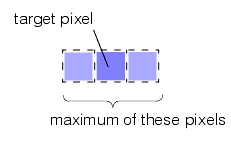 | Reduce or eliminate vertically shaped holes within objects, increasing the thickness of vertically shaped object features. | 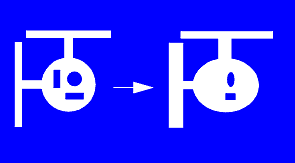 |
Horizontal erosion (eMinH) | Replace each pixel in the image with the minimum value of the pixel and each of its two horizontal neighbors: 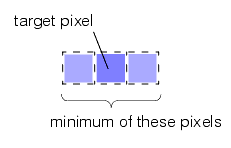 | Reduce or eliminate vertically shaped object features, increasing the thickness of vertically shaped holes within objects. | 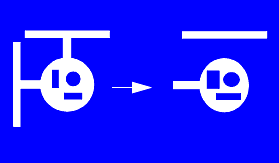 |
Vertical dilation (eMaxV) | Replace each pixel in the image with the maximum value of the pixel and each of its two vertical neighbors: 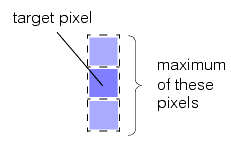 | Reduce or eliminate horizontally shaped holes within objects, increasing the thickness of horizontally shaped object features. | 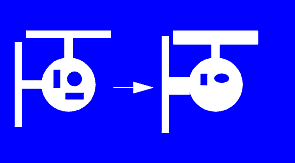 |
Vertical erosion (eMinV) | Replace each pixel in the image with the minimum value of the pixel and each of its two vertical neighbors: 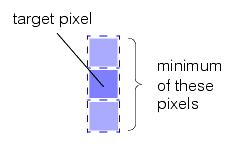 | Reduce or eliminate horizontally shaped object features, increasing the thickness of horizontally shaped holes within objects. | 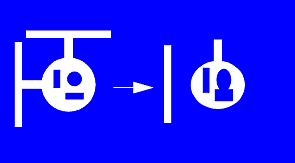 |
Square dilation (eMaxS) | Replace each pixel in the image with the maximum value of the pixel and each of its eight vertical and horizontal neighbors: 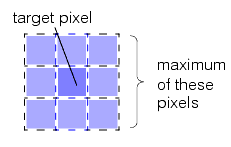 | Reduce or eliminate holes within objects, increasing the thickness of object features. | 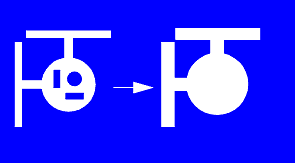 |
Square erosion (eMinS) | Replace each pixel in the image with the minimum value of the pixel and each of its eight vertical and horizontal neighbors: 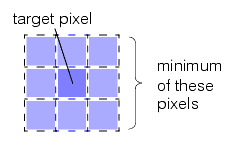 | Reduce or eliminate object features, increasing the thickness of holes within objects. | 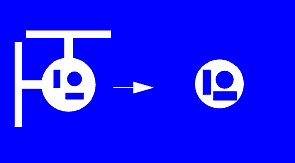 |
Horizontal opening (eMaxMinH) | A horizontal erosion is applied to the image, followed by a horizontal dilation. | Preserve vertically shaped holes within objects, while eliminating vertically shaped object features. | 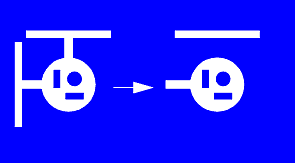 |
Horizontal closing (eMinMaxH) | A horizontal dilation is applied to the image, followed by a horizontal erosion. | Preserve vertically shaped features within objects, while eliminating vertically shaped holes within objects. | 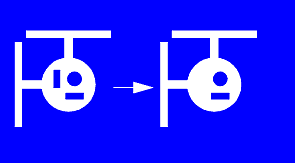 |
Vertical opening (eMaxMinV) | A vertical erosion is applied to the image, followed by a vertical dilation. | Preserve horizontally shaped holes within objects, while eliminating horizontally shaped object features. | 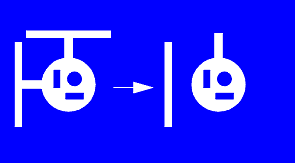 |
Vertical closing (eMinMaxV) | A vertical dilation is applied to the image, followed by a vertical erosion. | Preserve horizontally shaped features within objects, while eliminating horizontally shaped holes within objects. | 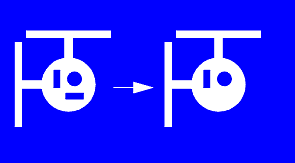 |
Square opening (eMaxMinS) | A square erosion is applied to the image, followed by a square dilation. | Preserve holes within objects, while eliminating small object features. | 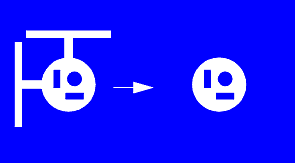 |
Square closing (eMinMaxS) | A square dilation is applied to the image, followed by a square erosion. | Preserve small features within objects, while eliminating holes within objects. | 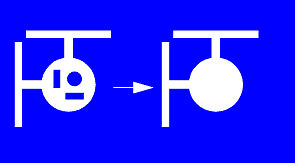 |
Combining Morphological Operations
The Blob tool allows you to combine up to eight morphological operations on an image. The operations are performed sequentially.
This section contains the following subsections.
The connectivity phase is performed differently depending on the type of connectivity analysis being performed. The output from the connectivity phase is a blob scene description that contains all information about the blobs in the image.
Grey-Scale Connectivity
Regardless of how the image was segmented, the same technique is used to connect pixels into blobs.
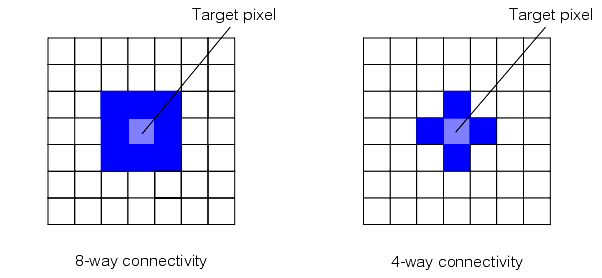
A blob is defined as a group of connected object pixels, where an object pixel is any pixel with a nonzero weight. The Blob tool defines object connectivity in terms of 8-connectedness; that is, all object pixels bordering a given pixel's edges, as well as those touching its corners, are considered to be connected to that pixel.
Because object pixels are 8-connected, background pixels are 4-connected; that is, background pixels are not considered to be connected diagonally. Figure 27 illustrates 4-way and 8-way connectivity.
Figure 27. 8-way and 4-way connectivity
Defining connectivity in this way has appealing topological properties, as demonstrated in Figure 28. In Figure 28, if you interpret object pixels (black) as 8-connected, they are considered to be a single blob. If they were 4-connected, there would be eight blobs, because diagonally adjacent pixels would not be considered connected.
Figure 28. Object pixels are 8-connected, forming a single blob

Interpreting the object pixels in Figure 28 as a single 8-connected blob is more useful than interpreting them as eight 4-connected blobs.
All features in the image, whether they are blobs or holes, are stored in their own RLE images. These images can then be used for other purposes.
Labeled Connectivity
In the case of labeled connectivity analysis, a blob is defined as a group of connected feature pixels, where each pixel has the same label. Because the division of features into objects and background does not apply to labeled connectivity analysis, the Blob tool performs labeled connectivity in terms of 6-connectedness. Figure 29 shows the six pixels that are defined to be connected to a target pixel when the tool performs labeled connectivity analysis.
Figure 29. 6-way connectivity
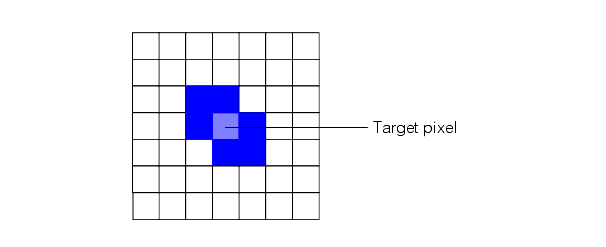
Image Pruning and Filling
Because of the defects present in most images, such as video noise, even after segmentation and masking, images can contain undesired features. One technique that can be used to remove small features from an image is feature pruning and filling.
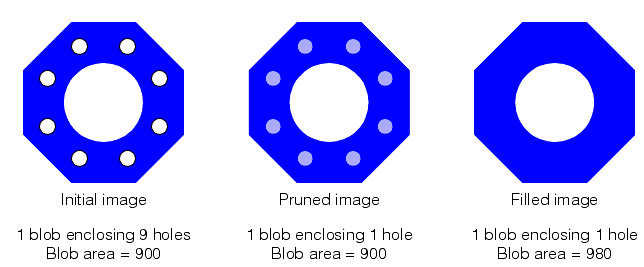
During the connectivity phase, the Blob tool allows you to ignore all features (both blobs and holes) below a certain size. This is called image pruning. When you prune an image of all features below a certain size, the blob measures returned for the blob that enclosed the pruned features are computed as though the pruned features still existed, but the pruned features themselves are not counted as children of the enclosing feature.
For example, if an image that contains one blob with an area of 900 pixels that contains 8 holes, each with an area of 10 pixels, is pruned using a minimum feature size of 20 pixels, the Blob tool reports the presence of a single blob with an area of 900 pixels.
You can optionally direct the Blob tool to fill in the space occupied by pruned features. This is called filling the image. In the case of labeled connectivity, the feature being filled is filled in with pixels with the same label as the enclosing blob. In the case of grey-scale connectivity, the pixel value that is used to fill the feature is the value of the pixel to the immediate left of the feature being filled. As each row of pixels in the feature is filled, the pixel value to the immediate left of that row of pixels is used as the fill value for that row.
Figure 30 illustrates the difference between pruning and filling an image.
Figure 30. Pruned and filled images
Keep in mind that the original RLE image is not actually changed by the prune or fill operation; pruning or filling only changes the information that the Blob tool returns about features within the scene. However, if you direct the tool to generate a duplicate image of the scene, or of particular features within the scene, the duplicate image does not contain the pruned or filled features.
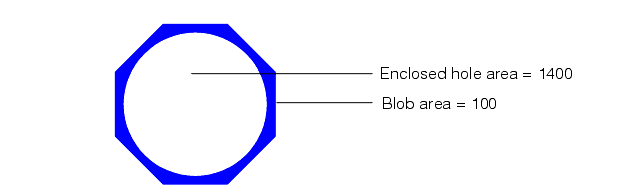
Note: If a feature that is small enough to be pruned or filled contains a feature that is not small enough to be pruned, then the enclosing feature is not pruned. Figure 31 shows an example of this situation. The blob has an area of 100 but encloses a hole with an area of 1400. If a prune size of 200 were used, the blob would not be pruned because it encloses a feature larger than the prune size, even though the blob is smaller than the prune size.Figure 31. Small blob containing large hole
Once the image has been segmented, has been masked, and has undergone morphological operations and connectivity analysis, you can obtain the results of the blob analysis. Blob results are returned in the form of a blob scene description. A blob scene description is a data object that provides access to all the information about all features in the scene, including the number of features (blobs and holes), the topological relationship among the features, and the geometric and nongeometric properties of each feature.
In addition, the blob scene description also provides a number of computed blob measures based on the fundamental blob attributes listed above. The specific information contained in a blob scene description is listed below.
The blob scene description amounts to a collection of chunks of information about blobs. Within the blob scene description each feature (blob or hole) is uniquely identified by an ID. IDs are integers in the range 0 to the number of features in the scene minus 1. Certain kinds of information can be obtained regarding the collection of blobs to which the blob scene description refers. Other kinds of information are available for each blob in the scene.
The Blob tool does not compute any information about any feature until you explicitly or implicitly request particular information about that feature. The Blob tool stores all the information about each blob as it computes that information; no measure is computed more than once.
The blob scene description provides access to a tree structure that describes the label and topological relationship of each feature in the scene.
The following topological information is available about the blob scene as a whole:
- The number and IDs of all top-level features, which are those features that are not enclosed by any other feature in the scene
- The total number of features within the scene
For each feature in the scene the following topological information is available:
- The label of this feature. In the case of grey-scale connectivity, the label is 0 for holes and 1 for blobs. In the case of labeled connectivity, the label is the feature's label.
- The number and IDs of this feature's child features, which are those features completely and directly enclosed within this feature
- The ID of this feature's parent feature, which is the feature that directly encloses this feature
- The number and IDs of this feature's sibling features, which are any other features which are directly and completely enclosed within the same feature that directly encloses this feature
For each feature in the scene the blob scene description contains a chain code that describes the path around the outside edges of the outermost pixels that make up this feature. The chain code consists of a sequence of direction codes (up, down, left, right) that, when taken as a sequence, describe the perimeter of the feature.
The geometric measures listed in this section are available for each feature within the scene. For definitions of the geometric measures of features, see the section Geometric Properties.
- Area
- Perimeter
- Center of mass
- Principal axes
- Second moments of inertia about the principal axes
- Geometric extents
The nongeometric measures listed in this section are available for each feature within the scene. For definitions of the nongeometric measures of features, see the section Nongeometric Properties.
- Median about any axis
- Second moments of inertia about any axis through the center of mass
- Coordinate extents about any axis
- Bounding box about any axis
The Blob tool also allows you to compute the size and location of a bounding box oriented with respect to a line drawn at an arbitrary angle through the center of mass.
This section contains the following subsections.
The following computed measures are available for each feature. These computed measures are derived from the geometric and nongeometric measures listed in the sections Geometric Properties and Nongeometric Properties.
Acircularity
Two measures of the lack of circularity of a blob are available.
The first is given by the formula
Figure 32. Acircularity
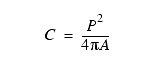
where P is the perimeter of the blob and A is the area of the blob.
The value of C is 1 for a perfectly circular blob. The less circular the blob, the greater the value of C.
The second measure of acircularity is given by the normalized rms deviation of the radius values of the blob from r0, where r0 is the square root of the area of the blob divided by pi.
Elongation
The elongation of the blob is computed by dividing the second moment of inertia about the minor axis by the second moment of inertia about the major axis.
Aspect Ratio
The aspect ratio of the blob is the height of the geometric bounding box divided by the width of the geometric bounding box, where the height is measured along the major axis of the blob and the width is measured along the minor axis of the blob.
You can compute the aspect ratio at any angle.
Your frame grabber or camera might have nonsquare pixels. If you are attempting to use the Blob tool to precisely locate and measure objects in the physical world, these nonsquare pixels can make it difficult to associate pixel coordinates with physical coordinates. You can solve this problem by specifying the aspect ratio of the pixels that compose the image being analyzed.
Any of the blob measures listed in the preceding three sections can be used to generate a filter through which blobs can be obtained. You can define multiple filters, although only one filter per measure. You can specify that only blobs with values inside or outside a specified range for a specified measure be visible.
You can further specify the order in which the visible blobs are sorted. The sort order determines the order in which the tool returns blobs to you when you request the first, next, previous, or last blob within a particular level of the topological hierarchy.
If you specify filtering for a blob scene description, then only those features that meet the filtering criteria are visible. As you request child or sibling features, only those features that meet the criteria are returned by the tool.
You can override the filtering when looking at a blob's children by using the filter argument. This allows you to filter blobs, then get detailed, unfiltered information about the features within the blob.
The sort order in effect for a blob scene description affects the order in which child and sibling blobs are returned.
Each feature, blob or hole, within a blob scene description is stored as its own RLE image. You can obtain the RLE image of a particular blob if you want to create or manipulate an image that contains only that particular feature.
This section contains the following subsections.
- Lighting and Optical Considerations
- Segmenting Images
- Choosing a Segmentation Type
- Choosing Segmentation Thresholds
- Selecting an Image Mask
- Applying Morphological Operations to an Image
- Using Nonlinear Client Coordinates
This section tells you how to use the Blob tool to solve specific blob analysis applications.
The basic steps to using blob analysis to solve a vision problem are
- Determine the segmentation method and threshold values.
- Select an image mask (optional).
- Select morphological operators and pruning and filling parameters (optional).
- Perform the blob analysis using the parameters selected in steps 1 through 4.
- Interpret the results of the blob analysis.
Blob analysis works best with images that can be easily segmented into foreground and background pixels. Typically, strong back lighting of scenes with opaque objects of interest produces images suitable for blob analysis.
The process of segmenting an image is the most unpredictable and difficult aspect of blob analysis, particularly if you are confronted with wide image-to-image variation in image contrast and in the number of blobs. This section describes some of the techniques and tools you can use to segment images effectively.
The more consistent images are, and the more information you know about the image at the time you write your application, the more effective the segmentation approach will be.
The first step is to choose the segmentation type for your application. The following table defines some guidelines for selecting a segmentation type:
| Type | Typical Use | Advantages | Disadvantages |
| Hard binary | Speed-critical applications with large circular objects | Speed | Relatively poor accuracy due to spatial quantization error |
| Soft binary | Any application with simple binary division between objects and background | Simplicity, accuracy | |
| Relative | Augments hard or soft binary; useful when brightness changes between images | Handles changing image brightness | Slower than absolute threshold value |
| Dynamic | Augments hard binary; computes threshold automatically based on input image | No configuration required | May not handle some images |
| Pixel map | Application with non binary division between object and background pixels | Flexibility | Complexity |
| Threshold image | Application with uneven background illumination where background pixels might have same value as object pixels | Handles otherwise unsegmentable scenes | Requires consistent images |
Once you have selected a segmentation type, you must determine the particular threshold value or values your application will use. If the images that your application analyzes have consistent brightness and contrast, you can easily determine an appropriate threshold value by examining several sample images. If your images have significant brightness or contrast variations your application must be able to adjust the threshold value dynamically.
If your application needs to cope with variations in brightness between images, you should consider specifying a relative threshold.
You can construct masks synthetically, by drawing an area that you know corresponds to the area of interest within the scene, or you can derive a mask by taking a feature from a blob scene, applying some morphological operations to it, then using it as a mask.
You should select the morphological operations that modify the image in the way that you desire. Remember that morphological operations can change both the geometric properties of blobs such as their size and shape and the topological properties (formerly unconnected blobs might be joined, holes might be opened up, and so on).
If you supply a run-time image that has a nonlinear client coordinate system, the Blob tool will operate as normal (using the pixels in the image). For each feature (blob or hole) detected in the image, the Blob tool computes the best linear approximation of the nonlinear client coordinate system at the center of mass of the feature. This local linearization is then used to map each of the feature's measurements (center of mass, area, perimeter, and so on) before returning them.
Keep in mind that any local linearization of a nonlinear client coordinate system is most accurate at the point for which the linearization is computed. In the case of a Blob feature, this point is the center of mass. Accordingly, the greatest improvement in Blob tool accuracy offered by this method is for the center of mass. Particularly in the case of larger features (those spanning more than 10 pixels), measures related to the whole feature (perimeter, area, acircularity, and the bounding box-related measures) may tend to show less improvement.
By default, all blob properties are computed by the Blob tool as specified by the tool's parameters. You can improve the speed performance of the tool by disabling certain blob property computations that you do not need.
You can disable the following:
- Region boundary, perimeter, or region image measurements; saving run lengths of regions in the blob scene description.
- Computation of the inertia, principal inertia, angle, and elongation of the regions.
- Computation of parent-child relationships between regions.