This topic contains the following sections.
VisionPro provides a mechanism to modify the size of interactive graphic handles, primarily for use on touch screen devices.
VisionPro provides a mechanism to modify the size of interactive graphic handles, primarily for use on touch screen devices. Within the VisionPro.ini file, the Display Settings section contains an entry for setting the default size of all interactive graphic handles. The DefaultGraphicHandleSize setting controls the default size of all of the interactive graphic handles, for all VisionPro applications on a PC. Modifying this setting in the VisionPro.ini file allows you to change the size of the hanles in your application without having to write code or adding this setting to your VPP files (though there is an option to do so, which is described below). The default setting in the VisionPro.ini file is 8 pixels, and cannot be set to a value smaller than 8 (if a value smaller than 8 is set, it will be ignored and the original default size of 8 will be used, instead). There is not a maximum size setting, though, due to the limitations of most touch screens sizes, a reasonable size should be set. The graphics handles size is an integer value, though hex formatting (e.g. 0x010) may be used.
The VisionPro.ini file DefaultGraphicHandleSize setting may be overriden in your Visual Studio.NET applications,by using the GetDefaultGraphicHandleSize method and SetDefaultGraphicHandleSize method of CogMisc. Changing this setting establishes a new default size for interactive graphic handles within the application. Interactive graphics do not serialize or persist their handles, which means that the size of the graphics handles is not persisted when a graphic is serialized to, and later loaded from, a VPP file.
Note: The interactive graphic handles are created when they are first needed, which is typically when they are displayed for the first time. Changing the global setting will not change the size of graphic handles which have already been created; the new default setting only applies to new graphics which have not yet had their handles created.
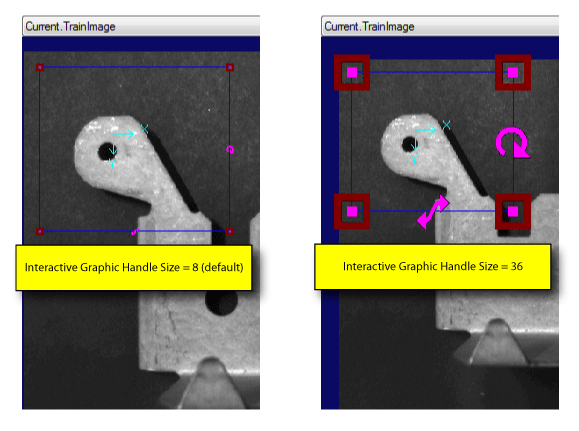
The following figure shows the default and enlarged interactive graphic handles sizes:
To ensure that the VisionPro tools work correctly with a touch screen, the following settings must be configured in either Windows 7 or Windows 8.1. For both Windows 7 and 8.1, the screen resolution and text size settings, which are accessed via the Control Panel, can be set to optimize touch screen usability. The optimal values will be dependent on the your hardware and user preferences.
Note: Setting the DPI to a high value may result in overlapping VisionPro controls.
To optimize performance of VisionPro touch screen interactions when using the Windows 7 OS, there are two settings which should be modified.
- From the Windows Control Panel, select Pen and Touch.
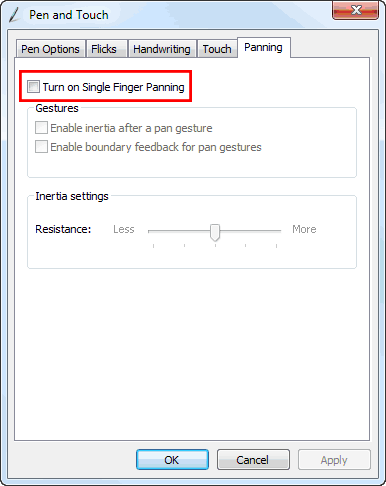
From the Panning tab, disable the "Turn on Single Finger Panning" checkbox, as shown in the following figure:
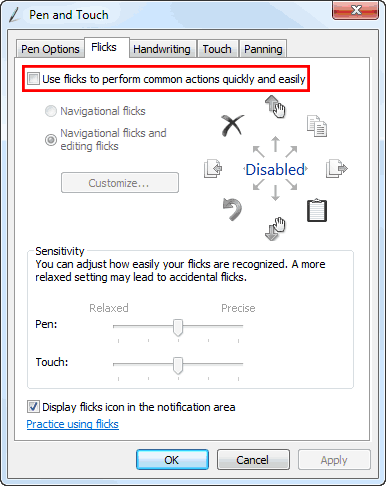
From the Flicks tab, disable the "Use Flicks..." checkbox, as shown in the following figure:
- Optionally, from the Handwriting tab, to optimize performance, disable handwriting.
To optimize performance of VisionPro touch screen interactions when using the Windows 8.1 OS, the registry setting must be modified, and optionally, the Pen and Touch settings may be modified.
Using regedit or regdt32, navigate to HKEY_Current_USER\Software\Microsoft\Wisp\Touch, as shown in the following figure:
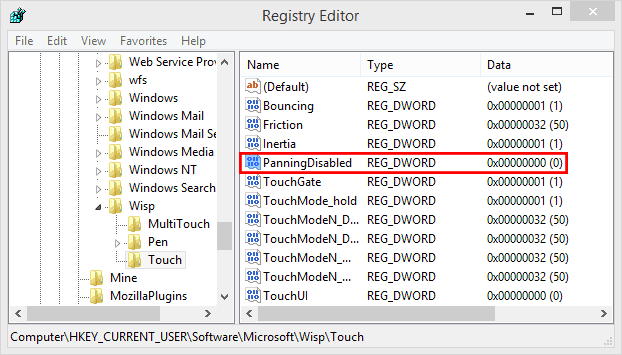
- Modify the PanningDisabled value from 0 to 1 and save the change.
- For the change to take effect, log off and then log back on.
Optionally, the Pen and Touch settings in the Control Panel can also be adjusted, based on user preferences.
From the Windows Control Panel, select Pen and Touch, as shown in the following figure:
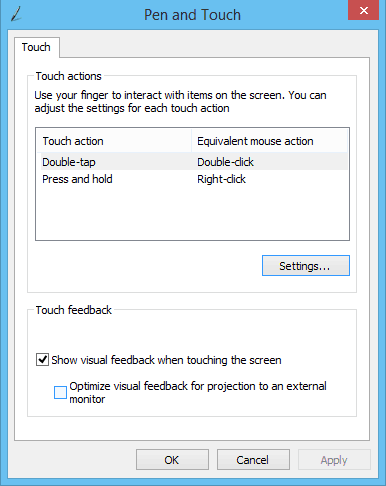
- The "Double-tap" and "Press and hold" settings can be adjusted based on your personal preferences.
- The "Optimize visual feedback for projection to an external monitor" setting is optional, and can be enabled if a user will be remotely viewing the screen.