This topic contains the following sections.
The Intelligent Pixel Map tool is the easiest way to map pixel values of an input image (for example a CogImage16Range image from a DS1000 Series Sensor) to an output image (for example to CogImage8Grey). The supported formats and conversions are:
| From\To | CogImage16Range | CogImage16Grey | CogImage8Grey |
|---|---|---|---|
| CogImage16Range | See the note below | ✓ | ✓ |
| CogImage16Grey | See the note below | ✓ | ✓ |
| CogImage8Grey | See the note below | Not required | ✓ |
Note: Mapping to CogImage16Range produces a range image without the 3D transform and therefore it is not supported.
Once the Intelligent Pixel Map Tool gets the input image, it automatically generates a mapping based on the histogram data to enhance the visual features on the picture. If the result is not what you expected, it is possible to manually map the pixels.
This capability allows you to:
- Reduce 16-bit images to 8-bit images while selectively preserving specific ranges of pixel values. This feature is especially helpful for DS1100 users (CogImage16Range ⇒ CogImage8Grey). Since the majority of
- Increase the visibility of image features with low contrast by selectively expanding the range of pixel values of the features of interest. This allows you to provide for enhanced visualization of defects in X-ray and thermal images.
- Create composite pixel mapping functions that allow you to apply different linear mappings to different ranges of input pixel values. This allows you to extract and combine specific temperature ranges from a thermal camera or to selectively filter specific height ranges from 3D profiling cameras such as the DS1000 Series Displacement Sensors.
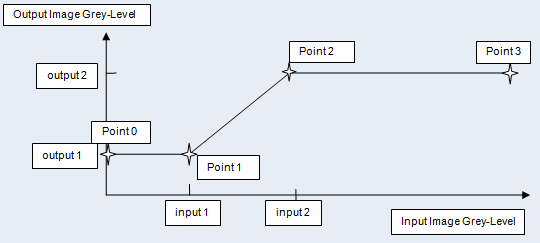
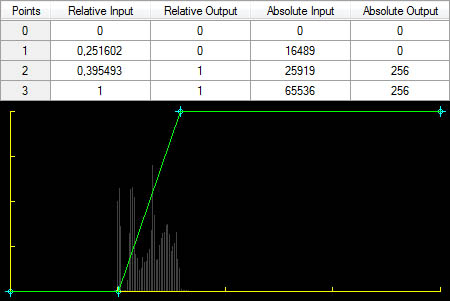
The PixelMap tool works by creating two reference points based on the histogram data of the input image (or lets you create a series of them, if you like). The first point is identified as (input1, output1) and the second point is identified as (input2, output2). Output1, also known as the first mapped value, can be used to map the invisible pixels by default, but you can override this behavior. VisionPro will be adding Point 0 and Point 3 to reflect the full range mapping of input image to full range of output image. For CogImage16Range, the invisible pixel value can be mapped automatically to output1 or a user specified value.
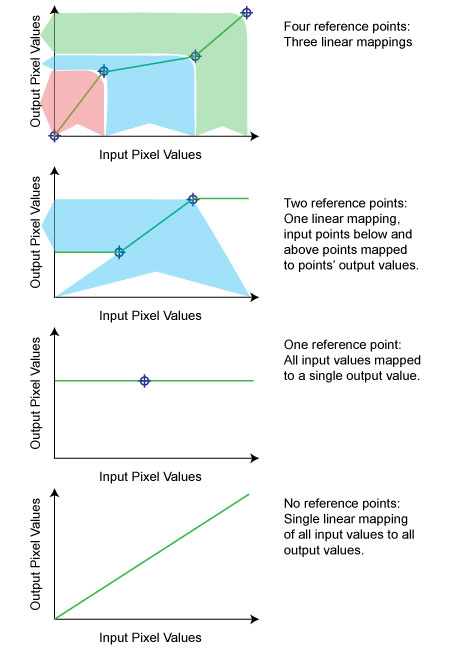
Each reference point defines the mapping of a single input pixel value to a single output pixel value. The PixelMap tool creates a linear mapping of pixel values between each pair of reference points. The result set of linear mappings form a mapping function.
All input pixel values less than the lowest reference point are mapped to the output value defined by the reference point. All input pixel values greater than the highest reference point are mapped to the output value defined by the reference point. If you specify a single mapping point, then all input pixel values are mapped that single output pixel value. If no mapping points are defined, then the pixels are mapped using a single linear mapping.
The following figure shows how reference points are used to define a mapping function.
Note: You can define a reference point's input and output values as absolute (pixel) values, or you can define them as relative values (the fraction, in the range 0.0 through 1.0, of the range of possible pixel values at which to place the reference point). Specifying relative values allows you to use a given mapping function with images of different bit depths without needing to modify it.
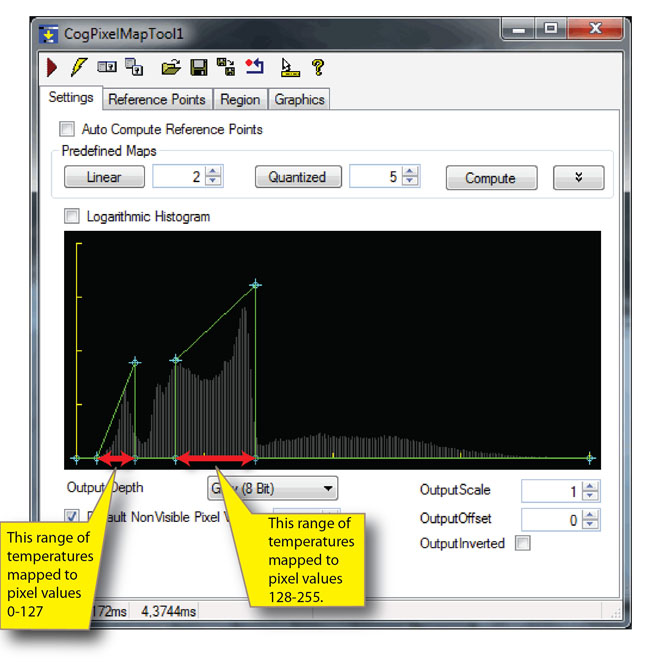
The PixelMap tool edit control automatically generates a mapping function for the actual image and - if necessary - lets you easily create, modify, view, and delete the reference points that define your pixel map, as shown below:
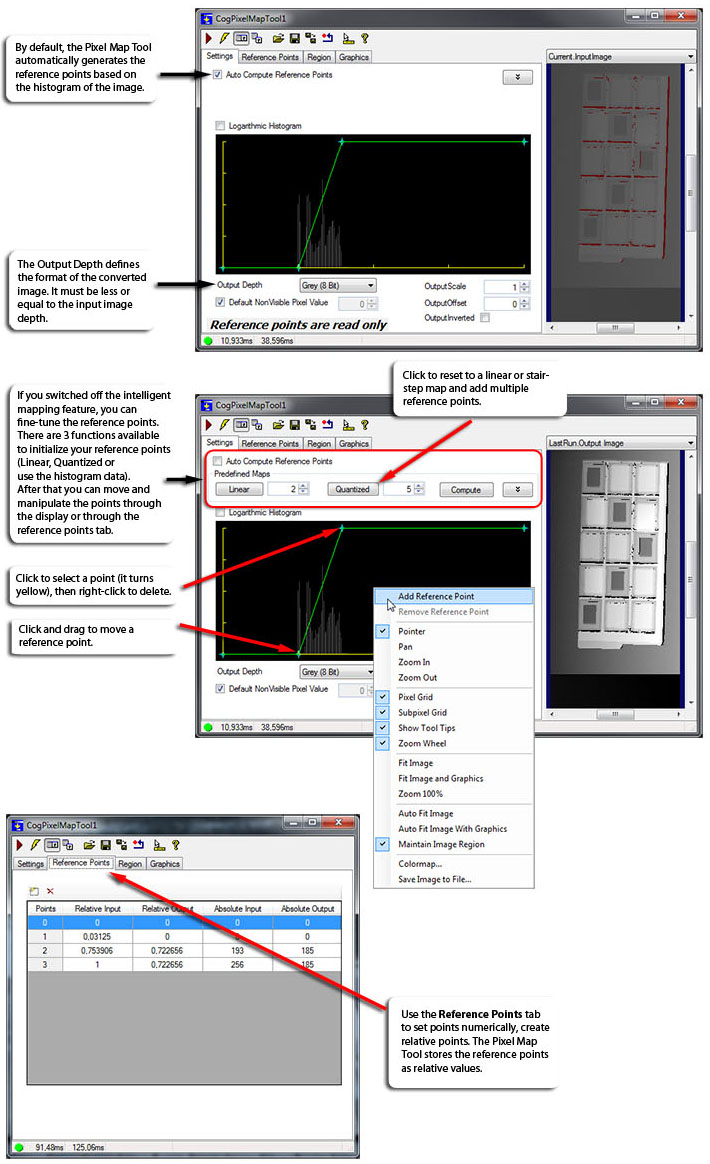
Note: See the control reference for detailed information on using the control.
VisionPro supports the acquisition and processing of 16-bit greyscale images, but some VisionPro vision tools support only 8-bit greyscale images. While each pixel in a 16-bit greyscale image can have one of 65,536 possible pixel values, each pixel in an 8-bit greyscale image can have one of only 256 possible values.
A simple linear mapping of the pixel values from a 16-bit image to an 8-bit image means that each pixel value in the 8-bit output image corresponds to 256 pixel values in the 16-bit input image. Pixel values 0-255 in the input image are assigned a pixel value of 0 in the output image, pixel values 256-511 are assigned to 1, and so on. This mapping results in the loss of a great deal of information from the input image.
The PixelMap tool lets you control the process of mapping a 16-bit image to an 8-bit image, so you can preserve the meaningful information in the input image while reducing its overall depth. The Pixel Map Tool is capable of automatically remapping the pixels, based on the histogram data of the input image. Although there are multiple methods to generating the mapping formula, it is recommended that you use the intelligent feature first.
- Select your image source.
- Put a Pixel Map Tool after the image source and link them together.
- Put another tool after the Pixel Map Tool that uses the converted image format.
- Open the Pixel Map Tool and check whether the automatic remapping needs any adjustment. Set the Output Depth as well according to the requirements of the next tool (usually CogImage8Grey).
- Run the job.
You can use the PixelMap tool to visualize the input image histogram and define a pixel mapping function that expands the range of pixel values in the output image that correspond to the pixel value ranges in the input image with the greatest number of pixels.
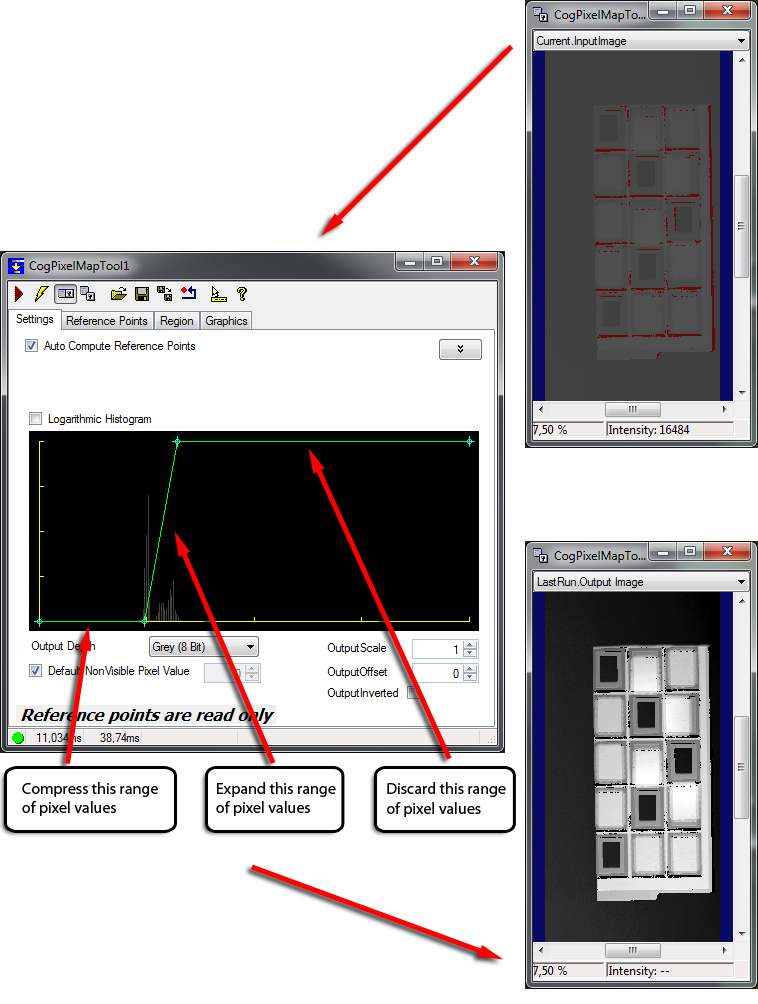
Some 16-bit image devices, such as infrared (IR) cameras, may produce calibrated 16-bit images. In the case of an IR camera, for example, a specific pixel value may represent a specific surface temperature. If your application is interested in performing analysis of features with a specific ranges of temperatures, you can configure the PixelMap tool to expand the corresponding range of input image pixel values, without needing to refer to the image histogram.