This topic contains the following sections.
This topic describes how to use PMAlign's AutoTune feature to create a composite PMAlign pattern that contains features from multiple images.
You use PMAlign AutoTune to create a composite PMAlign pattern by supplying the composite training function with a collection of images of the part or object for which you are creating a pattern. In addition to the images, the composite training function also requires that you supply a pose for each image. The pose tells PMAlign where in the image to look for composite image features.
 Note Note |
|---|
| All of the data (images and poses) and configuration parameters used for composite training are contained within a CogPMAlignComposite object. When a CogPMAlignPattern is configured to use composite training, the CogPMAlignPattern's Composite property is set to the CogPMAlignComposite object containing the data. |
The PMAlign control's Tune tab makes it easy to collect and configure the required collection of images and poses by dividing the composite training operation into two phases:
- An alignment phase, where you determine the pose of the part in a series of images.
- A tuning phase, where you configure the tuning parameters and evaluate the quality of the tuned pattern.
Using PMAlign AutoTune to create a composite PMAlign pattern is a multi-step process:
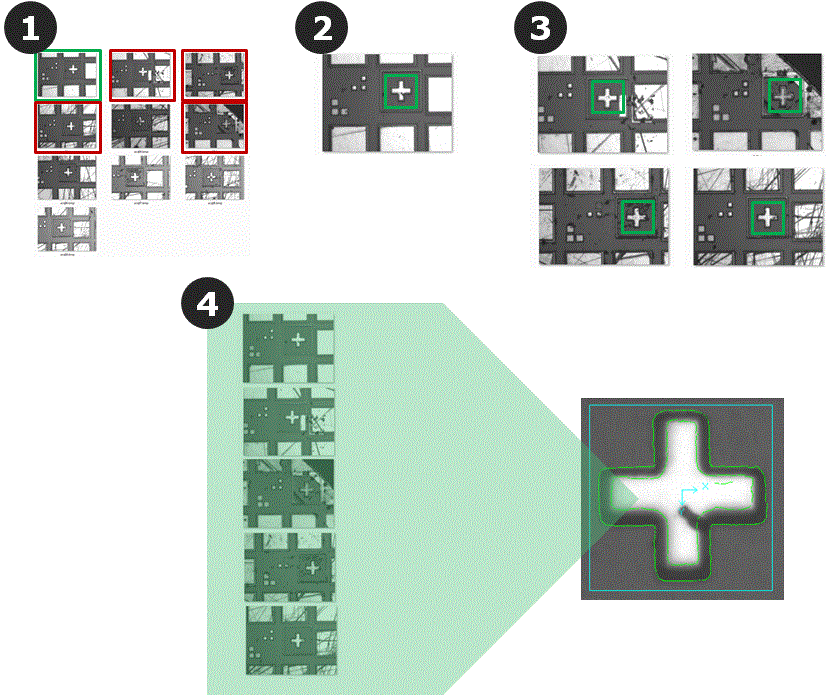
- Select a set of images of your part that cover the range of part appearances that you need to align.
- Select one of these images to use as a registration image and train a simple PMAlign pattern using that image. The registration image should be the "best" image that you have for the part.
- Using the Tune tab in Alignment Setup mode, locate (and verify) the part location in each of your tuning images..
- Using the Tune tab in Tune & Train Setup mode, configure the tuning parameters and train a tuned composite pattern.
- Evaluate the tuned pattern, both by visually examining the trained pattern features and by verifying the pattern against a large number of production images. This step is performed separately from tuning the pattern.
PMAlign AutoTune is subject to the following limitations:
- The training images should only contain a single part instance. If your images contain multiple part instances, you must use the programming interface to explicitly specify which instance's pose is to be used for alignment.
- Only 8-bit images are supported.
- Only the PatMax and High-Sensitivity algorithms are supported.
- Only image-based training is supported.
The alignment phase includes the following steps:
The first step in the alignment phase is to assemble a set of images to use for composite training. Typically, you will start with a large database of images from your production environment. From this large database, you should select a "good" training image to use as a registration image, as well as a collection of approximately four to eight images that show the range of image and part appearance variation that you are experiencing in production.
| Note |
|---|
The number of images to use for training depends on the specific tuning requirements. In general, if you are training a composite model to handle a part with discrete variations, then a single image per part variation is appropriate. For composite models to handle highly variable image clutter and occlusion, you should select enough images so that all valid part features are visible in at least one or two images. The amount of time required for tuning increases with the number of tuning images. Keep in mind that VisionPro must perform the tuning operation each time the pattern is depersisted (loaded from disk into memory). |
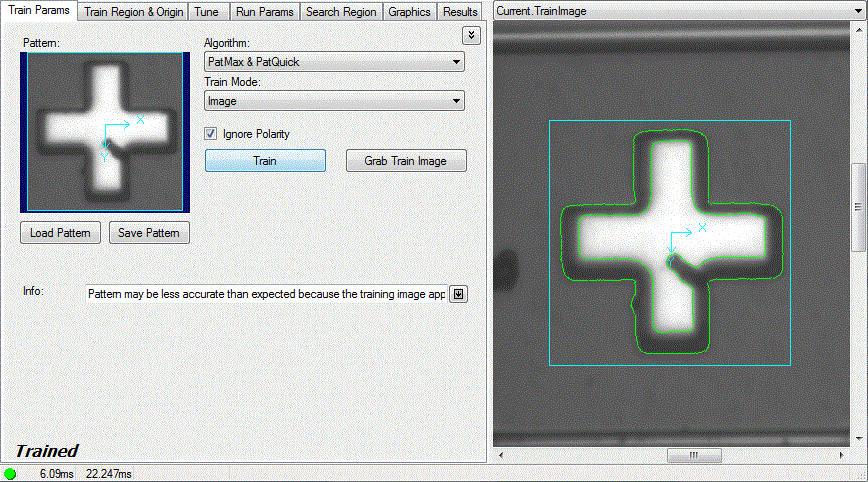
Create a new PMAlign tool and train it using the registration image that you selected.
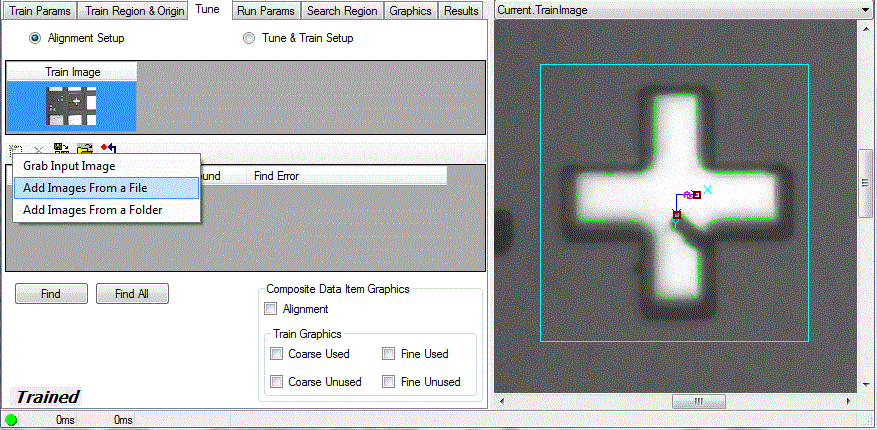
To add the tuning images, click on the Tune tab and add the remaining tuning images. You can add the images from an IDB file or as individual BMP files using the add and add folder buttons.
| Note |
|---|
| The order of the images in the list does not affect the tuning results. |
Now click the Find All button. The tool will attempt to locate the pattern trained from the registration image in all of the other images in the image list.
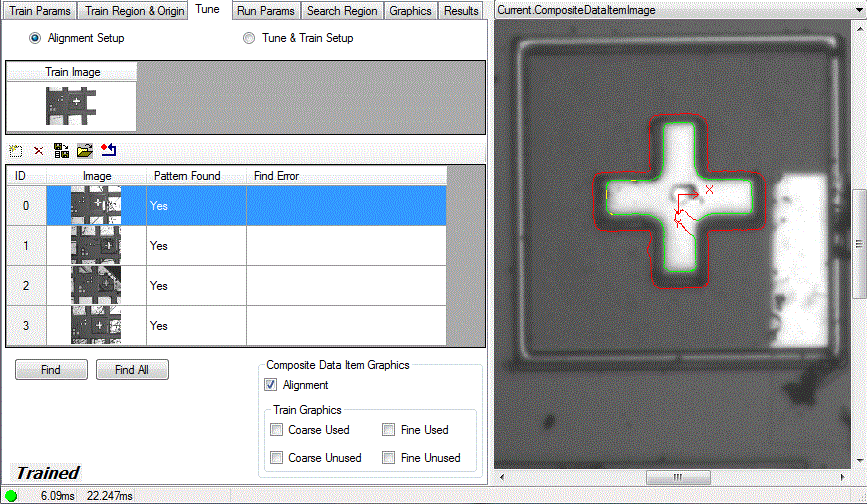
The tool will use the currently configured values in the Run Params tab for the search. You should configure these values appropriately for your images, including specifying appropriate degrees of freedom.
| Note |
|---|
| If your images include extra features or clutter that varies from image to image, make sure to uncheck the ScoreUsingClutter check box. |
When the find operation is complete, the Pattern Found and Find Error fields for each image will describe whether or not the pattern was found. To obtain good results from tuning, it is essential that the pattern is correctly located in each tuning image. To verify the alignment of each image, follow these steps:
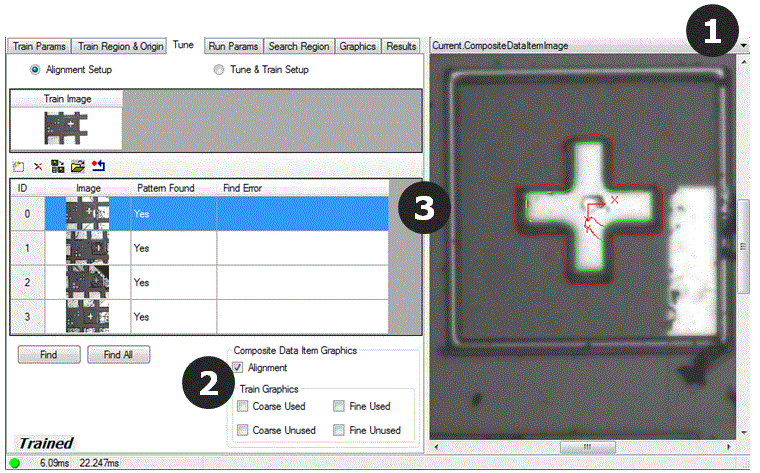
- Select Current.CompositeDataItemImage in the image display selector. Selecting this image will automatically display the selected image in the image list during both the alignment and tuning phases.
- Check the Alignment check box.
- Click on each image in the image list and verify that the pattern is correctly aligned.
If an image is not correctly aligned, adjust the search parameters, and then re-align all images. If an image cannot be aligned, remove it from the list.
The tuning phase includes these steps:
To tune the pattern, first select the Tune & Train Setup option button, then make sure all of the images are enabled (their Enabled check boxes are checked), then click Tune & Train.
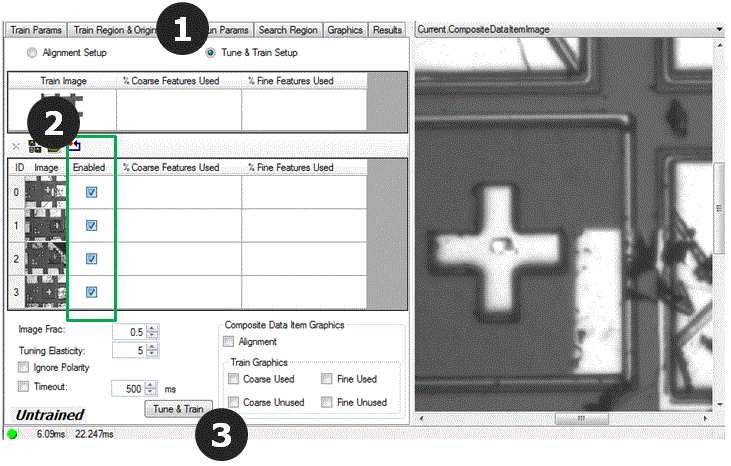
| Note |
|---|
| The amount of time required for tuning increases with the number of tuning images. Keep in mind that VisionPro must perform the tuning operation each time the pattern is depersisted (loaded from disk into memory). |
To evaluate the tuned pattern, first click the Graphics tab and check the Show Coarse and Show Fine check boxes, then select Current.TrainImage in the image display.
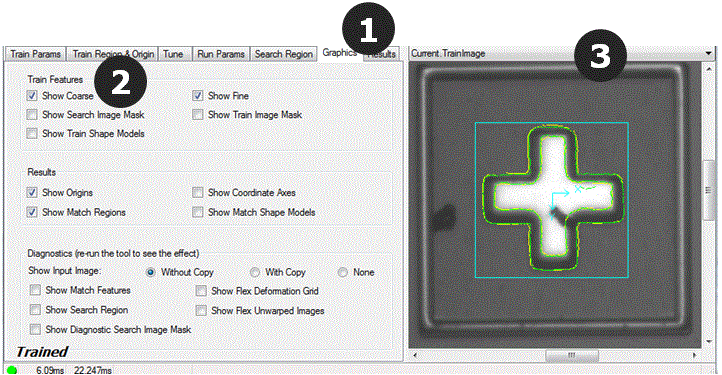
The train image display shows you all of the coarse (yellow) and fine (green) features in the tuned pattern. Make sure that the pattern includes common part features and does not include clutter features.
To determine how the tuning images are contributing (or not contributing) features to the tuned pattern, follow these steps:
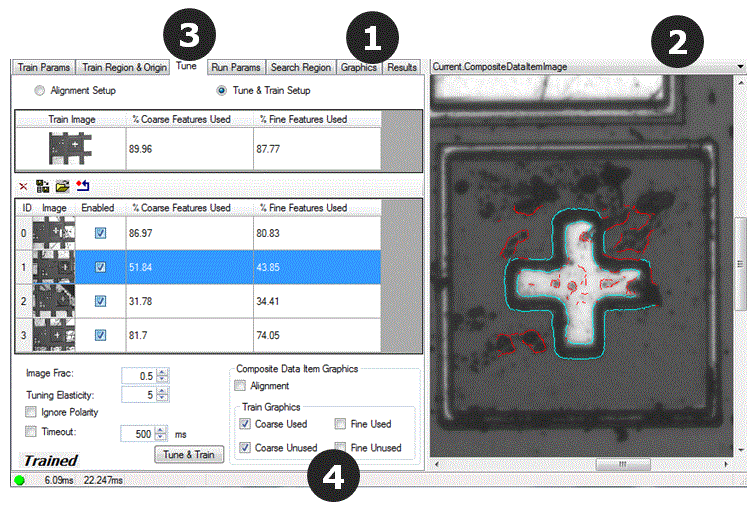
- To evaluate the tuned pattern, first click the Graphics tab, then uncheck the Show Coarse and Show Fine check boxes in the Graphics tab.
- Select Current.CompositeDataImage in the image display.
- Click the Tune tab.
To view the features from a tuning image that were added to the tuned pattern, check the Coarse Used and Fine Used check boxes, then select the image in the list. The image display shows the coarse and fine graphics from the selected image that were included in the tuned pattern.
To view the features from a tuning image that were not included in the tuned pattern, check the Coarse Unused and Fine Unused check boxes, then select the image in the list. The image display shows the coarse and fine graphics from the selected image that were not included in the tuned pattern.
The following parameters allow you to control how features are matched and added to the tuned pattern:
- The ImageFraction determines the fraction of the tuning images that need to contain a given feature for it to be included in the tuned pattern. In general, increase this value to reduce the number of features in the tuned pattern.
- The TuningElasticity determines the alignment tolerance (in pixels) for image features. Features must be within the specified distance to be counted as the same feature.
- IgnorePolarity determines whether feature polarity is considered during training.
- Timeout sets the tuning timeout.
In most cases, once you are satisfied with the visual appearance of the tuned pattern, you will use a tool like the Image Grading Utility to systematically evaluate the performance of the tuned pattern on one or more image databases.
You should keep the following points in mind when creating and deploying tuned patterns:
- When you save a tuned pattern, all of the tuning images and poses are also saved. The images and poses must be present when the pattern is depersisted (loaded), because the PMAlign tool retrains the pattern at load time.
To reduce memory usage during run-time operation, you can call the programming interface function ClearCollection. Since the pattern is already trained, it will still operate correctly.
 Caution
If you save (persist) the pattern after calling ClearCollection you will not be able to train the pattern again without recreating the list of images and poses.
You can save and load the composite training data using the buttons in the image list or by using the CogSerializer class.