The LineMax tool locates one or more line segments corresponding to linear edge points in your runtime images:

A LineMax tool locates probable edge points and fits the best possible line segment based on criteria that you specify. You configure the tool with the expected orientation of the segment you want to find, its polarity (dark to light transitions), as well as other line characteristics.
By default a LineMax tool locates a single line segment, but can be configured to locate multiple line segments when the correct VisionPro license is present. See the topic Using VisionPro Security Keys for details on VisionPro licenses.
The LineMax tool is more robust than the Find Line tool (part of the Shape Finding Tools), which requires precisely placed calipers in order to find individual edge points. Cognex recommends the LineMax tool for new applications, and continues to support the Find Line tool for existing applications.
See the following sections for more information:
A LineMax tool analyzes a runtime image in order to generate a set of gradient vectors representing all the edge information it contains. Each gradient vector has a direction and a magnitude:
- The direction points to where the image increases in brightness.
- The magnitude indicates the strength of the contrast between this area of the image and the surrounding areas.
The following figure shows an example set of gradient vectors generated from image information:
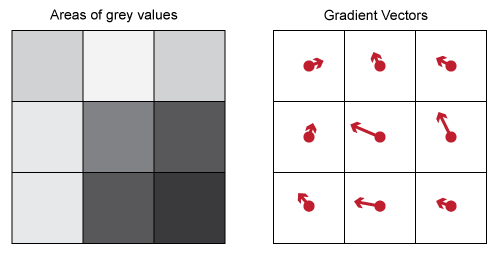
The set of all the gradient vectors generated from a runtime image represents a gradient field. The LineMax tool defines potential edge candidates and performs line fitting on the gradient field and not the original runtime image.
A LineMax tool uses a set of parameters to extract edge point candidates for the features you want to detect. Setting the best values for these parameters allows a LineMax tool to find the desired edges in the shortest execution time possible.
To reduce the amount of data to process and improve execution time, the tool samples the runtime image and generates gradient vectors for square areas of the image defined by a gradient kernel.
The default gradient kernel size value of 2 allows the LineMax tool to evaluate the runtime image using a 2x2 square kernel to generate gradient vectors:
- Runtime images with sharp edges might require a small value for accuracy.
- Runtime images with soft features might require larger values for edge location.
In general, smaller values lead to results with higher accuracy but higher execution times, while larger values can reduce execution time at the cost of some accuracy.
The tool performs gradient field projection to analyze the gradient field with a series of projection regions along a specified search direction perpendicular to the orientation of the expected line segment:
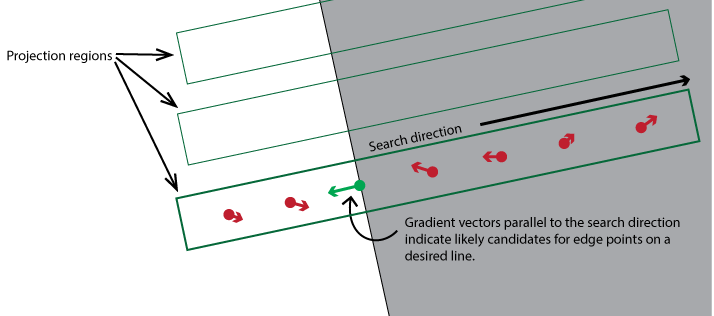
The parameter projection length defines the size of the projection region and ultimately the quantity of regions used to analyze each gradient field. A small value includes fewer gradient vectors than a projection region with a larger value. In general a small value requires more time to execute while a larger value can improve the execution speed of the tool but might not detect the edges you want the tool to locate.
- Each projection region generates a single gradient vector to pass along to the line fitting phase.
Gradient vectors must have a magnitude higher than an absolute contrast threshold and a normalized contrast threshold.
Raise the value of normalized contrast threshold to discard false edge points in bright areas of your image. Be aware that setting it to 1 discards all edge points, making the tool effectively nonfunctional.
A LineMax tool uses a set of line-fitting parameters for fitting all edge points to one or more line segments.
The LineMax tool defines found edge points as either inliers or outliers:
- The tool identifies an edge point as an inlier only if its gradient direction and position are consistent with the line-based gradient angle and distance tolerances specified by the line fitting parameters.
- Edge points that are not consistent with line-fitting parameters are identified as outliers.
The edit control for a LineMax tool can display the gradient direction of each found edge point along with a color to represent whether it is an inlier or outlier:

A LineMax tool can be configured to generate information about all edge results in the current image without finding any lines by setting the number of line segments to locate to zero. See the topic CogLineMaxTool edit control for more information.
The tool relies on a number of limitations regarding found edges points to determine if they fit along a desired line.
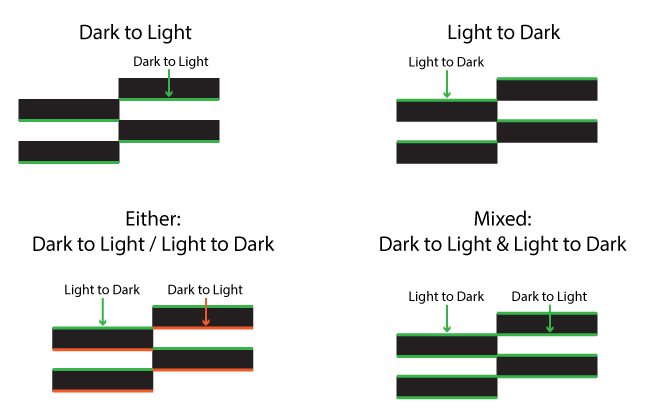
Edge Polarity
You must specify the polarity of edge points that fit into the line segment you want the tool to locate. The following figure illustrates all possible polarities:
Edge Angle Tolerance
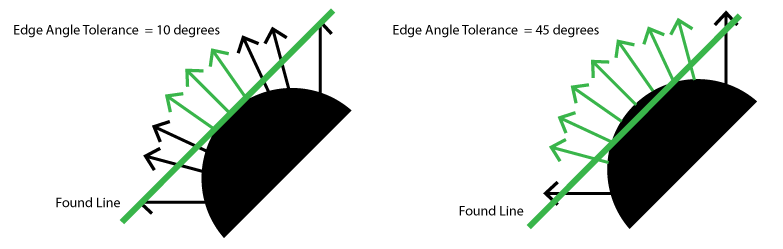
The LineMax tool uses an edge angle tolerance to limit the difference between the gradient vector direction for an edge point and the expected orientation of the line segment. Candidate gradient vectors with a direction within that range are included as inliers to the found line segment.
As you increase the edge angle tolerance, you allow the tool to consider more edge points as inliers and change the location of the found line, as illustrated in the following figure:
Edge Distance Tolerance
A LineMax tool fits a line to candidate edge points with respect to a distance tolerance, measured in pixels or the units of the currently selected space.
As you increase the edge distance tolerance, you allow the tool to consider more edge points as inliers and change the location of the found line, as illustrated in the following figure:
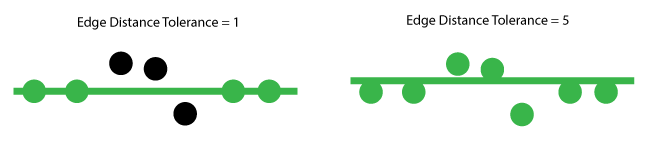
Be aware that if this setting is too large, edge points from parallel lines can be interpreted as representing a single line. In general, set a distance tolerance threshold that is less than one-half the distance between the closest parallel lines in the image.
The tool supports two line-fitting algorithms:
- The Random Sample Consensus algorithm (RANSAC), an algorithm for robust fitting of edge points in the presence of many edge point candidates.
- Exhaustive mode: All edge point combinations are evaluated for line fitting.
Cognex recommends you use the default RANSAC mode and switch to Exhaustive mode only if necessary, as this mode can require more execution time.
The LineMax tool supports the use of adding a mask image to prevent the tool from searching for edge points in selected sections of the image. A mask image uses semi-transparent red pixels to represent pixels that are masked off from consideration, while the other pixels of the underlying image appear unchanged.
For example, the following figure shows an input image with no mask and another where all internal features are masked out from consideration:
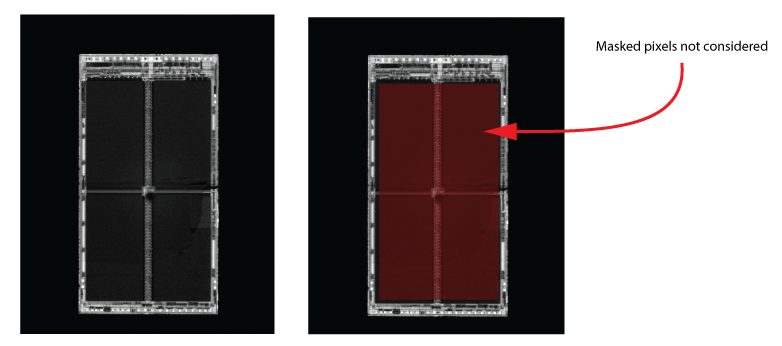
Use the Image Mask Editor to add an image mask to your input image. To access the Image Mask Editor from a CogLineMaxTool edit control, click the button highlighted in the following figure:
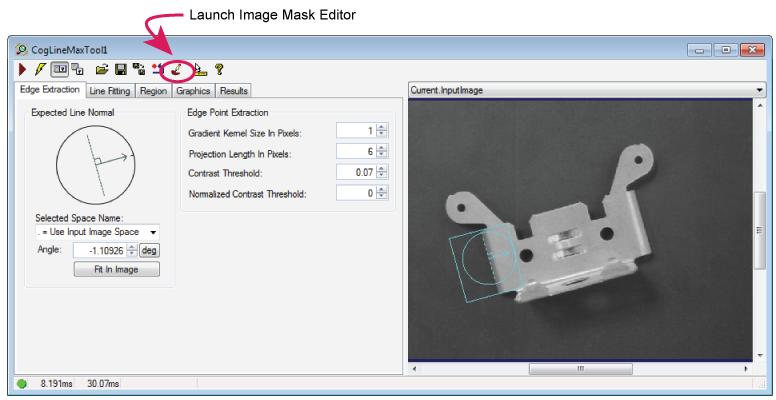
See the topic Image Mask Editor for more information.
The tool returns the following information about found line segments:
- The (x,y) location, in coordinates of the selected space, for the start and end of the fitted line segment
- The number of inliers and the proportion of inliers contributing to this line segment
- Its polarity, intensity and amount of contrast
- A residual RMS fit error, relative to the selected space of the input image, from the contributing inliers
In addition, the tool can be configured to return no line segments but still generate a set of edge results available through the CogLineMaxTool API.