This topic contains the following sections.
The QuickBuild application, part of the VisionPro software kit, provides an interactive environment for creating a complete vision application in the least amount of time. This tutorial will take you from the first step of setting up your vision tools to building an executable vision application.
Building a vision application with VisionPro is a three step process:
- Use QuickBuild to develop and refine your vision application.
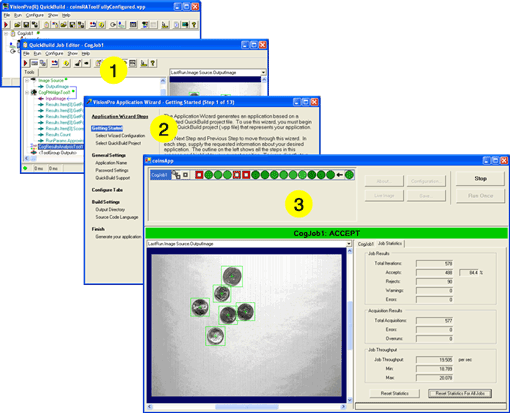
- Use the Application Wizard to create a user interface for your users and to generate the executable application.
- Test and deploy the executable application.
The application you'll be building in this tutorial counts coins in an image and determines whether the image contains a minimum number of coins. It uses the PMAlign tool to identify coins in an image and various other tools to report results.
The VisionPro installation utility installs the QuickBuild icon on your Windows desktop:

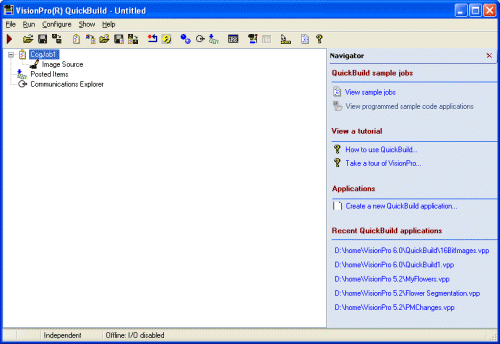
To launch QuickBuild, double-click the icon or choose Start->Cognex->VisionPro->VisionPro QuickBuild from the Windows Start menu. The initial QuickBuild window appears:
This section contains the following subsections.
The first task in the development of many vision applications is to establish an image source, which can be a camera connected to a Cognex frame grabber, an IEEE 1394 DCAM (FireWire) camera, a GigE Vision camera, or a third-party imaging device. For many applications, it can be convenient to start with an image database containing the types of images you are likely to acquire as your finished vision application executes in a production environment, and then modify the application later to accommodate images from a connected camera.
The section Configuring an Image Source describes how to configure QuickBuild to acquire images from a connected camera. This example uses images from a image database included with VisionPro.
For this example, you'll use a small database of coin images installed, by default, in \Program Files\Cognex\VisionPro\Images\coins.idb.
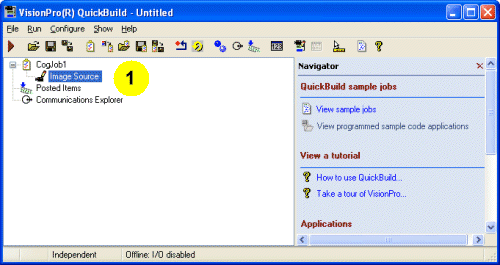
- Double-click the Image Source node in the QuickBuild window.
QuickBuild opens a QuickBuild Job Editor dialog where you will add and configure the vision tools you need, as well as an Image Source dialog:
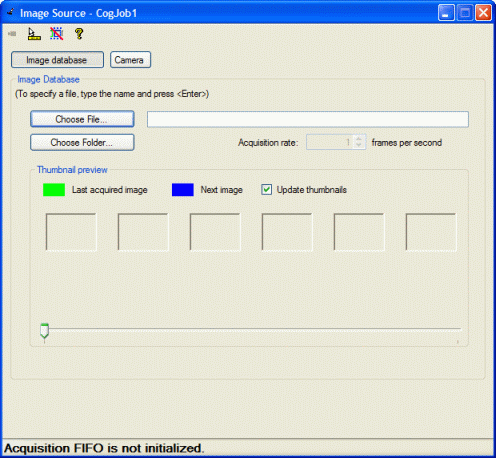
- By default, the Image Source is configured to acquire images from an image database.
- Click Choose File to select an image database file.
For this tutorial, use the file coins.idb located in \Program Files\Cognex\VisionPro\Images.
- Click the Live Display button located at the top-left corner of the dialog:

Confirm that a live display window opens to cycle through all the images of coins contained within the image-database file.
- Close both the live display window and the Image Source dialog.
At this point your Job contains only a configure image source, but you can run the Job to see how an image appears in the QuickBuild Job editor.
- Click the Run button in the tool group's tool bar.
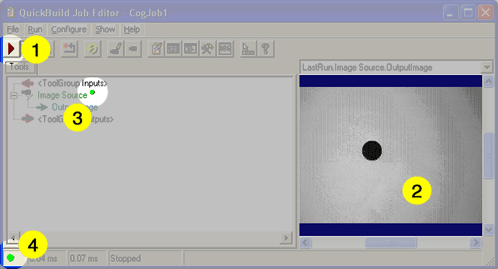
- The image acquired from the image database file appears in the display area.
- When you run a tool, a small green dot next to the tool indicates that it ran successfully.
- When all the tools in a job ran successfully, a green dot appears in the lower left corner of the Job Editor.
- Click the Run button until you see an image of a single black circle.
In the next step, you'll add a PMAlign tool and configure it to find the coins in each image.
This section contains the following subsections.
- Adding the PatMax Align Tool to the Job
- Creating the Pattern
- Trying it Out
- Adjusting the Run Parameters
- Running the Entire Job
This example uses the CogPMAlign tool to look for round shapes (coins) in the image. The PMAlign tool uses Cognex PatMax software to locate patterns in an image. You can learn more about PatMax and the PMAlign tool by reading the PatMax Software theory guide the PMAlign Edit Control reference.
The first thing to do is add a CogPMAlign tool to your QuickBuild project.
- Click the toolbox button to open the toolbox.
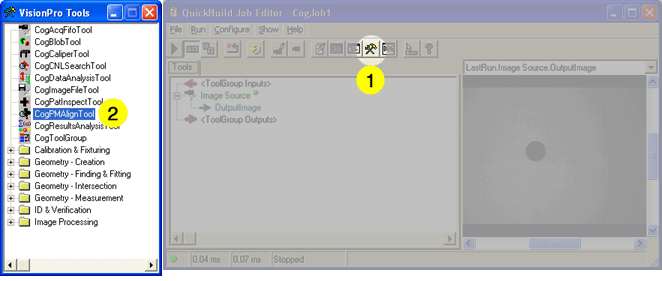
- When the Toolbox appears, select the CogPMAlignTool and drag it to the Job Editor.
- A new CogPMAlign tool appears under the Image Source.
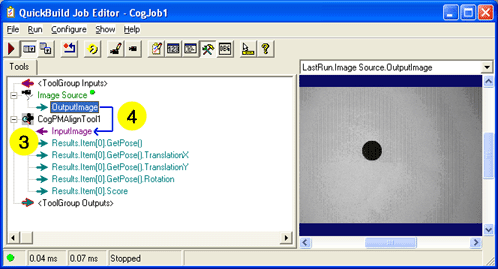
- Click on the OutputImage of the Image Source and drag to the InputImage of the CogPMAlign tool to link images produced by the Image Source to the input images to be analyzed by the CogPMAlign tool.
The PMAlign tool searches for a trained pattern in each image it analyzes. As you configure a PMAlign tool you must first create the trained pattern and then specify parameters such as the number of patterns to find, the expected range in dimensions each potential pattern may exhibit, as well as other search parameters. This application uses a round dot the size of a coin as a pattern. If you used the actual image of a coin, the tool would try to match those features as well. This example uses the PatQuick algorithm, a PMAlign tool option that improves the search speed of the tool at the cost of some accuracy. In this application, the search for coins doesn't require very high accuracy.
Double click on CogPMAlignTool1 to open the tool.
-
Choose PatQuick from the Algorithm drop-down menu.
This tells the tools to use the faster PatQuick algorithm which is appropriate for this example.
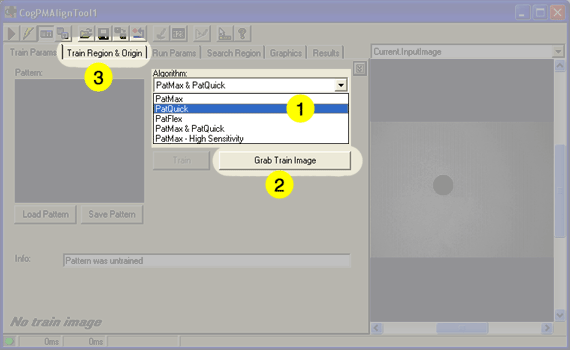
- Click Grab Train Image to have to tool use the current input image as the training image.
- Click the Train Region & Origin tab to set up the training parameters.
- When the tab changes, choose Current.TrainImage from the display menu to display
the training image you grabbed.
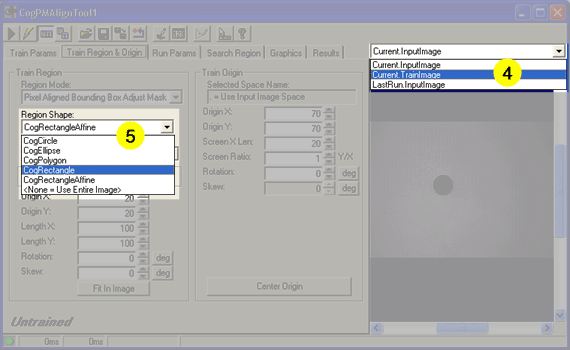
- Choose CogRectangle from the Region Shape drop-down menu. This tells the tool that you will be selecting a simple rectangular area to train.
- Click and drag the small training region rectangle to enclose the large dot to tell the tool what
part of the image to use as a pattern.
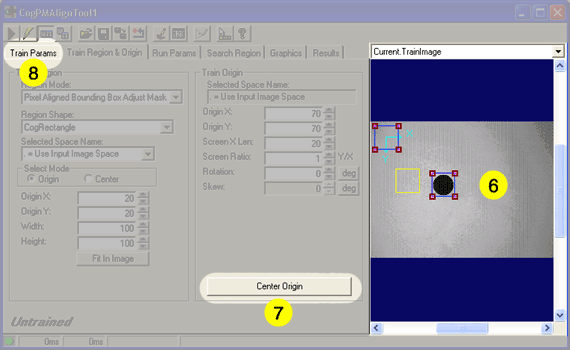
- Click the Center Origin button to move the origin icon to the center of the rectangle. When the tool finds a feature in an image, it uses the relative location of the origin icon to report its location. In most cases, the center of the thing you're looking for is the position you want to report.
- Click on the Train Params tab to finish training the pattern.
- Check the Ignore Polarity option. Polarity tells the tools whether it should
consider or ignore whether the pattern is dark on a light background or light on dark background.
Since this pattern is dark on a light background, and depending on the lighting, the coins may be either light or dark
against the background, ignoring polarity is the right thing to do in this case.
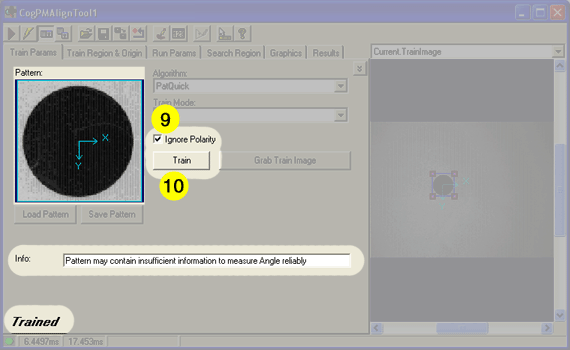
- Click the Train button. The trained pattern appears in the Pattern panel, and the word Trained appears at the bottom of the tool.
You may notice the information message that reads Pattern may contain insufficient information to measure Angle reliably. Since the pattern you're using is circular, it's expected that the PatMax software would not be able to determine if it's rotated.
Now you're ready to see how your patterns work.
- Choose LastRun.InputImage from the image drop-down list. The last run image
shows the results of the most recent run. Since you haven't run the tool yet, this image may be blank.
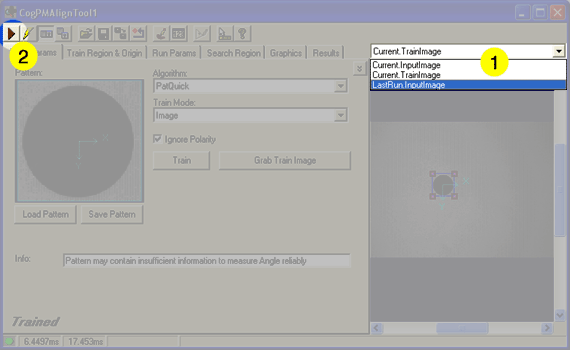
- Click the Run button to run the tool.
- Since you used the current image as the training pattern, the tool should have no problem finding it.
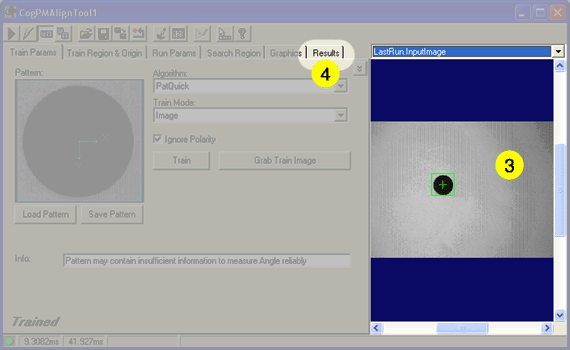
- Click the Results tab to see the results that tool produced.
- The Results pane lists all of the features that were found in the image. You can examine
the score, location, and other results for each feature.
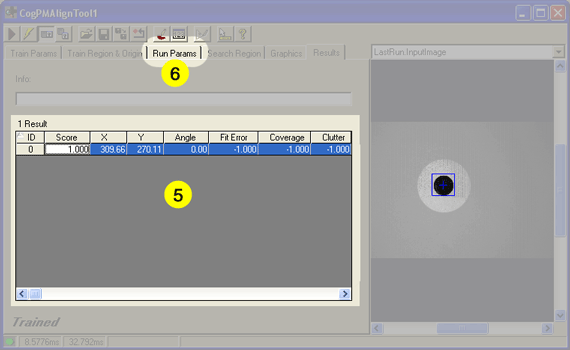
When you select a row in the Results pane, the corresponding shape is highlighted in blue in the display pane.
You can use this pattern to find any round shape in an image. But since you want to find several coins of different sizes, you need to set up the tool to be more flexible with the pattern.
- Click the Run Params tab to adjust the tool's run parameters to change the way it deals with objects of different sizes.
Creating and training the pattern tells the PMAlign tool what to look for. The run parameters tell the tool how to go about finding it.
- Set the Approx. number to find to 10. This number is a guide for the tool, not a threshold.
The tool may find more than this number of instances.
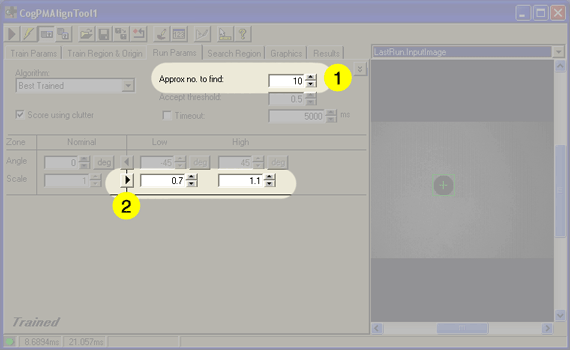
- Click the Scale arrow to point to the right, and set the Low threshold to 0.7 and the High threshold to 1.1.
This setting lets you select the relative sizes of the things you are looking for. In this example, you trained your pattern with the largest coin you expect. The smallest coin in this set is the US dime; its diameter is about 70% that of the largest coin, the US quarter.
The scale factor is also used to take into consideration slight differences in size and distance from the camera.
Everything should be set up now to find coins:
- You selected an image to use as a pattern.
- You trained the pattern.
- You set up the run parameters to find the items you're looking for.
You're ready to run the entire job. Close the CogPMAlign tool window, or drag it out of the way, so you can see the QuickBuild job editor.
- Click the Run Job Once button.
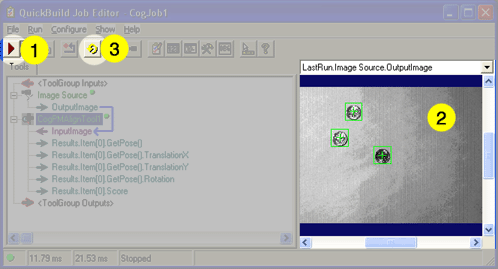
- QuickBuild runs the entire job:
- It acquires the next image, either from the image database or the camera.
- It runs the CogPMAlignTool to find the items in the image.
- It displays the results in the display pane.
- You can click Run Job Continuously to have QuickBuild acquire images and run the tool until you click the button again.
At this point in developing your vision application, you would experiment with the kinds of images you're likely to process, and adjust the tool parameters, camera alignment, and lighting. If you need to do that for this application, double-click on the CogPMAlignTool1 entry in the QuickBuild job editor.
This section contains the following subsections.
- Exposing New Terminals to the PMAlign Tool
- Adding a Results Analysis Tool to the Job
- Setting Up the Results Analysis Tool
- Connecting the New Terminals to the Results Analysis Tool
- Trying It Out
- Making Changes to the Job
At this point, your application does what it is designed to do: find coins in an image. Now it's time to make it more interesting. Most vision applications involve checking an image to see if it meets some criteria. In this application, you will check whether the image contains a minimum number of coins.
Every VisionPro tool has a result status that it displays at the lower left corner of the tool edit control. In the QuickBuild Job Editor, you can see each tool's status as a small icon to the right of the tool's name. The results status of the entire job depends on all of the tools in it passing.
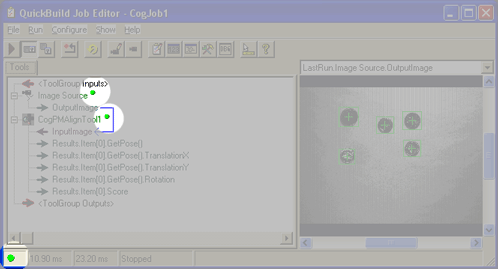
Ideally, the PMAlign tool would pass when it finds the number of coins you want, and fail if there were fewer. But since you can use the PMAlign tool for much more than counting, it's better if you decide what information that the tool generates is relevant to your application.
To do this, you'll expose some additional results that the PMAlign tool generates, and you'll use a new tool, the Results Analysis tool to compute an inspection status for the entire job.
By default, the PMAlign tool exposes the score and pose information for the first item found. (Pose information contains information about the position and size of the found pattern.) The data you want to expose are the number of coins you expected to find and the actual number to find. To do this, you need to add terminals to the PMAlign tool.
-
Right-click on the CogPMAlign tool in the QuickBuild Job Editor window.
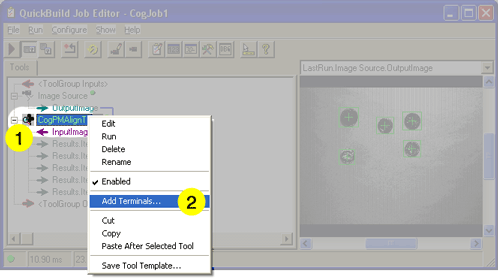
- Choose Add Terminals from the pop-up menu.
-
The Member Browser dialog opens.
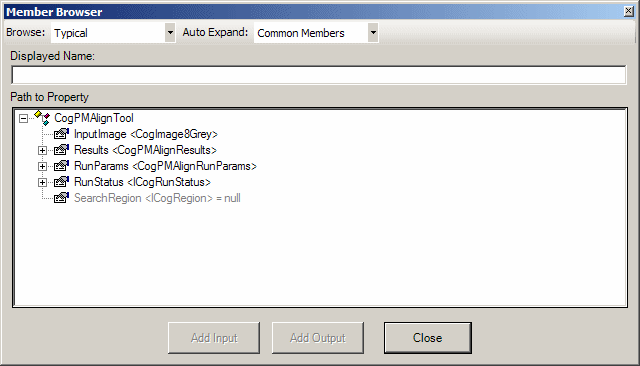
The member browser exposes the underlying structure of the tool, which can be fairly complex. To reduce this complexity the browser provides three structure levels; Typical, Expanded and All which you can choose from the pull down menu. Typical, the default, displays only the most often used elements. Expanded displays a somewhat longer list and All displays the entire structure.
The Auto Expand pull down menu gives you the option to automatically expand commonly used property collections. When you choose Common Members, the default, common members are expanded automatically when they are displayed. If you choose None, no property collections are expanded automatically. We will use None in this example to minimize the screen clutter.
The following table shows the most commonly used property collections displayed by the browser. These property collections are implemented as classes in .NET, and most of the time they correspond to the tabs in the tool edit control.
Table 1. Parts of a VisionPro ToolProperty Collection (Class) Description Results This collection of properties holds the results that the tool generates. RunParams This collection of properties contain the parameters that control how the tool runs. The next set of steps take you through the process of exposing the two pieces of data you want: the number of coins you expected to find and the number of coins the tool found.
- Click the Results entry to expand it.
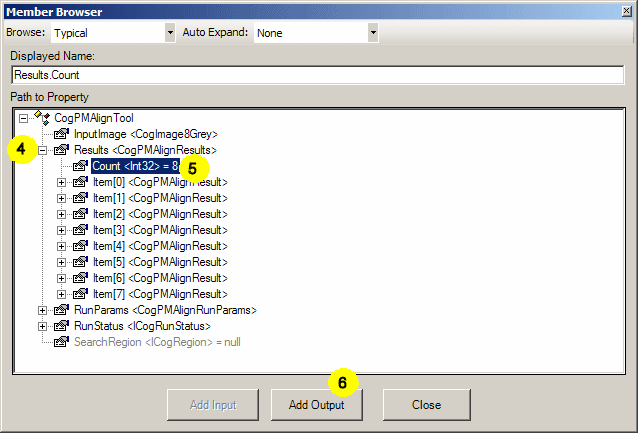
- Choose the Count entry.
- Click the Add Output button. This makes the Results property an output terminal of the PMAlign tool. The dialog doesn't close so you can add more terminals.
- Click the RunParams entry to expand it. Scroll down to find the ApproximateNumberToFind entry and click it.
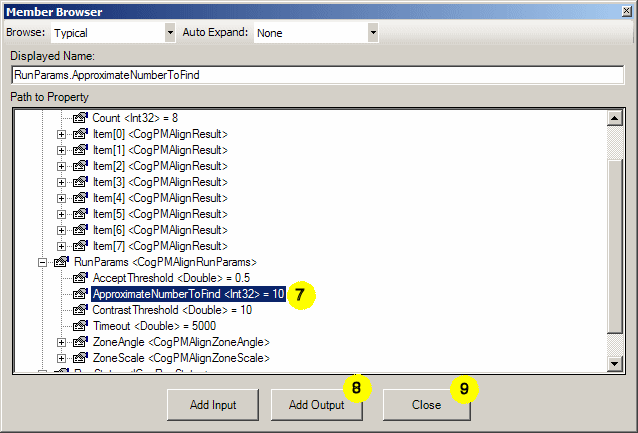
- Click the Add Output button to make the ApproximateNumberToFind property an output terminal. You'll notice that the Add Input button is enabled in this case. That means that you can use this terminal as an input terminal as well.
- Click the Close button.
- The new terminals appear in the QuickBuild Job Editor.
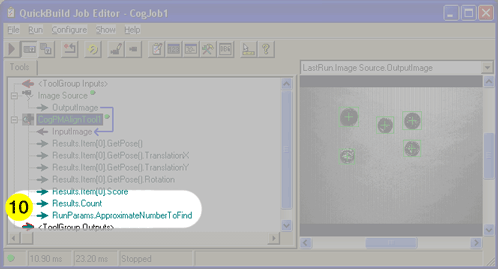
The next task is to set up a Results Analysis tool to accept the values of the two new output terminals you just added.
- If it's not already open, click the Floating Toolbox button to open the toolbox.
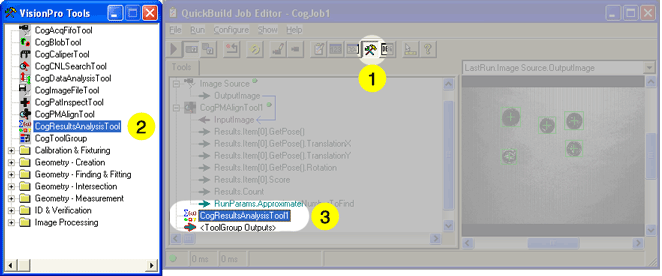
- Select the CogResultsAnalysis Tool from the toolbox.
- Drag it to the QuickBuild Job Editor.
- Double-click on the CogResultsAnalysisTool1 entry in the QuickBuild Job Editor to open the Results Analysis tool.
- When the tool's edit control dialog opens, click the Add Input button twice.
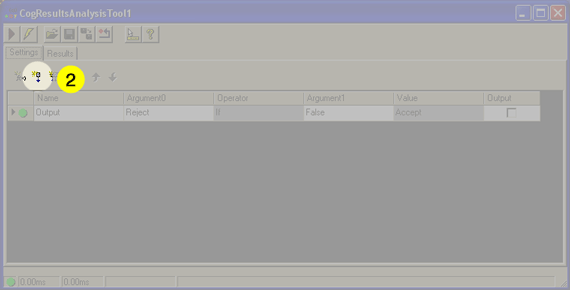
Two new items named InputA and InputB appear in the list.
-
Click on the item names to rename them. Rename them to more meaningful names: NumberFound and Minimum.
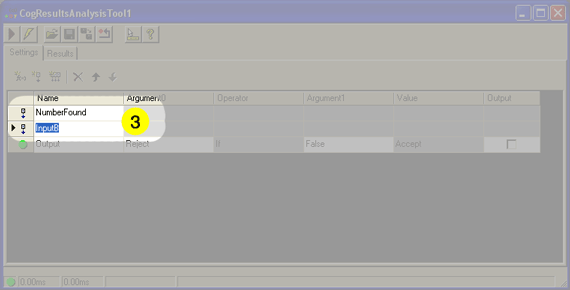
Now you need an expression to compare both values.
-
Click the Add Expression button.
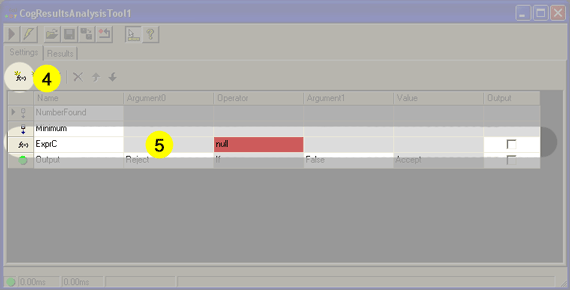
- A new expression line appears in the list. The expression you're going to build is one that says "Reject any results where the NumberFound is less than the Minimum."
-
To create this expression, select the relation first. Click the Operator cell in the expression and choose
LessThan.
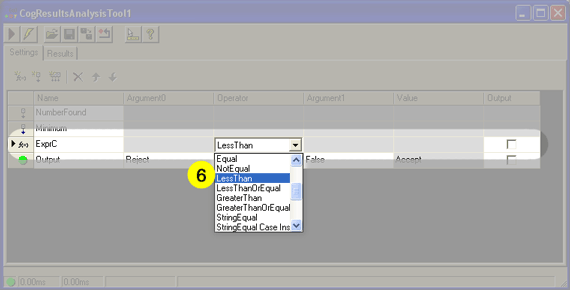
When you do this, the entries in the Argument columns will be red, and the Value column will say ERROR. This is OK because you're not finished making the expression.

-
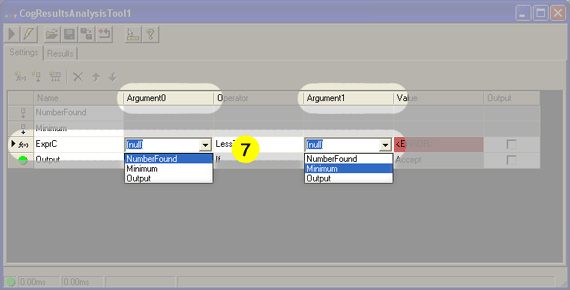
Choose NumberFound for the Argument0 cell and Minimum for the Argument1 column.
That completes the expression.
-
The last step is setting up the rejection criteria. You want to reject the image when the expression you created is True.
Choose ExprC for Argument1 in the Output line.
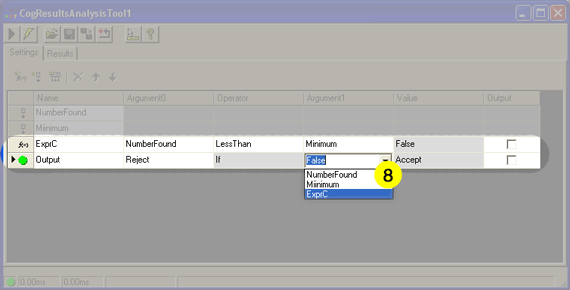
This says that the Results Analysis tool will return a Reject status whenever ExprC is True; in other words when the number of coins found is less than the minimum.
Now you need to connect the terminals you created for the PMAlign tool to the inputs of the Results Analysis tool.
- Click the + icon to the left of the CogResultsAnalysisTool1 to expose the inputs you defined for the tool.
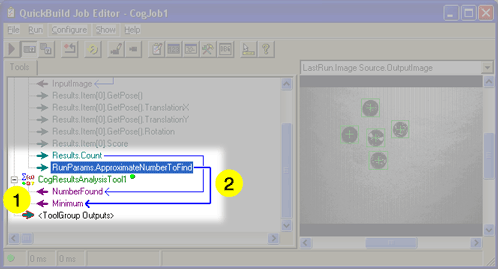
- Click the Results.Count output for the PMAlign tool and drag it to the NumberFound input of the of the Results Analysis tool. Do the same for the Results.ApproximateNumberToFind terminal of the PMAlign tool and the Minimum input of the Results Analysis tool.
Now you're ready to see how everything works. Arrange the QuickBuild Job Editor window and the CogResultsAnalysisTool1 windows so you can see both at the same time. Note that tool windows always appear in front of the job editor window.
- Click the Run Job Once button to run your vision application.
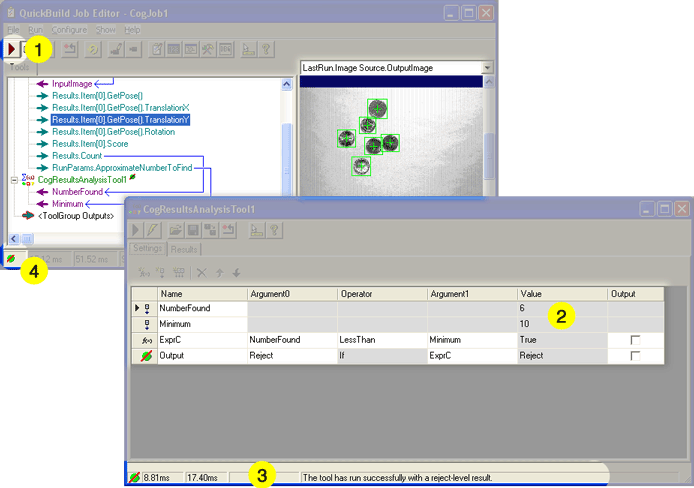
- When the PMAlign tool runs, the number of coins found and the number expected to be found are transferred to the Results Analysis tool.
- Since ExprC was True, the number of coins found was less than the minimum number of coins, the status of the Results Analysis tool is Reject.
- The Reject status propagates to the entire job. A reject-level result means that all the tools in the job ran correctly, but that the criteria for acceptance weren't met. In this case, the PMAlign tool found too few coins.
Try changing the Approx. no. to find setting in the PMAlign tool to see how that affects running the job.
- Double-click on the CogPMAlignTool1 item in the Job Editor window to open the tool.
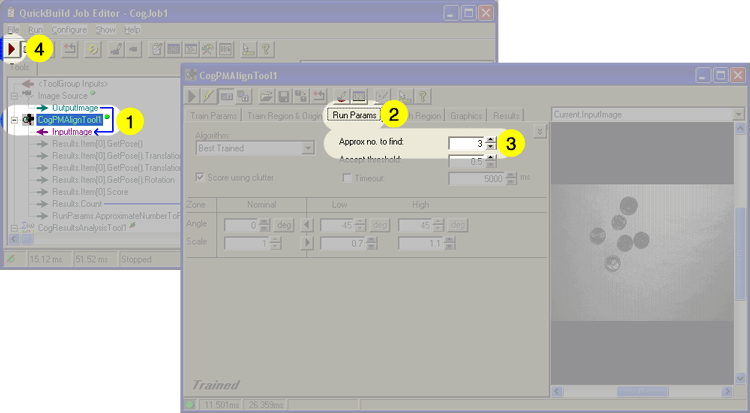
- Click the Run Params tab in the PMAlign edit control.
- Set the Approx. no. to find to 3.
- Click the Run Job Once button in the QuickBuild Job Editor.
- Now you can see the new Minimum value in the Results Analysis tool.
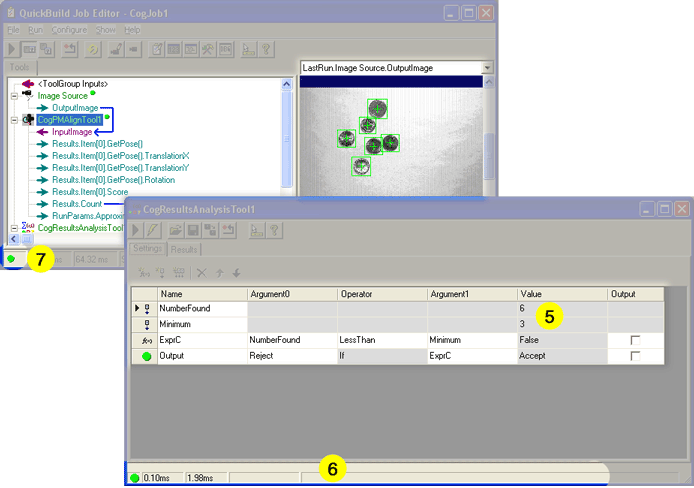
- Since the expression evaluated to False (the number of coins found was not less than the minimum), the Results Analysis tool passes.
- The Passing result propagates to the rest of the job.
The next section shows you how to keep track of the results of your application. Keeping historical results is useful to see how your application is running, and it also makes turning your vision application into deployable software much easier.
This section contains the following subsections.
- Configuring the Application to Save Rejection Results
- Setting Up the Posted Items List
- Running the Application and Examining Results
When you're using a vision application, you often want to be able to look at previous results. QuickBuild uses the Posted Items list to hold the results of completed runs of each job. Another list, the Failure Results Queue holds the results of failed requests.
Until now, you've been using the QuickBuild Job Editor which lets you work with a job. In this section, you'll be working with the main QuickBuild window which contains the entire application. In this case, the application has only one job, but in more complex situations, you would have several jobs as part of the same application.
By default, QuickBuild is set up to remember the last 32 job executions and the last 32 job failures. For this application you want the Failure Results Queue to also include those executions where the job ran correctly but the result was a rejection (not enough coins).
- Click the Configure QuickBuild Application Properties button in the QuickBuild window.
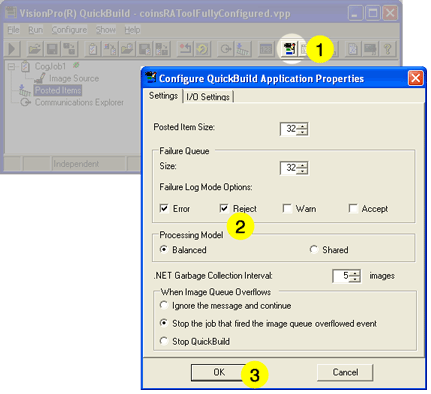
As you can see, the Posted Items list size is already set to 32.
- Check the Reject option in the Failure Queue section. This means that the failure queue will contain results in which the job failed and in which the job returned a reject-level status.
- Click OK.
The next step is to specify which results you want to save in the Posted Items list.
- Click the Configure Posted Items button in the QuickBuild window.
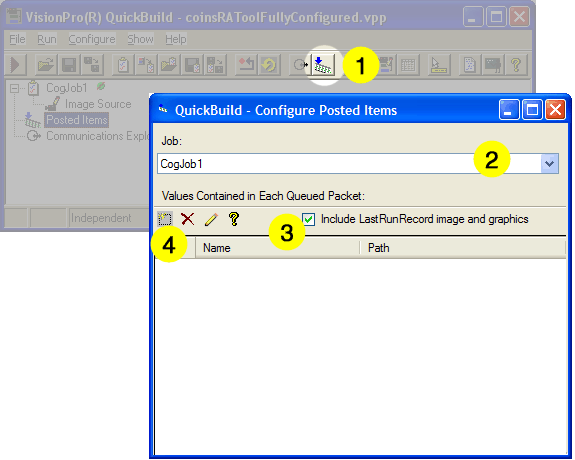
- If your application had more than one job, you would select the job name.
- Make sure that the Include LastRunRecord image and graphics option is selected so that the image and results graphics are saved with the result.
- Click the Add Item button to begin adding items to the Posted Items list.
The Configure Posted Items browser opens.
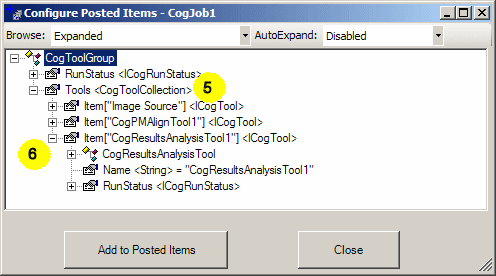
The Configure Posted Items browser exposes the underlying structure of the tool, which can be fairly complex. To reduce this complexity the browser provides three structure levels; Typical, Expanded and All which you can choose from the pull down menu. Typical, the default, displays only the most often used elements. Expanded displays a somewhat longer list and All displays the entire structure. For this example you will need to choose Expanded.
-
Click the + icon next to the Tools entry to expand it.
You'll see the three tools in your job listed by name here: the Image Source tool, the PMAlign tool, and the Results Analysis tool.
- Click the + icon next to the CogResultsAnalysisTool1 entry to expand it.
-
Continue expanding the following items to reach the value of the NumberFound entry of the Results Analysis tool:
CogResultsAnalysisTool / RunParams / Item["NumberFound"] / CogResultsAnalysisExpression / Value / Int32
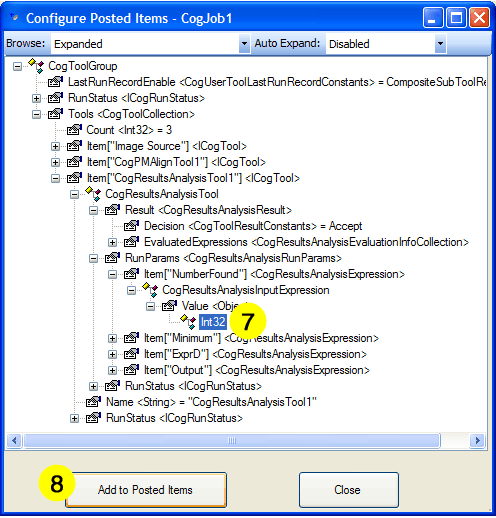
- Click Add to Posted Items to add the NumberFound value to the Posted Items list. The browser stays open so you can add more entries.
-
Expand the following items to reach the value of the Minimum entry of the Results Analysis tool
Item["Minimum"] / CogResultsAnalysisExpression / Value / Int32
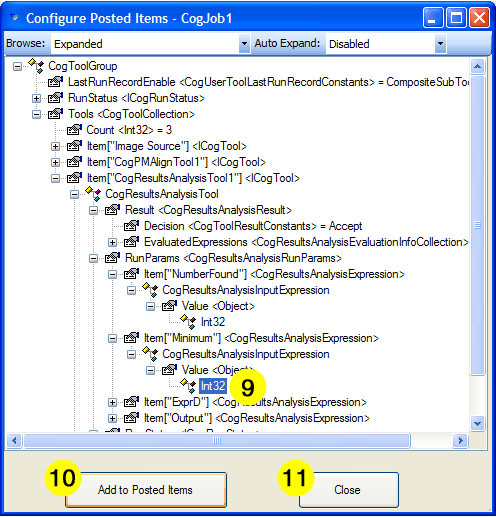
- Click Add to Posted Items to add the Minimum value to the Posted Items list.
- Click Close to close the Configure Posted Items browser. You can rename the items in the list by selecting them and clicking their names. Once done, your Posted Items window will look like this:

Now that you have the Posted Items list and the Failure Results Queue set up, you can see how they work.
-
In the QuickBuild window, click the Run QuickBuild Application Continuously button.
This starts the application running. You will notice the icon to the right of the job name change from a green dot (for successful images) to a green dot with a red slash (for rejected images).
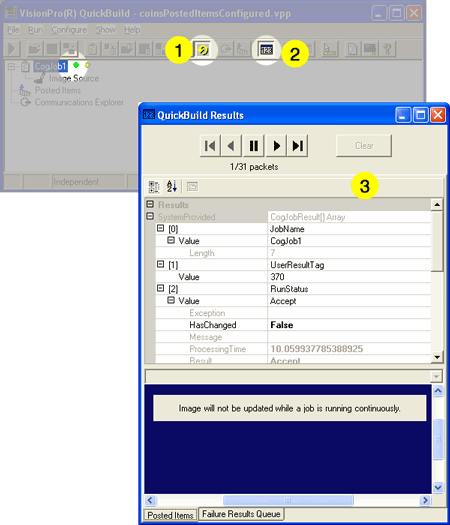
- After a few seconds, click the Show Floating Results button.
- The QuickBuild Results window opens. The data fields will update as the job runs, but the image will not.
- Click the Run QuickBuild Application Continuously button again to stop the application.
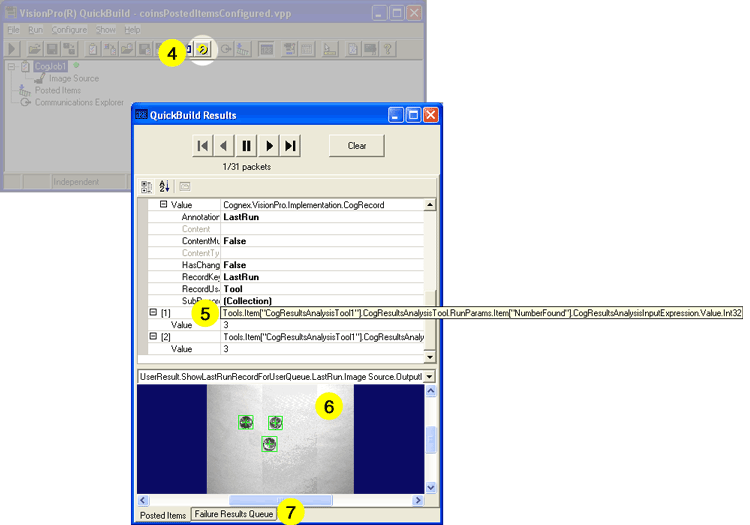
- Scroll to the end of the data fields to see the results you added to the Posted Items list and their values. The names of the items are rather long; if you allow your mouse to hover over the entry, you can see the entire name.
- The display area shows the image results.
-
Very often, however, you're interested only in the images that fail. Recall that you
enabled the option to add reject-level results to the Failure Results Queue. Click
the Failure Results Queue to see the rejected images.
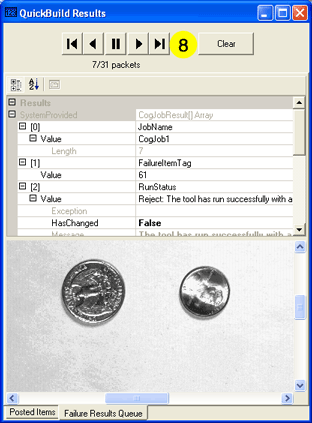
- You can use the buttons at the top of the QuickBuild Results window to examine other saved results.
At this point you have the basic skills you need to develop and refine a vision application with VisionPro and QuickBuild. At this stage of development, you might test different image sets, refine your patterns, tailor the results you want to report, and so on.
As you make changes to your QuickBuild application, it's a good idea to save it.
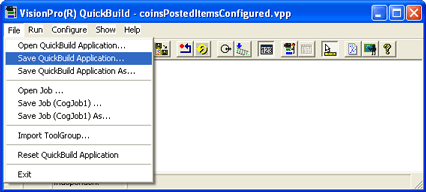
QuickBuild saves applications as QuickBuild Project Files with the extension .VPP.
Once you are ready to deploy your application, you can use your saved QuickBuild application and the VisionPro Application Wizard to create an executable Windows application.
Go on to Creating a Vision Application: Using the Application Wizard to continue the tutorial.