This topic contains the following sections.
Fixturing creates a coordinate space that remains in a fixed relationship to the run-time content of an input image. You typically create an application-specific fixture in order to make measurements of object features.
Of the two methods of fixturing, reference and geometric, reference fixturing is the more common. You use reference fixturing if you do not know the geometric dimensions or real-world coordinates of an object's features in advanc . Instead, you acquire a reference image of the object you want to fixture and then move graphics that represent the desired location and orientation of the final fixtured coordinate space on the reference image. At run-time, a fixturing tool accepts the positions of the physical features in the input image that correspond to those specified by the reference-image The tool then determines how features moved between the reference image and the input image. It applies the same movement to the fixtured space. Each time you run the tool, it recalculates the fixtured space, so that as object features move from image to image, the fixtured coordinate space axes remain affixed at the same location and orientation on the object.
This topic explains how to perform reference fixturing using the CogFixtureNPointToNPoint Tool in a QuickBuild application. The CogFixtureNPointToNPoint tool uses two sets of N points, one specified in unfixtured space and the other specified in raw fixtured space, and an optional origin adjustment to calculate a fixtured space. When you run the N-point fixturing tool, it calculates a best-fit, 2D transformation that maps pixels in an input image (unfixtured space) to real-world physical measurements (fixtured space). It then attaches the new fixtured space to the coordinate space tree of the input image and returns a copy of the image for use by other vision tools.
In this walkthrough you will use QuickBuild to create an application that provides a fixtured coordinate space that you can use with other tools.
Configure the Job's Image Source to acquire images from a camera of from an image database. This example uses a simple image with three circles so you can easily use the Blob tool to find them.
Add a CogNPointToNPoint tool to the QuickBuild job. Next, using a Blob tool, locate features in the acquired image. For more information about locating points with the Blob tool, see Counting Objects with Blob.
The selected space of the acquired image is unfixtured space. You use the coordinates of the found object features as the set of N points in unfixtured space required as input to the N-point fixturing tool. You must decide on the number (N) of points in each set, unfixtured and raw fixtured, that you want to use for fixturing. You can obtain more accurate results by specifying more points. Note that you can have colinear points if you specify only two points or if the enabled DOFs do not contain aspect or skew. If you have enabled the aspect and skew DOFs, then your points should be well-distributed throughout the input image.
Suppose, for example, that you have used the Blob tool to locate three features on an imaged part. The Blob tool provides a CogBlobResultCollection of CogBlobResult and x- and y-coordinates for the center of mass of each. You create output terminals for the coordinates of the blobs.
By default, when you create a CogNPointToNPoint edit control, it provides data links for two unfixtured points. Because the Blob tool has located three points, you must add a new input terminal for the x- and y-coordinates of the unfixtured point. Using the Add Terminals window, click RunParams and then select UnfixturedX(0). In the Path to Property textbox, change the index from Unfixtured(0) to Unfixtured(2). Click Add Terminal. Then link the Blob's output terminals for the blob x- and y-coordinates to the control's input terminals for the unfixtured point x- and y-coordinates. Now run the tool group to ensure that you have an input image for the N-point fixture control and that the unfixtured point inputs are working correctly.

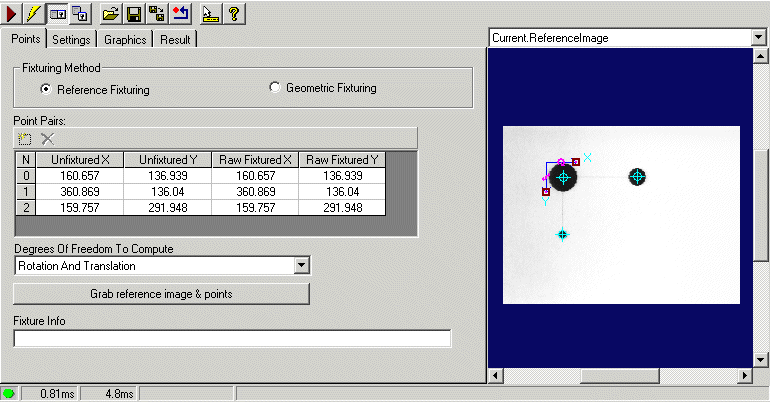
Reference fixturing employs a reference image on which you specify the origin and orientation of the final fixtured space. To indicate that you want to use the reference fixturing method, open the CogFixtureNPointToNPoint edit control and, on the Points tab, select Reference Fixturing. Then obtain a reference image by clicking the Grab reference image & points button. The control copies the data from the current input image to the reference image. It displays the reference image in the Current.ReferenceImage buffer.
The selected space of the reference image is raw fixtured space. The control copies the values of the set of unfixtured points and uses these as the default values for the set of raw fixtured points defined by the reference image. Although you can manipulate the graphical representation of the unfixtured and raw fixtured points in the control's Current.ReferenceImage buffer, you should not have to alter them. This feature is designed for use in demo or prototyping situations in which you do not require full accuracy: for example, you might want to experiment with fixturing by "artificially" specifying raw fixtured points on the reference image and viewing the run-time fixtured space that results. Remember, however, that any time you manipulate points by hand the resulting fixture is only approximate. The Point Pairs grid shows you the current values for the sets of unfixtured and raw fixtured points.
In this step, set the name of the fixtured space, select the space to output, configure the degrees of freedom (DOFs), and supply an optional origin adjustment for the final fixtured space. On the Settings tab, enter a name for the fixtured space in the Fixtured Space Name field. Then, from the Space to Output list, choose whether the selected space for the output image is a fully-qualified copy of the fixtured or unfixtured space name. The output space determines in which coordinate space other tools that receive and operate on the fixturing tool's output image will run.
You now set the degrees of freedom (DOFs). Degrees of freedom determine which transform components can be included in the fixturing calculations. For fixturing, you usually do not include the scaling or skew degrees of freedom, because often you have previously computed these by running a calibration tool. If you include, for instance, the translation and rotation DOFs, the fixture tool only uses these components to determine the best-fit transform that maps unfixtured from raw fixtured points. To specify the DOFs, select from the Degrees of Freedom to Compute list on the Points tab.
You next configure an optional adjustment for the final fixtured space. You use this optional adjustment transform to place the final fixtured space in a more convenient location. For example, perhaps you want the origin of the fixtured space at the upper corner of your object's features. On the Settings tab, click Enable Origin Transform. In the control display's Current.ReferenceImage buffer, drag the graphical set of coordinate axes that represent the final fixtured space to an appropriate location and orientation. This changes the values of the adjustment transform shown on the Settings tab. Alternatively, you can directly enter the transform component values. The N-point fixturing tool stores the adjustment transform and incorporates it in the calculations of the fixtured space.
You can include various graphics in the tool's CurrentRecord and LastRunRecord. The edit control displays these on the input, reference, and output image buffers. You enable graphics by clicking on the appropriate option on the control's Graphics tab. By default, the control has the following options enabled.
| Image Type | Graphic | Is Interactive? |
|---|---|---|
| Reference | Fixtured axes | Yes |
| Raw fixtured points | Yes | |
| Input | Unfixtured points | Yes |
| Output | Fixtured axes | No |
You can now run the N-point fixturing tool by clicking the control's Run button or by running the entire tool group. For each run, the underlying N-point fixture tool receives a new input image. The location and orientation of object features in the run-time image are often different from those in the reference image. The tool calculates a new transformation that describes the difference in location and orientation between the (stored) set of N raw fixtured points from the reference image and the (varying) set of N unfixtured points in the input image. It then applies any origin adjustment that you specified. The final fixtured space has the same relation to the object features as the fixtured coordinate axes in the reference image: that is, it stays fixed to the image content.
You should check, on the Result tab, the RMS error value for the fixturing calculation. A large RMS error value may indicate that an input point is not in the correct position and therefore measured incorrectly by the tool; or that you need to enable more appropriate degrees of freedom for the computations. The Fixture Info field on any of the control's tabs also provides information about the fixturing operation.
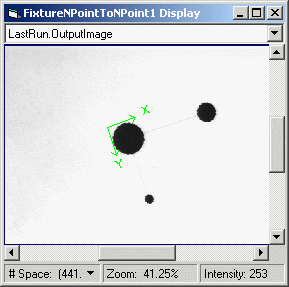
If you have enabled the diagnostic graphic for the fixtured coordinate axes, you can confirm the correct placement of the fixtured space. For each run, the control's LastRun.OutputImage buffer displays the fixtured coordinate axes in the same relationship to your object's features as you specified in the reference image. The following figure shows a fixtured space fixed to the corner of three object features.
Now that you have created a fixtured coordinate space, you can use it with other vision tools to conveniently track features of interest in your input images and to make measurements in this application-specific space. As a brief example, you can link the CogFixtureNPointToNPoint edit control's OutputImage to the InputImage terminal of a Caliper Edit Control. By default, the Caliper tool runs in the selected space of its input image, which is the fixtured space. As a result, the region of interest you select to measure remains in a constant relation to the object features, and the caliper tool reports its results in the fixtured space.