This topic contains the following sections.
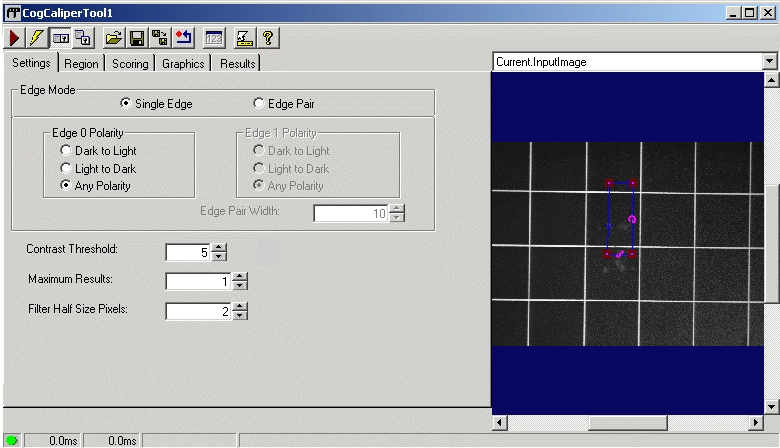
The Caliper edit control provides a graphical user interface to the CogCaliperTool and its components. The Caliper tool searches for edges or edge pairs within a projection region. The Caliper edit control has two modes: Single Edge or Edge Pair, which you can set up in the Settings tab. Single Edge mode locates edges, whereas Edge Pair mode locates edge pairs. Edge Pair mode can also measure the distance between edge pairs.
- A row of control buttons at the top left.
- A tool display window that can display the Caliper edit control image buffers: Current.InputImage, LastRun.InputImage, and LastRun.TransformedRegion. These buffers contain the input image that the Caliper tool examines; the same image after Caliper has run that includes the edges that the tool finds; and the edges themselves overlaid with a pair of graphs for GetProjectionValues and GetFilteredValues. Right click the tool display to bring up menu options that include zooming in or out of the image or showing a pixel or subpixel grid.
- A set of tabs organized by function. These functions include settings for Single Edge or Edge Pair mode, desired scoring functions while running Caliper, display result settings, and the results themselves. Pressing the Control + Tab keys scrolls through the set of tabs.
- A status bar at the bottom left of the control. A green circle indicates that the tool ran successfully; red means the tool ran unsuccessfully. The status bar also displays the time to run the tool and any error codes or messages. The first time that the status bar displays is the raw tool execution time. The second includes the time needed to update the edit control. Controls only update when they are visible.

The following table describes the buttons at the top left of the edit control.
| Button | Description |
 | Runs the Caliper tool. You must have an image available in the Current.InputImage buffer (equivalent to the ICogCaliperTool.InputImage). The default settings of the Caliper edit control cause the tool to search the entire image for a series of single edges. This button invokes the Run method. |
 | Toggles electric mode. When selected, the Caliper tool runs automatically if certain parameters have changed. When the edit control is in electric mode, these parameters are indicated by electric bolt icons. |
 | Opens or closes the local tool display window. This window has a selection box that you use to specify the image buffer you want to view. |
 | Opens one or more floating tool display windows, providing an additional tool display window. As with the local tool display window, you can specify the Caliper image buffer to view. |
 | Loads a VisionPro persistence (.vpp) file, which contains a set of saved properties for this vision tool object type. Loading a persistence file for another object type throws an error and the load is unsuccessful. For more information about VisionPro persistence features, see the topic Persistence in VisionPro. |
 | Saves the current properties of the underlying tool to a VisionPro persistence file. You have the option to save either the entire tool or the tool without its images or results. |
 | Saves the current properties of the underlying tool to a new VisionPro persistence file. |
 | Resets the underlying tool to a default state. |
 | Opens a new, separate results window, allowing you to view run results without turning to the Results tab. |
 | Enables or disables the display of tooltips for individual items in this edit control. |
 | Opens the VisionPro online help. |
The Caliper edit control has the following image buffers, all of which can be displayed in edit control's tool display window:
The InputImage buffer contains the current input image to the Caliper tool. When you run the tool, it examines the projection region in the InputImage and determines the number of edges or edge pairs based on the criteria defined in the Settings tab. The results of this search can be viewed on the Results tab.
- The LastRun.InputImage buffer displays the last image on which the tool ran. With this buffer you can use the Graphics tab to specify the tool results to display, such as the edges found during the search.
- The LastRun.TransformedRegion buffer displays a close-up of the projection region and can overlay it with two graphs. One graph displays GetProjectionValues and the other displays GetFilteredValues. .
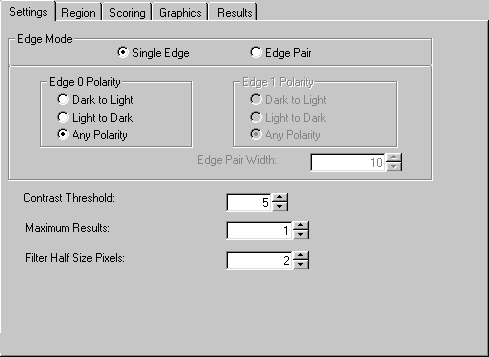
Use the Settings tab to define the execute mode for the Caliper tool. You can set the Caliper either to Single Edge or Edge Pair mode. When the edit control is in electric mode, electric bolt icons indicate parameters whose changes cause the tool to run automatically.
| Feature | Description |
| EdgeMode | Determines whether the Caliper tool searches for a single edge or an edge pair for each result. |
| Edge0Polarity, Edge1Polarity | If you select Single Edge, only Edge 0 Polarity values are available. This is the desired polarity of the first (only) edge. Edge 1 Polarity values are available if you select Edge Pair mode. This is the desired polarity of the second edge. |
| Edge Pair Width | If you select Edge Pair scoring, you must set the Edge Pair Width, the distance (in units of the selected space) between each edge of the pair. Derived from the Edge0Position and Edge1Position properties. |
| ContrastThreshold | The minimum contrast required for an edge to be considered during the scoring phase. |
| MaxResults | The maximum number of results to find. |
| FilterHalfSizeInPixels | Specifies the half-width of the filter. |
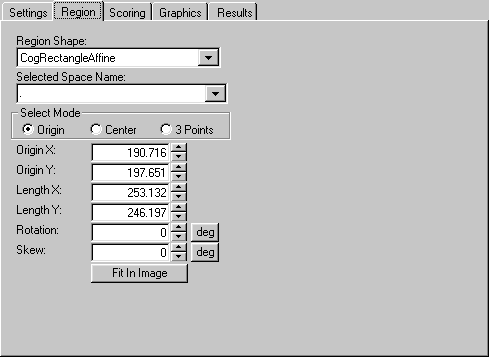
Use the Region tab to define the Region that will be applied to the Current.InputImage buffer. You can also define the projection region graphically in the Current.InputImage buffer. It may be easier to first specify the projection region graphically, then use this tab to fine tune the projection region parameters. The edit control updates the projection region values so that the values on this tab always match the shape of the projection region in the Current.InputImage buffer.
You can specify the rotation and skew in either degrees (the default) or radians. The underlying tool keeps the values in radians but the edit control performs the conversion to degrees when appropriate.
| Feature | Description |
| Region | The shape of the projection region. Selecting "None=Use entire image" means that the entire Current.InputImage is used. |
| SelectedSpaceName | The coordinate space in which the region is interpreted. For more information, see Coordinate Space Names. |
| Select Mode | Selects the set of parameters that define the rectangle. Note that the angles of rotation and skew can be specified in degrees or radians, although the underlying tool keeps the measurements in radians. |
| FitToImage | Centers the search region within Current.InputImage. |
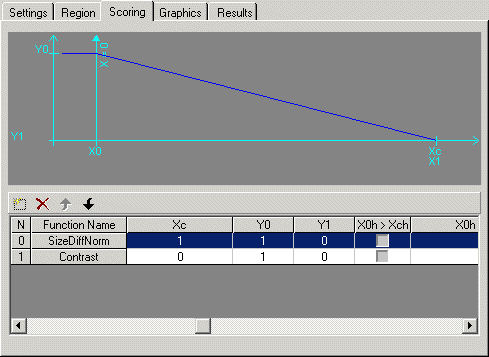
Use the Scoring tab to create a collection of scoring functions to use when running the tool. The scoring functions that are available depend on the Edge Mode selection. Equivalent to SingleEdgeScorers and TwoEdgeScorers collections.
The list at the bottom of the tab displays the functions that you have added to the collection. When you highlight a scoring function, the tab displays a graph of the scoring function that labels the function parameters that you specify.
If the Edge Mode is Single Edge, then these scoring functions are available:
If the Edge Mode is Edge Pair, then these scoring functions are available:
- CogCaliperScorerContrast
- CogCaliperScorerPosition
- CogCaliperScorerPositionNeg
- CogCaliperScorerPositionNorm
- CogCaliperScorerPositionNormNeg
- CogCaliperScorerSizeDiffNorm
- CogCaliperScorerSizeDiffNormAsym
- CogCaliperScorerSizeNorm
- CogCaliperScorerStraddle

Use the function buttons on this tab to manage the scoring functions. They are described in the following table.
| Button | Description |
 | Add a new scoring function. When you click this button, a menu appears with a list of scoring functions appropriate to the current edge mode. Highlight the function that you want and a new line appears in the list of functions at the bottom of the tab. You can add more than one function of the same type. |
 | RemoveAt the currently highlighted function in the list of functions at the bottom of the tab. When you delete a function, a verification message appears asking you to confirm deletion. |
 | Move the currently highlighted function up in the list, and updates the function's index in the function collection. |
 | Move the currently highlighted function up in the list, and updates the function's index in the function collection. |
The function list displays all the scoring functions you have added, and also allows you to specify each function's parameters. To enter a value in a cell, left click the cell. An entry box appears and you can enter the value you want. Press the Enter key for the value to take effect.
The following table describes the columns of the scoring function list.
| Column | Description |
| N | The index of the scoring function within the function collection, which is either SingleEdgeScorers or TwoEdgeScorers. |
| Function Name | The name of the function. You can add more than one of the same type of scoring function; the Results tab tracks the functions with both the function name and the index into the function collection. |
| Enabled | Check this box if you want this scoring function to be applied when the tool runs the next time. Disabling a scoring function eliminates the impact of the Scoring function. |
| X0 > Xc | Represents the orientation of the graph. For the function to be valid, X1 must be between or equal to X0 and Xc. This column allows you to swap X0 and Xc, if necessary. |
| X0, X1, Xc, Y0, Y1 | The parameter values for a one-sided function, or the first set of values for a two-sided function. See each scoring function class for information about these values. |
| X0h > Xch | Represents the orientation of the graph. Applies only to two-sided functions (the SizeDiffNormAsym function). To be valid, X1h must be between or equal to X0h and Xch. This column allows you to swap X0h and Xch, if necessary. |
| SetXYParameters | The second set of parameter values for a two-sided function. See each scoring function class for information about these values. |
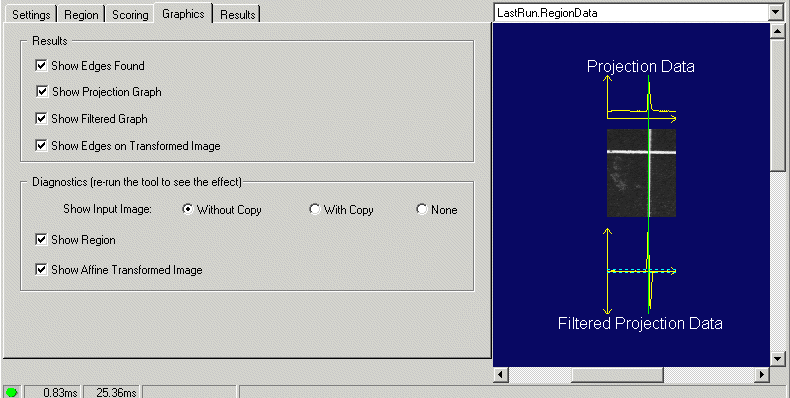
Use the Graphics tab to control what is displayed in the tool displays. When the control is in electric mode, electric bolt icons display parameters that cause the tool to run automatically if the parameter values change.
| Feature | Description |
Results | You can display the following results graphics.
|
Diagnostics | You can display the following results graphics.
The Show Input Image option buttons let you specify whether a reference to the input image or a deep copy of the input image is displayed for the LastRun.InputImage. You can also specify that no image be displayed. |
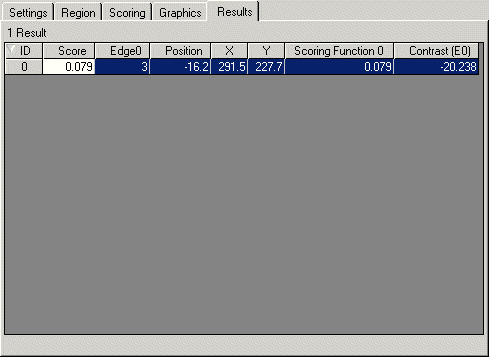
The Results tab displays the results of the Caliper tool's execution. This is a collection of results which compare to the CogCaliperResult interface. Use the slider control below the results grid to scroll through each set of results.
| Feature | Description |
| ID | Unique ID for this result in collection. |
| Score | Overall score for this result. |
| Edge0 | The index of the first edge that contributed to this result. |
| Edge1 | In Edge Pair mode, the index of second edge that contributed to this result. |
| Measured Width | In Edge Pair mode, the width of the two edge pairs. Derived from the Edge0Position and Edge1Position properties. |
| Position | One-dimensional measurement along the search direction relative to the center of the input region. |
| PositionXY | Coordinate values for the location of this result. |
| GetContributingScores | The rest of the columns list the individual results of the enabled scoring functions within the list created on the Scoring tab. Note that the functions are identified by their index in the collection of scoring functions as Scoring Function n. |