This topic contains the following sections.
The OCV tool performs optical character verification (OCV), a process for verifying that one or more characters in an image match the characters the tool has been configured to expect. OCV is typically used to verify that lot codes, expiration dates, and other information printed on products or packaging is correct and legible. Figure 1 shows an example of OCV.
Figure 1. Optical character verification
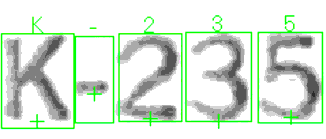
The OCV tool is designed to tolerate input image variations such as changes in
- Lighting
- Image quality
- Contrast
- Font stroke width
- Character-to-character position, rotation, and scale
- Position, rotation, and scale changes for the overall pattern of characters
While the OCV tool's primary application is to verify date and lot codes printed on product labels, you can use it with any vision application that requires verifying letters, numbers, or symbols.
The OCV tool is not limited to characters; you can use the OCV tool to verify collections of any type of symbols, graphics, or logos. See the following sections for more information:
How the OCV Tool Works explains how to train the OCV tool using objects that define the text area to verify.
Using the OCV Tool describes the run-time parameters you use to configure the OCV tool.
This section contains the following subsections.
- Font Models
- Fonts
- Patterns
- Run-Time Character Verification
- Verifying Single Character Positions
- Verifying Multiple Character Positions
- Accept and Confidence Thresholds at Run Time
- Verifying Blank Characters
The OCV tool is a font-trainable tool. To configure a new OCV tool you must first define a font that contains all of the letters, numerals, and symbols you want the tool to verify. Defining a font involves supplying one or more images containing the characters or symbols the font must include. Once a font has been created, you define the pattern of characters you wish to verify along with parameters such as the change in position, rotation and scale the pattern can display from one run-time image to the next.
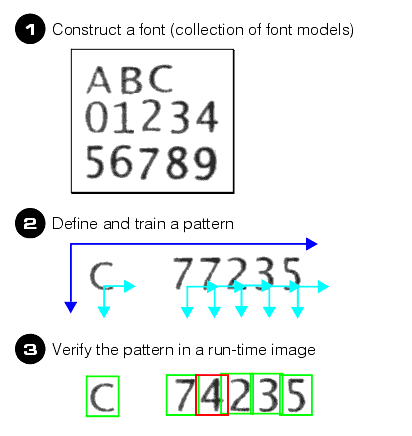
Figure 2 provides an overview of how the OCV tool works.
Figure 2. Overview of OCV operation
This section contains the following subsections.
The OCV tool works by matching font models that you create against character instances in a run-time image. Figure 3 shows an example of a font model.
Figure 3. Font model
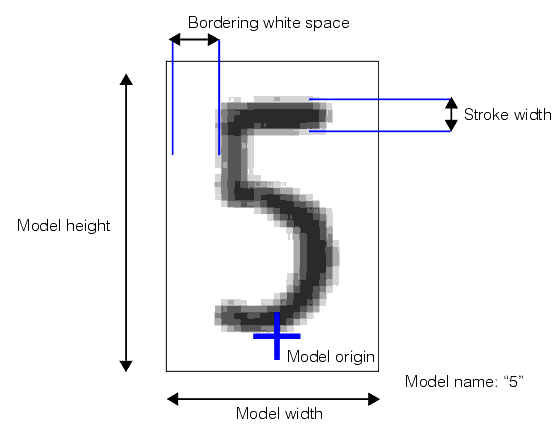
You create a font model by supplying an image of the character with the following characteristics:
- It should be representative of a typical run-time character.
- The character should be between 10 to 64 square pixels. Larger font model sizes may improve reliability but will increase verification time at run time.
- The stroke width of the character in the image should not vary by more than 10%.
- No more than 10% of the character should be missing. If you are attempting to create a font of dot-matrix characters, you should use an Image Processing tool to fill in the character stroke for both font training and run-time images.
- The font model image should contain a border of white space around the character that is between one and three times the stroke width.
In addition to the pixels that it contains, each font model has the following properties:
- A model name that is, in most cases, the same as the character it represents.
- A defined origin, which is the position within the character that defines its location. The origin should be the same for all characters in a font. For example, you might define the origin for characters to be the center of the character baseline. The origin is specified as a six degree of freedom transformation; in most cases, you should specify only the x- and y-translation (the OCV tool's font editor only lets you set the translation and rotation of the origin).
Blank Characters
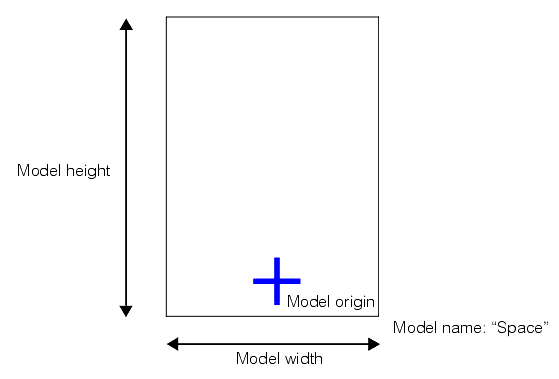
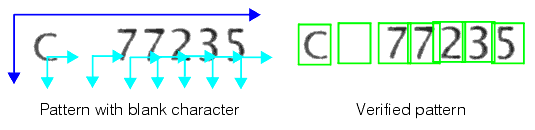
In many OCV applications, it is as important to verify the absence of any character as it is to verify the presence of a particular character. The OCV tool allows you to define blank characters for this purpose. A blank font model does not include any pixels. Instead, it is defined by its width, height, name, rotation, and origin, as shown in Figure 4.
Figure 4. Blank font model
You specify a blank character as part of a pattern, and at run time the blank character is verified like any other font model, as shown in Figure 5.
Figure 5. Verifying a blank model
Masks
You can specify a mask when you create a font model. The mask is used in two ways.
- The masked portion of the font model image is not trained as part of the model. This allows you to create reliable font models from images that contain extraneous features.
- Features in the portion of the run-time image that corresponds to the masked portion of the font model are ignored at run-time. This improves the reliability of the run-time verification.
You supply a font model mask as an image. Any pixels in the font model image that correspond to pixels in the mask image with values less than 128 (don't care pixels) are ignored, both for training and at run time. Mask pixels with values greater than or equal to 128 are considered to be care pixels.
When you supply a mask image, you specify the mask image offset (the point in the mask to anchor to the upper-left corner of the image). If the mask image, when shifted by the mask image offset, does not fully cover the model image, all of the uncovered image pixels are assumed to be care pixels.Figure 3 shows an example of a font model with a mask.
Figure 6. Font model mask
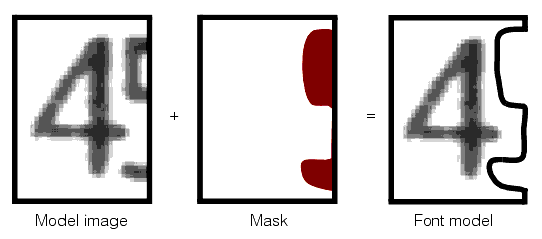
You can define masks for blank characters. A blank character mask is used to mask features in the run-time image during verification. Without such a mask, if the run-time image includes extraneous features at a blank position (such as a rule along the bottom of the string), the tool may fail to verify the blank character.
Edge Masks
A typical use for masks is to mask the part of the image that corresponds to character edges. In most applications, the greatest character-to-character variation is found along character edges. By masking these parts of the image, you can improve the reliability of verification. The OCV tool's font editor lets you automatically generate edge masks for font models.
This section contains the following subsections.
- Character Instances
- Font Confusion
- Font Confusion Threshold
- Compiling the Font
- Working with Archived Fonts
An OCV font is a collection of individual OCV font models. In addition to the font models, a font also includes the following information:
- The font description is a text string that describes the font.
- The confusion matrix is a table that contains a measure of the similarity between each character and each other character in the font. The table contains the confusion score for each pair of characters in the font.
- The confusion threshold is the confusion score above which a pair of characters are considered to be potentially confusable.
Character Instances
In many OCV applications, a given character may vary in appearance from run-time image to run-time image. To increase the robustness of verification, the OCV tool lets you specify multiple instances of a character, as shown in Figure 7.
Figure 7. Font model instances
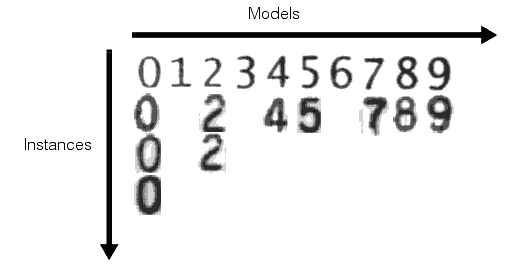
Specifying multiple instances for characters is optional, and you can specify different numbers of instances for different characters. In general, you should specify enough instances to capture the expected variations between characters, but you should avoid specifying large numbers of instances as this can slow the verification process at run time.
Note: The OCV tool does not perform OCR (Optical Character Recognition), and does not support attempting to perform OCR using the OCV tool by specifying multiple instances of one character that are actually different characters.
Font Confusion
A font file generates and stores a matrix of confusion scores calculated for pairings of all the font models the font contains. Each confusion score in the matrix indicates the similarity, on a scale of 0.0 through 1.0, of the pair of characters. The confusion scores are based on comparing the characters at the same position, angle, and scale. The following table shows the confusion matrix for a font that has the letters A, B, and C and the numbers 7, 8, 9:
| A | B | C | 7 | 8 | 9 | |
| A | 1.0 | .75 | .50 | .65 | .70 | .60 |
| B | .75 | 1.0 | .70 | .55 | .90 | .80 |
| C | .50 | .70 | 1.0 | .50 | .65 | .50 |
| 7 | .65 | .55 | .50 | 1.0 | .60 | .65 |
| 8 | .70 | .90 | .65 | .60 | 1.0 | .85 |
| 9 | .60 | .80 | .50 | .65 | .85 | 1.0 |
The greater the confusion score for a character pair, the greater the similarity between the characters. Comparing a pair of the same character yields a confusion score close to or equal to 1.0.
Note: The confusion score table may not always contain symmetric values. That is, the confusion score calculated for A compared with B may be different than the confusion score obtained for B compared with A. When working with the confusion matrix, the characters down the left side of the table represent the character being verified, while the characters along the top of the table represent the characters being evaluated for confusion.
Font Confusion Threshold
As you define a font you must also set a confusion threshold, which determines whether two characters can potentially be confused, based on their confusion score. If the confusion score for a pair of characters is greater than the confusion threshold, the OCV tool may be confused by the similarities between the two characters during optical verification.
As you decrease the confusion threshold, the OCV tool compares more characters with the expected character. This yields better verification results, but it requires more time for the tool to run and it increases the likelihood that characters will be erroneously rejected due to confusion. As you increase the confusion threshold, the tool compares fewer characters, resulting in faster execution but making false accepts more likely.
You can inspect the confusion score table to facilitate choosing an appropriate confusion threshold. For example, if you want to make sure that the tool always checks for confusion between expected "A" characters and possible "8" characters, you would set the confusion threshold below the confusion score for "A" and "8"; if you did not want the tool to check for confusion between the characters, you would set the confusion threshold above the characters' confusion score.
Compiling the Font
The font confusion matrix is not constructed until the font is compiled. Whenever you add characters to a font, the font becomes uncompiled and must be recompiled before use. You cannot verify a pattern with an uncompiled font. Be aware that if you attempt a compile a font containing dot-matrix characters, the compile operation may take an extremely long time.
Working with Archived Fonts
When you save the state of an OCV tool to a .vpp file, the tool automatically stores the compiled font as part of the .vpp file. You can also save compiled OCV fonts in their own files, and you can load saved font files into OCV tools.
This section contains the following subsections.
- Specifying Multiple Character Instances
- Specifying Blank Characters
- Pattern Origin
- Character Position Uncertainty Values
- Character Accept and Confidence Thresholds
- Pattern Training
An OCV pattern is a description of the characters you expect to be present in your application's run-time images. A pattern contains the following information:
- The font that contains the characters to verify (you may only supply a single font for a pattern; you cannot verify characters from multiple fonts at the same time)
- The number of positions at which to verify characters
For each character position, the pattern includes the following information:
- The expected location of the character origin, with respect to the implicit pattern origin
- The character or characters to verify at that position
- The expected uncertainty of the character's location, scale, and rotation
- The accept and confidence thresholds for the character
You can specify default values for all the character positions in the pattern for the last two items (positional uncertainty and thresholds), or you can specify unique values for each character position.
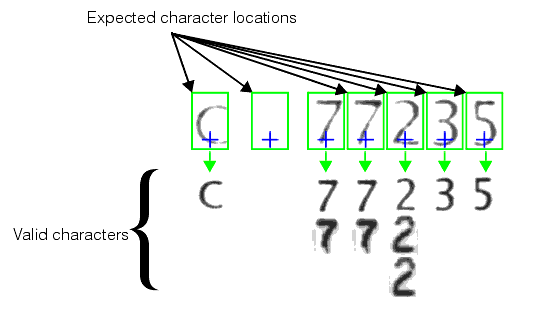
Figure 8 shows a representation of an OCV pattern.
Figure 8. OCV pattern
Specifying Multiple Character Instances
The example shown in Figure 8 defines multiple character instances for some pattern locations.
If your font includes multiple instances of a character, you should make sure to specify all of the character instances at a position when you specify any instance. If you only specify some instances, the tool will almost certainly report confusion between the found character and one of the instances that you did not specify for that position.
In addition to specifying multiple instances of a character at a given position, the OCV tool also lets you specify different characters at a given position. This lets you verify strings where certain positions may contain different characters.
Specifying Blank Characters
When the OCV tool verifies blank characters, it does so by comparing the grey level at the expected blank location with the grey level of the adjacent character in the image. Using this method to verify the absence of a character enables the OCV tool to successfully verify blank characters when image intensity changes or is inconsistent.
Pattern Origin
The expected locations of each character you specify for a pattern are expressed in a coordinate space that defines the pattern. Figure 9 shows how the character positions you specify for the pattern determine the pattern origin.
Figure 9. OCV pattern origin
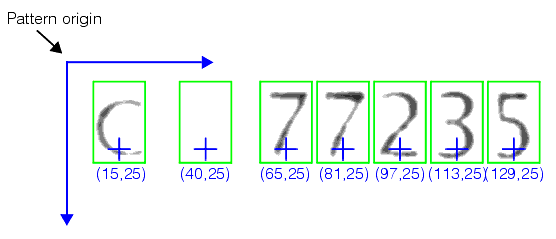
For best results, Cognex recommends that you define your character positions so that the overall pattern origin is near the first two characters in the pattern. In most cases, defining the pattern origin to be at the origin or at the center of the first character in the pattern will produce consistently good results.
Character Position Uncertainty Values
In most OCV applications, the individual characters that make up a pattern will exhibit image-to-image variations in their size and alignment. The OCV tool lets you specify the expected variation in size, orientation, and translation for all of the characters in the pattern.
You can also override the pattern-wide settings and set specific positional uncertainty values for individual character positions.
Character Accept and Confidence Thresholds
For each character in a pattern, the OCV tool returns a score that indicates the match between the run-time character in the image and the character that is expected to be in that position. You can set an accept threshold for each character position to denote the matching score below which the position fails verification. You can also set a confidence threshold for each character position, which specifies the amount that the matching score must be greater than the highest-scoring confusing character to pass verification.
As with the position uncertainty values, you can override the pattern-wide settings and set different thresholds for individual character positions.
Pattern Training
Once you have defined the locations and valid characters for each character in the OCV pattern, you must train the pattern. Pattern training configures the internal data structures that the tool uses to represent the pattern to allow it to search quickly and validate character instances in the run-time image.
The actual verification process is determined by the type of character definition at each position in the pattern. As the OCV tool locates and verifies characters in the input image, it continuously refines the expected location for characters in the pattern based on where it has found the characters in previous images.
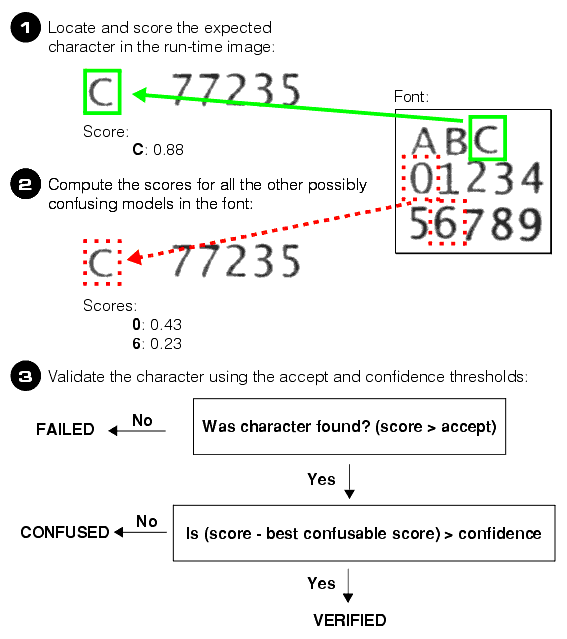
When a single character is specified as being valid at a character position within a pattern, the OCV tool verifies the presence of the expected character by following these steps:
- The tool attempts to locate the expected character at the expected position. If you specified positional uncertainty values for the character, the tool will search the specified area of the image and compute the character's score (in the range 0.0 through 1.0). If the tool cannot locate a character with a score above the accept threshold for that character position, the tool reports a failure to locate that character.
- Using the font's confusion matrix and confusion threshold, the tool determines what other characters in the font might be confused with the expected character. (The confusable characters are those whose confusion score when compared with the expected character is greater than the font's confusion threshold.)
- The tool computes the score for each of the confusable characters at the location where it found the expected character. The tool adjusts the translation of the confusable character to maximize its score, but it does not search for the character over any rotation or scale range.
- The found character is then verified. If the difference between the score of the expected character and the score of the highest-scoring confusable character is greater than the confidence threshold, the character is verified; if the difference between its score and the score of the highest-scoring confusable character is less than or equal to the confidence threshold, the tool reports a confused result.
Figure 10 summarizes the process of verifying a single character.
Figure 10. Verifying a single character position
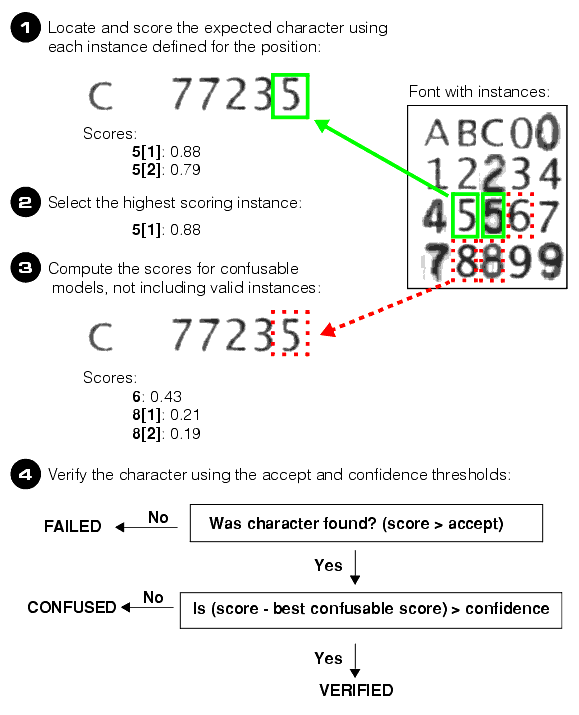
When multiple characters or character instances are specified as being valid at a character position, the OCV tool verifies the presence of one of the specified characters by following these steps.
- The tool attempts to locate each of the expected character instances at the expected position. If you specified positional uncertainty values for the character, the tool will search the specified area of the image for each instance. If the tool cannot locate any expected character instances with a score above the accept threshold for that character position, the tool reports a failure to locate that character.
- The tool designates the expected character instance that produces the highest score as the expected character for this position.
- Using the font's confusion matrix and confusion threshold, the tool determines what other characters in the font might be confused with the expected character, not including the other character instances that were specified for this position. (The confusable characters are those whose confusion score when compared with the expected character is greater than the font's confusion threshold.)
- The tool computes the score for each of the confusable characters at the location where it found the expected character. The tool adjusts the translation of the confusable character to maximize its score, but it does not search for the character over any rotation or scale range.
- The found character is then verified. If the difference between the score of the expected character and the score of the highest-scoring confusable character is greater than the confidence threshold, the character is verified; if the difference between its score and the score of the highest-scoring confusable character is less than or equal to the confidence threshold, the tool reports a confused result.
Figure 11 summarizes the process of matching a character position with multiple valid instances.
Figure 11. Verifying a multiple character position
As shown in Figure 12, the accept threshold is a fixed threshold score above which a character must score at run-time to be verified, while the confidence threshold represents the score difference between the expected character and the best scoring confusable character required to verify that the expected character is present.
Figure 12. Character thresholds
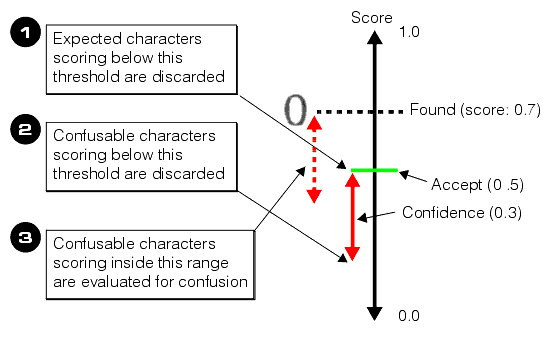
During the first phase of run-time character verification, searching for an expected character, the tool discards all characters that receive scores below the accept threshold.
During the second phase of run-time character verification, comparing the found character against confusable characters, the tool uses the confidence threshold in two different ways. First, the tool discards all potentially confusable characters that score below the confidence threshold with respect to the accept threshold. Second, the tool evaluates confusable characters that receive scores within the confidence threshold with respect to the score of the found character for confusion.
If both the expected character and one of the confusable characters receive scores above the accept threshold, then the character position is scored as confused.
The OCV tool verifies the blank characters in a pattern after it verifies all the other non-blank characters. When a blank character is specified at a character position within a pattern, the OCV tool verifies the presence of a blank character by comparing the average grey level of the expected blank character with the average grey level of the nearest character in the image. The tool computes a blankness score for the position (in the range 0.0 through 1.0) and it compares this score with the accept threshold to determine whether the character position is verified or failed.
This section contains the following subsections.
- Create or Load an OCV Font
- Specifying Font Model Origin
- Configure and Train the Pattern
- Reference Image
- Using Character Instances
- Setting Size, Position, and Scale Uncertainty
- Setting Thresholds
- CVL Patterns
- Verify The Pattern
- Understanding Character and Pattern Uncertainty
- Evaluate the Results
- Returned Pose Information
This section provides an overview of the steps you must follow in order to use the OCV tool.
When you configure an OCV tool, you have the option of creating and compiling the font as part of the OCV tool, or of loading the OCV font from a file. The OCV tool will not automatically load an external font for you; only the font saved as part of the OCV tool is loaded when the tool is loaded.
Before you can train an OCV pattern, you must compile the font. If you persist an OCV tool or OCV font, the compile status of the font is persisted automatically. If you persist a compiled font (or a tool that contains a compiled font), the font will still be compiled when you reload the tool or font.
The OCV tool uses the origin that you supply for a font model as the point used to specify the character's location in the pattern and in the run-time image. The OCV tool also uses the font model origin as the point about which the model is rotated and scaled, if you specify a range of rotation or scale uncertainty.
As shown in Figure 13, specifying an origin near the edge of a font model results in an effective translation of the character when it is rotated (the center of the character has effectively moved relative to the pattern origin). Similar effects occur when the tool scales a font model.
Figure 13. Effect of different font model origins under rotation
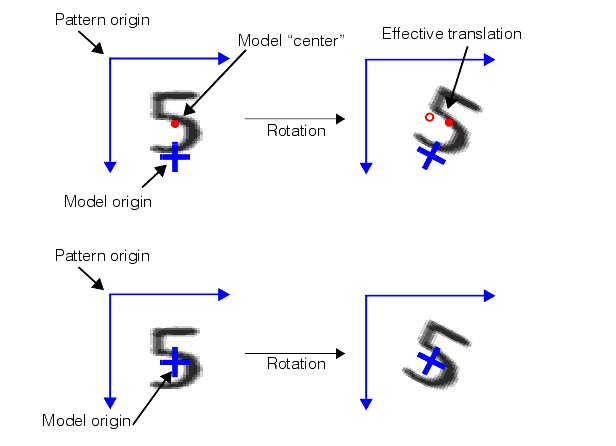
If you will be specifying uncertainty values for expected scale and rotation, you should specify an origin that reflects how the characters are likely to vary. For example, if the print head that produces the characters your application verifies is mounted at one corner, and subject to rotation about that corner, you should specify the font model origin in the corresponding corner of the model.
Once you have a font that contains the font models you will use, you need to define the pattern of characters to verify.
Like most VisionPro tools, the OCV tool uses a reference image to configure and train the character pattern you want to search for in each run-time image. The tool does not use the reference image for training. Instead, you use the reference image to manually place the expected character positions.
Specifying multiple character instances can improve the robustness of your OCV application by capturing known variations in character appearance. Each additional character instance you define, however, increases the amount of time required to verify run-time images, since each instance is searched for and scored separately.
By default, the OCV tool expects to find the characters to verify at exactly the positions you specify in the pattern. In most cases, run-time images will contain characters that vary slightly in size, position, and rotation. You can specify the expected uncertainty for all of the characters in the pattern, or you can specify unique uncertainty values for individual characters in the pattern.
Increasing the amount of expected uncertainty will allow your application to handle wider variations in run-time image appearance, but as the size of the search space increases, the amount of time required for verification increases as well. In almost all cases, however, setting some position, scale, and uncertainty range will improve the accuracy of your OCV application.
The accept and confidence thresholds allow you to tune the sensitivity of the OCV tool to character and image variation. As you increase the accept threshold, the OCV tool will require a better match between a character in the run-time image and the trained character in the font. As you increase the confidence threshold, the OCV tool becomes more sensitive to confusing characters in the run-time image.
Note: The run-time confidence threshold is related to the font's training-time confusion threshold. As the font's confusion threshold is increased, fewer characters will be evaluated for possible confusion at run time.
If you set the accept threshold too high, the OCV tool will reject most or all of the character instances in the run-time image. If, as you are developing your application, the OCV tool fails to verify any characters, try reducing the accept threshold. Usually by reducing the threshold you will be able to determine why the characters in the run-time image are being rejected.
Similarly, if you specify too small a value for the confidence threshold, the tool will reject potentially confusing characters before evaluating their confusion with the found character. If, as you are developing your application, the OCV tool fails to indicate confusion with any characters with which you expect confusion to arise, try increasing the confusion threshold. Usually by increasing the threshold, you will be able to determine why the characters in the run-time image are not being confused with other characters as expected.
The easiest way to create a trained character pattern is to use QuickBuild and the OCV tool edit controls. The OCV tool can be used to create a trained character pattern for more applications than just VisionPro, however. Once you have trained a pattern of characters you want to search for in your run-time images, you can save that pattern in a Cognex Vision Library (CVL) archive for use with CVL applications.
The following example code shows how to load the pattern stored in the file pattern.ar :
ccOCLineArrangementPtrh lineArr;
{
        ccFileArchive ar(cmT("pattern.ar"), ccArchive::eLoading, ccArchive::eLittleEndian, true, true);
        ar || lineArr;
}As your VisionPro application executes, other vision tools must provide the following information to the OCV tool:
- The expected pose of the trained pattern in the image
- The expected variation in the location, overall size, and overall rotation of the pattern in the run-time image
If you expect the pattern location to vary significantly, you should use a fixture tool to handle the overall pattern movement, if possible.
To improve the robustness of pattern location and verification, the OCV tool the tool uses both the individual character position uncertainty and the overall pattern uncertainty when it attempts to locate the first few characters of the pattern. For this reason, you can obtain the best results by making sure that your pattern origin is close to the origins of the first or second characters in the pattern.
You can specify positional and rotational uncertainty for individual character positions and for the overall pattern. Specifying uncertainty for individual characters lets you account for character-to-character positional variations, such as those caused by movement of a print head between characters. Specifying uncertainty for the overall pattern position lets you account for movement of the object upon which the characters are printed.
Specifying character positional uncertainty without specifying pattern positional variation will still permit the tool to locate and verify shifted patterns. For example, if you set the pattern position uncertainty to 0 and each character uncertainty to 10, if the pattern was translated by 10 units then the reported location of the found pattern would be the same as the expected pattern location while each character would be reported as being 10 units away from their expected positions.
The OCV tool returns two types of results objects. One type, the CogOCVResults object, provides the following information about the overall results of the verification operation:
- The found pose of the pattern in the run-time image
- The overall status of the pattern (verified if all character positions were verified, failed if any position failed or was confused)
- The overall score for the pattern in the range 0.0 through 1.0 (the average of the scores of all the characters in the pattern that the tool attempted to verify)
- The number of characters that were verified
The OCV tool also returns an individual result object (CogOCVResult) for each character in the pattern. These objects provide the following information:
- The status of the character (verified, confused, or failed)
- The score for that character in the range 0.0 through 1.0
- The character instance that was verified (when multiple instances or characters were specified for the position)
- The names and scores of all confusable characters with scores that were within the confidence threshold with respect to the accept threshold
- The character's pose with respect to the selected space of the input image
- The character's pose with respect to the pattern origin
The OCV tool provides three sets of pose information for each pattern that is verified in an input image.
- The pose of the pattern in the selected space of the input image
- The pose of each character in the pattern in the selected space of the input image
- The pose of each character with respect to the pattern origin
These three poses are illustrated in Figure 14. The figure shows how the character positions you specify for the pattern determine the pattern origin.
Figure 14. Returned pose information
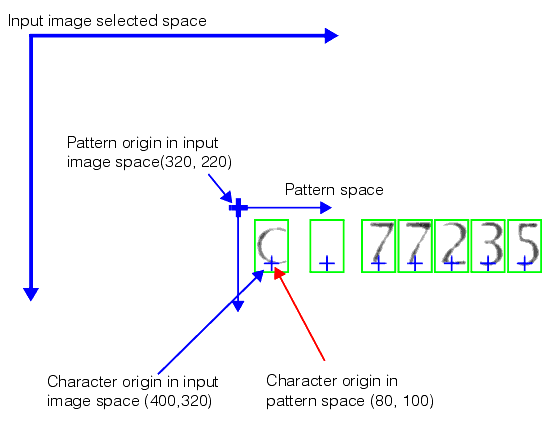
In most cases, you use the character origins reported in pattern space to measure character-to-character variation in the pattern geometry, while you use the poses reported in the input image's selected space when you wish to apply additional tools to the located characters.