This topic contains the following sections.
An OCV character string pattern is a description of the characters you want to verify in each acquired image. A pattern contains information about the current font and the number of character positions you want to verify. For each character position, the pattern includes the following information:
- The character (or characters) to verify at each position
- The expected location of each character origin, with respect to the pattern origin
- The expected uncertainty for the location, scale, and rotation of the character
- The accept and confidence thresholds for each character
Before you can train an OCV tool with the character string pattern you want to verify you must have a compiled font. See the topic Using the Font Editor for more information.
You can create a character string pattern using a simple pattern setup or an advanced pattern setup. Many applications can use a simple pattern setup, where the character string consists of a constant string of characters. Use an advanced pattern setup when you want the OCV tool to verify strings where one or more characters within the string are allowed to vary, or when you explicitly do not want the OCV tool to consider a particular character instance for any font model.
Both the simple and advanced setups can take advantage of the auto-arrange feature of the OCV tool, where the tool attempts to locate the characters in an image automatically. See the following sections for more information.
Use a simple pattern setup when the characters in the string cannot vary and you want to include all the character instances for each font model. To use a simple pattern setup, perform the following steps:
Start QuickBuild and configure the Image Source to capture or display an image of the character string you want to verify.
This application uses an image database that contains images of the string.
- Add an OCV tool.
- Add a CogPMAlign tool to your application and give it the OutputImage from the Image Source.
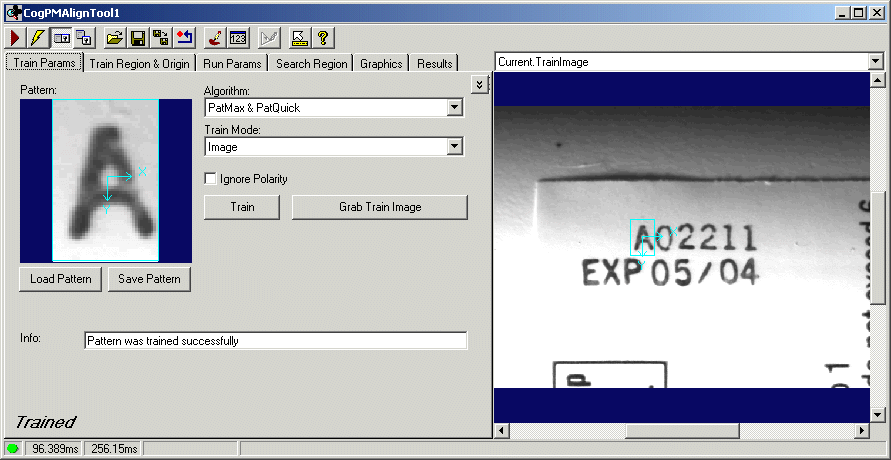
Acquire a good input image of the character string you want to verify and configure the PMAlign tool to locate a reliable feature within the image. Remember to configure the PMAlign tool so that it accounts for rotation.
In this application, the PMAlign tool locates the character "A" in each image, as shown in the following figure:
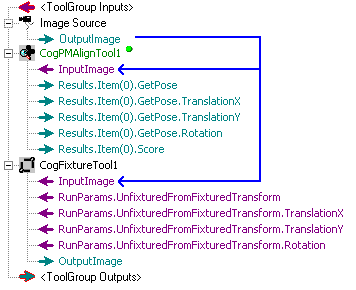
Add a CogFixture tool to your application and give it the OutputImage from the Image File tool.
The QuickBuild job now looks as shown in the following figure:
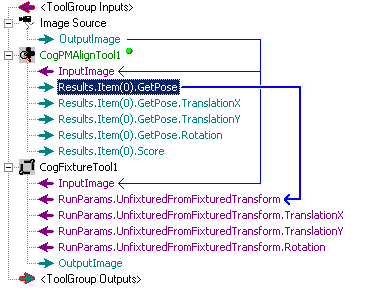
Link the GetPose result of the PMAlign tool to the UnfixturedFromFixturedTransform parameter of the Fixture tool, as shown in the following figure:
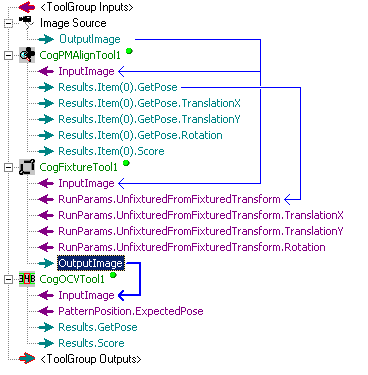
Add a CogOCVTool and give it the OutputImage from the Fixture tool.
The QuickBuild job now appears as shown in the following figure:
- Open the OCV tool edit control.
- Create and compile a new font for this OCV tool or load an existing font. See the topic Using the Font Editor for details on how to create a new font.
Acquire a good input image of the character string you want to verify and click Grab Reference Image on the Pattern Characters tab.
You need a Reference Image to position the pattern origin after the pattern itself has been trained.
Click the Edit and Layout button on the Pattern Characters tab of the OCV edit control.
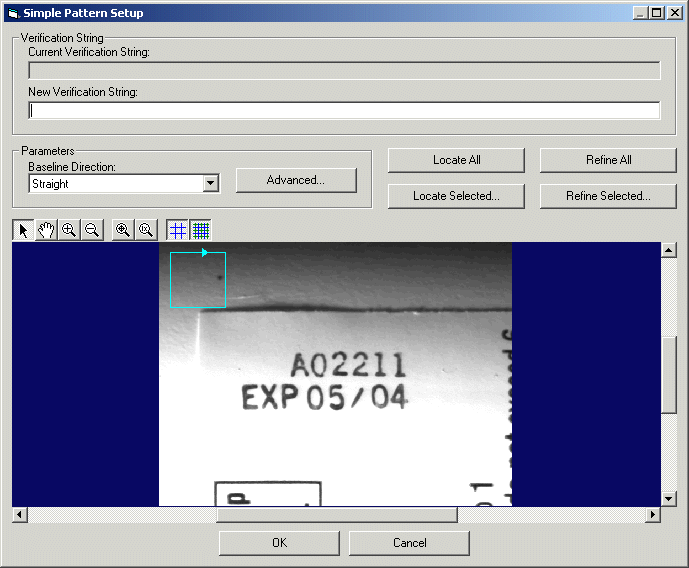
The Simple Pattern Setup dialog box appears as shown in the following figure:
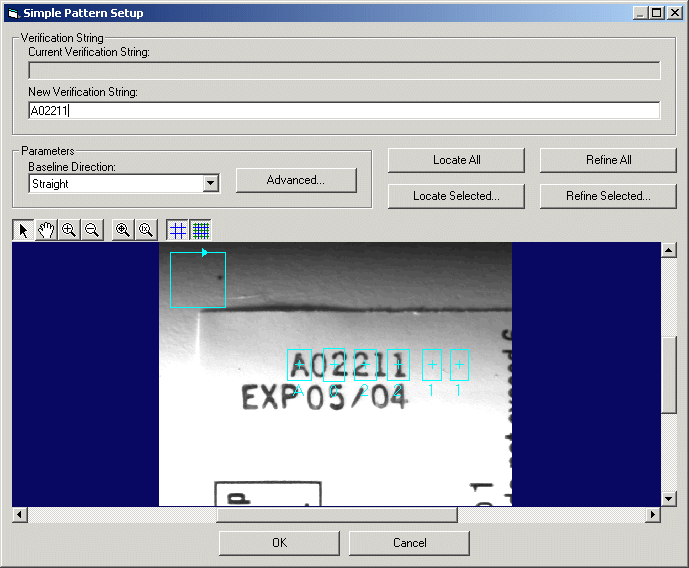
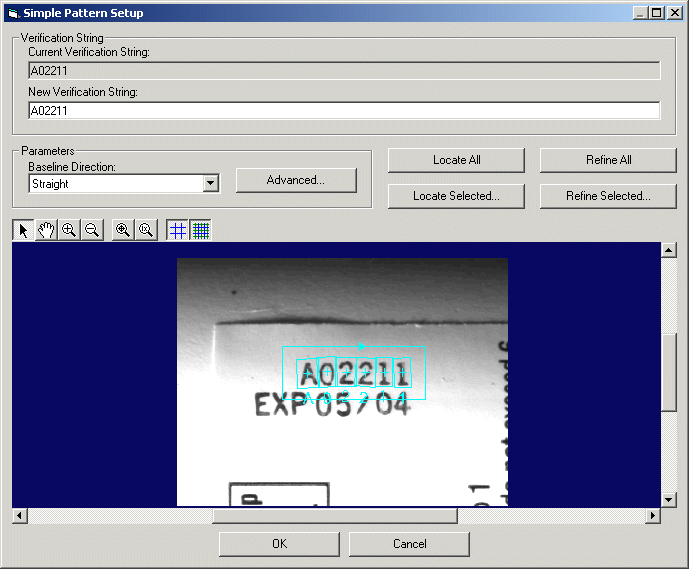
Enter the character string in the New Verification String box. For example, the following figure shows the box configured with the string "A02211":

As you enter in the character string, the Reference Image at the bottom of the dialog box displays a region graphic for each character, as shown in the following figure:
If your character string contains a font model with a multi-character name, such as a blank font model named "Space", enclose the name of that character within brackets, as shown in the following figure:

Specify the baseline direction of the pattern to be found in the Reference Image, using one of the following four options:
- Straight uses a CogRectangleAffine (without skew).
- Circular uses a CogEllipticalAnnulusSection to define a circular area.
- Don't Care (sub region) uses a CogRectangle.
- Don't Care (entire image) will search the entire Reference Image for the characters.
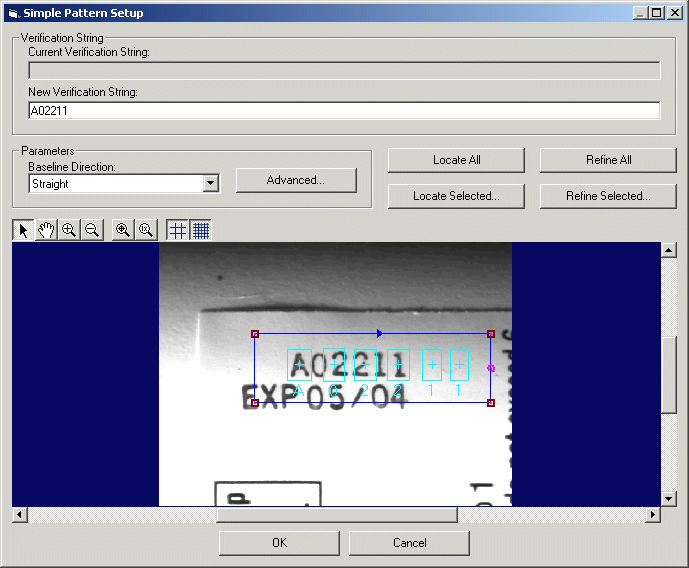
The smaller the region you choose, the faster the pattern location process will function. For any shape except Don't Care (entire image), you must resize and position the graphic so that it encompasses the characters in the Reference Image. For example, the following figure shows the Reference Image using a CogRectangleAffine shape:
If you need more control over how the pattern layout operation takes place, click the Advanced button to open the following dialog box:
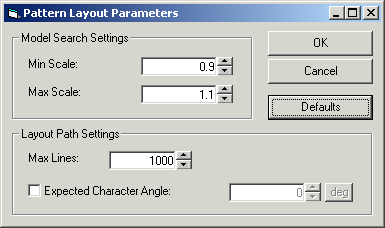
First, you can limit the scale range in which to locate each character in the string. Specifying a tighter range can significantly improve the execution time of the tool. The scale range is ignored in Refine mode. Use the Max Lines field to specify how many lines of text are allowed in the calculated layout of the character string.
Check the Expected Character Angle checkbox to specify the orientation of the characters along the baseline should be compared to the value entered in the accompanying text box. When unchecked, character orientations along the baseline are compared to the average orientation.
Click Locate All to have the tool attempt to locate each character in your character string automatically. If your character string contains no blank font models, the tool should successfully locate all the characters in the Reference Image, as shown in the following figure:
If your character string contains one or more blank font models, the OCV tool makes an effort to locate the region graphic appropriately, but you may have to select the graphic manually and position it as desired. If the blank font model occurs at the beginning or end of the character string, the tool will not locate the region graphic at all and you must manually move the graphic into position.
In addition, the OCV tool may not be able to locate all font models reliably. For example, the tool might not differentiate between a font model for a lower-case "L" and a font model for the number 1. In such a case, select the graphic for the font model and place it over the correct character in the underlying image.
(Optional) If you manually place the region graphic for the characters over the image, you can click Refine All to have the OCV tool attempt to refine the layout of the string to better represent the pattern. In addition, the tool supports the ability to automatically locate selected characters within the string, or refine the location of selected characters already in good position. For example, click the Locate Selected button to display the character string in the following dialog box:
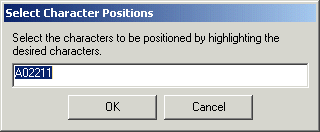
Highlight the string subsection for the desired character you want to locate (or whose location you want to refine) and click OK.
Note: If the tool is unable to refine the position of one or more characters, it displays red graphics for the characters that could not be refined. The positions of those characters are unchanged. The red graphics indicate that the tool was unable to refine the positions, not that the character could not be found or verified.
- Once all the region graphics are positioned around the appropriate characters in the Reference Image, click OK at the bottom of the Simple Pattern Setup dialog box.
- Switch to the Current.PatternReferenceImage buffer in the OCV edit control.
- Select the pattern origin graphic and drag it to the desired location. By default, the pattern origin will match the current Fixture result. In this application, the Fixture tool was configured to locate the "A" in the character string, and the Fixture graphic placed over the center of the "A", and this is also a good placement for the pattern origin. Although you could relocate the pattern origin, placing the pattern origin farther away from the character string pattern can lead to errors when the pattern rotates and you rely on a combination of a PMAlign tool and Fixture tool to accurately locate the area of the image where the string can occur.
- Click Train to train the pattern.
Switch to the Current.InputImage buffer in the OCV edit control.
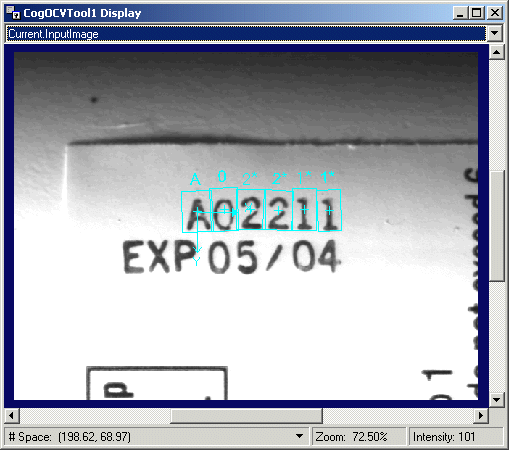
The graphic for the character string pattern will appear over the string in the underlying image, as shown in the following figure:
Run the OCV tool once to ensure that it locates and verifies the character string.
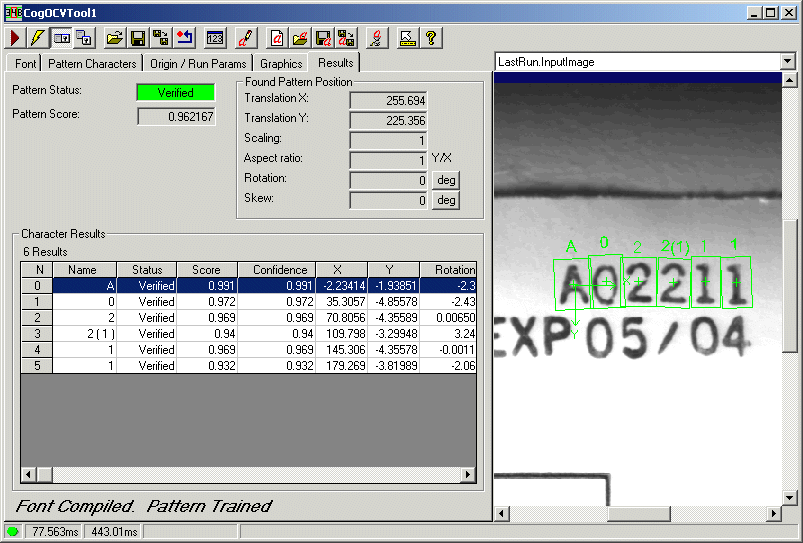
When the OCV tool runs successfully, the Results tab of the edit control appears similar to the following figure:
Once the pattern is trained you can test that the OCV tool verifies the pattern on successive images.
Use an advanced pattern setup when the characters in the string can vary or when you want to exclude a particular character instance for one or more font models. To use an advanced pattern setup, perform the following steps:
Start QuickBuild and configure the Image Source to capture or display an image of the character string you want to verify.
This application uses an image database that contains images of the string.
- Add an OCV tool.
- Add a CogPMAlign tool to your application and give it the OutputImage from the Image Source.
Acquire a good input image of the character string you want to verify and configure the PMAlign tool to locate a reliable feature within the image. Remember to configure the PMAlign tool to account for rotation.
In this application, the PMAlign tool locates the character "A" in each image, as shown in the following figure:
Add a CogFixture tool to your application and give it the OutputImage from the Image File tool.
The QuickBuild job now looks as shown in the following figure:
Link the GetPose result of the PMAlign tool to the UnfixturedFromFixturedTransform parameter of the Fixture tool, as shown in the following figure:
Add a CogOCVTool and give it the OutputImage from the Fixture tool.
The QuickBuild job now appears as shown in the following figure:
- Open the OCV tool edit control.
- Create and compile a new font for this OCV tool or load an existing font. See the topic Using the Font Editor for details on how to create a new font.
Acquire a good input image of the character string you want to verify and click Grab Reference Image on the Pattern Characters tab.
You need a Reference Image to position the pattern origin after the pattern itself has been trained.
- Click the Show/Hide Advanced Items button on the Pattern Characters tab to display advanced settings in the OCV edit control.

The Pattern Characters tab of the edit control now looks similar to the following figure:
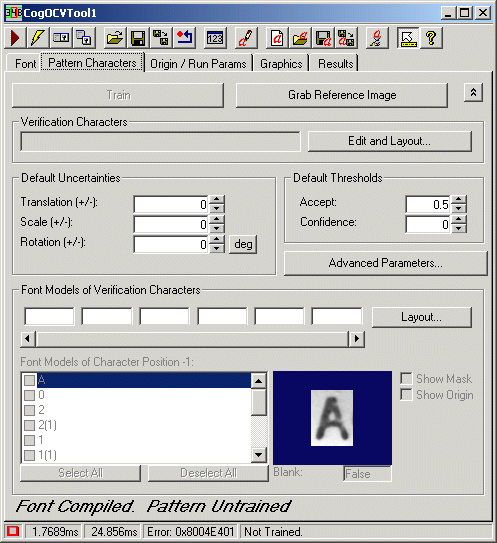
A row of character boxes runs across the edit control for you create the character string pattern.
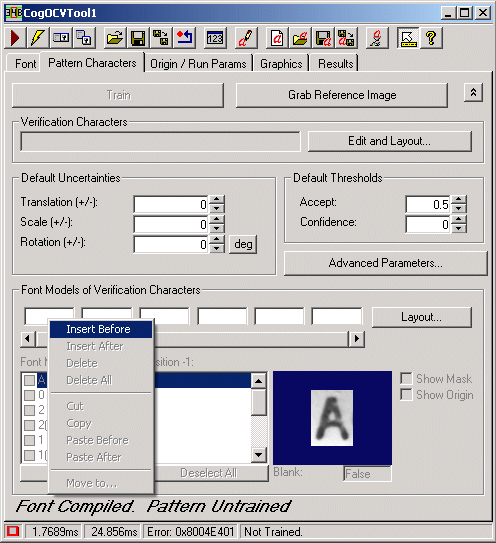
Right-click on the first character box and select Insert Before, as shown in the following figure:
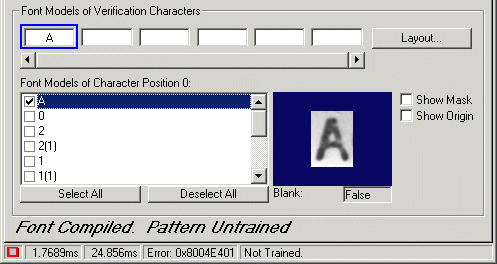
Select the character, or characters, that are allowed to appear in the first position of the character string pattern from the list of font models at the bottom of the edit control.
If you select just one character with no other character instances, it appears as shown in the following example:
If you select all character instances of a character, it appears as shown in the following figure:
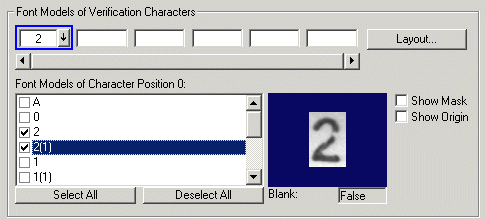
Finally, if you select more than one character, even when one character has multiple instances, it appears as shown in the following figure:
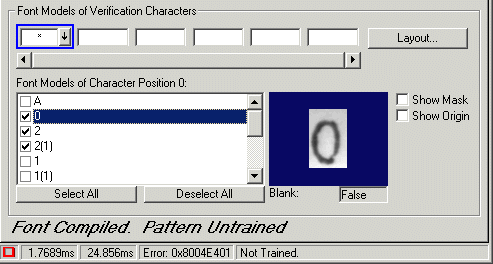
- Right-click on the first character box again and select Insert After, to create a second character position in the character string pattern.
- Repeat the same procedure you used to fill the first character position.
Repeat the process of adding character positions and filling in each position with the desired character or characters.
When the character string pattern is complete, the edit control should look similar to the following figure:
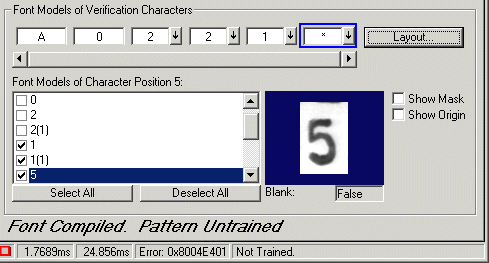
If any character position is configured for multiple characters, you need to click the arrow button to the right of the box for that character and select which character you will use for the layout.
Click the Layout button on the Pattern Characters tab of the OCV edit control.
The Advanced Pattern Setup dialog box appears similar to the following figure:
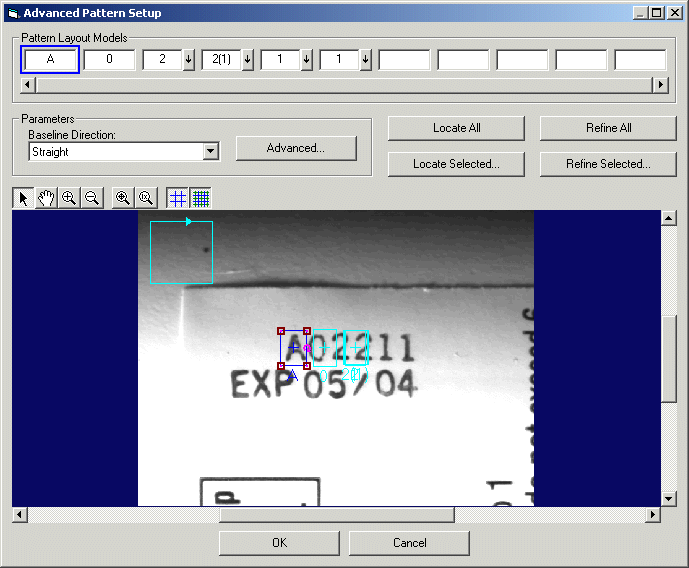
If you selected multiple font models for any single position, the tool uses the first font model by default. If the reference image you are using to train the character pattern uses a different character, you can select that character in the correct box of Pattern Layout Models along the top.
Specify the baseline direction of the pattern to be found in the Reference Image, using one of the following four options:
- Straight uses a CogRectangleAffine (without skew).
- Circular uses a CogEllipticalAnnulusSection to define a circular area.
- Don't Care (sub region) uses a CogRectangle.
- Don't Care (entire image) will search the entire Reference Image for the characters.
The smaller the region you choose, the faster the pattern location process will function. For any shape except Don't Care (entire image), you must resize and position the graphic so that it encompasses the characters in the Reference Image. For example, the following figure shows the Reference Image using a CogRectangleAffine shape:
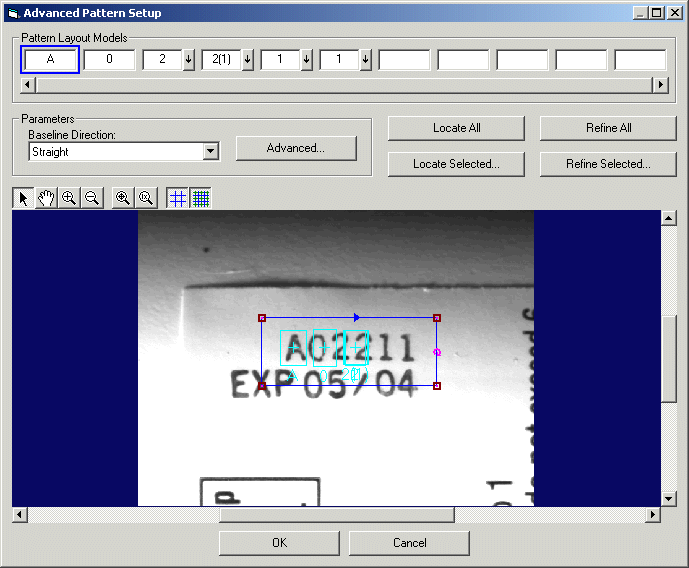
If you need more control over how the pattern layout operation takes place, click the Advanced button to open the following dialog box:
First, you can limit the scale range in which to locate each character in the string. Specifying a tighter range can significantly improve the execution time of the tool. The scale range is ignored in Refine mode. Use the Max Lines field to specify how many lines of text are allowed in the calculated layout of the character string.
Check the Expected Character Angle checkbox to specify the orientation of the characters along the baseline should be compared to the value entered in the accompanying text box. When unchecked, character orientations along the baseline are compared to the average orientation.
Click Locate All to have the tool attempt to locate each character in your character string automatically. If your character string contains no blank font models, the tool should successfully locate all the characters in the Reference Image, as shown in the following figure:
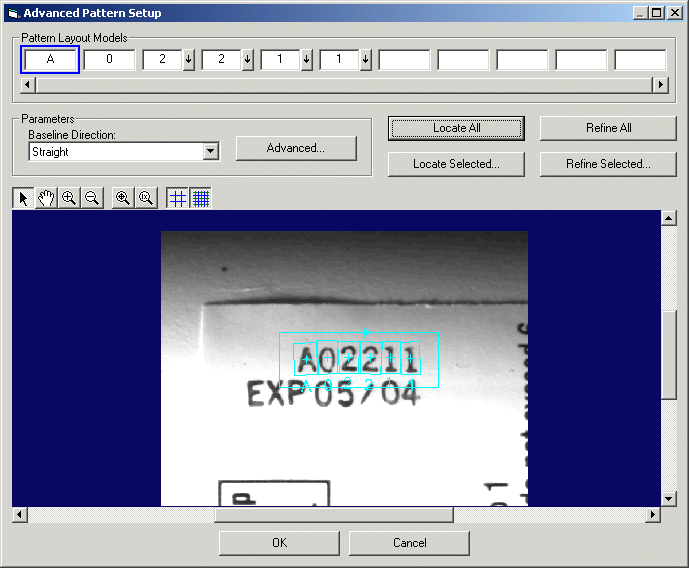
If your character string contains one or more blank font models, the OCV tool makes an effort to locate the region graphic appropriately, but you may have to select the graphic manually and position it as desired. If the blank font model occurs at the beginning or end of the character string, the tool will not locate the region graphic at all and you must manually move the graphic into position.
In addition, the OCV tool may not be able to locate all font models reliably. For example, the tool might not differentiate between a font model for a lower-case "L" and a font model for the number 1. In such a case, select the graphic for the font model and place it over the correct character in the underlying image.
(Optional) If you manually place the region graphic for the characters over the image, you can click Refine All to have the OCV tool attempt to refine the layout of the string to better represent the pattern. In addition, the tool supports the ability to automatically locate selected characters within the string, or refine the location of selected characters already in good position. For example, click the Locate Selected button to display the character string in the following dialog box:
Highlight the string subsection for the desired character you want to locate (or whose location you want to refine) and click OK.
- Once all the region graphics are positioned around the appropriate character in the Reference Image, click OK at the bottom of the Simple Pattern Setup dialog box.
- Switch to the Current.PatternReferenceImage buffer in the OCV edit control.
- Select the pattern origin graphic and drag it to the desired location. By default, the pattern origin will match the current Fixture result. In this application, the Fixture tool was configured to locate the "A" in the character string, and the Fixture graphic placed over the center of the "A", and this is also a good placement for the pattern origin. Although you could relocate the pattern origin, placing the pattern origin farther away from the character string pattern can lead to errors when the pattern rotates and you rely on a combination of a PMAlign tool and Fixture tool to accurately locate the area of the image where the string can occur.
- Click Train to train the pattern.
Switch to the Current.InputImage buffer in the OCV edit control.
The graphic for the character string pattern will appear over the string in the underlying image, as shown in the following figure:
Run the OCV tool once to ensure that it locates and verifies the character string.
When the OCV tool runs successfully, the Results tab of the edit control appears similar to the following figure:
You can now test that the OCV tool verifies the pattern on successive images.