This topic contains the following sections.
An OCV font is a collection of OCV font models along with the confusion scores that measure the similarity between each model pair. A font may include multiple instances defining the same character, as well as models that define the blank spaces that might appear within the string you want to verify. To use an OCV tool you must build a new font or load an existing one. If you build a new font, you must compile it in order for the OCV tool to generate the confusion scores that the OCV must have for each pair of font models. You cannot verify a pattern with an uncompiled font.
To load an existing font, click the

The easiest method for building a new font is to use the OCV tool edit control and its Font Editor in a QuickBuild job. Before you begin you need an image of the characters from which you want to create a font, acquired using either a CogAcqFifo tool or a CogImageFile tool. Once you have a good image showing the characters in your font, perform the following steps:
- Add a new CogOCV tool to your application and link the OutputImage terminal in the image acquisition tool to the InputImage terminal of this OCV tool.
Acquire a good image of the characters that will go into the font if you have not already done so.
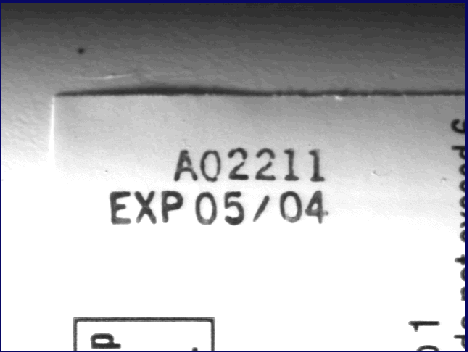
The image acquisition tool passes the image to the OCV tool. The following figure shows the Current.InputImage given to the OCV tool for this example:
Open the OCV edit control and click
to open the Font Editor.
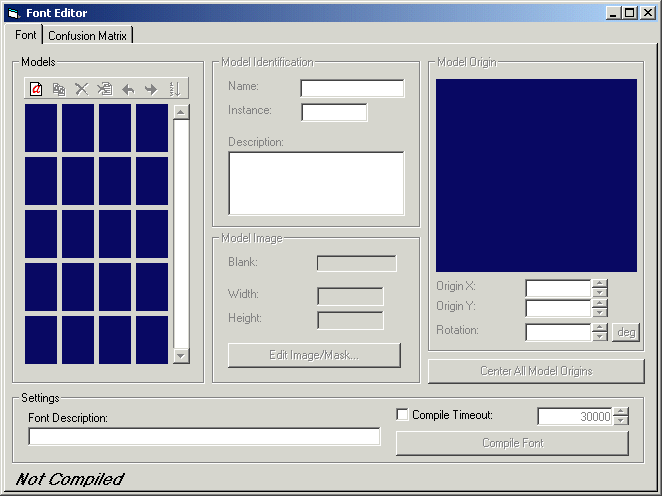
A blank Font Editor appears as shown in the following figure:
Click
and select "Add Normal Font Models" to create font models for the characters in your font. If you need to create blank font models you can do so later.
The Add Font Models dialog box appears as shown in the following figure:
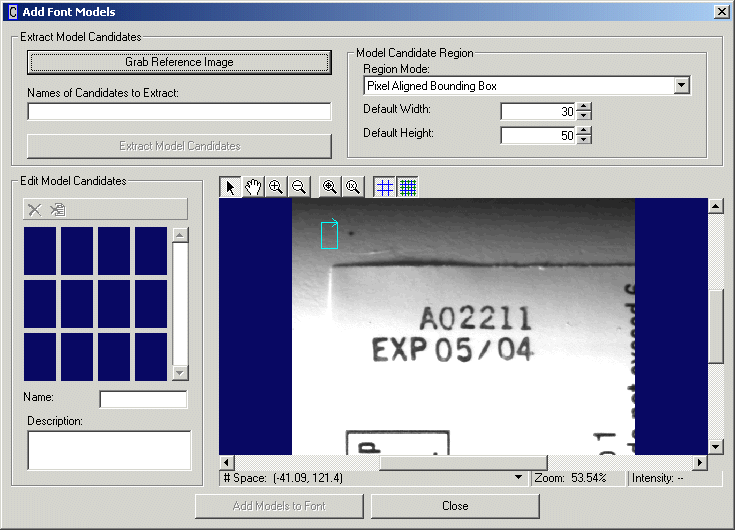
Select Affine Transform from the Region Mode list in the Model Candidate Region of the dialog box.
The topic Add Normal Font Model describes the type of regions you can use. This example uses Affine Transform because the images the application will acquire will not normally undergo a large amount of rotation.
Enter a name for the font model(s) you want to create in the Names of Candidates to Extract box.
When multiple characters appear on the same line in your image it is possible to create multiple font models simultaneously. For example, the image used in this example has the characters "A", "0", "2" (two instances), and "1" (two instances) all on the same line, so font models for those characters can be created simultaneously by first entering the string "A02211" in the Names of Candidates to Extract box, as shown in the following figure:

By using this process again later on the second line of characters in the image, you could create font models for the characters "E", "X", "P", "0" (two instances), "5", "4", and the "/" character simultaneously.
At this stage you must use single character names for each font model. If you want to use multi-character names for a font model, you can change its name later in the Font Editor.
Select the region graphic within the image window at the bottom of the dialog box.
By default, the region graphic appears as shown in the following figure:
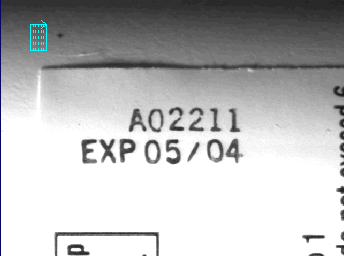
Selecting the graphic displays its sizing and rotation handles. Initially, the graphic is small and divided into six equal sections to match the six character models you are creating.
Take the region graphic in the image window at the bottom of the dialog box and adjust it to fit around the character string "A02211".
Use the button bar above the image window to zoom in as necessary to help you give the region graphic the best fit around the characters. Once fitted, the graphic should wrap around the characters similar to the following example:
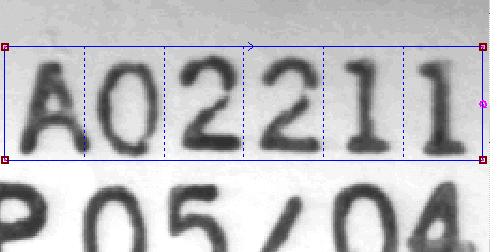
You can adjust the fit of any particular region graphic later.
Click the Extract Model Candidates button to create font model candidates for each of the six characters.
The candidates appear in the thumbnail gallery of the dialog box as shown in the following figure:
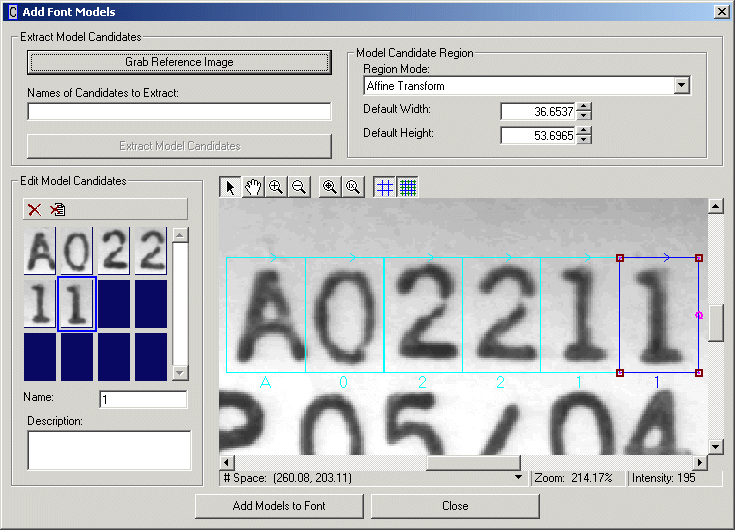
- Adjust the fit of any region for a particular character to provide a better fit. The image window allows you to overlap the regions for different characters.
Click Add Models to Font at the bottom of the Add Font Models dialog box when you are satisfied with the appearance of each model candidate.
The Add Font Models dialog box closes and the model candidates become font models in the Font Editor, as shown in the following figure:
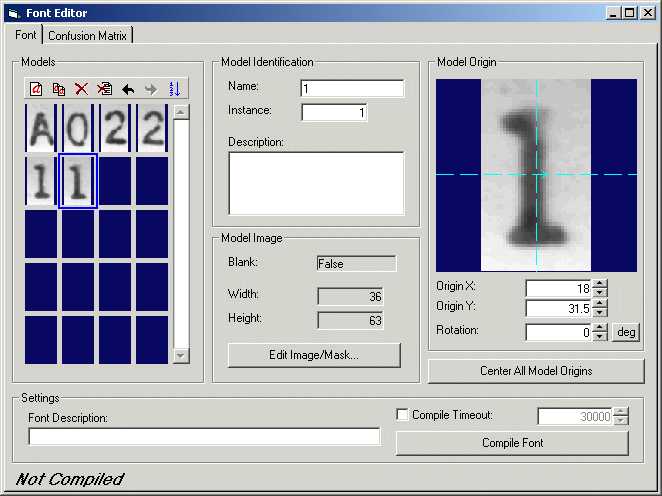
- Click again and select "Add Normal Font Models" to create more font models as necessary.
In many OCV applications it is as important to verify the presence of a blank character as it is to verify the presence of a normal character. Use the Font Editor to create a blank font model as well as font models for normal characters. Unlike a normal font model, a blank font model does not include any pixels, but is instead defined by its width, height, name, and origin.
To create a blank font model from the Font Editor, perform the following steps:
Click
and select "Add Blank Font Model" to open the Add Blank Font Model dialog box, as shown in the following figure: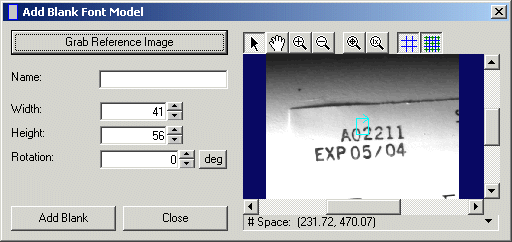
- Click Grab Reference Image if the dialog box does not show the current Reference Image.
- Enter a name for the blank character in the Name field. You must enter a name for a blank font model.
Use the region graphic in the image window to define the width, height and rotation of the blank model.
The dialog box does not copy any pixels from the image into the font model, so it does not matter if the region surrounds one or more characters.
Click Add Blank to add the blank font model to the Font Editor, which appears in the thumbnail gallery of the Font Editor as shown in the following figure:
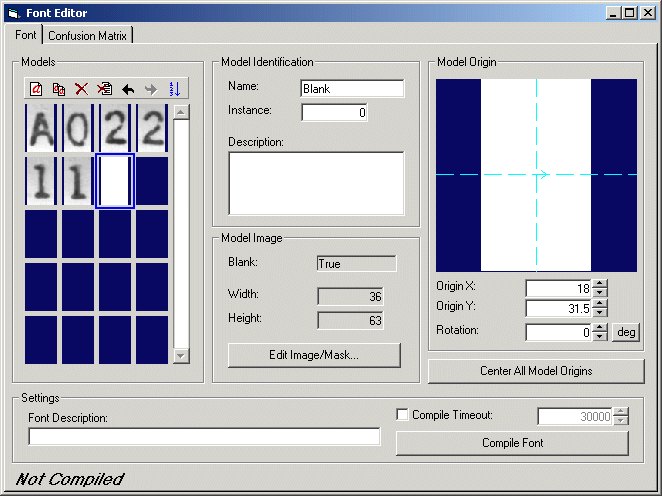
Use the Description area of the of the Font Editor to provide an optional description of any font model you create. Using a description can be helpful if the font model contains a logo or a custom character created solely for the objects under inspection.
The Model Origin area of the Font Editor allows you to view and modify the model origin of each font model. By default, the Font Editor places the origin at the center of the model, which yields the most accurate means for comparing font models when the rotation uncertainty has been enabled. The origin should be in roughly the same position for each font model, however, you might want to adjust it slightly for multiple instances of the same character so that the origin falls at the same place in each stroke.
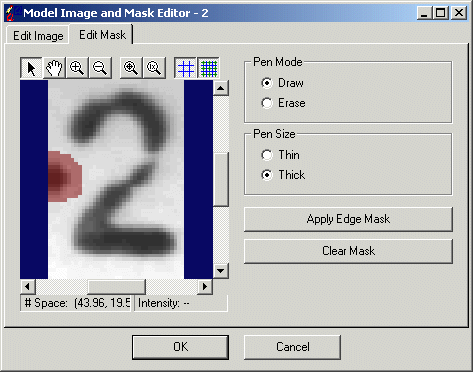
The Font Editor includes an image and mask editor component, which lets you modify the pixels in the font model or add a mask to exclude certain sections of the font model from consideration. For example, the character "2" in an image might sometimes appear with some extraneous marking as shown in the following figure:
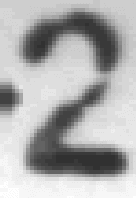
If the presence or absence of the mark should not affect the outcome of verifying this character, that area of the font model can be masked off. The following figure shows the image and mask editor with the font model for this character, with mask pixels added to cover the location where the mark might appear:
You must click Compile Font or use the

Enable the Timeout field to specify the maximum amount of time, in milliseconds, allowed to compile the font. If the compilation is not finished within the timeout period, the tool will stop and generate an error.