This topic contains the following sections.
The Image Mask Editor provides a means for adding a mask to the training image of a CNLSearch or PMAlign tool. See the topic Using Search Masks for more information on the use of masks. Other VisionPro tools use masks to block undesired sections of the training image, but only the CNLSearch and PMAlign tools offer access to the Image Mask Editor. The editor will only create mask images, it cannot edit the underlying training image.
To launch the Image Mask Editor, click

A mask image uses semi-transparent red pixels to represent Don't Care pixels, which are pixels masked off from consideration, while the Care pixels of the underlying training image appear unchanged. If you are using the Image Mask Editor to create a mask for a PMAlign training image, you can also add Don't Care but Score pixels, which appear in semi-transparent yellow. See the description of the PMAlign tool for more information on Don't Care but Score pixels.
The mask appears in the editor superimposed over the training image. For example, the following figure shows the Image Mask Editor with a mask over the training image of a PMAlign tool:
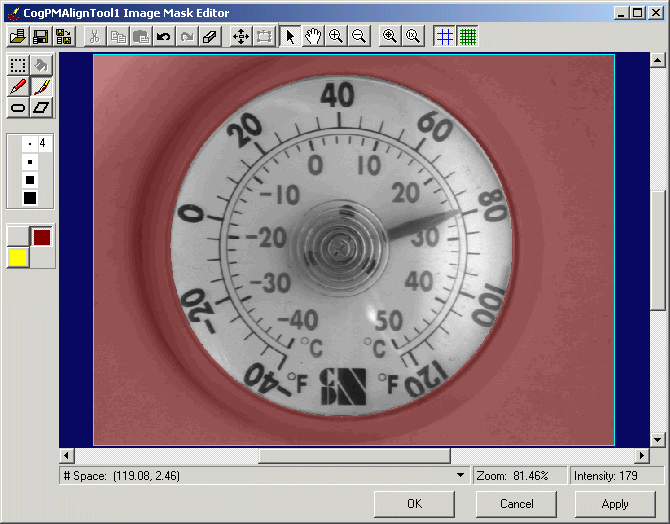
The Image Mask Editor supports a button bar along the top and a tool palette along the side, with a display window for showing the training image with its corresponding mask. The following three buttons appear along the bottom of the editor:
- Click OK to add the current mask to the training image and close the Image Mask Editor.
- Click Cancel to close the Image Mask Editor and discard any changes to the mask since the last Apply.
- Click Apply to add the mask to the training image while keeping the Image Mask Editor open.
The Image Mask Editor uses the ImageFile tool to open and save a mask image, and uses the CopyRegion tool to perform cut, copy and paste operations. Therefore, the Image Mask Editor will not function if you choose to perform a custom installation and do not install both the ImageFile tool and the CopyRegion tool.
A mask consists of a combination of the following types of pixels:
- Care pixels, which are clear, allow the vision tool that analyzes the underlying image to include the underlying pixel in its analysis.
- Don't Care pixels, which appear in semi-transparent red, prevent the vision tool that analyzes the underlying image from including the underlying pixel in its analysis.
- Don't Care But Score pixels, which appear in semi-transparent yellow, indicate which pixels in the training image are ignored for the purposes of creating a search pattern, but when found in the search image are scored as clutter features. Don't Care But Score pixels are only available to mask images of a PMAlign tool.
Most mask images have the same dimensions as the underlying image, but you can use a mask that has smaller dimensions. The Image Mask Editor allows you to precisely control the size and placement of the mask over the image.
You can use the tools of the Image Mask Editor to create a new mask, or import an existing bitmap or TIFF file and use it as a mask. Be aware, however, that the Image Mask Editor does not support color TIFF images. To use a TIFF image as a mask, it must be 8-bit grey scale.
Finally, if you import an image to use a mask for a PMAlign tool, and the image contains pixels with a grey value between 128 and 191, the Image Mask Editor displays them in bright red. Cognex reserves grey values 128 through 191 and the PMAlign tool will not allow you to train a search pattern with a mask that contains these illegal values.
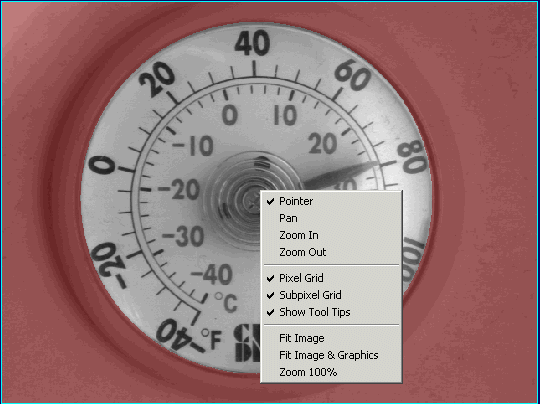
The Display window of the Image Mask Editor shows both the current mask and the underlying training image. Right-click within the Display window to display the popup menu shown in the following figure:
The Image Mask Editor supports the following button bar along the top of the editor:

The following table describes the function of each button:
| Button | Description | Function |
 | Open Image Mask | Import an existing bitmap or TIFF file and use it as a mask image. The Image Mask Editor can be used to import masks for both the CNLSearch tool and PMAlign tool, but the tools differ in the way they interpret the grey values in the incoming mask image. The CNLSearch tool interprets the grey values of the incoming mask in the following ways:
The PMAlign tool interprets the grey values of the incoming mask in the following ways:
|
 | Save Image Mask | Save the current mask as a bitmap or TIFF file. You might want to test the same mask file on several different tools or in multiple applications. |
 | Save As | Save the current mask as a different bitmap or TIFF file. |
 | Cut | Cut the currently selected area of the mask image. The Cut button is only available when you are using the Selection tool from the tool palette. The area of the mask that you cut becomes transparent. |
 | Copy | Copy the currently selected area of the mask image. The Copy button is only available when you are using the Selection tool from the tool palette. |
 | Paste | Paste the cut or copied area to the mask image. The paste operation pastes the entire area you cut or copied, including any transparent portion of the region you selected. Click on the pasted area and drag it to the location where you want to paste it, then click outside of the selection to permanently place the pasted area. |
 | Undo | Undo the last action. The editor supports one level of undo. Note: A paste operation is not considered an "action" until you permanently place the pasted item by dragging it to the location where you want it, then clicking outside of the pasted item. If you have clicked on the Paste button but not yet placed the pasted item, clicking the Undo button will undo the most recently completed action. |
 | Redo | Redo the previous undo action. The editor supports only level of redo. |
 | Erase All | Erase all pixels in the mask image with pixels of the currently selected color in the tool palette. |
 | Change mask offset and size | Modify the mask image offset and size with the following dialog box: 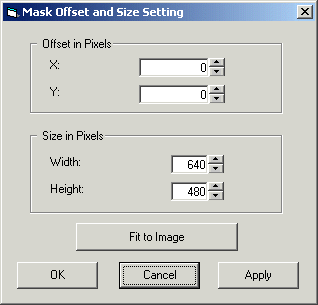 The X and Y offsets measure the offset from the upper-left corner of the image. If you resize the image, the upper-left corner of the old mask image will be copied to the upper-left corner of the new mask image. Click Fit To Image to match the dimensions of the mask image to the dimensions of the training image. The fitting operation takes place immediately without the need to click Apply. |
 | Shape Control | Modify the graphic of the current shape tool with the following dialog box: 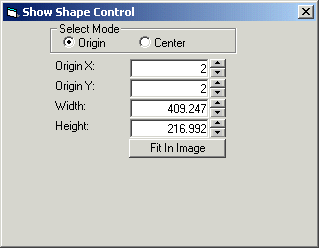 The Shape Control button is only available when you are using one of the following tools:
For many applications, you can use the graphic for the particular tool to adjust its location and dimensions. Use this Shape Control dialog box to provide precise dimensions or exact placement. |
 | Pointer | Switch the cursor in the Display window to a pointer. |
 | Pan | Use the hand cursor in order to pan the image within the Display window. |
 | Zoom in | Use this magnifying cursor to zoom in on the image within the Display window. |
 | Zoom out | Use this magnifying cursor to zoom out on the image within the Display window. |
 | Fit Image | Fit the image within the size of the Display window. |
 | Zoom 100% | Displays the image at a magnification factor at 100%. |
 | Pixel grid | Superimpose a grid over the borders of all pixels in the image. You must zoom in on the image in order to see the pixel grid. |
 | Subpixel grid | Superimpose a grid within the border of each pixel in the image. You must zoom in on the image in order to see the subpixel grid. |
The Image Mask Editor supports the following tool palette bar along the left side of the editor:
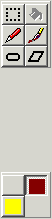
The tools work only with the pixels that form the mask image. You cannot edit the underlying training image with the tools in the Image Mask Editor.
The following table describes each tool:
| Button | Tool | Use |
 | Selection tool | Use the Selection tool to specify a rectangular portion of the mask image for cutting or copying. When you click the Selection tool, a graphic appears in the editor as shown in the following figure: 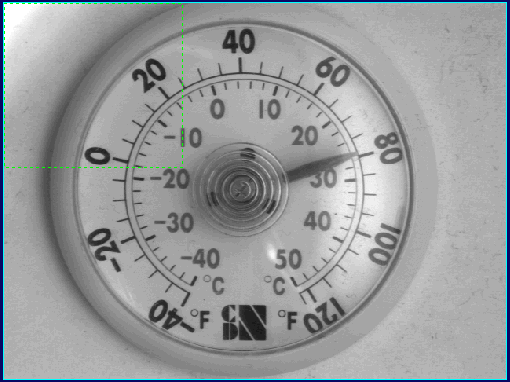 Click on the graphic to display sizing handles on each. Use the handles to reshape the graphic. Click and drag the graphic to move it. |
 | Fill tool | Use the Fill tool to fill in the shape defined by the Ellipse or Affine Rectangle tool with the current color. This tool is available only when you are using the Fill Ellipse or the Fill Rectangle tool. |
 | Line tool | Use the Line tool to draw a free-form line one pixel wide, using the currently selected color. |
 | Brush tool | Use the Brush tool to paint mask pixels in the currently selected color. When you select the Brush tool you can change the size of the brush with the following graphic:  Select the size of the brush you want to use. |
 | Fill Ellipse tool | Use the Fill Ellipse tool fill a circular shape with the currently selected color. You can adjust the graphic on the image or use the Shape Control button to provide exact dimensions and a precise location. Once you have placed the shape in the desired area and adjusted it to the desired size, click the Fill tool button. |
 | Fill Affine Rectangle tool | Use the Fill Affine Rectangle tool fill an affine rectangle shape with the currently selected color. You can adjust the graphic on the image or use the Shape Control button to provide exact dimensions and a precise location. Once you have placed the shape in the desired area and adjusted it to the desired size, click the Fill tool button. |
 | Color Selection tool | Select the desired color you want to use to draw, paint, or fill in the mask image. The CNLSearch tool supports only clear (Care) and red (Don't Care) pixels. The PMAlign tool supports clear (Care), red (Don't Care), and yellow (Don't Care but Score) pixels. |