This topic contains the following sections.
The application that the Application Wizard generated is designed to be easy for your users to operate. It's also designed to make it easier for you to make adjustments without having to regenerate the application. In this section, you'll learn how to run the generated application, and how to make changes to the underlying QuickBuild application.
When you run your application you have the option to display a logo on the screen in the lower right-hand corner, and to include a text message that is displayed when the operator clicks the About.. button. To add a logo include a file containing the bit-mapped logo and named "logo.bmp" in the same directory as your application's .exe file. To include a text message include the text in a file named "about.txt" in the same directory.
The following is the initial screen.
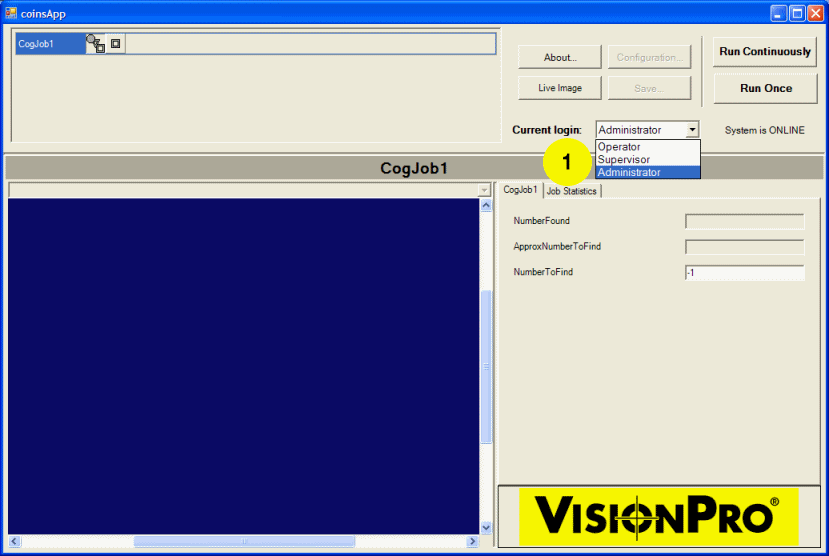
- Our example was created with a login requirement. Since the example will require changing the application configuration we need to login at the Administrator level. Choose Administrator from the Current login: pull-down list.
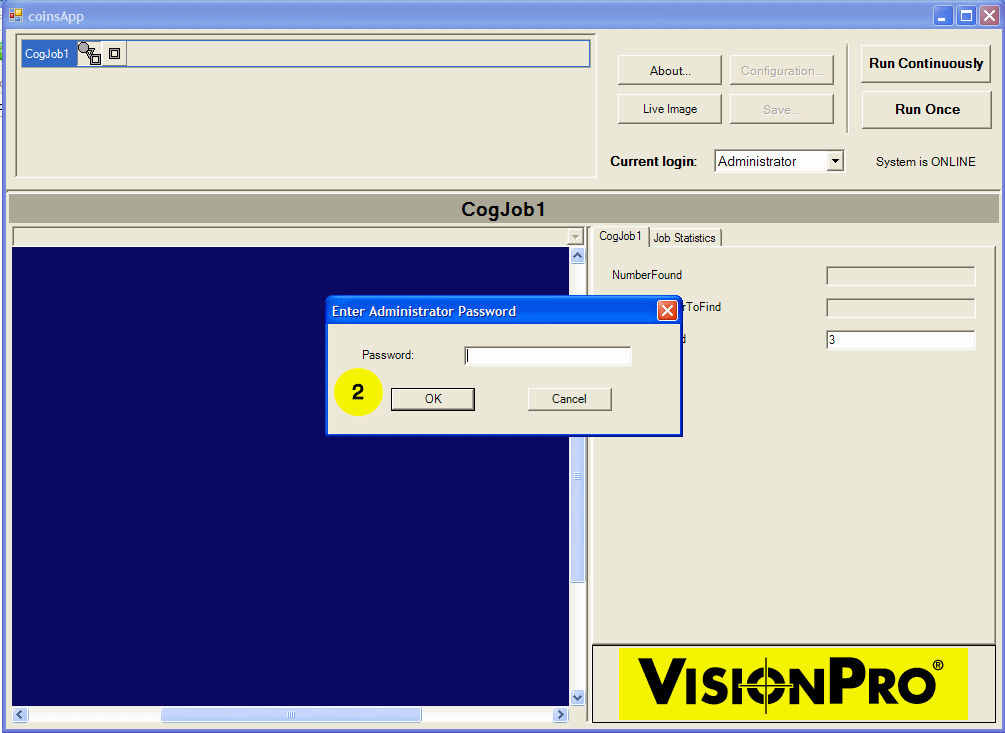
- The Password dialog appears. Enter the Administrator password and click OK.
The Configuration button becomes enabled and is no longer greyed out.
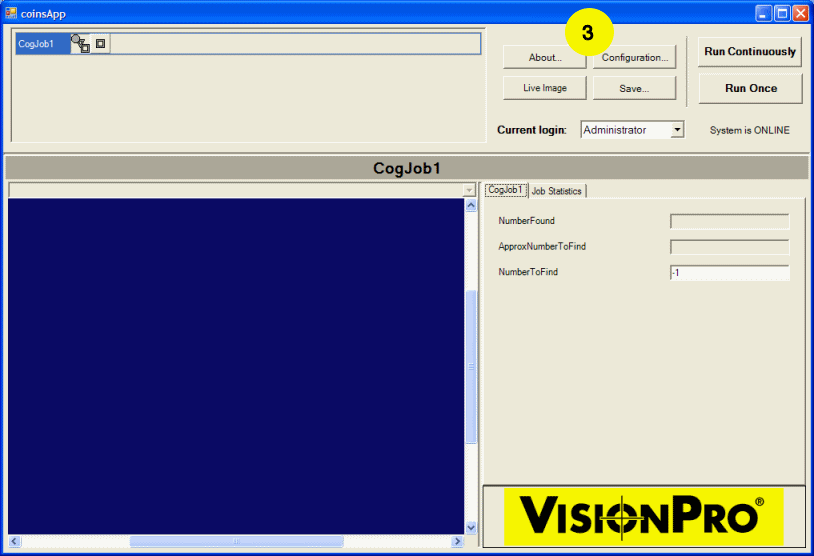
- Click the Configuration... button. The Configuration dialog appears.
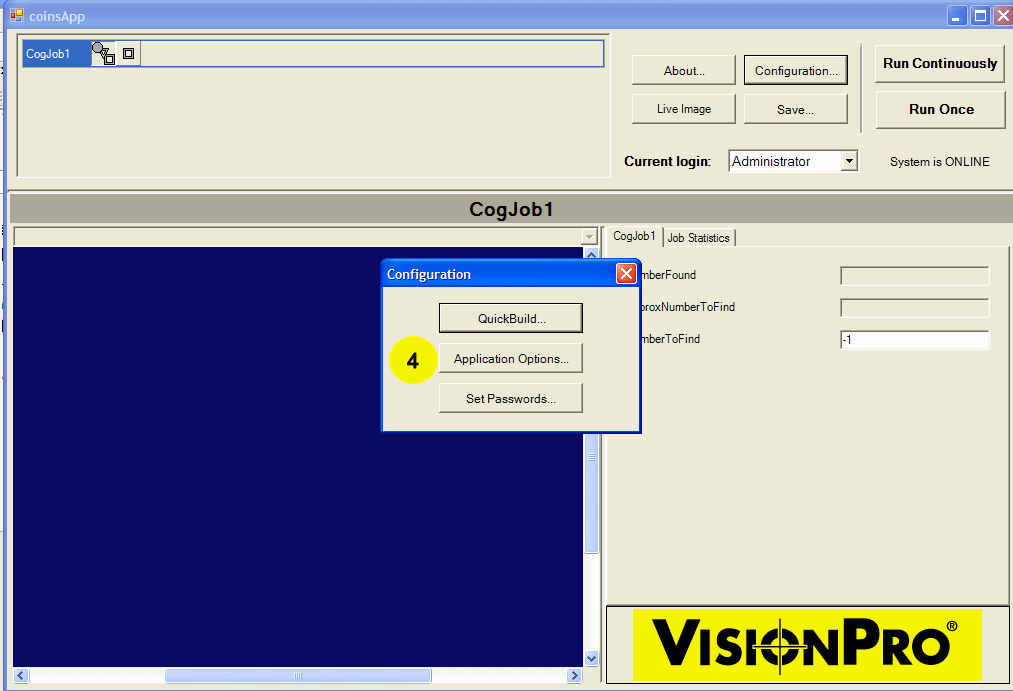
Click on the Application Options... button.
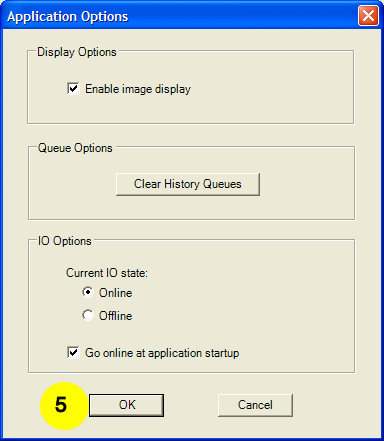
The options shown are the default options created for the application when you ran QuickBuild. You can change the options here if you wish and the changes will become permanent. The default state starts your application Online. This makes your I/O lines active while running the application. The state Online or Offline state is always displayed at the top of the screen. For more information about I/O lines and their Online/Offline state see Online and Offline.
- Click OK to continue.
-
Click the Run Once button to run your application.
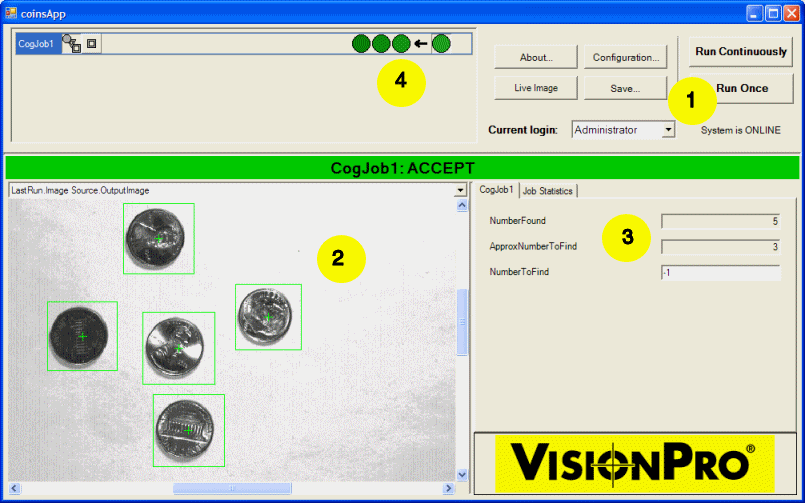
- Each time you click the button, a new result image appears in the display.
- The values of the items in the CogJob1 tab are updated.
- Each result appears in the job history. A green circle indicates an accept-level result; a red square indicates a reject-level result. Since the initial value of the NumberToFind field is -1, you're not going to encounter any failures. However, remember that this field is connected to an input property in the Results Analysis tool that specifies the minimum number of coins to find.
-
Change the NumberToFind to 3.
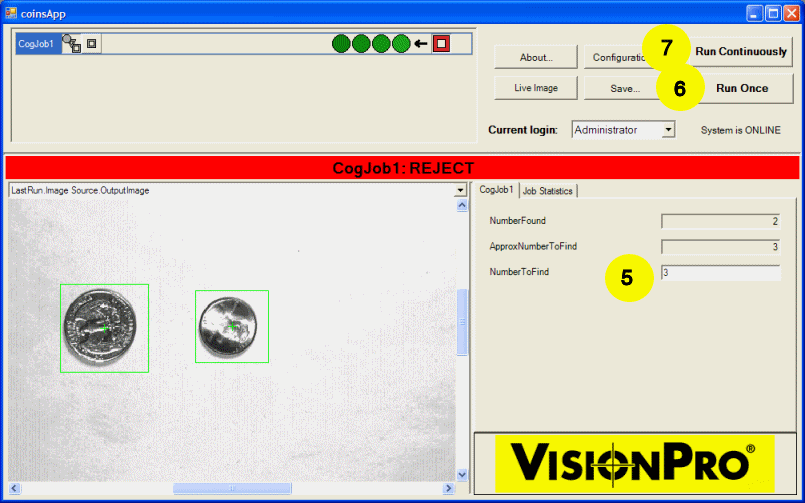
- Click Run Once until you see an image with fewer than 3 coins. The reject-level result is added to the job history.
- Click the Run Continuously button to see how the application is working.
As your application runs, you may notice that the PMAlign tool is finding the minimum number of coins, but not finding all the coins in an image.
- The problem is that the ApproxNumberToFind parameter is set to 3.
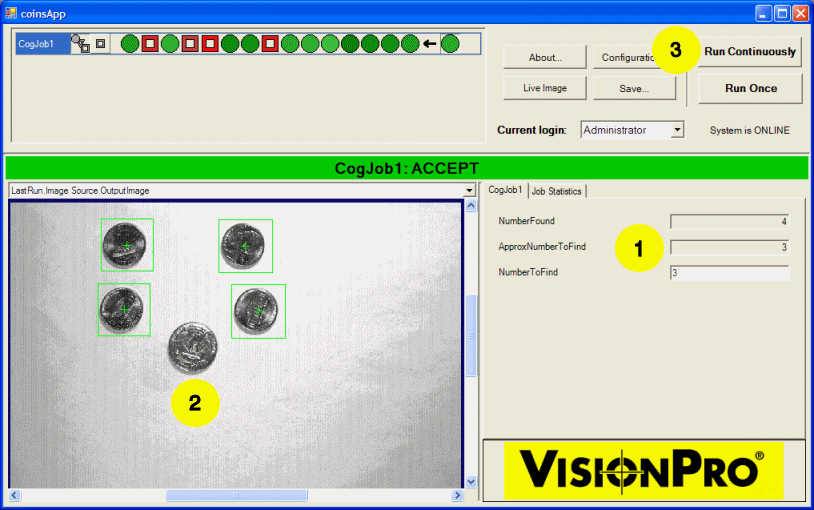
- So while the application is finding coins, it sometimes misses one that's above the approximate number to find. Remember that the ApproxNumberToFind field here is from the Posted Items list and reflects the Approx. no. to find setting in the PMAlign tool.
- If your application is still running, click the Stop button.
-
Click the Configuration button.
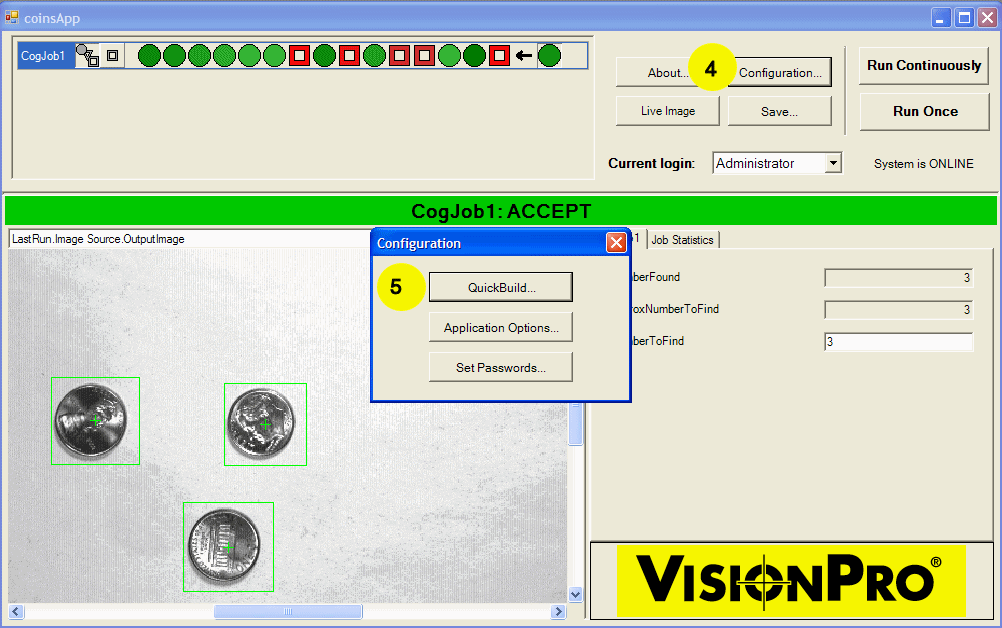
- When the Configuration dialog opens, click QuickBuild.
-
A QuickBuild window opens in front of the generated application.
Double-click on CogJob1 to open the Job Editor.
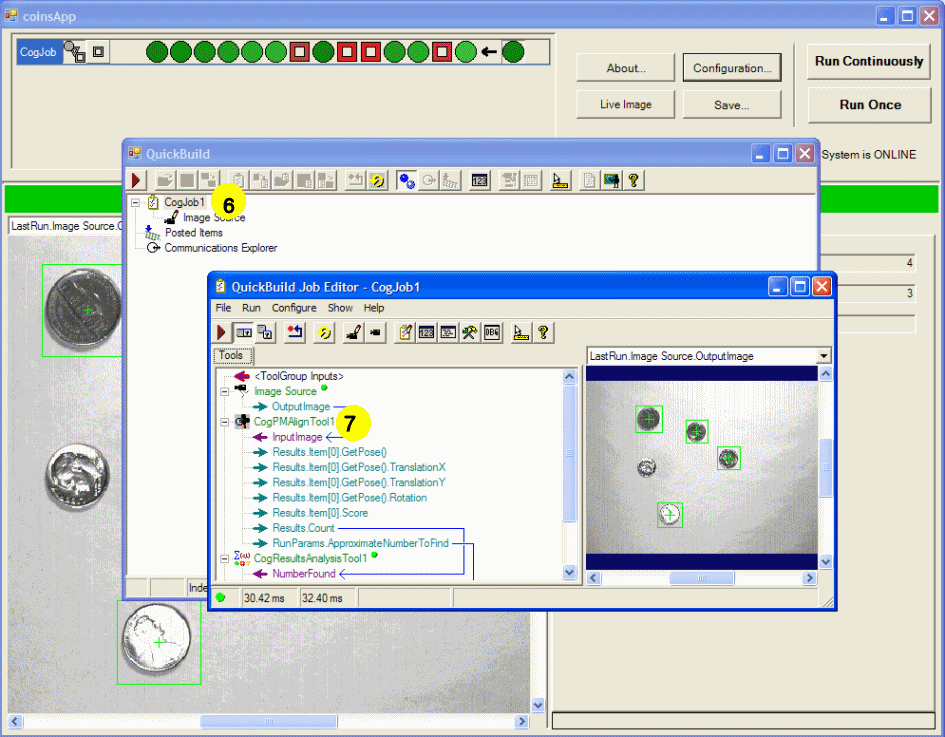
- When the Job Editor appears, double-click CogPMAlignTool1 to open the PMAlign tool edit control.
-
In the PMAlign tool edit control, click the Run Params tab.
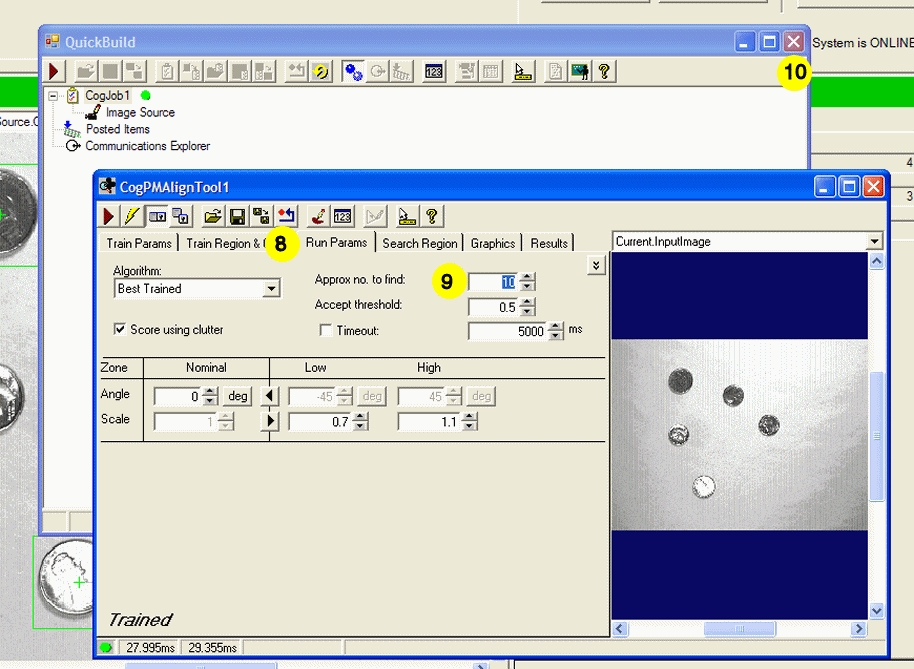
- Change the Approx. no. to find parameter to 10.
- Close the QuickBuild window. This will close the PMAlign tool, the Job Editor, and QuickBuild.
-
QuickBuild asks you if you want to save the changes you have made to the underlying
QuickBuild application. Click Yes.

-
Click the Run Once button once more.
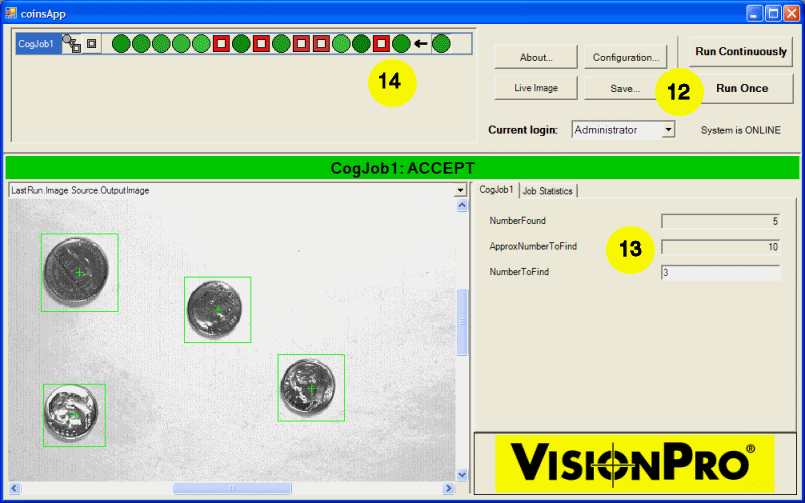
- The change to the Approx. no. to find field in the PMAlign tool appears for this run of the application.
- Remember that fields displaying Posted Items contain historical results. If you click on one of the previous results in the job history, you'll see the old value of ApproxNumToFind.
You've learned the basics of creating a QuickBuild application. VisionPro and QuickBuild provide a very rich development environment.
- To learn more about QuickBuild see Using QuickBuild.
- To learn how to enhance your QuickBuild application with scripting in VB.NET or C# see Scripting in QuickBuild.
- To learn more about the Application Wizard including how to deploy an application see Using the VisionPro Application Wizard.
- To learn how to communicate with external devices, see Using the Communications Explorer.