The 3D Range Image Plane Estimator edit control provides a graphical user interface to the Cog3DRangeImagePlaneEstimatorTool vision tool, which fits a plane in the physical 3D space through three or more points in a 3D range image acquired from a Cognex 3D displacement sensor. The tool offers multiple methods of fitting the plane to the sample points while calculating the ResidualsRMS error.
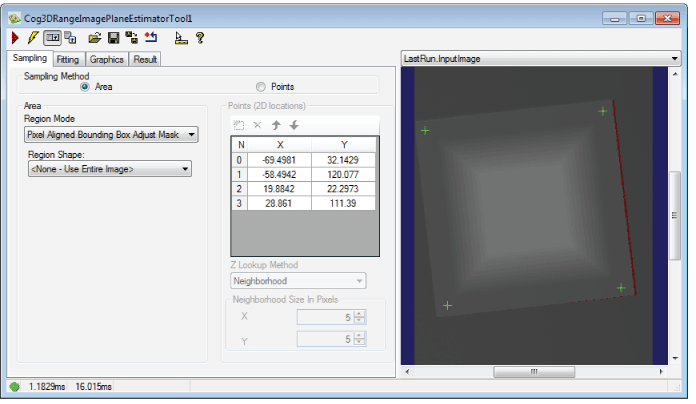
Your vision application can use the fitted plane for other 3D vision tasks. See the topic Estimating a 3D Plane for more information on the 3D Range Image Plane Estimator.
To include the edit control in your custom vision application, you must first add it to your Visual Studio .NET development environment. See the topic Adding Edit Controls to Visual Studio for more information.
The edit control supports the following features:
The edit control supports the following buttons along the top of the edit control:

| Button | Description | Function |
 | Run | Uses the current set of discrete points or Region to analyze the image stored in the Current.InputImage buffer to calculate the plane properties. |
 | Electric mode | Toggles electric mode, where the Range Image Plane Estimator tool executes automatically when particular configuration parameters change. In electric mode, a lightning bolt appears next to every electric property. |
 | Local image display | Opens or closes the local image display window. A Range Image Plane Estimator tool supports the following image buffers:
|
 | Floating image display | Opens one or more floating image windows, which support the same image buffers as the local image display window. |
 | Open | Opens a VisionPro persistence (.vpp) file that contains a set of saved properties for this vision tool object type. VisionPro reports an error if you try to open a .vpp file for another object type. |
 | Save | Saves the current properties of the vision tool to a VisionPro persistence (.vpp) file. The edit control allows you to choose between saving the vision tool with or without its image buffers and tool results. |
 | Save As | Saves the current properties of the vision tool to a new VisionPro persistence (.vpp) file. |
 | Reset | Resets the vision tool to its default state. |
 | Show ToolTips | Enables or disables the display of tooltips for individual items in the edit control. |
 | Help | Opens this VisionPro online help file. |
Use the Sampling tab to choose whether the tool fits a plane to discrete points or an enclosed region of a 3D range image.
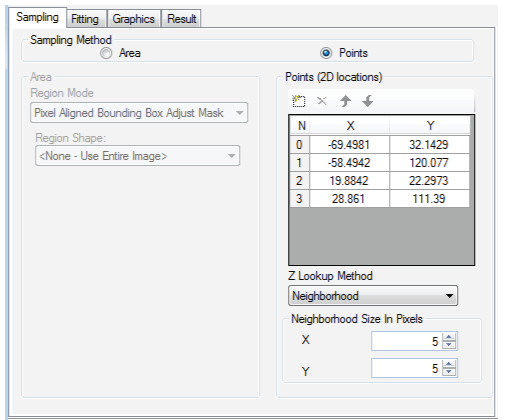
Choose one of the following methods:
Choose Area to perform plane fitting based on a region of the 3D range image you specify:
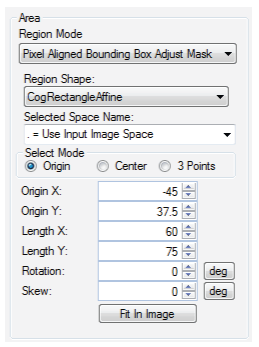
Set the parameters for the region:
| Parameter | Description |
| Region Mode (RegionMode) | Specifies how the input Region is applied to the input image. Controls whether the optional run time region (mask) is applied to the input image. |
Region Shape | Selects the shape of the region. 3D points outside of this region will not be considered during plane fitting. Select one of the following shapes:
Adjust the various properties of the region with the shape you selected. |
Choose Points to perform plane fitting based on discrete points. The Current.InputImage displays point graphics for you to select and reposition on the 3D range image. Use the following feature to add/remove points and provide the tool with additional configuration parameters:
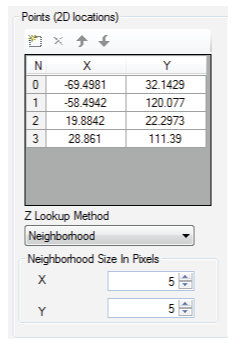
| Parameter | Description |
| Points (2D locations) | Use the button bar along the top to add and remove points. If you specify fewer than three points the tool will throw an exception when it executes. |
| Z Lookup Method (ZLookupMethod) | Selects the method used to determine the z-coordinate (height) of each point. The z-coordinate of a point is derived from one of the following:
|
| Neighborhood Size In Pixels (NeighborhoodSizeXInPixels) (NeighborhoodSizeYInPixels) | The x and y sizes of the neighborhood, in pixels. The same neighborhood size is used for each point. |
Use the Fitting tab to specify parameters for how the tool will generated the fitted plane.
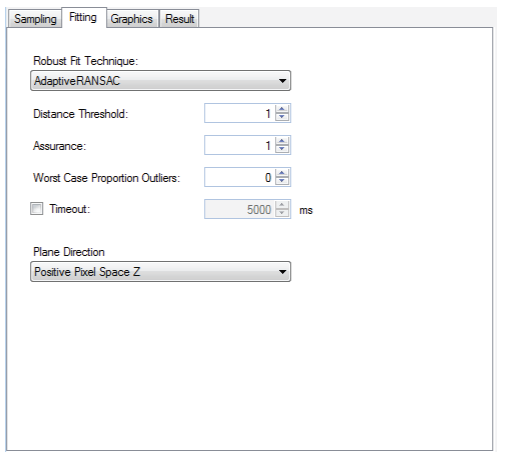
The tab supports the following features:
You can choose between two methods of fitting a plane to the available input points:
- AllPoints: Fit the best possible plane to all 3D points made available to the tool.
AdaptiveRANSAC: Cognex uses a custom version of the RANSAC algorithm to determine the best fit plane given the input 3D points. See the topic The RANSAC Algorithm for more information on the algorithm, which is used by several Cognex vision tools.
The AdaptiveRANSAC technique uses the following parameters:
Parameter Description Distance Threshold
(DistanceThreshold)For each iteration of the fitting algorithm, measure the distance between the candidate plane and the distance to each 3D input point in the client coordinate system. Points farther away than this threshold are considered outliers.
Assurance
(Assurance)Specify the likelihood that the computed fit contains only inliers.
Use Assurance to balance the execution time of the tool with with the accuracy of the fitted plane. Reducing this value can lower the execution time but make the fitted plane less accurate to the desired features in your 3D range images.
Be aware that the default value of 1.0 forces the tool to exhaustively evaluate all inliers and outliers for every possible model, which can take a considerable amount of time. Cognex recommends you set a Timeout value so the application will not become unresponsive.
Worst Case Proportion Outliers
(WorstCaseProportionOutliers)Specify a worst case proportion of outliers expected in the 3D points used for plane fitting. A value of 0.7 reflects that your expect 70% of the 3D points being processed to be outliers.
Be aware that the default setting of 0 forces the tool to use the AllPoints fitting method regardless of whether you choose to use the AdaptiveRANSAC technique.
In addition, you can specify a Timeout value, in milliseconds, to have the application throw an exception if the tool exceeds the timeout period.
Choose positive or negative PlaneDirection, specifying the direction in which the estimated plane's Normal should point. If PositivePixelSpaceZ is selected, the z component of the estimated plane's Normal (in selected space) points towards the positive z-axis of the 3D Pixel Space. If NegativePixelSpaceZ is selected, the z component of the estimated plane's Normal (in selected space) points towards the negative z-axis of the 3D Pixel Space.
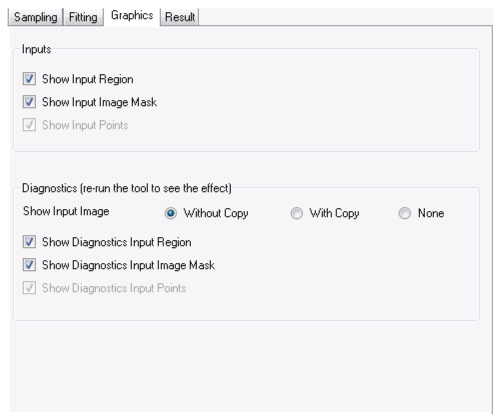
Use the Graphics tab to control which graphics the tool displays:
| Parameter | Description |
| Inputs |
|
Diagnostics | Show Input Image: Determine whether or not the input image is recorded as part of the diagnostic record, and whether the image is copied to the record or saved in the record as a reference.
|
The Results tab displays information about the fitted plane:
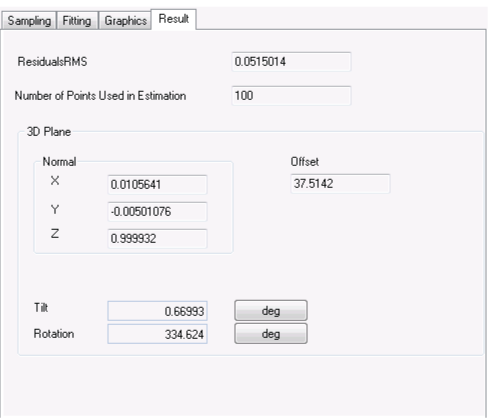
The tool returns the following data:
- The ResidualsRMS error of the fitting. This error should be small (less than 0.1) to indicate that the plane is properly fitted.
- The NumberOfPointsUsedInEstimation is returned. If a point (or its whole neighborhood) falls on an area with missing pixels, the point will not be used in plane fitting.
- An (x, y, z) value to describe the normal vector whose origin is the origin of the 3D coordinate system.
- The offset, or distance of the plane from the origin of the 3D coordinate system along the direction of the normal vector.
- The tilt and rotation of the fitted plane as described in the topic Estimating a 3D Plane.