This topic contains the following sections.
QuickBuild gives you a very flexible environment to develop your vision application, but it's not a very convenient environment for the users of your application. The VisionPro Application Wizard takes the vision application you created in QuickBuild and creates a Windows application with a custom interface that is easier to use.
One of the things that you can do with the Application Wizard is to let your user make changes to parts of your application. You can allow him to make changes to the entire underlying application with QuickBuild, or you can expose settings of vision tools.
In this example, you'll add a new input terminal to the Results Analysis tool so your user can set the rejection criteria while running the application.
- Double-click on the job CogJob1 in the QuickBuild window to open the Job Editor window.
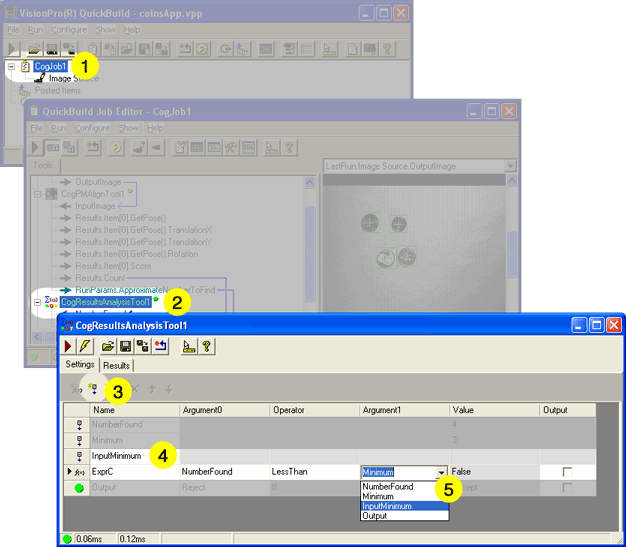
- Double click on the CogResultsAnalysisTool1 entry to open the Results Analysis tool.
- Click the Add Input button to create a new input terminal that you'll use with the Application Wizard.
- Name the new input InputMinimum.
- Change Argument1 to use the InputMinimum.
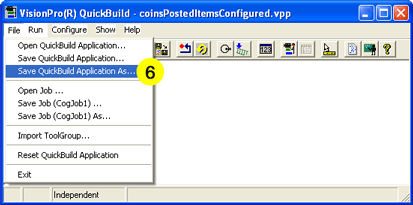
- In the QuickBuild window, save your application. Use the Save QuickBuild Application As command
and name the saved application coinsApp.vpp.
Now you're ready to use the Application Wizard.
Once you've saved the application you built using QuickBuild, quit QuickBuild and open the VisionPro Application Wizard. There is an icon for the Application Wizard on your desktop.

The VisionPro Application Wizard guides you through every step, generally asking you to fill in a field, and clicking the Next Step button. The following is the opening screen.
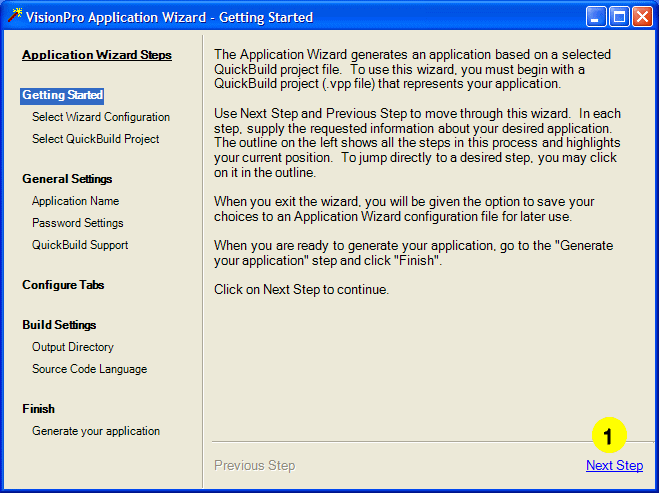
- Click the Next Step button to reach the following screen.
At the completion of this Application Wizard session you have the option to save a configuration file (a .vpw file). The configuration file contains your original .vpp file plus all of the changes you made to it while running the Wizard. The following screen gives you the option of reloading a configuration file and using it as a starting point for this Wizard session. This allows you to rerun the Application Wizard on a job while not having to repeat all of your previous changes.
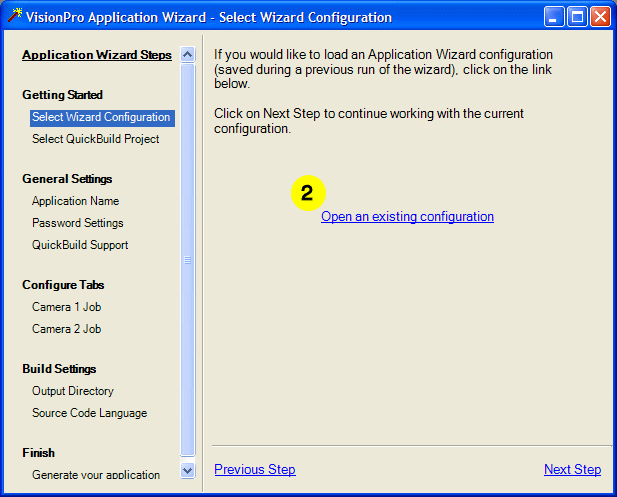
Click on Open an existing configuration if you have one you would like to use. If not, click Next Step.
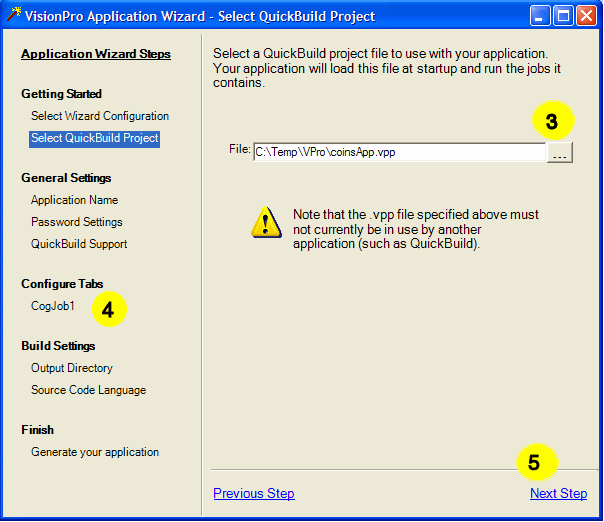
- In the Select Quickbuild Project screen either type the path to the QuickBuild application you saved, or use the Browse (...) button to select it. If you entered a configuration file in the previous screen, this path will be filled in for you with the path to the associated QuickBuild project file (.vpp). Click Next Step.
- The Application Wizard may take about a minute to load the saved QuickBuild application. You'll know when loading is complete when the name of the jobs in your saved application appear under the Configure Tabs item in the outline.
- Click Next Step twice to reach the Application Name screen.
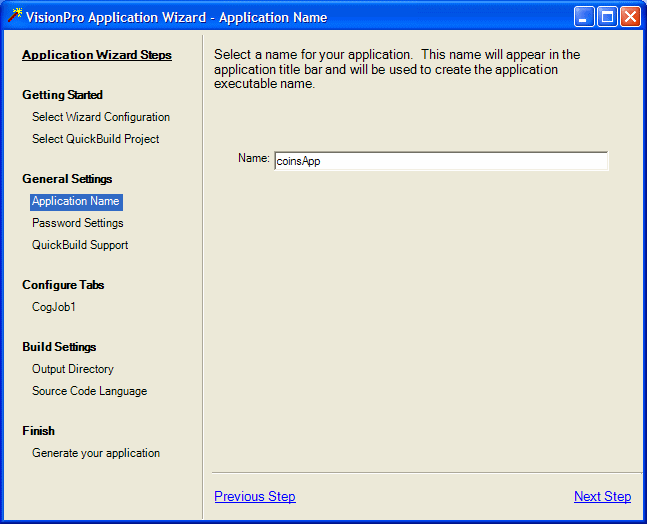
In this dialog you can name the application, if you wish, or just accept the default. The application name will be the name of the .exe. file produced by the Wizard.
Click Next Step.
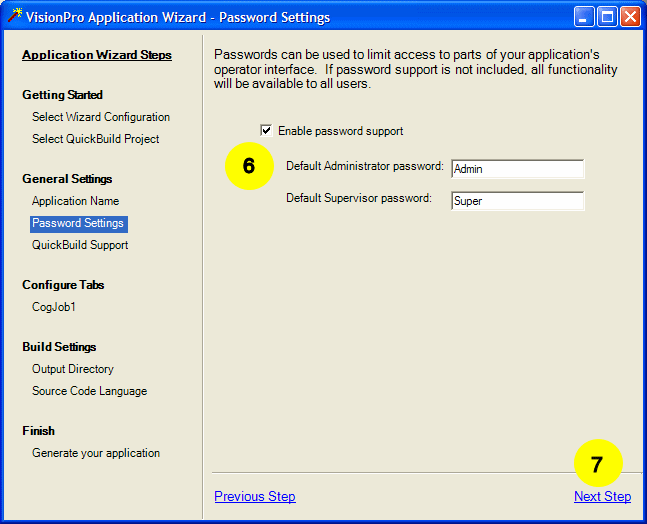
- If you wish to password protect your application check the Enable password support box. You can then provide passwords, or accept the defaults "Administrator" and "Supervisor".
- Click the Next Step button until you reach the CogJob1 screen.. For now, leave other values set to their defaults.
Now you're ready to design the user interface of your application.
The Application Wizard generates applications with a tab-based interface. You can add as many tabs as you need, and each tab can hold the data that you want your user to see or change. This is the most difficult part of using the Application Wizard, but it's very much like exposing terminals of a tool or adding entries to the Posted Items list.
First, you're going to provide a way display the two items that you placed in the Posted Items list: the number of coins found, and the approximate number of coins to find from the PMAlign tool.
- The Application Wizard sets up a tab for your job. You can give your tab a name if you like.
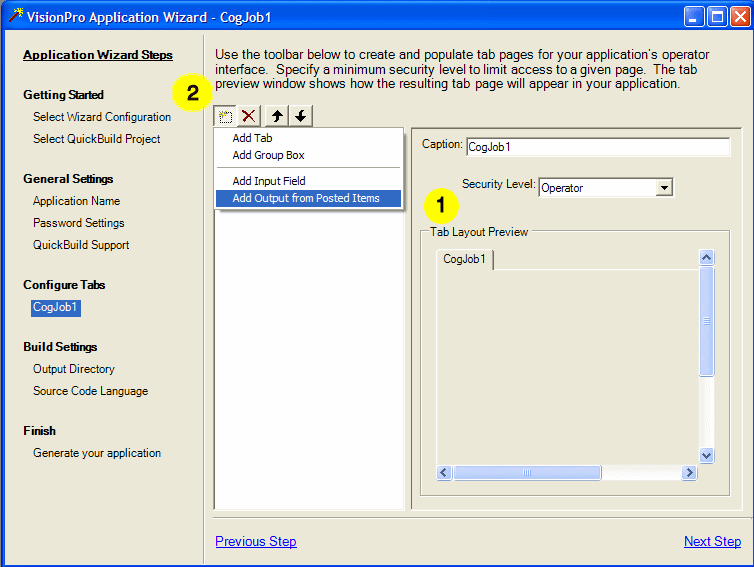
- Click the Add Item button, and choose Add Output from Posted Items from the drop-down menu.
- The new item appears in the list as Posted0. You'll change the name later.
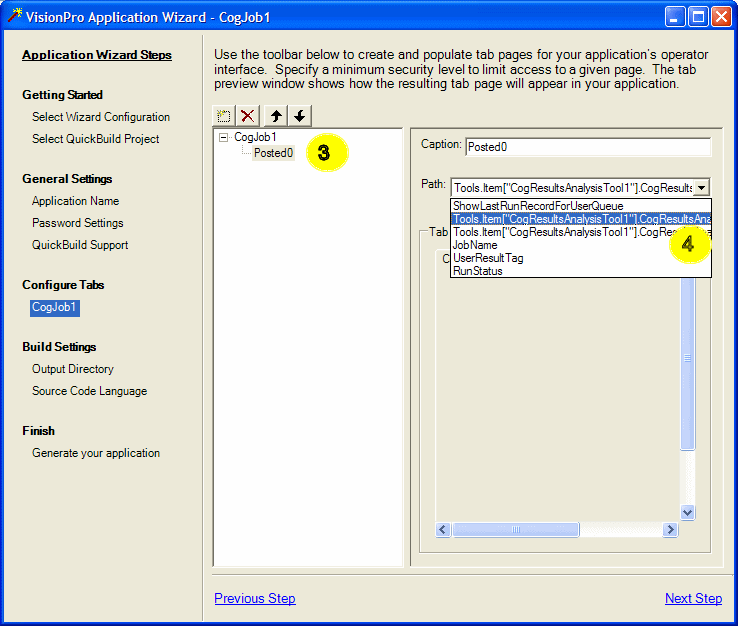
- From the Path drop-down menu, choose the first item from the Results Analysis tool. This is the NumberFound entry. (You may need to make the Application Wizard window wider to see the full name.)
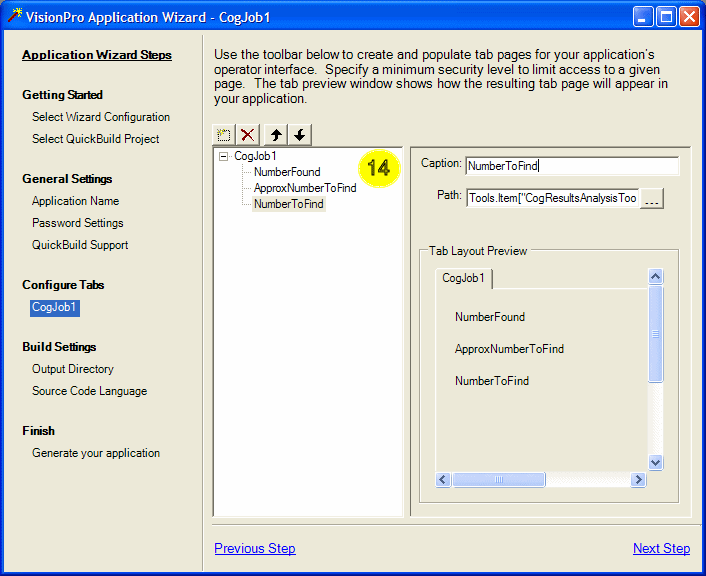
- Name this item NumberFound by typing into the Caption field.
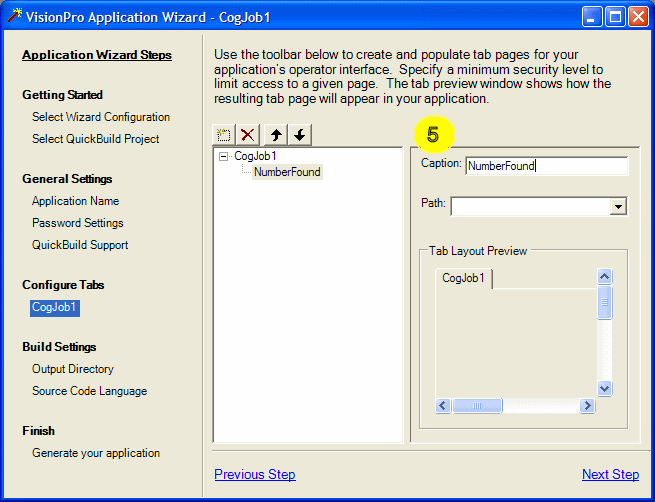
- Click the Add Item button, and choose Add Output from Posted Items from the drop-down menu once more.
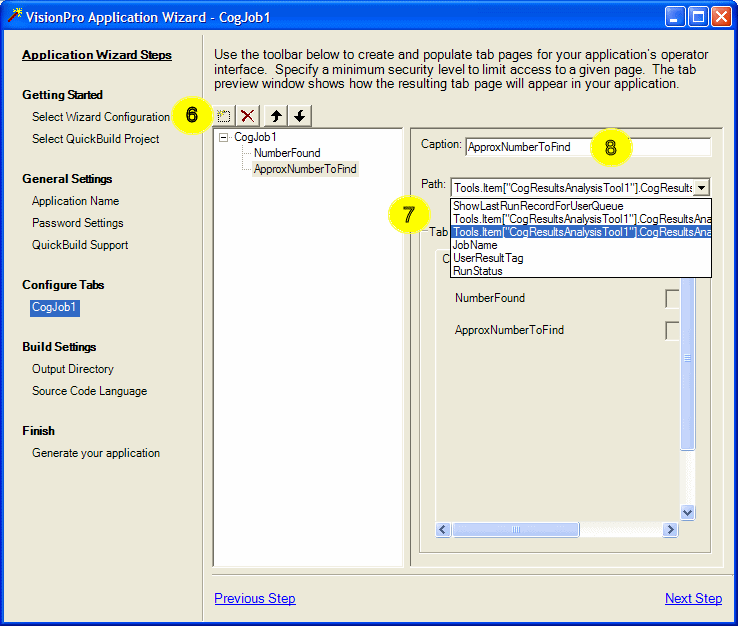
- This time choose the second Results Analysis tool from the Path drop-down menu.
- Name this entry ApproxNumberToFind.
To finish setting up this tab, you'll add the input result you created in the Results Analysis at the beginning of this section.
-
Click the Add Item button, and this time choose Add Input Field
from the drop-down menu.
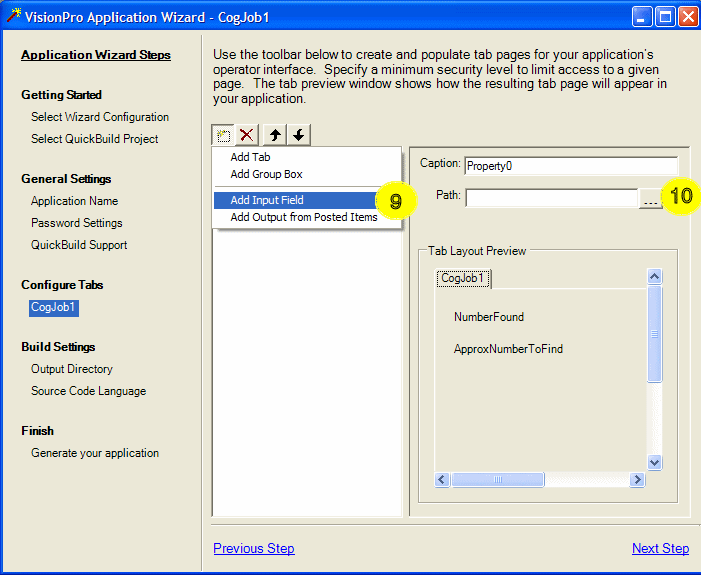
- The new item is named Property0. Click the Property Browser (...) button to the right of the Path field.
- The Select Input Property browser opens.
The browser exposes the underlying property structure which can be fairly complex.
To reduce this complexity the browser provides three structure levels; Typical,
Expanded and All which you can choose from the top pull-down menu.
Typical, the default, displays only the most often used properties. Expanded displays
a somewhat longer list and All displays the entire structure. Choose Expanded from the pull-down menu to expose
the properties needed for this example.
Open the items following the path to the InputMinimum item:
Tools / Item["CogResultsAnalysisTool1"] / CogResultsAnalysisTool / RunParams / Item["InputMinimum"] / CogResultsAnalysisInputExpression / Value
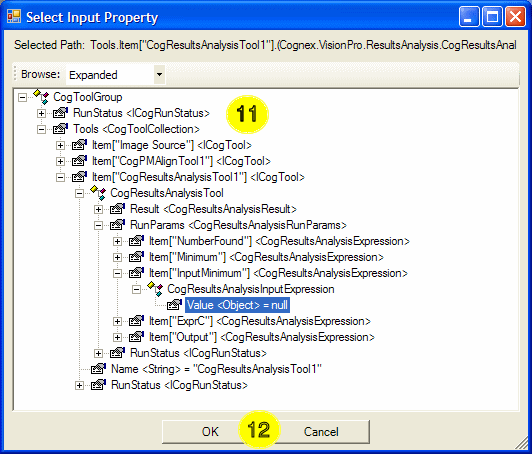
- Click OK.
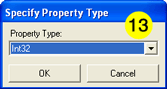
- The input item in the Results Analysis doesn't have a type associated with it, so a small dialog box asks you to select its type. Choose Int32 and click OK.
-
Name the new property NumberToFind. You'll notice that unlike the other fields,
this one can be used for input.
- Click Next Step until you reach the Output Directory screen.
You're done with the hardest part of working with the Application Wizard.
The remaining steps of the Application Wizard let you choose where the generated application is on your hard disk and whether you want the wizard to generate code for you.
- At the Output Directory screen you can choose the directory where the
Application Wizard will generate your application. You can enter a name here
or use the default name.
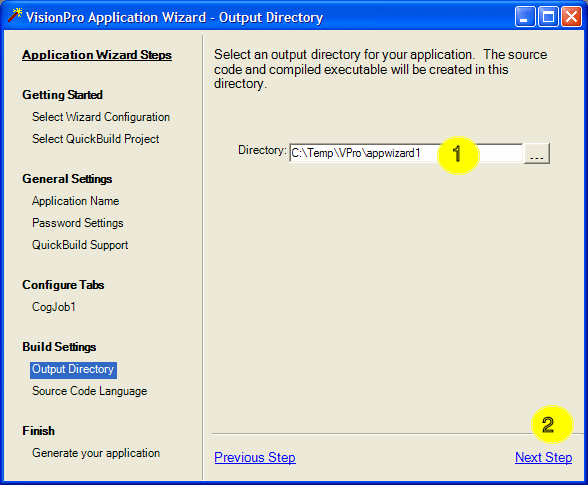
- Click Next Step.
- The Application Wizard can generate code for your application so you can modify the
application. You generally don't need to do this unless you want to change the appearance
or behavior of the generated application radically. For now, select No source code.
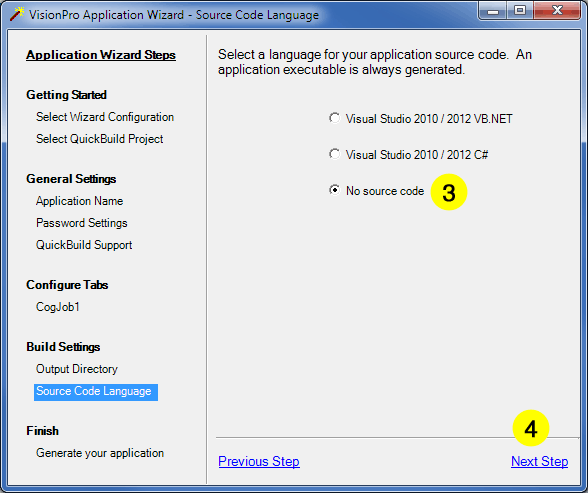
- Click Next Step until you reach the Generate your application screen.
- You're almost ready to run the generated application. Make sure that the Run Generated Application
check box is checked.
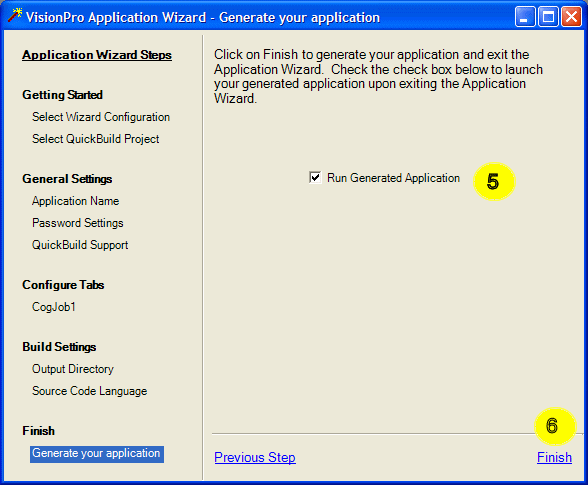
- Click Finish.
-
The Application Wizard will ask you if you want to save the configuration. This
saves all the work you've done in setting up the tabs, so in most cases you
want to answer Yes. When you run the wizard again, you can
use the saved configuration to save yourself a lot of work.

Name the saved configuration something you can remember like coinsAppWizard.
- The Application Wizard closes, and in a few seconds your generated application appears.
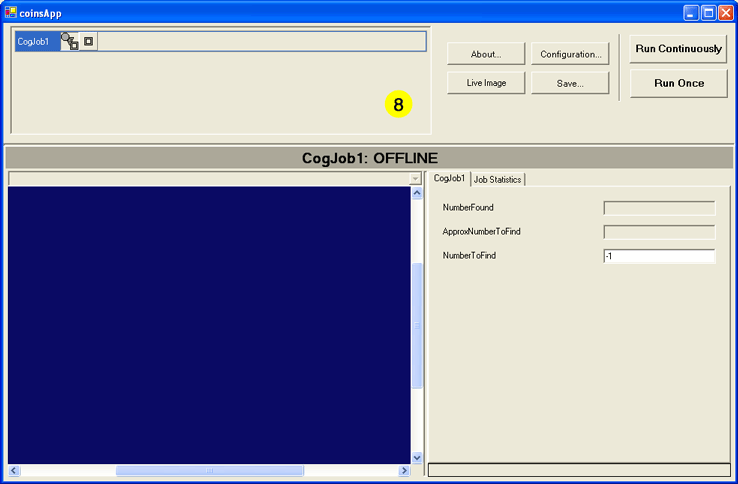
Go on to Creating a Vision Application: Working with the Generated Application to continue the tutorial.