This topic contains the following sections.
The PatInspect edit control provides a graphical user interface to the CogPatInspectTool vision tool, which compares the features contained within a region of an input image against the features stored in a trained pattern and generates an output image highlighting the differences between them. The output image highlights potential defects in the input image, such as missing or mislocated features, erroneous or unwanted marks on an object, surfaces of the wrong color, and so on.
The PatInspect edit control allows you to create a trained pattern, select the output images the tool will generate, and view PatInspect results. The following figure shows the PatInspect edit control:
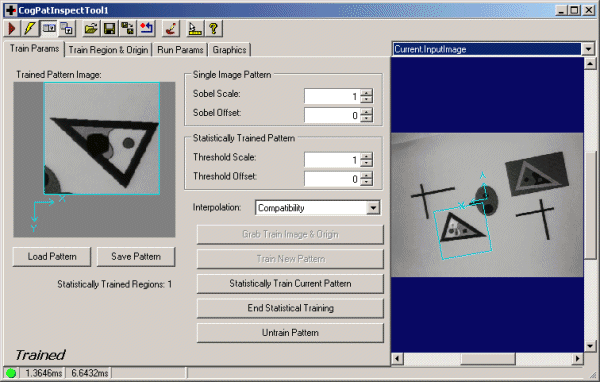
The edit control offers the following features:
- A row of control buttons at the top left
- A set of function tabs for configuring the threshold image, selecting the region of interest, and choosing which difference images the tool will generate
- An image display window for displaying PatInspect images and tool graphics
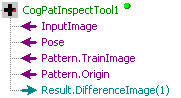
You can experiment with the edit control by using QuickBuild to create a CogPatInspect tool. A new CogPatInspect tool appears with the following terminals available:
- An input terminal for the input image
- An input terminal for the Pose of the feature as determined by a PMAlign tool
- An input terminal for a training image
- An input terminal for the origin of the PMAlign tool
- An output terminal for the thresholded difference image the tool generates each time it executes successfully
The following figure shows a new CogPatInspect tool in a QuickBuild window:

The following table describes the function of each button:
| Button | Description | Function |
 | Run | Compare the features contained within the region of interest in the run-time image against the trained pattern and generate an output image highlighting the differences between them. |
 | Electric mode | Toggle electric mode, where the PatInspect tool executes automatically when particular configuration parameters change. In electric mode, a lightning bolt appears next to every electric property. |
 | Local image display | Open or close the local image display window. An PatInspect tool supports the following image buffers:
|
 | Floating image display | Open a floating image window, which supports the same image buffers as the local image display window. |
 | Open | Open a VisionPro persistence (.vpp) file that contains a set of saved properties for this vision tool object type. VisionPro reports an error if you try to open a .vpp file for another object type. |
 | Save | Save the current properties of the vision tool to a VisionPro persistence (.vpp) file. The edit control allows you to choose between saving the vision tool with or without its image buffers and tool results. |
 | Save As | Save the current properties of the vision tool to a new VisionPro persistence (.vpp) file. |
 | Reset | Reset the vision tool to its default state. This tool gives you a choice between resetting to the default-constructed state, which is appropriate when you are using it in a Visual Studio.NET application, and its template-initialized state, which is appropriate for QuickBuild applications. |
 | Mask Editor | Open the Image Mask Editor for creating a mask to add to the training image. |
 | Show ToolTips | Enable or disable the display of tooltips for individual items in the edit control. |
 | Help | Open this VisionPro online help file. |
Use the Train Params tab to create a trained pattern. The following figure shows a Train Params tab:
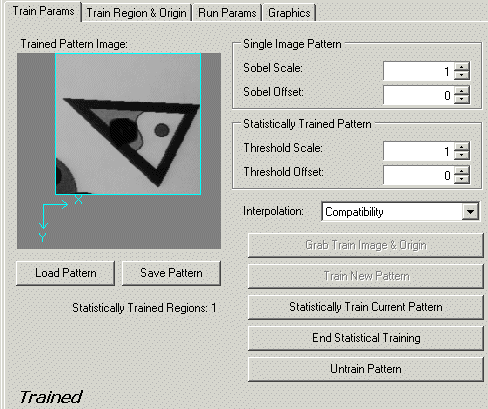
The following table describes the controls in the Train Params tab:
| Control | Description |
| Trained Pattern Image | The edit control uses this window to display the currently trained pattern. If there is no trained pattern, the window is empty. |
The tool uses these Sobel coefficients to generate a pseudo standard deviation image when you create the trained pattern from a single training image. If a PatInspect tool consistently reports false defects with outlines or borders of your run-time images, try adjusting the Sobel coefficient values. Changing the Sobel coefficient values has no effect if you use the statistical training method to create the trained pattern. | |
| ThresholdScale and ThresholdOffset | The tool uses these threshold coefficients to generate a threshold image from the standard deviation image. If a PatInspect tool consistently reports false defects with large areas of your run-time images, try adjusting the threshold coefficient values. |
| CogPatInspectInterpolationModeConstants | Determines the interpolation mode for affine transforms applied to the region. Use the default setting Bilinear to take advantage of a multi-core PC, or use the Compatibility setting for compatibility with older CogPatInspectPattern archives. |
Grab Train Image and Origin | Copy the current input image, and the origin as reported by the PMAlign tool, into the Current.TrainImage buffer. Once you have a training image you can switch to the Current.TrainImage buffer and set the region of interest within the image that you want the tool to examine. This button is not available until you have an input image, and becomes disabled once you have created a trained pattern. |
Create a trained pattern from the portion of the training image currently enclosed within the region of interest. This button is not available until you have a training image in the Current.TrainImage buffer, and becomes disabled once you have created a trained pattern from a single image. To create a trained pattern using statistical training, you need to acquire another input image and use the Statistically Train Current Pattern button. | |
Incorporate the current input image into the existing trained pattern. You should acquire a new input image and obtain a new Pose before pressing this button each time. Pressing this button repeatedly for the same image and the same Pose typically results in a poorly-trained pattern. See the topic How To Use a PatInspect Tool for an example of capturing multiple images to train a pattern. | |
End statistical training on this pattern. Once you click this button, no further statistical training can be performed. Ending stastical training will free some internal data, causing this vision tool to use less memory. | |
| TrainedCount | The edit control displays the number of images that were used to create the trained pattern. This value is equal to the number of times you click StatisticalTrain plus one for the initial click on Train. |
| Untrain | Untrain this pattern. All statistical trained data will be lost. |
| LoadObjectFromFile | Load a pattern from a VisionPro persistence (.vpp) file containing a trained pattern. |
| SaveObjectToFile | Saves the current trained pattern into a VisionPro persistence file, which has a VPP extension. |
This section contains the following subsections.
Use the Train Region and Origin tab to choose the type of region used to train the pattern in the training image. The following figure shows the Train Region and Origin tab:
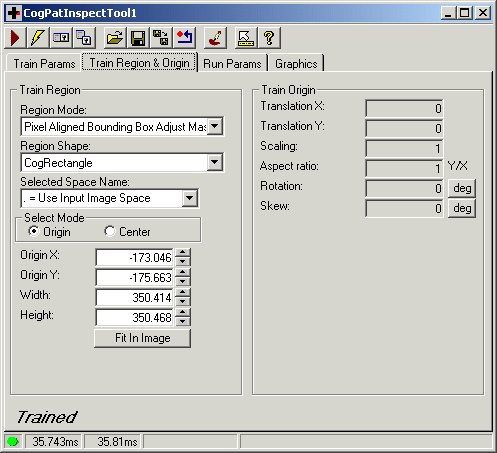
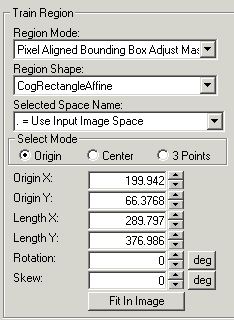
The Train Region area of the tab contains the following controls:
| Option | Description |
Define how the tool will interpret the training region you specify. Choose any of the following options:
| |
Select the shape of the input region. Selecting "None=Use entire image" means that the tool uses the entire input image. PatInspect tool supports the following input region shapes: The set of region-defining parameters that appear depend on the region shape you use. For more information on using a polygon as an input region, see the topic Using Polygon Input Regions. | |
| SelectedSpaceName | Select the coordinate space in which the training region is interpreted. For more information, see Coordinate Space Names. |
| FitToImage | Center the nominal grid within the Current.TrainImage. |
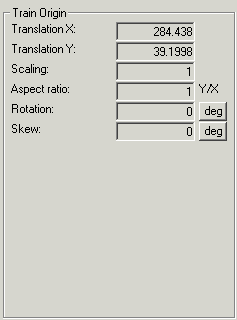
The Train Origin area reports the location and orientation of the pattern Origin as reported by a PMAlign tool. The PatInspect tool must be given this information so that it analyzes the correct portion of the image. The fields in the Train Origin section are read-only values.
Use the Run Params tab to choose the image normalization operation the PatInspect tool will perform on the run-time image, as well as decide which images the tool will generate as part of its result information. The following figure shows the Run Params tab:
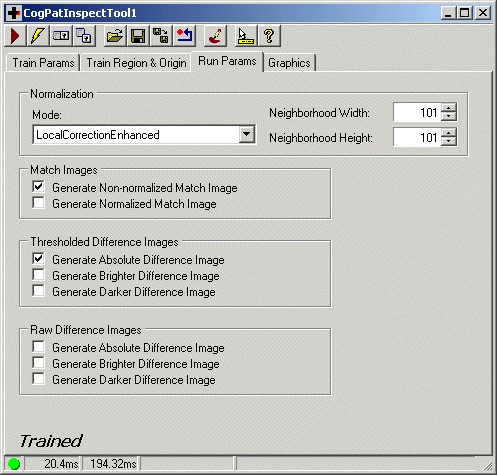
The tab offers the following parameter controls:
| Control | Description |
| NormalizationMode | Choose the normalization mode operation the tool will apply to the run-time image before comparing it to the trained pattern. See the section on Image Normalization in the PatInspect theory topic for a description of each method. |
Set the percentage of pixels to discard on the high end of the grey scale spectrum before performing the match tails method of image normalization. Note: Only shown if MatchTails is selected for the mode. | |
Set the percentage of pixels to discard on the low end of the grey scale spectrum before performing the match tails method of image normalization. Note: Only shown if MatchTails is selected for the mode. | |
The width of the neighborhood, in pixels, to use for the local correction normalization modes. Note: Only shown if LocalCorrection or LocalCorrectionEnhanced is selected for the mode. | |
The height of the neighborhood, in pixels, to use for the local correction normalization modes. Note: Only shown if LocalCorrection or LocalCorrectionEnhanced is selected for the mode. | |
| MatchImages | Select which match images the tool will generate as part of its result. By default, the tool generates a non-normalized match image. |
| DifferenceImages | Select which thresholded difference images the tool will generate as part of its result. By default, the tool generates an absolute difference image. |
| DifferenceImagesRaw | Select which raw difference images the tool will generate as part of its result. By default, the tool does not generate any raw difference images. |
This section contains the following subsections.
Use the Graphics tab to enable or disable particular tool graphics and image buffers. The following figure shows the Graphics tab:
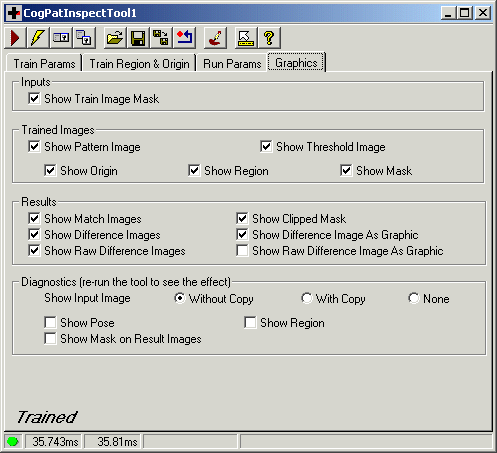

By default, the tool displays any mask image you create for the training image, but you can disable the mask from appearing in a local or floating image display.

You can enable or disable the creation or appearance of any of the following image buffers and graphics:
- The Current.TrainedPatternImage buffer
- The Current.TrainedThresholdImage buffer
- The graphic representing the origin over the Current.TrainedPatternImage and Current.TrainedThresholdImage buffers
- The graphic representing the input region over the Current.TrainedPatternImage and Current.TrainedThresholdImage buffers
- The graphic representing the optional image mask over the Current.TrainedPatternImage and Current.TrainedThresholdImage buffers

You can enable or disable the creation or appearance of any of the following image buffers and graphics:
- The match images you configure the tool to generate on the Run Params tab
- The thresholded difference images you configure the tool to generate on the Run Params tab
- The raw difference images you configure the tool to generate on the Run Params tab
- A graphic representing the clipped mask on all the result images
- A graphic representing the thresholded difference images displayed over the match images, where each pixel has been color coded to indicate the magnitude of the grey scale difference. Cyan pixels represent a grey scale difference between 1 and 19, and red pixels represent a grey scale difference greater than or equal to 20.
- A graphic representing the raw difference images displayed over the match images, where each pixel has been color coded to indicate the magnitude of the grey scale difference. Cyan pixels represent a grey scale difference between 1 and 19, and red pixels represent a grey scale difference greater than or equal to 20.

For Show Input Image, determine whether or not the input image is recorded as part of the diagnostic record, and whether the image is copied to the record or saved in the record as a reference.
You can also enable or disable the following graphics:
- A graphic for the Pose on the last run input image and all of the result images
- A graphic representing the optional mask on all of the result images
- A graphic representing the region of interest on the last run input image and all of the result images