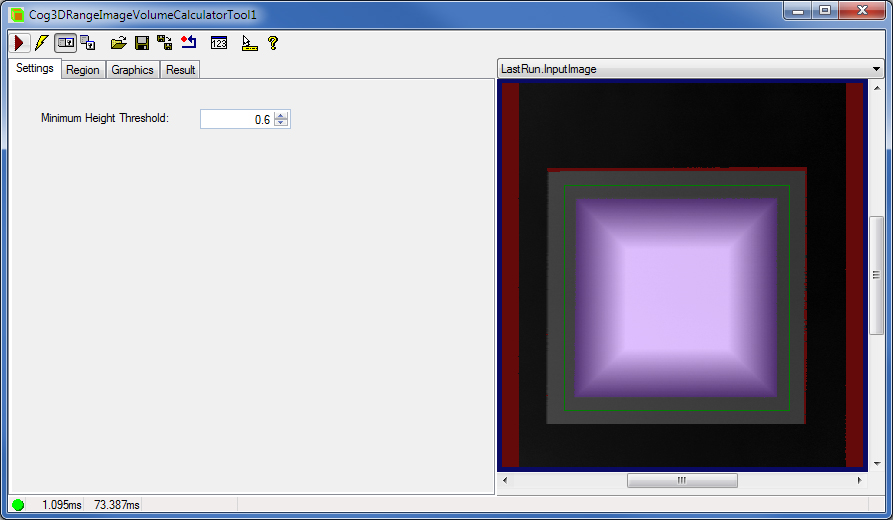
This topic contains the following sections.
The Cog3DRangeImageVolumeCalculatorTool calculates the Volume of features in a range image (acquired from a Cognex 3D displacement sensor) within an area above a BasePlane which you define. The Volume is returned in the units of the Sensor3D Space (cubic mm).
In addition to the calculated volume, the tool also returns diagnostics data about how the range image pixels were used to calculate the volume. It returns PixelCounts: the number of pixels in the Region, the number of Care (unmasked) pixels, the number of visible Care pixels, and the final number of pixels that were used during volume calculation based on the Region, the masks, and the Minimum Height Threshold.For the theory of range images, acquired from displacement sensors, see the Working with 3D Range Images topic. For information on setting up acquisition with your displacement sensor, see the Getting Started topic. For detailed information on range image acquisition, see the Acquiring Images from a DS900 Series Sensor and Acquiring Images from a DS1000 Series Sensor topics. For advanced range image acquisition details, including coordinate spaces related to range images, see the Range Image Coordinate Spaces and Associated Parameters topic. For hardware-related information (such as mounting and physical product features) and further product details, see the DS900 Quick Reference Guide, DS1000 Quick Reference Guide, and the DS1000 Technical Reference Manual.
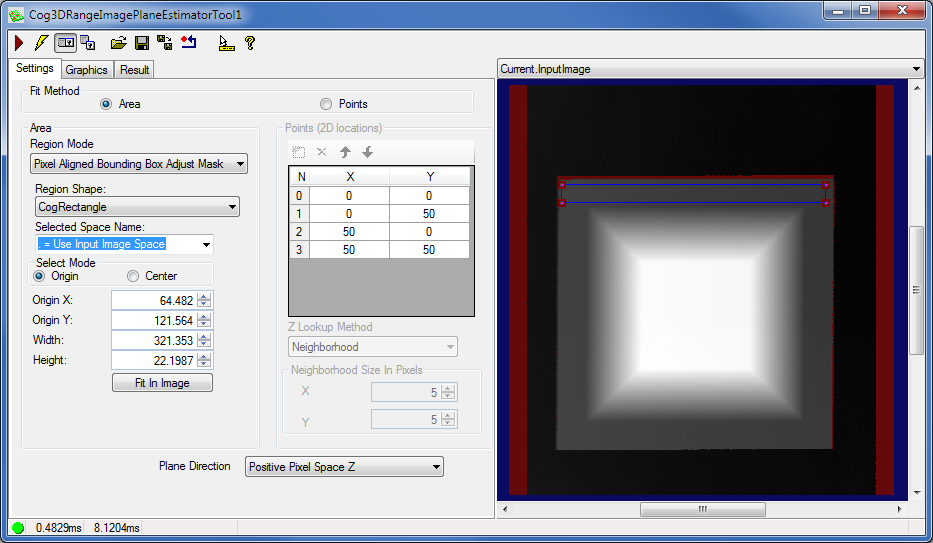
Typically, you use the Cog3DRangeImagePlaneEstimatorTool to determine the BasePlane based on a plane of a feature in the range image.
Note that you can specify for the Cog3DRangeImageVolumeCalculatorTool to perform volume calculation on either side of the BasePlane by specifying the PlaneSide. By default, the PlaneSide is specified as IncreasingPlaneNormal and volume calculation is performed above the BasePlane. If you specify the PlaneSide as DecreasingPlaneNormal, then volume calculation is performed below the BasePlane.
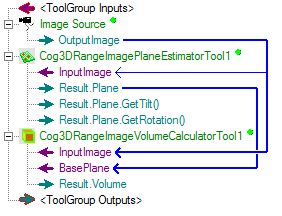
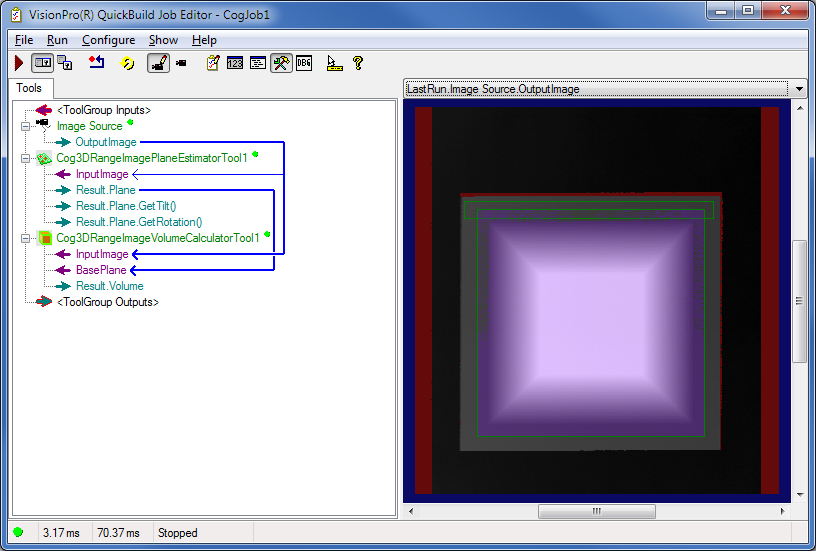
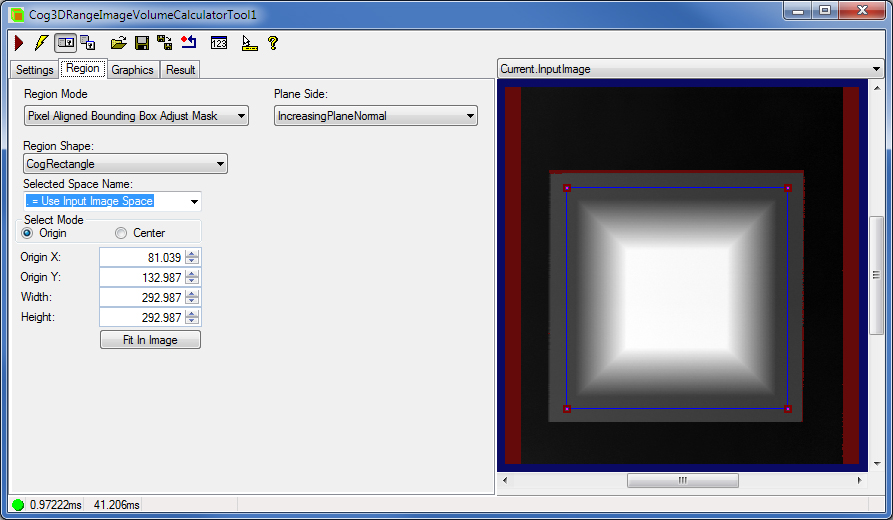
The following figure shows a typical QuickBuild configuration for volume calculation.
The following figure shows the volume calculation result.
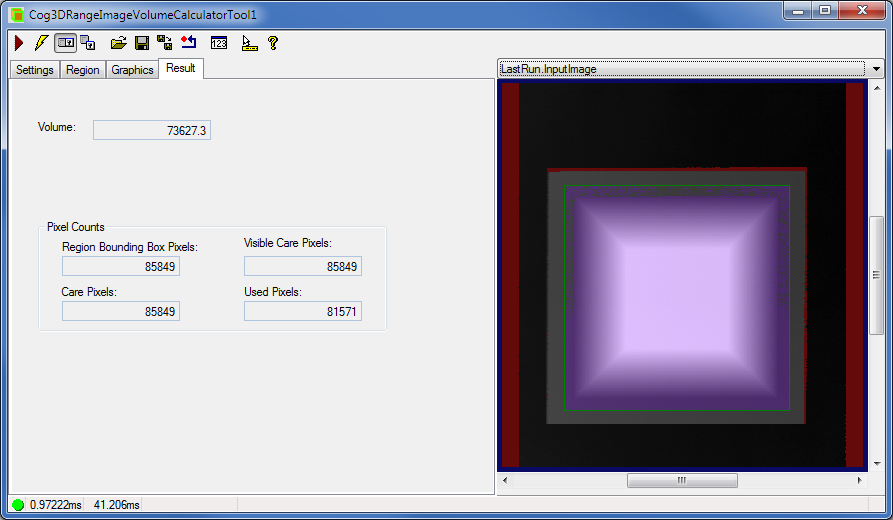
- The calculated Volume
- The PixelCounts defining the number of pixels in the Region; the number of Care (unmasked) pixels; the number of visible Care pixels; and the final number of pixels that were used during volume calculation based on the Region, the masks, and the MinimumHeightThreshold. The LastRun.InputImage buffer can return a mask marking the used pixels with purple.