This topic contains the following sections.
The polarity of a shape model indicates which side of a boundary is light and which side is dark. When you extract shape models from an existing image, the Model Maker determines the polarity of each new shape automatically. When you create new shapes manually, however, they have no explicit polarity.
See the following topics for more information on creating shapes and shape polarity:
- How To Extract Shapes contains details on how to extract shapes from an existing image.
- Draw Patterns contains details on how to create new shape models using the tool palette of the Model Maker.
- Import Shapes from DXF Files contains details on how to import shapes from DXF files.
- Shape Polarity contains overview information on shape polarity.
To set the polarity of a shape that does not have an explicit polarity value, you can either set the value manually or use the Shape Polarization tool.
If you have multiple shapes with no polarity value, you can select them all by clicking the Select Unknown Polarities button

To set the polarity value of a single shape manually, perform the following steps:
Select the desired shape.
See the section Selecting Shapes for details on selecting shapes. You cannot set the polarity of multiple shapes simultaneously without using the Shape Polarization tool.
- Click the Shape Properties Window button in the toolbar.

For example, the following figure shows the Shape Properties Window for an ellipse with no explicit polarity:
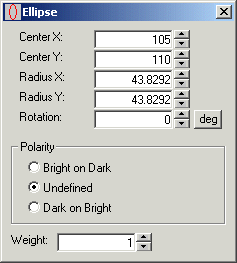
Select the desired polarity for this shape and close the Shape Properties Window.
Be aware that a contour consists of multiple segments, and each segment can support its own polarity value.
The Model Maker includes a Shape Polarization tool, a mechanism for automatically assigning a polarity value to a single shape or a set of selected shapes. To use the Shape Polarization tool, you must have a training image and at least one selected shape positioned over the feature it will represent in the training image. If no shapes are selected the Model Maker will report an error and automatically enter shape selection mode.
To use the Shape Polarization tool, perform the following steps:
Select the desired shape or set of shapes.
See the section Selecting Shapes for details on selecting shapes.
Click the Polarize Shapes button
in the tool palette.
The Shape Polarization tool dialog box opens as shown in the following figure:
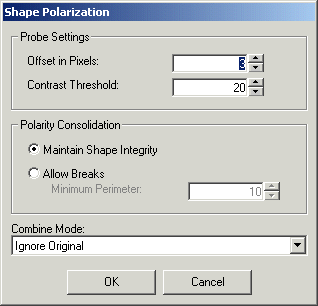
Configure the following parameters in the Probe Settings area of the Shape Polarization tool dialog box:
Table 1. Probe Settings ParametersParameter Description ProbeOffsetInPixels Specify the distance, in pixels, on either side of the shape boundary the tool will examine to determine the relative polarity of the two sides. ContrastThreshold Specify the minimum contrast between the two sides of the boundary in order to make a polarity determination. If the difference is less than this value then the value of the polarity is set to undefined. Choose either of the following options in the Polarity Consolidation area of the dialog box:
Table 2. Polarity Consolidation OptionsOption Description Do not allow the shape to be split and converted into a contour due to differing polarities along the boundary.
If you use this option when polarizing a general contour, then all segments of the polarized contour will have the same polarity.
MaintainShapeIntegrity Allow the shape to be split and converted into a contour due to differing polarities along the boundary. The MinPolarityPerimeter value specifies the minimum length (in units of the selected space of the image being used for polarization) a constant-polarity section of the shape must have in order to be preserved. Sections that are shorter than this length will be combined with neighboring sections and the polarity will be set based on polarity of its neighbors. If the shape or shapes you selected already have a polarity value, choose how the Shape Polarization tool will resolve conflicts between the existing polarity and the one determined from the image. This choice is made using the CombineMode property in the programmatic interface.
Table 3. Combine Mode OptionsOption Description CogShapePolarizeCombineModeConstants Set the polarity values based on the image, ignoring any original polarity values the shape might have had. CogShapePolarizeCombineModeConstants Use original polarity values when the original polarity value and the polarity value determined from the image contradict. CogShapePolarizeCombineModeConstants Use the polarity values determined from the image when the original polarity value and the polarity value determined from the image contradict. CogShapePolarizeCombineModeConstants Assign undefined polarity values when the original polarity value and the polarity value determined from the image contradict. Click OK at the bottom of the Shape Polarization tool dialog box.
The Shape Polarization tool determines the polarity value of the selected shape(s) based on the configuration parameters.