This topic contains the following sections.
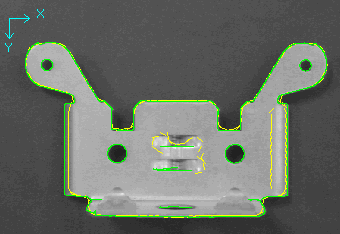
A PatMax Align tool creates and stores a geometric representation of the pattern it is trained to locate. When you create a trained pattern from an actual image of the object, the individual shapes of the pattern are determined by the boundaries between regions of dissimilar pixel values. For example, the following figure shows the shapes of the trained pattern superimposed over an image of the object, with coarse features in yellow and fine features in green:
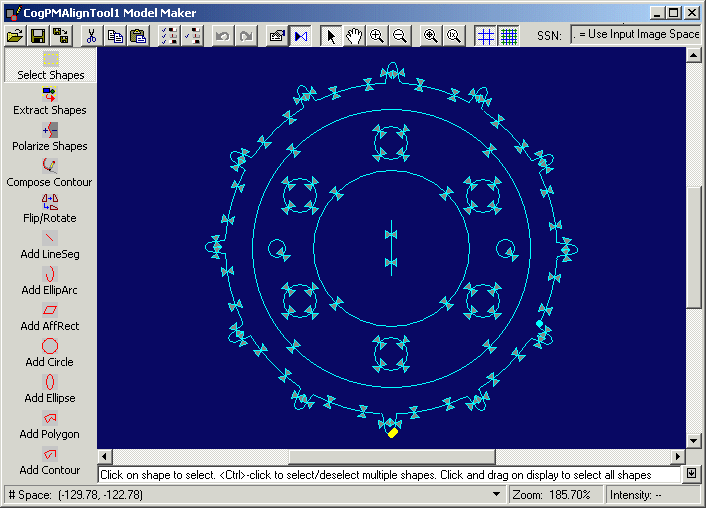
If you want to use Synthetic PatMax and create a trained pattern from a shape model collection, you use the Model Maker to generate and modify the shapes that form the trained pattern. For example, the following figure shows the Model Maker with a pattern created from various shapes:
Just as the features in a pattern trained from an image have a polarity to indicate which side of a boundary is light and which side is dark, the shape models you work with in the Model Maker also contain polarity information. Shape models use polarity adornments to represent which side of the boundary is light and which side is dark. When you are training with shape models and an image, the indicators will indicate the polarity of the feature being represented in the image (once the polarity has been determined or assigned). For example, the following figure shows an ellipse shape model over a dark feature in a light background:
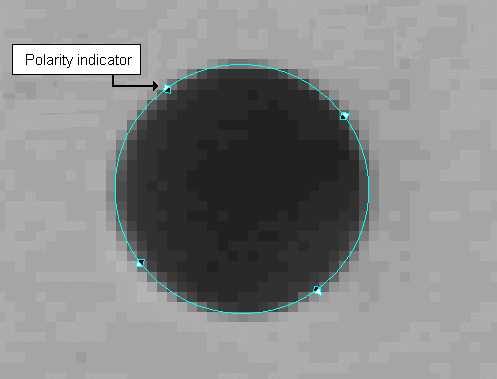
The blue side of the indicator points to the dark side of a boundary while the white side points to the bright side. For boundaries with undefined polarity, the adornment appears as an hourglass shape.
The polarity for a shape model has a numerical value. In general, the value of a dark-to-light transition has a value of +1 while a transition from light-to-dark has value of -1. A shape model can also have a value of 0 to indicate the polarity is undefined.
As you work with shape models in the Model Maker you can assign a specific polarity to a given shape or have the Model Maker determine the correct polarity for a new shape. How the Model Maker determines the value for the polarity of a shape model is straightforward for closed shapes but more complex for open shapes.
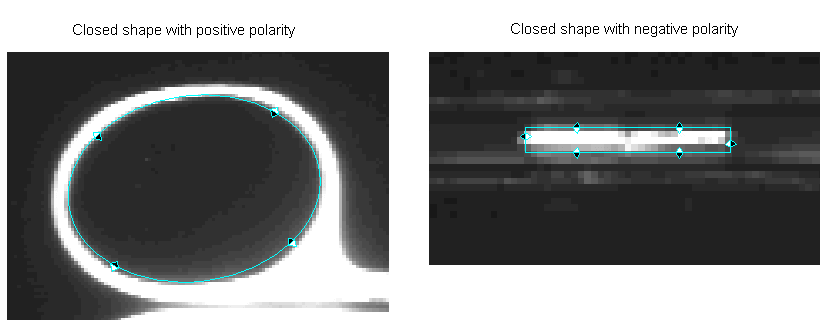
The polarity of a closed shape is +1 when the exterior of the shape is brighter than the interior. When the interior is brighter than the exterior, then the shape has a polarity of -1. The following figure shows two examples of closed shapes and their polarity:
It is also possible to add a closed shape with an undefined polarity, as shown in the following figure:
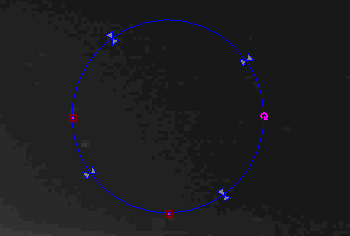
For an open shape with a defined start point and end point, the polarity can be defined by all of the following observations:
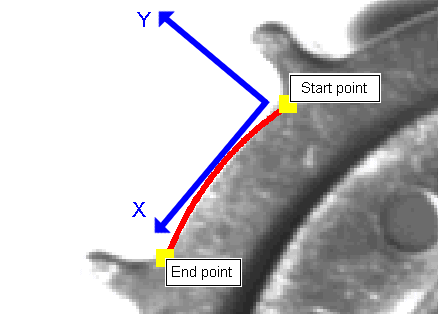
- The polarity is +1 if a right-handed coordinate space results from putting the x-axis along the tangent to the open shape and the y-axis at the start point and pointing towards the brighter pixels of the image. If the resulting coordinate space is left-handed then the polarity of the open shape is -1.
- The polarity is +1 if pixels are brighter on the left than on the right as you traverse the shape from the start point to the end point. If the pixels are brighter on the right then the polarity if -1.
- The polarity is +1 if the tangent to the shape and a perpendicular line to the tangent, pointing towards the brighter pixels, generates an angle 90 degrees counter-clockwise. If the angle the lines generate is 90 degrees clockwise, the polarity is -1.
To illustrate these definitions, the following figure starts by showing a portion of a training image and an elliptical arc shape:
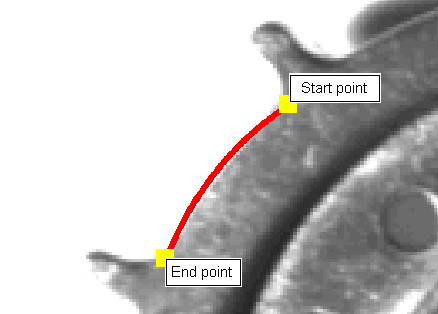
Next, an x-axis is placed along a tangent line, and the y-axis starts near the start point and points towards the brighter pixels in the image. Since the coordinate system is left-handed, the polarity of this elliptical arc segment is -1.
Finally, as an example of an open shape with undefined polarity, consider the elliptical arc shape in the following synthetic image:
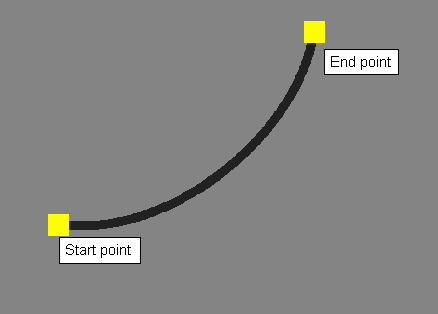
Although the shape supports placement of an x-axis along the tangent, it does not support a y-axis since the pixels all around the shape have the same grey value. Since the Model Maker could not accurately consider a y-axis it would be unable to determine a polarity for this shape.
Finally, although a general contour shape model can technically appear closed, with the end point connected to the start point, the Model Maker considers all contours to be open shapes.
The polarity for each shape model can be used by the PatMax algorithm to determine if the feature the shape model represents undergoes a transition from light-to-dark or dark-to-light. This effective polarity is a single numerical value for all shape models except for shape models that contain a general contour, which supports segments of elliptical arcs and line segments. A contour stores a separate polarity for each segment, with an overall polarity value that can be used to reverse, or invalidate, all of the individual segment polarities. The effective polarity of each segment is determined by multiplying the individual segment polarity by the overall polarity value of the contour itself. Giving a general contour a polarity value of -1 inverts the polarity of all the segments that have an assigned polarity value.
As you work with the Model Maker you can set and view only the effective polarity for segments of a contour. The Model Maker does not report the effective polarity of the overall contour. To manipulate polarity settings for whole contours you must work with the ICogShapeModel interface.
When you are performing shape training with an image, the Model Maker includes a shape polarization tool, which accepts one or more shape models and determines the polarity of the shape based on the underlying image information. The shape polarization tool will accept a shape model regardless of its current polarity, and will modify the polarity based on current image information.
As an example, the following figure shows an unpolarized shape model and the same shape model after it has been analyzed with the shape polarization tool:
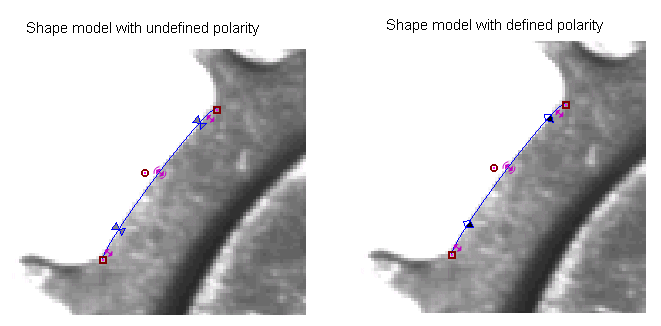
For more information on the shape polarization tool, see the section Changing Shape Polarity.