Save Images to a PC, USB Drive, FTP Server or SD Card
There are several methods for saving images from an In-Sight vision system to a PC or storage location. These topics help you decide the best option for your application by comparing each method and explaining what is needed, how images are saved, where images are saved and how to set it up.
Note: Saving images may impact the performance of In-Sight vision systems as it will decrease the memory available for other tasks.
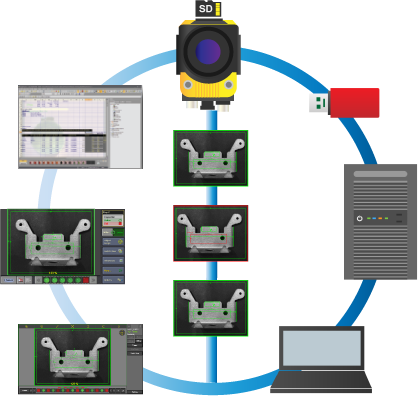
There are five major methods for saving images from In-Sight vision systems.
| Method | What is Needed | How Images are Saved | Where Images are Saved | Related Topics |
|---|---|---|---|---|
| Record/Playback |
|
Images can be automatically sorted and saved to Good/Bad folders. | PC | |
| In-Sight Explorer Sensor Filmstrip |
Images are saved by clicking the Save to PC button. |
|||
| VisionView Filmstrip |
|
Images are saved by clicking the Save button. Failed images can be saved automatically. |
USB drive or FTP server Note: Images can be saved to network shares.
|
|
| Web HMI Filmstrip |
|
Images are saved by using the Web HMI application's Save Filmstrip Images dialog. | PC or FTP server. | |
| WriteImageFTP function |
|
Images are saved when an event is triggered. Additionally, SVG files containing graphic overlay data can be saved. |
FTP server Note: When the In-Sight emulator is used as an FTP server, images are saved to the PC.
|
|
| WriteImageLocal function |
|
SD card installed to the vision system |